

Introduction
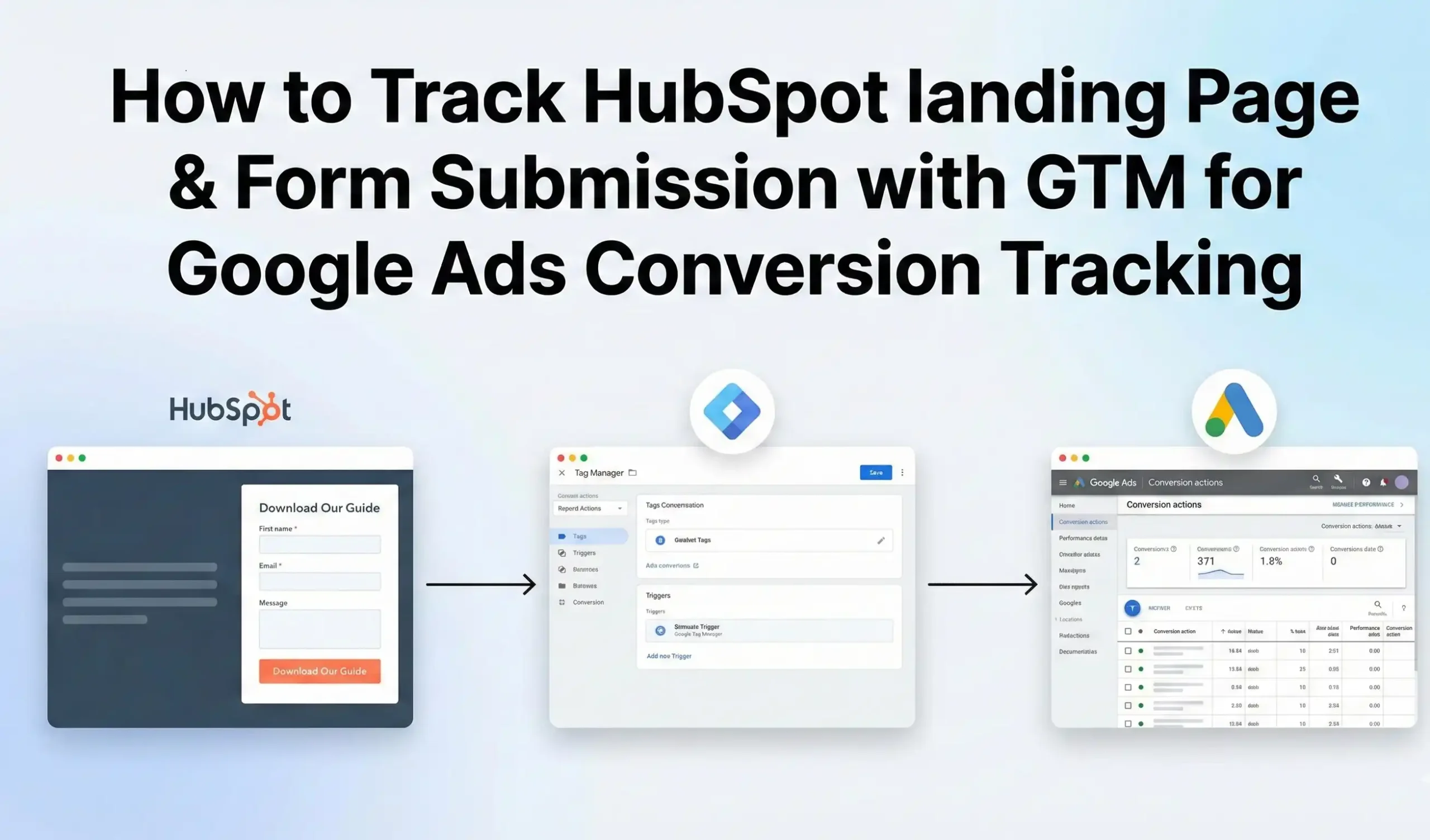
Tracking HubSpot landing page views and form submissions is essential for measuring lead performance and optimizing Google Ads campaigns. If you are using HubSpot Landing Pages or HubSpot Forms, you can accurately track conversions using Google Tag Manager (GTM) and send them directly to Google Ads.
In this guide, you’ll learn how to track HubSpot landing page views and form submissions using a data layer–based approach, configure GTM triggers and Google Ads tags, and verify everything step by step.
Why Should We Track HubSpot Conversions in Google Ads?
Tracking HubSpot conversions in Google Ads allows you to:
Measure real lead generation from paid traffic
Optimize Smart Bidding strategies (Maximize Conversions / tCPA)
Attribute conversions to keywords, ads, and campaigns
Identify high-performing landing pages and forms
Reduce wasted ad spend
Prerequisites
Before starting, make sure you have:
A HubSpot account with Landing Pages or Forms
Google Tag Manager (GTM) installed on your website or HubSpot pages
A Google Ads account with conversion tracking access
HubSpot forms embedded or hosted
🚀 Need Help with HubSpot Tracking?
If you need help with the data layer script, GTM setup, or troubleshooting, I can assist you.
 Hire Me for Setup: WhatsApp Me Book a Consultation: Schedule a Call
Step 1: Create a Google Ads Conversion Action
Go to Google Ads → Tools & Settings → Conversions
Click New conversion action
Select Website
Category: Submit lead form
Conversion name:
HubSpot LeadValue: Use the same value or set your own
Count: One
Attribution model: Data-driven (recommended)
Save and continue
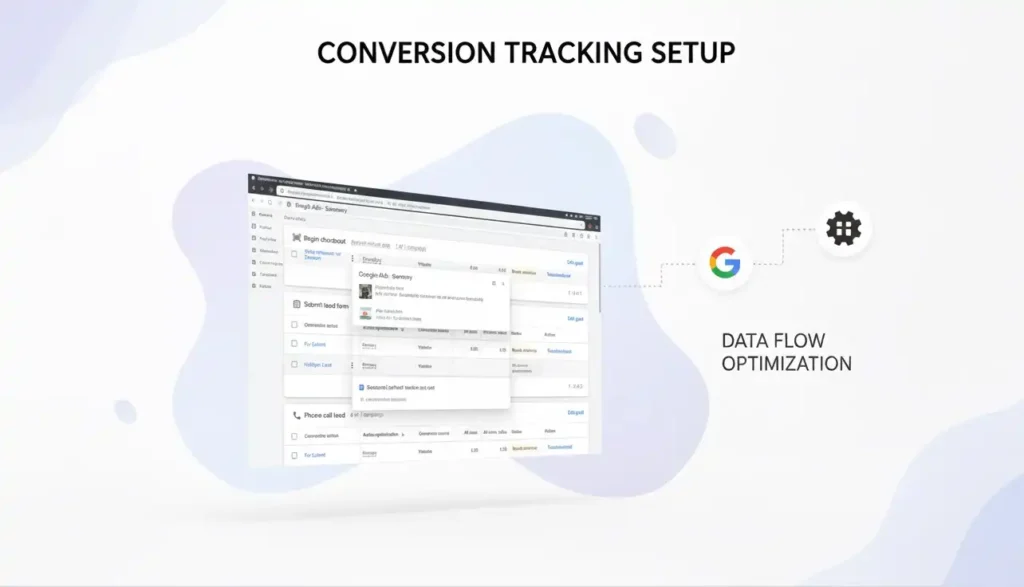
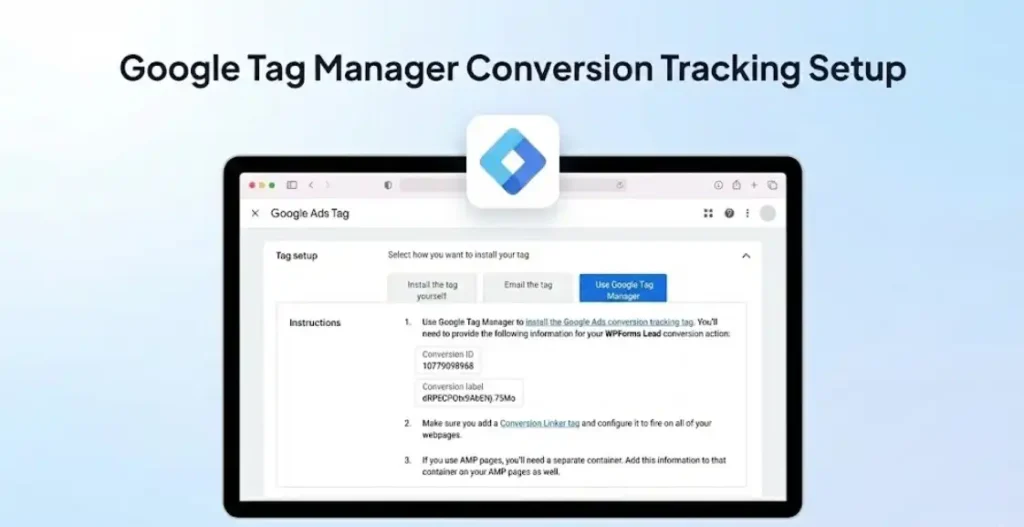
📌 Copy and keep:
Conversion ID
Conversion Label
Step 2: Add HubSpot Form Submission Listener (Data Layer Script)
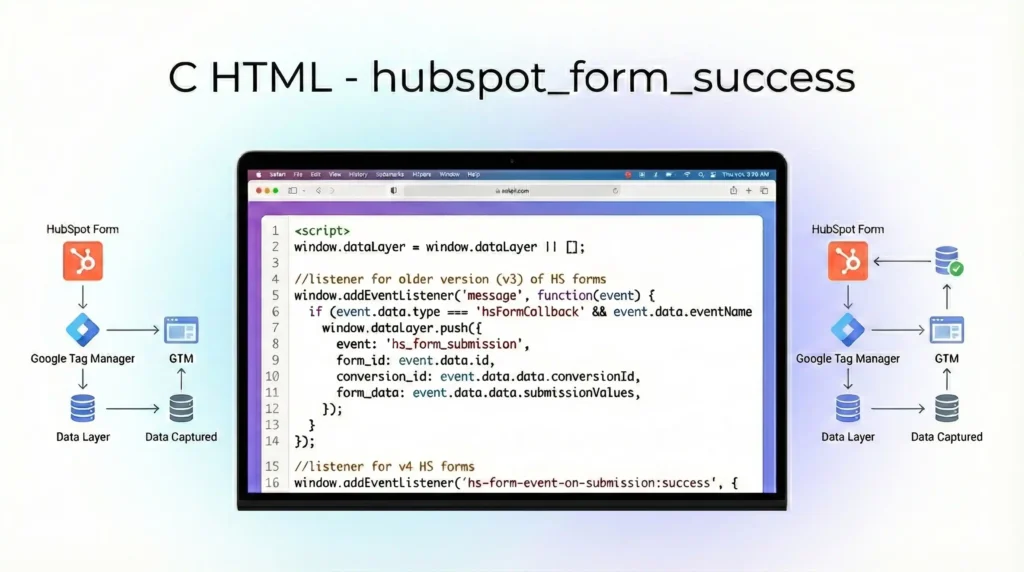
HubSpot fires a native JavaScript event when a form is successfully submitted. We can listen to that event and push it into the dataLayer.
HubSpot Form Submission Listener Code
Add the following code using a Custom HTML Tag in GTM:
Add the Script in GTM
Log in to Google Tag Manager
Go to Tags → New
Name the tag:
HubSpot Form Data Layer ListenerTag Type: Custom HTML
Paste the script above
Trigger: All Pages (or HubSpot pages only)
Save
Step 3: (Optional) Track HubSpot Landing Page Views
If you want to track landing page views as a conversion:
Option A: Page View Based Conversion
Create a Trigger → Page View
Condition: Page URL contains
/landing-page-slugUse this trigger for a separate Google Ads conversion tag
This is useful for top-of-funnel tracking.
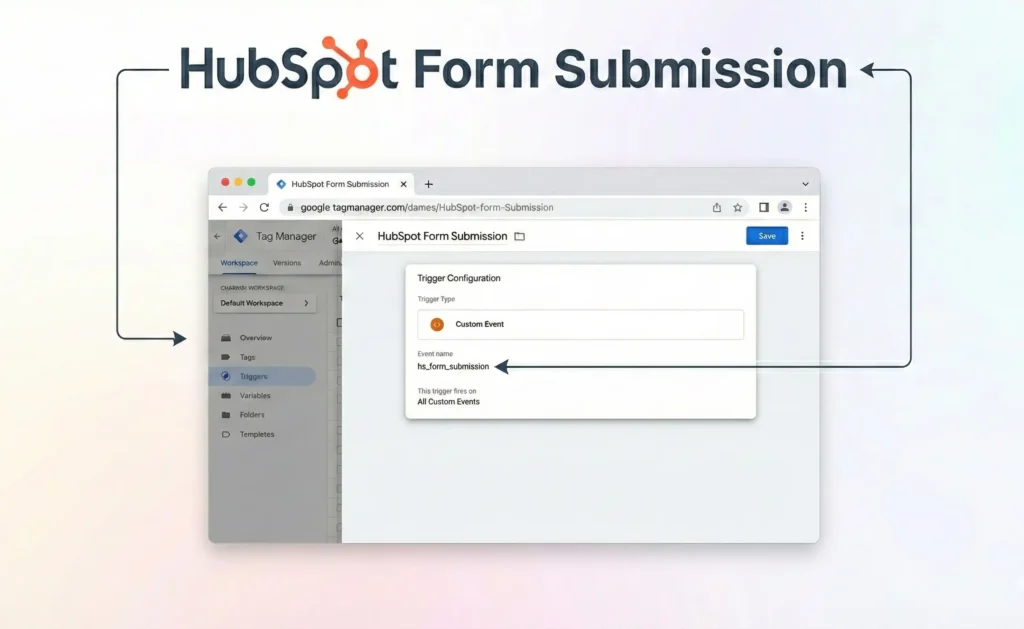
Step 4: Create a Custom Event Trigger in GTM
Go to Triggers → New
Name:
HubSpot Form SubmissionTrigger Type: Custom Event
Event Name:
hubspot_form_submitTrigger fires on: All Custom Events
Save
📌 Optional filter:
formId equals xxxxxxxx
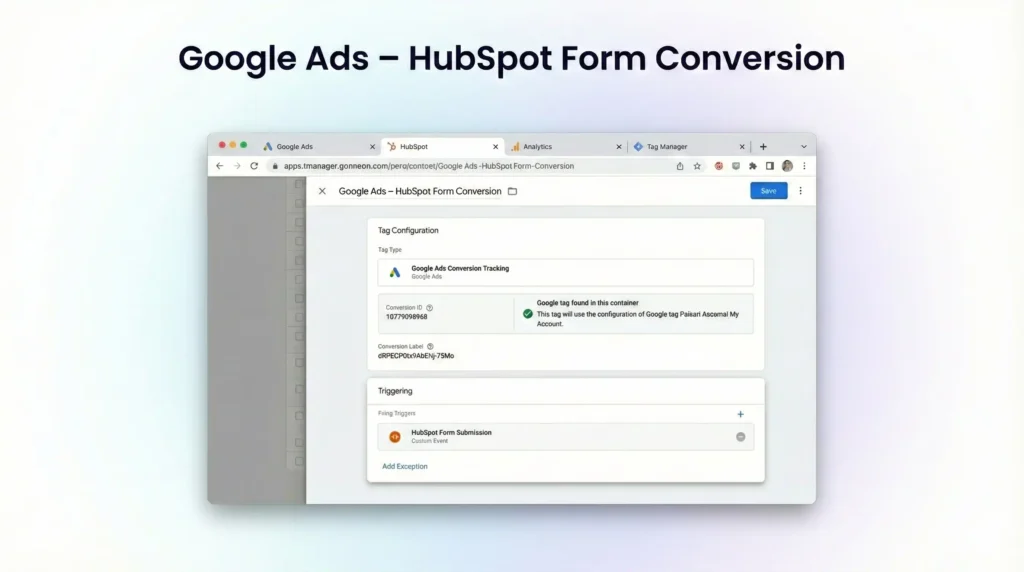
Step 5: Create Google Ads Conversion Tag in GTM
Go to Tags → New
Name:
Google Ads – HubSpot Form ConversionTag Type: Google Ads Conversion Tracking
Enter:
Conversion ID
Conversion Label
Trigger: **HubSpot Form Submission`
Save
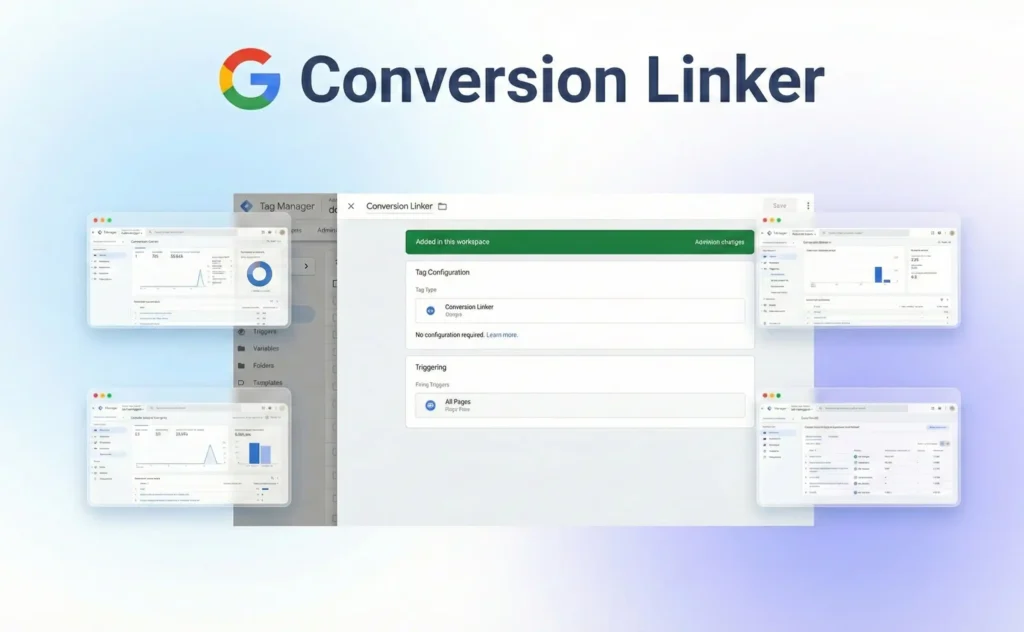
Step 6: Add Conversion Linker Tag (Required)
Go to Tags → New
Name:
Conversion LinkerTag Type: Conversion Linker
Trigger: All Pages
Save
This ensures proper Google Ads attribution.
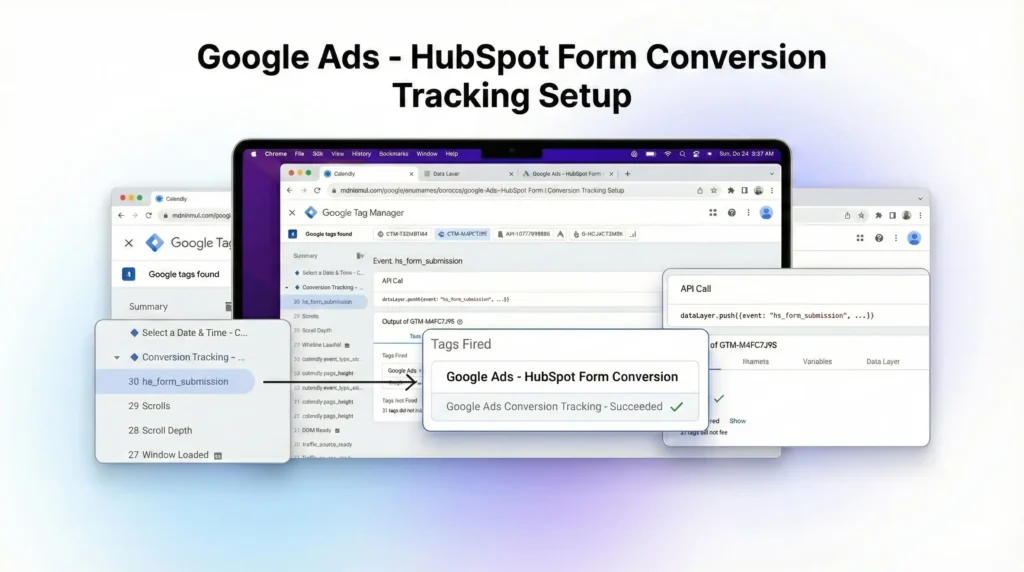
Step 7: Test the Setup in GTM
Click Preview in GTM
Open your HubSpot landing page
Submit a test form
Verify in Tag Assistant:
Event
hubspot_form_submitappearsGoogle Ads conversion tag fires
Step 8: Publish the GTM Container
Once testing is successful:
Click Submit in GTM
Add a version name and description
Click Publish
Step 9: Verify Conversion in Google Ads
Go to Tools & Settings → Conversions
Open
HubSpot LeadStatus will change to Recording conversions within a few hours
Conclusion
You have successfully set up HubSpot Landing Page & Form Submission tracking for Google Ads using GTM. This setup enables accurate lead tracking, better attribution, and improved Google Ads optimization.
 Need Help Advanced Tracking Setup?
