

Introduction
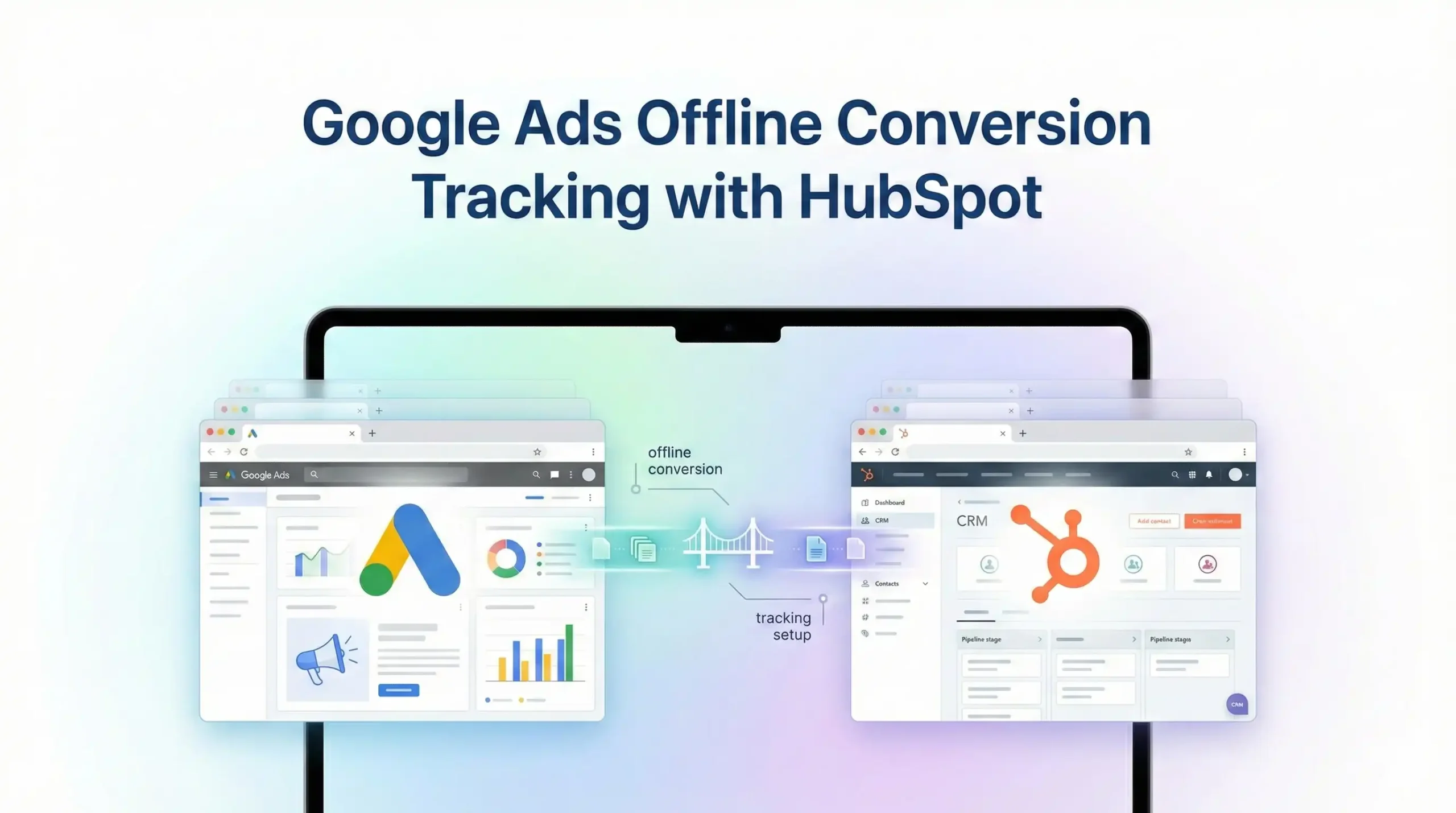
Not all conversions happen online. Many businesses collect leads via HubSpot forms, then close deals later through calls, emails, or CRM pipelines. Google Ads Offline Conversion Tracking allows you to send those offline outcomes (Qualified Lead, Deal Won, Sale) back to Google Ads so Smart Bidding can optimize based on real revenue, not just form fills.
In this guide, you’ll learn how to set up Google Ads Offline Conversion Tracking using HubSpot and Google Sheets, step by step, in a simple and reliable way.
Why Use Offline Conversion Tracking?
- Offline conversion tracking helps you:
- Optimize Google Ads for actual sales, not just leads
- Improve Smart Bidding (tCPA / tROAS)
- Attribute revenue to keywords, ads, and campaigns
- Eliminate low‑quality leads from optimization signals
- Connect HubSpot CRM outcomes with ad performance
Prerequisites
- Before you start, make sure you have:
- A Google Ads account
- Auto‑tagging enabled in Google Ads
- HubSpot CRM (Forms or Landing Pages)
- Google Sheets access
- GCLID or GBRAID/WBRAID captured from leads
🚀 Need Help with Offline Conversion Setup?
If you need help with GCLID capture, Sheet automation, or HubSpot setup, I can assist.
- Hire Me for Setup: WhatsApp Me
- Book a Consultation: Schedule a Call
Step 1: Enable Auto‑Tagging in Google Ads
- Go to Google Ads → Settings
- Open Account Settings
- Enable Auto‑tagging
- Save
This ensures Google Ads appends GCLID / GBRAID / WBRAID to your landing page URLs.

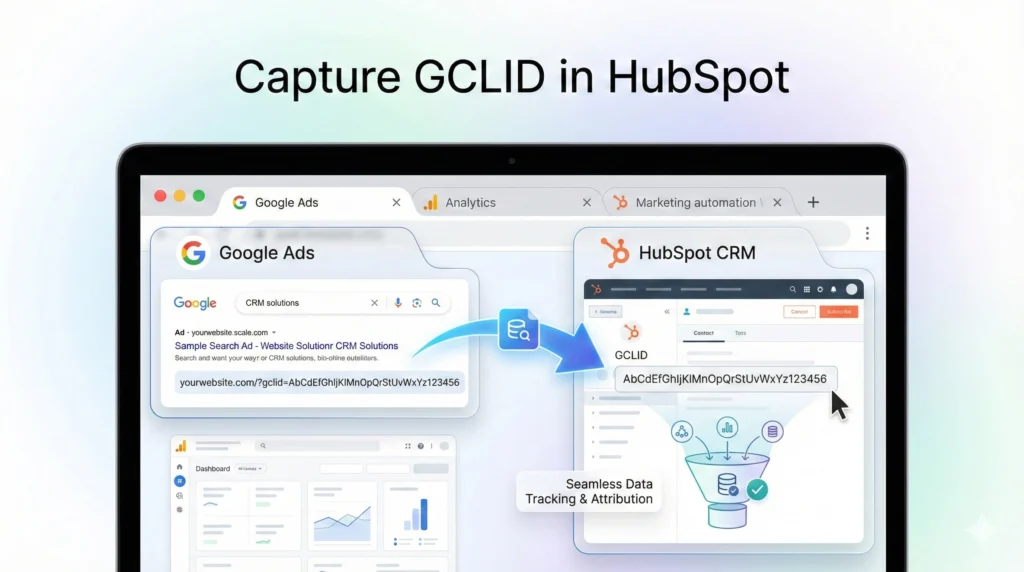
Step 2: Capture GCLID in HubSpot
- You must store the GCLID when a user submits a form.
- Option A: Hidden Field in HubSpot Form
- Edit your HubSpot form
- Add a Hidden Field named: gclid
- Populate it from the URL parameter
- HubSpot will now save GCLID with each contact.
Step 3: Map HubSpot Lifecycle or Deal Stage
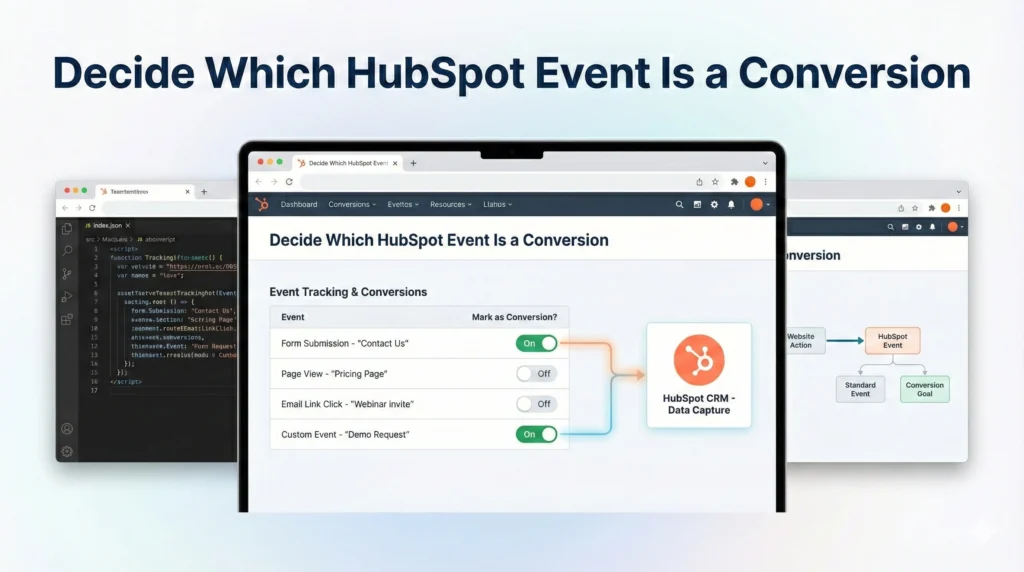
Decide which offline action you want to send to Google Ads, for example:
Lead Qualified
Opportunity Created
Deal Closed / Won
Common mappings:
| HubSpot Stage | Google Ads Conversion |
|---|---|
| MQL | Qualified Lead |
| SQL | Sales Qualified Lead |
| Deal Won | Offline Purchase |
Step 4: Create Offline Conversion Action in Google Ads
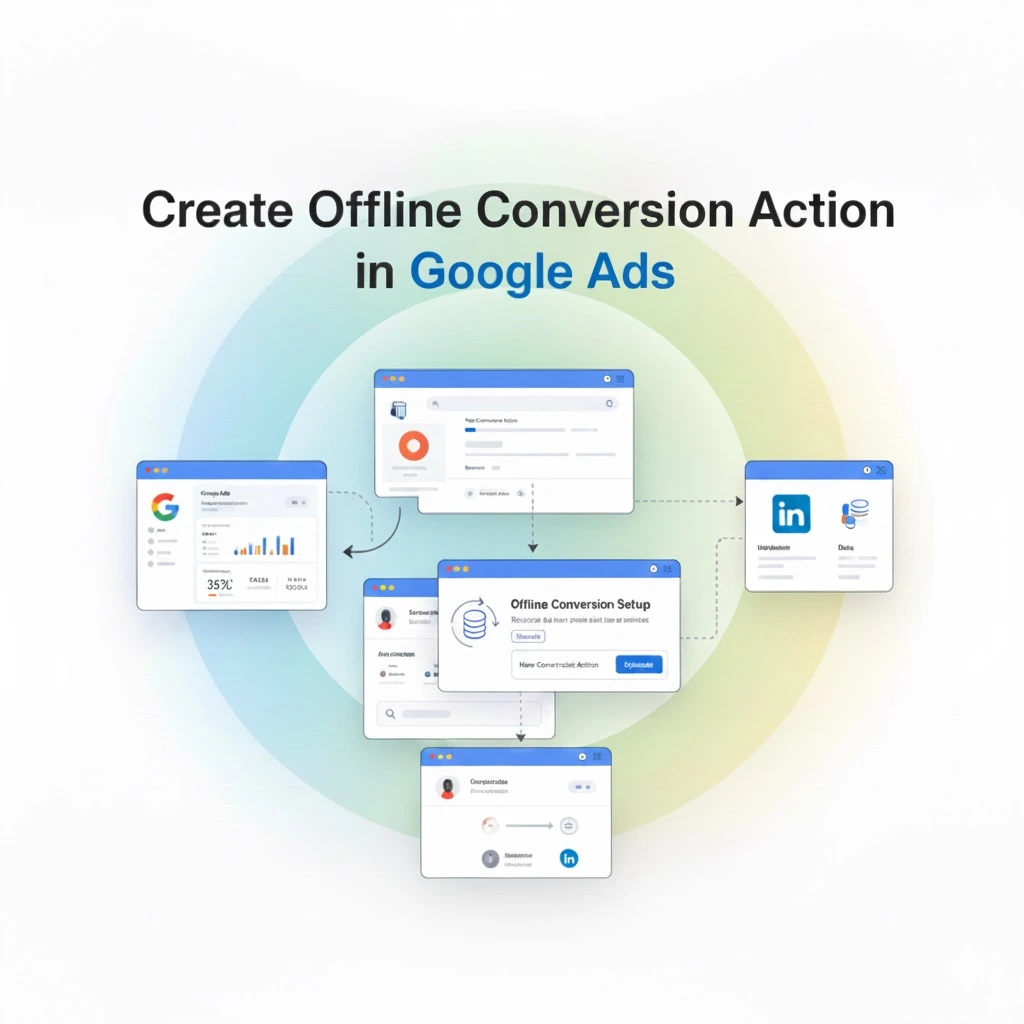
Go to Tools & Settings → Conversions
Click New Conversion Action
Select Import
Choose Other data sources or CRMs
Select Track conversions from clicks
Create a conversion (e.g.
HubSpot Qualified Lead)Count: One
Attribution: Data‑driven
Save
Step 5: Prepare Google Sheets Template
Create a Google Sheet with these required columns:
| Column Name | Description |
| Google Click ID | GCLID / GBRAID / WBRAID |
| Conversion Name | Exact Google Ads conversion name |
| Conversion Time | Format: YYYY‑MM‑DD HH:MM:SS |
| Conversion Value | Revenue or lead value |
| Conversion Currency | e.g. USD |
⚠️ Conversion Name must exactly match Google Ads.
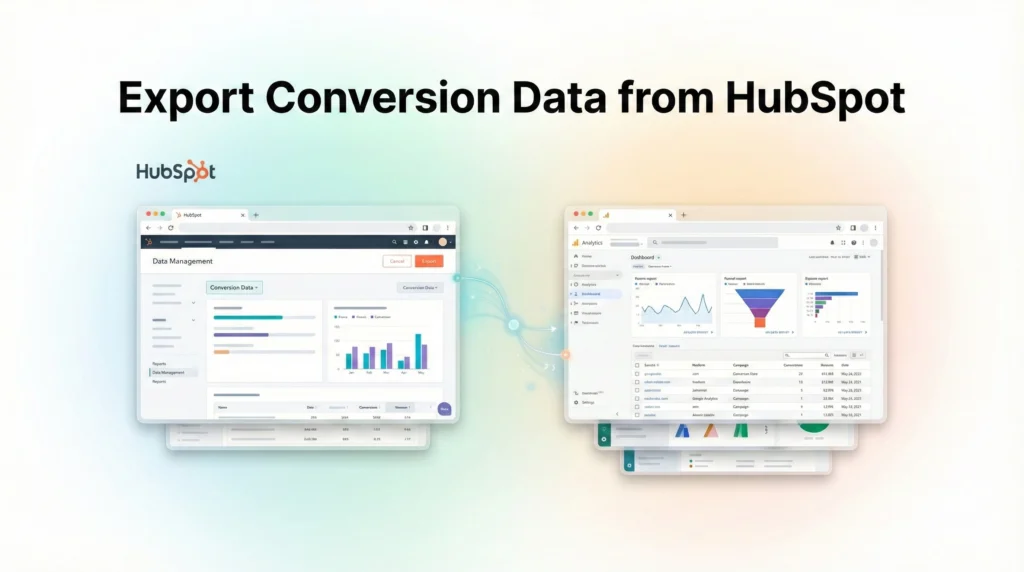
Step 6: Export Data from HubSpot to Google Sheets
Export contacts or deals from HubSpot including:
GCLID field
Lifecycle stage or deal stage
Close date
Revenue amount
Paste the qualified rows into your Google Sheet.
📌 Only upload conversions that occurred after the ad click.
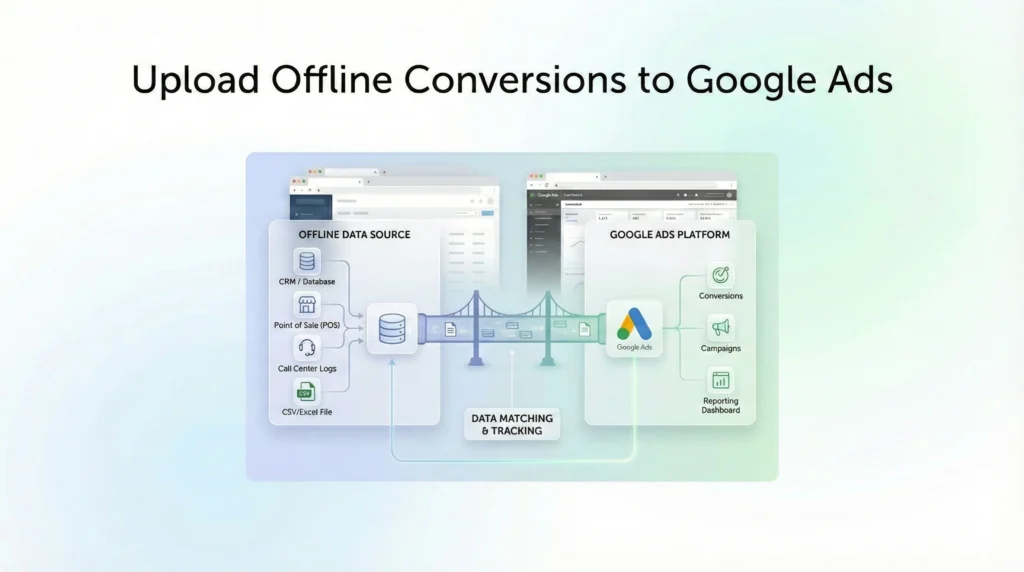
Step 7: Import Offline Conversions into Google Ads
Option A: Manual Upload
Go to Google Ads → Tools & Settings → Conversions
Open your offline conversion
Click Uploads
Upload your Google Sheet (CSV format)
Apply
Option B: Scheduled Google Sheets Upload (Recommended)
In Google Ads → Conversions → Uploads
Select Schedules & history
Connect your Google Sheet
Schedule daily or hourly sync
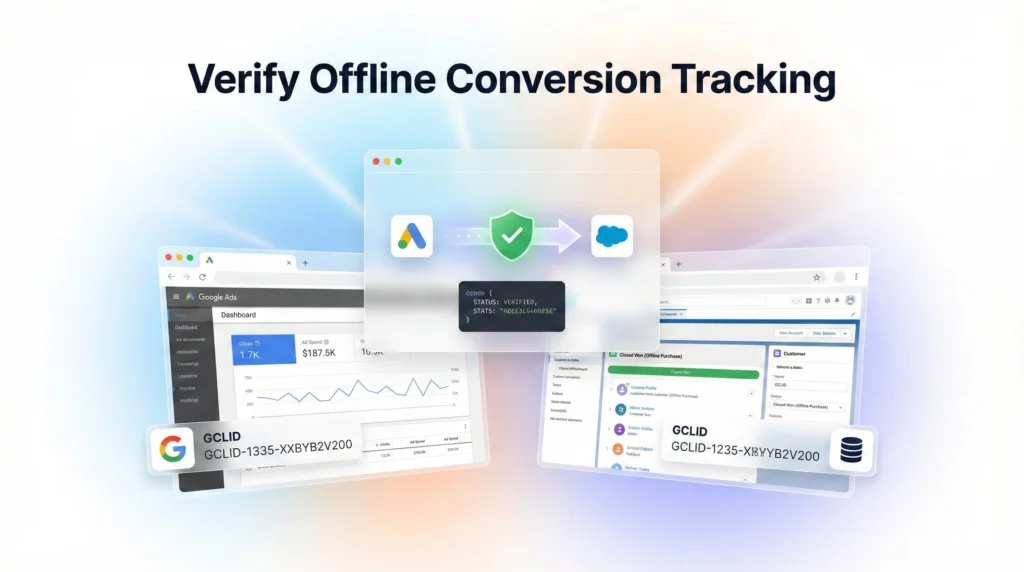
Step 8: Verify Offline Conversion Tracking
Status should change to Recording conversions
Check Upload history for errors
Validate GCLID format and timestamps
Common Errors & Fixes
❌ Conversion name mismatch → Must match exactly
❌ GCLID missing → Ensure capture on form submit
❌ Wrong time format → Use required timestamp format
❌ Conversion before click → Must occur after ad click
Best Practices
Upload conversions within 90 days of click
Use lead quality stages, not raw form fills
Assign realistic values for Smart Bidding
Use Server‑Side GTM for better GCLID capture
Conclusion
You’ve successfully set up Google Ads Offline Conversion Tracking using HubSpot and Google Sheets. This setup allows Google Ads to optimize for real business outcomes, improving ROI and campaign efficiency.
 Need Help Advanced Tracking Setup?

5 Responses
Thank you for your valuable information! I follow this article and set up step by step my conversion tracking is properly working.
Thank you
Thank you for your valuable information!
Thank you so muchHow to Track Google Ads Offline Conversion Tracking (GTM & Google Sheets)
Thank you sir!