
Imagine we are sitting down for a coffee, and you are showing me your latest marketing dashboard. You have spent weeks crafting the perfect website, writing incredible content, and launching paid ad campaigns. The entire goal of your website is simple: get potential clients to book a meeting with you using the Calendly calendar embedded right on your page.
You open your Calendly account and smile. You have five new meetings booked for next week. Your marketing is working!
But then, you open Google Analytics 4 (GA4) to see exactly which ad, blog post, or social media link brought you those five valuable clients. You navigate to your reports, look at your “Key Events” (the new term for conversions in GA4), and your heart sinks.
GA4 says you have zero bookings.
This is the most common and frustrating data disaster for service-based businesses today. You are getting real-world results, but your analytics platform is completely blind to them. If your analytics are blind, your marketing algorithms are blind, and you cannot scale your success.
Why does this happen? The culprit is a piece of web technology called an iframe (Inline Frame).
Think of an iframe as a glass window cut into the wall of your website. The Calendly calendar does not actually live on your website; it lives on Calendly’s servers, and that glass window just lets your visitors see it.
Your Google Tag Manager (GTM) and GA4 tracking codes live on the main walls of your website. They can see a user scrolling, reading, and clicking your normal buttons. However, they cannot see through the glass of the iframe window. When a user clicks “Confirm Booking” inside that calendar, the action happens securely on Calendly’s server. Your tracking tools simply do not know it happened.
Standard tracking methods, like tracking a button click, will fail every single time.
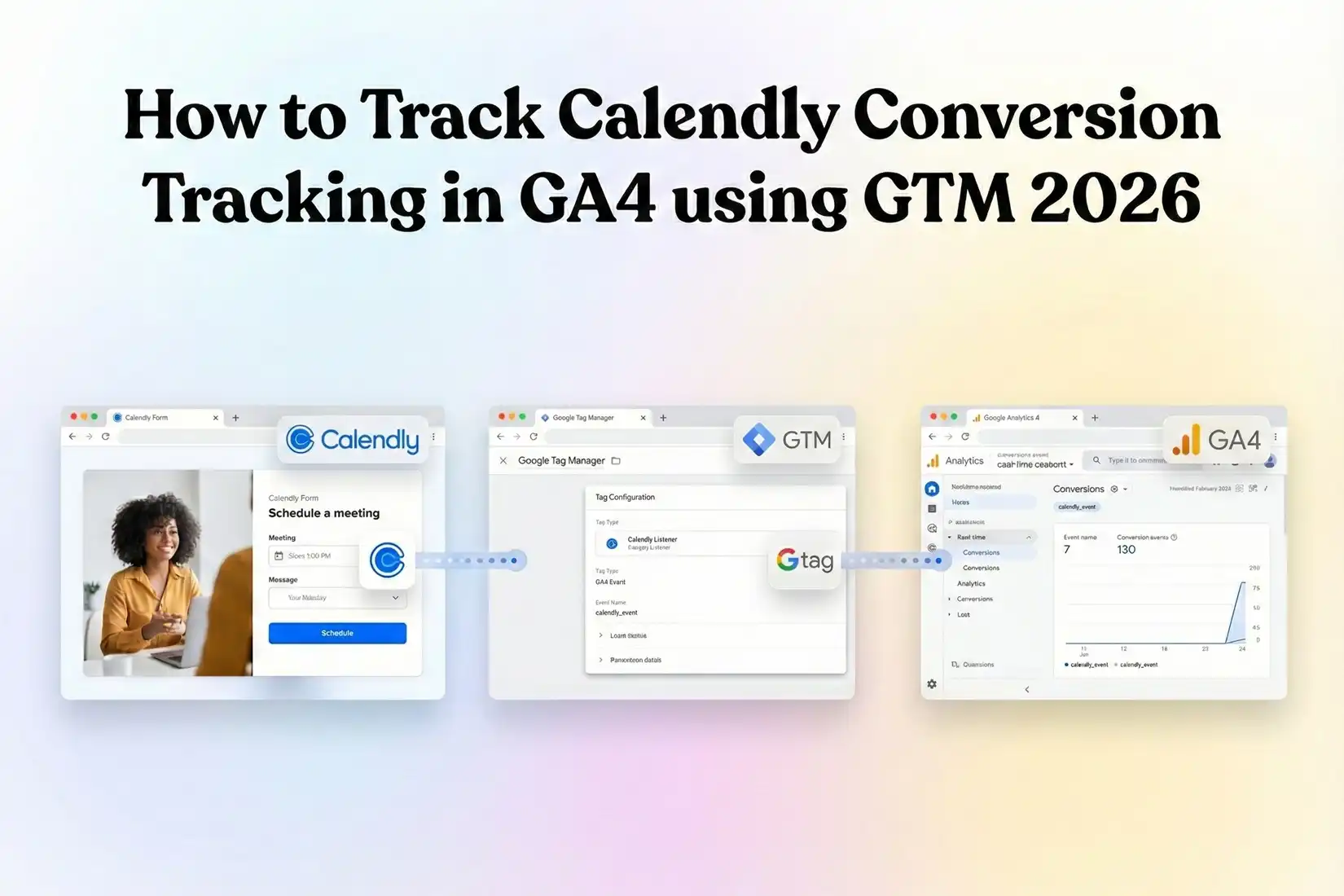
Today, we are going to fix this permanently. We are going to build a highly accurate, professional tracking system using Google Tag Manager. We will deploy a custom JavaScript Listener—a smart script that waits by the glass window for Calendly to announce a successful booking. We will then send that data straight to GA4, all while keeping you fully compliant with modern privacy laws using Google Consent Mode V2.
Let’s dive in.
Why You Must Set This Up
You might be thinking, “This sounds technical. Can’t I just count the meetings in my calendar and move on?”
Counting meetings is fine for your daily schedule, but it is fatal for your marketing budget. In the modern landscape of 2026, advertising and search platforms are entirely driven by Artificial Intelligence (AI) and machine learning. If you do not feed these AI systems accurate conversion data, they will fail you.
The Problem: The Cost of the “Black Box”
If you ignore this tracking setup, you create a “Black Box” where your data gets lost. Here is exactly what happens:
- Wasted Ad Spend: You might spend $500 on a specific Google Ad keyword that generates a lot of clicks but zero actual meetings. Because GA4 does not track the meetings, you cannot see that the keyword is bleeding money.
- Broken Algorithms: Google’s AI looks for “success signals” to find more customers for you. If you report zero conversions, the AI assumes your website is broken. It stops showing your ads to high-value prospects and dumps your budget on cheap, low-quality traffic.
- Lost User Journeys: You lose the map of how your customers behave. Did they read your “About Us” page before booking? Did they watch a video? Without connecting the Calendly booking to the GA4 session, you will never know what actually convinces people to buy.
The Solution: The Listener Bridge
We are going to build a digital bridge. We will place a tiny, invisible script on your website. This script will listen closely. When Calendly successfully processes a booking, it sends a secret electronic signal out of the iframe to your browser. Our script will catch that signal and translate it into a GA4 Key Event.
The 5 Key Benefits for Google Analytics 4
1. Better Algorithm Training (Predictive Modeling)
GA4 is a predictive engine. It analyzes user behavior to build “Predictive Audiences”—groups of people highly likely to convert soon. By feeding GA4 accurate, verified Calendly booking data, you train these models. You teach the AI exactly what a booking-ready customer looks like, allowing it to find more of them.
2. Higher ROI and ROAS
Return on Ad Spend (ROAS) is the ultimate metric for business growth. When you track every single Calendly booking accurately, your reported conversion rate goes up. You can immediately identify which specific campaigns and content pieces have the highest ROI. This lets you cut wasteful spending and invest heavily in what actually works.
3. Accurate Reporting (Data-Driven Attribution)
Customers rarely book a meeting on their first visit. They might click a search ad on Monday, read an organic blog post on Wednesday, and finally book the meeting on Friday. GA4 uses Data-Driven Attribution to give fractional credit to all three touchpoints. Without tracking the final booking, this vital reporting model collapses.
4. Audience Building (Retargeting)
Tracking Calendly bookings as Key Events in GA4 unlocks advanced audience building.
- The “Converters” Audience: You can create a list of people who booked a meeting and exclude them from your introductory ads, saving you money.
- The “Abandoners” Audience: You can build an audience of people who visited your booking page but did not schedule a call. You can retarget these warm leads with special reminder ads.
5. Future-Proofing (Privacy & Consent)
Privacy laws like the GDPR and the Digital Markets Act (DMA) require strict user consent for tracking. By setting up Google Consent Mode V2 alongside our listener, we ensure your business is legally protected. Furthermore, Consent Mode allows Google to use “conversion modeling.” If a user declines tracking cookies, Google can still estimate the conversion using anonymous data, recovering analytics that your competitors are losing entirely.
Prerequisites & Checklist
Before we open any dashboards, we need to gather our tools. This is a professional-grade setup, and preparation makes the process smooth. Ensure you have the following ready:
Required Access Levels:
- Google Tag Manager (GTM): You must have “Publish” or “Admin” access to the container installed on your website. Read-only access will not work.
- Google Analytics 4 (GA4): You need “Editor” or “Admin” access. We will be creating Custom Definitions and marking events, which requires elevated permissions.
- Website Backend: Access to your Content Management System (WordPress, Shopify, Webflow, etc.) to ensure your GTM code is properly installed in the header and body of your site.
- Cookiebot Account: You must have access to your Cookiebot dashboard. We need your unique Domain Group ID to configure Consent Mode V2.
- Calendly Account: Your Calendly calendar must be embedded directly on your website using their standard “Inline Embed” code.
Required Tools:
- Google Chrome Browser: The industry standard for web analytics, offering the best developer tools.
- GTM Preview Mode: The built-in testing interface inside your Google Tag Manager dashboard.
- GA4 DebugView: A real-time testing tool located inside the Google Analytics 4 admin panel.
Video tutorial – Calendly Form Conversions Tracking in GA4
Step-by-step video guide to set up Calendly Form Conversions Tracking in GA4 via Google Tag Manager for accurate reporting.
Solution (Step-by-Step) Implementation Guide
Phase 1: Google Tag Manager Setup
Before we can track the Calendly widget, we must ensure the core foundation of Google Tag Manager is connected securely to Google Analytics 4.
Step 1: The Google Tag (GA4 Initialization)
The Google Tag is the master switch. It turns on Google Analytics 4 for your entire website.
- Open your Google Tag Manager workspace.
- Look at the left-hand menu and click on Tags.
- In the top right corner, click the blue New button.
- Name your tag clearly at the top left. Type: Google Tag – GA4 Configuration.
- Click anywhere inside the Tag Configuration box. A menu will slide out on the right.
- Select the Google Tag option.
- You will see a field asking for a Tag ID. This is your GA4 Measurement ID.
- Where to find it: Open your GA4 dashboard, click the Admin gear icon in the bottom left, go to Data Collection and Modification, click Data Streams, select your website, and copy the Measurement ID (it starts with “G-“).
- Paste your “G-” ID into the Tag ID field in GTM.
- Scroll down and click inside the Triggering box.
- Select the All Pages trigger. This ensures GA4 monitors every page load on your site.
- Click the blue Save button.
Phase 2: Google Consent Mode V2 Setup (Cookiebot)
Tracking user data without consent is illegal in many regions and violates Google’s strict advertising policies in 2026. We must implement a Consent Management Platform (CMP). We are using Cookiebot because it is robust and integrates flawlessly with Google Consent Mode V2.
What is Google Consent Mode V2?
If a user visits your site and clicks “Decline” on your cookie banner, standard tracking tags are completely blocked. You get zero data. Google Consent Mode V2 creates a privacy-safe middle ground. It tells your GA4 tags to run in a restricted “ping” mode. They do not drop cookies or track personal info, but they send an anonymous signal to Google indicating a conversion happened. Google’s AI then mathematically models this data, recovering huge portions of your lost analytics while keeping the user anonymous.
Step 1: Add the Cookiebot Template
We will use a pre-written template from the community to avoid writing complex custom code.
- In the left-hand menu of GTM, click on Templates.
- Look at the top section named Tag Templates and click the Search Gallery button.
- A search bar will appear. Type in Cookiebot.
- Find the official template named Cookiebot CMP (ensure the author is listed as Cookiebot).
- Click the blue Add to workspace button and accept the permission warnings.
Step 2: Configure the Cookiebot Tag
Now we connect this template to your actual Cookiebot account rules.
- Go back to the Tags menu and click New.
- Name the tag: CMP – Cookiebot Consent Mode V2.
- Click Tag Configuration and select the new Cookiebot CMP template you just downloaded.
- You will see a text field asking for your Cookiebot ID (also known as a Domain Group ID). Log into your Cookiebot account on a separate tab, go to your domain settings, copy that long string of letters and numbers, and paste it here.
- CRITICAL STEP: Look for the checkbox that says Enable Google Consent Mode. You must check this box. If you forget this, V2 tracking will fail.
- Scroll down to the Default Consent State section. For strict legal compliance, we must tell the system that all tracking is forbidden until the user clicks “Accept.” Set the following four categories to Denied:
- Set ad_storage to Denied
- Set analytics_storage to Denied
- Set ad_user_data to Denied
- Set ad_personalization to Denied
- Scroll down to the Triggering box.
- DO NOT select the standard “All Pages” trigger. Instead, select the specialized trigger named Consent Initialization – All Pages.
- Why? This special trigger forces the Cookiebot rules to load before absolutely everything else on your website. No tracking tags can fire until Cookiebot sets the privacy rules.
- Click Save.
Phase 3: The Listener Code (The Calendly Bridge)
This is the most crucial technical step. Since Calendly lives inside an iframe window, standard GTM click triggers are blind to it.
However, Calendly’s developers built a feature specifically for analysts. When a user successfully finishes picking a time and confirming their details, the Calendly iframe broadcasts a hidden electronic message (a postMessage) out to your main website. Our Custom JavaScript Listener will act as a catcher’s mitt, waiting exclusively for that exact message.
Step 1: Create the Listener Tag
- In GTM, navigate to Tags and click New.
- Name the tag clearly: cHTML – Calendly Event Listener.
- Click Tag Configuration and scroll down to select Custom HTML.
- Copy the exact code block provided below and paste it into the large HTML text box.
					<script>
  /**
   * Calendly Conversion Listener for Google Tag Manager
   * This script listens for the official 'calendly.event.scheduled' message
   * sent by the Calendly iframe upon a successful booking.
   */
  (function() {
    // We add a flag to ensure this listener only attaches itself once per page load.
    // This prevents duplicate tracking if the script accidentally fires twice.
    if (window.calendlyListenerActive) return;
    window.calendlyListenerActive = true;


    // We add an event listener to the main browser window to catch incoming messages.
    window.addEventListener('message', function(event) {

      // Calendly passes data in the event.data object.
      // We check if the event matches Calendly's official success naming convention.
      if (event.data && event.data.event === 'calendly.event.scheduled') {

        // We ensure the Google Tag Manager Data Layer exists on the page.
        window.dataLayer = window.dataLayer || [];

        // We push a custom event to GTM indicating a booking was successful.
        window.dataLayer.push({
          'event': 'calendly_booking_success',
          'calendly_event_type': event.data.payload.event.type || 'unknown_meeting'
        });

      }
    });
  })();
</script>
What is this code doing?
- window.addEventListener: This commands your website’s browser to keep its ears open for messages coming from iframes.
- event.data.event === ‘calendly.event.scheduled’: This is the exact, hardcoded signal Calendly emits only when a meeting is fully confirmed. It ignores people who just click around the calendar but leave without booking.
- dataLayer.push: The Data Layer is simply an invisible filing cabinet that GTM uses to read information. When the script hears the success signal, it immediately places a file named calendly_booking_success into the cabinet for GTM to find.
Step 2: Trigger the Listener Script
For this script to work, it must be present on the web page where your calendar lives.
- Scroll down below the code and click the Triggering box.
- Select the All Pages trigger.
- Why All Pages? The script is incredibly tiny and will not slow down your website’s loading speed. Putting it on all pages ensures your tracking will not break if you decide to move the Calendly calendar to a different page on your website next month.
- Click Save.
Phase 4: GTM Variables & Triggers
Our listener script is now catching the Calendly booking and throwing a custom message (calendly_booking_success) into the GTM Data Layer. Now, we must teach GTM how to recognize that specific message.
Step 1: Create the Custom Event Trigger
We need to create a trigger that fires exclusively when GTM sees our custom success message.
- On the left-hand menu of GTM, click on Triggers.
- Click the blue New button.
- Name the trigger: Custom Event – Calendly Booking Success.
- Click Trigger Configuration and scroll down to select Custom Event (found under the “Other” category).
- You will see a text field labeled Event name. Type exactly: calendly_booking_success.
- Warning: This is highly case-sensitive. It must match the phrase inside the single quotation marks of our listener script perfectly.
- Leave the firing option set to “All Custom Events.”
- Click Save.
Phase 5: GA4 Event Tag Configuration
We have built the bridge, and we have caught the signal. The final step in Google Tag Manager is to package this signal up and ship it over to Google Analytics 4.
Step 1: Create the GA4 Event Tag
- Go back to the Tags menu and click New.
- Name the tag: GA4 – Event – Calendly Booking.
- Click Tag Configuration and select Google Analytics: GA4 Event.
- In the Measurement ID field, enter your GA4 ID (the exact same “G-XXXXXXXXXX” ID you used in Phase 1).
- In the Event Name field, type: generate_lead.
- Why generate_lead? GA4 has a list of standard “Recommended Events.” These are standardized names that Google’s AI models understand natively. By classifying our Calendly booking as a generate_lead, we instantly tell GA4 that this is a highly valuable business action.
- Add Event Parameters: We want to add extra context to this lead so we know it specifically came from Calendly, rather than a standard contact form.
- Click the Add Parameter button.
- Under Parameter Name, type: lead_source.
- Under Value, type: calendly.
- Scroll down and click on the Triggering box.
- Select the custom trigger we just built: Custom Event – Calendly Booking Success.
- Click Save.
Step 2: Register Custom Definitions in GA4 (Crucial Admin Step)
We just told GTM to send a custom parameter called lead_source to GA4. However, GA4 is very strict. It will receive that parameter, but it will hide it from your reports unless you explicitly register it in the admin panel.
- Open a new browser tab and log into your Google Analytics 4 property.
- In the bottom left corner, click the Admin gear icon.
- In the Data display section, click on Custom definitions.
- Click the blue Create custom dimension button.
- In the Dimension name field, type: Lead Source. (This is the human-readable name you will see in your reports).
- Leave the Scope set to Event.
- In the Event parameter dropdown, type exactly what we used in GTM: lead_source.
- Click Save.
Step 3: Mark the Event as a Key Event
We need to tell GA4 that this specific event is the ultimate goal of our marketing efforts.
- Still inside the GA4 Admin panel, click on Key Events (Note: Google renamed “Conversions” to “Key Events” in GA4 recently).
- Click the blue New key event button.
- Type in the exact name of the event we configured: generate_lead.
- Click Save. GA4 will now treat every Calendly booking as a top-tier success metric.
Testing & Validation (Deep Dive)
A Senior Web Analyst never assumes a setup works simply because the code was copy-pasted. We must prove it with rigorous testing to ensure data accuracy before we publish it to your live website.
Step 1: Launch GTM Preview Mode
- Go back to your Google Tag Manager workspace.
- In the top right corner, click the blue Preview button.
- A new tab will open requesting your website URL. Enter the exact URL of the page where your Calendly calendar is located.
- Click Connect.
- Your website will open in a new window, and the Tag Assistant debugging panel will open at the bottom of the screen (or in a separate connected tab).
Step 2: Verify the Base Tags
Before touching the calendar, look at the “Summary” timeline on the left side of the Tag Assistant panel.
- Click on the Consent Initialization event. You should see the CMP – Cookiebot Consent Mode V2 tag listed under “Tags Fired.”
- Click on the Container Loaded event. You should see your Google Tag – GA4 Configuration, Google – Conversion Linker, and cHTML – Calendly Event Listener tags all fired successfully.
- Important: If you have a cookie banner on your test site, click Accept All to ensure testing is not blocked by your privacy rules.
Step 3: Execute a Test Booking
- Go to the window displaying your website.
- Interact with the Calendly calendar. Select a date and time.
- Fill out your details (use a test email like [email protected]).
- Click the Schedule Event button.
- Wait for the Calendly confirmation screen to load completely inside the iframe.
Step 4: Analyze the GTM Data Flow
- Immediately switch back to the Tag Assistant debug panel.
- Look closely at the “Summary” timeline on the left. At the very top, a new event should have populated. It should be named exactly: calendly_booking_success.
- Click on this calendly_booking_success event.
- Look at the main window under “Tags Fired.” You must see your GA4 – Event – Calendly Booking tag listed here. This proves GTM caught the signal and attempted to send it to GA4.
Step 5: Verify Data Receipt in GA4 DebugView
The ultimate test is confirming that Google Analytics 4 actually received the package.
- Go to your GA4 Admin panel.
- Under the “Data display” section, click on DebugView.
- Look at the vertical timeline in the center of the screen. Within 10 to 20 seconds of your test booking, you should see a blue icon pop up labeled generate_lead.
- Click on the generate_lead icon to expand its details.
- Look at the parameters. You should see lead_source listed with the value calendly.
If all of these steps display correctly, your tracking is flawless. Go back to Google Tag Manager and click the blue Submit and Publish buttons to push your new tracking architecture live.
Troubleshooting & Common Mistakes
Even with a perfect guide, the internet is complex, and errors can occur. Here are the most common pitfalls when tracking Calendly and exactly how to solve them.
Mistake 1: The Pop-up Embed Block
- The Problem: You test the booking, but the calendly_booking_success event never appears in the GTM debugger.
- The Cause: The custom JavaScript listener provided in this guide is specifically designed for the Inline Embed version of Calendly (where the calendar sits permanently on the page). If you are using the Calendly “Pop-up Widget” or “Pop-up Text” link, the communication protocol between the pop-up window and your website operates differently, causing the listener to fail.
- The Solution: We highly recommend switching your website design to use the standard Inline Embed code provided by Calendly. It is vastly more reliable for tracking and generally provides a much better user experience on mobile devices.
Mistake 2: Consent Mode Strict Blocking
- The Problem: The calendly_booking_success event appears on the left side of Tag Assistant, but when you click it, your GA4 tag is listed under “Tags Not Fired.” It says it was blocked by consent settings.
- The Cause: You are testing from a region governed by strict privacy laws (like the EU), and you did not click “Accept” on your Cookiebot banner before running the test booking. Because we set the default consent state to “Denied” in Phase 2, GTM is acting correctly by legally blocking the analytics tag.
- The Solution: Clear your browser’s cookies and cache. Reload the test page. When the Cookiebot banner appears, explicitly click “Allow All” or “Accept Statistics Cookies.” Run the test booking again, and the tag will fire.
Mistake 3: Missing Custom Definitions in Reporting
- The Problem: Your generate_lead events are showing up in your GA4 reports, but you cannot find the lead_source parameter to filter by Calendly.
- The Cause: You skipped Step 2 in Phase 5. GA4 will absorb custom parameters behind the scenes, but it will hide them from the visual interface unless you explicitly register them as Custom Dimensions in the Admin panel.
- The Solution: Go to GA4 Admin > Data display > Custom definitions and create the dimension for lead_source. Please note that GA4 is not retroactive; it will only start displaying the parameter for new bookings moving forward.
Conclusion
You have successfully implemented one of the most vital, yet technically challenging, tracking setups in digital marketing. By using a Custom JavaScript Listener, you have bypassed the inherent blindness of iframe embeds.
You have elevated your marketing infrastructure. You are no longer guessing if your ad spend is generating pipeline. You are capturing 100% of your Calendly bookings, feeding highly accurate conversion signals into Google’s predictive machine learning algorithms, and doing it all while maintaining strict legal compliance via Google Consent Mode V2.
Trust this robust data pipeline. Give GA4 24 to 48 hours to populate the new Key Events in your standard reports, and then prepare to optimize your campaigns based on hard revenue facts,
not assumptions.
Summary
This guide provides a professional, step-by-step framework to track Calendly bookings in GA4 using Google Tag Manager. It solves the common “iframe blindness” issue by deploying a Custom JavaScript Listener that detects Calendly’s success signal and pushes it to the Data Layer. It details the setup of GA4 event tags, Custom Dimensions, and Key Events to ensure precise marketing attribution. Furthermore, it strictly integrates Google Consent Mode V2 via Cookiebot, ensuring legal compliance and allowing for AI conversion modeling when users decline cookies.
1. Why use a listener script?
A listener script is completely necessary due to strict web browser security rules regarding iframes. Your main website cannot directly see, access, or track what happens inside the isolated Calendly iframe window. The listener script acts as an authorized digital receiver, waiting passively on your main page for Calendly to voluntarily broadcast a specific success message when a booking is completed.
2. Can GTM track Calendly natively?
No, you absolutely cannot rely on standard built-in triggers like “Click” or “Form Submission” inside GTM. Because Calendly forms are embedded within secure iframes, standard Google Tag Manager triggers cannot detect the user’s interactions inside that frame. You must implement a custom JavaScript listener script to bridge the communication gap.
3. Does this work on WordPress?
Absolutely, this Google Tag Manager tracking method works flawlessly on WordPress websites. In fact, it applies to any major content management system, including Shopify, Webflow, Squarespace, or Wix. As long as you can properly embed the Google Tag Manager container snippet into your header and body, the JavaScript listener will function correctly.
4. Why is GA4 missing conversions?
If your Google Analytics 4 account is consistently missing conversions, it is primarily because standard tracking tags fundamentally fail to recognize third-party iframe interactions like Calendly. Additionally, strict browser privacy tools (like Apple’s ITP) or missing cookie consent configurations may be actively blocking your tracking tags from firing upon submission.
5. What exactly is a Data Layer?
The Data Layer is essentially an invisible JavaScript array that acts as a secure, temporary data storage container on your website. It reliably holds important structured information—such as user actions, transaction values, or form submission events—so that Google Tag Manager can easily read it and trigger the appropriate analytics tags at the exact right moment.
6. Is Consent Mode V2 legally required?
Yes, Google Consent Mode V2 is currently required if you receive any web traffic from users located in the European Economic Area (EEA) or the United Kingdom. If you do not implement it using a Consent Management Platform like Cookiebot, Google will systematically suspend your ability to use critical advertising features, including remarketing and precise conversion tracking.
7. Will this listener slow my website?
No, implementing this advanced tracking setup will not negatively impact your website’s loading speed or your Core Web Vitals scores. The custom JavaScript listener code we deploy via Google Tag Manager is incredibly lightweight, loading asynchronously and running entirely in the background without blocking the page render.
8. Do I need Google Ads to use this?
While this specific tutorial focuses heavily on capturing and sending conversion data to train ad algorithms, you do not strictly need to run paid ads to benefit from it. Accurate analytics are crucial for evaluating all marketing channels, including organic SEO and email marketing, to understand exactly where your most valuable booked meetings originate.
9. What is a GA4 Key Event?
“Key Event” is simply the new terminology for “Conversion” in Google Analytics 4, updated by Google in 2024 to unify terminology across its products. The term “Conversion” is now reserved specifically for the Google Ads platform. For all reporting and tracking purposes within GA4, Key Events function exactly the same way to denote a highly valuable action.
10. How long until data appears in GA4?
When you submit a test booking on your website, you can verify the event almost instantly by utilizing the real-time DebugView tool located inside the Google Analytics 4 admin panel. However, for standard reporting tabs such as “Traffic Acquisition” or “Key Events,” you must be patient, as GA4 typically requires 24 to 48 hours to process data.
 Need Help Advanced Tracking Setup?