
Table of Contents
ToggleIntroduction
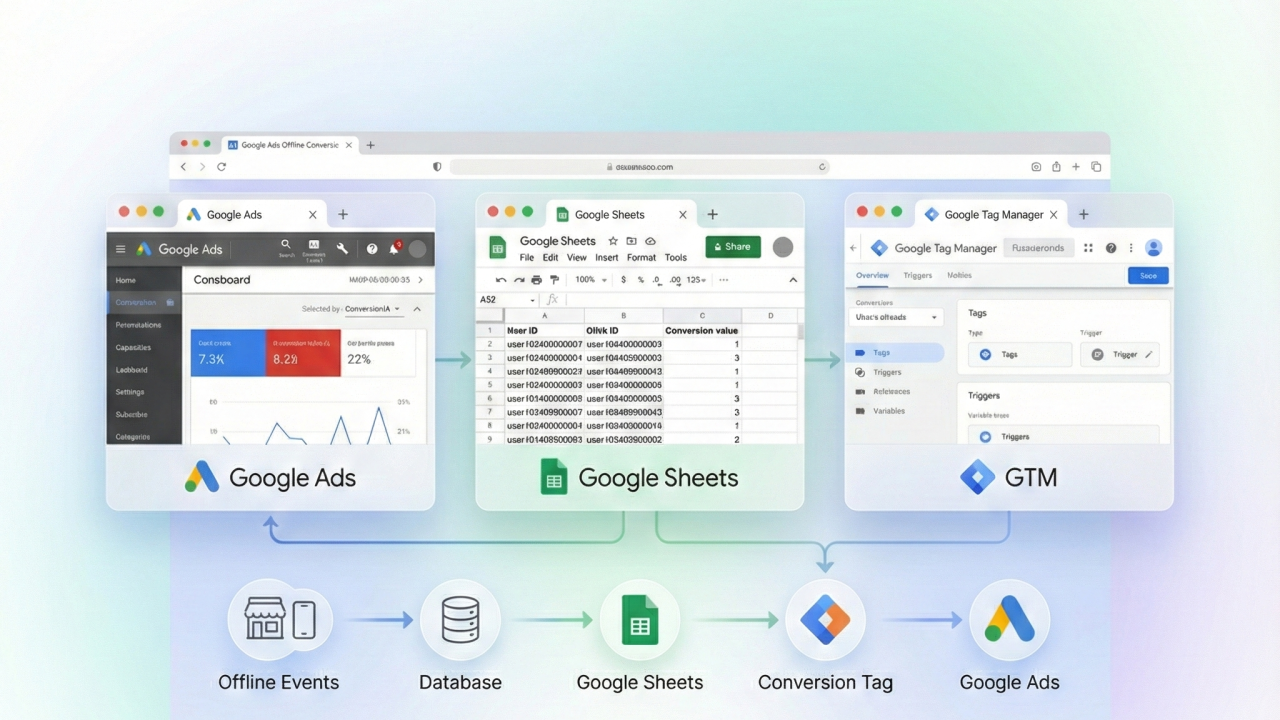
Many businesses generate leads online but close sales offline — through phone calls, in-store visits, or emails. Without Google Ads Offline Conversion Tracking, you’ll never know which ads truly drive revenue.
In this step-by-step 2025 guide, you’ll learn how to set up Google Ads Offline Conversion Tracking using Google Sheets and Google Tag Manager (GTM). This workflow allows you to connect ad clicks to final sales, optimize your ROAS, and scale campaigns with confidence.
Prerequisites
Before starting, ensure you have:
- Google Tag Manager (GTM): Installed on your website.
- Google Sheets: To act as your CRM/Database.
- Google Ads Account: With Admin access.
- Website Access: To publish GTM container changes.
Need Professional Help?
- Hire Me for Setup: WhatsApp Me
- Book a Consultation: Schedule a Call
Step 1: Google Ads Standard Conversion Tracking (Using WFP Form Listener Code)
A. Create a Custom HTML Tag in GTM
- In GTM, create a Custom HTML tag.
- Paste your WFP Form Listener code.
- Save & publish.

B. Create Variables
- Data Layer Variable: Email
- Data Layer Variable: Phone
- Data Layer Variable: Hashed Email
- Data Layer Variable: Hashed Phone
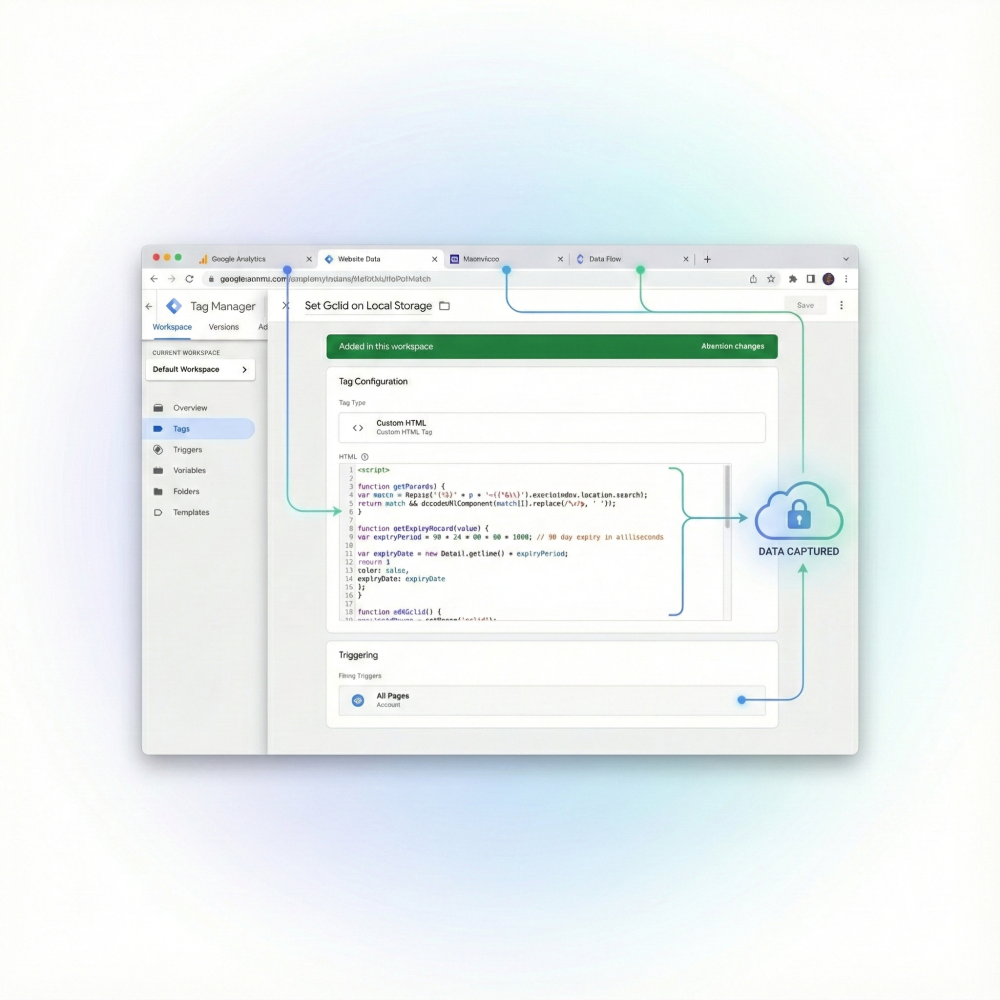
C. Create Tags to Store GCLID in Local Storage
- Create a New Tag in GTM.
- Tag Type: Store GCLID in Local Storage
- GCLID in Local Storage
- GCLID in Local Storage
- Trigger: All Pages
- Save & publish.
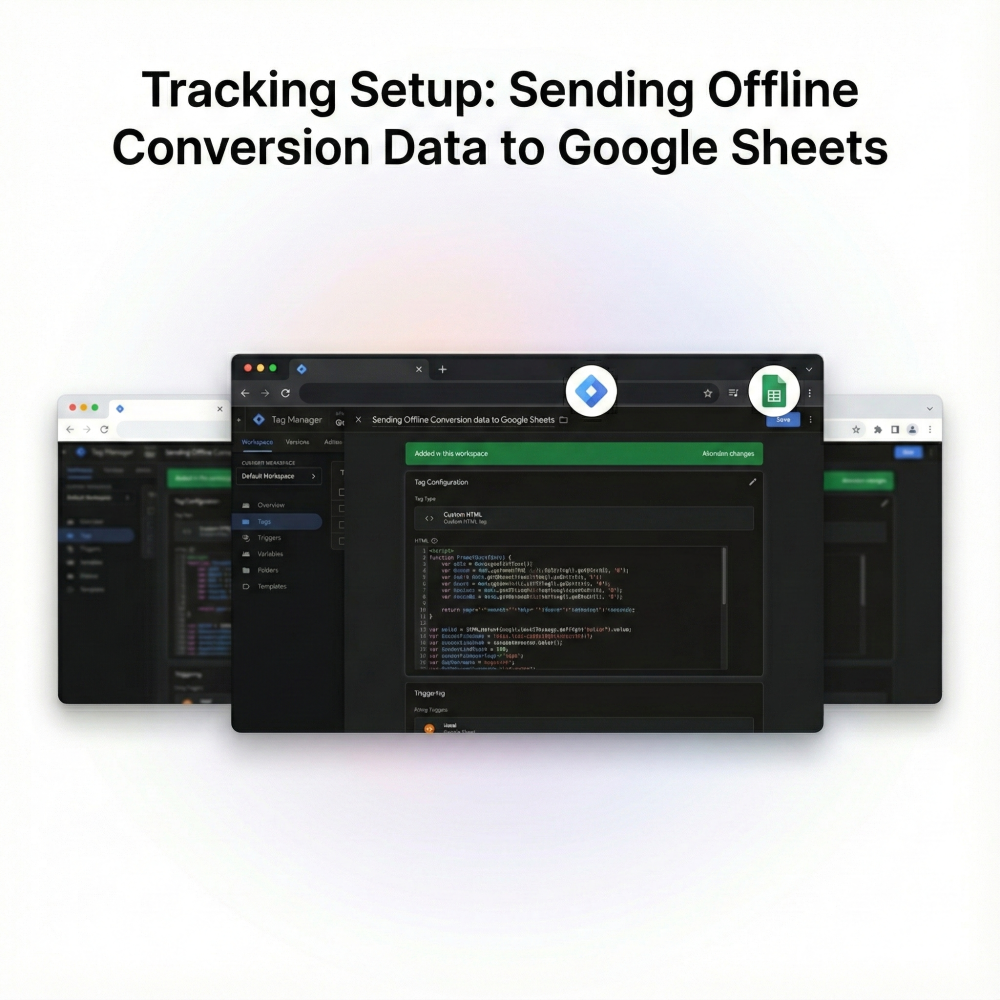
Step 2: Create Tags in GTM to Send Offline Conversion Data to Google Sheets
- Create a New Tag in GTM.
- Tag Type: Send Offline Conversion Data to Google Sheets
- Trigger: Lead submission
- Save & publish.
Step 3: Create a Google Sheet
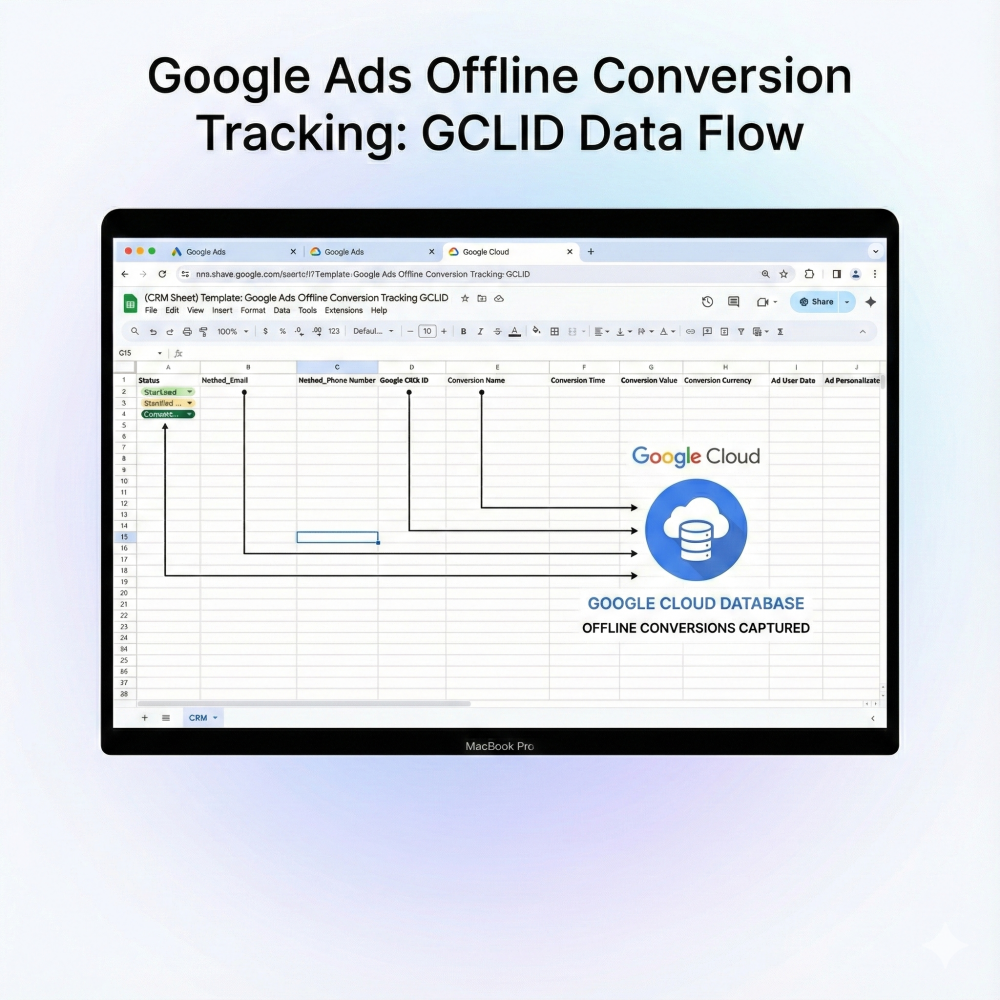
- Open Google Drive → Create New Google Sheet.
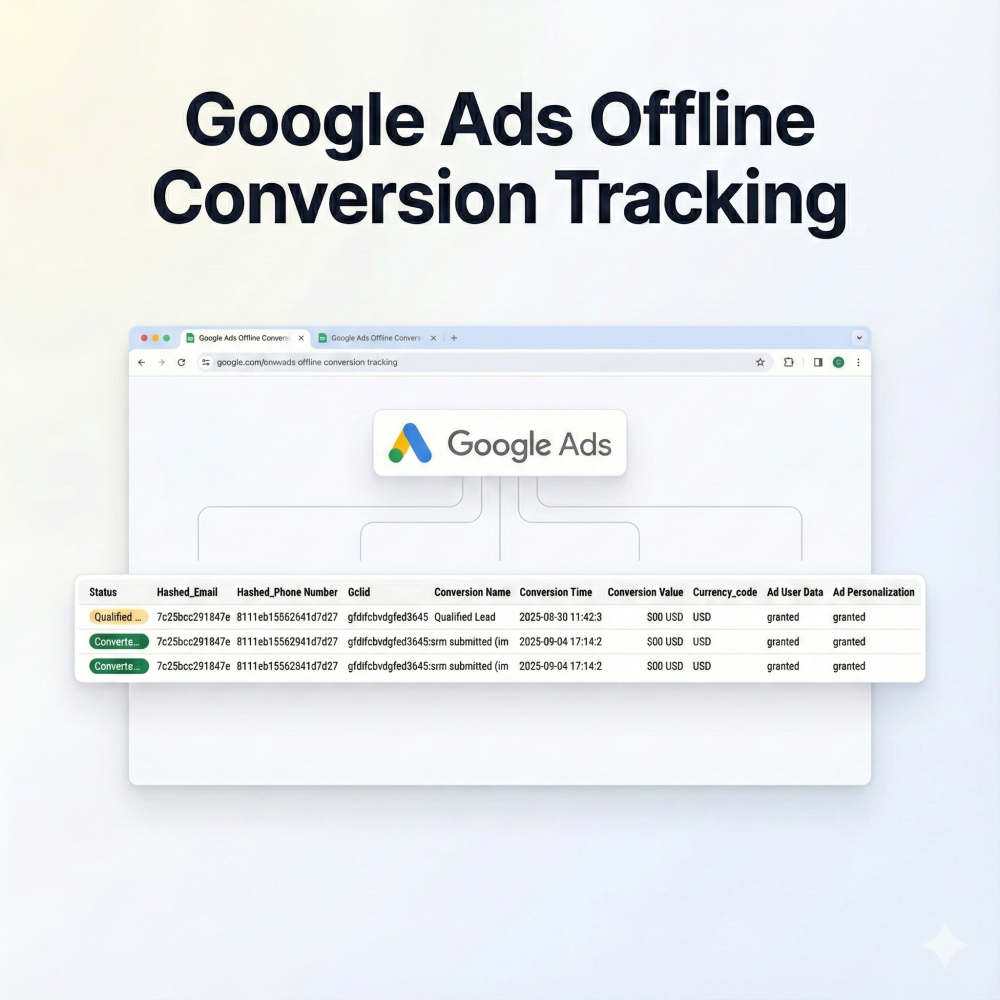
- Add headers in the first row:
Timestamp | GCLID | Hashed Email | Hashed Phone | Conversion Name | Conversion Time | Conversion Value | Currency | Status
Step 4: Add an App Script to Google Sheets
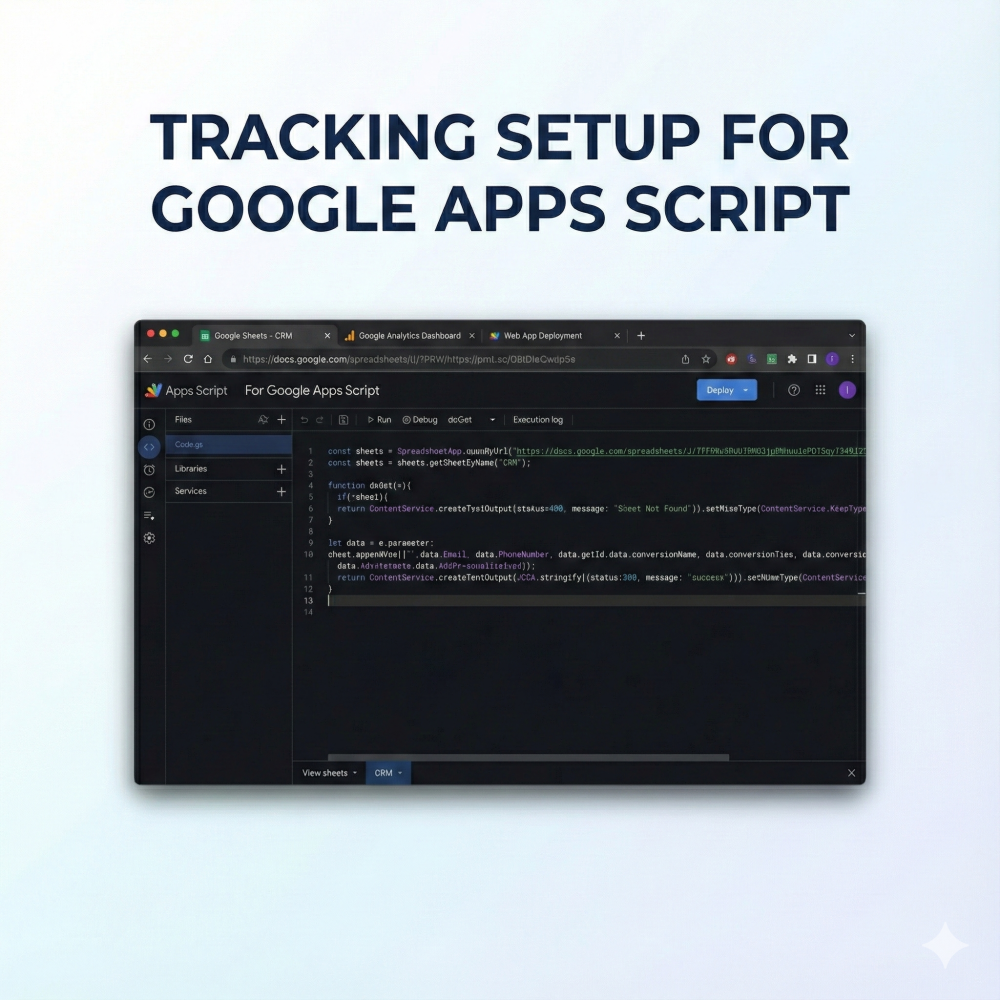
- In Google Sheet → Extensions → Apps Script
- Paste Apps Script code to receive GTM data
- Deploy & get the Script URL
- Copy the URL → Paste into GTM Tag (Send Data to Sheets) → Save & Publish
Step 5: Create an Offline Conversion Action in Google Ads
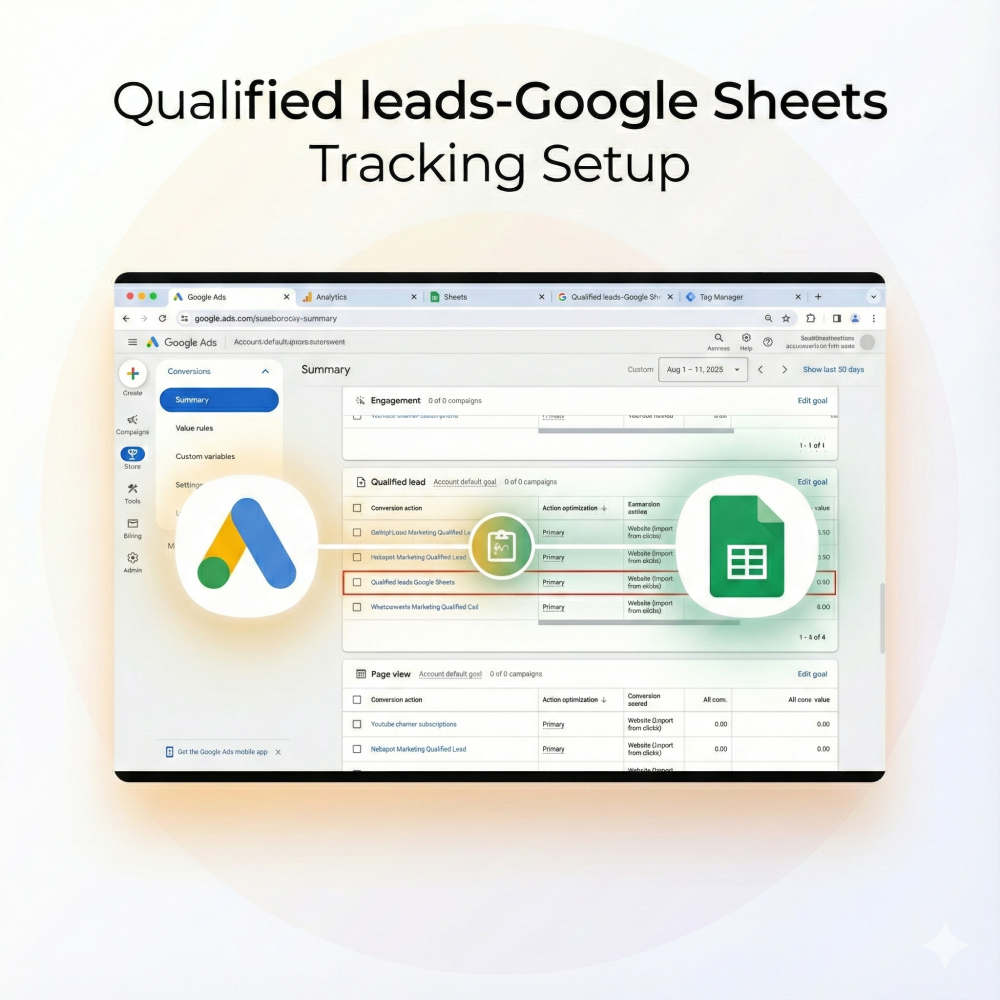
- Log in to Google Ads → Tools & Settings → Conversions → + New Conversion Action
- Choose Import → CRM, File & Other Sources → Track conversions from clicks
- Select Google Sheets → Direct Connection
- Choose conversion goal (e.g., Qualified Lead, Offline Sale)
- Link Google Drive → Select Sheet → Map Columns → Filter Status = Qualified Lead
- Set Upload Frequency: Daily → Select Time Zone → Save
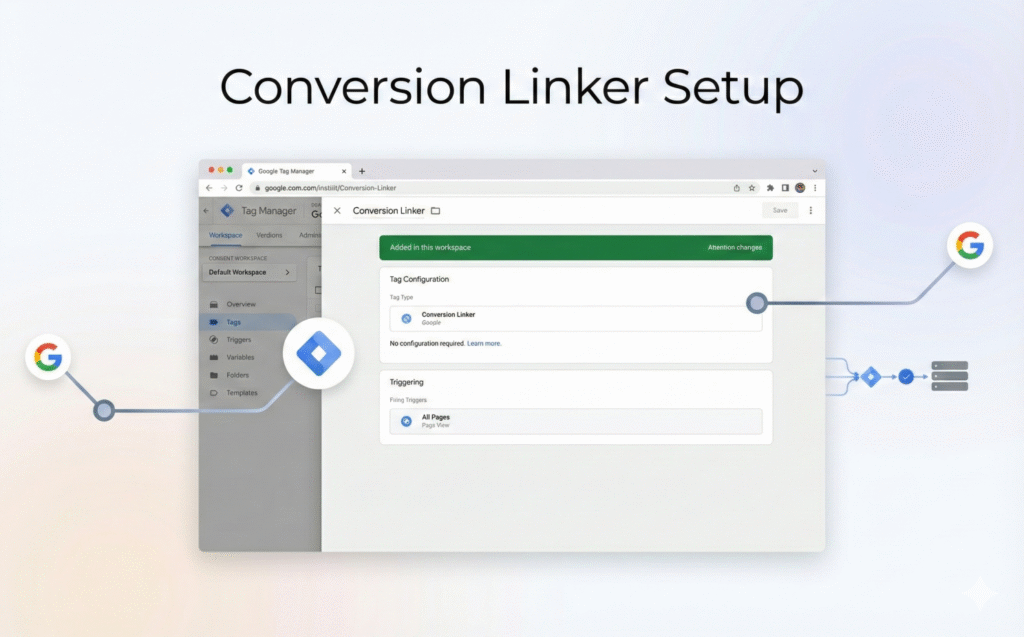
Step 6: Install Google Ads Conversion Linker in GTM
- In GTM → New Tag
- Tag Type → Google Ads Conversion Linker
- Trigger: All Pages
- Save & Publish
Step 7: Testing & Validation
- Submit a test lead with GCLID
- Verify Google Sheet receives data
- Ensure conversion appears in Google Ads → Conversions
Q1. Is GCLID still required?
Yes. GCLID is the primary identifier Google Ads uses to match offline conversions to ad clicks. Without it, conversions cannot be attributed correctly, reducing Smart Bidding efficiency and campaign optimization accuracy.
Q2. Phone calls offline trackable?
Yes. Phone call conversions can be tracked offline if the GCLID is captured during form submission or booking. This allows Google Ads to attribute revenue accurately to the original ad click.
Q3. Conversion Linker mandatory?
Yes. Conversion Linker stores click identifiers in first‑party cookies. Without it, Google Ads may fail to associate offline conversions with clicks, leading to incomplete attribution.
Q4. Upload conversions how often?
Daily uploads are recommended. Frequent uploads provide Google Ads with fresh offline data, improving Smart Bidding decisions and reducing optimization delays.
Q5. Automate Google Sheets upload?
Yes. You can automate uploads using Google Ads API, Apps Script, Zapier, or Make. Automation ensures consistent, timely data delivery and reduces manual errors.
Q6. Works with WPForms?
Yes. WPForms supports AJAX submissions, making it compatible with GTM‑based offline conversion tracking and reliable GCLID capture.
Q7. GA4 and Ads together?
Yes. The same event can trigger both GA4 and Google Ads tags in GTM, enabling unified reporting and accurate attribution.
Q8. Multi‑form tracking possible?
Yes. Multiple forms can be tracked using form ID‑based triggers in GTM, allowing separate attribution and analysis per form.
Q9. Is AJAX submission needed?
Yes. AJAX submissions prevent page reloads and ensure GTM listeners fire correctly, reducing data loss during form submissions.
Q11. Server‑side tracking supported?
Yes. Server‑side GTM can be integrated with offline conversion tracking to improve data accuracy and reduce browser limitations.
 Need Help Advanced GHL Automation & Tracking Setup?