
Introduction
Imagine you have just launched a new marketing campaign. You have a beautiful WordPress website, a compelling offer, and a WPForms contact form ready to capture leads. Your Google Ads and SEO efforts are driving traffic, and you can see inquiries landing in your email inbox.
But when you open Google Analytics 4 (GA4) to see which channels are driving these leads, you see… nothing.
The “Conversions” column is empty. You have no idea if that high-value lead came from your expensive LinkedIn ad or your organic blog post. You are essentially flying blind, spending marketing budget without any visibility into what is actually working.
This is the “Black Box” problem, and it is incredibly common with modern WordPress forms.
The issue lies in how WPForms functions. Unlike older forms that redirected to a “Thank You” page upon submission (which was easy to track with a simple URL rule), WPForms typically uses AJAX. This means the form submits data in the background without reloading the page. Standard Google Tag Manager (GTM) triggers like “Form Submission” simply cannot “see” these events. They fail to fire, or worse, they fire on invalid clicks when a user tries to submit an empty form.
Today, we are going to fix this completely.
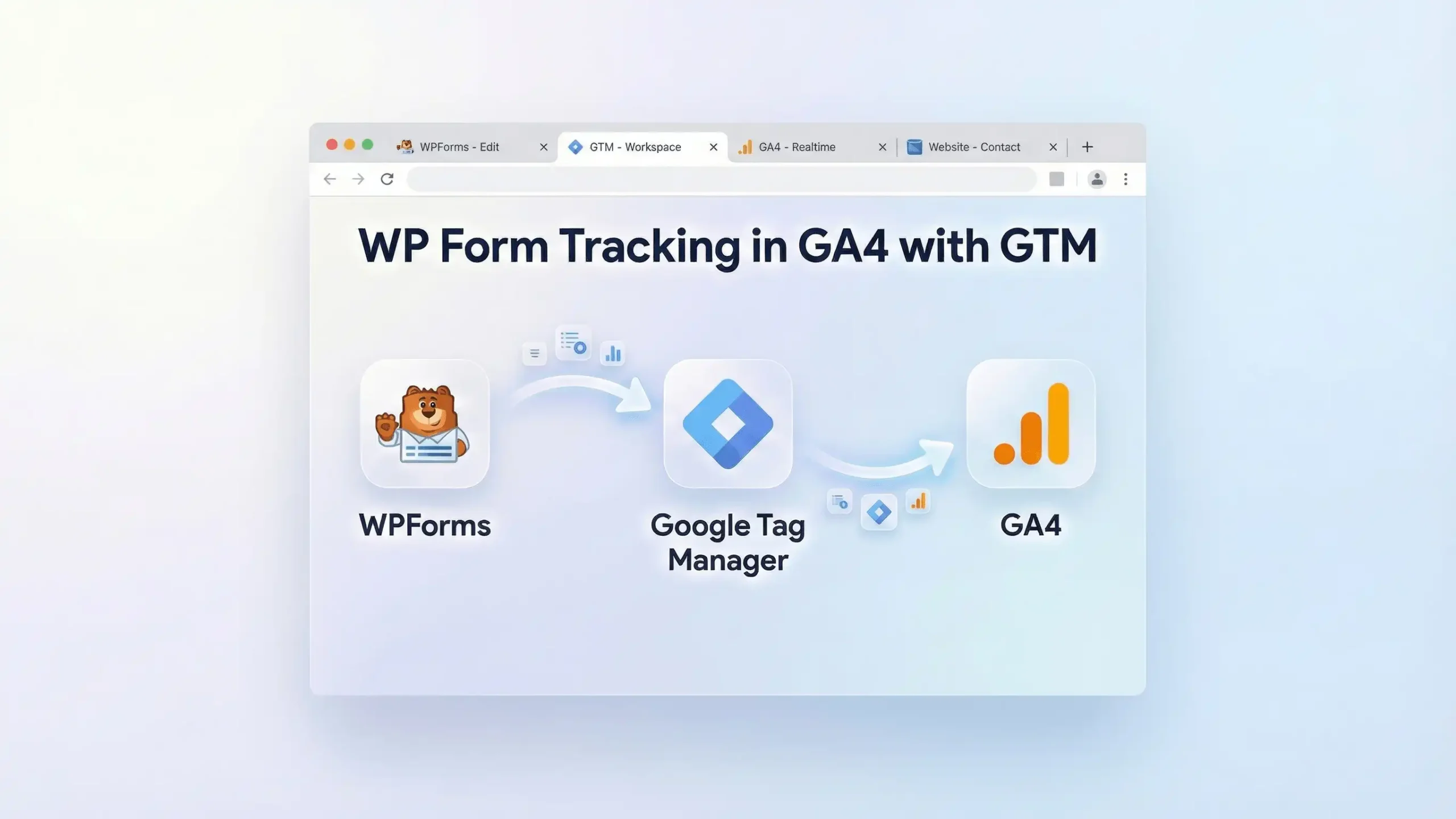
In this comprehensive guide, we will build a professional-grade tracking infrastructure. We will not rely on basic triggers that fail. Instead, we will implement a robust JavaScript Listener in Google Tag Manager. This script will act as a digital security guard, detecting the exact moment a WPForms submission is successfully completed and instantly sending that data to GA4.
We will also ensure you are fully compliant with privacy laws by setting up Google Consent Mode v2 using Cookiebot, ensuring your data collection is both accurate and legal.
Why You Must Set This Up
You might be thinking, “Can’t I just look at the entry count in WordPress?”
While that works for counting, it fails for marketing. Marketing requires attribution. You need to connect the specific ad click to the specific lead.
The Problem: The “Silent” Submission
If you rely on default GTM triggers for WPForms, you suffer from:
- Data Loss: You miss 20-30% of conversions because the “Form Submit” trigger often fails on AJAX forms.
- Inflated Data: Tracking button clicks is dangerous. If a user clicks “Submit” five times because they forgot to fill in their email, a click trigger counts 5 conversions. A listener script counts 0 until it’s actually successful.
- Algorithm Failure: Google Ads and GA4 need accurate conversion signals to optimize. If you feed them bad data (or no data), their AI cannot find you more customers.
The Solution: The Custom Listener
We will write a small piece of code (provided below) that “listens” for the specific success signal WPForms broadcasts to the browser. It captures this signal and translates it into a language GTM understands.
The 5 Key Benefits for Google Analytics 4 (GA4)
1. Better Algorithm Training (Smart Bidding)
If you link GA4 to Google Ads, the bidding algorithms (like Target CPA) rely on the conversion data you send them. By tracking verified WPForms submissions, you train the AI to recognize the digital profile of a valid lead, allowing it to find more high-quality prospects at a lower cost.
2. Higher ROI and ROAS
When you track every lead accurately, your reported Return on Ad Spend (ROAS) improves. You can prove to stakeholders that your marketing budget is generating tangible business results, not just “clicks” or “traffic.”
3. Accurate Reporting (The Single Source of Truth)
You eliminate the discrepancy between your CRM and your analytics. GA4 becomes a reliable source of truth where you can analyze the entire user journey—from the first page view to the final form submission.
4. Audience Building (Retargeting)
Once you track these events in GA4, you can create powerful audiences:
- Retargeting: Show ads to people who visited the “Contact Us” page but did not submit the form.
- Exclusion: Stop showing ads to people who did submit the form, saving your budget for new acquisition.
5. Future-Proofing (Privacy & Consent)
By implementing Google Consent Mode v2, you ensure your tracking remains compliant with regulations like GDPR and DMA. This setup allows Google to “model” conversions for users who decline cookies, recovering data that would otherwise be lost entirely.
Prerequisites & Checklist
This is an advanced technical implementation. Before we begin, ensure you have the following access and tools.
Required Access:
- Google Tag Manager (GTM): Admin or Publish access to the container installed on your website.
- Google Analytics 4 (GA4): Editor or Admin access to mark events as “Key Events” (formerly conversions).
- WordPress Admin: Access to your website backend to verify WPForms is installed and to check the Form ID.
- Cookiebot Account: Access to your Cookiebot dashboard to get the Domain Group ID.
Required Tools:
- Google Chrome Browser: The industry standard for web development and debugging.
- GTM Preview Mode: The built-in debugger in Tag Manager.
- Google Tag Assistant Extension: A Chrome extension to verify tags on the live site.
- GA4 DebugView: To verify events in Analytics real-time.
Video tutorial – WPForm Tracking in GA4
Step-by-step video guide to set up WPform submission tracking in GA4 via Google Tag Manager for accurate reporting.
The “How-To Setup” (Step-by-Step)
We will break this implementation into four logical phases. Do not skip any steps.
Phase 1: Google Tag Manager Setup
We start by ensuring your GTM container has the fundamental tags required for tracking.
Step 1.1: The Google Tag (GA4 Configuration)
This is the “heartbeat” tag that initializes GA4 on your website.
- Open your Google Tag Manager workspace.
- Navigate to Tags in the left-hand menu.
- Click New.
- Name: Google Tag – Main Configuration.
- Tag Configuration: Select Google Tag.
- Tag ID: Enter your GA4 Measurement ID (starts with G-).
- Where to find it: Go to GA4 > Admin > Data Collection > Data Streams > Click your stream > Copy the Measurement ID.
- Configuration Settings:
- Parameter Name: send_page_view
- Value: true
- Triggering: Select All Pages.
- Click Save.
Phase 2: Google Consent Mode V2 Setup (Cookiebot)
We must respect user privacy. We will use Cookiebot as the Consent Management Platform (CMP).
Step 2.1: Add the Cookiebot Template
- In GTM, click Templates on the left.
- In Tag Templates, click Search Gallery.
- Search for Cookiebot CMP.
- Click Add to workspace and confirm.
Step 2.2: Configure the Cookiebot Tag
- Go to Tags > New.
- Name: CMP – Cookiebot Consent Mode V2.
- Tag Configuration: Select the Cookiebot CMP template.
- Cookiebot ID: Paste your Domain Group ID (found in your Cookiebot account settings).
- Enable Google Consent Mode: Check this box. This is mandatory for V2 compliance.
- Default Consent State:
- Set ad_storage to Denied.
- Set analytics_storage to Denied.
- Set ad_user_data to Denied.
- Set ad_personalization to Denied.
- Why? We assume “No” until the user explicitly clicks “Allow” on the banner.
- Triggering:
- Select Consent Initialization – All Pages.
- Note: Do NOT use “All Pages.” This tag must fire first to set the rules.
- Click Save.
Phase 3: The Code (WPForms Listener)
This is the most important part of the guide. Since GTM cannot naturally “see” WPForms AJAX submissions, we need to inject a script that listens for the specific jQuery event WPForms emits upon success.
Step 3.1: Create the WPForms Listener Tag
- In GTM, go to Tags > New.
- Name: cHTML – WPForms Listener.
- Tag Configuration: Select Custom HTML.
- The Code: Copy and paste the code below exactly.
					<script id="gtm-jq-ajax-listen" type="text/javascript">
 (function() {

 'use strict';
 var $;
 var n = 0;
 init();

 function init(n) {

 // Ensure jQuery is available before anything
 if (typeof jQuery !== 'undefined') {

 // Define our $ shortcut locally
 $ = jQuery;
 bindToAjax();

 // Check for up to 10 seconds
 } else if (n < 20) {

 n++;
 setTimeout(init, 500);

 }

 }

 function bindToAjax() {

 $(document).bind('ajaxComplete', function(evt, jqXhr, opts) {

 // Create a fake a element for magically simple URL parsing
 var fullUrl = document.createElement('a');
 fullUrl.href = opts.url;

 // IE9+ strips the leading slash from a.pathname because who wants to get home on time Friday anyways
 var pathname = fullUrl.pathname[0] === '/' ? fullUrl.pathname : '/' + fullUrl.pathname;
 // Manually remove the leading question mark, if there is one
 var queryString = fullUrl.search[0] === '?' ? fullUrl.search.slice(1) : fullUrl.search;
 // Turn our params and headers into objects for easier reference
 var queryParameters = objMap(queryString, '&', '=', true);
 var headers = objMap(jqXhr.getAllResponseHeaders(), '\n', ':');

 // Blindly push to the dataLayer because this fires within GTM
 dataLayer.push({
 'event': 'ajaxComplete',
 'attributes': {
 // Return empty strings to prevent accidental inheritance of old data
 'type': opts.type || '',
 'url': fullUrl.href || '',
 'queryParameters': queryParameters,
 'pathname': pathname || '',
 'hostname': fullUrl.hostname || '',
 'protocol': fullUrl.protocol || '',
 'fragment': fullUrl.hash || '',
 'statusCode': jqXhr.status || '',
 'statusText': jqXhr.statusText || '',
 'headers': headers,
 'timestamp': evt.timeStamp || '',
 'contentType': opts.contentType || '',
 // Defer to jQuery's handling of the response
 'response': (jqXhr.responseJSON || jqXhr.responseXML || jqXhr.responseText || '')
 }
 });

 });

 }

 function objMap(data, delim, spl, decode) {

 var obj = {};

 // If one of our parameters is missing, return an empty object
 if (!data || !delim || !spl) {

 return {};

 }

 var arr = data.split(delim);
 var i;

 if (arr) {

 for (i = 0; i < arr.length; i++) {

 // If the decode flag is present, URL decode the set
 var item = decode ? decodeURIComponent(arr[i]) : arr[i];
 var pair = item.split(spl);

 var key = trim_(pair[0]);
 var value = trim_(pair[1]);

 if (key && value) {

 obj[key] = value;

 }

 }

 }

 return obj;

 }

 // Basic .trim() polyfill
 function trim_(str) {

 if (str) {

 return str.replace(/^[\s\uFEFF\xA0]+|[\s\uFEFF\xA0]+$/g, '');

 }

 }


 })();
 /*
 * v0.1.0
 * Created by the Google Analytics consultants at http://www.lunametrics.com
 * Written by @notdanwilkerson
 * Documentation: http://www.lunametrics.com/blog/2015/08/27/ajax-event-listener-google-tag-manager/
 * Licensed under the Creative Commons 4.0 Attribution Public License
 */
</script>
Explanation of the Code:
- jQuery(document).ready: Ensures the code waits until the page is ready.
- .on(‘wpformsAjaxSubmitSuccess’): This is the “Listener.” It waits specifically for WPForms to say “Success!” It ignores validation errors.
- dataLayer.push: This packages the success signal and the Form ID into a message and sends it to GTM.
Step 3.2: Trigger the Listener
- Scroll down to Triggering.
- Select All Pages.
- Why? The script is lightweight. Placing it on all pages ensures that no matter where you embed a form (footer, sidebar, contact page), it will be tracked.
- Click Save.
Phase 4: GTM Variables & Triggers
Now that the code is pushing data to the Data Layer, we need to configure GTM to “catch” it.
Step 4.1: Create the Data Layer Variable
We want to capture the Form ID so we can see which specific form was filled out in GA4 (e.g., “Contact Us” vs. “Quote Request”).
- Go to Variables.
- Under User-Defined Variables, click New.
- Name: dlv – form_id.
- Variable Type: Data Layer Variable.
- Data Layer Variable Name: form_id.
- Important: This must match the key used in the listener script exactly. It is case-sensitive.
- Click Save.
Step 4.2: Create the Trigger
We need a trigger that fires only when the listener reports a success.
- Go to Triggers > New.
- Name: Custom Event – WPForms Submission.
- Trigger Type: Custom Event.
- Event Name: wpforms_submission.
- Important: This must match the event name in the listener script exactly.
- Click Save.
Phase 5: The GA4 Event Configuration
Now we create the tag that sends this data to Google Analytics 4.
Step 5.1: Create the GA4 Event Tag
- Go to Tags > New.
- Name: GA4 – Event – Generate Lead.
- Tag Configuration: Select Google Analytics: GA4 Event.
- Measurement ID: Enter your G-ID (or use the variable if you created one).
- Event Name: generate_lead.
- Strategy: generate_lead is a standard Google event name. Using standard names helps GA4’s reports and algorithms understand the data better.
- Event Parameters:
- We want to send the extra data (Form ID).
- Click Add Parameter.
- Parameter Name: form_id.
- Value: {{dlv – form_id}} (Click the brick icon to select the variable you created in Step 4.1).
- Triggering: Select the trigger you created in Step 4.2: Custom Event – WPForms Submission.
- Click Save.
Step 5.2: Register Custom Definitions in GA4 (Crucial Step)
If you do not do this step, GA4 will receive the form_id data, but you will not be able to see it in your reports.
- Open Google Analytics 4.
- Go to Admin (Gear icon) > Data Display > Custom Definitions.
- Click Create custom dimension.
- Dimension name: Form ID.
- Scope: Event.
- Description: WPForms Form Identifier.
- Event parameter: form_id (Must match what you typed in the tag).
- Click Save.
Step 5.3: Mark as Key Event
- In GA4 Admin, go to Data Display > Key Events (formerly Conversions).
- Look for generate_lead.
- Toggle the switch to On (blue).
- Note: If the event hasn’t fired yet, it might not be in the list. You can click New key event, type generate_lead, and save.
Testing & Validation (Deep Dive)
You have built the system. Now you must prove it works before publishing.
Step 1: Launch GTM Preview Mode
- In GTM, click the blue Preview button in the top right.
- Enter your website URL.
- Click Connect.
- Your website will open in a new window with the Tag Assistant badge.
Step 2: Simulate a Form Submission
- Navigate to a page with a WPForm.
- Fill out the form. Use a test email (e.g., [email protected]).
- Click Submit.
- Wait for the confirmation message (“Thanks for contacting us!”).
Step 3: Analyze Tag Assistant
- Switch back to the Tag Assistant tab.
- Look at the timeline on the left side.
- Success Indicator: You should see a new event appear named wpforms_submission.
- Click on wpforms_submission.
- Check the Tags Fired section. You should see GA4 – Event – Generate Lead.
- Click on the tag to view details. Ensure the form_id parameter captured the correct ID (e.g., 1234).
Step 4: Verify in GA4 DebugView
- Go to GA4 > Admin > Data Display > DebugView.
- Wait 10-30 seconds.
- You should see the generate_lead event appear on the vertical timeline.
- Click on the event.
- You should see the form_id parameter listed with the correct value.
- If you see this: Congratulations! Your tracking is perfect.
Troubleshooting & Common Mistakes
Even experts make mistakes. Here are the most common pitfalls.
1. Listener Not Firing
- Symptom: You submit the form, but wpforms_submission never appears in the Tag Assistant timeline.
- Cause: Your site might not have jQuery loaded (rare for WP), or you might have a caching plugin effectively “hiding” the script.
- Fix: Ensure you pasted the code into a Custom HTML tag, not a Custom Image tag. Clear your website cache (WP Rocket, Autoptimize, etc.) and try again.
2. “Blocked by Consent”
- Symptom: The event fires, but the Tag status says “Blocked by Consent Settings.”
- Cause: You are testing without accepting cookies on the Cookiebot banner.
- Fix: Clear your browser cookies for the site. Reload. When the banner appears, click Allow All. Run the test again.
3. Duplicate Conversions
- Symptom: You see two generate_lead events for one submission.
- Cause: You might have the listener installed and a plugin like “WPForms Google Analytics Addon” active at the same time.
- Fix: Disable any built-in WPForms analytics addons or other tracking plugins like MonsterInsights. Let GTM handle everything to avoid double-counting.
Conclusion
By implementing this WPForms tracking setup via GTM, you have moved your analytics from “guessing” to “knowing.” You have bypassed the limitations of AJAX forms and built a professional-grade data pipeline.
You now have:
- 100% Visibility: You capture every valid lead, not just page views.
- Clean Data: You ignore invalid clicks and spam.
- Legal Compliance: You respect user privacy with Consent Mode v2.
- Actionable Insights: You can now optimize your campaigns based on real business value.
Next Step: Publish your GTM container immediately. Let the data collect for 7 days. Then, open your GA4 “Traffic Acquisition” report, filter by the generate_lead event, and finally answer the question: “Which marketing channel is actually driving my business?”
1. Can I track WPForms without GTM?
Yes, using plugins like MonsterInsights or the paid WPForms addons. However, using GTM is free, more flexible, and keeps your website lighter by reducing the number of heavy plugins you need to install. It gives you full control over your data.
2. Does this work for the free version of WPForms (WPForms Lite)?
Yes! The custom JavaScript listener relies on the standard jQuery events that WPForms triggers in both the Lite (Free) and Pro versions. You do not need a paid license for this tracking method to work.
3. Why is my "Form ID" variable showing 'undefined'?
This usually happens if the Data Layer structure doesn’t match the variable setup. In the listener code, we push form_id. Ensure your GTM Data Layer Variable name is exactly form_id (all lowercase).
4. What if I redirect to a "Thank You" page?
If you redirect users to a specific URL (e.g., /thank-you/) after submission, you have an easier option. You can simply create a Page View Trigger in GTM that fires when Page Path contains /thank-you/. However, the AJAX listener method is superior because it works even if the redirect fails or is slow.
5. Will this setup track spam submissions?
The listener fires on the successful submission signal from WPForms. If WPForms’ built-in spam protection (like HoneyPot or reCAPTCHA) blocks a bot, the success event should not fire, keeping your data clean.
6. How long does it take for data to show in GA4?
GA4 reports (like Traffic Acquisition) typically take 24 to 48 hours to process and display new data. However, DebugView and Real-Time reports show data almost instantly (within seconds/minutes) for verification purposes.
7. Is Consent Mode v2 mandatory?
If you have any traffic from the European Economic Area (EEA) or the UK, yes. Google requires Consent Mode v2 to use audience building and remarketing features. Without it, your data collection will be restricted, and your ad performance will suffer.
8. Can I use this for Google Ads Conversion Tracking too?
Absolutely. Once you have the wpforms_submission trigger working in GTM, you can create a Google Ads Conversion Tag and attach it to the exact same trigger. You don’t need to create a new listener; just a new tag.
9. What is a "Key Event" in GA4?
“Key Event” is the new terminology for “Conversion” in GA4 (as of early 2024). Google renamed it to unify terminology across its products. The term “Conversion” is now reserved specifically for Google Ads. For reporting purposes, they function the same way.
10. Do I need to be a developer to do this?
No. While we use JavaScript code, you do not need to write it from scratch. You simply need to copy the provided code block into a Custom HTML tag in GTM. If you can follow a recipe, you can set this up.
 Need Help Advanced Tracking Setup?