
Table of Contents
ToggleQuick Answer
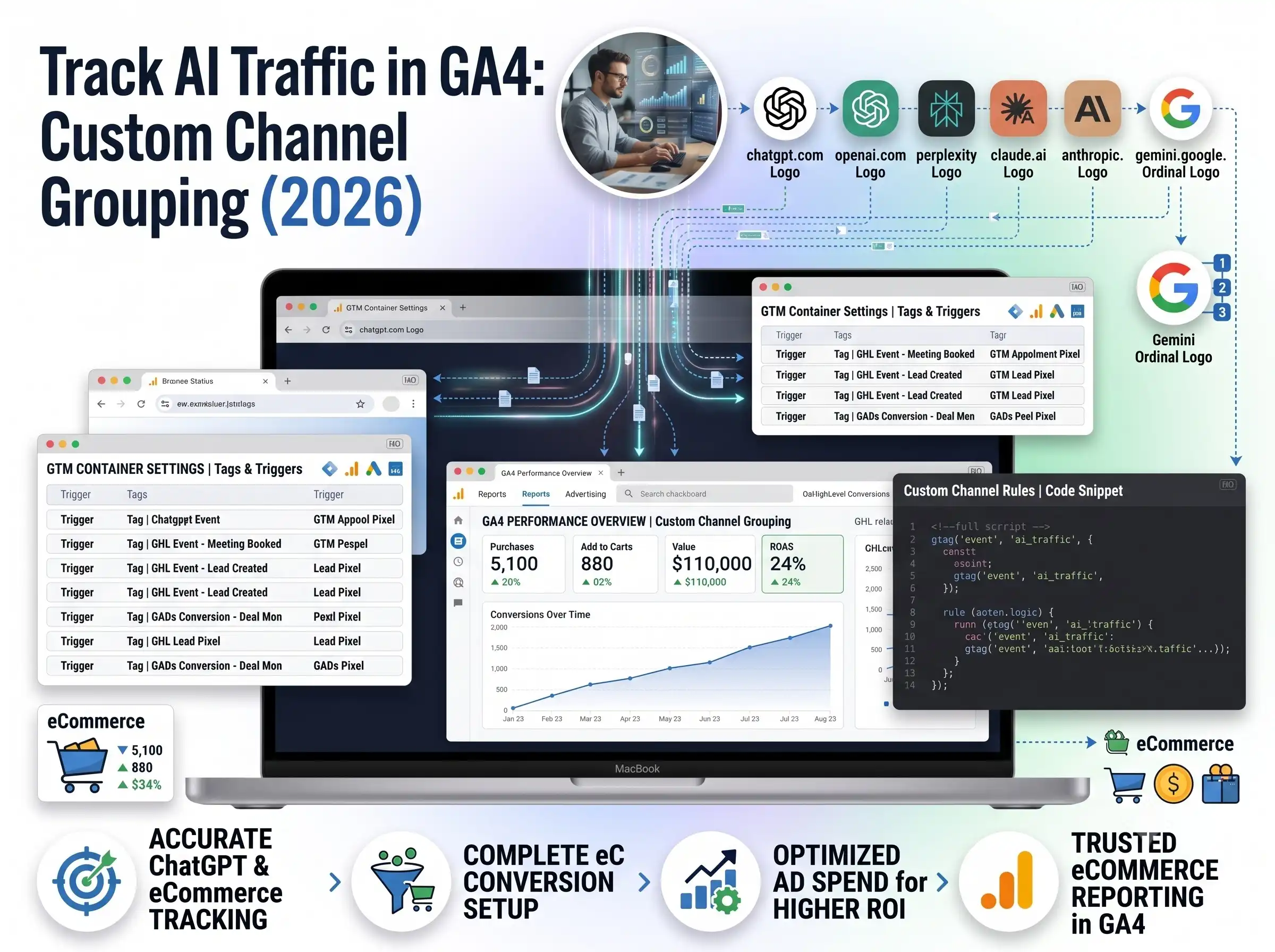
To track AI traffic in GA4, build a custom channel group named “AI Traffic” in Admin → Data display → Channel groups, add one channel whose condition is Source Regex match against your list of AI domains (ChatGPT, Gemini, Claude, Perplexity, and more), and move that channel above Referral so it wins first. Then add Session custom channel group to your Traffic Acquisition report and build filtered custom reports (or a Looker Studio dashboard) for Events, Pages, Landing Pages, E-commerce, Purchase Journey, Demographics, and Tech. Google added a native “AI Assistant” channel on May 13, 2026, but it is forward-only and misses Perplexity, so the custom group is still essential for a complete, retroactive view.
Key Takeaways
- The problem: GA4 dumps most AI traffic into “Referral,” so you cannot see how ChatGPT, Gemini, or Perplexity visitors behave, convert, or buy.
- The 2026 update: Google’s new native “AI Assistant” channel helps, but it only counts forward from May 13, 2026, ignores Perplexity, and misses referrer-less traffic.
- The fix: A custom channel group is retroactive — it rebuckets your entire history and catches the sources Google skips.
- The pro move: Combine both — one “AI Traffic” channel that matches your regex OR the native “AI Assistant” channel — so nothing slips through.
- The dashboards: Reuse GA4’s standard reports with an AI Traffic comparison or filter, or build a Looker Studio dashboard for a clean, client-ready view.
- The limit to know: AI traffic without a referrer still lands in Direct — treat every AI number as a floor, not a ceiling.
The Day the “AI Assistant” Channel Appeared — And Why the Number Was Wrong
On May 13, 2026, thousands of GA4 users opened their reports and saw a brand-new line in their acquisition table: AI Assistant. For anyone who had spent a year guessing how much traffic ChatGPT was really sending, it felt like the finish line.
It was not.
Look closer and the number is a fraction of the truth. It shows traffic only from the day Google flipped the switch — nothing before. It leaves out Perplexity, one of the highest-intent AI sources on the web. And it silently drops the large slice of AI visitors who arrive with no referrer, which lands in Direct instead.
So you have a channel that finally names AI traffic, but still cannot measure it fully.
That is the gap this guide closes. We are going to build a custom “AI Traffic” channel group in GA4 that captures every AI platform you care about, works backward through your entire history, and folds Google’s native channel into one clean bucket. Then we will build seven custom dashboards — Events, Pages, Landing Pages, E-commerce, Purchase Journey, Demographics, and Tech — so you can see exactly how AI visitors behave and buy.
By the end, you will stop wondering “how much traffic is AI?” and start answering “which AI platform sends buyers, which pages get cited, and what is my AI conversion rate?”
Let me save you the guesswork.
Why You Must Set This Up — 5 Business Reasons
The Problem: if AI traffic hides inside “Referral” (or splits between Referral, Direct, and AI Assistant), you are making budget and content decisions blind. You cannot see which AI platform sends visitors, whether they convert, or which of your pages AI engines are citing.
The Solution: a single, clean “AI Traffic” channel turns that invisible slice into a measurable channel you can report on, optimize, and grow.
Here is why it is worth the 30 minutes:
- Accurate attribution. You finally know how much revenue and how many leads AI is really driving — instead of crediting it all to “Referral” or “Direct.” This is the same accuracy principle behind a proper server-side tracking setup.
- Smarter content strategy (GEO/AEO). When you see which pages earn AI clicks, you learn what AI engines cite — and you can create more of it. AI visibility is becoming its own growth channel.
- Better e-commerce decisions. AI visitors often show different purchase intent than a random blog referral. Some stores find AI traffic converts higher than paid social. You can only act on that if you can see it separately.
- Cleaner reporting for clients and leadership. A dedicated channel (and a matching dashboard) makes AI performance a one-glance story, not a manual spreadsheet exercise.
- Future-proofing. AI traffic is growing every quarter. Setting up measurement now builds the baseline you will need to prove its value in 6–12 months.
First, Understand the 2026 Landscape (This Is Where Most Guides Are Now Outdated)
Before we touch a setting, you need the current picture — because it changed in May 2026, and old tutorials will lead you astray.
Think of GA4’s channel system like a sorting machine on a conveyor belt. Every session slides past a row of buckets. The machine checks each session against the buckets in order, from top to bottom, and drops it into the first bucket it matches. Once it lands, it stops. That “first match wins” rule is called the waterfall, and it is the single most important thing to understand today.
Here is what Google’s native update actually does — and does not do.
What GA4’s native “AI Assistant” channel does | The catch |
|---|---|
Auto-tags recognized AI referrers with Channel = AI Assistant, Medium = ai-assistant, Campaign = (ai-assistant) | You still can’t rename it, reorder it, or add sources to it |
Requires zero setup — no regex, no maintenance | Forward-only. It does not reclassify traffic from before May 13, 2026 |
Sits beside Organic Search and Paid Search in standard reports | Misses Perplexity and other platforms not on Google’s recognized list — they stay in Referral |
Names ChatGPT, Gemini, and Claude at launch (list has since grown) | Misses referrer-less traffic (mobile apps, in-app browsers, copy-paste) — it falls into Direct |
MD Niamul’s take: the native channel is a convenience, not a complete measurement tool. Independent analyses of AI referral data suggest a large share of real AI sessions — often more than half — arrive with no referrer header, so they never reach the AI Assistant channel at all. And because Google quietly updates which platforms it recognizes, you should always check the current GA4 “Default channel group” Help page before you promise a client a specific list.
This is exactly why we still build a custom group. It gives us three things the native channel cannot:
- History. Custom channel groups are retroactive — the moment you create one, GA4 rebuckets your existing source/medium data going back as far as your data goes. You instantly see your true AI trend, not a story that “began” in May.
- Full coverage. You decide the sources. Perplexity, DeepSeek, Grok, Meta AI, You.com — whatever matters to your business goes in.
- Control. You name it “AI Traffic,” you order it, and you can even fold Google’s native channel into the same bucket so your reports stay clean.
Prerequisites & Checklist
Before you start, make sure you have:
- Editor or Administrator access to the GA4 property. (Channel groups live in Admin — a Viewer/Analyst role can’t create them.)
- Your GA4 property already collecting data. New properties have nothing to rebucket yet.
- Your AI source list ready (provided below — you can paste it in).
- A note of today’s date so you can annotate the May 13, 2026 native-channel launch later — this stops broken month-over-month comparisons from confusing you.
A quick, honest note on the platform: you may have expected this to be a Google Tag Manager (GTM) job. It isn’t. Channel grouping is a native GA4 feature configured inside GA4 Admin — not in GTM. GTM’s role in the wider stack is to send clean, complete data to GA4 (correct page views, UTMs, and events) so your channel rules have accurate source/medium values to work with. If your referral or UTM data is messy, fix that in your tracking setup first — but the grouping itself happens in GA4.
Prefer to Watch?
if you learn better by watching, the video follows the exact same steps below, screen by screen. Otherwise, let’s build it.
Phase 1 — Build the “AI Traffic” Custom Channel Group
This is the core. Follow it click by click.
Step 1: Open Channel Groups
- In the bottom-left of GA4, click Admin (the gear icon).
- In the Property column, find the Data display section.
- Click Channel groups.
Where to find it: Admin → Data display → Channel groups. Why? This is the only place GA4 lets you define your own traffic buckets. You will see the Default channel group already listed here — you cannot edit that one, so we make a copy.
Step 2: Create a new channel group
- Click the blue Create new channel group button. GA4 starts you with a copy of the default group (all the standard channels like Organic Search, Paid Search, Referral, Direct are already inside).
- In Group name, type: AI Traffic
- In Description, add something like: “Isolates traffic from AI assistants and generative search engines.”
Why start from a copy? So you keep every normal channel working. You are only adding one AI channel and moving it up the order — not rebuilding GA4 from scratch.
Step 3: Add the “AI Traffic” channel
- Scroll to the channel list and click Add new channel.
- Channel name: type AI Traffic (a clear name makes filtering and dashboards easy later).
- Now set the condition. Choose the dimension Source, then the match type Regex match, and paste your AI source list into the value box.
Use this regex (it matches the domain of each AI platform — the \. escapes the dot, and the | means “OR”):
chatgpt\.com|chat\.openai\.com|openai\.com|claude\.ai|anthropic\.com|perplexity\.ai|gemini\.google\.com|bard\.google\.com|copilot\.microsoft\.com|edgeservices\.bing\.com|deepseek\.com|grok\.com|grok\.x\.com|x\.ai|meta\.ai|you\.com|phind\.com|poe\.com|mistral\.ai|pi\.ai|duck\.ai|felo\.ai|copy\.ai|huggingface\.co|komo\.ai|iask\.ai|andi\.search|exa\.ai
What is regex? Regex (“regular expression”) is just pattern matching. Instead of writing 30 separate “Source contains…” rules, one regex checks all of them at once. The pipe | means “or,” so the line above reads: “Source is chatgpt.com or claude.ai or perplexity.ai or…”
CRITICAL STEP — capture Google’s native channel too. Add a second condition with OR so this one bucket also swallows the native channel:
- OR → dimension Default channel group → match type Matches exactly → value AI Assistant.
Why? This unifies everything. Any session Google already tagged as “AI Assistant” plus every source in your regex (including Perplexity, which Google misses) all land in one clean “AI Traffic” channel. No double counting, no gaps.
- Click Done / Apply to save the channel.
Step 4: The pro nuance — protect your Paid AI traffic
Here is a mistake most guides never mention. If you run ads on an AI platform — for example ChatGPT Ads or Microsoft Copilot ads — those paid clicks share the same source but carry a paid medium (like cpc). A pure source-based rule would wrongly pull those paid clicks into “AI Traffic” and rob your Paid channel.
The fix: either (a) add a condition to your AI Traffic channel — AND Medium does not match regex ^(cpc|ppc|paid.*)$ — so only organic AI referrals qualify, or (b) place your Paid Search / Paid Social channels above the AI Traffic channel in the order (see Step 5) so paid clicks are caught first. Pick whichever keeps your paid reporting honest.
Step 5: Order the waterfall — put “AI Traffic” above Referral
This is the step that makes it work. Remember the conveyor belt: first match wins.
- In the channel list, drag the “AI Traffic” channel upward so it sits above Referral (and above Direct/Organic Search). If you kept paid channels above it (Step 4b), that’s fine — just make sure AI Traffic beats Referral.
- Save the group.
Warning — this is where people lose their work: the Save button sits at the top of the screen. After you scroll down to drag your new channel, it is easy to forget to scroll back up and click Save. If you don’t save, nothing applies.
Why order matters: if “AI Traffic” sits below Referral, GA4 checks Referral first, sees chatgpt.com is technically a referring website, and drops the session into Referral — and your AI channel stays empty. Above Referral, AI Traffic catches it first. Done right, it overrides the default referral classification exactly as intended.
Good news: custom channel groups are retroactive and available immediately. As soon as you save, GA4 rebuckets your historical data and your AI Traffic channel is ready to use in reports — no 24–48 hour wait for the grouping itself.
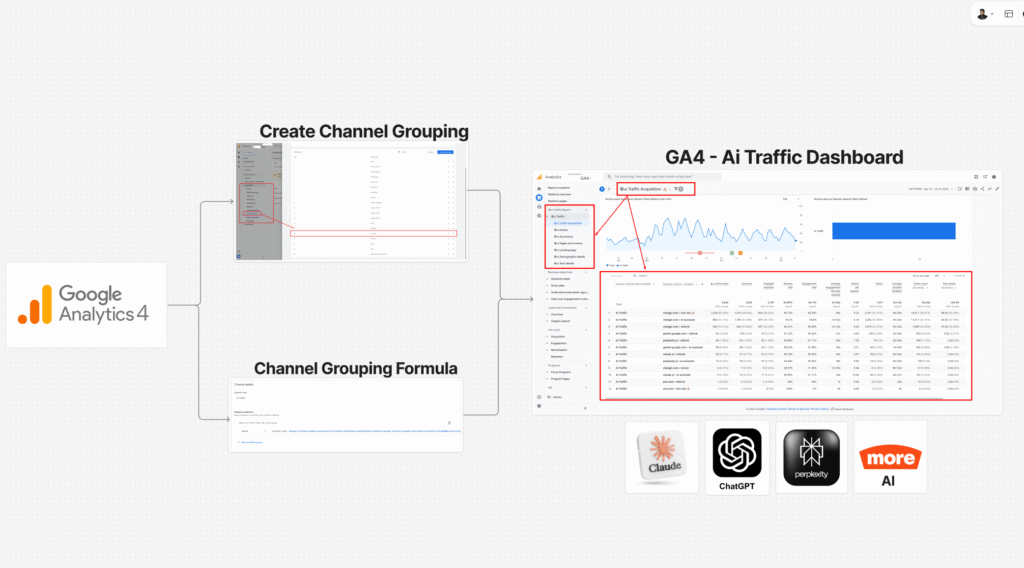
Phase 2 — See It in Your Reports (and add Source/Medium)
Now let’s confirm it works and set up the drill-down.
- Go to Reports → Acquisition → Traffic acquisition.
- In the table, click the primary dimension dropdown (top-left of the table, usually “Session default channel group”) and switch it to Session custom channel group.
- You should now see AI Traffic as its own row, with its metrics beside every other channel.
- To see which AI platform each visit came from, click the small + next to the dimension and add Session source / medium as a secondary dimension.
Now you can expand “AI Traffic” and see perplexity.ai / referral, chatgpt.com / referral, gemini.google.com / referral, and so on — exactly the platform-level breakdown the setup was built for.
The Metrics That Matter for AI Traffic
Your reports and dashboards should show these nine metrics for the AI Traffic segment. One important 2026 note: GA4 renamed “conversions” to “key events,” so “Conversion Rate” now appears as Session key event rate. Here’s the full set, in plain English.
Metric | What it tells you about AI visitors |
|---|---|
Active Users | How many real people arrived from AI platforms |
Sessions | How many visits AI traffic generated |
Engaged Sessions | Visits that lasted 10s+, had a key event, or 2+ pageviews (real attention, not bounces) |
Engagement Rate | The share of AI sessions that were engaged — a quick quality score |
Bounce Rate | The opposite of engagement rate — single, low-value visits |
Average Engagement Time per Session | How long AI visitors actually stay and read |
Views | Page/screen views from AI traffic — what content they consume |
Event Count | Total interactions (clicks, scrolls, video plays, add-to-cart) |
Conversion Rate (now “Session key event rate”) | The percentage of AI sessions that completed a key event — your bottom line |
Expert tip: watch Engagement Rate and Session key event rate side by side. Many sites discover AI traffic is smaller in volume but higher in quality than other referrals — visitors who read more and convert better. That is the story that justifies investing in AI visibility.
Phase 3 — Build the 7 Comprehensive Dashboards
You asked for seven focused views, not one overview. There are three ways to build them — pick based on how polished the output needs to be.
Method | Best for | Effort |
|---|---|---|
Comparisons (built into every report) | Fast, self-serve analysis inside GA4 | 2 minutes |
Custom reports via Library | Saved, reusable AI dashboards in the GA4 sidebar | 15–30 minutes |
Looker Studio dashboard | A clean, shareable, client-ready report | 1–2 hours |
Method A — The 2-minute way: Comparisons
Open any standard report, click Add comparison (top of the report), and set: Session custom channel group → exactly matches → AI Traffic. Every metric in that report now recalculates for AI visitors only. Do this on all seven reports below and you have instant AI dashboards with zero building.
Method B — The durable way: Custom reports in the Library
For dashboards your team can open again and again:
Go to Reports → Library (bottom of the Reports menu — you need Editor access).
- Find the standard report you want (e.g., Events), click its ⋮ → Customize report (or Copy).
- In the customization panel on the right, add a Filter: Session custom channel group → exactly matches → AI Traffic.
- Save as a new report, name it clearly (e.g., “AI Traffic — Events”), and add it to a collection so it appears in your left sidebar.
Repeat for each of the seven. This gives you a permanent “AI Traffic” collection.
Method C — The executive way: Looker Studio
For the cleanest, most visual result — and the best fit if data visualization is the goal — connect GA4 to Looker Studio, add a report-level filter on Session custom channel group = AI Traffic, and build one page per section with scorecards, time-series, and tables. A Looker Studio build is how I deliver most client dashboards — it turns raw GA4 data into a one-glance story leadership actually reads.
The 7 dashboards — what each one answers
# | Dashboard | GA4 report to filter |
|---|---|---|
1 | Events | Engagement → Events |
2 | Pages & Screens | Engagement → Pages and screens |
3 | Landing Page | Engagement → Landing page |
4 | E-commerce Performance | Monetization → Ecommerce purchases |
5 | E-commerce Purchase Journey | Monetization → Purchase journey (funnel) |
6 | Demographics | User → Demographics details |
7 | Tech Details | User → Tech details |
Pro tip for #5 (Purchase Journey): the standard funnel report supports comparisons, but for a truly custom AI funnel, build a Funnel exploration (Explore → Funnel) and apply a segment for AI Traffic. That lets you define your own steps and see the exact drop-off — perfect for e-commerce tracking deep dives.
Pro tip for #7 (Tech Details): a high share of mobile / in-app browser sessions in your AI channel is a clue that even more AI traffic is hiding in Direct (because apps strip the referrer). It helps you estimate your true AI volume.
Testing & Validation
You built it — now prove it’s working.
- Check Traffic Acquisition. Switch the primary dimension to Session custom channel group. If AI Traffic shows sessions (and historical data appeared instantly), the group is live and retroactive.
- Expand by source/medium. Add Session source / medium as a secondary dimension and confirm you see perplexity.ai, chatgpt.com, etc. — proof your regex is catching real platforms.
- Sanity-check against Referral. Your Referral channel should now be smaller than before, because AI sources moved out of it. If Referral is unchanged, your channel is probably ordered below Referral — go back to Phase 1, Step 5, move it up, and save.
- Annotate May 13, 2026. In GA4, add an annotation on that date (the native “AI Assistant” launch). This reminds anyone reading month-over-month charts why the native channel “appeared” — it was a measurement change, not a traffic spike.
- Compare native vs custom. Look at Google’s “AI Assistant” channel next to your “AI Traffic” channel for the same recent period. Your custom number should be equal or higher (it adds Perplexity and long-tail sources). If it’s lower, a source is missing from your regex.
Troubleshooting & Common Mistakes
Mistake 1: The AI Traffic channel is empty
- The Problem: you created the group but the “AI Traffic” row shows zero.
- The Cause: the channel sits below Referral in the order, so Referral catches AI sessions first (first match wins).
- The Solution: Admin → Data display → Channel groups → open “AI Traffic” → drag the channel above Referral → Save (button is at the top of the screen).
Mistake 2: Historical AI trend looks like it “started” in May
- The Problem: your month-over-month AI numbers are broken or start abruptly.
- The Cause: you’re reading Google’s native “AI Assistant” channel, which is forward-only from May 13, 2026.
- The Solution: use your custom “AI Traffic” channel instead — it’s retroactive and rebuckets your full history. Annotate the May 13 launch date.
Mistake 3: Perplexity traffic is missing
- The Problem: you see ChatGPT and Gemini, but no Perplexity.
- The Cause: Google’s native channel doesn’t recognize Perplexity — it stays in Referral — and your regex may have missed it.
- The Solution: confirm perplexity\.ai is in your Source regex. The custom group is the only reliable way to capture Perplexity right now.
Mistake 4: Paid AI ads counted as “AI Traffic”
- The Problem: your Paid channel shrank and AI Traffic looks inflated.
- The Cause: a source-only rule pulled in paid AI clicks (e.g., ChatGPT/Copilot ads with cpc medium).
- The Solution: add AND Medium does not match ^(cpc|ppc|paid.*)$ to the AI Traffic channel, or order your Paid channels above it.
Mistake 5: Numbers still feel too low
- The Problem: AI Traffic seems smaller than you expected from your content’s AI visibility.
- The Cause: a large share of AI visits arrive with no referrer (mobile apps, in-app browsers, copy-paste) and land in Direct — no channel rule can recover a source GA4 never received.
- The Solution: treat AI Traffic as a floor, not a ceiling. Watch your Direct channel for correlated growth, and pair GA4 with dedicated AI-visibility tools for the full picture.
Conclusion
You just did what most GA4 users never manage: you gave AI traffic a name. You built a custom “AI Traffic” channel group that captures ChatGPT, Gemini, Claude, Perplexity, and the long tail — retroactively — folded in Google’s native channel so nothing double-counts, protected your paid reporting, and stood up seven focused dashboards covering events, pages, landing pages, e-commerce, the purchase journey, demographics, and tech.
That means you can finally answer the questions that matter: Which AI platform sends buyers? Which of my pages do AI engines cite? What is my AI conversion rate?
Give GA4 a day to settle, then start building your baseline. As AI-driven traffic keeps growing, the businesses that measured it early will be the ones who know exactly what it’s worth — and how to grow it.
Summary By Niamul
AI platforms like ChatGPT, Gemini, Claude, and Perplexity send real, high-intent traffic — but GA4 buries most of it in “Referral” and “Direct.” Google’s native “AI Assistant” channel (May 13, 2026) helps, yet it’s forward-only and misses Perplexity and referrer-less visits. This guide shows you how to build a retroactive, complete “AI Traffic” custom channel group in GA4 Admin → Data display → Channel groups, order it above Referral so it wins first, fold in the native channel, protect paid clicks, and build seven filtered dashboards (Events, Pages, Landing Pages, E-commerce, Purchase Journey, Demographics, Tech) — plus a Looker Studio option — so you can finally measure and grow AI-driven traffic.
1. Does GA4 track AI traffic automatically now
Partly. On May 13, 2026, Google added a native “AI Assistant” default channel that auto-classifies recognized AI referrers like ChatGPT, Gemini, and Claude — no setup needed. But it only counts forward from that date, it misses Perplexity and other unrecognized platforms, and it ignores AI visits that arrive without a referrer. For a complete, historical, and controllable view, you still need a custom “AI Traffic” channel group. Use both together for the cleanest result.
2. Where do I create a custom channel group?
In GA4, go to Admin → Data display → Channel groups, then click Create new channel group. GA4 starts you with a copy of the default group so every normal channel keeps working. You add one new “AI Traffic” channel, define its conditions, order it above Referral, and save. You need Editor or Administrator access — a Viewer or Analyst role cannot create channel groups.
3. Is a custom channel group retroactive?
Yes. Unlike Google’s native AI Assistant channel (which is forward-only), a custom channel group rebuckets your existing historical data the moment you create it. GA4 re-reads your stored source and medium values and applies your new rules across your entire data range. This is the single biggest reason to keep a custom group even after the native channel exists — it’s your only bridge to your AI traffic history.
4. Why is my AI Traffic channel showing zero?
Almost always because the channel is ordered below Referral. GA4 uses a “waterfall” — it drops each session into the first channel it matches. Since AI platforms are technically referring websites, Referral catches them first if it sits higher. Fix it by dragging “AI Traffic” above Referral and clicking Save at the top of the screen. Also double-check your Source regex actually matches the domains.
5. How do I see which AI platform sent the traffic?
In the Traffic acquisition report, switch the primary dimension to Session custom channel group, then add Session source / medium as a secondary dimension. Expand the “AI Traffic” row and you’ll see each platform separately — chatgpt.com / referral, perplexity.ai / referral, gemini.google.com / referral, and so on — so you know exactly which AI engine drives visits.
6. How many custom channel groups can I have?
The free version of GA4 allows two custom channel groups per property (GA4 360 allows five), each holding up to 25 channels. Because AI tracking is valuable, dedicating one slot to it is usually worth it. If you’re out of slots, you can edit an existing custom group to add an “AI Traffic” channel instead of creating a brand-new group.
7. Does this work in Google Tag Manager?
No — and that’s an important clarification. Channel grouping is a native GA4 feature, configured entirely inside GA4 Admin, not in GTM. GTM’s job is upstream: sending clean, complete data (correct page views, UTMs, and events) into GA4 so your channel rules have accurate source/medium values to sort. If your source data is messy, fix your GTM/tracking setup first — but the grouping itself is 100% GA4.
8. Will my AI numbers be fully accurate?
Treat them as a floor, not a ceiling. Any AI visit that arrives without a referrer header — common with mobile apps, in-app browsers, and copy-pasted links — lands in Direct, and no channel rule can recover a source GA4 never received. Also, Google’s own AI Overviews and AI Mode clicks are counted as Organic Search, not AI. Your channel captures trackable referral-based AI traffic; the true total is higher.
9. Can I track AI e-commerce purchases and revenue?
Yes. Once your “AI Traffic” channel exists, apply it as a comparison or filter to the Monetization → Ecommerce purchases report to see revenue, items, and average order value from AI visitors. For the funnel, use Monetization → Purchase journey or build a Funnel exploration with an AI Traffic segment to see exactly where AI shoppers drop off. This is powerful for optimizing your e-commerce tracking.
10. How often do I need to update the regex?
Occasionally. New AI platforms launch and existing ones sometimes change domains, so review your Source regex every few months and add any missing sources you see appearing in your Referral or Direct reports. Google also updates its native recognized list quietly, so check the official GA4 Help page before reporting exact native-channel coverage to a client.
 Need Help Advanced GHL Automation & Tracking Setup?