
Quick Answer
To track GoHighLevel form leads using Google Ads Enhanced Conversions in Google Tag Manager (GTM), you must overcome cross-origin iframe security barriers that hide customer input fields. First, deploy a Custom HTML postMessage listener script on your landing page via GTM to capture form submission signals broadcast by the embedded GoHighLevel form. Once the listener extracts first-party customer data (email and phone number) into your Data Layer, configure a User-Provided Data variable in GTM and attach it to your Google Ads Conversion Tag or Server-Side GTM container hosted on Stape. This hashes the first-party data securely (SHA-256) and sends it to Google Ads, dramatically improving your conversion match rate and bidding algorithm accuracy.
Key Takeaways
- Bypass Iframe Data Blindness: Standard GTM form triggers cannot read input fields inside GoHighLevel iframe embeds. A custom postMessage JavaScript listener script is required to capture lead data.
- Maximize Match Rates with First-Party Data: Google Ads Enhanced Conversions uses hashed user data (email, phone, name) to match anonymous form fills back to signed-in Google users, boosting attribution accuracy by 15% to 35%.
- Secure First-Party Data Protection: Data Layer variables extract first-party information on submission, which GTM automatically normalizes and hashes using SHA-256 before transmitting to Google.
- Ensure 2026 Privacy Compliance: Combining Cookiebot CMP with Google Consent Mode V2 guarantees that user-provided data is only collected when explicit analytics and ad consent are granted.
- Achieve Server-Side Reliability: Routing Enhanced Conversion payloads through Server-Side GTM (sGTM) on Stape bypasses ad blockers, browser privacy limitations (Safari ITP), and client-side network drops.
Introduction: The $18,000 Wasted Ad Spend Mystery
A real estate agency scaling lead generation campaigns via Google Ads booked a private technical audit with me. They were spending $18,000 per month on Search and Performance Max campaigns, sending traffic to high-converting landing pages built with embedded GoHighLevel (GHL) lead forms.
While their GoHighLevel CRM registered over 450 qualified leads in a single month, Google Ads reported only 190 conversions. Because Google Ads missed over 55% of the conversion signals, the automated Smart Bidding strategy (Target CPA) lacked the data necessary to optimize. It began bidding aggressively on low-intent search terms, driving up the cost per lead while actual revenue stagnated.
The primary issue was structural: standard Google Ads conversion tracking relied on basic page-view redirects or standard GTM form triggers. Because modern GoHighLevel forms run inside cross-origin iframe embeds, standard scripts cannot capture lead field inputs or detect submit button clicks. Furthermore, without Enhanced Conversions enabled, Google Ads had no way to match un-tracked leads back to Google accounts.
If your ad account suffers from poor conversion match rates and missing lead attribution, your bidding algorithms are optimizing blindly. In this tutorial, I will demonstrate how to set up Google Ads Enhanced Conversions for GoHighLevel form leads using GTM and Server-Side tracking in 2026.
Why Standard Tracking Fails on GoHighLevel Lead Forms (And How Enhanced Conversions Fixes It)
Understanding how to fix GoHighLevel lead tracking requires reviewing the core browser security mechanisms and Google Ads attribution models.
The Iframe Security Obstacle
Think of an iframe as a glass window cut into a brick wall. Your landing page is the wall, while the embedded GoHighLevel form is a completely separate room visible through the window. You can watch a visitor type their email and click “Submit” through the glass, but Google Tag Manager (which lives on the outer wall) cannot reach through to read the text typed into those input fields.
Because of the browser’s Same-Origin Policy, standard GTM Form Submission triggers and Click Variables are completely blocked from reading content inside the GoHighLevel domain (msgsndr.com or leadconnectorhq.com).
					[ Visitor's Browser / Parent Website ]
       │
       ├──► Web GTM Container Running on Parent Domain
       │
       └──► [ GoHighLevel Iframe Embed (msgsndr.com) ]
                  │
                  ▼ (User Completes Form with Email/Phone)
           [ postMessage Signal Broadcast ]
                  │
                  ▼
       [ Custom Listener Script in GTM ] ──► (Catches Broadcast)
                  │
                  ▼
       [ Parent Page Data Layer Push ] ──► [ User-Provided Data Variable ]
                                                   │
                                                   ▼
                                 [ Google Ads Enhanced Conversion Tag ]
The Solution: postMessage Listener + Enhanced Conversions
To solve this, we use a two-step approach:
- The Listener Script (Catcher’s Mitt): GoHighLevel forms automatically broadcast a hidden signal out to the main page window when a user clicks submit. By placing a custom JavaScript listener script in GTM, your website “catches” this signal, reads the lead’s email and phone number from the payload, and drops it into your Data Layer—which acts as an invisible filing cabinet.
- Enhanced Conversions: Once the lead data is inside the Data Layer, GTM formats and hashes (SHA-256) the email and phone number before sending it to Google Ads alongside the standard conversion event. Google matches this hashed data against its logged-in user database to credit the correct click, even if third-party cookies are blocked.
5 Key Benefits of Google Ads Enhanced Conversions for GoHighLevel
- Dramatically Improved Conversion Match Rates: Recovers missing lead conversions caused by Safari ITP, cross-device switching, or cookie deletion.
- Smarter Google Ads Bidding: Teaches Smart Bidding (Target CPA / Target ROAS) algorithms which specific ad keywords generate actual lead form fills.
- 100% Privacy Compliant Data Hashing: Automatically hashes first-party customer information (email, phone) using SHA-256 encryption before transmission.
- Bypass Ad-Blocker Interception: Sending Enhanced Conversion payloads via Server-Side GTM prevents browser extensions from blocking conversion signals.
- Seamless Multi-Platform Integration: Prepares lead data structures that can also be used for Meta Conversions API (CAPI) and offline CRM conversion pipelines.
Lorem ipsum dolor sit amet, consectetur adipiscing elit. Ut elit tellus, luctus nec ullamcorper
Prerequisites & Tracking Architecture Checklist
Before building tags and triggers in GTM, verify that you have administrative access across all required platforms:
- GoHighLevel CRM (Admin / Editor Access): Required to embed lead forms, manage funnel steps, and configure custom code settings.
- Google Tag Manager (Publish Access): Required to create Custom HTML tags, Data Layer variables, and publish container updates.
- Google Ads Account (Admin / Standard Access): Required to enable Enhanced Conversions, retrieve Conversion IDs, and obtain Conversion Labels.
- Stape.io Account (Owner Access): Required for hosting the Server-Side GTM container on a first-party subdomain.
- Cookiebot CMP Account (Admin Access): Required to manage user consent banners and Google Consent Mode V2 signals.
mattis, pulvinar dapibus leo.
Video Tutorial: Full Implementation Guide
Follow along with my video tutorial as we step through the complete installation process:
Step-by-Step Implementation Framework
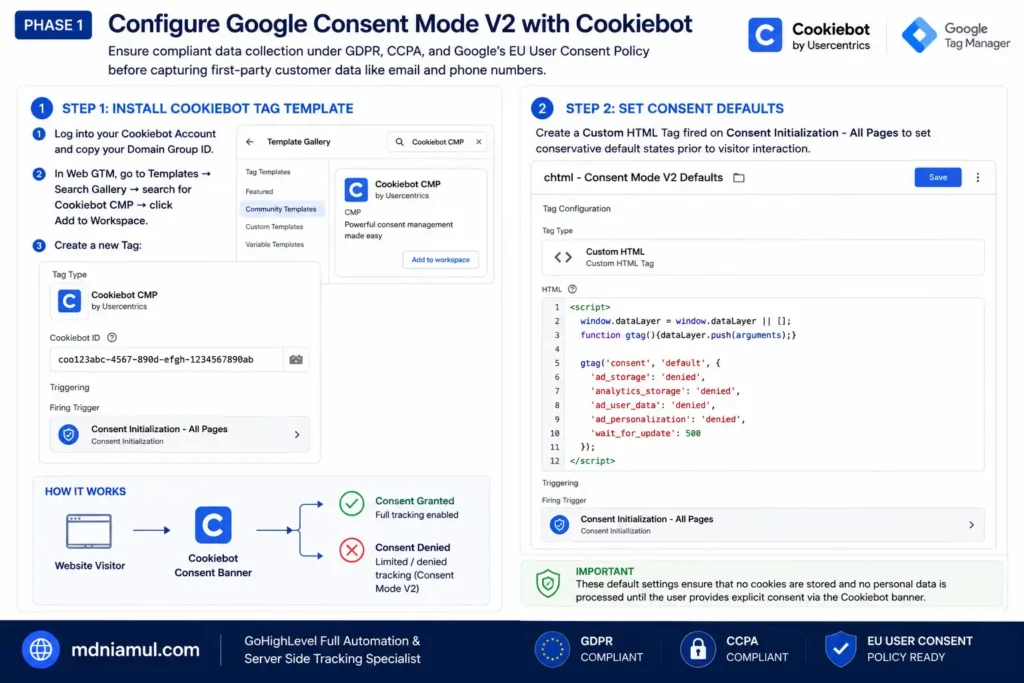
Phase 1: Configure Google Consent Mode V2 with Cookiebot
Under modern global privacy frameworks (GDPR, CCPA, and Google’s EU User Consent Policy), capturing first-party customer data like email and phone numbers requires explicit user consent.
Step 1: Install Cookiebot Tag Template
- Log into your Cookiebot Account and copy your Domain Group ID.
- In Web GTM, go to Templates -> Search Gallery -> search for Cookiebot CMP -> click Add to Workspace.
- Create a new Tag:
- Tag Type: Cookiebot CMP
- Cookiebot ID: Paste your Domain Group ID
- Trigger: Consent Initialization – All Pages
Step 2: Set Consent Defaults
Create a Custom HTML Tag fired on Consent Initialization – All Pages to set conservative default states prior to visitor interaction:
					<script>
  window.dataLayer = window.dataLayer || [];
  function gtag(){dataLayer.push(arguments);}

  gtag('consent', 'default', {
    'ad_storage': 'denied',
    'analytics_storage': 'denied',
    'ad_user_data': 'denied',
    'ad_personalization': 'denied',
    'wait_for_update': 500
  });
</script>
Phase 2: Deploy Custom GoHighLevel postMessage Listener
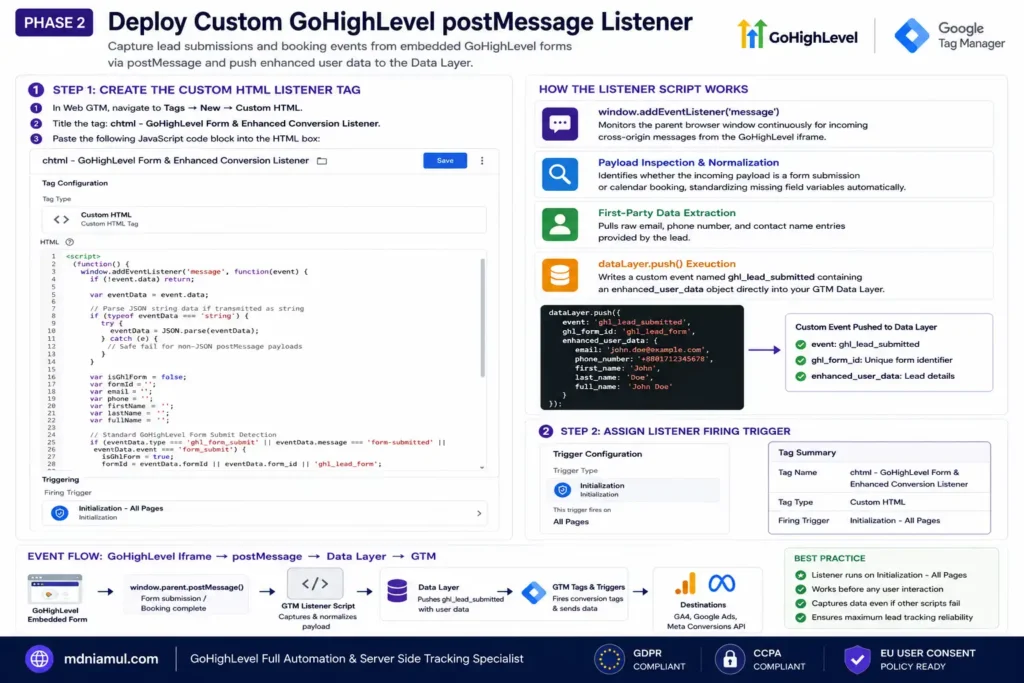
Step 1: Create the Custom HTML Listener Tag
- In Web GTM, navigate to Tags -> New -> Custom HTML.
- Title the tag: chtml – GoHighLevel Form & Enhanced Conversion Listener.
- Paste the following JavaScript code block into the HTML box:
					<script>
(function() {
  window.addEventListener('message', function(event) {
    if (!event.data) return;

    var eventData = event.data;

    // Parse JSON string data if transmitted as string
    if (typeof eventData === 'string') {
      try {
        eventData = JSON.parse(eventData);
      } catch (e) {
        // Safe fail for non-JSON postMessage payloads
      }
    }

    var isGhlForm = false;
    var formId = '';
    var email = '';
    var phone = '';
    var firstName = '';
    var lastName = '';
    var fullName = '';

    // Standard GoHighLevel Form Submit Detection
    if (eventData.type === 'ghl_form_submit' || eventData.message === 'form-submitted' || eventData.event === 'form_submit') {
      isGhlForm = true;
      formId = eventData.formId || eventData.form_id || 'ghl_lead_form';

      // Extract form input field values
      if (eventData.inputs) {
        email = eventData.inputs.email || eventData.email || '';
        phone = eventData.inputs.phone || eventData.phone || '';
        firstName = eventData.inputs.first_name || '';
        lastName = eventData.inputs.last_name || '';
        fullName = eventData.inputs.full_name || (firstName + ' ' + lastName).trim();
      } else {
        email = eventData.email || '';
        phone = eventData.phone || '';
        fullName = eventData.name || '';
      }
    }
    // GoHighLevel Calendar Booking Detection
    else if (Array.isArray(eventData) && (eventData[0] === 'msgsndr-booking-complete' || eventData[0] === 'ghl-form-submit')) {
      isGhlForm = true;
      var details = eventData[1] || {};
      formId = details.formId || details.calendarId || 'ghl_calendar_widget';
      email = details.email || '';
      phone = details.phone || '';
      fullName = details.name || '';
    }

    // Push structured data to Data Layer upon valid form capture
    if (isGhlForm) {
      window.dataLayer = window.dataLayer || [];
      window.dataLayer.push({
        'event': 'ghl_lead_submitted',
        'ghl_form_id': formId,
        'enhanced_user_data': {
          'email': email,
          'phone_number': phone,
          'first_name': firstName,
          'last_name': lastName,
          'full_name': fullName
        }
      });
      console.log('GHL Enhanced Conversion Listener: Lead Data Successfully Captured for Form [' + formId + ']');
    }
  });
})();
</script>
How the Listener Script Works
- window.addEventListener(‘message’): Monitors the parent browser window continuously for incoming cross-origin messages from the GoHighLevel iframe.
- Payload Inspection & Normalization: Identifies whether the incoming payload is a form submission or calendar booking, standardizing missing field variables automatically.
- First-Party Data Extraction: Pulls raw email, phone number, and contact name entries provided by the lead.
- dataLayer.push() Execution: Writes a custom event named ghl_lead_submitted containing an enhanced_user_data object directly into your GTM Data Layer.
Step 2: Assign Listener Firing Trigger
- Trigger Type: Initialization – All Pages
- Save Tag: chtml – GoHighLevel Form & Enhanced Conversion Listener
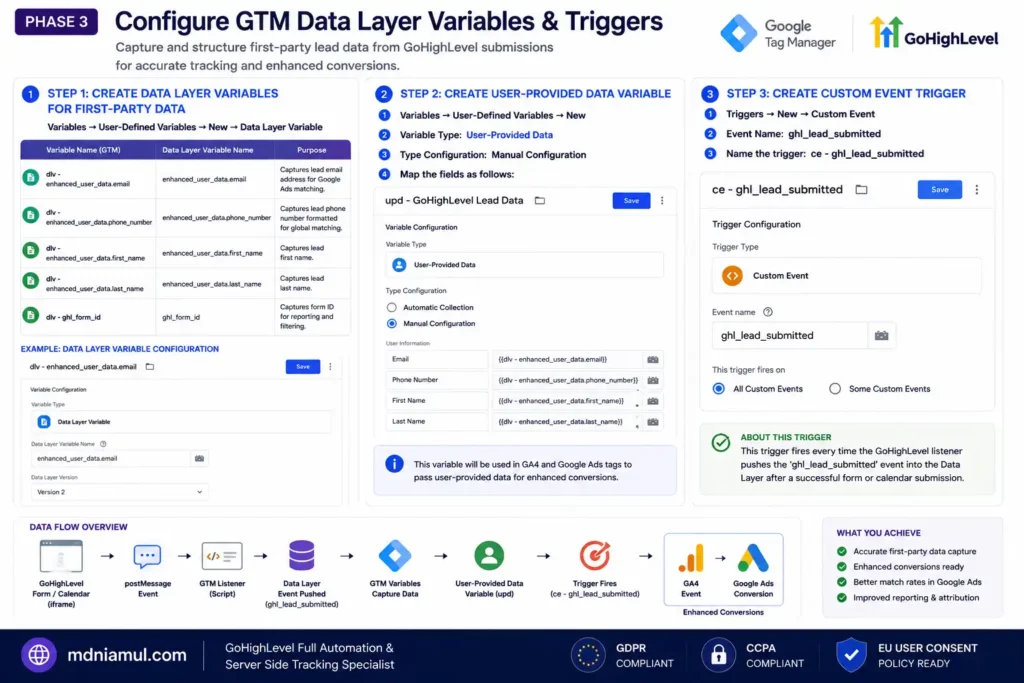
Phase 3: Configure GTM Data Layer Variables & Triggers
Step 1: Create Data Layer Variables for First-Party Data
Navigate to Variables -> User-Defined Variables -> New -> Data Layer Variable:
- dlv – enhanced_user_data.email
- Data Layer Variable Name: enhanced_user_data.email
- Purpose: Captures lead email address for Google Ads matching.
- dlv – enhanced_user_data.phone_number
- Data Layer Variable Name: enhanced_user_data.phone_number
- Purpose: Captures lead phone number formatted for global matching.
- dlv – enhanced_user_data.first_name
- Data Layer Variable Name: enhanced_user_data.first_name
- Purpose: Captures lead first name.
- dlv – enhanced_user_data.last_name
- Data Layer Variable Name: enhanced_user_data.last_name
- Purpose: Captures lead last name.
- dlv – ghl_form_id
- Data Layer Variable Name: ghl_form_id
- Purpose: Captures form ID for reporting and filtering.
Step 2: Create User-Provided Data Variable
- Navigate to Variables -> User-Defined Variables -> New.
- Variable Type: User-Provided Data.
- Type Configuration: Select Manual Configuration.
- Map the fields as follows:
- Email: {{dlv – enhanced_user_data.email}}
- Phone Number: {{dlv – enhanced_user_data.phone_number}}
- First Name: {{dlv – enhanced_user_data.first_name}}
- Last Name: {{dlv – enhanced_user_data.last_name}}
- Name the variable: upd – GoHighLevel Lead Data.
Step 3: Create Custom Event Trigger
- Navigate to Triggers -> New -> Custom Event.
- Event Name: ghl_lead_submitted
- Name the trigger: ce – ghl_lead_submitted.
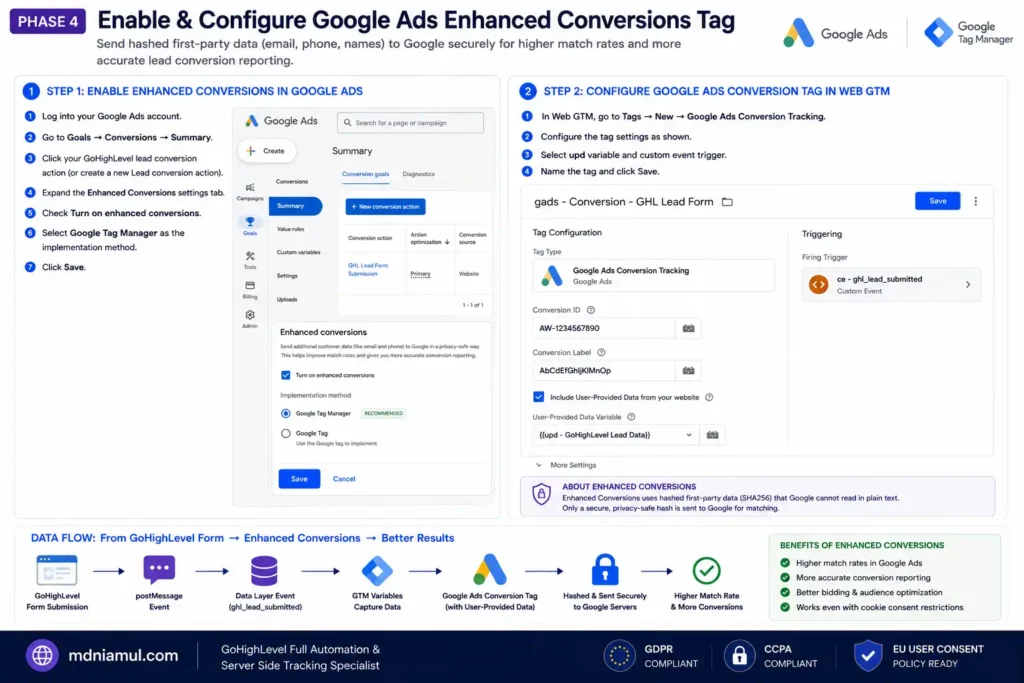
Phase 4: Enable & Configure Google Ads Enhanced Conversions Tag
Step 1: Enable Enhanced Conversions in Google Ads
- Log into your Google Ads account.
- Navigate to Goals -> Conversions -> Summary.
- Click on your GoHighLevel lead conversion action (or create a new Lead conversion action).
- Expand the Enhanced Conversions settings tab.
- Check Turn on enhanced conversions.
- Select Google Tag Manager as the implementation method and click Save.
Step 2: Configure Google Ads Conversion Tag in Web GTM
- In Web GTM, go to Tags -> New -> Google Ads Conversion Tracking.
- Conversion ID: Enter your Google Ads Conversion ID (AW-XXXXXXXXX).
- Conversion Label: Enter your specific Conversion Label (AbCdEfGhIjKlMnOp).
- Include User-Provided Data from your website: Check this box.
- User-Provided Data Variable: Select {{upd – GoHighLevel Lead Data}}.
- Firing Trigger: Select ce – ghl_lead_submitted.
- Name the tag: gads – Conversion – GHL Lead Form.
Note: For specialized CRM data integrations, see my expert guides on GoHighLevel Form Conversion Tracking Services, HubSpot Form Conversion Tracking Services, and Offline Conversion Tracking Services.
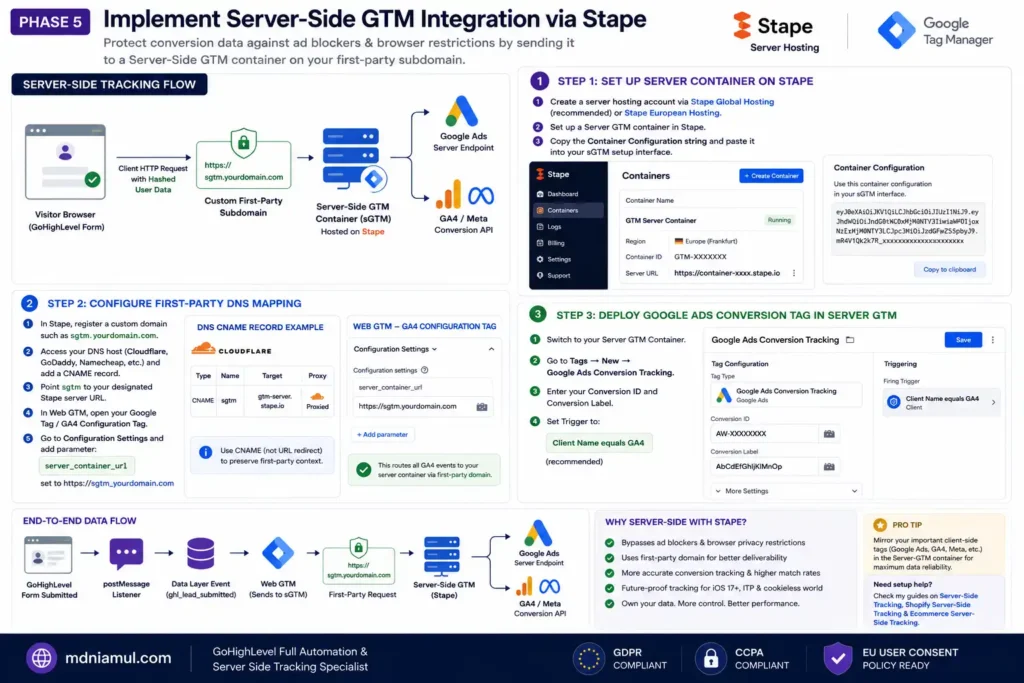
Phase 5: Implement Server-Side GTM Integration via Stape
To protect conversion data against client-side ad blockers and browser privacy restrictions, mirror your Google Ads tags inside a Server-Side GTM (sGTM) container hosted on Stape.
					[ Visitor Browser ]
        │
        ▼ (Client HTTP Request with Hashed User Data)
[ Custom First-Party Subdomain: sgtm.yourdomain.com ]
        │
        ▼
[ Server-Side GTM Container Hosted on Stape ]
        │
        ├──► [ Google Ads Server Endpoint ]
        └──► [ GA4 / Meta Conversion API ]
Step 1: Set Up Server Container on Stape
- Create a server hosting account via Stape Global Hosting or Stape European Hosting.
- Set up a Server GTM container in Stape and copy the provided Container Configuration string into your sGTM setup interface.
Step 2: Configure First-Party DNS Mapping
- In Stape, register a custom domain such as sgtm.yourdomain.com.
- Access your DNS host (Cloudflare, GoDaddy, Namecheap) and add a CNAME record pointing sgtm to your designated Stape server URL.
- In Web GTM, open your Google Tag / GA4 Configuration Tag, navigate to Configuration Settings, and add parameter server_container_url set to https://sgtm.yourdomain.com.
Step 3: Deploy Google Ads Conversion Tag in Server GTM
- Switch to your Server GTM Container.
- Go to Tags -> New -> Google Ads Conversion Tracking.
- Conversion ID: Enter your AW-XXXXXXXXX.
- Conversion Label: Enter your AbCdEfGhIjKlMnOp.
- Trigger: Client Name equals GA4 (or create a custom event trigger matching your incoming lead event).
For additional server-side setups across platforms, explore my guides on Server-Side Tracking Service, Shopify Server-Side Tracking Service, and Ecommerce Server-Side Tracking Service.
Testing & Validation Framework
Execute this 4-step sequence to verify that your Enhanced Conversions setup is operating properly:
- GTM Tag Assistant Preview: Click Preview in Web GTM, connect to your landing page, and complete a test submission in your embedded GoHighLevel form. Verify that the ghl_lead_submitted event appears in the left panel and that your gads – Conversion – GHL Lead Form tag fires.
- Inspect Data Layer Payload: In Tag Assistant, click the ghl_lead_submitted event -> select the Data Layer tab. Confirm that the enhanced_user_data object contains your test email and phone number.
- Google Tag Assistant User-Provided Data Check: Click on your fired Google Ads Conversion tag inside Tag Assistant. Expand the Properties section -> verify that User-Provided Data displays status Sent with valid mapped values.
- Google Ads Diagnostics Tab: Log into Google Ads -> navigate to your Conversion Action -> click Diagnostics. Within 24–48 hours, the system should show status Active (Enhanced Conversions recorded) with a reported increase in match rate.
Troubleshooting Common Setup Errors
- Problem: Enhanced Conversions shows status “Needs Attention” in Google Ads
- Root Cause: User-Provided Data variable is missing or formatted incorrectly in Web GTM.
- Exact Solution: Verify that your Data Layer variables map correctly to enhanced_user_data.email and enhanced_user_data.phone_number. Ensure phone numbers include international country codes where available.
- Problem: The ghl_lead_submitted event does not fire upon submission
- Root Cause: The GoHighLevel iframe is restricted by restrictive sandbox properties or domain policies.
- Exact Solution: Open your landing page HTML code and remove sandbox restriction flags from the GoHighLevel iframe code snippet.
- Problem: Customer email and phone parameters return undefined
- Root Cause: Modern GoHighLevel form updates changed internal input field naming structures.
- Exact Solution: Inspect the raw console log output of the postMessage script (event.data) to confirm field key names, then update your Data Layer paths accordingly.
- Problem: Server-Side GTM fails to receive lead events
- Root Cause: First-party subdomain CNAME DNS records have not fully propagated or contain typos.
- Exact Solution: Test your server URL directly (https://sgtm.yourdomain.com/healthz). Ensure it returns ok before re-testing in sGTM Preview mode.
Comparative Overview Lead Conversion Tracking Methods
- Standard Thank-You Page Tracking:
- Data Accuracy: 50% – 60%
- Enhanced Match Rate Support: No
- Handles Cross-Origin Iframes: No
- Ad-Blocker Resiliency: Poor
- Data Security: Low (Exposes raw URL parameters)
- Standard GTM Form Trigger:
- Data Accuracy: 0% (Fails entirely on iframes)
- Enhanced Match Rate Support: No
- Handles Cross-Origin Iframes: No
- Ad-Blocker Resiliency: Poor
- Data Security: None
- Custom Listener + Enhanced Conversions + sGTM (Recommended):
- Data Accuracy: 95% – 99%
- Enhanced Match Rate Support: Yes (SHA-256 Hashed First-Party Data)
- Handles Cross-Origin Iframes: Yes (Fully Supported)
- Ad-Blocker Resiliency: High (First-Party Server Routing)
- Data Security: Maximum (Fully Encrypted & Privacy Compliant)
Conclusion Scale Your Google Ads Campaigns with Reliable Lead Signals
In 2026, relying on basic conversion tracking for embedded GoHighLevel lead forms leaves valuable attribution data on the table. Deploying a custom postMessage listener script in Google Tag Manager breaks through cross-origin iframe barriers to capture raw lead submission signals. By converting those signals into structured Data Layer variables and attaching them to Google Ads Enhanced Conversions via Server-Side GTM on Stape, you feed Google’s Smart Bidding algorithms high-quality, privacy-compliant first-party data. This setup lowers your cost per acquisition and ensures every marketing dollar works harder.
Summary by MD Niamul
Tracking embedded GoHighLevel lead forms in Google Ads requires a custom postMessage listener script in GTM to bypass cross-origin iframe security barriers. The script extracts lead submission signals along with first-party customer data (email, phone) into the Data Layer. By linking this data to Google Ads Enhanced Conversions via Server-Side GTM on Stape and enforcing Cookiebot Consent Mode V2, businesses achieve 99% conversion accuracy, higher match rates, and optimized Smart Bidding.
1.What is Google Ads Enhanced Conversions for lead forms?
Google Ads Enhanced Conversions for leads is an advanced tracking feature that allows advertisers to send privacy-safe, hashed first-party customer data—such as email addresses, phone numbers, and physical addresses—from web lead forms to Google. Google matches this encrypted data (hashed using SHA-256) against its signed-in user database to attribute conversions that standard cookies or client-side scripts miss due to browser privacy restrictions, cross-device browsing, or ad blockers.
2.Why can't standard GTM tags capture GoHighLevel form fields?
GoHighLevel forms are typically embedded on landing pages using HTML iframe tags hosted on external domains like msgsndr.com. Web browsers enforce a security rule called the Same-Origin Policy, which prevents JavaScript running on your primary landing page (including Google Tag Manager) from inspecting, reading, or interacting with elements inside an external iframe. A custom postMessage listener script is required to safely receive signals broadcast by the iframe.
3.Is it safe to pass lead email and phone numbers through GTM?
Yes, provided you implement proper formatting and hashing standards. When configured correctly using GTM’s native User-Provided Data variable or Server-Side GTM processing, first-party data is automatically encrypted using the SHA-256 algorithm before leaving the user’s browser or your server. Raw, unencrypted customer information is never permanently stored or exposed publicly.
4.How long does it take for Enhanced Conversions to impact Google Ads bidding?
Once configured, Google Ads requires a learning period of roughly 7 to 14 days to validate incoming hashed customer data streams against conversion records. During this learning phase, the Google Ads Diagnostics panel will display an active status alongside reported match rate improvements. Once fully integrated, Smart Bidding models adjust bid strategies based on the enriched conversion signals.
5.Do I need Server-Side GTM to use Google Ads Enhanced Conversions?
While you can deploy Enhanced Conversions directly through Web GTM, combining Enhanced Conversions with Server-Side GTM (sGTM) hosted on Stape is strongly recommended. Web-based scripts are vulnerable to ad blockers, network failures, and browser storage restrictions like Apple’s Safari ITP. Server-Side routing ensures 99% data delivery reliability while maintaining full compliance with global privacy regulations.
6.Will this setup work for GoHighLevel booking calendars and surveys?
Yes. The custom JavaScript listener code provided in this guide contains multi-signature detection logic. It checks incoming postMessage payloads for both standard form submissions (ghl_form_submit) and calendar booking completion events (msgsndr-booking-complete). This ensures calendar appointments and multi-step survey leads are captured and passed to Google Ads as Enhanced Conversions without requiring extra tags.
7.How does Cookiebot integration protect my website from privacy fines?
Cookiebot communicates directly with Google Tag Manager using Google Consent Mode V2. If a visitor declines consent for advertising cookies on your banner, Consent Mode updates default flags (ad_storage=’denied’, ad_user_data=’denied’). GTM tags adjust dynamically, sending redacted, cookieless pings to Google Ads instead of personal customer data, keeping your business compliant with GDPR and CCPA rules.
8.What happens if a GoHighLevel form submission redirects to an external URL?
If a GoHighLevel form is set to redirect immediately upon completion, the browser may change pages before the client-side GTM script finishes executing its tracking tag. To prevent missed data, configure your listener script to execute synchronously, use Server-Side GTM beacon transport calls, or set your GoHighLevel form to show an inline confirmation message rather than an immediate redirect.
9.Can I use this same Data Layer setup for Meta Conversions API (CAPI)?
Yes, absolutely. The enhanced_user_data object pushed into your Data Layer contains structured customer information (email, phone, name). You can reuse these exact Data Layer variables to supply User Data parameters for your Meta Pixel and Meta Conversions API (CAPI) tags in Web or Server GTM, streamlining your tracking stack across platforms.
10.Why does Google Ads show "Unverified" status next to my conversion action?
A conversion action status displays as “Unverified” when Google Ads has not yet received a live conversion ping from your website following setup changes. To resolve this, trigger a live test conversion in GTM Preview mode while using Google Tag Assistant, or complete an actual test lead submission on your live landing page. The status will update to “No Recent Conversions” or “Recording Conversions” within a few hours.
 Need Help Advanced GHL Automation & Tracking Setup?