
Table of Contents
ToggleQuick Answer
Setting up Meta Pixel and Facebook Conversions API (CAPI) using Server-Side Google Tag Manager (sGTM) hosted on Stape.io establishes a dual-stream tracking framework. By sending e-commerce events (ViewContent, AddToCart, InitiateCheckout, Purchase) simultaneously from the user’s browser and your first-party server container—paired with a matching event_id—Meta deduplicates identical conversions. This bypasses ad blockers and Safari ITP restrictions, recovering up to 40% of lost conversion data while driving up your Event Quality Match Score.
Key Takeaways
- Bypass Client-Side Data Loss: Traditional browser pixels miss 15% to 40% of conversion events due to iOS privacy prompts, Safari ITP 7-day cookie caps, and aggressive ad blockers.
- Hybrid Server Architecture: Combining web-based Meta Pixel scripts with server-side CAPI payloads guarantees maximum data collection without double-counting orders.
- Flawless Event Deduplication: Passing a shared event_id across browser tags and server requests ensures Meta registers each transaction exactly once.
- Maximized Event Quality Match Score: Sending hashed first-party user details (email, phone, first_name) alongside fbp and fbc cookies elevates your match score above 8.0/10.
- First-Party Cookie Resilience: Routing web traffic through a custom subdomain (metrics.yourdomain.com) on Stape extends cookie lifetimes from 24 hours back to 1–2 years.
Introduction: The $32,000 Ad Budget Blind Spot
An e-commerce store owner running scaling Meta campaigns reached out to me with a critical reporting discrepancy. His store backend recorded $85,000 in monthly revenue, yet Meta Ads Manager reported only $53,000 in attributed purchases. Over $32,000 in real orders had vanished from his campaign dashboards.
[User Browser] ---> (Ad Blocker / Safari ITP / iOS Privacy Block) ---> [Meta Pixel Fails]
      |
      v (Parallel Event Stream)
[sGTM Server] ---> (Custom Domain: metrics.yourdomain.com) -----------> [Meta CAPI Success]
Because Meta’s machine-learning algorithms could not see which ad sets, creatives, or placement angles drove those missing transactions, its Smart Bidding models optimized blindly. His Cost Per Acquisition (CPA) climbed higher every week, eroding profitability across his entire catalog.
Relying on client-side JavaScript tracking pixels alone is no longer viable. Network ad blockers, Apple’s Intelligent Tracking Prevention (ITP), and mobile privacy updates block third-party analytics scripts before they load.
In this comprehensive technical guide, I will show you how to build a server-side tracking infrastructure using Meta Pixel, Facebook Conversions API (CAPI), Server-Side GTM, and Stape.io. You will learn to deploy custom Data Layer listeners, build custom subdomains, deduplicate browser-server payloads, enforce Google Consent Mode v2 via Cookiebot, and boost your Event Quality Match Score (EQMS) to scale Meta Ads ROAS.
Why Server-Side Meta CAPI Matters for E-Commerce
When you rely exclusively on browser-side tracking scripts, your digital marketing ecosystem operates with incomplete information. When ad networks lose visibility into downstream conversion events, audience targeting accuracy drops significantly.
The Core Vulnerabilities of Browser-Only Tracking
- Ad Blocker Blockage: Over 30% of global internet users active on mobile and desktop run ad-blocking software that blocks requests to connect.facebook.net.
- Shortened Cookie Lifespans: Apple’s Safari ITP restricts client-side JavaScript cookies (_fbp and _fbc) to 7-day or 24-hour expiration windows, breaking retargeting audiences.
- Network Drops & Early Tab Closure: Mobile network latency and premature page exits frequently prevent browser JavaScript execution before purchase tags fire.
- Degraded Event Quality Match Scores: Web pixels often fail to capture clean, uncorrupted customer identity signals, producing low match scores inside Meta Events Manager.
The Strategic Benefits of Hybrid Server-Side CAPI
- Near-Total Conversion Recovery: Routing conversion payloads through an isolated server container captures up to 99% of total store sales.
- First-Party Cookie Protection: Issuing tracking cookies via your own custom domain (metrics.yourdomain.com) sets HttpOnly cookies that resist browser-level deletion.
- Enhanced Match Quality: Server containers normalize, trim, and hash sensitive user details using SHA-256 algorithms before transmitting them to Meta’s API endpoints.
- Improved Ad Set Optimization: Transmitting reliable purchase data feeds Meta’s AI algorithms, helping lower your CPA while increasing return on ad spend.
					+-----------------------------------------------------------------------------------+
|               BROWSER PIXEL VS. HYBRID CAPI TRACKING COMPARISON                   |
+--------------------------+-------------------------+------------------------------+
| Tracking Feature         | Browser Pixel Only      | Hybrid Meta Pixel + CAPI     |
+--------------------------+-------------------------+------------------------------+
| Data Capture Rate        | 60% - 85%               | 98% - 100%                   |
| Ad Blocker Resistance    | Completely Vulnerable   | Fully Resistant (Server-Side)|
| Safari Cookie Expiration | 24 Hours to 7 Days      | Up to 1 - 2 Years            |
| Deduplication Security   | Not Applicable          | Guaranteed via Event ID      |
| Match Score Potential    | Low to Moderate (3 - 6) | High to Superior (8 - 10)    |
| ROAS Signal Stability    | Volatile & Fragmented   | Consistent & Scalable        |
+--------------------------+-------------------------+------------------------------+
Prerequisites & Setup Checklist
Before configuring your Meta CAPI server-side pipeline, gather the required account accesses and assets listed below:
					+-----------------------------------------------------------------------------------+
|                           PRE-IMPLEMENTATION CHECKLIST                            |
+-----------------------+----------------------------------+------------------------+
| Asset / System        | Required Access Level            | Purpose                |
+-----------------------+----------------------------------+------------------------+
| GTM Web Container     | Admin / Publish Permissions      | Deploy Listener Tags   |
| GTM Server Container  | Admin / Publish Permissions      | Configure CAPI Client  |
| Stape.io Hosting      | Global / EU Account Access       | Cloud Container Host   |
| Meta Business Suite   | Admin Access                     | Pixel ID & API Token   |
| DNS Domain Manager    | CNAME Configuration Access       | Custom Subdomain Setup |
| Cookiebot CMP         | Account / Domain Group ID        | Consent Mode v2 Setup  |
+-----------------------+----------------------------------+------------------------+
- Google Tag Manager (Web Container): Admin permissions to deploy custom HTML listeners, Data Layer triggers, and web variables.
- Google Tag Manager (Server Container): Admin access to configure clients, custom server routing, and outgoing vendor tags.
- Stape.io Hosting Account: Account set up on Stape Global Hosting (or Stape European Hosting for EU GDPR compliance).
- Meta Business Suite / Events Manager: Access to obtain your Pixel ID and generate a permanent Conversions API Access Token.
- DNS Registrar Access: Permission to map CNAME records to set up your custom tracking subdomain (metrics.yourdomain.com).
- Cookiebot CMP Account: Active account to manage user consent parameters via Cookiebot.
Video Walkthrough Tutorial
If you prefer visual, click-by-click instructions showing how to configure Meta Pixel, sGTM, and Stape.io, watch the video tutorial below before reading the text steps:
Step-by-Step Implementation Guide
Phase 1: Deploy Google Consent Mode V2 via Cookiebot
To ensure compliance with global data protection laws (such as GDPR and CCPA), configure your consent management platform before deploying tracking tags. Using Cookiebot ensures GTM respects user privacy choices before firing marketing scripts.
- Open your Web GTM Workspace, navigate to the Community Template Gallery, search for Cookiebot CMP, and add it to your container.
- Configure default consent permissions within GTM to block tracking prior to explicit user opt-in:
- ad_storage: denied
- analytics_storage: denied
- ad_user_data: denied
- ad_personalization: denied
- Enter your Cookiebot Domain Group ID into the template configuration settings.
- Set the trigger to Consent Initialization – All Pages.
- When a visitor grants consent via the Cookiebot banner, Cookiebot issues an update command (consent update), allowing Meta tags to parse cookies and record conversion data.

Phase 2: Add Web Data Layer & Custom JavaScript Listener Code
To capture e-commerce user events (ViewContent, AddToCart, InitiateCheckout, Purchase) accurately, deploy a custom JavaScript event listener. An event listener acts like a catcher’s mitt—it catches hidden clicks, form submissions, and user interactions, transferring them into the Data Layer (which serves as an invisible filing cabinet for Tag Manager).
If your checkout process uses an iframe, remember that an iframe is like a glass window into another tool: you can see what happens inside, but your main page cannot interact with it directly without a postMessage listener.
Custom HTML Event Listener Tag (Web GTM)
Create a Custom HTML Tag named chtml – E-Commerce Event Listener in your Web GTM container, and attach it to the Initialization – All Pages trigger:
					<script>
(function() {
  // Utility: Generate unique Event ID for deduplication
  function generateEventID() {
    return 'id_' + Date.now() + '_' + Math.floor(Math.random() * 1000000);
  }

  // Utility: Extract URL query string parameters
  function getQueryParam(param) {
    var urlParams = new URLSearchParams(window.location.search);
    return urlParams.get(param) || '';
  }

  // Utility: Retrieve specific cookie value by name
  function getCookie(name) {
    var value = "; " + document.cookie;
    var parts = value.split("; " + name + "=");
    if (parts.length === 2) return parts.pop().split(";").shift();
    return '';
  }

  // Store fbclid in session storage if present in URL
  var urlFbclid = getQueryParam('fbclid');
  if (urlFbclid) {
    sessionStorage.setItem('x_fbclid', urlFbclid);
  }

  // Monitor clicks across e-commerce action elements
  document.addEventListener('click', function(e) {
    var target = e.target;

    // Add To Cart Listener
    if (target.closest('.add-to-cart-btn, [name="add"], .single_add_to_cart_button')) {
      var eventId = generateEventID();
      window.dataLayer = window.dataLayer || [];
      window.dataLayer.push({
        'event': 'custom_add_to_cart',
        'event_id': eventId,
        'fbp': getCookie('_fbp'),
        'fbc': getCookie('_fbc') || sessionStorage.getItem('x_fbclid'),
        'item_id': target.getAttribute('data-product-id') || '',
        'item_name': target.getAttribute('data-product-name') || '',
        'value': parseFloat(target.getAttribute('data-price') || 0),
        'currency': 'USD'
      });
    }

    // Initiate Checkout Listener
    if (target.closest('.checkout-button, [name="checkout"], #proceed-to-checkout')) {
      var eventId = generateEventID();
      window.dataLayer = window.dataLayer || [];
      window.dataLayer.push({
        'event': 'custom_initiate_checkout',
        'event_id': eventId,
        'fbp': getCookie('_fbp'),
        'fbc': getCookie('_fbc') || sessionStorage.getItem('x_fbclid'),
        'currency': 'USD'
      });
    }
  });
})();
</script>
Line-by-Line Breakdown & GTM Variable Mapping
- generateEventID(): Builds a unique, timestamped string (e.g., id_1715000000_482910). Passing this identical ID in both browser tags and server requests allows Meta to identify duplicate events.
- getCookie(‘_fbp’) & getCookie(‘_fbc’): Extracts Meta’s first-party browser cookies (_fbp for browser ID, _fbc for click ID) to maximize event matching.
- sessionStorage.setItem(‘x_fbclid’, …): Preserves the fbclid parameter across session pageviews even if the query parameter is removed from subsequent URLs.
- ‘event’: ‘custom_add_to_cart’: Pushes a clear event name to the Data Layer, which serves as your trigger inside Tag Manager.
For specific platform implementations, see our technical guides on Shopify server-side tracking, e-commerce server-side tracking, and third-party checkout conversion tracking.

Phase 3: Provision Stape.io sGTM Container & Custom Domain
A server container operates like a passport inspection desk. Instead of allowing browser scripts to send user data directly to third-party ad networks, the browser routes event data to your server container first. The server container sanitizes, formats, and forwards the data securely to Meta’s API endpoints over HTTPS.
[Web Browser] ---> (HTTPS POST to metrics.yourdomain.com) ---> [Stape sGTM Container]
                                                                        |
                                                     +------------------+------------------+
                                                     |                                     |
                                                     v                                     v
                                          [GA4 Client Processing]               [Meta CAPI Tag]
                                                     |                                     |
                                                     v                                     v
                                           GA4 Data Stream Engine                Meta Graph API Endpoint
Step 1: Create a Stape.io Hosting Container
- Sign up on Stape Global Hosting (or Stape European Hosting).
- Create a container in Stape and paste your GTM Server Container Configuration String (found in sGTM Container > Admin > Install Google Tag Manager).
Step 2: Map Your First-Party Custom Subdomain
- Open your DNS provider (Cloudflare, GoDaddy, Namecheap) and create a CNAME record:
- Type: CNAME
- Host / Name: metrics (or ss)
- Target / Value: Your unique Stape container domain string (e.g., xyz.stape.io).
- Enter metrics.yourdomain.com into your Stape container’s Domains configuration tab.
- Confirm that the SSL certificate status changes to Active. Routing traffic through this custom subdomain sets HttpOnly first-party cookies, protecting your analytics setup from browser-level cookie deletion.
Step 3: Route Web GTM Traffic to Your Server Container
- Open your Web GTM Container.
- Select your Google Tag (GA4 Configuration Tag).
- Add a configuration parameter:
- Parameter Name: server_container_url
- Value: https://metrics.yourdomain.com
For advanced server setups, review our technical walkthroughs on server-side tracking services and marketing automation services.

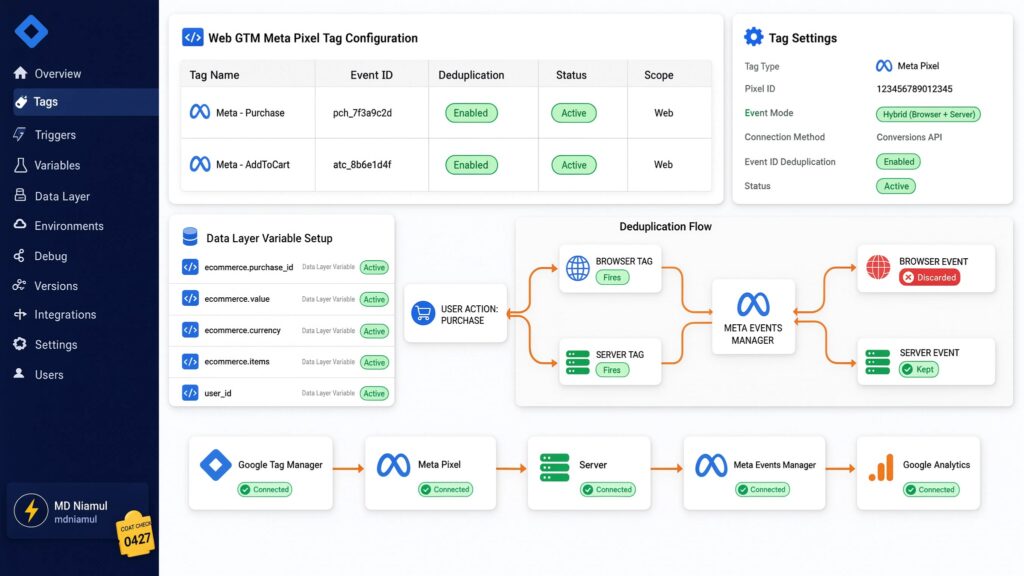
Phase 4: Configure Web Meta Pixel Tags with Event ID Deduplication
To maintain a robust hybrid setup, fire the client-side Meta Pixel alongside your server container. Attaching a matching event_id ensures Meta credits conversions properly while deduplicating duplicate events.
					+-----------------------------------------------------------------------------------+
|                     WEB GTM META PIXEL TAG CONFIGURATION                          |
+-------------------+----------------------+-------------------+--------------------+
| Tag Name          | Tag Type             | Trigger           | Key Parameters     |
+-------------------+----------------------+-------------------+--------------------+
| Meta - Purchase   | Custom HTML / Pixel  | event = purchase  | Event: Purchase    |
|                   |                      |                   | Event ID: event_id |
| Meta - AddToCart  | Custom HTML / Pixel  | custom_add_to_cart| Event: AddToCart   |
|                   |                      |                   | Event ID: event_id |
+-------------------+----------------------+-------------------+--------------------+
- Web GTM Tag Configuration:
- Tag Type: Custom HTML or Meta Pixel Template
- Pixel ID: 123456789012345
- Event Name: Purchase
- Event ID: {{dlv – event_id}}
- Value: {{dlv – value}}
- Currency: {{dlv – currency}}
- Web GTM Variable Setup:
- Variable Name: dlv – event_id
- Variable Type: Data Layer Variable
- Data Layer Variable Name: event_id
					     [USER ACTION: PURCHASE]
                                             |
                     +-----------------------+-----------------------+
                     |                                               |
                     v                                               v
          [Browser Tag: Meta Pixel]                     [Server Tag: Meta CAPI]
          - Event Name: Purchase                        - Event Name: Purchase
          - Event ID: id_171500_992                       - Event ID: id_171500_992
                     |                                               |
                     +-----------------------+-----------------------+
                                             |
                                             v
                                 [Meta Events Manager]
                       Recognizes identical Event ID (id_171500_992)
                       -> Keeps Server Data (Higher Quality)
                       -> Discards Duplicate Browser Event
Event ID Deduplication Mechanics
Think of an event_id like a coat check ticket number at a venue. When the browser sends an event to Meta with ticket id_171500_992, Meta holds it briefly. When your sGTM server container sends a CAPI payload carrying that same ticket id_171500_992, Meta matches the two incoming events. Meta retains the higher-quality server payload and discards the duplicate browser request, ensuring accurate conversion reporting.
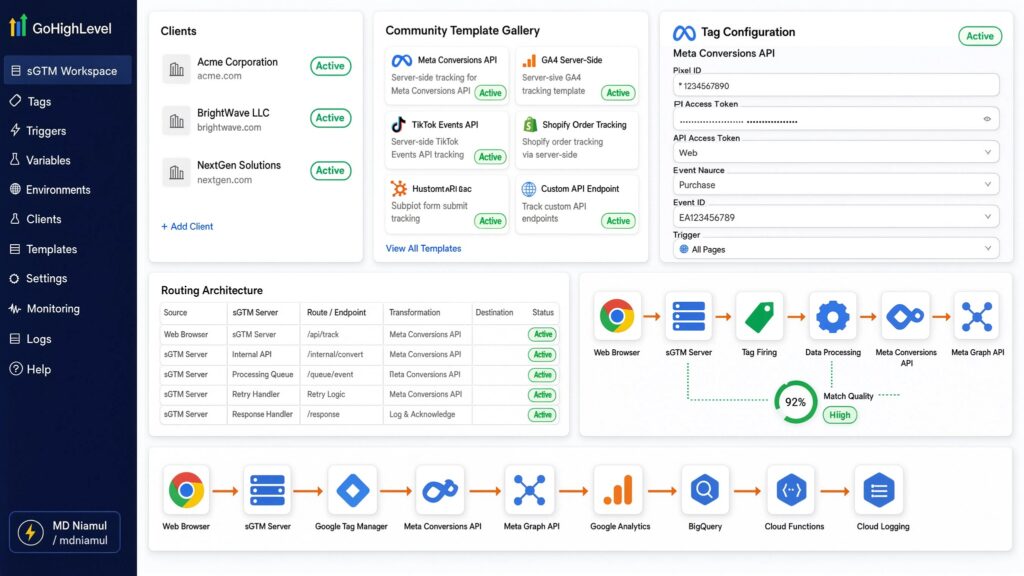
Phase 5: Configure sGTM Container for Meta Conversions API
Now, configure your server-side GTM workspace to process incoming web event streams and route them to Meta’s API endpoints.
					+-----------------------------------------------------------------------------------+
|                     sGTM META CAPI ROUTING ARCHITECTURE                           |
+----------------------+-------------------------+----------------------------------+
| Server Element       | Configuration Value     | Operating Function               |
+----------------------+-------------------------+----------------------------------+
| Incoming Client      | GA4 Client              | Receives Web Stream Payload      |
| sGTM Tag Template    | Meta Conversions API    | Formats JSON payload for Meta    |
| Authentication Token | Graph API Access Token  | Authenticates Server Connection  |
| Event Matching Key   | {{Event ID}}            | Enforces Deduplication Logic     |
| Tag Trigger          | Client Name equals GA4  | Fires on incoming web requests   |
+----------------------+-------------------------+----------------------------------+
- Open your sGTM Workspace and navigate to Clients. Verify that the standard GA4 Client is active. The GA4 Client receives incoming requests sent to [metrics.yourdomain.com/g/collect](https://metrics.yourdomain.com/g/collect) and converts them into server event data.
- Go to the Community Template Gallery inside sGTM, search for Meta Conversions API, and install the tag template (created by Stape or Facebook).
- Create a new tag named sGTM – Meta CAPI Conversion Tag:
- Pixel ID: Enter your Meta Pixel ID (123456789012345).
- API Access Token: Paste the permanent token generated from Meta Events Manager (Events Manager > Settings > Conversions API > Generate Access Token).
- Action Source: Select website.
- Event Name Setup: Select Inherit from Client or map custom event names explicitly.
- Event ID: Map to {{Event ID}} extracted from incoming client data
Set the trigger to fire whenever the Client Name equals GA4.
Phase 6: Maximize Event Quality Match Score (EQMS)
Meta assigns an Event Quality Match Score (ranging from 1.0 to 10.0) based on how effectively your CAPI payloads match events to real Facebook and Instagram accounts. Higher match scores improve attribution accuracy and audience targeting efficiency.
					Raw Customer Inputs        Trimming & Lowercase          SHA-256 Hashing Algorithm
-------------------        --------------------          -------------------------
" John.Doe@Domain.com " -> "john.doe@domain.com" -> "55785a214b3017a4c48011246960133a..."
"+1 (555) 019-2831"    -> "15550192831"         -> "a382103f71052bc91029103958102941..."
To optimize your match quality score, pass the following first-party user details inside your sGTM Meta CAPI tag. Tag Manager automatically formats and hashes sensitive user values using SHA-256 before transmitting them over HTTPS:
					+-----------------------------------------------------------------------------------+
|                      FIRST-PARTY USER MATCHING PARAMETERS                         |
+----------------------+-------------------------+----------------------------------+
| Parameter Key        | Data Source Format      | Processing & Hashing Rule        |
+----------------------+-------------------------+----------------------------------+
| Email (`em`)         | User Input / Form Field | Lowercase, trim spaces, SHA-256  |
| Phone (`ph`)         | User Input / Form Field | Digits only + Country, SHA-256   |
| First Name (`fn`)    | User Input / Form Field | Lowercase, trim spaces, SHA-256  |
| Last Name (`ln`)     | User Input / Form Field | Lowercase, trim spaces, SHA-256  |
| Browser ID (`fbp`)   | Cookie `_fbp`           | Pass raw string value            |
| Click ID (`fbc`)     | Cookie `_fbc` / Query   | Pass raw string value            |
| Client IP Address    | Request Header          | Extracted automatically by sGTM  |
| User Agent String    | Request Header          | Extracted automatically by sGTM  |
+----------------------+-------------------------+----------------------------------+
For CRM integration setups, review our implementation guides on Salesforce conversion tracking, HubSpot form tracking, and GoHighLevel conversion tracking.

Testing & Validation Framework
Verify your Meta Pixel and CAPI setup using this structured testing matrix:
					+-----------------------------------------------------------------------------------+
|                        SYSTEM TESTING & VALIDATION MATRIX                         |
+-----------------------+-------------------------+---------------------------------+
| Testing Step          | Diagnostic Tool         | Expected Passing Result         |
+-----------------------+-------------------------+---------------------------------+
| 1. Script Performance | Google PageSpeed        | Low JS execution delay          |
| 2. Consent Enforce    | Console / GTM Preview   | Tags blocked prior to opt-in    |
| 3. Listener Data      | Data Layer Inspector    | `event_id` generated on click   |
| 4. Server Execution   | sGTM Preview Console    | Server receives HTTP 200 status |
| 5. Meta Deduplication | Meta Test Events Tool   | Pair status reads "Deduplicated"|
| 6. Event Quality      | Meta Events Manager     | EQMS score reads 8.0 or higher  |
+-----------------------+-------------------------+---------------------------------+
- Step 1: Container Speed & Performance Audit
- Tool: Google PageSpeed Insights
- Action: Run tests across mobile and desktop URL paths.
- Verification: Confirm low JavaScript execution times and verify that third-party scripts load asynchronously.
- Step 2: Consent State Verification
- Tool: Web Console / GTM Preview Mode
- Action: Inspect dataLayer values upon initial page load.
- Verification: Confirm that tracking tags remain paused until consent permissions change to granted.
- Step 3: Event Listener Execution
- Tool: GTM Web Preview Mode
- Action: Trigger an AddToCart or Purchase action.
- Verification: Verify that custom_add_to_cart fires and includes a unique event_id string.
- Step 4: sGTM Request Processing
- Tool: sGTM Preview Console (Stape)
- Action: Trigger a test conversion from your browser.
- Verification: Confirm that your server container processes incoming requests at [metrics.yourdomain.com/g/collect]
- with an HTTP 200 OK response.
- Step 5: Meta CAPI Deduplication Check
- Tool: Meta Events Manager > Test Events
- Action: Enter your Test Event Code (e.g., TEST12345) inside your sGTM CAPI Tag and place a test order.
- Verification: Verify that Events Manager displays paired Browser and Server events with a status of Deduplicated.
- Step 6: Event Quality Match Score Check
- Tool: Meta Events Manager Overview
- Action: Review event parameter coverage after 24 hours of live traffic.
- Verification: Confirm that your overall match score reaches 8.0/10 or higher.
Troubleshooting Common Tracking Errors
Problem 1: Deduplication Failing in Meta Events Manager
- Cause: The event_id passed by the browser pixel tag does not match the event_id received by the server CAPI tag, or one of the tags is missing the parameter entirely.
- Solution: Inspect your Web Data Layer output on conversion pages. Ensure event_id is generated once per action and passed identically to both web and server containers.
Problem 2: Event Quality Match Score Below 6.0
- Cause: Server CAPI payloads are missing user parameters like email, phone number, fbp, or fbc cookies.
- Solution: Check your Web Data Layer payload on purchase confirmation views. Ensure user contact details populate cleanly and map correctly inside your sGTM Meta CAPI tag.
Problem 3: Server Container Returning HTTP 400 or 403 Errors
- Cause: Invalid Meta API Access Token, incorrect Pixel ID, or Cloudflare firewall rules blocking incoming POST requests to /g/collect.
- Solution: Generate a new API token inside Meta Events Manager and update your sGTM Meta CAPI tag settings. Add a bypass rule in Cloudflare for your sGTM custom subdomain endpoint.
Problem 4: Missing fbc Cookie Parameters in CAPI Events
- Cause: Landing page redirects strip the fbclid query parameter before client scripts can parse and store it.
- Solution: Update web server redirect rules to preserve query strings across redirects, ensuring session storage captures the click ID correctly.
Problem 5: Missing Purchase Data in GA4 / sGTM Debug View
- Cause: Cross-domain checkout redirects (e.g., PayPal or external payment gateways) clear session cookies before reaching the order confirmation page.
- Solution: Set up cross-domain measurement settings in GA4 and use webhook triggers for third-party checkout conversions. See our guide on third-party checkout conversion tracking.
Conclusion
Relying solely on client-side tracking pixels leaves significant gaps in your advertising data. Between ad blockers, Safari ITP restrictions, and mobile privacy controls, standard web pixels miss a meaningful portion of your real conversion events.
Implementing Meta Pixel and Conversions API (CAPI) using Server-Side GTM and Stape.io restores full visibility over your conversion funnel. By deploying a custom server container on a first-party subdomain, enforcing Cookiebot for Google Consent Mode v2 compliance, and using event_id deduplication, you establish a reliable analytics pipeline. This setup equips Meta’s ad engine to lower acquisition costs and scale campaign ROAS effectively.
Summary by MD Niamul
This guide provides a step-by-step framework to configure Meta Pixel and Facebook Conversions API (CAPI) using Server-Side GTM and Stape.io. By deploying a custom JavaScript listener, establishing a first-party server subdomain, setting up Google Consent Mode v2 via Cookiebot, and using event_id deduplication, you recover lost conversion data. This setup optimizes your Event Quality Match Score and equips Meta’s ad engine to deliver improved campaign ROAS.
1.What is Meta Conversions API (CAPI)?
Meta Conversions API (CAPI) is a server-side tracking framework that sends marketing events directly from your web server to Meta’s data servers. Unlike the traditional browser-based Meta Pixel, CAPI bypasses client-side restrictions like ad blockers, network drops, and browser privacy controls to ensure reliable conversion attribution.
2.Why is event deduplication necessary for Meta CAPI?
When running both Meta Pixel (browser) and CAPI (server) simultaneously, both setups send events for the same user action. Deduplication uses a shared, unique event_id to merge these duplicate payloads. Meta retains the richer server data and discards the duplicate browser payload, preventing double-counting in your reporting.
3.How does Stape.io simplify server GTM hosting?
Stape.io provides a managed hosting environment for Server-Side Google Tag Manager containers. It removes the complex infrastructure management required by traditional cloud platforms like Google Cloud Platform (GCP). Stape simplifies setting up custom subdomains, manages SSL certificates automatically, and includes built-in tools to bypass ad blockers effectively.
4.What is Meta Event Quality Match Score (EQMS)?
Meta Event Quality Match Score measures how effectively the customer information sent with your conversion events matches active Facebook and Instagram user profiles. Scores range from 1.0 to 10.0. Higher scores help Meta match conversions back to ad views accurately, improving audience targeting and campaign delivery.
5.How do I capture the Facebook Click ID (fbclid)?
When a user clicks a Facebook ad, Meta appends a unique fbclid parameter to your landing page URL. A custom GTM JavaScript listener parses this parameter and stores it in a first-party cookie named _fbc or inside browser session storage, preserving the click ID for downstream conversion tags.
6.Does server-side tracking bypass Google Consent Mode v2?
No, server-side tracking does not bypass user privacy consents. Your Web GTM setup must check user choices recorded by a consent banner (such as Cookiebot) before sending data streams to your server container. Server container tags inherit these consent flags and adjust event processing accordingly.
7.What is the difference between CAPI Gateway and sGTM CAPI?
Meta CAPI Gateway is an automated solution hosted on cloud servers that captures web pixel requests and forwards them to Meta. sGTM CAPI gives you complete control over data transformation, parameter mapping, multi-vendor routing (GA4, Google Ads, Meta, TikTok), and custom data filtering before sending events.
8.Why should I use a custom server subdomain?
Setting up a custom subdomain (such as metrics.yourdomain.com) routes server tracking requests through your primary website domain rather than third-party endpoints. This allows your server to issue true first-party cookies that resist browser cookie caps and bypass ad-blocking blocklists.
9.How long does it take for Meta CAPI events to process?
Server-side CAPI events process in near real time. You can view test events instantly using Meta Events Manager’s Test Events tool. Aggregated conversion reports and Event Quality Match Scores update inside Meta Business Suite within 2 to 24 hours.
10.Can I implement Meta CAPI for lead generation forms?
Yes, Meta CAPI works for both e-commerce transactions and lead generation forms. You can pass custom lead events (such as Lead or SubmitApplication) along with hashed user details (email, phone, name) from form submissions to improve campaign attribution. For offline deals, see our guide on offline conversion tracking services.
 Need Help Advanced GHL Automation & Tracking Setup?