
Table of Contents
ToggleQuick Answer
To build an accurate multi website marketing attribution system, you must configure Google Analytics 4 (GA4) cross-domain measurement alongside a Server-Side Google Tag Manager (sGTM) container. By routing events through a first-party custom server subdomain and passing persistent client IDs, user IDs, and external IDs to Meta CAPI and Google Ads, you prevent session breakage, eliminate duplicate conversion signals, and maintain unified customer journeys across all your web properties.
Key Takeaways
- Eliminate Session Fragmentation: Cross-domain tracking in GA4 prevents visitors who hop across your subdomains or distinct brand domains from being logged as brand-new referral sessions.
- First-Party Data Persistence: Server-Side GTM bypasses Intelligent Tracking Prevention (ITP) and ad blockers by issuing first-party HttpOnly cookies, ensuring long-term user attribution.
- Server-Side Deduplication: Sending event signals via both web browser pixels and Meta Conversion API (CAPI) with matching unique event ID keys prevents duplicate conversion counting across multi-site platforms.
- Privacy Compliance by Default: Integrating Google Consent Mode V2 via Cookiebot directly inside GTM ensures ad platforms only process conversion signals when explicit consent is granted.
- Consolidated Reporting: A unified Looker Studio dashboard allows marketing teams to evaluate touchpoints across every brand site without wrestling with isolated analytical silos.
Introduction: The Multi-Domain Data Disaster
Imagine running a high-budget marketing campaign across Meta Ads and Google Search, sending traffic to a promotional landing page on brand-promo.com. A visitor reads your content, clicks “Get Started,” and is redirected to brand-main.com or a separate portal like brand-checkout.com to fill out a form or make a booking.
When you inspect your analytics reports the next morning, you encounter a total nightmare. GA4 attributes the bulk of your conversions to “direct / none” or “unassigned” traffic. Meta Ads claims credit for 150 leads, Google Ads claims credit for 120 leads, but your actual CRM only shows 100 total customers. Your ad platforms are stealing credit from each other, double-counting revenue, and wasting your ad budget on incorrect optimization signals.
This breakdown happens because standard web browsers treat each root domain as an isolated island. When a user crosses over from Domain A to Domain B, browser privacy mechanisms like Apple Safari’s Intelligent Tracking Prevention (ITP) wipe the visitor identifier. Your analytics platform assumes the original visitor vanished and a completely new user magically appeared out of thin air.
Think of moving between websites like travelling between two separate islands. Without a unified ferry pass (a persistent first-party cookie and cross-domain linker), the security guard on the second island forces every visitor to register as a new tourist. In this comprehensive guide, I will walk you step-by-step through building an enterprise-grade multi-website marketing attribution system using sGTM, GA4, Meta CAPI, and Cookiebot Consent Mode V2.
Why Multi-Website Marketing Attribution Matters
Managing multiple web properties without a unified tracking architecture introduces critical operational risks. When customer journeys span across multiple domains, traditional browser-based tracking fails in three distinct ways:
- Session Splitting: Crossing domains strips original UTM campaign tags, labeling converting visitors as self-referrals or direct traffic.
- Duplicate Conversions: Ad pixels on both landing pages and transaction domains fire independently, artificially inflating conversion counts.
- Cookie Decay: Modern web browsers terminate third-party tracking cookies within 24 hours (or block them entirely), killing multi-touch attribution.
By implementing server-side tracking across your web ecosystem, you overcome these limitations. If you want to dive deeper into dedicated server implementations, check out my server-side tracking service page.
5 Key Benefits of Server-Side Multi-Site Attribution
- Unified First-Party Cookies: Extends cookie lifespan from 1–7 days up to 1–2 years by serving cookies directly from your custom server domain.
- Accurate Deduplication: Pairs browser events with server events using unique event IDs so platforms like Meta, Google Ads, and TikTok never double-count.
- Bypass Ad Blockers: Server-to-server endpoints send data directly from your Cloud server, bypassing browser-level ad blockers and tracking shields.
- Enhanced Data Security: Filters sensitive user details (PII) on the server before transmitting hashed values to third-party ad networks.
- Cleaner Attribution Modeling: Passes persistent client identifiers across domains to map complete multi-touch customer journeys in GA4 and Looker Studio.
Prerequisites & Setup Checklist
Before configuring your multi-domain tracking engine, make sure you have access to the following platforms and resources:
- Google Tag Manager: Administrative access to both a Client-Side (Web) GTM container and a Server-Side (sGTM) GTM container.
- Server Hosting Environment: An active hosting account on Stape Global or Stape European (or Google Cloud Platform).
- Google Analytics 4: Edit or Admin permissions for your target GA4 property.
- Consent Management Platform: Account access to Cookiebot or CookieYes.
- Ad Accounts: Admin access to Meta Business Manager (Pixel & CAPI access) and Google Ads.
- CMS / Website Hosting: WordPress admin access with domain DNS editing permissions (A record and CNAME management).
Video Tutorial Walkthrough
If you prefer a visual step-by-step walkthrough, watch my complete YouTube guide where I demonstrate how to set up an advanced multi-website marketing attribution system:
Step-by-Step Implementation Guide
Phase 1: GA4 Cross-Domain Measurement Setup
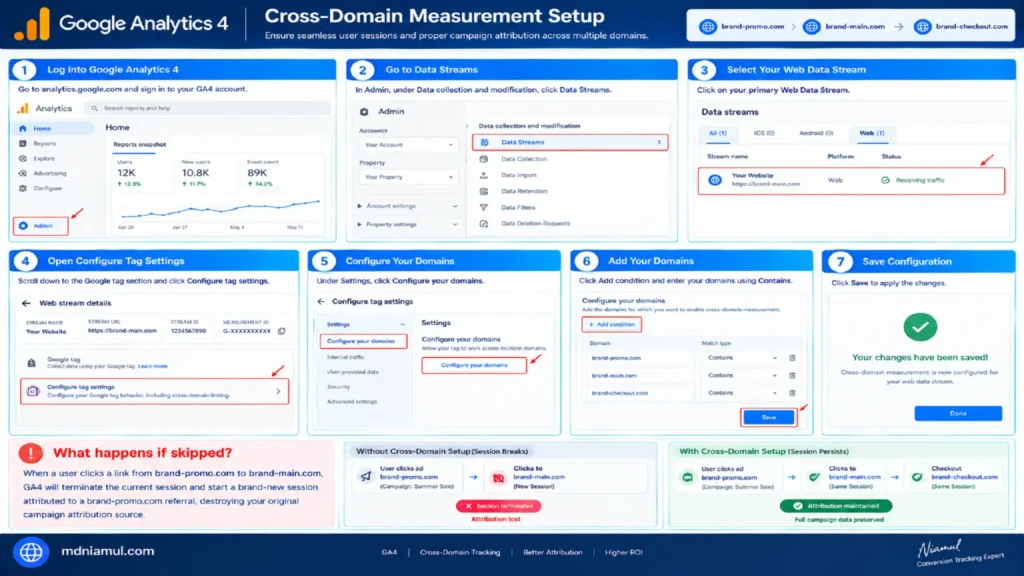
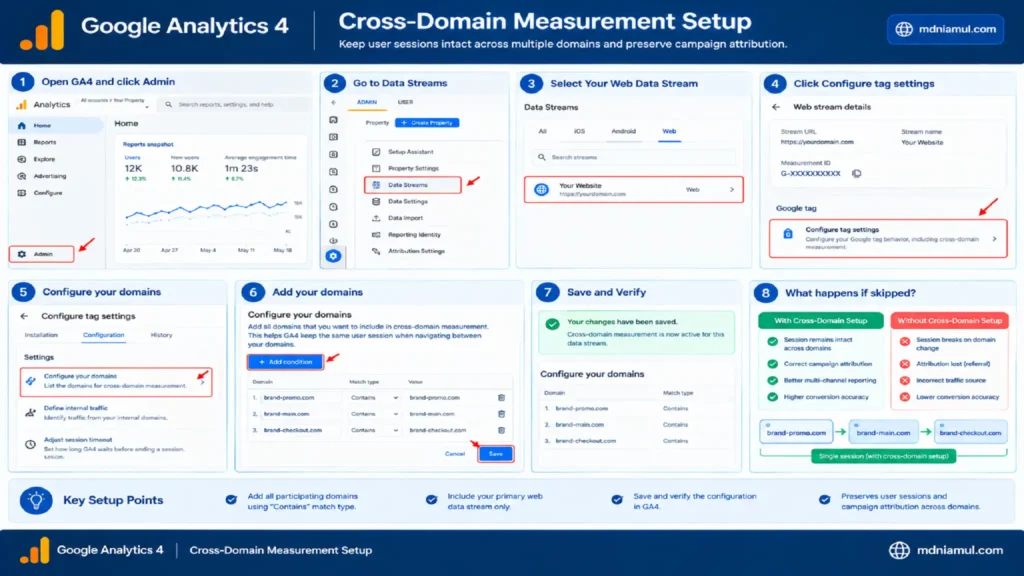
To prevent GA4 from breaking user sessions during domain transitions, you must declare all participating web domains inside your GA4 Data Stream settings.
Step 1: Configure Data Stream Domains in GA4
- Log into your Google Analytics 4 account.
- Click Admin (gear icon) in the bottom-left corner.
- Under Data collection and modification, select Data Streams.
- Click on your primary Web Data Stream.
- Scroll down to the Google tag section and click Configure tag settings.
- Under Settings, click Configure your domains.
- Click Add condition and enter your domains using the match type Contains:
- Domain 1: brand-promo.com
- Domain 2: brand-main.com
- Domain 3: brand-checkout.com
- Click Save.
What happens if skipped? When a user clicks a link from brand-promo.com to brand-main.com, GA4 will terminate the current session and start a brand-new session attributed to a brand-promo.com referral, destroying your original campaign attribution source.
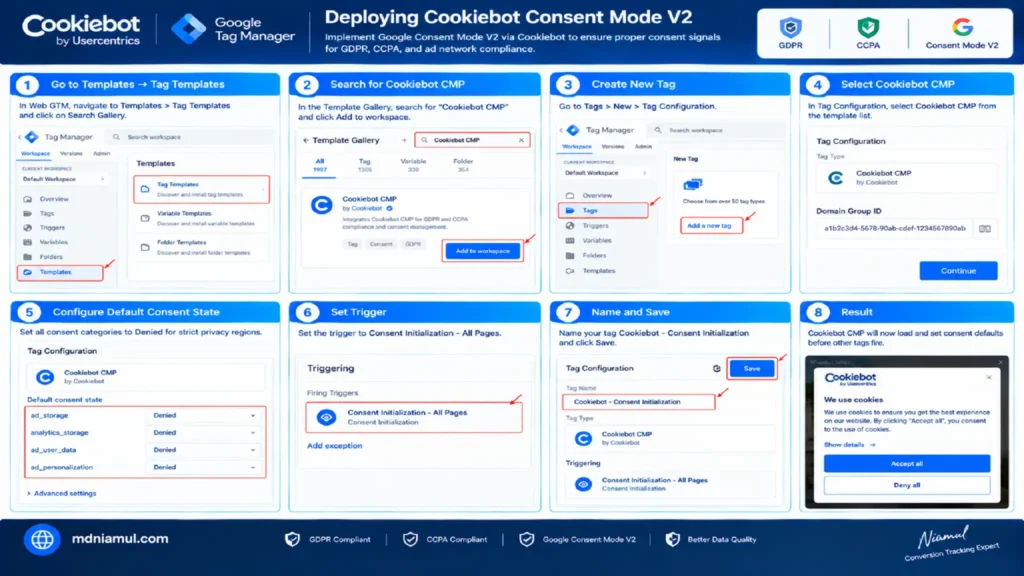
Phase 2: Deploying Cookiebot Consent Mode V2
Global privacy laws (GDPR, CCPA) and major ad networks require consent signals before tracking user activity. We deploy Google Consent Mode V2 via Cookiebot.
Step 1: Import Cookiebot Template in Web GTM
- In Web GTM, navigate to Templates > Tag Templates > Search Gallery.
- Search for Cookiebot CMP and click Add to workspace.
- Create a new tag: Tags > New > Tag Configuration.
- Select Cookiebot CMP.
- Input your Cookiebot Domain Group ID (retrieved from your Cookiebot Portal).
- Under Default Consent State, ensure ad_storage, analytics_storage, ad_user_data, and ad_personalization are set to Denied for strict privacy regions.
- Set Triggering to Consent Initialization – All Pages.
- Name the tag Cookiebot – Consent Initialization and click Save.
Phase 3: JavaScript Listener & Data Layer Code Setup
Think of an embedded cross-domain form as “a glass window into another tool.” Standard click triggers cannot look inside glass. We use a custom JavaScript listener tag—acting as “a catcher’s mitt”—to capture form submissions and drop structured data into GTM’s invisible filing cabinet (the Data Layer).
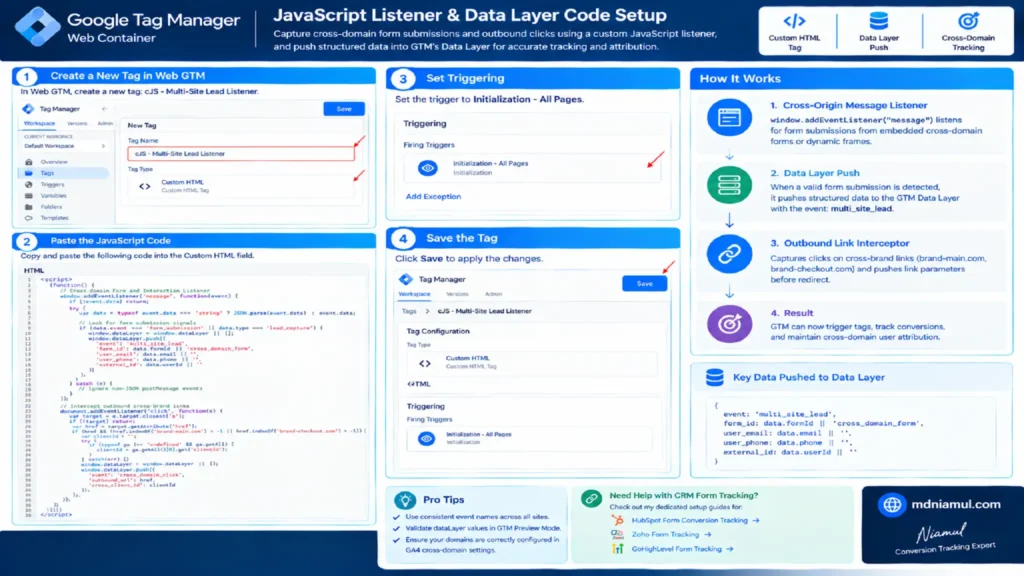
Step 1: Create Custom Listener Tag in Web GTM
- In Web GTM, create a new Tag: cJS – Multi-Site Lead Listener.
- Select Tag Type: Custom HTML.
- Paste the following JavaScript code block:
					<script>
(function() {
  // Cross-domain Form and Interaction Listener
  window.addEventListener('message', function(event) {
    if (!event.data) return;

    try {
      var data = typeof event.data === 'string' ? JSON.parse(event.data) : event.data;

      // Look for form submission signals
      if (data.event === 'form_submission' || data.type === 'lead_capture') {
        window.dataLayer = window.dataLayer || [];
        window.dataLayer.push({
          'event': 'multi_site_lead',
          'form_id': data.formId || 'cross_domain_form',
          'user_email': data.email || '',
          'user_phone': data.phone || '',
          'external_id': data.userId || ''
        });
      }
    } catch (e) {
      // Ignore non-JSON postMessage events
    }
  });

  // Intercept outbound cross-brand links
  document.addEventListener('click', function(e) {
    var target = e.target.closest('a');
    if (!target) return;

    var href = target.getAttribute('href');
    if (href && (href.indexOf('brand-main.com') > -1 || href.indexOf('brand-checkout.com') > -1)) {
      var clientId = '';
      try {
        if (typeof ga !== 'undefined' && ga.getAll) {
          clientId = ga.getAll()[0].get('clientId');
        }
      } catch(err) {}

      window.dataLayer = window.dataLayer || [];
      window.dataLayer.push({
        'event': 'cross_domain_click',
        'outbound_url': href,
        'cross_client_id': clientId
      });
    }
  });
})();
</script>
- Set Triggering to Initialization – All Pages.
- Save the Tag.
Explanation of Listener Execution
- window.addEventListener(‘message’): Listens for cross-origin messages emitted by forms or cross-site dynamic frames.
- window.dataLayer.push: Drops standardized payload data into GTM, firing the custom event multi_site_lead.
- Outbound Link Interceptor: Captures cross-brand clicks and prepares link parameters before page redirect.
If you process dynamic leads through CRM forms, review my dedicated setup guides for HubSpot form conversion tracking, Zoho forms tracking, or GoHighLevel form tracking.
Phase 4: Server-Side GTM Container & Custom Domain Setup
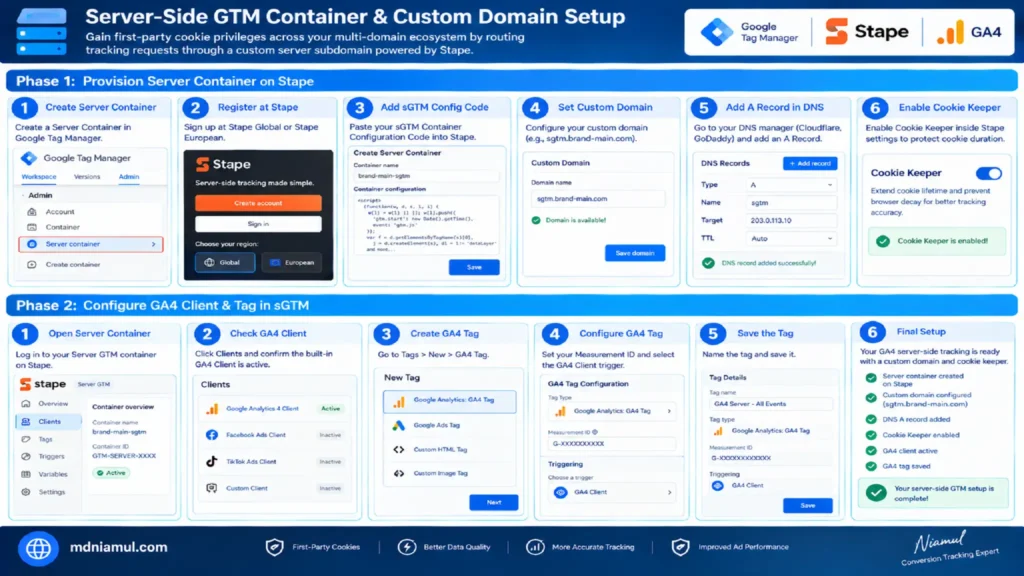
To gain first-party cookie privileges across your multi-domain ecosystem, route your tracking requests through a custom server subdomain powered by Stape Global.
Step 1: Provision Server Container on Stape
- Create a Server Container in Google Tag Manager.
- Register an account at Stape Global or Stape European.
- Paste your sGTM Container Configuration Code into Stape.
- Set up a Custom Domain in Stape: sgtm.brand-main.com.
- Access your domain DNS manager (e.g., Cloudflare, GoDaddy) and add an A Record:
- Record Name: sgtm
- Target Value: IP address supplied in your Stape dashboard.
- Enable Cookie Keeper inside Stape settings to protect cookie duration against browser decay.
Step 2: Configure GA4 Client & Tag in sGTM
- Open your Server GTM Container.
- Click Clients and confirm the built-in GA4 Client is active.
- Go to Tags > New > GA4 Tag.
- Set Measurement ID: G-XXXXXXXXXX.
- Under Triggering, select the built-in GA4 Client trigger.
- Save the tag as GA4 Server – All Events.
Phase 5: Meta CAPI Multi-Site Setup & Deduplication
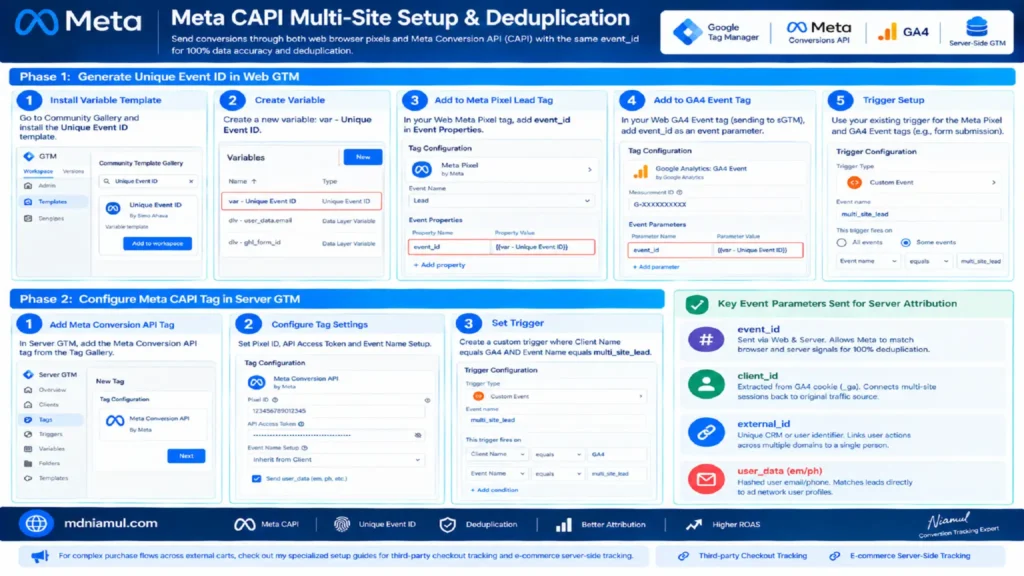
Sending conversions through both web browser pixels and Meta Conversion API (CAPI) guarantees data accuracy, provided both signals carry an identical event_id for deduplication.
Step 1: Generate Unique Event ID in Web GTM
- In Web GTM, install the Unique Event ID variable template from the Community Gallery.
- Create Variable: var – Unique Event ID.
- Open your Web Meta Pixel Lead Tag.
- Under Event Properties, add property:
- Property Name: event_id
- Property Value: {{var – Unique Event ID}}
- Open your Web GA4 Event Tag sending data to sGTM.
- Add Event Parameter:
- Parameter Name: event_id
- Parameter Value: {{var – Unique Event ID}}
Step 2: Configure Meta CAPI Tag in Server GTM
- In Server GTM, add the Meta Conversion API Tag from the Tag Gallery.
- Set Pixel ID and API Access Token (generated inside Meta Events Manager).
- Set Event Name Setup: Inherit from Client.
- Set Trigger: Custom Trigger where Client Name equals GA4 AND Event Name equals multi_site_lead.
Key Event Parameters Sent for Server Attribution
- event_id: Sent via Web & Server. Allows Meta to match browser and server signals for 100% deduplication.
- client_id: Extracted from GA4 cookie (_ga). Connects multi-site sessions back to original traffic source.
- external_id: Unique CRM or user identifier. Links user actions across multiple domains to a single person.
- user_data (em/ph): Hashed user email/phone. Matches leads directly to ad network user profiles.
For complex purchase flows across external carts, check out my specialized setup guides for third-party checkout tracking and e-commerce server-side tracking.
Phase 6: Looker Studio Consolidated Attribution Dashboard
Once cross-domain signals are captured in GA4, connect GA4 to Looker Studio to build a unified marketing attribution view.
- Primary Dimensions: Session Source / Medium, Landing Page Domain, Conversion Page Domain
- Primary Metrics: Sessions, Conversions, Total Revenue, Cross-Domain Conversion Rate
- Calculated Multi-Touch Field: Map initial user landing touchpoint on Domain A against final purchase touchpoint on Domain B to evaluate true multi-site campaign performance.
Testing & Data Validation Workflow
Follow this step-by-step verification process to ensure zero data drops across your multi-site system:
- Verify GA4 Linker Parameter: Open an incognito browser window. Visit brand-promo.com and click the link leading to brand-main.com. Inspect the address bar of the destination site. Confirm that the URL includes the _gl= parameter (e.g., brand-main.com/?_gl=1*1abcde*…).
- Inspect Web GTM Preview: Connect Web GTM Preview mode to your landing page. Fire a test form submission. Confirm that the multi_site_lead event appears in the timeline and that {{var – Unique Event ID}} generates a populated value.
- Inspect Server GTM Preview: Keep Server GTM Preview mode open simultaneously. Perform the test conversion on your live site. Confirm that the HTTP request is claimed by the GA4 Client and that both the GA4 Server Tag and Meta CAPI Tag return an HTTP status of 200 OK.
- Validate Meta Events Manager: Navigate to Meta Events Manager > Test Events. Input your test code, fire a conversion on your site, and check the live feed. Confirm that Meta receives two events (Browser and Server) and displays the status Deduplicated.
Lorem ipsum dolor sit amet, consectetur adipiscing elit. Ut elit tellus, luctus nec ullamcorper mattis, pulvinar dapibus leo.
Troubleshooting Common Attribution Errors
- Problem: GA4 displays traffic as “Unassigned” or “Self-Referral”.
- Cause: Missing cross-domain configurations in GA4 settings, or a server redirect stripping URL parameters.
- Solution: Add all root domains and subdomains to GA4 Configure Your Domains. Ensure your web server redirects preserve query strings (_gl).
- Problem: Meta Events Manager reports 0% Deduplication rate.
- Cause: Mismatched or missing event_id parameters between the web pixel tag and the server CAPI tag.
- Solution: Confirm that event_id is generated using the exact same variable in Web GTM and forwarded inside the GA4 event payload sent to sGTM.
- Problem: First-party server cookies expire after 7 days.
- Cause: Safari ITP capping client-side set cookies because your server container endpoint uses a third-party CNAME record.
- Solution: Host sGTM under an exact first-party subdomain (e.g., sgtm.brand-main.com) using A/AAAA DNS records routed through Stape.
- Problem: Server-side tags firing without user consent.
- Cause: sGTM tags configured without evaluating consent status parameters forwarded from the web client.
- Solution: Enable Google Consent Mode V2 in Web GTM via Cookiebot and ensure your sGTM Client passes gcs consent flags to control downstream tag execution.
Conclusion
Building a robust multi-website marketing attribution system using sGTM, GA4 cross-domain tracking, and Meta CAPI fixes broken ROAS metrics, eliminates duplicate conversion data, and protects user tracking against browser cookie restrictions. By deploying Cookiebot for Consent Mode V2 compliance, passing unique event_id keys for server deduplication, and hosting your tracking container on first-party subdomains through Stape, you ensure accurate data reporting across your entire web portfolio.
Summary by MD Niamul
Setting up a multi-website marketing attribution system using sGTM, GA4 cross-domain measurement, and Meta CAPI eliminates data loss, prevents duplicate conversions, and fixes broken ROAS metrics across complex web properties. By deploying Cookiebot for Consent Mode V2 compliance, passing unique event_id parameters for deduplication, and routing tracking through first-party subdomains on Stape Global or Stape European, you build a future-proof, highly accurate data analytics ecosystem for your business.
1.How does cross domain tracking work in GA4?
GA4 cross-domain tracking works by appending a unique linker parameter (_gl) to outbound links that lead to other domains specified in your tracking settings. When a user clicks a link from Domain A to Domain B, the destination page reads this URL parameter, extracts the original client ID and session identifiers, and reuses them. This prevents GA4 from ending the session or recording a self-referral, keeping the entire customer journey unified under one user ID.
2.Why do I need sGTM for multi-site attribution?
Client-side browsers increasingly block third-party cookies and restrict first-party JavaScript cookies to short retention windows (often 1 to 7 days under Apple’s ITP). Server-Side GTM acts as a centralized data proxy hosted on your custom subdomain. It receives raw web events, standardizes parameters, sets secure first-party HttpOnly cookies, and distributes deduplicated conversion data directly to Google Ads, Meta CAPI, and CRMs.
3.What is the role of Meta CAPI in multi-domain tracking?
Meta Conversion API (CAPI) sends web events directly from your server to Meta’s servers without relying on browser execution. In a multi-domain environment, browser extensions, ad blockers, and cross-site tracking restrictions frequently block standard Meta Pixels when users switch sites. Meta CAPI ensures that every multi-site lead or purchase signal is delivered reliably, matching hashed user data back to ad campaigns.
4.How do I stop duplicate conversion reporting across domains?
To prevent duplicate conversion reporting, you must implement server-side deduplication using matching event_id strings. Every time a conversion fires on your website, GTM generates a unique identifier (such as a timestamp-random string). This identical event_id is passed simultaneously to the browser tag and the sGTM server tag. When Meta or Google Ads receives both signals, they match the ID and keep only one conversion record.
5.How does Google Consent Mode V2 affect multi-site tracking?
Google Consent Mode V2 dynamically regulates how Google tags send analytics and advertising data based on user consent provided in a Consent Management Platform like Cookiebot. When users decline tracking, Consent Mode V2 strips persistent cookie identifiers and transmits anonymized, non-identified “pings” to GA4 and Google Ads. This allows ad platforms to use AI modeling to recover lost conversion attribution without violating privacy laws.
6.Can I track users across completely different domain names?
Yes, you can track users across completely different root domain names (e.g., domainA.com and domainB.com), provided you own or control the code on both websites. By configuring GA4 cross-domain settings, routing data to a shared sGTM endpoint, and utilizing consistent Data Layer events, session parameters are shared across domains seamlessly when users click links connecting the sites.
7.Why does GA4 report "Unassigned" traffic during cross-domain transitions?
GA4 reports traffic as “Unassigned” when incoming session parameters are missing required source/medium parameters, or when a cross-domain transition strips campaign query parameters due to improper page redirects. If a server redirect strips the _gl parameter during domain switching, GA4 loses the initial session context and defaults the traffic source category to “Unassigned” or “Self-Referral.”
8.How do I set up custom domain endpoints in Stape sGTM?
To set up a custom domain endpoint in Stape, navigate to your Stape container dashboard, enter your preferred subdomain (such as sgtm.yourdomain.com), and copy the provided IP address or CNAME target. Next, log into your DNS host (e.g., Cloudflare) and create an A Record pointing to that IP. Once verified, configure your Web GTM tags to send transport data directly to this custom URL.
9.What user data should be hashed before sending via CAPI?
Before transmitting personally identifiable information (PII) like email addresses, phone numbers, first names, last names, or physical addresses to ad platforms via server-to-server APIs, the data must be normalized (lowercased, stripped of spaces) and encrypted using the SHA-256 hashing algorithm. Modern sGTM Meta CAPI templates perform this hashing automatically on the server before dispatching requests.
10.Is server-side tracking compliant with GDPR and CCPA privacy standards?
Server-side tracking is compliant with GDPR and CCPA only when integrated with a Consent Management Platform (CMP) like Cookiebot or CookieYes. You must configure your sGTM server tags to respect consent choices made on the web client. If a user rejects tracking cookies, your server container must either withhold server requests entirely or transmit sanitized, non-identifiable signals in accordance with platform privacy frameworks.
 Need Help Advanced GHL Automation & Tracking Setup?