
Table of Contents
ToggleQuick Answer
Fixing broken Google Ads conversion tracking for lead forms and phone calls requires deploying Google Tag Manager (GTM) alongside Server-Side GTM (sGTM) to bypass ad-blockers, capture first-party user data, and dynamic call extensions. By configuring Enhanced Conversions for Leads and Google Dynamic Call Forwarding while enforcing Google Consent Mode V2, you feed accurate, un-duplicated conversion signals back into Google Ads Smart Bidding algorithms.
Key Takeaways
- Eliminate Blind Smart Bidding: Missing conversion signals force Google Ads automated bidding strategies (Target CPA / Target ROAS) to optimize blindly, burning ad spend on low-converting keywords.
- Capture Phone Leads Accurately: Distinguish between simple click-to-call links and tracked dynamic website call forwarding numbers to verify actual call durations before counting conversions.
- Supercharge Match Quality with Enhanced Conversions: Hashing and transmitting first-party user data (email, phone number) directly to Google Ads dramatically improves conversion attribution recovery in cookieless browsers.
- Bypass Ad-Blockers via Server-Side GTM: Routing conversion dispatches through a custom first-party server domain on Stape ensures lead events bypass browser tracking blockers and browser cookie lifetime caps.
- Enforce Privacy Compliance: Deploying Google Consent Mode V2 via Cookiebot guarantees your Google Ads conversion tags only trigger when explicit user authorization is recorded.
Introduction The Hidden Bleed in Your Google Ads Budget
A service client recently came to me after spending over $12,000 in a single month on Google Search Ads. Their dashboard proudly displayed a low cost-per-click and hundreds of ad clicks, yet their sales team sat by silent phones and an empty inbox. When we inspected their account, Google Ads claimed 180 form conversions. However, their CRM showed only 32 actual inquiries.
Where did those extra 148 conversions come from?
Their previous developer had set up a simple “thank-you page view” trigger in Google Tag Manager. Whenever a user refreshed the confirmation page, navigated back to it, or opened an unrelated landing page containing the same URL string, Google Ads counted a new conversion. Worse, hundreds of legitimate phone calls and dynamic AJAX form submissions were completely ignored by the tracking system.
Because the tracking was broken, Google Ads’ Smart Bidding algorithm was optimizing to send more traffic to users who repeatedly refreshed pages, completely ignoring real potential customers who called or submitted forms.
If your conversion tracking is inaccurate, your automated ad bidding is optimizing for bad data. In this detailed implementation guide, I will show you how to fix your Google Ads conversion tracking for lead forms and phone calls using Google Tag Manager, Server-Side tracking, Enhanced Conversions, and Cookiebot Consent Mode V2.
Client-Side vs. Server-Side + Enhanced Conversions Architecture
Data Collection Point
- Basic Client-Side Tracking: Web Browser (gtag.js)
- Advanced GTM + sGTM + Enhanced Conversions: First-Party Server Subdomain (sgtm.yourdomain.com)
Ad-Blocker Resilience
- Basic Client-Side Tracking: Low (frequently blocked)
- Advanced GTM + sGTM + Enhanced Conversions: High (bypasses browser tracking shields)
User Identification
- Basic Client-Side Tracking: Third-party client cookies
- Advanced GTM + sGTM + Enhanced Conversions: Hashed First-Party PII (SHA-256 Email/Phone)
Call Tracking Method
- Basic Client-Side Tracking: Static tel: link clicks only
- Advanced GTM + sGTM + Enhanced Conversions: Dynamic Google Call Forwarding + Click-to-Call
Consent Compliance
- Basic Client-Side Tracking: Manual script blocking
- Advanced GTM + sGTM + Enhanced Conversions: Google Consent Mode V2 via Cookiebot
Smart Bidding Accuracy
- Basic Client-Side Tracking: Poor (30-40% signal loss)
- Advanced GTM + sGTM + Enhanced Conversions: Maximum (95%+ match quality and verified leads)
Prerequisites & Setup Checklist
Before configuring your lead tracking architecture, verify that you have administrative access to the following platforms:
- Google Ads Account: Admin access to create conversion actions and obtain Conversion IDs and Labels.
- Google Tag Manager: Container Admin access for both Web Container and Server Container.
- Server-Side Hosting: An active server instance on Stape Global or Stape European.
- Consent Management Platform: Account access to Cookiebot or CookieYes.
- Website Management: Admin control of your CMS (WordPress, custom code) to install GTM containers and edit phone numbers.
Video Tutorial Walkthrough
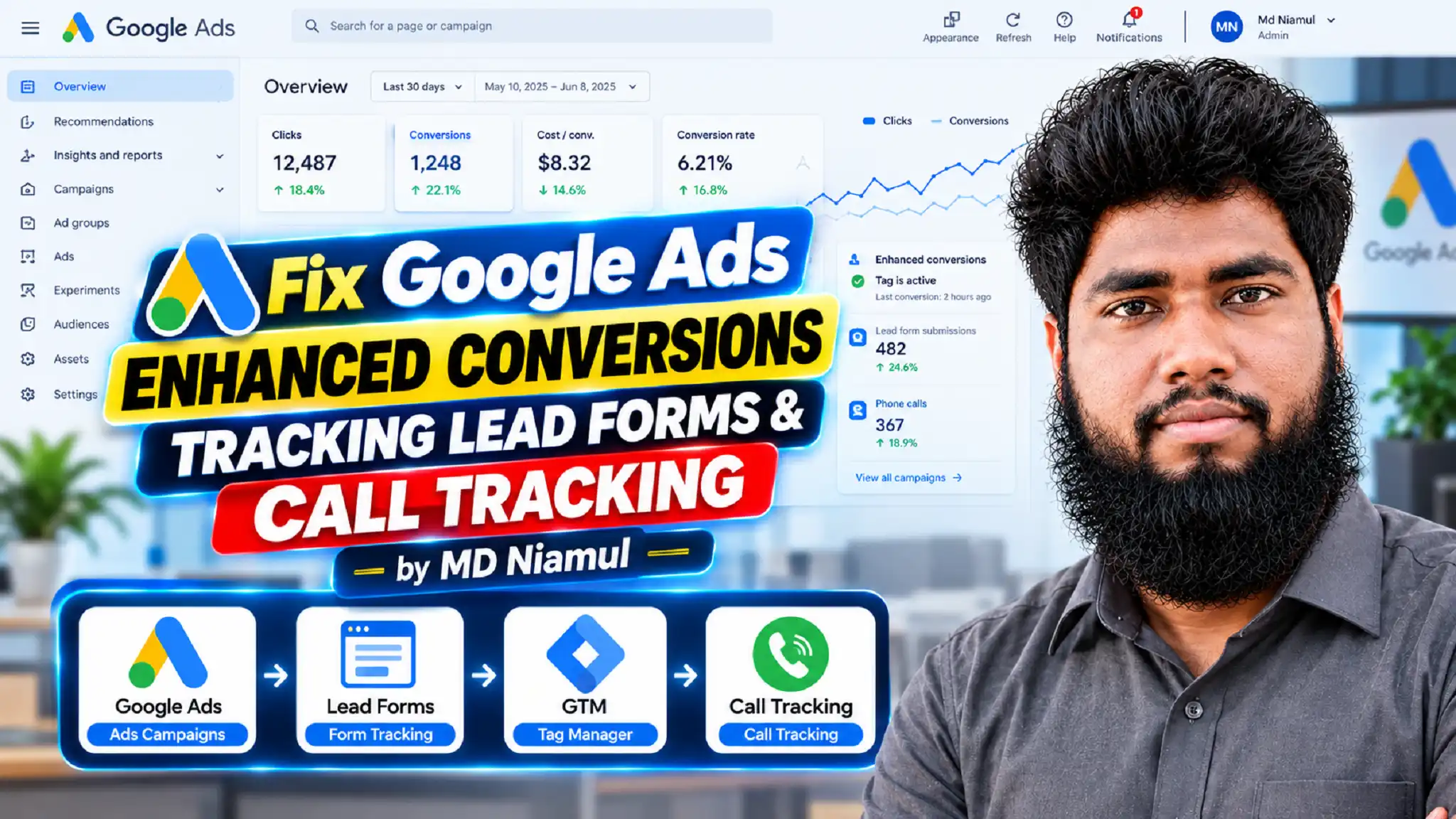
To follow along with a visual, screen-by-screen breakdown of fixing Google Ads form and call tracking, watch my step-by-step YouTube tutorial:
Step-by-Step Implementation Guide
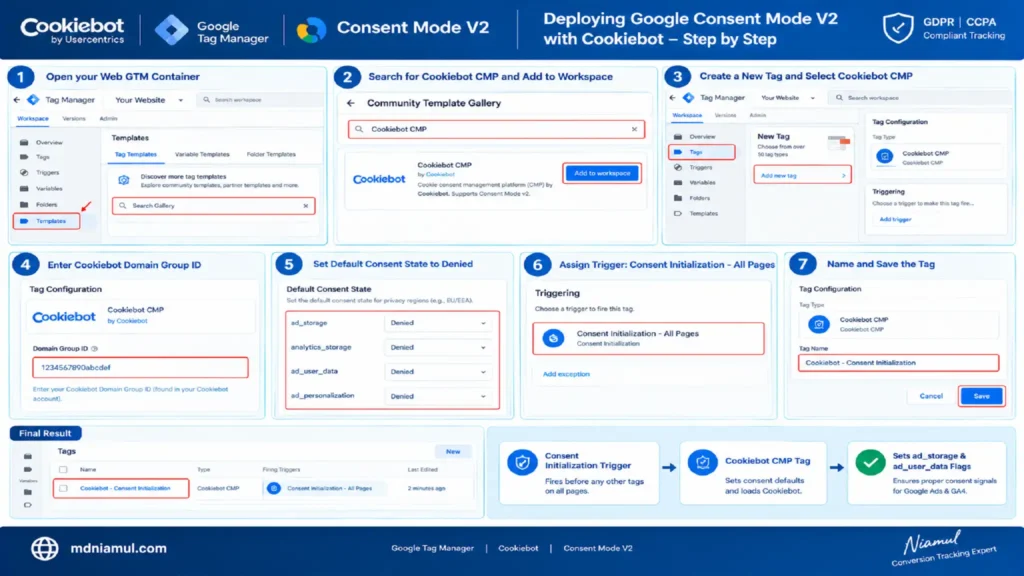
Phase 1: Deploying Google Consent Mode V2 with Cookiebot
To comply with European and global privacy regulations (GDPR/CCPA) while maintaining Google Ads optimization, you must implement Google Consent Mode V2.
Step 1: Install Cookiebot Tag Template in Web GTM
- Open your Web GTM Container.
- Navigate to Templates > Tag Templates > Search Gallery.
- Search for Cookiebot CMP and click Add to Workspace.
- Go to Tags > New > Tag Configuration.
- Select Cookiebot CMP.
- Input your Cookiebot Domain Group ID from your Cookiebot Account.
- Under Default Consent State, set defaults to Denied for privacy regions (EU/EEA).
- Under Triggering, assign the built-in trigger Consent Initialization – All Pages.
- Name the tag Cookiebot – Consent Initialization and click Save.
[Consent Initialization Trigger] ---> [Cookiebot CMP Tag] ---> [Sets ad_storage & ad_user_data Flags]
Phase 2: Google Ads Base Setup & Conversion Linker
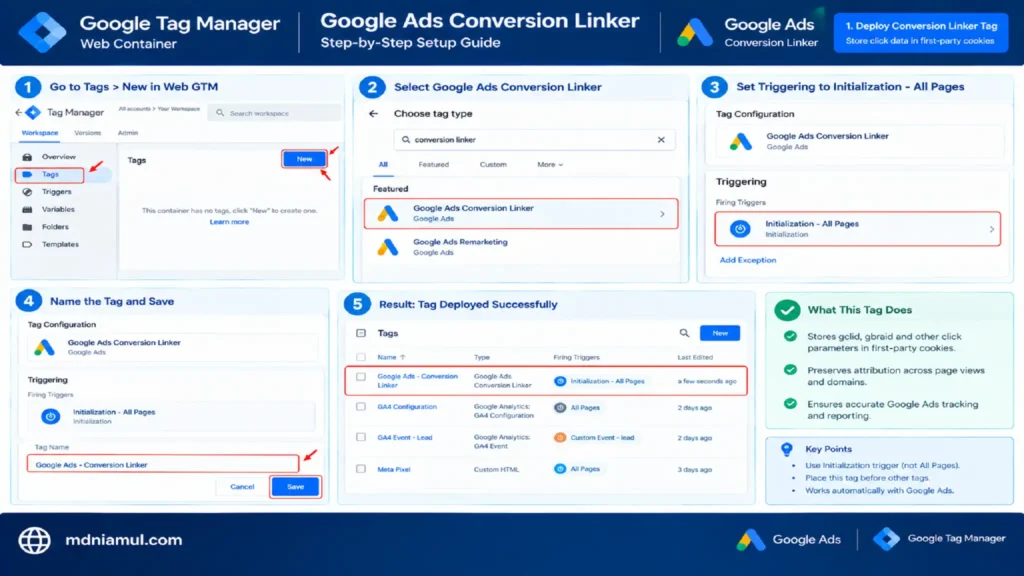
The Conversion Linker tag stores click data (such as the gclid or gbraid parameters) in first-party cookies on your domain, preserving attribution across page views.
Step 1: Deploy Conversion Linker Tag
- In Web GTM, go to Tags > New.
- Select Google Ads Conversion Linker.
- Under Triggering, select Initialization – All Pages.
- Name the tag Google Ads – Conversion Linker and click Save.
Phase 3: Lead Form & Phone Call JavaScript Listener Code
Standard GTM click triggers often fail to capture AJAX-based forms (like Contact Form 7, WPForms, or embedded forms) and user phone clicks.
We use a custom JavaScript listener tag—acting as “a catcher’s mitt”—to capture form submissions and phone link clicks, dropping structured events into GTM’s invisible filing cabinet (the Data Layer).
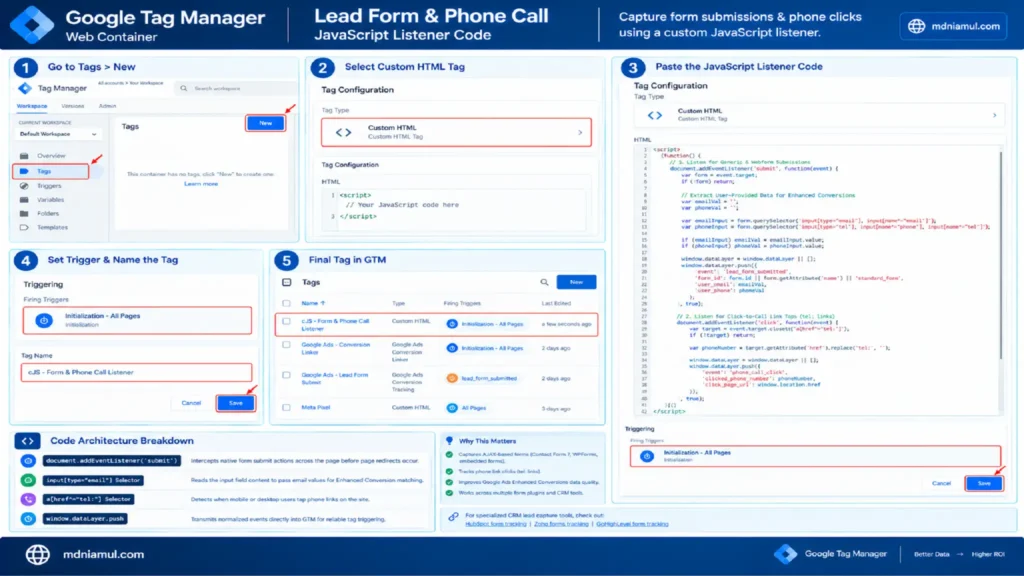
Step 1: Create the Custom HTML Listener Tag
- In Web GTM, go to Tags > New.
- Select Custom HTML tag type.
- Paste the following JavaScript listener code:
					console.log( 'Code is Poetry' );<script>
(function() {
  // 1. Listen for Generic & Webform Submissions
  document.addEventListener('submit', function(event) {
    var form = event.target;
    if (!form) return;

    // Extract User-Provided Data for Enhanced Conversions
    var emailVal = '';
    var phoneVal = '';

    var emailInput = form.querySelector('input[type="email"], input[name*="email"]');
    var phoneInput = form.querySelector('input[type="tel"], input[name*="phone"], input[name*="tel"]');

    if (emailInput) emailVal = emailInput.value;
    if (phoneInput) phoneVal = phoneInput.value;

    window.dataLayer = window.dataLayer || [];
    window.dataLayer.push({
      'event': 'lead_form_submitted',
      'form_id': form.id || form.getAttribute('name') || 'standard_form',
      'user_email': emailVal,
      'user_phone': phoneVal
    });
  }, true);

  // 2. Listen for Click-to-Call Link Taps (tel: links)
  document.addEventListener('click', function(event) {
    var target = event.target.closest('a[href^="tel:"]');
    if (!target) return;

    var phoneNumber = target.getAttribute('href').replace('tel:', '');

    window.dataLayer = window.dataLayer || [];
    window.dataLayer.push({
      'event': 'phone_call_click',
      'clicked_phone_number': phoneNumber,
      'click_page_url': window.location.href
    });
  }, true);
})();
</script>
- Under Triggering, select Initialization – All Pages.
- Name the tag cJS – Form & Phone Call Listener and click Save.
Code Architecture Breakdown
- document.addEventListener(‘submit’): Intercepts native form submit actions across the page before page redirects occur.
- input[type=”email”] Selector: Reads the input field content to pass email values for Enhanced Conversion matching.
- a[href^=”tel:”] Selector: Detects when mobile or desktop users tap phone links on the site.
- window.dataLayer.push: Transmits normalized events directly into GTM for reliable tag triggering.
If your business uses specialized CRM lead capture tools, read my dedicated conversion setup guides for HubSpot form conversion tracking, Zoho forms tracking, or GoHighLevel form tracking.
Phase 4: Setting Up Enhanced Conversions for Lead Forms
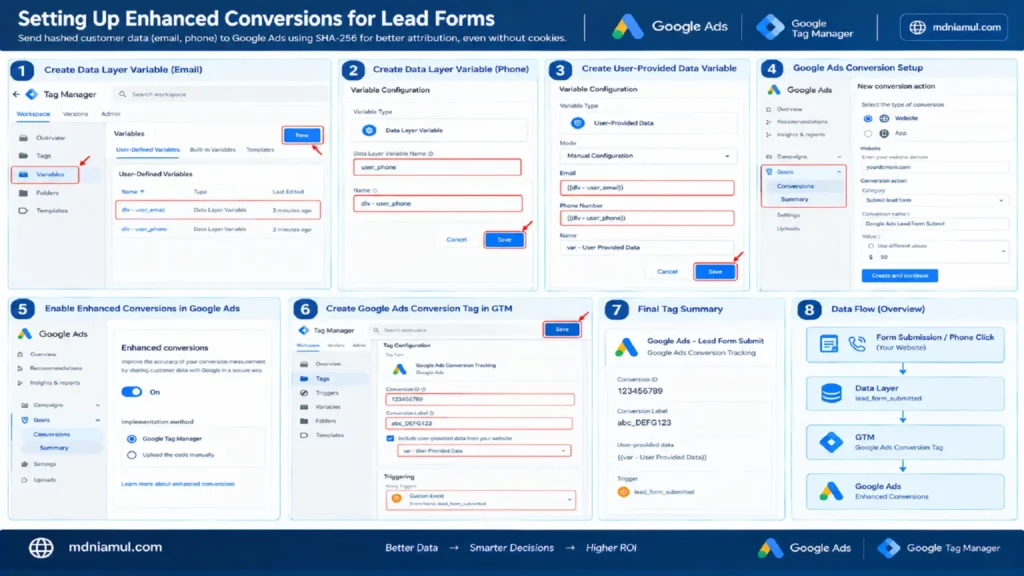
Enhanced Conversions securely sends hashed customer data (like email addresses and phone numbers) from your web forms to Google Ads using the SHA-256 algorithm. This allows Google to attribute conversions even when cookies are unavailable.
Step 1: Define GTM Data Layer Variables
- Go to Variables > User-Defined Variables > New.
- Select Data Layer Variable.
- Name: dlv – user_email, Data Layer Variable Name: user_email. Click Save.
- Create another variable: Name: dlv – user_phone, Data Layer Variable Name: user_phone. Click Save.
Step 2: Configure the User-Provided Data Variable
- Go to Variables > New.
- Select Variable Type: User-Provided Data.
- Set Mode to Manual Configuration.
- Map the inputs:
- Email: {{dlv – user_email}}
- Phone Number: {{dlv – user_phone}}
- Name the variable var – User Provided Data and click Save.
Step 3: Create Google Ads Lead Form Conversion Tag
- In your Google Ads Account, navigate to Goals > Conversions > Summary > New Conversion Action.
- Select Website, enter your domain, and manually add a Conversion Action:
- Category: Submit lead form
- Conversion Name: Google Ads Lead Form Submit
- Value: Use different values or set a static value (e.g., $50)
- Copy the generated Conversion ID and Conversion Label.
- Turn on Enhanced Conversions in Google Ads and select Google Tag Manager as the implementation method.
- In Web GTM, create a new Tag:
- Tag Type: Google Ads Conversion Tracking
- Conversion ID: 123456789 (Your actual Google Ads ID)
- Conversion Label: abc_DEFG123 (Your actual Label)
- Include user-provided data from your website: Check this box and select {{var – User Provided Data}}.
- Set Trigger: Custom Event where Event Name equals lead_form_submitted.
- Name Tag Google Ads – Lead Form Submit and click Save.
Phase 5: Google Ads Call Tracking Setup
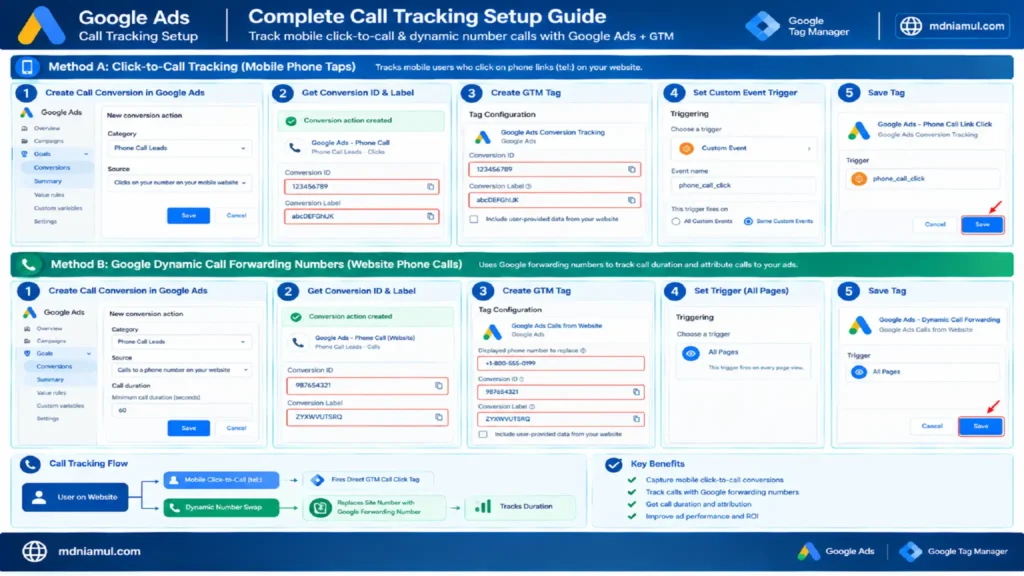
Call tracking requires measuring two distinct lead paths: mobile users clicking phone links (tel:) and visitors dialing dynamic Google forwarding numbers displayed on your website.
                  ┌─── Mobile Click-to-Call ──> Fires Direct GTM Call Click Tag
User on Website ──┤
                   └─── Dynamic Number Swap ───> Replaces Site Number with Google Forwarding Number ──> Tracks Duration
Method A: Click-to-Call Tracking (Mobile Phone Taps)
- In Google Ads, create a new Conversion Action:
- Category: Phone Call Leads
- Source: Clicks on your number on your mobile website
- Copy the Conversion ID and Conversion Label.
- In Web GTM, create a new Tag:
- Tag Type: Google Ads Conversion Tracking
- Conversion ID: Enter your Call Conversion ID
- Conversion Label: Enter your Call Conversion Label
- Set Trigger: Custom Event where Event Name equals phone_call_click.
- Name Tag Google Ads – Phone Call Link Click and click Save.
Method B: Google Dynamic Call Forwarding Numbers (Website Phone Calls)
Dynamic call forwarding replaces your website’s static phone number with a temporary Google forwarding number. When a user calls that number, Google tracks the call duration and attributes it back to the precise ad click.
- In Google Ads, create a Conversion Action:
- Category: Phone Call Leads
- Source: Calls to a phone number on your website
- Call Duration: Set minimum call threshold (e.g., 60 seconds).
- Copy the Conversion ID and Conversion Label.
- In Web GTM, create a new Tag:
- Tag Type: Google Ads Calls from Website
- Displayed Phone Number to Replace: Enter your exact public phone number as shown on the site (e.g., +1-800-555-0199).
- Conversion ID: Enter your Conversion ID
- Conversion Label: Enter your Conversion Label
- Under Triggering, set to All Pages.
- Name Tag Google Ads – Dynamic Call Forwarding and click Save.
Phase 6: Bypassing Ad-Blockers via Server-Side GTM
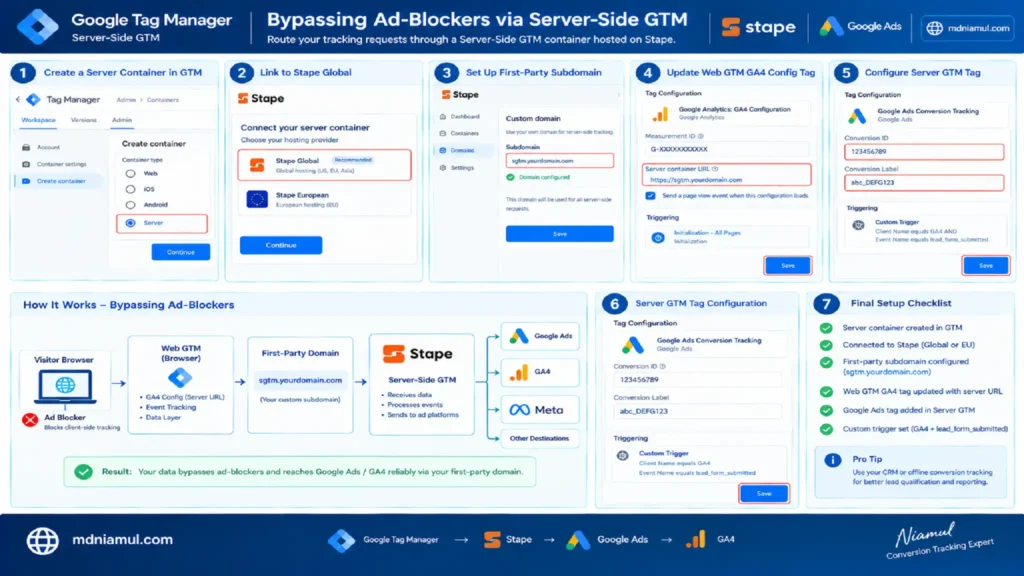
To prevent client-side ad-blockers from dropping conversion signals, route your tracking requests through a Server-Side GTM container hosted on Stape Global.
Step 1: Configure Server GTM Container
- Create a Server Container in Google Tag Manager.
- Link your server container to Stape Global or Stape European.
- Set up a custom first-party subdomain in Stape: sgtm.yourdomain.com.
- Update your Web GTM GA4 Configuration Tag to send requests to your custom Server Container URL:
- Server Container URL: [https://sgtm.yourdomain.com](https://sgtm.yourdomain.com)
Step 2: Configure Google Ads Tag in Server GTM
- In your Server GTM Container, navigate to Tags > New.
- Select Google Ads Conversion Tracking.
- Input your Conversion ID and Conversion Label.
- Set Triggering: Custom Trigger where Client Name equals GA4 AND Event Name equals lead_form_submitted.
- Name Tag sGTM – Google Ads Lead Conversion and click Save.
For advanced offline lead qualification processing (such as CRM status updates), check out my guide on offline conversion tracking services and salesforce conversion tracking.
Technical Data Flow Diagram Concept
					[User Form / Call Action]
           │
           ▼
[Custom JS Listener Tag]
           │
           ▼
[Data Layer Push: lead_form_submitted / phone_call_click]
           │
           ├─────────────────────────────────────────┐
           ▼                                         ▼
[Web GTM: Google Ads Tag]               [Web GTM: GA4 Event Tag]
(Client-Side Dispatch)                   (Transport URL -> sGTM)
           │                                         │
           ▼                                         ▼
[Google Ads Conversion Engine]          [Stape sGTM Server Container]
                                                     │
                                                     ▼
                                        [Server-Side Conversion Payload]
                                                     │
                                                     ▼
                                        [Google Ads API (Ad-Block Proof)]
Testing & Validation Workflow
Before publishing your GTM container, follow this validation sequence to confirm your tracking is working properly:
- Test Form Listener in GTM Preview: Open GTM Preview mode (tagassistant.google.com), enter your site URL, and submit a test lead form. Verify that the lead_form_submitted event appears in the left timeline panel.
- Inspect User-Provided Data Variables: Click the lead_form_submitted event in GTM Preview, navigate to the Variables tab, and confirm dlv – user_email and dlv – user_phone reflect the test form values.
- Verify Google Ads Tag Execution: Under the Tags tab for that event, verify that the Google Ads – Lead Form Submit tag fired successfully.
- Test Dynamic Phone Number Swapping: Open an incognito browser window and append a test parameter to your URL: [yourdomain.com/?gclid=123456789_test](https://yourdomain.com/?gclid=123456789_test). Refresh the page and confirm that your public phone number dynamically changes to a Google forwarding number.
- Check Google Ads Diagnostic Tool: Log into Google Ads, go to Conversions, select your conversion action, and check the Diagnostics tab. Ensure status shows Active or Recording Conversions.
Troubleshooting Common Conversion Tracking Errors
- Problem: Google Ads Conversion Action status displays “Inactive” or “No recent conversions.”
- Cause: Zero conversions have occurred within the last 7 days, or the Conversion ID/Label entered in GTM contains typos.
- Solution: Re-check your Conversion ID and Label in GTM. Submit a live test form on your site while connected to Preview Mode to trigger an active event ping.
- Problem: Enhanced Conversions displays “Needs Attention” or “Missing Customer Data.”
- Cause: The Data Layer Variable mapped to User-Provided Data is returning undefined or blank string values during submission.
- Solution: Inspect your Form Listener script. Ensure the input CSS selector (input[type=”email”]) matches your site’s form field HTML attributes.
- Problem: Phone numbers on the website are not swapping to Google forwarding numbers.
- Cause: The plain text phone number entered in the “Displayed Phone Number to Replace” field does not match the exact formatting on the live site (e.g., missing country code or dashes).
- Solution: Copy the phone number directly from the rendered webpage DOM text into your GTM “Calls from Website” tag settings.
- Problem: Lead forms submit, but no event appears in GTM Preview.
- Cause: The lead form sits inside an iframe hosted on an external domain, preventing parent page JavaScript execution.
- Solution: Install your GTM container script inside the embedded iframe source code, or post dynamic messages (postMessage) from the iframe to the parent window.
Conclusion
Fixing your Google Ads conversion tracking for lead forms and phone calls replaces broken assumptions with clear, reliable lead data. By deploying a custom JavaScript listener, configuring Enhanced Conversions for Leads, enabling Google Dynamic Call Forwarding, and routing tags through Server-Side GTM on Stape, you build an ad-blocker-proof feedback loop that feeds accurate conversion signals directly back into Google Ads Smart Bidding algorithms.
Summary by MD Niamul
Fixing broken Google Ads conversion tracking for lead forms and phone calls replaces unreliable, bad data with clear, verified lead tracking. By deploying a custom JavaScript listener, setting up Enhanced Conversions for Leads, enabling Dynamic Call Forwarding, and implementing Server-Side GTM through Stape Global or Stape European, you build a privacy-compliant, ad-blocker-proof conversion engine that powers Google Ads Smart Bidding to maximize real ROI.
1.How do I fix inactive Google Ads conversion tracking?
To fix an inactive conversion action in Google Ads, first inspect your Google Tag Manager setup using Preview Mode to verify that the tag fires when a conversion occurs. Ensure the Conversion ID and Conversion Label in GTM match your Google Ads account settings. Once verified, execute a live test conversion on your website. Google Ads typically updates conversion action statuses from “Inactive” to “Recording Conversions” within 2 to 24 hours.
2.What is Google Ads Enhanced Conversions for leads?
Enhanced Conversions for leads is an attribution feature that allows you to send hashed, first-party customer information (such as email addresses and phone numbers) captured in lead forms back to Google Ads. The data is encrypted using the SHA-256 algorithm before leaving the browser. Google matches these hashes against logged-in Google accounts, allowing you to recover conversion attribution lost to cookie restrictions or cross-device journeys.
3.How does Google dynamic call forwarding track phone calls?
Google dynamic call forwarding automatically replaces the static phone number listed on your website with a unique Google forwarding number for visitors arriving from Google Ads. When a visitor calls this temporary forwarding number, Google routes the call to your actual business line while recording the caller’s call duration, location, and ad click source, allowing you to accurately count phone calls as valid conversions.
4.Why is my GTM form submit trigger not firing?
Your GTM Form Submit trigger may fail to fire if your web form uses modern AJAX scripts to process submissions without reloading the page, or if the form is embedded inside an iframe. Many JavaScript forms cancel native browser submit events (preventDefault), which stops GTM’s standard form listener. Using a Custom HTML JavaScript listener tag solves this by catching submit events directly.
5.What is the difference between click-to-call and call forwarding?
Click-to-call tracking records when a mobile user physically taps a phone link (tel:) on your website. However, it cannot verify whether the user actually completed the call or hung up immediately. Dynamic call forwarding displays a unique Google forwarding number on your website, routing the call through Google’s servers to measure actual call length, ensuring only calls meeting your minimum duration threshold (e.g., 60 seconds) count as conversions.
6.Why should I use Server Side GTM for Google Ads?
Server-Side GTM routes your tracking data through a dedicated, first-party server endpoint (sgtm.yourdomain.com) instead of relying entirely on the visitor’s web browser. This prevents client-side ad-blockers and privacy protections (like Safari ITP) from blocking conversion scripts. It also reduces browser execution loads, extends first-party cookie lifespans, and gives you total control over user privacy data before it leaves your server.
7.How do I set up Cookiebot with Google Consent Mode V2?
To set up Cookiebot with Consent Mode V2 in GTM, install the Cookiebot CMP tag template from the Community Template Gallery. Configure the tag with your Cookiebot Domain Group ID, set default consent states (ad_storage, ad_user_data, ad_personalization) to “Denied” for target privacy regions, and assign the tag to the “Consent Initialization – All Pages” trigger so consent states are evaluated before any analytics or ad tags execute.
8.How long does Google Ads take to report form conversions?
Google Ads web conversion actions typically take 3 to 24 hours to process and appear in campaign performance reporting tables, depending on account processing queues. Enhanced Conversions and call forwarding data may require up to 24-48 hours to complete user account matching and attribution modeling. You can verify immediate tag execution using GTM Preview Mode or Google Tag Assistant.
9.Can I track lead forms embedded inside an iframe?
Yes, but tracking forms embedded inside an iframe requires specific configuration because standard parent window GTM scripts cannot access cross-origin iframe content. You can either place your GTM container script directly inside the source code of the iframe page, or write a custom postMessage script inside the iframe that broadcasts submission events out to the parent webpage’s GTM Data Layer listener.
10.What conversion values should I assign to lead generation actions?
Assigning relative conversion values to lead generation actions helps Google Ads Smart Bidding optimize toward higher-value lead paths. You can calculate average lead value using your sales pipeline metrics: multiply your average deal revenue by your lead-to-close rate. For example, if a closed client is worth $1,000 and 10% of form submissions become paying clients, assign a static $100 value to every form submission conversion action.
 Need Help Advanced GHL Automation & Tracking Setup?