
Quick Answer
To set up Zoho Form conversion tracking with Google Tag Manager, remember that an embedded Zoho form runs inside an iframe, so GTM’s form triggers on your page never see the submit. The most reliable fix is to open Zoho’s Settings → Messages & Redirects, choose Redirect to Website, point it to a thank-you page on your own site with a marker such as ?zf_source=zoho_form, and set it to open in the Parent Window. A small GTM tracker on that page pushes a zoho_form_submit event once per session, and that event fires your GA4 generate_lead, Google Ads and Meta tags.
Key Takeaways
- Zoho forms live in an iframe: the form runs on a Zoho domain, so GTM on your page cannot see clicks or submits inside it.
- Resize messages are not a submit signal: I checked Zoho’s current form scripts. The iframe tells your page its new height, but there is no separate “submitted” message to listen for.
- Parent Window redirect is the clean signal: after a successful submit, the whole page moves to your thank-you page, where your own GTM container runs.
- Count each lead once: a URL marker plus a session check stops reloads from inflating your numbers.
- One event, every platform: the same
zoho_form_submitevent feeds GA4, Google Ads, Meta and later your server-side setup. - Browser tracking is the start: server-side tracking, Conversions APIs and CRM offline uploads close the gaps that ad blockers and long sales cycles leave.
Introduction: Leads in Zoho, Gaps in Your Ad Data
Your Google Ads and Meta Ads are running. The Zoho form on your website is collecting leads. Your sales team sees every one of them.
Then you open GA4 and Google Ads. The numbers do not match. Some campaigns show no conversions at all, and the bidding algorithms optimise on guesswork.
The leads are real. Your tracking just cannot see the form.
This is one of the most common problems I fix for agencies and lead generation businesses. In this guide I will show you exactly why it happens with Zoho Forms and the setup I use to track every submission accurately in Google Tag Manager, GA4, Google Ads and Meta.
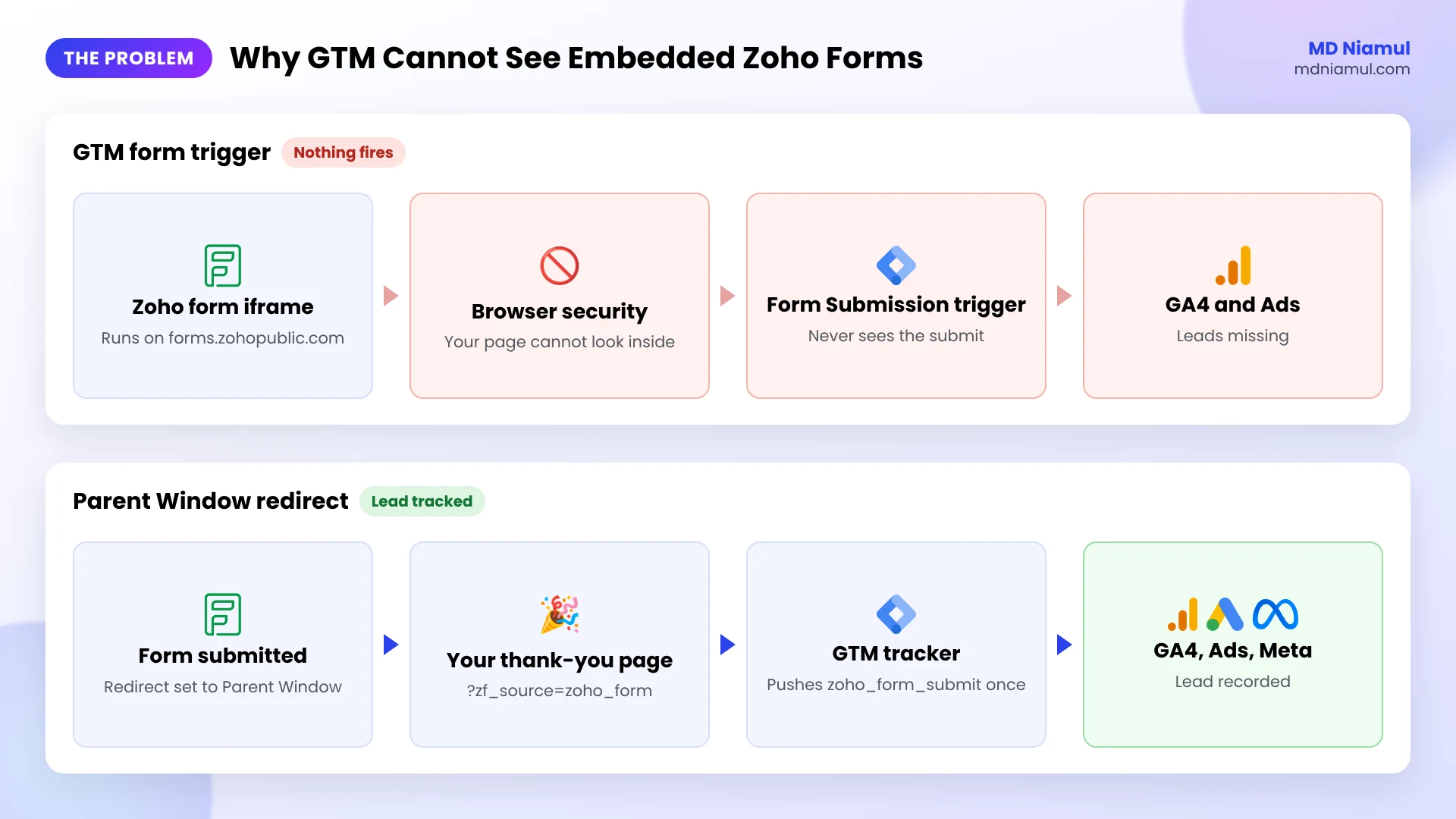
Why GTM Cannot See Embedded Zoho Forms
When you embed a Zoho form with the iframe or JavaScript embed code, the form loads from a Zoho domain such as forms.zohopublic.com inside an iframe. Think of an iframe as a window into another website.
Browsers keep those two websites apart for security. Your GTM container runs on your page, so the built-in Form Submission trigger, click triggers and element visibility triggers cannot reach inside the Zoho window.
I read the scripts Zoho Forms loads today to see what the iframe does share. It sends postMessage messages to your page with the form’s ID and its new height, so the embed can resize. Those messages also appear while a visitor types, opens a page of a multi-step form or sees an error. None of them says “submitted”.
| Method | Where it runs | Verdict |
|---|---|---|
| GTM Form Submission trigger | Your page | Does not work: it cannot see inside the iframe |
| Listening to Zoho’s resize messages | Your page | Unreliable: they fire for many reasons, not only a submit |
| Zoho’s built-in Google Tag Manager setting | Inside the Zoho iframe | Possible, with cookie and attribution trade-offs (see below) |
| Redirect to your thank-you page in the Parent Window + GTM tracker | Your page | Recommended: clear signal, your own cookies and click IDs |
Prerequisites & Setup Checklist
- Zoho Forms: permission to edit the form’s settings.
- Website: the Zoho form embedded on your site, and the ability to create a thank-you page.
- Google Tag Manager: the container installed on every page, including the thank-you page, with publish rights.
- GA4: Editor access and your Measurement ID, which starts with
G-. - Ad platforms: your Google Ads conversion ID and label, and your Meta Pixel ID if you run Meta Ads.
- Consent: a cookie banner connected to Google Consent Mode if you have visitors from the EEA or UK.
Not sure whether GTM loads on every page? Check it with my free GTM container analyzer.
Video Tutorial Walkthrough
In this video I explain the Zoho iframe problem, how I capture Zoho forms and popups in Google Tag Manager, and how the setup grows into server-side tracking, Conversions APIs, CRM offline conversions and automated dashboards.
Step-by-Step Implementation Guide
The setup has eight phases. Do them in order and test after each one.
Phase 1: Create a Thank-You Page on Your Website
- Create a simple page such as
https://yourdomain.com/thank-you/with a short confirmation message and a next step, for example booking a call. - Set the page to noindex so it does not appear in Google search, and keep it out of your menus.
- Make sure your GTM container loads on this page like every other page.
Why your own page? Because there your own GTM, GA4 cookies and Google Ads click IDs are all available, exactly as on the page where the visitor arrived from the ad.
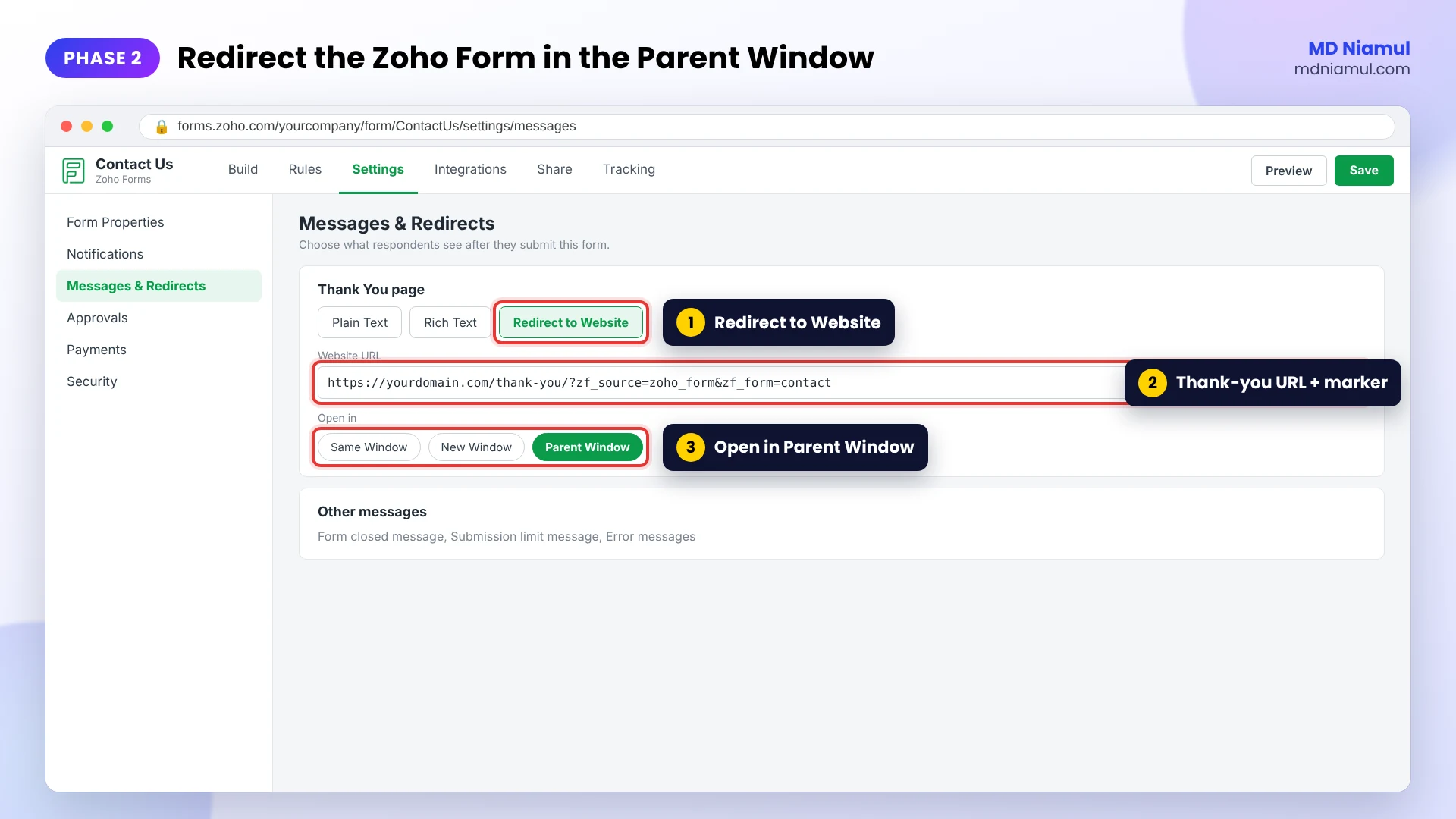
Phase 2: Redirect the Zoho Form to the Parent Window
- Open the form in Zoho Forms and go to Settings → Messages & Redirects.
- In the Thank You page settings, choose Redirect to Website.
- Enter your thank-you URL with a marker, for example
https://yourdomain.com/thank-you/?zf_source=zoho_form&zf_form=contact. - Set Open in to Parent Window and save.
Parent Window is the important part. With Same Window, the thank-you page opens inside the small iframe and your GTM container there cannot reliably connect it to the visitor’s session. With Parent Window, the whole browser tab moves to your page.
Use a different zf_form value for each form, such as contact, quote or demo, so you can compare forms in reports. Never put an email address or phone number in the URL, because Google’s policies do not allow personal data in URLs sent to GA4.
Phase 3: Add the Zoho Thank-You Tracker in GTM
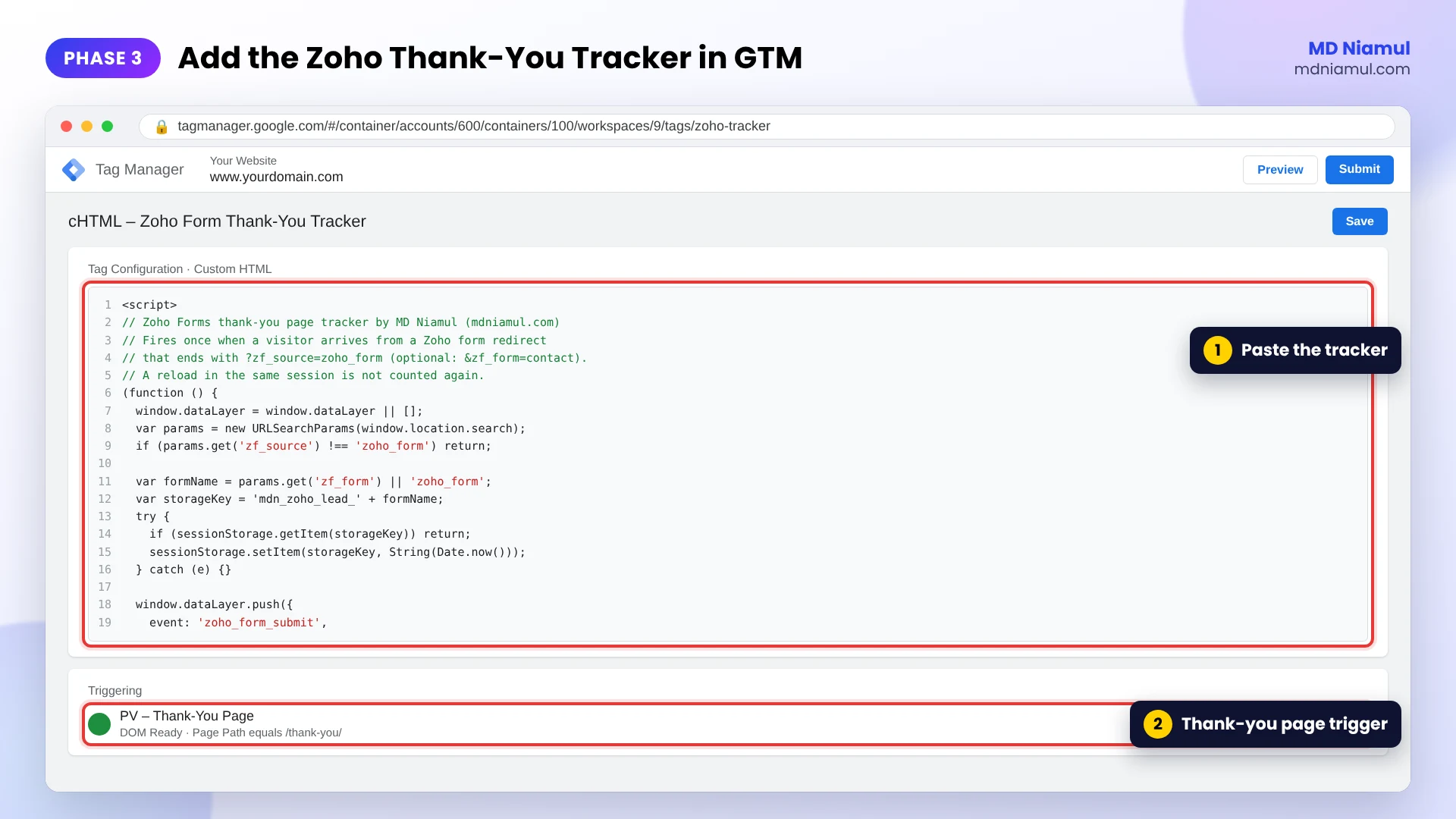
- In GTM, go to Tags → New → Custom HTML and paste the code below.
- Create a Page View – DOM Ready trigger that fires when Page Path equals
/thank-you/, and attach it. - Name the tag cHTML – Zoho Form Thank-You Tracker and save.
<script>
// Zoho Forms thank-you page tracker by MD Niamul (mdniamul.com)
// Fires once when a visitor arrives from a Zoho form redirect
// that ends with ?zf_source=zoho_form (optional: &zf_form=contact).
// A reload in the same session is not counted again.
(function () {
  window.dataLayer = window.dataLayer || [];
  var params = new URLSearchParams(window.location.search);
  if (params.get('zf_source') !== 'zoho_form') return;

  var formName = params.get('zf_form') || 'zoho_form';
  var storageKey = 'mdn_zoho_lead_' + formName;
  try {
    if (sessionStorage.getItem(storageKey)) return;
    sessionStorage.setItem(storageKey, String(Date.now()));
  } catch (e) {}

  window.dataLayer.push({
    event: 'zoho_form_submit',
    form_platform: 'zoho_forms',
    form_name: formName
  });
})();
</script>
How it works, in plain words:
- It only runs when the URL carries
zf_source=zoho_form, so a direct visit to the thank-you page is not a lead. - It remembers each form for the rest of the browser session, so a reload does not count the lead again.
- It pushes
zoho_form_submitto the data layer with the form name from the URL.
I tested it in a real browser: no event without the marker or with a wrong value, one event on the first visit, nothing on reload, and a separate event for a second form. One trade-off: if the same person sends the same form twice in one session, the second submit is not counted. For lead generation that is usually what you want.
Need a listener for a different form tool? Try my free form tracking listener generator.
Phase 4: Test the Data Layer Event in Preview
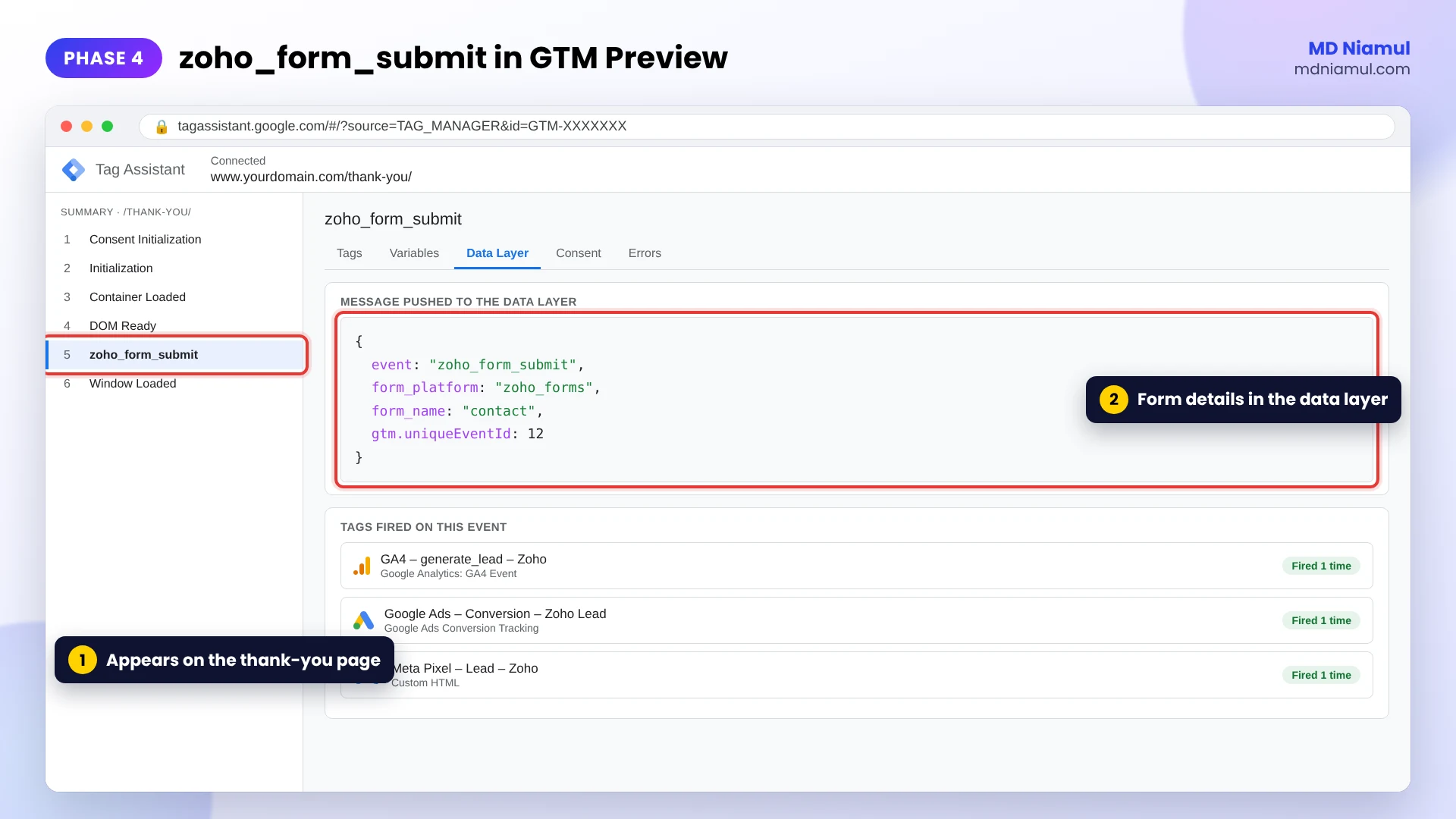
- Click Preview in GTM and open the page with your Zoho form.
- Submit a test lead. The tab moves to your thank-you page.
- In Tag Assistant, a
zoho_form_submitevent appears. Open the Data Layer tab and checkform_platformandform_name. - Reload the thank-you page. No new
zoho_form_submitshould appear.
Phase 5: Create the Custom Event Trigger and Variables
- Go to Triggers → New → Custom Event, enter
zoho_form_submitexactly, and name it CE – zoho_form_submit. - Go to Variables → New → Data Layer Variable and create DLV – form_platform and DLV – form_name.
- If you do not have one yet, create a Constant variable CONST – GA4 Measurement ID with your
G-ID.
Phase 6: Send generate_lead to GA4
- Go to Tags → New → Google Analytics: GA4 Event.
- Set the Measurement ID to {{CONST – GA4 Measurement ID}} and the event name to
generate_lead. - Add the event parameters
form_platform= {{DLV – form_platform}} andform_name= {{DLV – form_name}}. - Attach CE – zoho_form_submit and name the tag GA4 – generate_lead – Zoho.
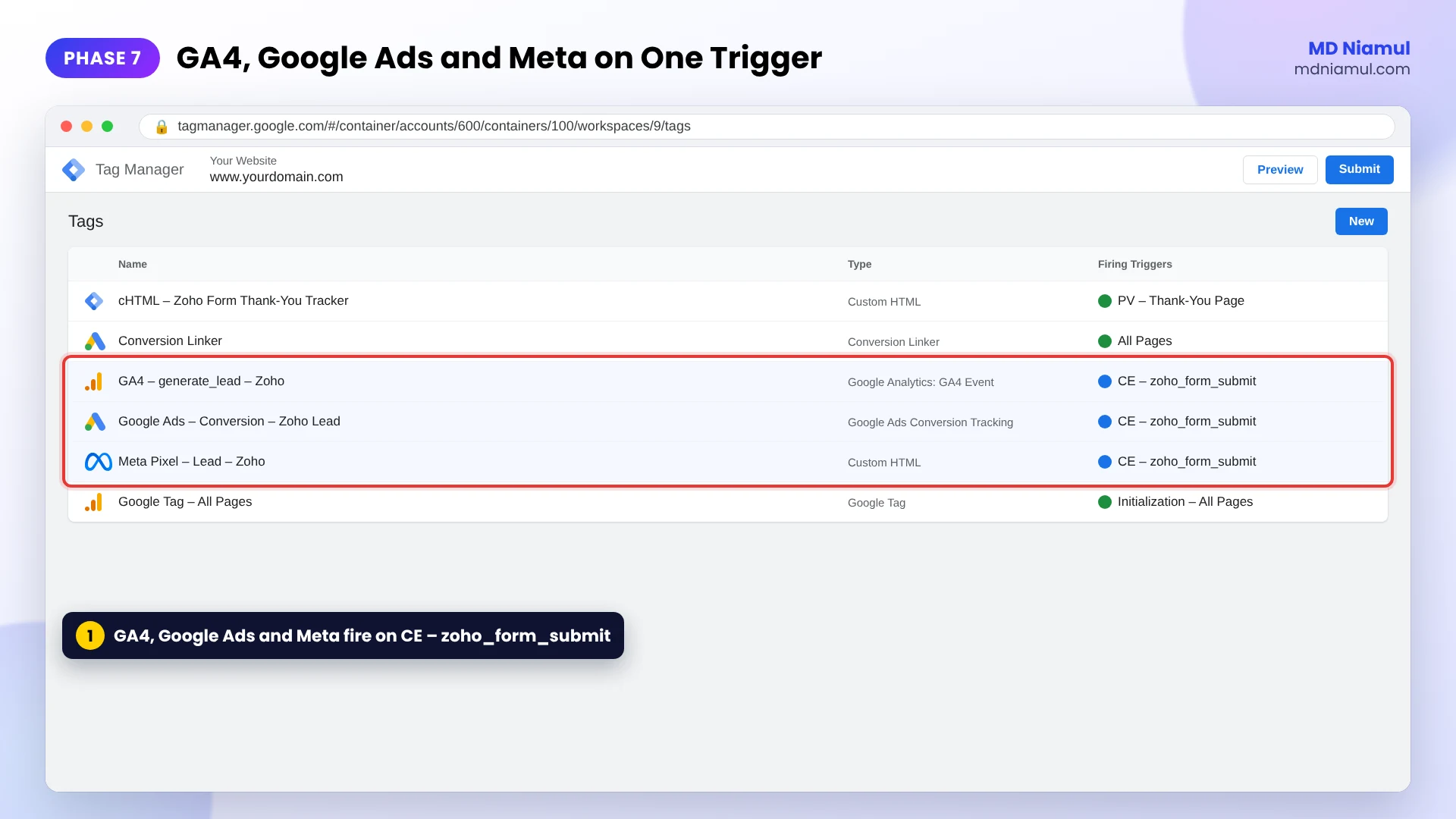
Phase 7: Fire Google Ads and Meta on the Same Event
- Add a Google Ads Conversion Tracking tag with your conversion ID and label, on CE – zoho_form_submit.
- Make sure a Conversion Linker tag fires on all pages, so the Google click ID is stored when the visitor lands from an ad.
- If you run Meta Ads, fire a Meta Pixel Lead event on the same trigger.
- Use the same trigger for TikTok, Pinterest or LinkedIn if you advertise there.
One method only. If you already count a thank-you page view as a conversion in GA4 or Google Ads, remove it. Otherwise every lead is counted twice.
Phase 8: Publish, Verify and Mark the Key Event
- In Preview, submit one more test lead and confirm each tag fired once on
zoho_form_submit. - In GA4, check Admin → Data display → DebugView for
generate_lead. - Click Submit in GTM and publish a version named, for example, Zoho Forms – lead tracking.
- In GA4, open Admin → Data streams → your web stream → Configure tag settings → List unwanted referrals, and add
zohopublic.com(plus your regional Zoho domain, such aszohopublic.eu, if your account uses one). - When
generate_leadappears under Admin → Data display → Events, mark it as a key event, and registerform_nameas a custom dimension.
Double-check the result with my free GA4 event checker.
What About Zoho Popups and Lightbox Forms?
Zoho’s popup and lightbox embeds also show the form inside an iframe on top of your page. The same approach works: set the form to redirect to your thank-you page in the Parent Window, keep the tracker on that page, and every popup lead is counted the same way as an inline form. Give the popup its own zf_form value, such as popup_offer, so you can see how it performs.
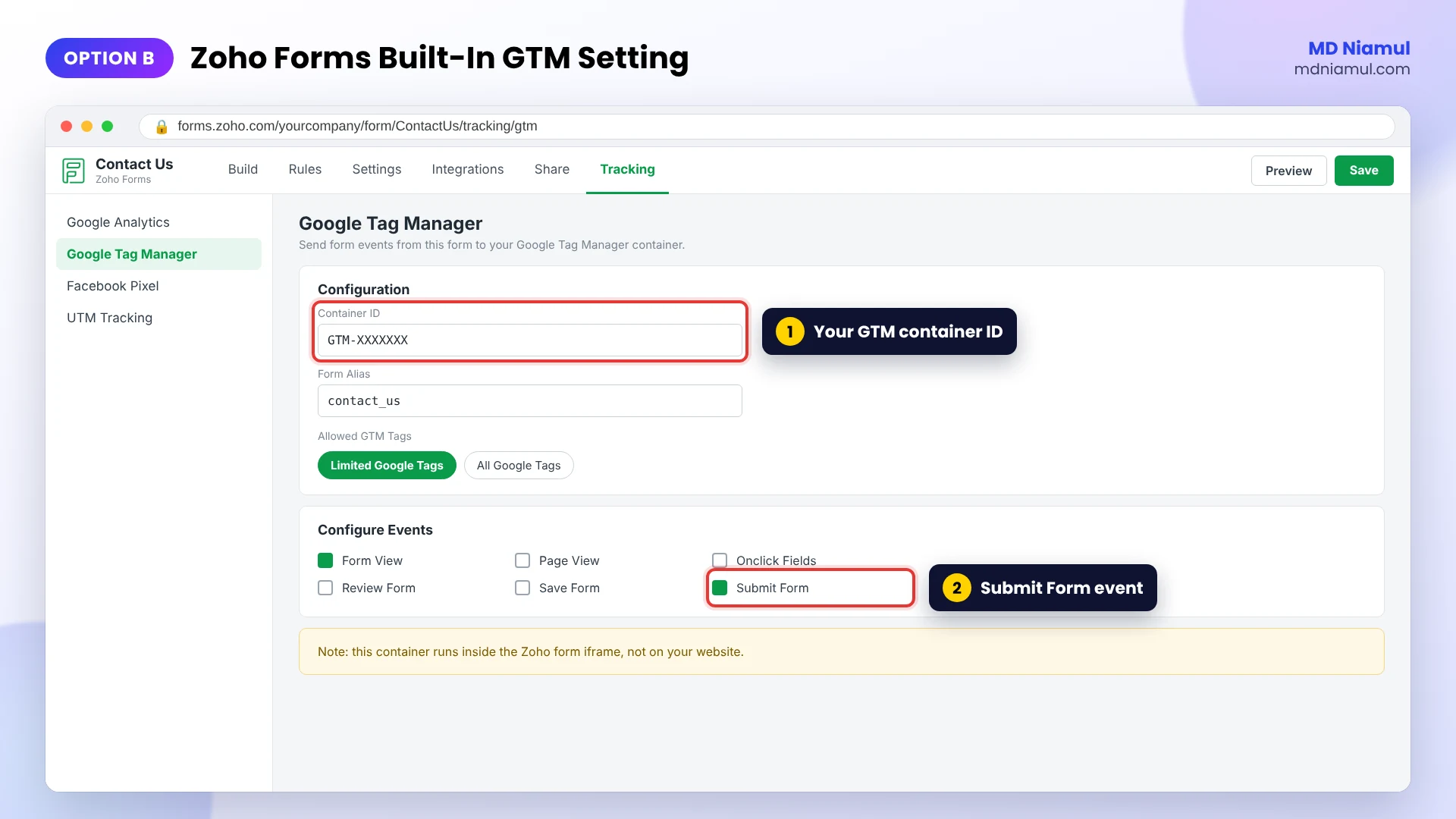
Option B: Zoho’s Built-In Google Tag Manager Setting
Zoho Forms also has its own Google Tag Manager setting. In the form builder, open the Tracking tab, choose Google Tag Manager, click Configure and enter your container ID. You can then send events such as Form View and Submit Form to GTM and fire tags from Custom Event triggers.
It is useful, but know what you are choosing:
- It runs inside the iframe. The container loads on the Zoho form page, not on your website, so GA4 and ad cookies are set on Zoho’s domain.
- Browsers often block those cookies. Safari and Firefox block most third-party cookies, so the lead can show up as a new visitor without the original campaign.
- Click IDs may be missing. The Google click ID stored on your site is not available inside the iframe, which weakens Google Ads attribution.
- Not every embed is supported. Zoho’s own help says Google Tag Manager is not supported for the HTML/CSS embed option.
For ad attribution, I prefer the Parent Window redirect from Phase 2. Zoho’s built-in setting is fine for extra insight such as form views, or when a redirect is not possible.
Beyond the Browser: Server-Side, CAPI, CRM and Dashboards
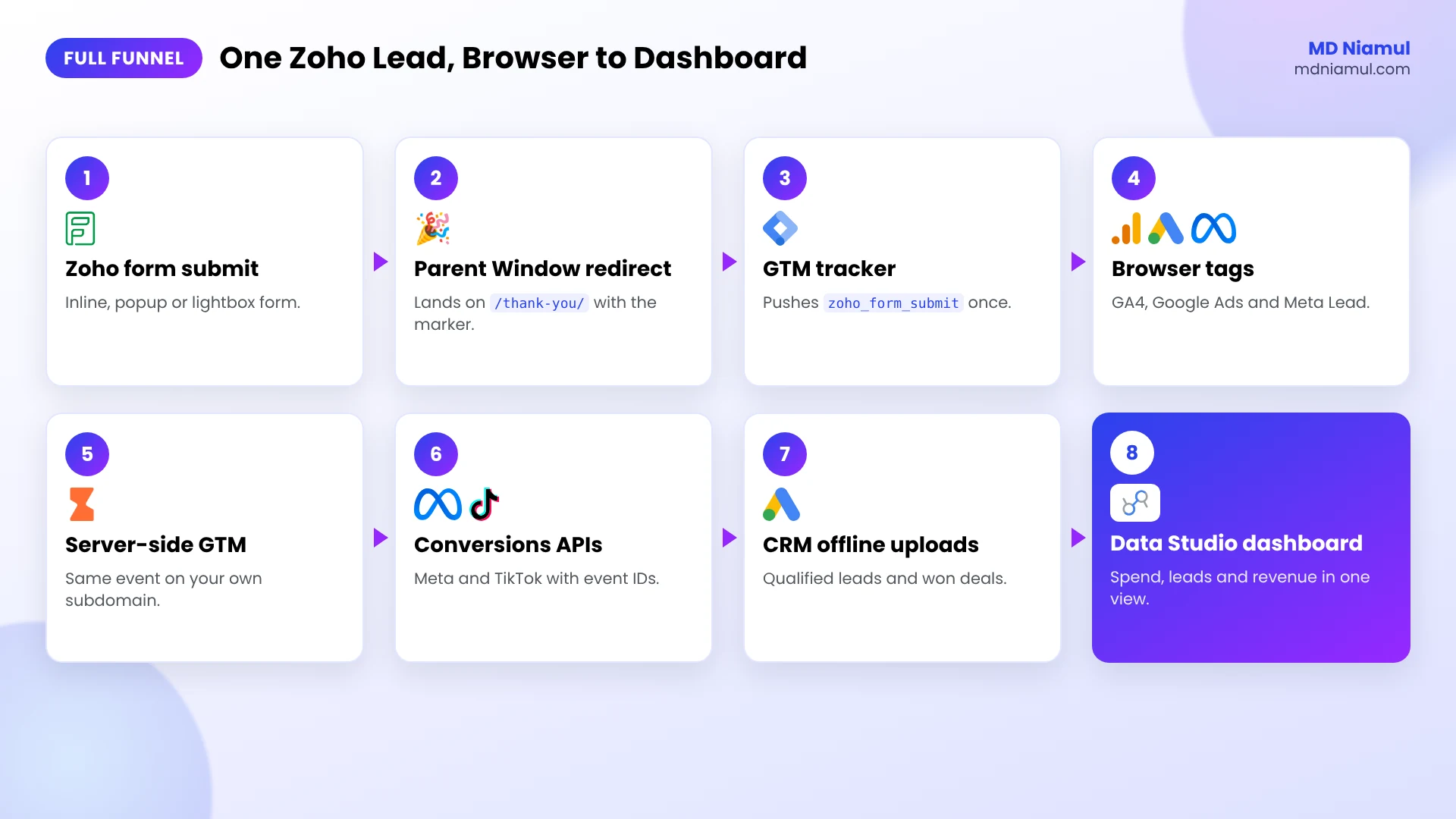
Browser tags are the foundation, but they still lose data to ad blockers, Safari’s tracking limits and long sales cycles. This is how I take Zoho lead tracking further for clients:
- Server-side tracking: send the same
zoho_form_submitevent through a server-side GTM container on your own subdomain. I host these on Stape, and for EU data residency on Stape’s EU servers. See my server-side tracking service. - Conversions APIs: forward leads to the Meta Conversions API and TikTok Events API with a shared event ID, so the browser and server events are deduplicated. My free Meta CAPI payload builder helps you check the payload.
- Offline conversions from the CRM: store the Google click ID in a hidden form field, then upload qualified leads and won deals from Zoho CRM, HubSpot or Salesforce to Google Ads. Start with my free offline conversion builder.
- Automation: n8n or Zapier can move form leads, stages and values between Zoho, your CRM and Google Sheets without manual exports.
- Dashboards: bring GA4, ad spend and CRM results together in Data Studio (the tool Google called Looker Studio until April 2026) and BigQuery, as in my GA4 reporting guide.
Testing & Validation Workflow
- Load test. Open the form page. No
zoho_form_submitappears. - Error test. Submit with a required field empty. The page does not redirect and no event appears.
- Success test. Submit a valid lead. The tab moves to the thank-you page and one event appears.
- Reload test. Reload the thank-you page. No second event appears.
- Direct visit test. Open
/thank-you/without the marker. No event appears. - Tag test. GA4, Google Ads and Meta tags each fire once.
- Weekly check. Compare GA4 leads with new Zoho entries for the first few weeks.
Troubleshooting Common Mistakes
Mistake 1: The thank-you page opens inside the form box
The Problem: after submit, your thank-you page appears squeezed inside the iframe.
The Cause: the redirect is set to open in the Same Window.
The Solution: change Open in to Parent Window in Messages & Redirects.
Mistake 2: No event on the thank-you page
The Problem: the redirect works, but Preview shows no zoho_form_submit.
The Cause: the marker is missing from the redirect URL, or the Page Path in the trigger does not match.
The Solution: check that the URL ends with ?zf_source=zoho_form and that the trigger path matches your page, including the trailing slash.
Mistake 3: Leads are counted twice
The Problem: GA4 or Google Ads shows about twice as many leads as Zoho.
The Cause: a page view conversion for the thank-you page is still active next to the new event.
The Solution: keep only the zoho_form_submit based conversions.
Mistake 4: Leads show as Direct or Referral in GA4
The Problem: Zoho leads have no campaign source.
The Cause: the redirect starts from the Zoho iframe, so the browser can report zohopublic.com as the referrer of your thank-you page and GA4 may start a new referral session. Tracking through Zoho’s built-in GTM setting causes similar losses.
The Solution: add zohopublic.com under List unwanted referrals in your GA4 web stream’s tag settings, and use the Parent Window redirect.
Mistake 5: Personal data in the URL
The Problem: the thank-you URL carries the visitor’s email or phone.
The Cause: field values were added to the redirect URL.
The Solution: keep only non-personal markers in the URL. Send customer data for enhanced conversions server-side or through CRM uploads instead.
What to Set Up Next
- Fix lead form conversions in Google Ads: read my guide to fixing Google Ads conversion tracking for lead forms.
- Other iframe forms: see how I handle another iframe form in my Pipedrive form conversion tracking guide.
- Consent: test your banner with the free Consent Mode checker.
Want it set up, tested and documented for you? See my Zoho form conversion tracking service.
Conclusion
Zoho forms are hard to track only while you try to look inside the iframe. Move the success moment onto your own page and the problem disappears.
Your next three moves are clear. First, create a thank-you page and set the Zoho form to redirect there in the Parent Window. Second, add the tracker and a Custom Event trigger in GTM. Third, fire GA4, Google Ads and Meta on zoho_form_submit, test it, publish and mark the key event.
Every lead in Zoho should be a lead in your ad platforms.
Summary by MD Niamul
Embedded Zoho Forms load inside an iframe from a Zoho domain, so Google Tag Manager’s form and click triggers on the parent page cannot see submissions, and the iframe’s postMessage messages only report the form’s height for resizing. The reliable method is to set the form’s Settings, Messages and Redirects to Redirect to Website, using a thank-you page on your own domain with a marker such as zf_source=zoho_form, and to open it in the Parent Window. A GTM Custom HTML tracker on that page pushes a zoho_form_submit data layer event once per form per session. A Custom Event trigger then fires the GA4 generate_lead event, the Google Ads conversion tag and the Meta Lead event. Zoho’s built-in GTM setting runs inside the iframe and can lose cookies and click IDs. Server-side tracking, Conversions APIs and CRM offline uploads extend the setup.
Frequently Asked Questions (FAQ)
1. Why doesn’t Google Tag Manager track my Zoho form?
An embedded Zoho form loads inside an iframe from a Zoho domain, not from your website. Browsers keep the two sites separate, so GTM on your page cannot see clicks or submits inside the form. The Form Submission trigger and click triggers therefore stay silent, even though the lead reaches Zoho normally.
2. Does Zoho Forms send a postMessage when a form is submitted?
Not a dedicated one. I checked the scripts Zoho Forms loads in October 2026. The iframe sends messages with the form ID and its new height so the embed can resize, but those also fire while typing, changing pages or showing errors. That is why I use a redirect to your own thank-you page as the success signal.
3. What does Parent Window mean in Zoho’s redirect setting?
In Settings, Messages and Redirects, Redirect to Website, the Open in option decides where the thank-you page loads. Same Window opens it inside the iframe. Parent Window replaces the whole page that contains the form, so the visitor lands on your own thank-you page, where your GTM, GA4 cookies and Google Ads click ID are available.
4. Why add ?zf_source=zoho_form to the thank-you URL?
The marker tells the tracker that the visitor really came from a Zoho form redirect. A direct visit, a bookmark or a crawler opening the thank-you page has no marker, so it is not counted as a lead. A second parameter such as zf_form=contact lets you compare different forms in your reports.
5. Will a reload of the thank-you page count a second lead?
No. The tracker stores a flag in sessionStorage for each form name, so a reload in the same browser session does not push the event again. The trade-off is that the same person submitting the same form twice in one session is counted once, which is usually right for lead generation reporting.
6. Can I use Zoho’s built-in Google Tag Manager integration instead?
Yes. In the form builder, open Tracking, Google Tag Manager, Configure and enter your container ID. It runs inside the Zoho iframe, though, so cookies are set on Zoho’s domain and may be blocked, and your Google click ID is not available. For ad attribution I prefer the Parent Window redirect.
7. How do I track Zoho popup and lightbox forms?
Popup and lightbox embeds also show the form in an iframe on top of your page. Use the same method: redirect to your thank-you page in the Parent Window with the zf_source marker, and give the popup its own zf_form value such as popup_offer so you can measure it separately from inline forms.
8. Why do Zoho leads show as referrals from zohopublic.com?
The redirect starts inside the Zoho iframe, so the browser can report zohopublic.com as the referrer of your thank-you page, and GA4 may start a new referral session. Add zohopublic.com, and your regional Zoho domain if needed, under List unwanted referrals in your GA4 web stream’s tag settings.
9. Can I send the email address for enhanced conversions?
Do not put email addresses or phone numbers in the thank-you URL, because Google does not allow personal data in URLs sent to GA4. For enhanced conversions and better matching, send hashed customer data server-side, or upload leads from your CRM with the stored Google click ID as offline conversions.
10. Do I still need server-side tracking for Zoho forms?
Browser tags work, but ad blockers, Safari limits and long sales cycles still cost you data. Server-side GTM, the Meta Conversions API and the TikTok Events API recover more conversions, and CRM offline uploads tell Google Ads which leads became customers. Start with the browser setup, then add these layers.
 Need Help Advanced GHL Automation & Tracking Setup?