
Quick Answer
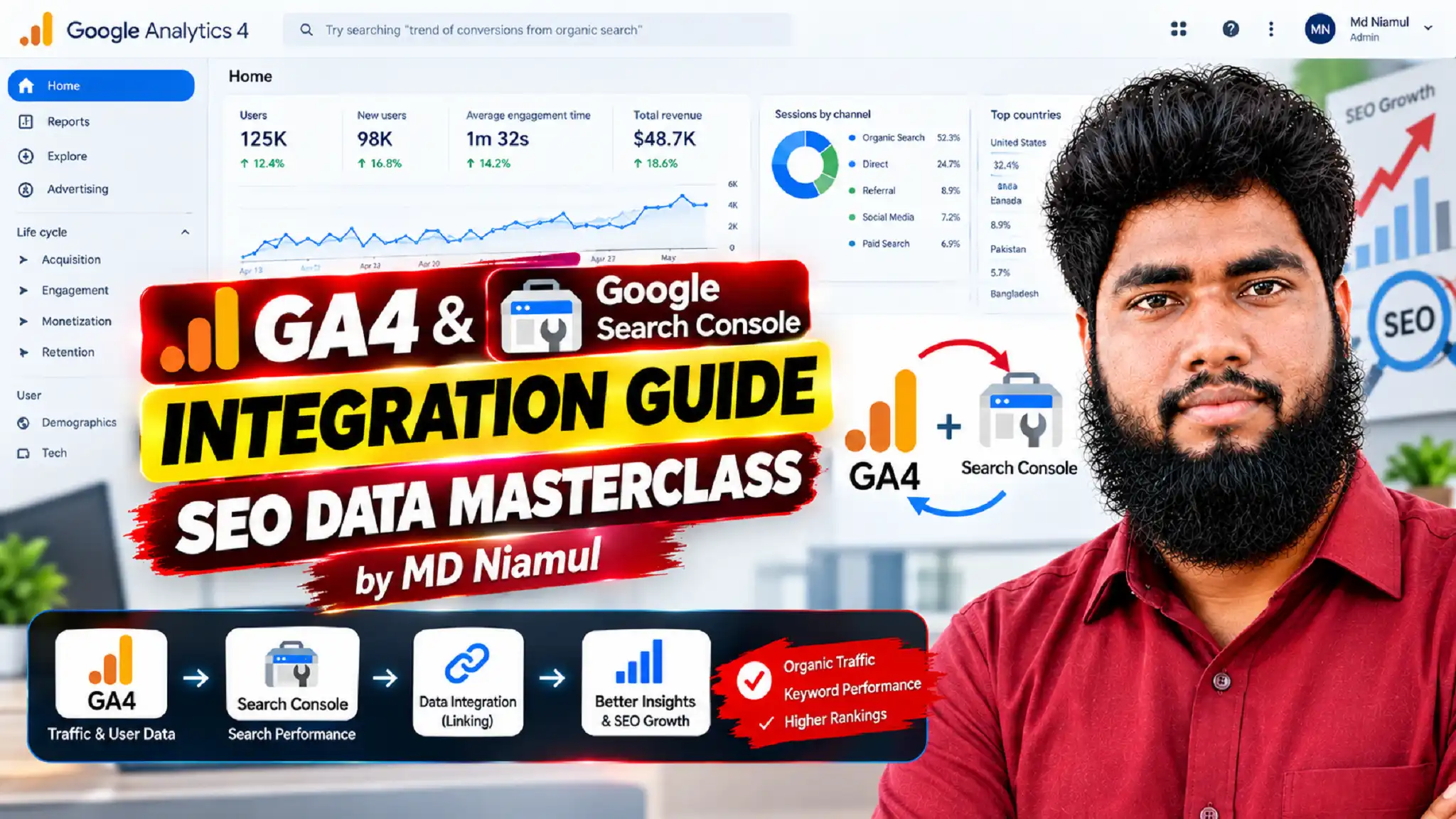
Linking Google Search Console (GSC) directly to Google Analytics 4 (GA4) connects top-of-funnel organic search query data with post-click user activity and revenue conversions. To complete the GA4 GSC integration, open your GA4 Admin panel, scroll to Product Links, select Search Console Links, choose your verified GSC property, and select your Web Data Stream. Once linked, publish the default Search Console reports within the GA4 Report Library to view organic keyword performance right alongside on-site goals.
Key Takeaways
- Bridge the Data Gap: Connect pre-click Google search queries with post-click on-site events, lead forms, and e-commerce purchases.
- Uncover Hidden Revenue Keywords: Identify exact search queries that generate real leads rather than just superficial impressions.
- Publish Built-In Reports: Activate GA4’s hidden Search Console collection (Queries & Organic Search Traffic) with a single click in the Library.
- Consent Mode v2 Compliant: Ensure your Cookiebot setup passes consent signals accurately to maintain clean attribution without data loss.
- Advanced Reporting: Export unified GSC and GA4 datasets into Looker Studio for comprehensive client reporting and ROI calculations.
The $40,000 SEO Blindspot A Story of Unattributed Organic Revenue
A B2B SaaS founder recently came to me after burning $40,000 on an SEO strategy that looked incredible on paper. Their agency was presenting monthly slide decks packed with skyrocketing Google Search Console graphs—impressions were up 300%, and organic clicks had doubled. Yet, the client’s monthly pipeline was completely stagnant. Sales leads weren’t matching the traffic boom, and the executive team was ready to axe their entire organic search budget.
When I audited their analytics setup, the root problem became clear immediately: Search Console and GA4 were operating in complete isolation.
Search Console showed which keywords brought visitors to the site (pre-click data), while GA4 tracked what visitors did once they arrived (post-click data). Because the two platforms weren’t linked, the team was heavily optimizing content for high-volume informational keywords that drove zero sales, while completely ignoring low-volume, high-intent transactional search queries that were actually paying the bills.
By establishing a proper Google Search Console GA4 integration, implementing server-side tracking services, and configuring precise conversion tracking, we unlocked clear visual paths from keyword search to closed deal. Within 60 days, we shifted their content strategy toward high-converting search intent, resulting in a 42% lift in qualified sales calls without spending a single extra dollar on content creation.
Why GA4 & Search Console Integration is Mandatory for Modern SEO
Operating Google Analytics 4 without Search Console data is like driving a car with half of the windshield covered. Search Console tells you how users find you in Google Search, while GA4 tells you what users do after landing on your web pages.
Unified Data Pipeline Flow
- Google Search Console (Pre-Click Metrics):
- Search Queries and Keyword Phrases
- SERP Impressions and Organic Clicks
- Click-Through Rate (CTR) and Average Rank Position
- Organic Landing Page URLs
- Google Analytics 4 (Post-Click Metrics):
- User Engagement Duration & Sessions
- Lead Form Submissions & Custom Events
- E-commerce Purchases & Checkout Funnels
- Revenue and Lifetime Value Attribution
- Combined Output in Looker Studio:
- Full-Funnel SEO Performance Dashboards
- Accurate Organic Search ROI Calculations
When you merge these two tools, you unlock five essential business capabilities:
- Direct Keyword-to-Conversion Attribution: Eliminate guesswork by evaluating organic query performance against key event submissions, purchases, and user retention.
- Identification of Low-Hanging ROI Opportunities: Locate keywords sitting in positions 4 through 10 with high impressions but suboptimal Click-Through Rates (CTR), giving you exact targets for page updates.
- Complete Landing Page Health Audits: Match organic landing page clicks reported by Google against real engaged sessions and bounce metrics inside GA4.
- Enhanced Data Privacy Compliance: Maintain accurate organic attribution even when using CMPs like Cookiebot under strict GDPR and Google Consent Mode v2 frameworks.
- Unified Executive Reporting: Pull blended metrics into Looker Studio dashboards without needing expensive third-party data connectors.
High-Volume Search Keywords in SEO Analytics (2026 Search Trends)
To maximize search visibility and align your tracking strategy with industry demand, these ten high-volume search queries drive modern search analytics and conversion tracking implementation:
- GA4 GSC integration
- Primary Intent: Informational / Technical
- Focus Category: Data Linking
- Google Search Console GA4 integration
- Primary Intent: Technical How-To
- Focus Category: Platform Integration
- link Search Console to GA4
- Primary Intent: Step-by-Step Guide
- Focus Category: Setup & Configuration
- GA4 organic search reporting
- Primary Intent: Analytics & Reporting
- Focus Category: Executive Dashboards
- Google Analytics 4 SEO tracking
- Primary Intent: Commercial / Technical
- Focus Category: SEO Conversion Tracking
- Search Console reports in GA4
- Primary Intent: Informational
- Focus Category: UI Navigation & Reports
- SEO conversion tracking GA4
- Primary Intent: Technical Implementation
- Focus Category: Lead & Sales Tracking
- Looker Studio SEO dashboard GA4
- Primary Intent: Technical / Visualization
- Focus Category: Business Intelligence Dashboards
- organic traffic analytics GA4
- Primary Intent: Strategic Analytics
- Focus Category: Channel Performance
- Google Consent Mode v2 GA4 SEO
- Primary Intent: Compliance / Technical
- Focus Category: Privacy & Tagging
Prerequisites & Access Level Checklist
Before starting the integration, ensure you have the appropriate account permissions across all platforms:
- Google Analytics 4 Account Permission:
- Required Level: Editor or Administrator role.
- Purpose: Necessary to create new Product Links inside the GA4 Admin settings.
- Google Search Console Account Permission:
- Required Level: Verified Owner on the specific target property.
- Purpose: Necessary to authorize the linking request sent from GA4.
- Google Tag Manager Container Access:
- Required Level: Publish access.
- Purpose: Necessary to deploy custom tracking tags and CMP listeners.
- Cookiebot CMP Account Access:
- Required Level: Account Access.
- Purpose: Necessary to manage consent signals and Google Consent Mode v2 parameters.
⚠️ Critical Requirement: The Google user account initiating the link inside GA4 MUST be listed as a Verified Owner inside the target Google Search Console property. If you are only a Full User or Restricted User in Search Console, the property will not show up in the GA4 dropdown menu.
Video Tutorial: GA4 & Search Console Setup Masterclass
Watch this step-by-step video tutorial by MD Niamul to follow along visually with the entire linking process, Looker Studio setup, and consent configurations:
Step-by-Step Implementation Guide
Follow this systematic guide to link your platforms, activate reports, configure custom interaction listeners, and enforce Cookiebot Google Consent Mode v2.
Phase 1: Linking Search Console to GA4 Admin
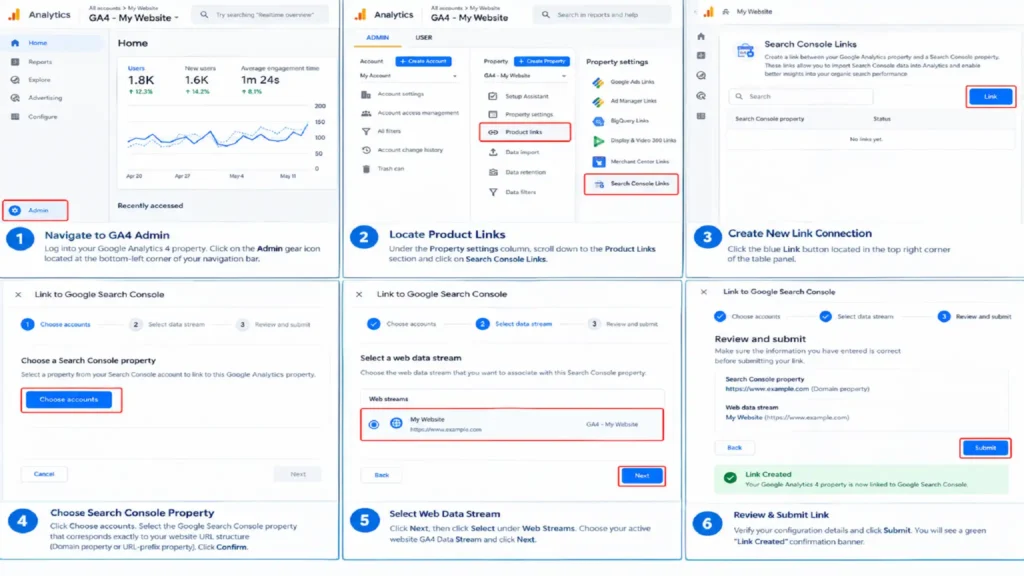
- Navigate to GA4 Admin: Log into your Google Analytics 4 property. Click on the Admin gear icon located at the bottom-left corner of your navigation bar.
- Locate Product Links: Under the Property settings column, scroll down to the Product Links section and click on Search Console Links.
- Create New Link Connection: Click the blue Link button located in the top right corner of the table panel.
- Choose Search Console Property: Click Choose accounts. Select the Google Search Console property that corresponds exactly to your website URL structure (Domain property or URL-prefix property). Click Confirm.
- Select Web Data Stream: Click Next, then click Select under Web Streams. Choose your active website GA4 Data Stream and click Next.
- Review & Submit Link: Verify your configuration details and click Submit. You will see a green “Link Created” confirmation banner.
Phase 2: Publishing Search Console Reports in GA4 UI
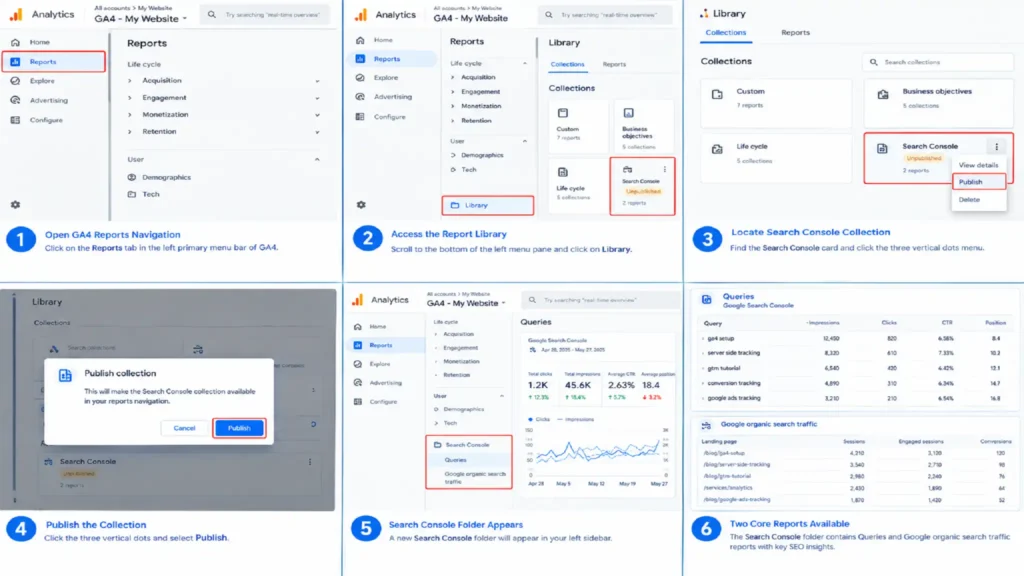
By default, creating the link does not automatically show the Search Console report tabs in your left-hand GA4 navigation menu. You must manually publish the collection from the GA4 Library.
- Open GA4 Reports Navigation: Click on the Reports tab in the left primary menu bar of GA4.
- Access the Report Library: Scroll to the bottom of the left menu pane and click on Library.
- Locate Search Console Collection: In the Collections list, find the card titled Search Console. It will currently show an “Unpublished” status badge.
- Publish the Collection: Click the three vertical dots on the top right of the Search Console card and select Publish.
Once published, a new Search Console folder will appear in your left sidebar, containing two core reporting dashboards:
- Queries Report: Displays top Google search queries, impressions, clicks, click-through rate (CTR), and average search position.
- Google Organic Search Traffic Report: Maps organic landing page URLs to session engagement metrics and conversions.
Phase 3: Cookiebot & Google Consent Mode v2 Integration
When running tracking scripts across European (EU) or global traffic, maintaining privacy compliance via Google Consent Mode v2 is essential. Without proper consent management, GA4 will drop organic user interaction signals, breaking your conversion paths.
Step 1: Configure Cookiebot CMP Script
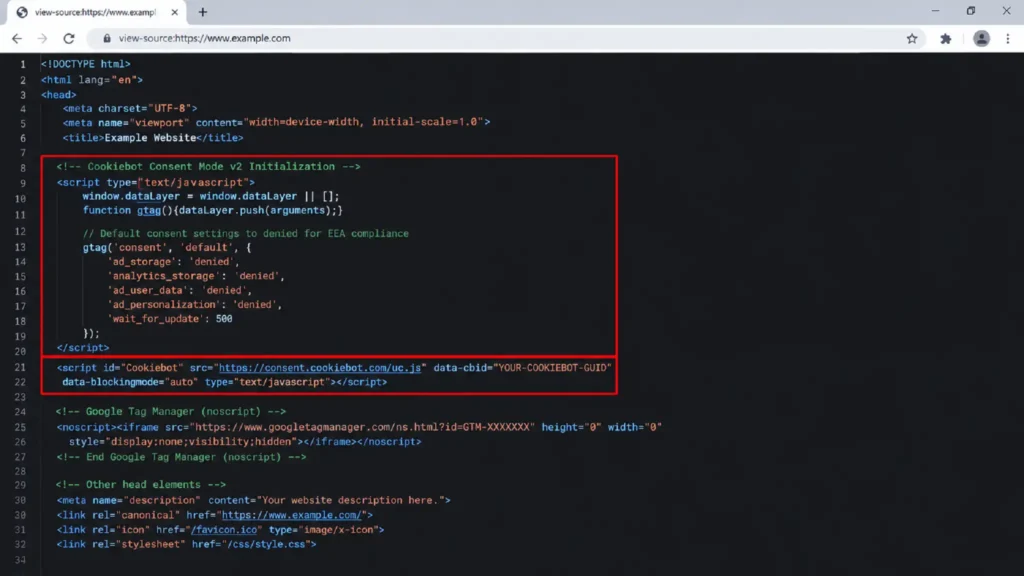
Insert the standard Cookiebot banner code into your site’s <head> tag before your Google Tag Manager script executes:
					<!-- Cookiebot Consent Mode v2 Initialization -->
<script type="text/javascript">
  window.dataLayer = window.dataLayer || [];
  function gtag(){dataLayer.push(arguments);}

  // Default consent settings to denied for EEA compliance
  gtag('consent', 'default', {
    'ad_storage': 'denied',
    'analytics_storage': 'denied',
    'ad_user_data': 'denied',
    'ad_personalization': 'denied',
    'wait_for_update': 500
  });
</script>
<script id="Cookiebot" src="https://consent.cookiebot.com/uc.js" data-cbid="YOUR-COOKIEBOT-GUID" data-blockingmode="auto" type="text/javascript"></script>
💡 Need a custom consent build or server-side proxy? Check out our partner platforms on Stape Global or Stape European Server, or sign up directly via Cookiebot Registration or CookieYes Registration.
Phase 4: Custom Organic SEO Listener Code (GTM)
Standard GA4 tracking records organic landings, but it often misses key user engagement actions like deep organic content scrolling, outbound search affiliate clicks, or search-referred form submissions.
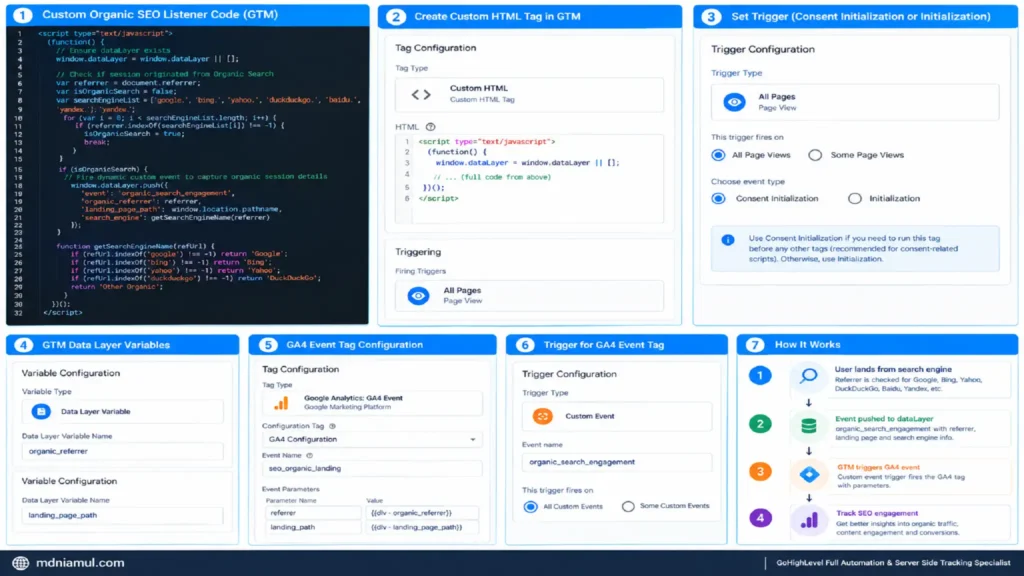
Deploy this custom JavaScript listener in Google Tag Manager as a Custom HTML Tag triggered on All Pages – Consent Initialization or Initialization – All Pages.
					<script type="text/javascript">
(function() {
  // Ensure dataLayer exists
  window.dataLayer = window.dataLayer || [];

  // Check if session originated from Organic Search
  var referrer = document.referrer;
  var isOrganicSearch = false;
  var searchEngineList = ['google.', 'bing.', 'yahoo.', 'duckduckgo.', 'baidu.', 'yandex.'];

  for (var i = 0; i < searchEngineList.length; i++) {
    if (referrer.indexOf(searchEngineList[i]) !== -1) {
      isOrganicSearch = true;
      break;
    }
  }

  if (isOrganicSearch) {
    // Fire dynamic custom event to capture organic session details
    window.dataLayer.push({
      'event': 'organic_search_engagement',
      'organic_referrer': referrer,
      'landing_page_path': window.location.pathname,
      'search_engine': getSearchEngineName(referrer)
    });
  }

  function getSearchEngineName(refUrl) {
    if (refUrl.indexOf('google') !== -1) return 'Google';
    if (refUrl.indexOf('bing') !== -1) return 'Bing';
    if (refUrl.indexOf('yahoo') !== -1) return 'Yahoo';
    if (refUrl.indexOf('duckduckgo') !== -1) return 'DuckDuckGo';
    return 'Other Organic';
  }
})();
</script>
How the Listener Works & Tag Configuration Details
- Referrer Analysis: The script scans document.referrer to verify if the visitor arrived directly from a recognized search engine domain.
- Data Layer Event Dispatch: When an organic user lands, it automatically pushes the organic_search_engagement event into the dataLayer.
- GTM Tag & Trigger Settings:
- Custom Event Trigger Name: organic_search_engagement
- Data Layer Variable 1 Name: organic_referrer
- Data Layer Variable 2 Name: landing_page_path
- GA4 Event Tag Name: seo_organic_landing
- GA4 Tag Event Parameters: Set referrer to {{dlv – organic_referrer}} and landing_path to {{dlv – landing_page_path}}.
Building a Unified SEO Dashboard in Looker Studio
While GA4 offers native reports, building a custom dashboard in Looker Studio allows you to blend GA4 conversion paths directly with Search Console position data in a single visual reporting layout.
Step-by-Step Looker Studio Setup
- Add Search Console Data Source:
- In Looker Studio, click Add Data -> Select Google Search Console.
- Pick your site property -> Select Site Impression -> Choice: Web.
- Add GA4 Data Source:
- Click Add Data -> Select Google Analytics.
- Choose your GA4 Property -> Click Add.
- Blend the Data Sources:
- Go to Resource -> Manage Blends -> Add a Blend.
- Table 1 (Search Console): Join Key = Landing Page (Formatted URL). Metrics = Clicks, Impressions, CTR, Average Position.
- Table 2 (GA4): Join Key = Landing page + query string or Page path. Metrics = Sessions, Engaged sessions, Conversions, Total revenue.
- Join Condition: Left Outer Join matching Search Console Landing Page to GA4 Landing Page.
Crucial Calculated Metrics for Looker Studio
- Organic Conversion Rate:
- Formula: SUM(Conversions) / SUM(Sessions)
- Use Case: Measures the direct conversion and lead generation efficiency of individual organic landing pages.
- Revenue Per Organic Click:
- Formula: SUM(Total Revenue) / SUM(Clicks)
- Use Case: Quantifies the precise monetary value generated by each search click from Google.
- Opportunity Score:
- Formula: (SUM(Impressions) * (1 – CTR)) * Average Position
- Use Case: Highlights target pages that receive massive impression volume in Search Console but suffer from low Click-Through Rates.
Special Integrations Tracking CRM Form Conversions from Organic Traffic
Generating organic traffic is only half the battle—capturing lead data in your CRM completes the equation. If your site uses embedded forms or third-party checkouts, standard GA4 event tracking requires custom setup to attribute leads back to organic search keywords.
If you are using popular CRM forms or external platforms, explore our dedicated setup guides:
- For embedded enterprise forms, see our guide on HubSpot form conversion tracking services.
- Using HighLevel? Follow our tutorial on GoHighLevel form conversion tracking services.
- Running complex Salesforce flows? Check out our Salesforce conversion tracking service.
- Collecting leads via Zoho? View our Zoho Form conversion tracking service.
- Operating third-party payment solutions? Read our breakdown of third-party checkout conversion tracking services.
- E-commerce brand on Shopify? Check our Shopify server-side tracking service and overall e-commerce server-side tracking service.
- Looking to tie back offline phone leads or store sales? Use our offline conversion tracking services alongside our marketing automation service and OpenAI Ads conversion tracking services.
Testing & Validation Process
Before publishing your GTM container and accepting your data, validate your integration across three debugging layers.
1. Tag Assistant & GTM Preview Mode
- Open Google Tag Manager and click Preview.
- Enter your website URL and click Connect.
- Open a search engine referrer link in a test tab or simulate a search referrer string.
- Verify that the organic_search_engagement event fires successfully inside the Tag Assistant left panel.
- Inspect the Data Layer tab to confirm organic_referrer and landing_page_path variables populated accurately.
2. GA4 DebugView Verification
- In GA4, go to Admin -> DebugView.
- Look for your test session device in the debug stream.
- Confirm the arrival of the seo_organic_landing custom event.
- Click on the event parameters to verify that referrer and landing_path match your test environment parameters.
3. Cookiebot Consent Mode Verification
- Open Chrome Developer Tools -> Go to the Console tab.
- Type google_tag_data.ics.entries and press Enter.
- Verify that analytics_storage and ad_storage state updates from denied to granted when accepting the Cookiebot banner choices.
Troubleshooting Common Setup Errors
- Issue 1: Search Console Property List is Blank inside GA4 Admin
- Root Cause: Your Google user account lacks “Verified Owner” status inside Google Search Console.
- Exact Solution: Log into Search Console, navigate to Settings > Users and permissions, and request or assign Verified Owner status to your Google account.
- Issue 2: Search Console Folder Missing from GA4 Navigation Menu
- Root Cause: The link is active in GA4 Admin, but the report collection remains unpublished in the GA4 Library.
- Exact Solution: Navigate to GA4 > Reports > Library, locate the Search Console card, click the three vertical dots menu, and click Publish.
- Issue 3: “(not set)” Appears Under Search Queries in Reports
- Root Cause: Google applies privacy thresholds to protect individual user privacy on low-volume keyword searches.
- Exact Solution: Analyze performance by landing page paths or aggregate high-volume query groups using Looker Studio blends.
- Issue 4: Organic Revenue Dropped After Consent Mode Setup
- Root Cause: Consent signals are inappropriately blocking GA4 tags prior to user banner interaction.
- Exact Solution: Ensure wait_for_update: 500 is active in Cookiebot initialization and update GTM tag consent settings to “No additional consent required”.
Conclusion
Integrating Google Search Console with Google Analytics 4 transforms isolated metrics into an actionable, revenue-focused analytics system. By connecting pre-click keyword searches with post-click engagement, custom events, and CRM form submissions, you gain full visibility into which SEO investments drive real business growth.
Take immediate action by setting up your product links, deploying custom organic event listeners via GTM, enforcing Cookiebot Consent Mode v2, and publishing your native GA4 reporting cards today.
Summary by MD Niamul
This comprehensive guide details the complete process of linking Google Search Console with Google Analytics 4 to track organic keyword performance alongside conversion goals. It covers account prerequisites, step-by-step linking procedures, GA4 report library publishing, Cookiebot Consent Mode v2 compliance, custom GTM organic event listener deployment, and Looker Studio dashboard creation for unified SEO ROI reporting.
1.Why is my Search Console data missing inside GA4?
Search Console data won’t automatically appear inside GA4 until you complete two distinct steps: first, establish the product link connection within the GA4 Admin panel under Product Links; second, navigate to the GA4 Reports Library and manually publish the Search Console report collection. Additionally, keep in mind that Search Console data operates on a 24- to 48-hour processing delay, meaning real-time clicks won’t display instantly inside GA4 dashboards.
2.Does linking GSC to GA4 affect historical site tracking?
No, linking Google Search Console to Google Analytics 4 has zero impact on your existing historical site data or running campaign attributions. Search Console begins importing historical search data (up to 16 months depending on property age) into the dedicated Search Console reporting UI without altering your existing default channel groupings, user session numbers, or custom event logs inside GA4.
3.Why do keyword click numbers differ between Search Console and GA4?
Search Console logs clicks at the Google Search engine result page (SERP) level when a user selects your link, whereas GA4 logs sessions after the landing page loads and the JavaScript tag fires. Discrepancies often occur due to user cookie rejections under CMP banners like Cookiebot, ad blockers, browser redirects, slow page loading speeds, or users closing the browser window before GA4 code executes.
4.Can I connect multiple Search Console properties to one GA4 property?
No, Google Analytics 4 allows a single Web Data Stream to be linked to only one Google Search Console property at a time. If your website spans multiple subdomains or international domain prefixes (e.g., es.yoursite.com), you should create a unified Domain Property inside Google Search Console to collect all traffic under one property before completing the GA4 link.
5.What does "(not set)" mean in GA4 Search Console reports?
When you see “(not set)” or missing search queries inside GA4 Search Console reports, it indicates that Google has applied privacy protection thresholds. To safeguard individual user privacy, Google automatically hides search queries that are performed by a very small number of users or contain sensitive personal information. However, the associated clicks and impressions for these hidden queries are still included in your overall site metrics.
6.How long does Search Console data take to appear in GA4?
After initiating the product link connection and publishing the report collection, it typically takes between 24 and 48 hours for Search Console data to populate inside your GA4 interface. Search Console raw data is inherently non-real-time and subject to Google’s internal data validation pipelines, so you should not expect to see same-day keyword reports inside GA4.
7.Is Search Console data stored in BigQuery via GA4 export?
No, standard GA4 BigQuery export integration does not automatically include the linked Search Console dataset tables. Search Console data lives on a separate backend infrastructure. If you require raw Search Console data alongside your GA4 BigQuery event tables, you must configure a direct, independent bulk data export directly from Search Console into Google BigQuery.
8.Do I need Google Tag Manager to link GSC to GA4?
No, the primary account link between Google Search Console and Google Analytics 4 takes place directly inside the GA4 Admin user interface under Product Links. However, deploying Google Tag Manager is highly recommended to implement custom organic engagement listeners, handle Cookiebot consent mode parameters, and fire advanced conversion events tied back to your SEO landing pages.
9.How does Google Consent Mode v2 impact Search Console data?
Google Search Console logs pre-click search engine impressions and clicks directly from Google search servers, meaning consent banners do not impact Search Console data collection. However, post-click activity tracked by GA4 requires user consent under frameworks like Cookiebot. Implementing Google Consent Mode v2 ensures GA4 uses behavioral modeling to bridge attribution gaps caused by user opt-outs.
10.Can I view Search Console keyword rankings in Looker Studio?
Yes, you can build Looker Studio reports that display keyword search rankings, impressions, clicks, and CTR directly alongside GA4 engagement and conversion metrics. By establishing a data blend using page URLs as the join key, you can evaluate average keyword positions alongside actual revenue and form submissions generated on your website.
 Need Help Advanced GHL Automation & Tracking Setup?