
Table of Contents
ToggleQuick Answer
Fixing GA4 tracking issues requires auditing your Google Tag Manager container, removing redundant or duplicate scripts, correcting cross-domain linker setups, enforcing event deduplication, and deploying custom JavaScript listeners for uncaptured user interactions. For full 99% data accuracy and faster page load speeds, transition your client-side tags to a Server-Side GTM container hosted on Stape.
Key Takeaways
- Eliminate Data Pollution: Removing bloated, duplicate, and unorganized tags in Google Tag Manager stops double counting and prevents web page speed degradation.
- Recover Missing Conversions: Deploying custom JavaScript event listeners captures AJAX form submissions, single-page app state changes, and embedded iframe interactions that default GA4 tags miss.
- Fix Cross-Domain Attribution: Proper configuration of GA4 domain measurement domains prevents session fragmentation and stops purchases from being assigned to (not set) or payment gateway referrers.
- Achieve 99% Accuracy via sGTM: Routing analytics traffic through a Server-Side GTM container on Stape bypasses ad-blockers, overcomes browser privacy restrictions (Safari ITP), and secures event delivery.
- Enforce Privacy Compliance: Integrating Cookiebot CMP with Google Consent Mode V2 ensures dynamic, legal compliance under global privacy regulations like GDPR and CCPA.
Introduction The Silent Conversion Leak in Your Analytics
During a technical analytics audit for a fast-growing e-commerce platform last quarter, the media buying team was baffled. Their ad dashboard showed 450 completed purchases from Google Ads, while Google Analytics 4 reported only 280 sales—and nearly half of those were categorized under (not set) or credited to third-party payment gateways. To make matters worse, page speed tests showed that client-side tracking scripts were adding over 1.8 seconds of delay to site load times.
Their ad campaigns were optimization-blind. Smart Bidding algorithms were penalizing high-converting ad sets because conversion signals never reached GA4, while site visitors were bouncing due to slow loading speeds caused by duplicate, unorganized tracking tags firing all at once.
The root cause was two-fold: a messy Google Tag Manager container accumulated over years of uncoordinated tag additions, and client-side script blocks stripping tracking pings. Broken GA4 tracking is rarely a single bug; it is usually a combination of client-side script interference, cross-domain session breaks, missing Data Layer triggers, and network-level ad blockers.
In this guide, I will walk you step-by-step through auditing your GTM container, optimizing your Google Tags for speed, fixing missing GA4 events, and setting up Server-Side tracking to achieve 99% data accuracy.
Why Broken GA4 Tracking & Unoptimized Google Tags Cost You Money
When Google Analytics 4 receives bad or incomplete data, every automated system connected to your account breaks down.
					[ Unoptimized GTM Setup ] ──► [ Duplicate Tags & Bloated Scripts ] ──► [ Slow Page Load Speed ]
           │
           ├──► [ Broken Cross-Domain Linker ] ──► [ Attribution Lost to (not set) ]
           │
           └──► [ Missing Event Signals ] ──► [ Google Ads Bids on Poor Data ]
1. Double Counting and Data Inflation
Having both legacy gtag.js snippets in your website header and duplicate GA4 Event tags in GTM causes single actions (like pageviews or purchases) to fire twice. This artificially inflates pageview numbers, cuts bounce rates in half, and corrupts your key metric calculations.
2. Page Load Speed Degradation
Every unoptimized, unorganized third-party tag in your client-side GTM container forces the visitor’s browser to execute synchronous JavaScript code. This delays the browser’s main thread, worsens Largest Contentful Paint (LCP) scores, and drives potential buyers away before the page even finishes loading.
3. Broken Cross-Domain Attribution
When users move between your primary domain and a third-party checkout or subdomain, missing cross-domain measurement settings wipe out the session client ID (_ga). GA4 views the user as a new visitor, wiping out the original traffic source (such as Google Ads or Organic Search) and misattributing sales to Direct or the gateway domain (paypal.com).
4. Missing AJAX and Iframe Conversions
Modern websites use AJAX forms, slide-out carts, and embedded iframe widgets that do not reload the page upon submission. Default GA4 enhanced measurement cannot read actions inside glass-wall windows like iframes or background AJAX pings, leading to missing conversion events.
5 Key Benefits of Google Tag Optimization & GA4 Fixes
- Complete Data Accuracy: Resolves missing events and eliminates duplicate conversions for clean, reliable reporting.
- Faster Page Speed: Cleans up bloated client-side GTM containers and offloads tag execution to a server server.
- Accurate Ad Attribution: Preserves original traffic sources across subdomains and payment gateways for better Smart Bidding.
- Ad-Blocker Resilience: Server-Side tracking routes requests through your first-party domain to recover up to 20% of lost data.
- Privacy Compliance: Aligns event collection dynamically with visitor privacy choices via Google Consent Mode V2.
Prerequisites & Technical Audit Checklist
Before making changes to your live tracking tags, ensure you have the required access and tools ready:
- Google Tag Manager (Publish Access): Required to audit, pause, delete, and deploy container configurations.
- Google Analytics 4 (Administrator / Editor Access): Required to manage Data Streams, Cross-Domain Measurement, and Unwanted Referrals.
- Stape.io Account (Owner Access): Required to deploy and host your Server-Side GTM container.
- Cookiebot CMP Account (Admin Access): Required to manage Google Consent Mode V2 permissions.
- Chrome Extensions: Install GTM Preview Companion, Google Tag Assistant, and open Browser Developer Tools (F12).
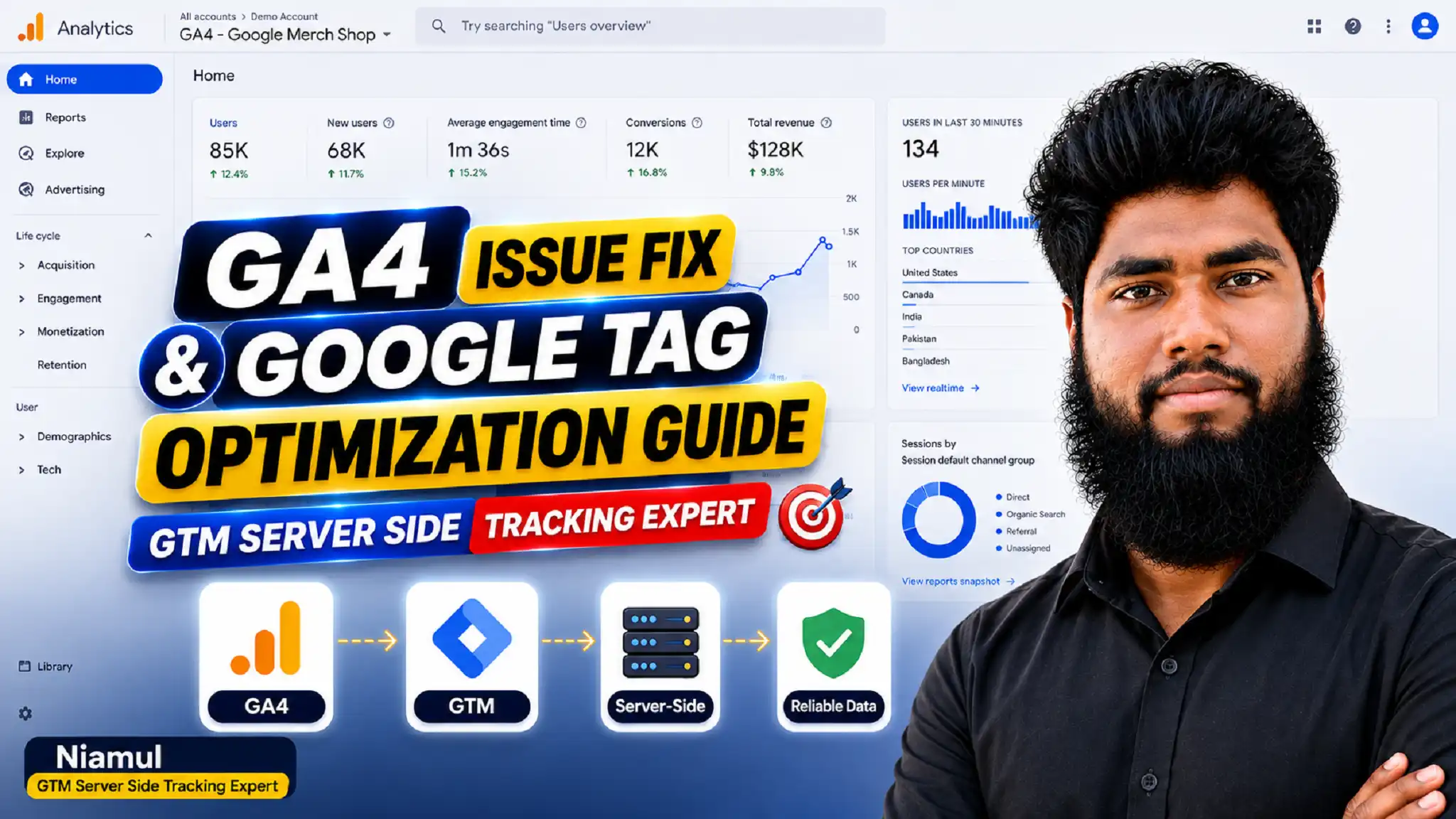
Video Tutorial: Step-by-Step GA4 Issue Fix & GTM Optimization
Watch my complete video walkthrough where I diagnose, fix, and optimize a broken GA4 tracking setup live:
Step-by-Step GA4 Fix & Tag Optimization Framework
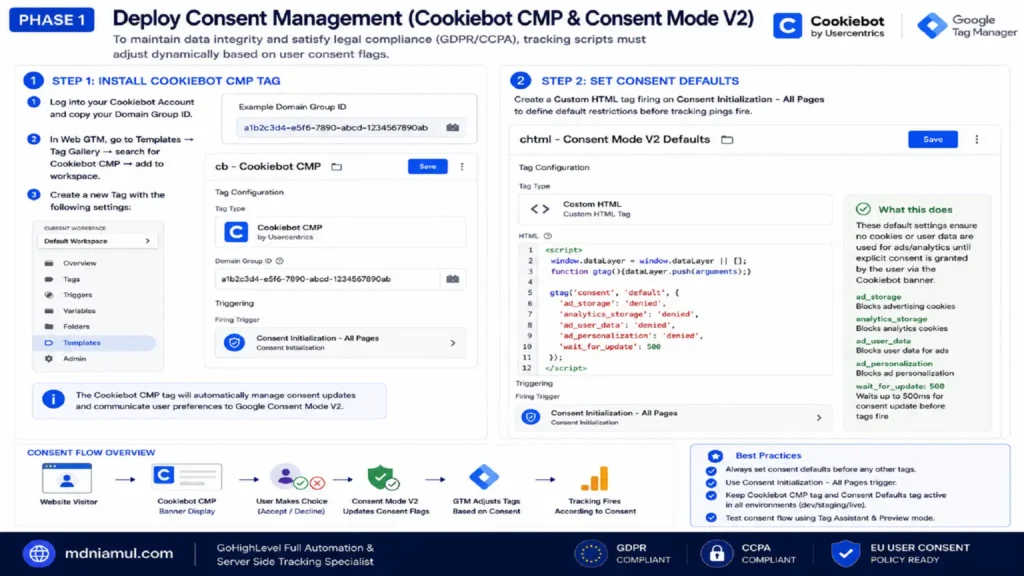
Phase 1: Deploy Consent Management (Cookiebot CMP & Consent Mode V2)
To maintain data integrity and satisfy legal compliance (GDPR/CCPA), tracking scripts must adjust dynamically based on user consent flags.
Step 1: Install Cookiebot CMP Tag
- Log into your Cookiebot Account and copy your Domain Group ID. (Alternatively, if using CookieYes, access your CookieYes Account).
- In Web GTM, go to Templates -> Tag Gallery -> search for Cookiebot CMP -> add to workspace.
- Create a new Tag:
- Tag Type: Cookiebot CMP
- Domain Group ID: Paste your Cookiebot ID key
- Trigger: Consent Initialization – All Pages
Step 2: Set Consent Defaults
Create a Custom HTML tag firing on Consent Initialization – All Pages to define default restrictions before tracking pings fire:
					<script>
  window.dataLayer = window.dataLayer || [];
  function gtag(){dataLayer.push(arguments);}

  gtag('consent', 'default', {
    'ad_storage': 'denied',
    'analytics_storage': 'denied',
    'ad_user_data': 'denied',
    'ad_personalization': 'denied',
    'wait_for_update': 500
  });
</script>
Phase 2: Deploy Custom JavaScript Event Listener Code
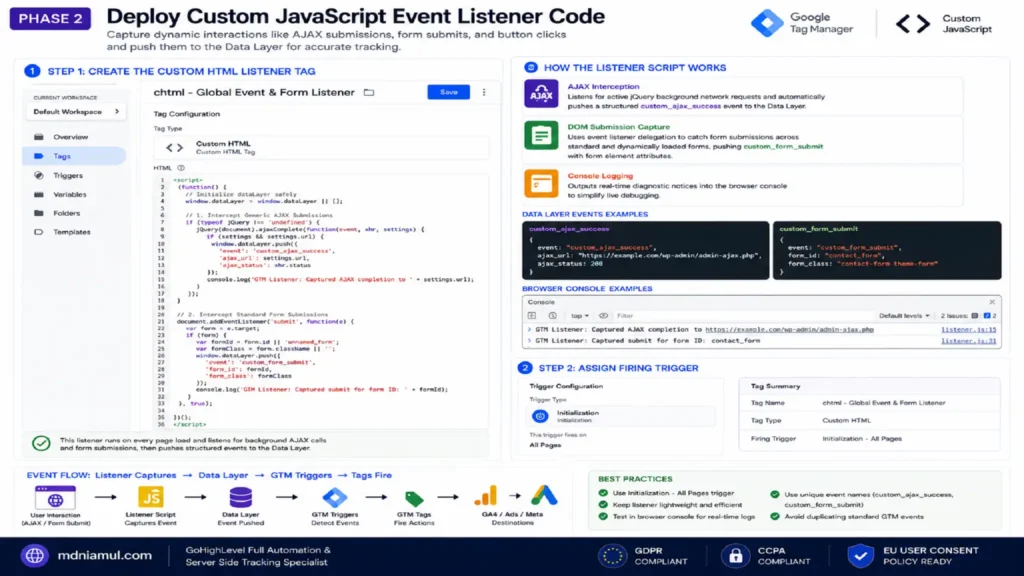
Standard GA4 pageview triggers often miss dynamic interactions like background AJAX forms, slide-out carts, or custom button clicks. We deploy a custom JavaScript Listener (acting as a catcher’s mitt) to intercept these events and pass them to the Data Layer (an invisible filing cabinet).
Step 1: Create the Custom HTML Listener Tag
- In Web GTM, navigate to Tags -> New -> Custom HTML.
- Name the Tag: chtml – Global Event & Form Listener.
- Paste the following production-ready JavaScript code:
					<script>
(function() {
  // Initialize dataLayer safely
  window.dataLayer = window.dataLayer || [];

  // 1. Intercept Generic AJAX Submissions
  if (typeof jQuery !== 'undefined') {
    jQuery(document).ajaxComplete(function(event, xhr, settings) {
      if (settings && settings.url) {
        window.dataLayer.push({
          'event': 'custom_ajax_success',
          'ajax_url': settings.url,
          'ajax_status': xhr.status
        });
        console.log('GTM Listener: Captured AJAX completion to ' + settings.url);
      }
    });
  }

  // 2. Intercept Standard Form Submissions
  document.addEventListener('submit', function(e) {
    var form = e.target;
    if (form) {
      var formId = form.id || 'unnamed_form';
      var formClass = form.className || '';
      window.dataLayer.push({
        'event': 'custom_form_submit',
        'form_id': formId,
        'form_class': formClass
      });
      console.log('GTM Listener: Captured submit for form ID: ' + formId);
    }
  }, true);

})();
</script>
How the Listener Script Works
- AJAX Interception: Listens for active jQuery background network requests and automatically pushes a structured custom_ajax_success event to the Data Layer.
- DOM Submission Capture: Uses event listener delegation to catch form submissions across standard and dynamically loaded forms, pushing custom_form_submit with form element attributes.
- Console Logging: Outputs real-time diagnostic notices into the browser console to simplify live debugging.
Step 2: Assign Firing Trigger
- Trigger: Initialization – All Pages
- Save Tag: chtml – Global Event & Form Listener
Phase 3: Audit, Clean Up, and Optimize the GTM Container
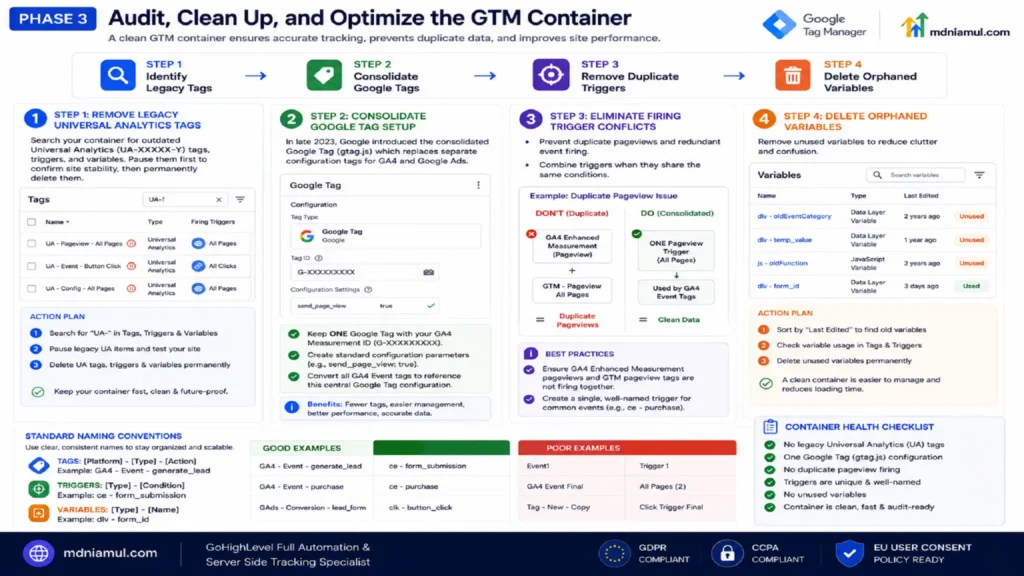
A cluttered GTM container causes duplicate tracking and slows down page loading. Follow this audit protocol to clean up your container:
[ Step 1: Identify Legacy Tags ] ──► [ Step 2: Consolidate Google Tags ] ──► [ Step 3: Remove Duplicate Triggers ] ──► [ Step 4: Delete Orphaned Variables ]
Step 1: Remove Legacy Universal Analytics Tags
Search your container for outdated Universal Analytics (UA-XXXXX-Y) tags, triggers, and variables. Pause them first to confirm site stability, then permanently delete them to clean up your workspace.
Step 2: Consolidate Google Tag Setup
In late 2023, Google introduced the consolidated Google Tag (gtag.js) which replaces separate configuration tags for GA4 and Google Ads.
- Keep ONE core Google Tag in your container with your GA4 Measurement ID (G-XXXXXXXXXX).
- In the Google Tag settings, create standard configuration parameters (e.g., send_page_view: true).
- Convert all GA4 Event tags to reference this central Google Tag configuration.
Step 3: Eliminate Firing Trigger Conflicts
- Prevent Duplicate Pageviews: Ensure GA4 enhanced measurement pageviews and custom GTM pageview tags are not firing simultaneously.
- Combine Triggers: If multiple tags share identical conditions, consolidate them into a single, well-named trigger (e.g., ce – purchase).
Step 4: Standardize Container Naming Conventions
Adopt a clear naming convention to keep your container organized:
- Tags: [Platform] – [Type] – [Action] (e.g., GA4 – Event – generate_lead)
- Triggers: [Type] – [Condition] (e.g., ce – form_submission)
- Variables: [Type] – [Name] (e.g., dlv – form_id)
Phase 4: Diagnose and Fix Missing GA4 Events & Double Counting
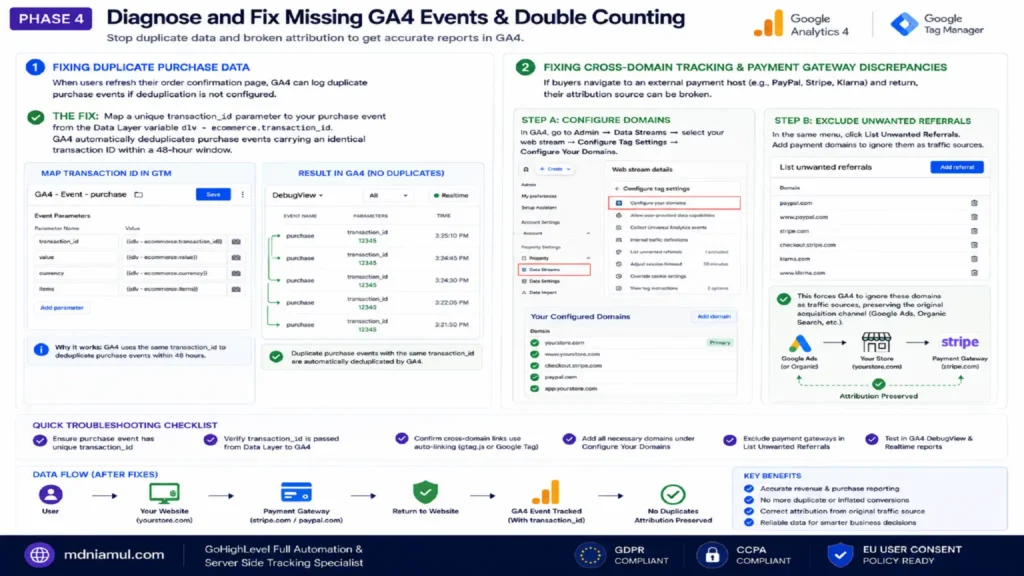
1. Fixing Duplicate Purchase Data
When users refresh their order confirmation page, GA4 can log duplicate purchase events if deduplication is not configured.
- The Fix: Map a unique transaction_id parameter to your purchase event from the Data Layer variable dlv – ecommerce.transaction_id. GA4 automatically deduplicates purchase events carrying an identical transaction ID within a 48-hour window.
2. Fixing Cross-Domain Tracking & Payment Gateway Discrepancies
If buyers navigate to an external payment host (e.g., PayPal, Stripe, Klarna) and return, their attribution source can be broken.
- Step A (Configure Domains): In GA4, go to Admin -> Data Streams -> select your web stream -> Configure Tag Settings -> Configure Your Domains. Add your main domain and any payment or portal domains (e.g., yourstore.com, checkout.stripe.com).
- Step B (Exclude Unwanted Referrals): In the same menu, click List Unwanted Referrals. Add payment domains such as paypal.com, stripe.com, and klarna.com. This forces GA4 to ignore these domains as traffic sources, preserving the original acquisition channel (e.g., Google Ads or Organic Search).
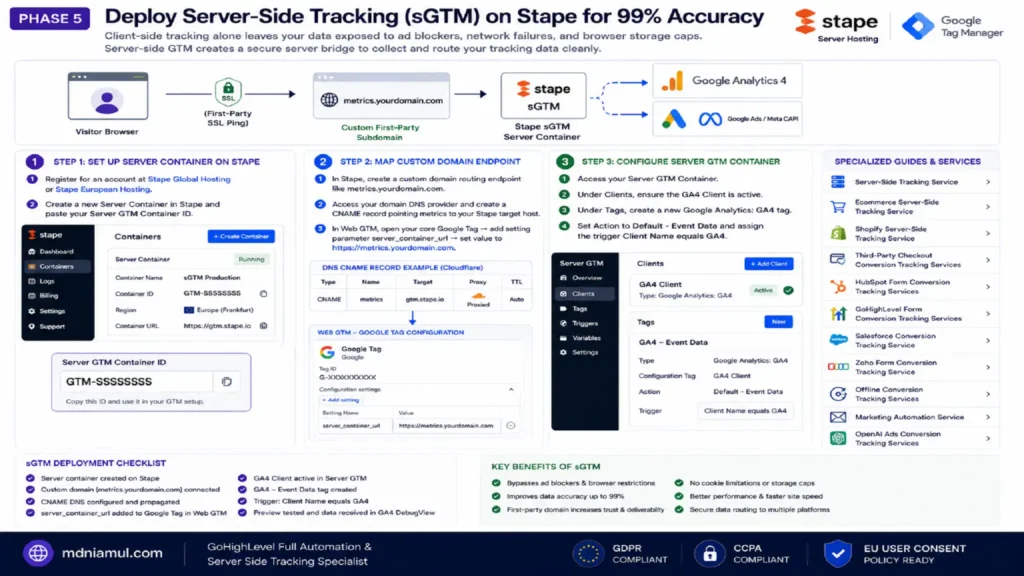
Phase 5: Deploy Server-Side Tracking (sGTM) on Stape for 99% Accuracy
Client-side tracking alone leaves your data exposed to ad blockers, network failures, and browser storage caps. Deploying a Server-Side GTM container on Stape creates a secure server bridge to collect and route your tracking data cleanly.
					[ Visitor Browser ] ──(First-Party SSL Ping)──► [ metrics.yourdomain.com ]
                                                        │
                                                        ▼
                                         [ Stape sGTM Server Container ]
                                                        │
                                                        ├──► Google Analytics 4
                                                        └──► Google Ads / Meta CAPI
Step 1: Set Up Server Container on Stape
- Register for an account at Stape Global Hosting or Stape European Hosting.
- Create a new Server Container in Stape and paste your Server GTM Container ID.
Step 2: Map Custom Domain Endpoint
- In Stape, create a custom domain routing endpoint like metrics.yourdomain.com.
- Access your domain DNS provider (Cloudflare, GoDaddy, Namecheap) and create a CNAME record pointing metrics to your assigned Stape target host.
- In Web GTM, open your core Google Tag -> add setting parameter server_container_url -> set value to https://metrics.yourdomain.com.
Step 3: Configure Server GTM Container
- Access your Server GTM Container.
- Under Clients, ensure the GA4 Client is active.
- Under Tags, create a new Google Analytics: GA4 tag.
- Set Action to Default – Event Data and assign the trigger Client Name equals GA4.
For detailed server-side solutions tailored to specific setups, explore my dedicated specialized guides:
- Server-Side Tracking Service
- Ecommerce Server-Side Tracking Service
- Shopify Server-Side Tracking Service
- Third-Party Checkout Conversion Tracking Services
- HubSpot Form Conversion Tracking Services
- GoHighLevel Form Conversion Tracking Services
- Salesforce Conversion Tracking Service
- Zoho Form Conversion Tracking Service
- Offline Conversion Tracking Services
- Marketing Automation Service
- OpenAI Ads Conversion Tracking Services
Comparative Overview Unoptimized Client-Side vs. Cleaned Server-Side GTM Setup
Cleaning your GTM container and migrating tracking to Server-Side GTM drastically improves data accuracy and browser execution speeds.
- Data Accuracy Rate:
- Unoptimized Client-Side: 60% – 70% accuracy; frequent data loss from ad blockers, network failures, and gateway redirects.
- Cleaned Web GTM Setup: 80% – 85% accuracy; improves event consistency but remains vulnerable to browser-level blocks.
- Cleaned + Server-Side GTM (Stape): 99% accuracy; recovers lost traffic via server-to-server data processing.
- Page Load Speed Impact:
- Unoptimized Client-Side: High degradation (+1.5s to 3.0s delay); multiple synchronous tracking scripts execute on the browser’s main thread.
- Cleaned Web GTM Setup: Moderate impact (+0.5s delay); tag consolidation reduces main thread workload.
- Cleaned + Server-Side GTM (Stape): Minimal impact (<0.1s delay); offloads heavy tag processing to the server container.
- Safari ITP Cookie Lifetime Protection:
- Unoptimized Client-Side: None; Safari limits tracking cookies (_ga) to 24 hours or 7 days, breaking attribution.
- Cleaned Web GTM Setup: None; browser-managed cookies remain subject to ITP deletion rules.
- Cleaned + Server-Side GTM (Stape): Protected; first-party DNS routing (metrics.yourdomain.com) preserves session continuity.
- Ad-Blocker Resilience:
- Unoptimized Client-Side: Zero; standard Google domains (google-analytics.com) are frequently blocked by browser extensions.
- Cleaned Web GTM Setup: Low; client-side pings remain vulnerable to domain blocklists.
- Cleaned + Server-Side GTM (Stape): High; custom subdomain routing bypasses ad blockers.
- Transaction Deduplication:
- Unoptimized Client-Side: Rare; duplicate event fires on page reloads corrupt conversion counts.
- Cleaned Web GTM Setup: Manual; requires custom variable setup for each transaction ID.
- Cleaned + Server-Side GTM (Stape): Automatic; handles unique event IDs to prevent duplicate metrics.
Testing & Validation Framework
To confirm your GA4 tracking fixes are operating properly, follow this four-step diagnostic sequence:
[ Step 1: Web GTM Preview ] ──► [ Step 2: Browser Console Audit ] ──► [ Step 3: GA4 DebugView ] ──► [ Step 4: sGTM Stape Logs ]
- Web GTM Preview Mode Inspection: Click Preview in Tag Assistant, connect to your URL, and trigger standard user actions (form submissions, button clicks). Verify that tags fire on their designated triggers without errors.
- Browser Console Network Audit: Open Developer Tools (F12) -> navigate to the Network tab -> filter by collect?v=2 or your custom domain (metrics). Confirm outgoing pings return an HTTP 200 Success status code.
- GA4 DebugView Live Verification: Open GA4 -> go to Admin -> DebugView. Trigger an event on your site and confirm it appears in the real-time stream within 5 seconds with all expected parameters.
- Stape Server Log Verification: Open your Server GTM Container in Stape -> navigate to Logs. Complete an event on your website and confirm incoming POST pings return 200 OK responses from the server.
Troubleshooting Common GA4 & Google Tag Errors
Problem 1: GA4 Events Not Showing in Reports
- Root Cause: Standard GA4 dashboard reports take 24 to 48 hours to process incoming data, or events are failing to fire due to incorrect trigger conditions.
- Exact Solution: Test events using GA4 DebugView for real-time validation. If DebugView shows no activity, inspect your GTM Preview panel to verify that your trigger conditions match the incoming Data Layer event name exactly.
Problem 2: Conversion Source Displays as (not set) or Unassigned
- Root Cause: Cross-domain tracking is improperly configured, or payment processing domains are overwriting original session referral parameters.
- Exact Solution: Add payment domain URLs (paypal.com, stripe.com) to GA4’s List of Unwanted Referrals under your Data Stream settings, and verify that your domain linker configuration is active across all subdomains.
Problem 3: Multiple Pageviews Fired on Single Page Load
- Root Cause: A hardcoded gtag.js tracking snippet exists alongside a GTM GA4 Configuration/Google Tag firing on the same page.
- Exact Solution: Inspect your site’s source code (Ctrl + U) for hardcoded G-XXXXXXXXXX or GTM-XXXXXX scripts. Remove hardcoded tags so GTM serves as the single source for tracking scripts.
Problem 4: Custom Parameters Not Displaying in GA4 Reports
- Root Cause: Custom parameters passed in your event payloads have not been registered in the GA4 user interface.
- Exact Solution: Navigate to GA4 Admin -> Custom Definitions -> Custom Dimensions. Register parameter keys (e.g., form_id, ajax_url) as event-scope dimensions so they populate in reporting dashboards.
Conclusion Achieve Flawless, High-Speed Tracking
Relying on an unoptimized, bloated client-side GTM setup leads to missing data, corrupted attribution, and slower page load times. By auditing your GTM container, deploying custom JavaScript event listeners, configuring cross-domain tracking, and migrating to Server-Side GTM on Stape, you build a clean, accurate analytics environment. This setup recovers lost conversion signals, speeds up your site, and provides GA4 with the trustworthy data needed to power your marketing campaigns.
Summary by MD Niamul
Fixing broken GA4 tracking requires auditing your GTM container, removing duplicate tags, and deploying custom JavaScript listeners for uncaptured events. Passing transaction IDs eliminates double counting, while unwanted referral exclusions protect session attribution across payment gateways. Migrating tracking to Server-Side GTM on Stape routes data through a first-party subdomain, bypassing ad blockers and Safari ITP caps. Integrated with Consent Mode V2, this setup ensures 99% tracking accuracy.
1.Why are my GA4 events missing or delayed?
GA4 events are often missing or delayed because client-side scripts are blocked by browser ad blockers, Safari ITP restrictions, or incorrect GTM trigger setup. Additionally, standard GA4 reporting dashboards take 24 to 48 hours to process incoming event data. Use GA4 DebugView to inspect incoming events in real time and verify that your GTM triggers fire properly.
2.How do I fix double counting in GA4?
Fix double counting by removing hardcoded gtag.js scripts from your website’s header if you are already using GTM. For e-commerce purchase events, pass a unique transaction_id parameter with every order payload. GA4 automatically deduplicates purchase events sharing the same transaction ID within a 48-hour window.
3.What is the best way to optimize Google Tags for page speed?
The best way to optimize Google Tags is to audit your GTM container, remove legacy or duplicate scripts, and migrate heavy client-side tags to a Server-Side GTM container. Server-side tracking offloads script execution from the visitor’s browser to a server, reducing main-thread blocking and improving page load times.
4.Why do my purchases show (not set) or paypal.com as the traffic source?
Traffic sources display as (not set) or credit payment gateways when third-party redirects break the user’s session continuity. To fix this, add payment gateway domains (like paypal.com, stripe.com, klarna.com) to GA4’s List of Unwanted Referrals under Data Stream settings, and ensure cross-domain tracking is configured.
5.Is Server-Side GTM required for accurate GA4 tracking?
While basic client-side tracking works for standard setups, Server-Side GTM (sGTM) hosted on Stape is essential for high-accuracy tracking. sGTM routes data through a first-party custom domain, bypassing browser ad blockers and Safari ITP limitations to achieve up to 99% data collection accuracy.
6.How does Google Consent Mode V2 affect GA4 tracking?
Google Consent Mode V2 adjusts tag execution based on user consent flags passed by your CMP banner (such as Cookiebot). If consent is granted, tags collect full user analytics. If consent is denied, GTM sends cookieless pings to GA4, allowing Google to model conversions while remaining compliant with global privacy laws.
7.How do I test if my custom event listener code is working?
Open GTM Preview Mode alongside your browser’s Developer Tools Console (F12). Perform the target action on your website (such as submitting a form or clicking a button) and verify that your listener script pushes the corresponding custom event to the Data Layer, visible in the Tag Assistant summary panel.
8.What is the difference between a Web GTM container and a Server GTM container?
A Web GTM container runs JavaScript directly in the visitor’s browser, making it vulnerable to ad blockers and browser performance bottlenecks. A Server GTM container runs on a secure remote server (like Stape), receiving data pings from your site first before forwarding them securely to analytics servers.
9.Why aren't my custom event parameters showing up in GA4?
Custom event parameters sent from GTM will not appear in standard GA4 reports until they are registered in the GA4 user interface. Go to GA4 Admin -> Custom Definitions -> Custom Dimensions, and create an event-scoped dimension matching the exact parameter name sent in your GTM tag payload.
10.How long does it take for server-side events to appear in GA4?
When testing through GA4 DebugView, server-side events appear within 5 to 10 seconds. Standard GA4 dashboard reports take 24 to 48 hours to fully process and display incoming server-side metrics.
 Need Help Advanced GHL Automation & Tracking Setup?