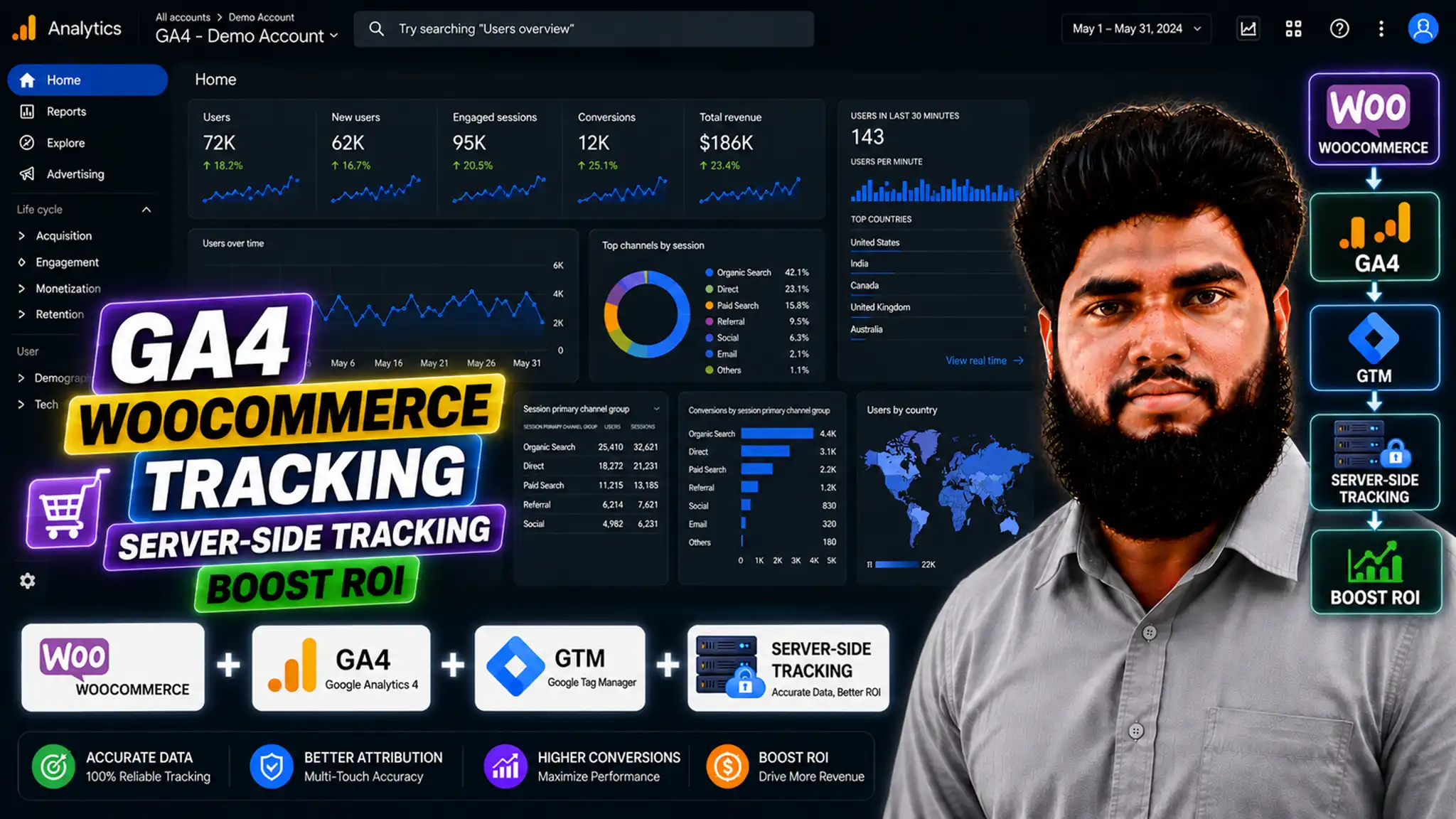

Quick Answer
Missing WooCommerce purchases and broken e-commerce reports in Google Analytics 4 (GA4) happen when client-side tracking scripts fail during payment gateway redirects (such as PayPal, Stripe 3DS, or Klarna), AJAX add-to-cart clicks, browser privacy blocks (Safari ITP), or ad-blocker interception. To fix missing sales and reach 99% data accuracy, you must deploy a custom JavaScript Data Layer listener in Google Tag Manager (GTM) that captures native WooCommerce events, enforce transaction_id deduplication, and route purchase events through a Server-Side GTM container hosted on Stape.
Key Takeaways
- Uncover Hidden Revenue Discrepancies: Standard plugin-based GA4 tracking routinely misses 15% to 40% of WooCommerce transactions due to payment redirects, ad blockers, and page-load drop-offs.
- Capture Native AJAX Events: WooCommerce store interactions like slide-out carts, archive page add-to-carts, and single-page checkouts require dedicated JavaScript event listeners to push formatted Data Layer objects.
- Eliminate Double-Counted Sales: Standardizing your e-commerce Data Layer and enforcing strict transaction_id deduplication rules prevents artificial revenue inflation caused by order confirmation page reloads.
- Bypass Ad Blockers with sGTM: Routing GA4 e-commerce events through a Server-Side GTM container on Stape circumvents browser restrictions (Safari ITP) and network-level ad-blocking extensions.
- Ensure Consent Mode V2 Compliance: Integrating Cookiebot CMP with Google Consent Mode V2 guarantees that e-commerce analytics execute strictly in accordance with international data privacy laws.
Introduction: The $42,000 WooCommerce Revenue Discrepancy
A store owner selling premium leather goods on WooCommerce reached out to me in a panic last month. Their WooCommerce store backend recorded $118,000 in monthly sales, but their Google Analytics 4 property only showed $76,000. Over $42,000 in real purchases had vanished into thin air.
Because GA4 missed more than 35% of their transaction data, Google Ads Smart Bidding (Target ROAS) operated on incomplete information. The automated ad algorithm stopped spending on top-performing campaign sets because it believed those ads were failing to generate conversions.
The root cause was structural. Their analytics setup relied on a basic free WooCommerce plugin that fired tracking scripts exclusively on the client-side order-received thank-you page. When customers paid through PayPal, Stripe 3-D Secure, or Klarna, many closed their browser windows immediately after seeing the payment confirmation screen on the bank’s portal, without waiting to be redirected back to the merchant’s site. Combined with Safari Intelligent Tracking Prevention (ITP) capping cookie lifetimes and ad blockers stripping tracking pings, their e-commerce reporting was completely unreliable.
If your GA4 e-commerce reports show missing sales, (not set) traffic sources on purchases, or broken funnel drop-offs, your marketing budget is being wasted. In this guide, I will show you how to fix GA4 WooCommerce tracking permanently using GTM and Server-Side tracking on Stape.
Why Standard Tracking Fails on WooCommerce (And How to Fix It)
Understanding why WooCommerce tracking breaks requires looking at how data flows through modern web browsers and payment processors.
					[ Customer Browser Session ]
        │
        ├──► 1. Product View / AJAX Add-to-Cart (Missed by Standard Page Triggers)
        │
        ├──► 2. Checkout Redirect (PayPal / Stripe 3DS Gateway)
        │            │
        │            ▼ (Customer closes tab before returning to site)
        │     [ Standard Client-Side Tag Fails — Purchase Lost ]
        │
        └──► [ Solution: Custom JS Listener + Server-Side GTM ]
                     │
                     ▼
              [ Data Layer Push ] ──► [ sGTM Proxy (Stape) ] ──► [ GA4 Servers (99% Accuracy) ]
1. Third-Party Gateway Redirect Drop-offs
When a buyer chooses PayPal, Klarna, or an off-site credit card gateway, WooCommerce redirects the user away from your store domain. After payment approval, the gateway attempts to send the user back to your /checkout/order-received/ URL.
However, thousands of online shoppers close their browser tab the moment they see the payment success screen on PayPal or their bank’s 3DS confirmation window. If your purchase tag relies strictly on a client-side pageview of the thank-you page, the purchase event never fires, leaving GA4 blind to the order.
2. Non-Standard Data Layer Schema
Unlike platforms with fixed native data layer standards, WooCommerce relies on WordPress plugins or theme templates to generate e-commerce data objects. Many custom themes and single-page checkout builders (such as FunnelKit or CartFlows) alter standard page templates, breaking the default data layer schema required by GA4.
3. Browser Storage Restrictions and ITP
Apple’s Intelligent Tracking Prevention (ITP) limits client-side cookie storage (including the _ga session cookie) to 24 hours or 7 days whenever referral parameters (like gclid or fbclid) are present. If a buyer takes several days to decide or uses private browsing mode, their session breaks, leading to purchases being incorrectly attributed to Direct or (not set) channels.
4. Duplicate Page Reload Conversions
When customers save their order confirmation link, refresh the thank-you page to track shipping status, or re-open closed tabs later, tracking setups without deduplication fire duplicate purchase events into GA4, distorting your actual Average Order Value (AOV) and revenue numbers.
5 Key Benefits of Advanced GA4 WooCommerce Server-Side Tracking
- 99% Data Accuracy: Recovers gateway redirect drop-offs by processing purchase signals server-to-server.
- Deduplicated Reporting: Enforces unique transaction_id tracking parameters to eliminate duplicate sales numbers.
- Session & Attribution Preservation: Server-side custom domain routing preserves first-party session cookies against Safari ITP deletion.
- Ad-Blocker Resiliency: Routes e-commerce signals through your store’s custom first-party subdomain, preventing browser extensions from blocking analytics traffic.
- Complete E-Commerce Funnel Tracking: Captures standardized product item arrays across all funnel stages (view_item, add_to_cart, begin_checkout, purchase).
Prerequisites & Tracking Architecture Checklist
Before building tags and triggers in GTM, confirm you have the required access across all platforms:
- WooCommerce Store (Admin Access): Needed to deploy theme hooks or custom code snippets.
- Google Tag Manager (Publish Access): Needed to deploy JavaScript listeners, Data Layer variables, and tracking tags.
- Google Analytics 4 (Editor / Admin Access): Needed to inspect DebugView, configure data stream settings, and register custom dimensions.
- Stape.io Account (Owner Access): Needed to host your Server-Side GTM container and map first-party DNS endpoints.
- Cookiebot CMP Account (Admin Access): Needed to manage Google Consent Mode V2 flags across e-commerce tags.
Video Tutorial: Complete Setup Walkthrough
Follow along visually with my step-by-step video tutorial to see this full setup configured in real time:
Step-by-Step Implementation Framework
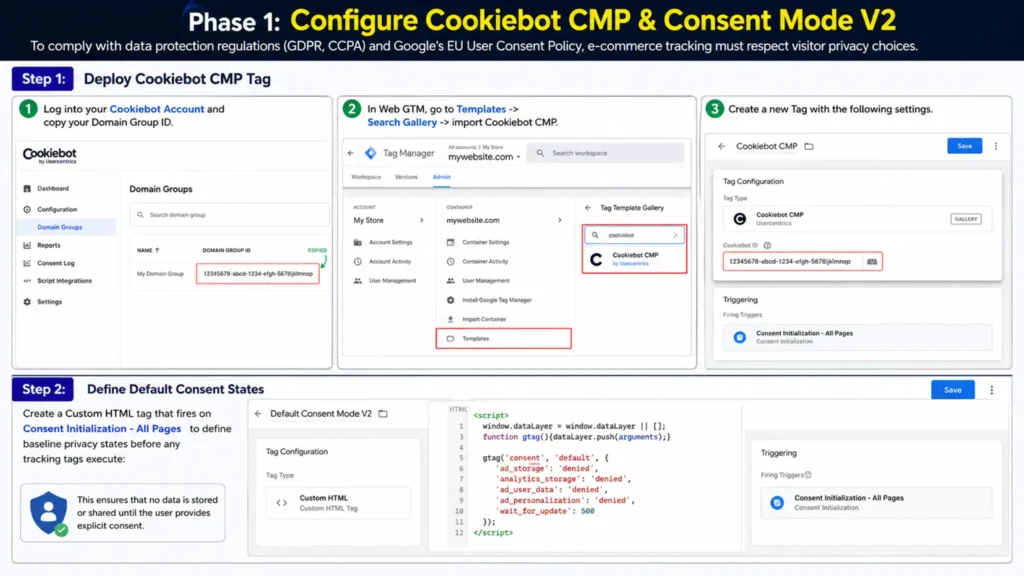
Phase 1: Configure Cookiebot CMP & Consent Mode V2
To comply with data protection regulations (GDPR, CCPA) and Google’s EU User Consent Policy, e-commerce tracking must respect visitor privacy choices.
Step 1: Deploy Cookiebot CMP Tag
- Log into your Cookiebot Account and copy your Domain Group ID. (If you prefer CookieYes, you can also use your CookieYes Account).
- In Web GTM, go to Templates -> Search Gallery -> import Cookiebot CMP.
- Create a new Tag:
- Tag Type: Cookiebot CMP
- Cookiebot ID: Paste your Domain Group ID
- Trigger: Consent Initialization – All Pages
Step 2: Define Default Consent States
Create a Custom HTML tag that fires on Consent Initialization – All Pages to define baseline privacy states before any tracking tags execute:
					<script>
  window.dataLayer = window.dataLayer || [];
  function gtag(){dataLayer.push(arguments);}

  gtag('consent', 'default', {
    'ad_storage': 'denied',
    'analytics_storage': 'denied',
    'ad_user_data': 'denied',
    'ad_personalization': 'denied',
    'wait_for_update': 500
  });
</script>
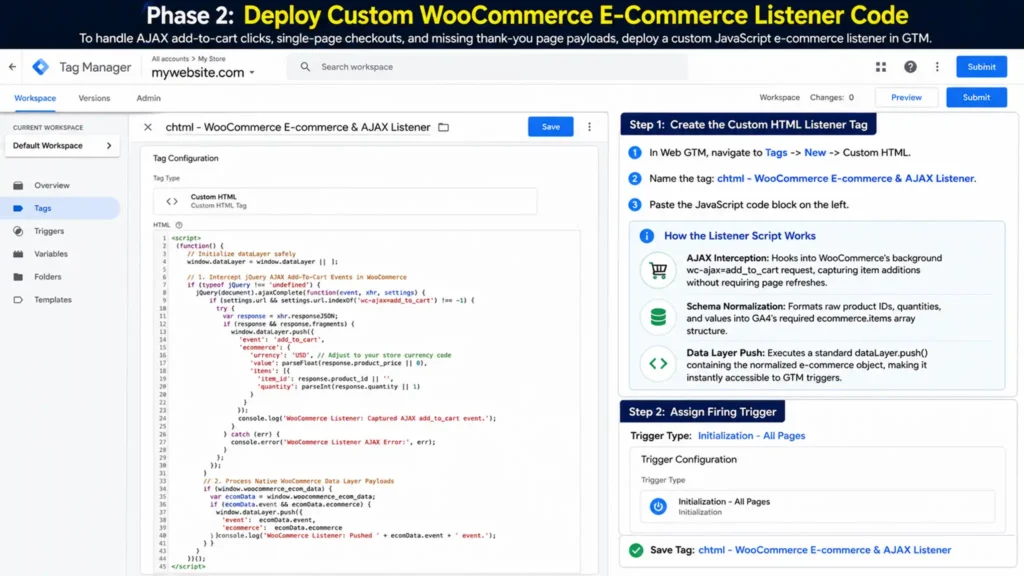
Phase 2: Deploy Custom WooCommerce E-Commerce Listener Code
To handle AJAX add-to-cart clicks, single-page checkouts, and missing thank-you page payloads, deploy a custom JavaScript e-commerce listener in GTM.
Think of a listener as a catcher’s mitt waiting to grab native WooCommerce events, and the Data Layer as an invisible filing cabinet where structured information is neatly organized for GTM to read.
Step 1: Create the Custom HTML Listener Tag
- In Web GTM, navigate to Tags -> New -> Custom HTML.
- Name the tag: chtml – WooCommerce E-commerce & AJAX Listener.
- Paste the following JavaScript code block:
					<script>
(function() {
  // Initialize dataLayer safely
  window.dataLayer = window.dataLayer || [];

  // 1. Intercept jQuery AJAX Add-To-Cart Events in WooCommerce
  if (typeof jQuery !== 'undefined') {
    jQuery(document).ajaxComplete(function(event, xhr, settings) {
      if (settings.url && settings.url.indexOf('wc-ajax=add_to_cart') !== -1) {
        try {
          var response = xhr.responseJSON;
          if (response && response.fragments) {
            window.dataLayer.push({
              'event': 'add_to_cart',
              'ecommerce': {
                'currency': 'USD', // Adjust to your store currency code
                'value': parseFloat(response.product_price || 0),
                'items': [{
                  'item_id': response.product_id || '',
                  'quantity': parseInt(response.quantity || 1)
                }]
              }
            });
            console.log('WooCommerce Listener: Captured AJAX add_to_cart event.');
          }
        } catch (err) {
          console.error('WooCommerce Listener AJAX Error:', err);
        }
      }
    });
  }

  // 2. Process Native WooCommerce Data Layer Payloads
  if (window.woocommerce_ecom_data) {
    var ecomData = window.woocommerce_ecom_data;
    if (ecomData.event && ecomData.ecommerce) {
      window.dataLayer.push({
        'event': ecomData.event,
        'ecommerce': ecomData.ecommerce
      });
      console.log('WooCommerce Listener: Pushed ' + ecomData.event + ' event.');
    }
  }
})();
</script>
How the Listener Script Works
- AJAX Interception: Hooks into WooCommerce’s background wc-ajax=add_to_cart request, capturing item additions without requiring page refreshes.
- Schema Normalization: Formats raw product IDs, quantities, and values into GA4’s required ecommerce.items array structure.
- Data Layer Push: Executes a standard dataLayer.push() containing the normalized e-commerce object, making it instantly accessible to GTM triggers.
Step 2: Assign Firing Trigger
- Trigger Type: Initialization – All Pages
- Save Tag: chtml – WooCommerce E-commerce & AJAX Listener
Phase 3: Create GTM Data Layer Variables & Custom Triggers
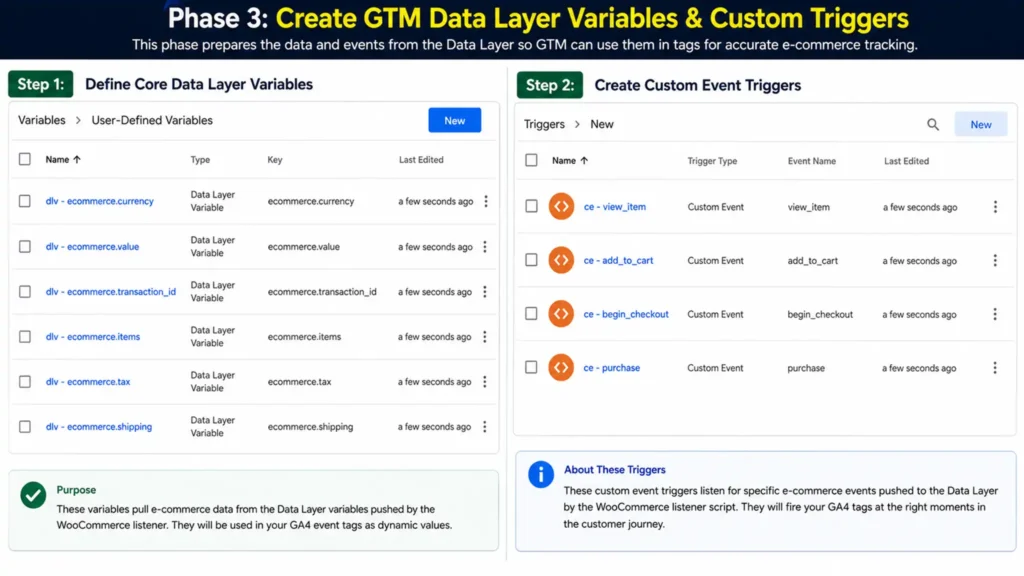
Step 1: Define Core Data Layer Variables
Navigate to Variables -> User-Defined Variables -> New -> Data Layer Variable:
- dlv – ecommerce.currency: Key = ecommerce.currency — Captures store currency code (e.g., USD, EUR, GBP)
- dlv – ecommerce.value: Key = ecommerce.value — Captures total order monetary value
- dlv – ecommerce.transaction_id: Key = ecommerce.transaction_id — Captures unique WooCommerce order ID for deduplication
- dlv – ecommerce.items: Key = ecommerce.items — Captures the full array of product items
- dlv – ecommerce.tax: Key = ecommerce.tax — Captures total tax amount
- dlv – ecommerce.shipping: Key = ecommerce.shipping — Captures total shipping cost
Step 2: Create Custom Event Triggers
Create custom event triggers for each funnel stage:
- ce – view_item: Custom Event Name = view_item
- ce – add_to_cart: Custom Event Name = add_to_cart
- ce – begin_checkout: Custom Event Name = begin_checkout
- ce – purchase: Custom Event Name = purchase
Lorem ipsum dolor sit amet, consectetur adipiscing elit. Ut elit tellus, luctus
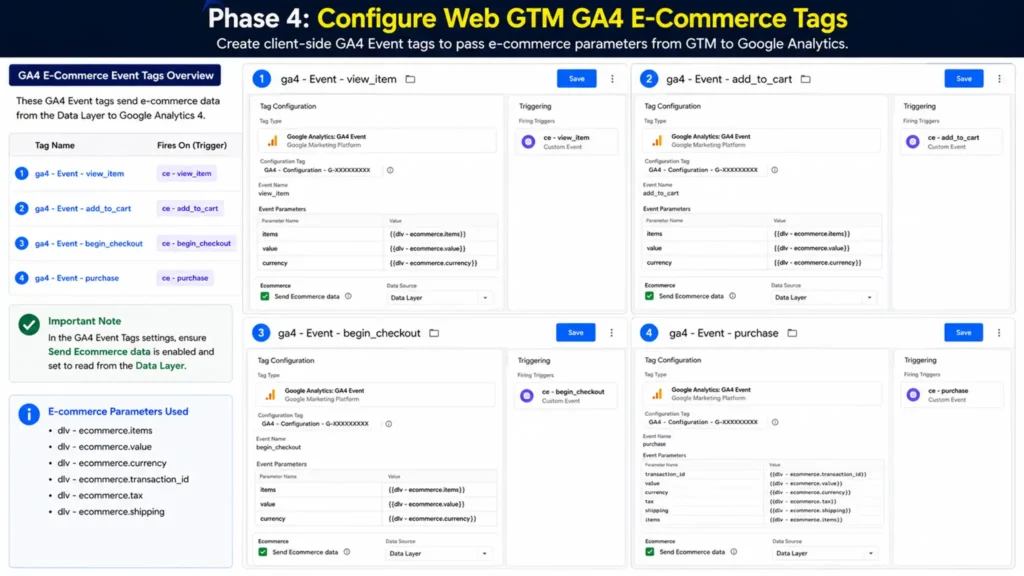
Phase 4: Configure Web GTM GA4 E-Commerce Tags
Create client-side GA4 Event tags to pass e-commerce parameters from GTM to Google Analytics.
GA4 E-Commerce Event Tag Configuration Details
- ga4 – Event – view_item: Fires on trigger ce – view_item. GA4 Event Name: view_item. Event Parameters: items: {{dlv – ecommerce.items}}, value: {{dlv – ecommerce.value}}, currency: {{dlv – ecommerce.currency}}.
- ga4 – Event – add_to_cart: Fires on trigger ce – add_to_cart. GA4 Event Name: add_to_cart. Event Parameters: items: {{dlv – ecommerce.items}}, value: {{dlv – ecommerce.value}}, currency: {{dlv – ecommerce.currency}}.
- ga4 – Event – begin_checkout: Fires on trigger ce – begin_checkout. GA4 Event Name: begin_checkout. Event Parameters: items: {{dlv – ecommerce.items}}, value: {{dlv – ecommerce.value}}, currency: {{dlv – ecommerce.currency}}.
- ga4 – Event – purchase: Fires on trigger ce – purchase. GA4 Event Name: purchase. Event Parameters: transaction_id: {{dlv – ecommerce.transaction_id}}, value: {{dlv – ecommerce.value}}, currency: {{dlv – ecommerce.currency}}, tax: {{dlv – ecommerce.tax}}, shipping: {{dlv – ecommerce.shipping}}, items: {{dlv – ecommerce.items}}.
Note: In the GA4 Event Tag settings, ensure Send Ecommerce data is enabled and set to read from the Data Layer.
nec ullamcorper mattis, pulvinar dapibus leo.
Phase 5: Implement Server-Side Tracking (sGTM) on Stape
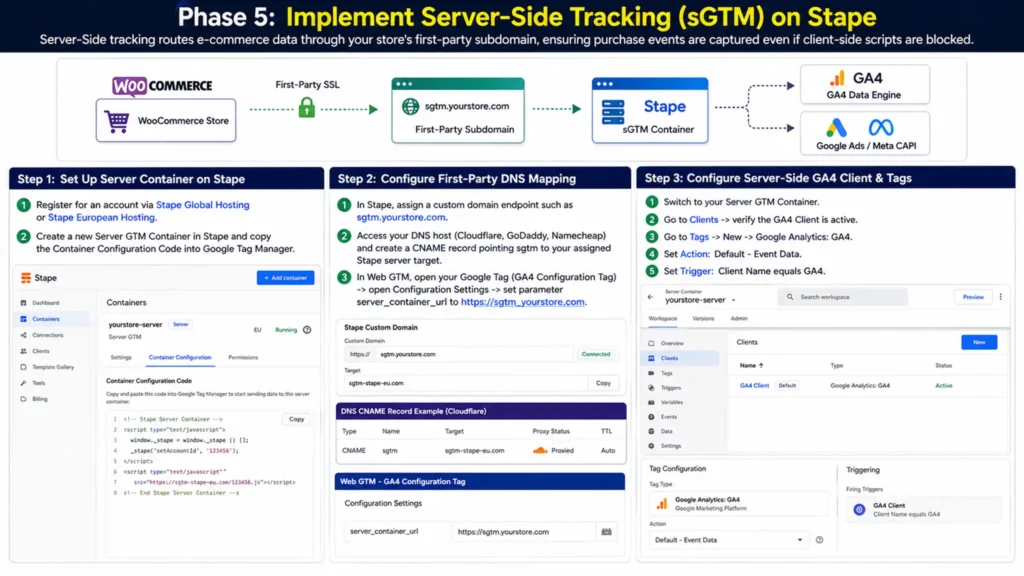
Server-Side tracking routes e-commerce data through your store’s first-party subdomain, ensuring purchase events are captured even if client-side scripts are blocked by ad blockers or browser privacy controls.
					[ WooCommerce Store ] ──(First-Party SSL)──► [ sgtm.yourstore.com ]
                                                    │
                                                    ▼
                                     [ Stape sGTM Container ]
                                                    │
                                                    ├──► GA4 Data Engine
                                                    └──► Google Ads / Meta CAPI
Step 1: Set Up Server Container on Stape
- Register for an account via Stape Global Hosting or Stape European Hosting.
- Create a new Server GTM Container in Stape and copy the Container Configuration Code into Google Tag Manager.
Step 2: Configure First-Party DNS Mapping
- In Stape, assign a custom domain endpoint such as sgtm.yourstore.com.
- Access your DNS host (Cloudflare, GoDaddy, Namecheap) and create a CNAME record pointing sgtm to your assigned Stape server target.
- In Web GTM, open your Google Tag (GA4 Configuration Tag) -> open Configuration Settings -> set parameter server_container_url to https://sgtm.yourstore.com.
Step 3: Configure Server-Side GA4 Client & Tags
- Switch to your Server GTM Container.
- Go to Clients -> verify the GA4 Client is active.
- Go to Tags -> New -> Google Analytics: GA4.
- Set Action: Default – Event Data.
- Set Trigger: Client Name equals GA4.
For complete server-side solutions across other store setups, explore my dedicated guides on Ecommerce Server-Side Tracking Service, Shopify Server-Side Tracking Service, and Server-Side Tracking Service.
Testing & Validation Framework
To confirm your WooCommerce GA4 setup is functioning correctly, follow this four-step testing workflow:
[ Step 1: Web GTM Preview ] ──► [ Step 2: Browser Console Check ] ──► [ Step 3: GA4 DebugView ] ──► [ Step 4: sGTM Stape Logs ]
- Web GTM Preview Mode: Open Tag Assistant, connect to your WooCommerce store, and complete a test transaction. Confirm that view_item, add_to_cart, begin_checkout, and purchase events fire in sequence.
- Browser Console Payload Inspection: Press F12 -> open Console. Verify the listener log output: WooCommerce Listener: Pushed purchase event.
- GA4 DebugView Real-Time Audit: Open GA4 -> navigate to Admin -> DebugView. Select your device and verify that the purchase event arrives with populated transaction_id, value, currency, and items array parameters.
- Stape Server Container Log Inspection: Open your sGTM Preview interface on Stape. Complete a test transaction and verify that incoming HTTP POST requests return a 200 Success status code from the server container.
Troubleshooting Common GA4 WooCommerce Errors
Problem 1: Missing Revenue and Items in Purchase Reports
- Root Cause: The items array or value parameter in the Data Layer is formatted as a text string instead of a number, or the object path is nested incorrectly.
- Exact Solution: Verify that your Data Layer variables use correct JSON key paths (ecommerce.value, ecommerce.items) and that price values are passed as clean floats (19.99 instead of “$19.99”).
Problem 2: High Volume of Unassigned or (not set) Traffic Sources on Purchases
- Root Cause: Third-Party payment gateways (PayPal, Stripe) overwrite the user’s original session source when redirecting back to the store, attributing the session to paypal.com.
- Exact Solution: Add payment gateway domains (paypal.com, stripe.com, klarna.com) to GA4’s List of Unwanted Referrals under Data Streams -> Configure Tag Settings -> List Unwanted Referrals.
Problem 3: Duplicate Purchase Events Fired on Page Reloads
- Root Cause: Customers refreshing the order confirmation page trigger client-side purchase tags repeatedly.
- Exact Solution: Ensure GA4 purchase tags pass a valid transaction_id. GA4 automatically deduplicates purchase events that share an identical transaction_id within a 48-hour window.
Problem 4: AJAX Add-to-Cart Clicks Not Triggering Tags
- Root Cause: Your WordPress theme uses custom AJAX scripts that bypass standard jQuery event hooks.
- Exact Solution: Attach click listeners directly to the DOM selectors of your add-to-cart buttons (.single_add_to_cart_button, .ajax_add_to_cart) to push custom Data Layer objects manually.
Comparative Overview: WooCommerce Tracking Methodologies
Upgrading from default client-side plugins to a Custom Listener with Server-Side GTM increases tracking accuracy from 60%–75% up to 99% while mitigating ad-blockers and privacy restrictions.
- Data Accuracy Rate:
- Default Plugins (Client-Side): 60% – 75% accuracy due to browser drop-offs, ad blockers, and gateway redirects.
- Standard Web GTM Setup: 80% – 85% accuracy; improves payload structure but remains vulnerable to client-side blocks.
- Custom Listener + Server-Side GTM: 99% accuracy; captures near-total transaction volume via server-to-server data streams.
- Gateway Redirect Recovery:
- Default Plugins (Client-Side): Poor; completely fails if a customer closes their tab after payment (PayPal, Stripe 3DS) before redirecting to the thank-you page.
- Standard Web GTM Setup: Partial; still dependent on client-side page execution.
- Custom Listener + Server-Side GTM: Complete; uses server webhooks and proxy endpoints to log purchases regardless of client browser actions.
- AJAX Add-to-Cart Tracking:
- Default Plugins (Client-Side): Unreliable; frequently misses non-standard, slide-out, or single-page checkout add-to-cart events.
- Standard Web GTM Setup: Partial; requires individual custom triggers for different site layouts.
- Custom Listener + Server-Side GTM: Full support; custom JavaScript listeners hook directly into background AJAX calls to format standardized GA4 Data Layer objects.
- Safari ITP Protection:
- Default Plugins (Client-Side): None; Safari’s Intelligent Tracking Prevention caps cookie lifetimes to 24 hours or 7 days, breaking user session attribution.
- Standard Web GTM Setup: None; third-party cookies are still subject to browser storage caps.
- Custom Listener + Server-Side GTM: High; routing data through a first-party custom domain (e.g., sgtm.yourdomain.com) preserves session continuity.
- Ad-Blocker Resiliency:
- Default Plugins (Client-Side): Zero; standard tracking scripts are easily recognized and blocked by browser extensions.
- Standard Web GTM Setup: Low; client-side Google tags are routinely intercepted by network-level ad blockers.
- Custom Listener + Server-Side GTM: High; routes analytics traffic through your own server domain proxy to bypass extension blocklists.
- Transaction Deduplication:
- Default Plugins (Client-Side): Rare; order confirmation reloads create duplicate conversion metrics.
- Standard Web GTM Setup: Requires manual configuration of variables and triggers.
- Custom Listener + Server-Side GTM: Automated; passes standardized transaction_id parameters to ensure duplicate order reloads are stripped automatically.
- Privacy Compliance:
Default Plugins (Client-Side): Hardcoded / Inconsistent; difficult to map dynamically to modern privacy frameworks.- Standard Web GTM Setup: Requires manual configuration across individual tag triggers.
- Custom Listener + Server-Side GTM: Fully integrated; aligns data transmission directly with Google Consent Mode V2 and CMP signal choices.
Conclusion Restore Confidence in Your E-Commerce Data
Relying on basic client-side plugins for WooCommerce tracking leads to missing sales, corrupted attribution reports, and wasted ad spend. Deploying a custom JavaScript Data Layer listener in Google Tag Manager, standardizing your e-commerce schema, and routing events through a Server-Side GTM container hosted on Stape builds a resilient analytics foundation. This complete tracking setup captures every transaction, recovers missing payment gateway signals, and provides Google Analytics 4 with the accurate data needed to power your store’s growth.
Summary by MD Niamul
Fixing missing WooCommerce purchases in GA4 requires replacing basic client-side plugins with an enterprise tracking framework. Deploying a custom JavaScript e-commerce Data Layer listener in GTM captures AJAX add-to-carts and checkout steps cleanly. Enforcing transaction ID deduplication prevents double-counted orders, while routing events through Server-Side GTM on Stape circumvents ad blockers and Safari ITP limits. Integrated with Consent Mode V2, this setup achieves 99% tracking accuracy.
1.Why is GA4 missing WooCommerce purchase events?
GA4 misses WooCommerce purchases primarily because standard tracking plugins rely on client-side page loads on the thank-you URL (/checkout/order-received/). When customers pay using third-party payment gateways like PayPal, Stripe 3DS, or Klarna, many close their browser window before being redirected back to your store. Additionally, ad blockers, Safari ITP restrictions, and network drop-outs block client-side tracking scripts before they can execute.
2.How does transaction deduplication work in GA4?
GA4 deduplicates purchase events using the unique transaction_id parameter attached to each order. When a purchase event reaches GA4 with a unique order ID (e.g., WC-10492), GA4 logs the transaction. If the customer reloads their order confirmation page later and triggers a second purchase event containing the identical transaction_id, GA4 recognizes the duplicate entry and discards it automatically, keeping your sales numbers accurate.
3.Is Server-Side Tracking mandatory for WooCommerce stores?
While basic client-side GTM setups capture standard page interactions, Server-Side GTM (sGTM) hosted on Stape is essential for high-volume e-commerce stores in 2026. Server-side tracking routes data through your store’s custom first-party subdomain, bypassing ad blockers and Safari ITP restrictions to recover lost conversion data and achieve up to 99% tracking accuracy.
4.How do I fix (not set) or Unassigned traffic sources for purchases?
Traffic sources display as (not set) or Unassigned when session cookies break during payment gateway redirects. To resolve this, add payment gateway domains (paypal.com, checkout.stripe.com, klarna.com) to your List of Unwanted Referrals inside GA4 Data Stream settings. This ensures GA4 maintains the user’s original traffic source (such as Google Ads or Organic Search) throughout the checkout journey.
5.Will this setup track custom WooCommerce checkout plugins?
Yes. Custom checkout builders like FunnelKit, CartFlows, or WooFunnels override standard WooCommerce theme templates. The custom JavaScript listener provided in this guide monitors background AJAX requests and standardized Data Layer objects globally, ensuring e-commerce events fire reliably regardless of your checkout layout or plugin stack.
6.What is the difference between client-side and server-side tracking?
Client-side tracking runs scripts directly inside the user’s web browser, leaving it vulnerable to ad blockers, browser privacy rules, and page-load drop-offs. Server-side tracking receives signals on a secure cloud container (such as Stape) first, formats the payload safely, and forwards it directly to GA4 servers, protecting data integrity and user privacy.
7.How does Google Consent Mode V2 affect WooCommerce tracking?
Google Consent Mode V2 dynamically adjusts tag behavior based on visitor consent choices recorded by your Cookiebot banner. If consent is granted, full analytics and advertising data are collected. If consent is denied, GTM sends cookieless pings to GA4, allowing Google to use machine learning for conversion modeling while maintaining compliance with privacy laws like GDPR.
8.Can I track product refund events in GA4?
Yes. When an order is refunded in WooCommerce, a server-side webhook or admin trigger can pass a refund event to your Server GTM container. The sGTM container then routes the refund event along with the original transaction_id and item details to GA4, automatically updating your net revenue reporting.
9.Why are product item details missing in GA4 reports?
When testing through GA4 DebugView, server-side events appear within 5 to 10 seconds. Standard GA4 dashboard reports update within 24 to 48 hours, though real-time reporting screens show immediate visitor activity as events reach Google’s servers.
10.How quickly do server-side events appear in GA4 reports?
When testing through GA4 DebugView, server-side events appear within 5 to 10 seconds. Standard GA4 dashboard reports update within 24 to 48 hours, though real-time reporting screens show immediate visitor activity as events reach Google’s servers.
 Need Help Advanced GHL Automation & Tracking Setup?