
Quick Answer
Yes, GoHighLevel for plumbing businesses is a game-changer because the entire industry revolves around phone calls and rapid response. However, GHL only generates a true return on investment if you track exactly which Google Ads campaign produced the call, gate your conversions by call duration to block wrong numbers, and send the final job value (Offline Conversion Tracking) back to Google Ads.
Key Takeaways
- Stop optimizing for junk: Don’t treat every ringing phone as a lead. Gate conversions based on call duration or dispatcher disposition.
- Not all jobs are equal: A $180 drain unclog and a $9,000 repipe should send different value signals to Google Ads.
- Use Dynamic Number Insertion (DNI): Assign unique tracking numbers to campaigns so you know exactly which keyword generated the call.
- Capture embedded form data: Use a custom JavaScript listener to track GHL iframes embedded on your main website.
- Stay compliant: Implement Google Consent Mode V2 using Cookiebot to ensure your Google Ads account isn’t penalized for privacy violations.
Introduction: The $10,000 Repipe vs. The Wrong Number
A few months ago, a plumbing business owner came to me highly frustrated. He was spending $5,000 a month on Google Ads. Google reported 100 “conversions,” making his cost-per-acquisition look fantastic on paper. But when we looked at his actual revenue, the math didn’t add up.
Why? Because his tracking was broken.
He was using a single phone number across all his ads, meaning he couldn’t tell which specific campaign drove the best calls. Worse, he was counting every single call as a conversion. Google’s algorithm, which loves to find the cheapest conversions possible, was aggressively optimizing for telemarketers, vendors, and people asking for free advice.
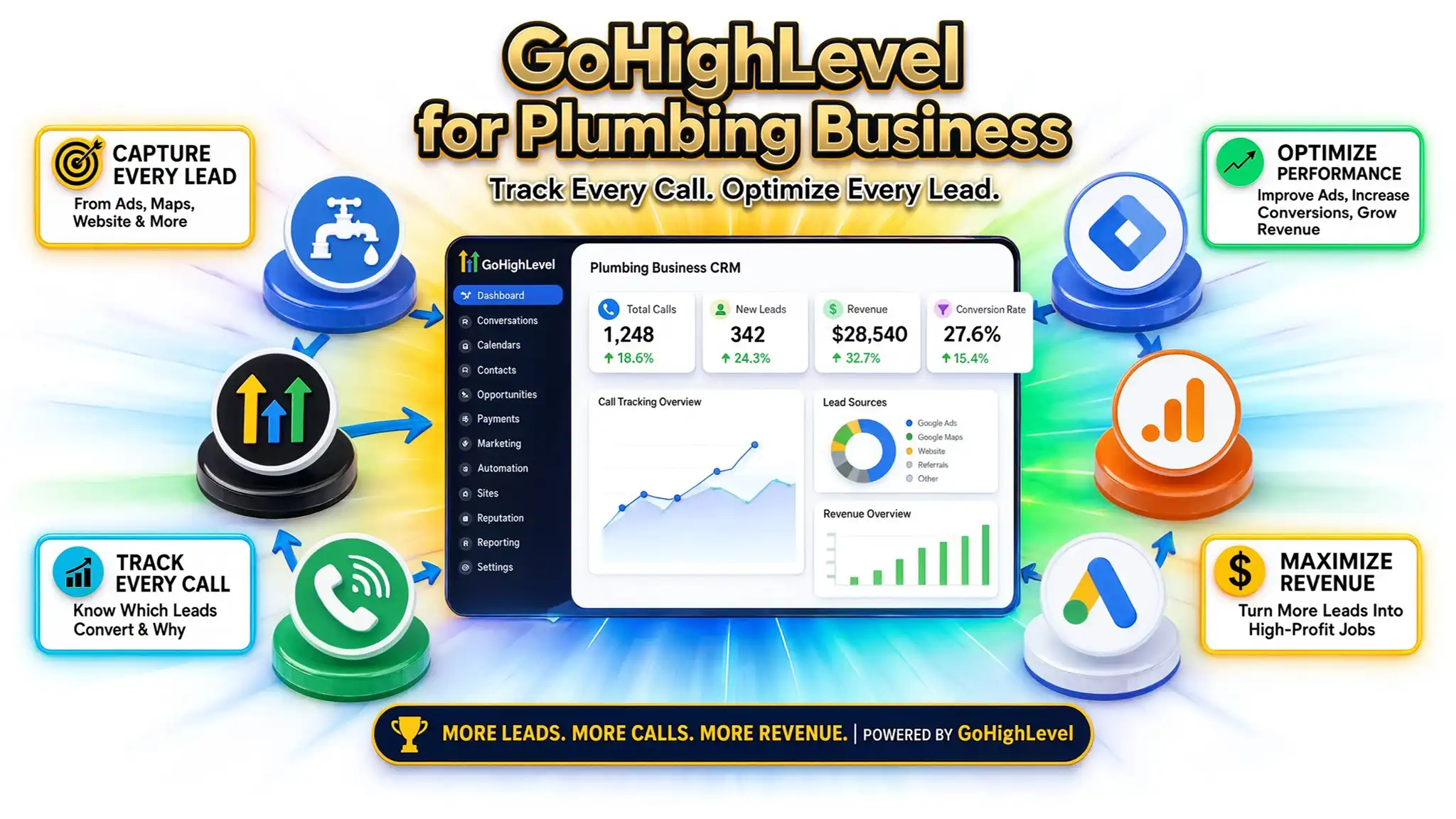
This is where GoHighLevel (GHL) shines for plumbers, but only if you configure it correctly. Plumbers run on the phone. You need Missed-Call Text-Back to save lost leads, and you need a CRM that talks directly to your ad platforms. In this guide, I will show you how to set up GoHighLevel for your plumbing business to track exact ad performance, filter out junk calls, and feed Google Ads the real revenue data it needs to find high-paying jobs.
Why It Matters: Fixing the “Cheap Lead” Trap
If you leave your tracking as a generic “Click to Call” setup, Google Ads operates blindly. It doesn’t know what happens after the phone rings.
By implementing advanced GoHighLevel call tracking and Offline Conversion Tracking (OCT), you bridge the gap between a click and cash in the bank.
5 Key Benefits for Plumbers using GHL:
- Pinpoint Ad Accuracy: Dynamic Number Insertion (DNI) swaps the phone number on your website based on the ad the user clicked, tying the exact keyword to the caller.
- Quality Control: By gating conversions (e.g., only counting calls over 60 seconds), you stop Google from wasting budget on 10-second wrong numbers.
- Value-Based Bidding: Sending the actual invoice amount back to Google Ads trains the algorithm to look for high-ticket jobs (like water heater replacements) instead of just cheap service calls.
- Missed-Call Text-Back: GHL automatically texts callers if your dispatcher is busy, preventing the lead from calling the next plumber on Google.
- Unified Analytics: See your ad spend, pipeline stages, and closed revenue in one single dashboard.
Prerequisites & Checklist
Before we dive into the setup, ensure you have the required access levels and tools.
Tool / Platform | Access Level Required | Purpose |
GoHighLevel | Agency/Sub-Account Admin | To configure Number Pools, Workflows, and DNI. |
Google Ads | Admin Access | To create conversion actions and link to GHL. |
Google Tag Manager (GTM) | Publish Rights | To deploy tags, listener codes, and Consent Mode. |
Cookiebot (CMP) | Admin | To manage user consent for GDPR/CCPA compliance. |
WordPress/Website | Admin | To install GTM and embed the GHL scripts. |
(Need help integrating external platforms? Check out my GoHighLevel form conversion tracking services for custom setups).
Video Tutorial
Step-by-Step Implementation
We are going to build a tracking engine that connects Google Ads, your website, and your GoHighLevel CRM flawlessly.
Phase 1: Set Up Dynamic Number Insertion (DNI)
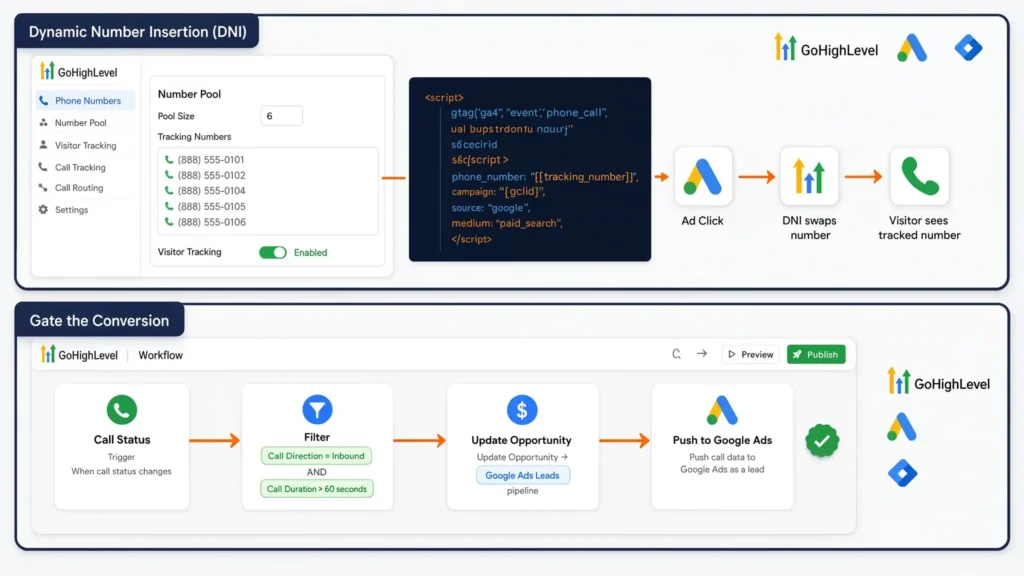
If you only have one phone number on your website, you are guessing where your leads come from. DNI acts like a chameleon, changing the phone number on your site depending on which ad the visitor clicked.
- Navigate to GHL Settings: Go to Settings > Phone Numbers.
- Create a Number Pool: Click “Add Number” and choose “Number Pool.” Select “Visitor Tracking” (this tracks the keyword/campaign source).
- Configure the Pool: Set the pool size (usually 4-8 numbers depending on your daily website traffic). Name it “Google Ads DNI Pool.”
- Install the GHL Tracking Script: GHL will provide a snippet of JavaScript. You must place this on your website (or via GTM) so the system can physically swap the numbers when a user arrives from an ad.
Phase 2: Gate the Conversion (Stop Tracking Junk)
Not every call is a lead. If a call lasts 12 seconds, it was likely a wrong number or a telemarketer. If you send that 12-second call to Google Ads as a “conversion,” Google will try to find more of them.
- Go to GHL Workflows: Create a new Workflow triggered by “Call Status.”
- Set the Filter: Set the trigger condition to Call Direction = Inbound and Call Duration > 60 seconds.
- Update Opportunity: If the call passes the 60-second mark, have the workflow create or update an Opportunity in your “Google Ads Leads” pipeline.
- Push to Google Ads: You can use GHL’s native Google Ads integration to send this qualified lead event back to the platform, ensuring Google only optimizes for meaningful conversations.
Phase 3: Offline Conversion Tracking (Value-Based Bidding)
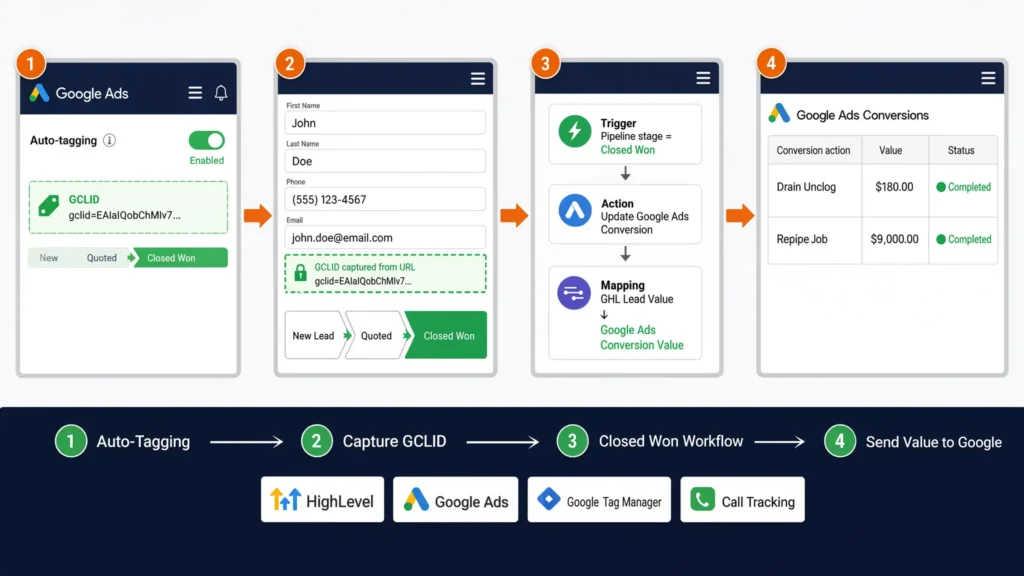
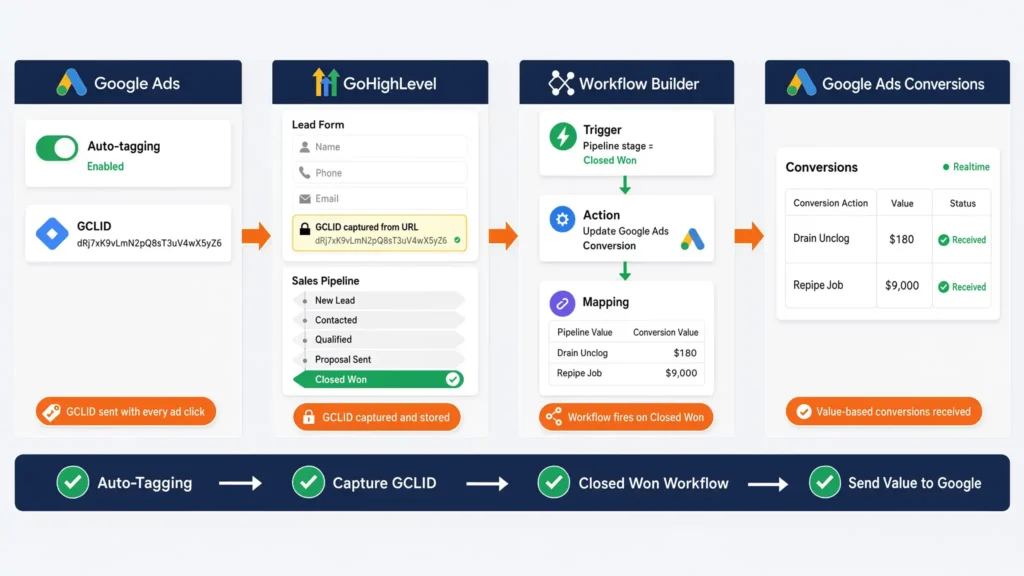
This is the most critical step. A $180 unclog and a $9,000 repipe are not the same. If Google thinks they are, it will bid the same amount for both. We need to feed the actual closed revenue back to the ad platform.
- Enable Auto-Tagging in Google Ads: Ensure GCLID (Google Click ID) tracking is on. This is an invisible tag attached to the ad click.
- Capture GCLID in GHL: Ensure your GHL forms have hidden fields to capture the GCLID from the URL.
- Create a “Closed Won” Workflow: When your dispatcher marks a job as “Won” in the GHL pipeline, trigger a workflow.
- Send Value to Google: Set the workflow to update the Google Ads conversion action. Map the GHL “Lead Value” field to the Google Ads “Conversion Value” field. Now, Google’s algorithm will learn what characteristics make up a $9,000 customer versus a $180 customer.
- (If you want to handle this server-side for maximum accuracy, explore my offline conversion tracking services).
Phase 4: Google Consent Mode V2 Setup (Cookiebot)
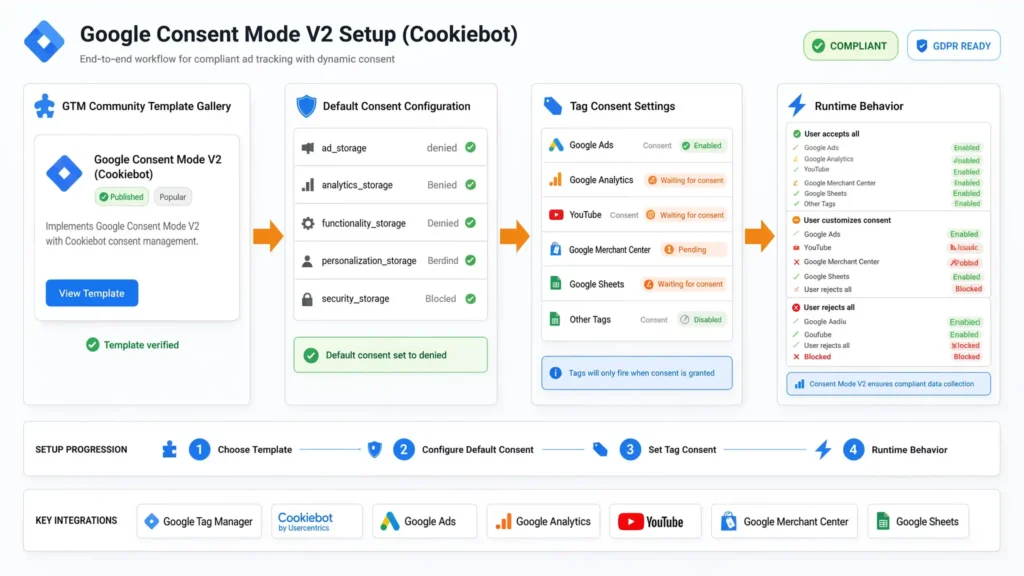
If you run ads in regions with strict privacy laws, Google now requires Consent Mode V2. Without it, your audience lists will break, and conversion tracking will degrade.
- Add Cookiebot to GTM: Import the Cookiebot CMP template from the GTM Community Template Gallery.
- Configure Default Consent: Set the default state for ad_storage, analytics_storage, ad_user_data, and ad_personalization to Denied.
- Update Tags: Go through your Google Ads and GA4 tags in GTM. Under “Advanced Settings > Consent Settings,” require the specific consent types (e.g., Google Ads tracking requires ad_storage and ad_user_data to be granted).
- How it works: When a user accepts cookies, Cookiebot updates the consent state to Granted, and GTM fires the tracking tags. If they decline, Google relies on “cookieless pings” to model the conversions without storing personal data.
Phase 5: The Custom Listener Code (For GHL Embedded Forms)
Many plumbers embed GoHighLevel forms onto their WordPress sites for quote requests. Because the form lives in an iframe (think of it as a glass window looking into another website), your main website’s GTM cannot see when the form is submitted.
To fix this, we need a Listener Code—like a catcher’s mitt—to grab the submission from the iframe and push it into our Data Layer.
- Create a Custom HTML Tag in GTM:
Name it C-HTML – GHL Form Listener. Set the trigger to All Pages. Paste this code:
					  window.addEventListener("message", function(event) {
    // Verify the message is coming from a GHL iframe
    if (event.origin.includes("msgsndr.com") || event.origin.includes("leadconnectorhq.com")) {

      // Parse the incoming data
      try {
        var eventData = JSON.parse(event.data);

        // Look for the specific GHL form submission event
        if (eventData.type === 'form-submit') {

          // Push the data into the invisible filing cabinet (Data Layer)
          window.dataLayer = window.dataLayer || [];
          window.dataLayer.push({
            'event': 'ghl_form_submission',
            'formId': eventData.formId,
            'email': eventData.email // Can be used for Enhanced Conversions
          });
        }
      } catch (e) {
        // Ignore JSON parse errors from non-GHL messages
      }
    }
- Create a Custom Event Trigger in GTM:
- Trigger Type: Custom Event
- Event Name: ghl_form_submission
- Fire Your Google Ads Tag:
Now, attach your Google Ads Conversion Tracking tag to this new ghl_form_submission trigger. You have successfully tracked the iframe!
Testing & Validation
Never assume your tracking works. Always test.
- GTM Preview Mode: Enter your website URL into GTM Preview. Fill out the embedded GHL form.
- Check the Data Layer: Look at the GTM summary panel on the left. You should see the ghl_form_submission event appear. Click it and ensure your Google Ads tag fired.
- Test Call Tracking: Click one of your Google Ads (or append ?gclid=test1234 to your URL). Verify that the GHL DNI pool swaps the phone number on your site.
- Check Google Ads Diagnostics: Go to Google Ads > Goals > Conversions. Ensure the status reads “Recording conversions” and check the “Diagnostics” tab for any Consent Mode errors.
Troubleshooting Common Errors
Here are the most common pitfalls I see when auditing plumbing business tracking systems.
Problem | Cause | Solution |
Phone numbers aren’t swapping on the site. | GHL tracking script is missing or blocked by a caching plugin. | Ensure the GHL DNI script is placed in the <head> of your site and clear all WordPress caches. |
Form submissions aren’t tracking in GTM. | The iframe domain is blocking cross-origin tracking, or the listener is missing. | Implement the GHL Listener Code provided in Phase 5 to bridge the gap between the iframe and the parent site. |
Google Ads says “Unverified” for calls. | The conversion action hasn’t received any data yet, or the GCLID wasn’t passed. | Perform a live test by clicking your own ad (it costs a few bucks but is worth it) and completing a 60+ second test call. |
Consent Mode causing massive data drop. | Default consent is set to ‘Denied’ but the update trigger isn’t firing upon user acceptance. | Check your Cookiebot implementation. Ensure the CMP script loads before GTM in your website’s header. |
Conclusion
Using GoHighLevel for a plumbing business is a brilliant move—but only if you give it the right data. By implementing Dynamic Number Insertion, gating your conversions by call duration, and feeding actual job values back into Google Ads via Offline Conversion Tracking, you transform your marketing from a guessing game into a predictable revenue engine.
Stop letting Google optimize for tire-kickers. Set up your tracking correctly, and let the algorithm find the high-ticket repipes and emergency calls that actually grow your business.
Summary by Niamul
GoHighLevel is a powerful CRM for plumbing businesses because it handles the lifeblood of the industry: phone calls and rapid follow-ups. However, to maximize Google Ads performance, plumbers must move beyond tracking every phone call as a generic lead. By implementing Dynamic Number Insertion (DNI), gating conversions based on call length, utilizing custom GTM listener codes for embedded forms, and sending actual closed-job values back to Google, you train the ad algorithm to target highly profitable jobs rather than cheap, low-quality wrong numbers.
1. Is GoHighLevel good for plumbers?
Filtering calls by duration prevents your analytics from counting wrong numbers, quick hang-ups, or telemarketers as successful ad conversions, saving your Google Ads budget.
2. What is Dynamic Number Insertion?
Dynamic Number Insertion (DNI) is a tracking technology that temporarily swaps the phone number displayed on your website based on the specific ad or keyword the user clicked.
3. Why filter calls by duration?
Filtering calls by duration prevents your analytics from counting wrong numbers, quick hang-ups, or telemarketers as successful ad conversions, saving your Google Ads budget.
4. How does Offline Conversion Tracking work?
Offline Conversion Tracking captures the Google Click ID (GCLID) when a user clicks an ad. When the job finishes offline, the CRM sends the exact revenue data back to Google.
5. Do I need Google Consent Mode?
I provide full-stack analytics solutions including Google Tag Manager (GTM), Google Analytics 4 (GA4), Google Ads conversion tracking, Looker Studio dashboards, server-side tracking, and advanced data analysis to deliver accurate, business-ready insights.
6. Why use an iframe listener?
When you embed a GoHighLevel form on a WordPress site, it lives inside an iframe. A listener script is required to “hear” the submission and report it to Google Tag Manager.
7. Can GHL track organic SEO calls?
Yes. You can set up a specific Number Pool in GoHighLevel dedicated purely to organic website visitors, separating SEO call data from paid Google Ads call data.
8. What is Value-Based Bidding?
Value-based bidding is a Google Ads automated bidding strategy that optimizes for Return on Ad Spend (ROAS) rather than just the lowest cost-per-lead, relying on the offline revenue data you provide.
9. How do I fix Unverified conversions?
An “Unverified” status in Google Ads simply means the platform hasn’t registered a successful test yet. Trigger a live test call or form fill through a live ad click to verify it.
10. Do I need server-side tracking?
While standard browser tracking works, server-side tracking provides much higher data accuracy by bypassing browser ad-blockers and iOS restrictions. Check my server-side tracking services for more details.
 Need Help Advanced GHL Automation & Tracking Setup?