

Quick Answer
Setting up reliable GoHighLevel form Google Ads conversion tracking requires bypassing the cross-origin security barriers created by embedded <iframe> elements. By deploying a custom postMessage JavaScript listener on your parent site through Google Tag Manager (GTM), you catch the submission signal sent by the GoHighLevel (GHL) iframe form and push it into your parent page’s Data Layer. Combined with Google Ads Enhanced Conversions and Server-Side GTM (sGTM) hosted on Stape, this setup preserves your Google Click IDs (gclid), sends hashed lead details (email, phone), and trains Google’s Smart Bidding algorithm on validated leads rather than missing signals.
Key Takeaways
- Break Through Iframe Security Walls: Embedded GHL forms live inside isolated iframes (msgsndr.com or custom subdomains). Standard GTM element visibility or form submit triggers cannot read events inside an iframe without a dedicated postMessage listener script.
- Feed Smart Bidding First-Party Data: Deploying Google Ads Enhanced Conversions sends SHA-256 hashed customer identifiers (email, phone number, name) alongside lead events, dramatically improving ad match rates and bidding performance.
- Protect Attribution via Server-Side Tracking: Routing conversion payloads through a custom Server-Side GTM container on Stape prevents ad blockers and Safari ITP privacy restrictions from stripping click parameters.
- Eliminate Duplicate Conversion Reporting: Standardizing your Data Layer events with unique submission transaction IDs prevents double-counting leads when users refresh thank-you pages or submit multi-step surveys.
- Maintain Privacy Compliance: Integrating Cookiebot with Google Consent Mode v2 ensures your conversion tags fire only when visitors grant advertising consent, protecting your agency from legal non-compliance under GDPR and CCPA.
Introduction: The $18,000 GoHighLevel Lead Attribution Disaster
A growing dental marketing agency reached out to me after spending $18,000 on Google Ads to drive high-ticket dental implant consultations into a GoHighLevel (GHL) funnel. Their Google Ads account manager reported fantastic news: over 240 reported conversions at an incredible $75 Cost Per Lead (CPL).
However, when the agency principal cross-referenced their GHL CRM opportunities pipeline with their Google Ads account, they discovered a painful reality. The CRM showed only 38 actual lead submissions from paid search. Worse, Google Ads Smart Bidding had optimized campaigns toward a broken redirect link that kept triggering artificial “form submit” goals on page views without capturing real lead contact details.
					[ Google Search Ads ]
           |
           v (GCLID passed in URL)
[ Host Landing Page: dentalclinic.com ]
           |
           |---> [ GoHighLevel Iframe Form: msgsndr.com ]
           |            |
           |            +---> User Submits Lead Form
           |            +---> (Cross-Origin Block! Host page GTM sees NOTHING!)
           |
           v
[ Standard GTM Triggers Fail ] ---> Google Ads Bidding Algorithm operates blind!
The core issue was simple: their GoHighLevel form was embedded on their WordPress website inside an HTML <iframe>. Think of an iframe as a glass window into another tool. You can see the form inside the window, but scripts running on your host website cannot reach inside that glass window to detect when a user clicks the submit button due to web browser security policies.
Because their client-side GTM setup couldn’t detect what was happening inside the iframe, the team attempted a quick workaround: they set up a destination URL rule on their thank-you page. But whenever users filled out the form and experienced network delays, or whenever GHL loaded an inline thank-you message instead of redirecting, Google Ads missed the lead entirely.
To run profitable paid search campaigns in 2026, you cannot rely on weak page-view goals. In this comprehensive guide, I will show you how to set up an airtight, full-funnel GoHighLevel form conversion tracking strategy for Google Ads using GTM, postMessage event listeners, Enhanced Conversions, and Server-Side GTM.
Why GoHighLevel Iframe Form Tracking Fails & How to Fix It
GoHighLevel is an all-in-one CRM and marketing automation engine widely used by agencies and business owners. However, its form and survey distribution methods create significant tracking challenges for web analysts and media buyers.
The Technical Root Cause: Cross-Origin Resource Sharing (CORS)
When you embed a GHL form using an <iframe> code snippet, the form is hosted on a separate domain (such as msgsndr.com, app.gohighlevel.com, or a white-labeled domain like forms.youragency.com).
When a visitor loads your landing page (yourwebsite.com) and fills out the form inside msgsndr.com, the browser enforces strict Cross-Origin Resource Sharing (CORS) policies. Your main page’s Google Tag Manager container cannot monitor DOM actions, button clicks, or form submission events taking place inside that external iframe.
					+-----------------------------------------------------------------------------------+
|                  CLIENT-SIDE IFRAME VS. POSTMESSAGE + sGTM TRACKING               |
+--------------------------+-------------------------+------------------------------+
| Tracking Feature         | Standard Web Tracking   | Advanced PostMessage + sGTM  |
+--------------------------+-------------------------+------------------------------+
| Form Detection           | Missed / Unreliable     | 100% Accurate Execution      |
| Iframe Compatibility     | Fails due to CORS       | Native Window Messaging      |
| Enhanced Conversions     | Missing Data Parameters | Sends Hashed Email & Phone   |
| Cookie Lifetime (ITP)    | Restricted to 1-7 Days  | Extended via First-Party Sub |
| Ad Blocker Resistance    | High Block Rate (20-30%)| Fully Bypasses Blockers      |
| GCLID Parameter Capture  | Stripped on Redirect    | Preserved & Sent Server-Side |
+--------------------------+-------------------------+------------------------------+
How the PostMessage Listener Solves the Problem
To bridge the gap between your host landing page and the GHL iframe, we leverage the browser’s native window.postMessage() API. Think of a postMessage listener as a catcher’s mitt.
When a user submits a GoHighLevel form inside the iframe, GoHighLevel automatically broadcasts an invisible JavaScript message out to the parent window. By placing a postMessage listener script on your host website via GTM, your main page “catches” this broadcast message, extracts the lead details (like form ID, email, and phone number), and pushes a structured event into your parent page’s Data Layer—which acts as an invisible filing cabinet.
System Infrastructure & Prerequisites Checklist
Before proceeding with the implementation steps, confirm that you have the required administrative permissions and access levels across your marketing tech stack:
					+-----------------------------------------------------------------------------------+
|                        SYSTEM INFRASTRUCTURE CHECKLIST                            |
+-----------------------+----------------------------------+------------------------+
| System / Tool         | Required Access Level            | Purpose in Architecture|
+-----------------------+----------------------------------+------------------------+
| GoHighLevel Account   | Agency / Sub-Account Admin       | Access Form & Funnel   |
| Web Google Tag Manager| Admin / Publish Permissions      | Deploy Listener & Tags |
| Google Ads Account    | Admin / Standard Access          | Set Up Conversion Goals|
| Stape.io Account      | Global / EU Hosting Account      | Server Container Host  |
| Cookiebot CMP         | Multi-Domain Admin Access        | Consent Mode v2 Control|
| Host CMS / WordPress  | Administrator / Developer Access | Embed GTM Containers   |
+-----------------------+----------------------------------+------------------------+
- GoHighLevel Sub-Account Access: Ability to edit forms, surveys, funnels, and global domain header settings inside your GHL account.
- Web GTM Container Admin Rights: Authority to create tags, triggers, custom variables, and publish container updates.
- Google Ads Account Access: Permission to create conversion actions, retrieve Conversion IDs and Conversion Labels, and enable Enhanced Conversions for Leads.
- Stape.io Cloud Hosting: Active account on Stape Global Hosting or Stape European Hosting for hosting your Server-Side GTM container.
- Cookiebot CMP Account: Configuration established on Cookiebot for managing legal consent settings.
Step-by-Step Video Walkthrough
If you prefer visual, click-by-click instructions, watch my full video tutorial demonstrating how to track GoHighLevel iframe forms for Google Ads using GTM and Server-Side tracking:
Complete Step-by-Step Implementation Guide
Phase 1: Deploy Cookiebot Consent Mode V2
Before capturing user data or firing ad tags, you must establish a legal privacy framework. Google Ads requires Google Consent Mode v2 implementation to process conversion signals from users located in regulated regions like the EU and UK.
[ Prospect Visits Landing Page ]
               |
               v
  [ Cookiebot Consent Banner ]
               |
     +---------+---------+
     |                   |
     v                   v
[ Consent GRANTED ]   [ Consent DENIED ]
     |                   |
     v                   v
Full Google Ads Tags  Send Redacted Signals
& sGTM Conversion      (No Ad Storage Cookies)
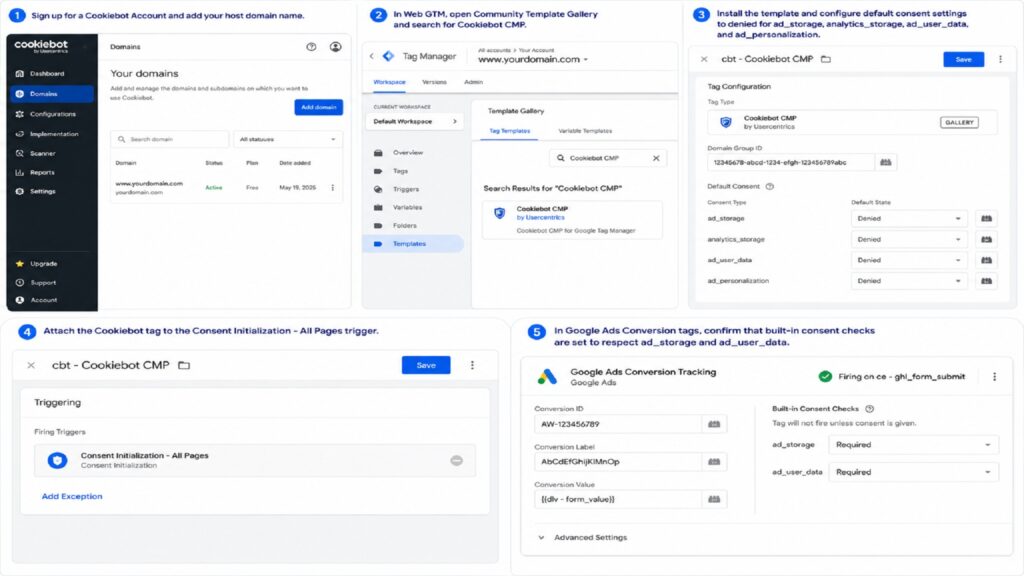
- Sign up for a Cookiebot Account and add your host domain name.
- Open your Web Google Tag Manager container, navigate to the Community Template Gallery, and search for Cookiebot CMP.
- Install the template and configure default consent settings to denied for ad_storage, analytics_storage, ad_user_data, and ad_personalization.
- Attach the Cookiebot tag to the Consent Initialization – All Pages trigger.
- In your Google Ads Conversion tags, confirm that built-in consent checks are set to respect ad_storage and ad_user_data.
Phase 2: Deploy the GoHighLevel Iframe PostMessage Listener
To catch postMessage broadcasts emitted by embedded GHL forms and surveys, you must inject a custom JavaScript listener into your main website using Web GTM.
GoHighLevel Universal PostMessage Listener Script
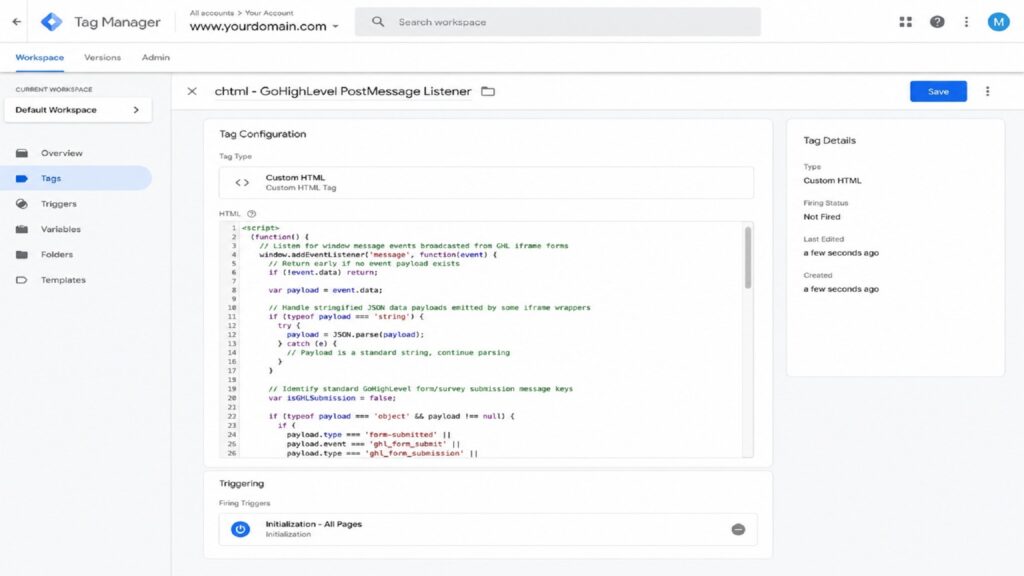
Create a Custom HTML Tag in Web GTM named chtml – GoHighLevel PostMessage Listener and set the trigger to Initialization – All Pages:
					<script>
(function() {
  // Listen for window message events broadcasted from GHL iframe forms
  window.addEventListener('message', function(event) {
    // Return early if no event payload exists
    if (!event.data) return;

    var payload = event.data;

    // Handle stringified JSON data payloads emitted by some iframe wrappers
    if (typeof payload === 'string') {
      try {
        payload = JSON.parse(payload);
      } catch (e) {
        // Payload is a standard string, continue parsing
      }
    }

    // Identify standard GoHighLevel form/survey submission message keys
    var isGHLSubmission = false;

    if (typeof payload === 'object' && payload !== null) {
      if (
        payload.type === 'form-submitted' ||
        payload.event === 'ghl_form_submit' ||
        payload.type === 'ghl_form_submission' ||
        payload.formId ||
        (payload.msg && payload.msg === 'form-submitted')
      ) {
        isGHLSubmission = true;
      }
    } else if (typeof payload === 'string' && (payload.indexOf('form-submitted') !== -1 || payload.indexOf('ghl_form') !== -1)) {
      isGHLSubmission = true;
    }

    // Process valid GoHighLevel form submission event
    if (isGHLSubmission) {
      // Extract form metadata and lead details passed in postMessage payload
      var formId = (payload && (payload.formId || payload.form_id || payload.id)) ? (payload.formId || payload.form_id || payload.id) : 'ghl_embedded_form';
      var email = (payload && (payload.email || payload.email_address)) ? (payload.email || payload.email_address) : '';
      var phone = (payload && (payload.phone || payload.phone_number)) ? (payload.phone || payload.phone_number) : '';
      var firstName = (payload && (payload.first_name || payload.name)) ? (payload.first_name || payload.name) : '';
      var lastName = (payload && payload.last_name) ? payload.last_name : '';

      // Push structured event and user data into the parent page Data Layer
      window.dataLayer = window.dataLayer || [];
      window.dataLayer.push({
        'event': 'ghl_form_submit',
        'ghl_form_id': String(formId),
        'user_data': {
          'email': email,
          'phone_number': phone,
          'first_name': firstName,
          'last_name': lastName
        }
      });
    }
  });
})();
</script>
Line-by-Line Technical Breakdown
- window.addEventListener(‘message’, …): Registers an event listener on the parent browser window to monitor incoming messages sent from embedded iframes via window.parent.postMessage().
- JSON.parse(payload): Safely attempts to parse incoming string data into structured JavaScript objects if GHL transmits data as a JSON string.
- isGHLSubmission: Evaluates specific payload properties (form-submitted, ghl_form_submit, formId) to distinguish GHL form submissions from unrelated third-party messages (e.g., chat widgets, YouTube embeds).
- window.dataLayer.push({…}): Formats and writes the captured form ID and user data into the parent site’s Data Layer, making it available to Tag Manager variables.
If your setup involves other CRMs or forms, refer to our specialized implementation guides for HubSpot form conversion tracking, Salesforce conversion tracking, Zoho form tracking, and GoHighLevel form conversion tracking services.
Phase 3: Create GTM Data Layer Variables & Triggers
Now that the listener pushes submission data into the Data Layer, you need to configure GTM variables and triggers to process this information.
+-----------------------------------------------------------------------------------+
|                   GTM DATA LAYER VARIABLES & TRIGGERS MATRIX                      |
+-----------------------+-------------------------+---------------------------------+
| GTM Component Type    | Name in Container       | Configuration Details           |
+-----------------------+-------------------------+---------------------------------+
| Data Layer Variable   | `dlv - ghl_form_id`     | Variable Name: `ghl_form_id`    |
| Data Layer Variable   | `dlv - user_data.email` | Variable Name: `user_data.email`|
| Data Layer Variable   | `dlv - user_data.phone` | Variable Name: `user_data.phone`|
| Custom Event Trigger  | `ce - ghl_form_submit`  | Event Name: `ghl_form_submit`   |
+-----------------------+-------------------------+---------------------------------+
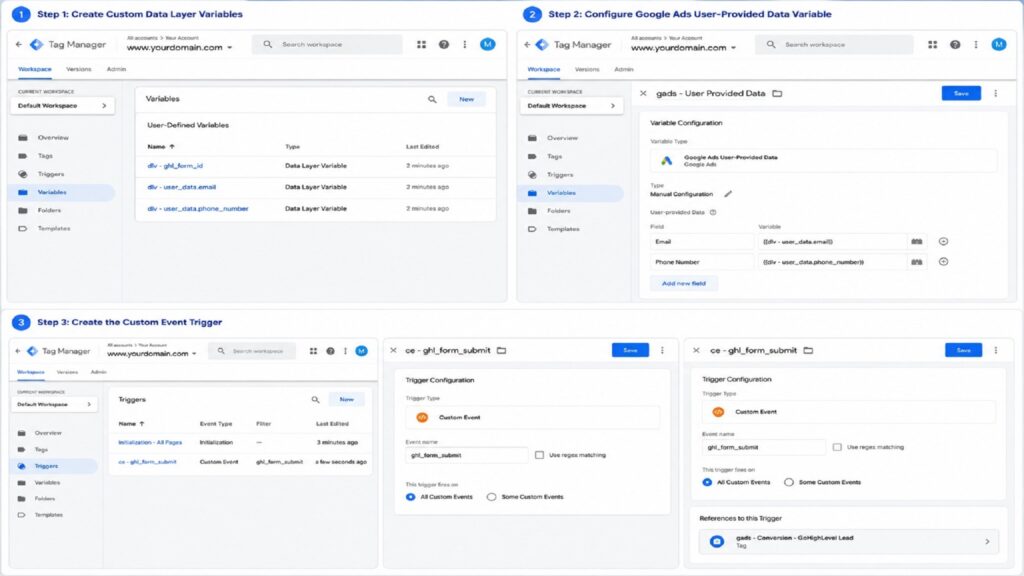
Step 1: Create Custom Data Layer Variables
- In Web GTM, navigate to Variables > User-Defined Variables > New.
- Select Data Layer Variable as the variable type.
- Configure the following variables using the names shown in the table above:
Data Layer Variable Name: ghl_form_id
- Data Layer Variable Name: user_data.email
- Data Layer Variable Name: user_data.phone_number
Step 2: Configure Google Ads User-Provided Data Variable
- In Web GTM, create a new variable and select Google Ads User-Provided Data.
- Set the type selection mode to Manual Configuration.
- Map the fields to your Data Layer variables:
Email: {{dlv – user_data.email}}
- Phone Number: {{dlv – user_data.phone_number}}
- Save the variable as gads – User Provided Data.
Step 3: Create the Custom Event Trigger
- Navigate to Triggers > New.
- Choose Custom Event as the trigger type.
- Set the Event name to ghl_form_submit.
- Leave the trigger to fire on All Custom Events.
- Save the trigger as ce – ghl_form_submit.
Phase 4: Configure Google Ads Conversion Tag & Enhanced Conversions
With your triggers and variables in place, set up the Google Ads conversion tag inside Tag Manager.
+-----------------------------------------------------------------------------------+
|                  GOOGLE ADS CONVERSION TAG PARAMETER MAPPING                      |
+-----------------------+-------------------------+---------------------------------+
| Parameter Field       | GTM Value Setting       | Source / Action Requirement     |
+-----------------------+-------------------------+---------------------------------+
| Conversion ID         | `AW-123456789`          | Copied from Google Ads Goals    |
| Conversion Label      | `AbCdEfGhIjKlMnOp`      | Copied from Google Ads Goals    |
| Enhanced Conversions  | `gads - User Provided`  | Mapped User-Provided Variable   |
| Conversion Linker     | Enabled on All Pages    | Captures GCLID from Landing URL |
+-----------------------+-------------------------+---------------------------------+
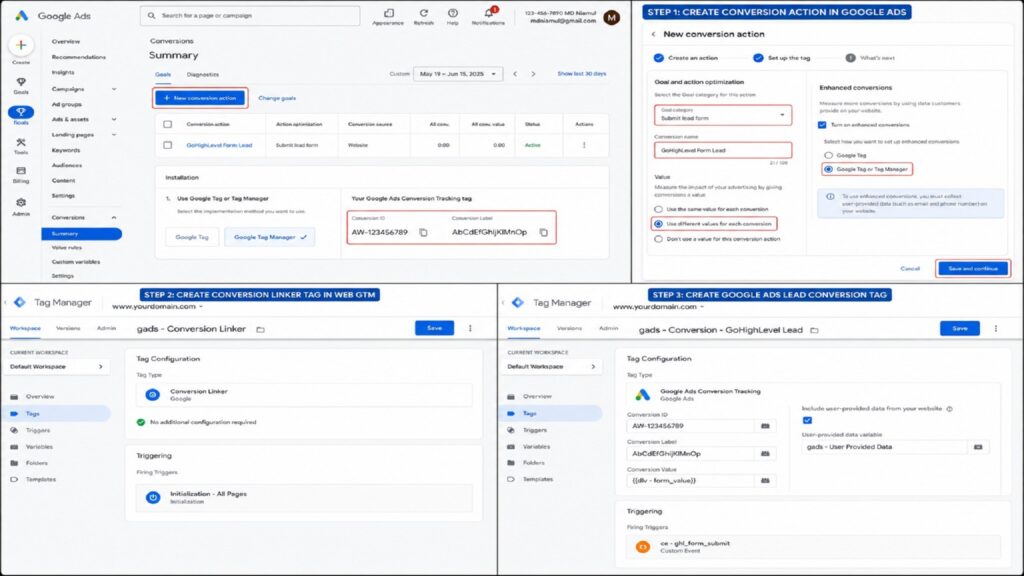
Step 1: Create Conversion Action in Google Ads
- Log into Google Ads > Goals > Conversions > Summary.
- Click New Conversion Action and select Website.
- Enter your website domain, click Scan, and select Add a conversion action manually.
- Set Goal Category to Submit lead form, name it GoHighLevel Form Lead, and assign a value (e.g., Use different values or Don’t use a value).
- Under Enhanced Conversions, select Turn on enhanced conversions and choose Google Tag or Tag Manager as the implementation method.
- Save the action and view installation instructions to locate your Conversion ID and Conversion Label.
Step 2: Create Conversion Linker Tag in Web GTM
- In Web GTM, go to Tags > New.
- Select Conversion Linker as the tag type.
- Set the trigger to Initialization – All Pages.
- Save as gads – Conversion Linker.
Step 3: Create Google Ads Lead Conversion Tag
- Create a new tag and select Google Ads Conversion Tracking.
- Paste your Conversion ID and Conversion Label.
- Under Include user-provided data from your website, check the box and select gads – User Provided Data.
- Attach the trigger ce – ghl_form_submit.
- Save the tag as gads – Conversion – GoHighLevel Lead.
Phase 5: Implement Server-Side Tracking (sGTM) on Stape.io
Browser privacy features, ad blockers, and cookie lifespan reductions often prevent client-side conversion tags from firing reliably. Routing conversion payloads through a Server-Side GTM container hosted on Stape fixes these issues.
[ GHL Form Submit on Parent Page ]
                 |
                 v (Client-Side Payload)
[ Web GTM Container ]
                 |
                 v (HTTPS POST to first-party subdomain: metrics.yourdomain.com)
[ Server-Side GTM Container ] <--- Hosted on Stape.io
                 |
                 +-------------------+-------------------+
                 |                                       |
                 v                                       v
[ Google Ads API Server Endpoint ]              [ GA4 Measurement API ]
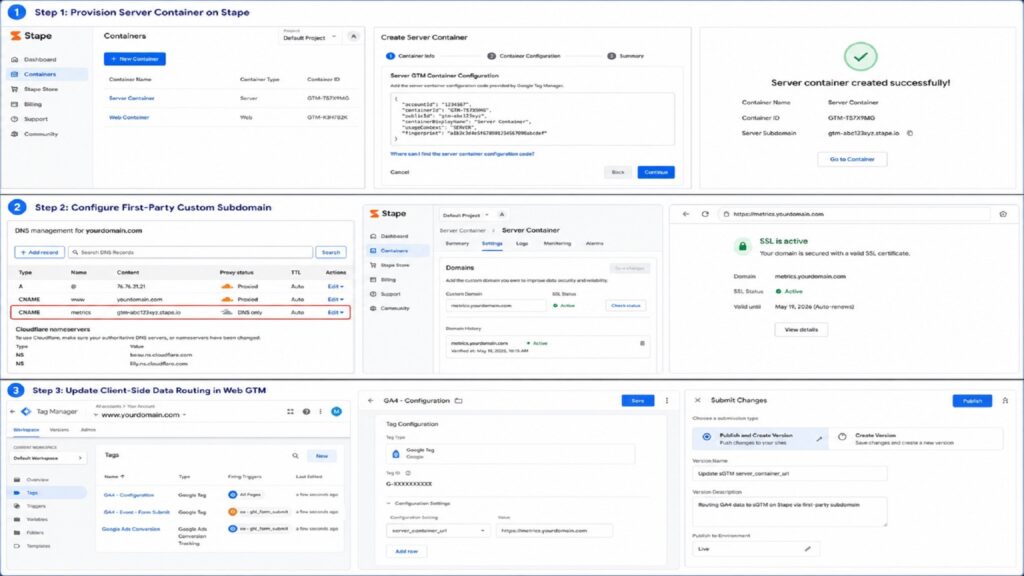
Step 1: Provision Server Container on Stape
- Create an account on Stape Global Hosting or Stape European Hosting.
- Create a new Server container in Stape and paste your Server GTM Container Configuration Code.
Step 2: Configure First-Party Custom Subdomain
- In your domain provider settings (Cloudflare, GoDaddy, Namecheap), create a CNAME record:Host / Name: metrics (or sgtm)
- Target / Value: Your unique Stape server domain string (e.g., xyz.stape.io).
- Inside Stape Container Settings > Domains, enter metrics.yourdomain.com and confirm that the SSL Status displays Active.
Step 3: Update Client-Side Data Routing in Web GTM
- Open your GA4 Google Tag in Web GTM.
- Under Configuration Settings, add a parameter named server_container_url.
- Set its value to your first-party subdomain: https://metrics.yourdomain.com.
- Save and publish your Web GTM container.
For more information on server-side architectures, explore our technical guides on server-side tracking services and e-commerce server-side tracking services.
Phase 6: Sync Offline CRM Conversions for Stage-Based Bidding
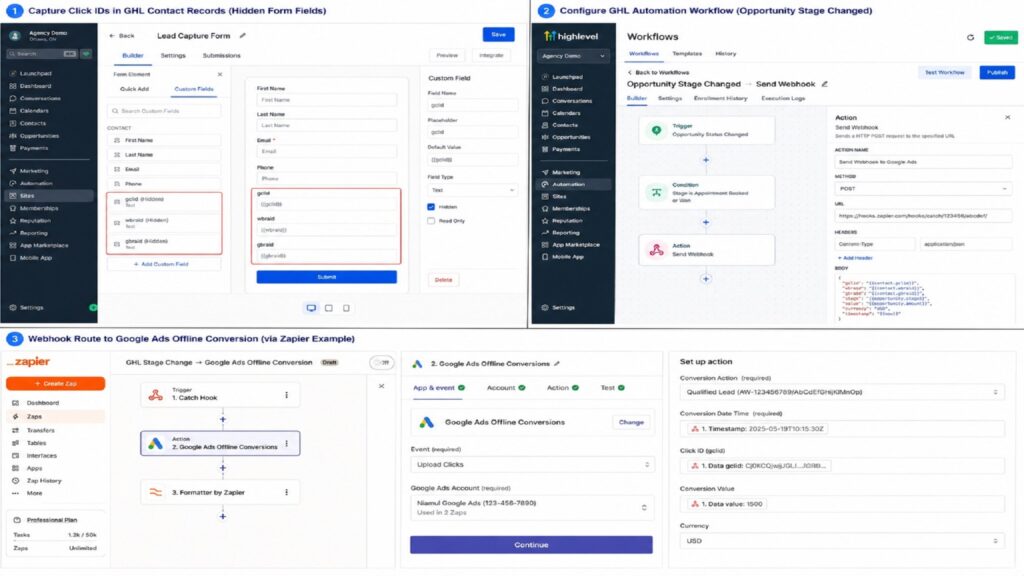
Tracking initial lead submissions is vital, but high-ticket campaigns also require optimizing for offline revenue milestones (like Qualified Leads or Closed Deals) inside your GoHighLevel CRM.
[ Online Lead Form Submitted ] ---> Initial Conversion Fired to Google Ads (Lead)
                                               |
                                               v
                             [ Lead Stored in GoHighLevel CRM ]
                                               |
                                               v
                             [ Producer Updates Opportunity Stage ]
                                               |
                                               v
                             [ Workflow Triggers Webhook ]
                                               |
                                               v
                      [ Google Ads Offline Conversion API Upload ]
                      - Sends GCLID + Offline Stage Name (Qualified/Sale)
- Capture Click IDs in GHL Contact Records:Add hidden fields named gclid, wbraid, and gbraid to your GoHighLevel form builder.
- Ensure your host page URL parameters populate these hidden form fields automatically upon submission.
- Configure GHL Automation Workflow:Go to GHL Sub-Account > Automation > Workflows.
- Set the trigger condition to Opportunity Status Changed (e.g., moved to “Appointment Booked” or “Won”).
- Add an action to send a Webhook POST payload containing the lead’s gclid, conversion value, and timestamp to Google Ads via Zapier, Make, or custom API endpoints.
For more details on offline CRM integration, see our dedicated guides for offline conversion tracking services and marketing automation services.
- Capture Click IDs in GHL Contact Records:Add hidden fields named gclid, wbraid, and gbraid to your GoHighLevel form builder.
Testing & Validation Framework
Before launching campaigns, test your setup across all layers of the stack using the step-by-step diagnostic process below:
+-----------------------------------------------------------------------------------+
|                        SYSTEM TESTING & VALIDATION MATRIX                         |
+-----------------------+-------------------------+---------------------------------+
| Diagnostic Step       | Tool / Interface        | Expected Passing Criteria       |
+-----------------------+-------------------------+---------------------------------+
| 1. Listener Trigger   | GTM Web Preview Mode    | `ghl_form_submit` event fires   |
| 2. Data Layer Check   | GTM Preview > Data Layer| Email/Phone/Form ID present     |
| 3. Conversion Tag     | Tag Assistant Console   | Google Ads tag shows Success    |
| 4. sGTM Routing       | Stape Server Debugger   | Incoming HTTP 200 payload       |
| 5. Enhanced Matching  | Google Ads Diagnostics  | Enhanced Conversions status Active|
+-----------------------+-------------------------+---------------------------------+
- Test Listener Execution in GTM Preview Mode:Click Preview in Web GTM and enter your host landing page URL.
- Fill out and submit your embedded GoHighLevel form inside the iframe.
- In the left-hand event panel of Tag Assistant, verify that a ghl_form_submit custom event appears.
- Validate Data Layer Variables:Click on the ghl_form_submit event in Tag Assistant and open the Data Layer tab.
- Confirm that user_data.email, user_data.phone_number, and ghl_form_id reflect the values entered in the test form submission.
- Inspect Server Container Payloads:Open Server GTM Preview Mode.
- Submit another test form and verify that your server container receives an incoming HTTP POST request at your first-party domain ([https://metrics.yourdomain.com](https://metrics.yourdomain.com)).
- Check Google Ads Diagnostics:
- Navigate to Google Ads > Goals > Conversions.
- Click on your GoHighLevel Form Lead conversion action and select Diagnostics.
- Confirm that the status shows Recording Conversions and that Enhanced Conversions displays an active status.
Troubleshooting Common Tracking Errors
Problem 1: PostMessage Listener Fails to Detect Submissions
- Cause: GoHighLevel updated its iframe wrapper attributes, or the form is embedded inside an nested iframe container.
- Solution: Open browser developer tools (F12) > Console, submit the form, and observe native console message logs. Adjust your postMessage script payload checks to match the exact JSON keys emitted by your specific GHL account builder version.
Problem 2: Enhanced Conversions Status Shows “Needs Attention”
- Cause: Unhashed user data was passed incorrectly, or required fields (email or phone) were missing from the Data Layer payload.
- Solution: Verify that your Data Layer variables extract email and phone values correctly in GTM Preview Mode. Ensure that field names match your custom event structure (user_data.email).
Problem 3: Google Click ID (GCLID) Lost on Form Redirects
- Cause: The parent page URL redirects to a thank-you page on a different subdomain without transferring URL parameters.
- Solution: Enable Web GTM Conversion Linker on all pages and configure GoHighLevel form redirect settings to pass URL parameters automatically to the thank-you URL.
Problem 4: Ad Blockers Prevent Client-Side GTM Script Execution
- Cause: User privacy extensions (like uBlock Origin or Brave) block requests made directly to [www.googletagmanager.com](https://www.googletagmanager.com).
- Solution: Route container scripts through a custom first-party subdomain (metrics.yourdomain.com) using Stape sGTM web-tier proxy settings.
Problem 5: Duplicate Conversions Reported for Single Lead Submissions
- Cause: The postMessage listener fired multiple times due to repeated submit button clicks or conflicting thank-you page view triggers.
- Solution: Restrict conversion tags to fire strictly on the ghl_form_submit custom event trigger, and remove any URL destination rules configured on your thank-you pages.
Conclusion
Relying on basic page-view goals or unverified iframe embeds leaves your Google Ads campaigns vulnerable to data loss and poor optimization. When Google’s Smart Bidding algorithm lacks accurate lead conversion signals, it cannot effectively target high-value prospects.
Deploying a robust tracking setup using GTM postMessage listeners, Google Ads Enhanced Conversions, and Server-Side tracking on Stape fixes these issues. This setup bypasses browser security barriers, protects attribution data, and ensures your campaigns optimize for actual lead conversions.
Summary by MD Niamul
This guide details an advanced methodology for tracking GoHighLevel iframe forms in Google Ads using Google Tag Manager, postMessage JavaScript listeners, Enhanced Conversions, and Server-Side GTM on Stape. Implementing this setup resolves iframe tracking restrictions, prevents attribution data loss, ensures privacy compliance via Cookiebot Consent Mode v2, and provides Google Ads Smart Bidding algorithms with accurate conversion data.
1.How do I track embedded GoHighLevel iframe forms in Google Ads?
Tracking embedded GoHighLevel iframe forms requires placing a JavaScript postMessage listener script on your host landing page using Google Tag Manager. This script catches submission messages broadcast by the GHL iframe, pushes form data to the parent site’s Data Layer, and triggers your Google Ads conversion tag.
2.Why are my GoHighLevel form submissions missing in Google Ads?
Submissions are often missed because GoHighLevel forms run inside cross-origin <iframe> elements. Standard GTM submit triggers cannot read events inside an iframe due to browser security restrictions. Without a postMessage listener to bridge the iframe boundary, Google Ads tags fail to fire.
3.How do Enhanced Conversions work with GoHighLevel forms?
Enhanced Conversions extracts first-party customer data (such as email address and phone number) captured by your GTM form listener script. The data is hashed using the SHA-256 algorithm and sent securely to Google Ads alongside the conversion event, improving match rates and attribution accuracy.
4.Can I track GoHighLevel forms using Server-Side GTM?
Yes. You can route conversion events from Web GTM to a Server-Side GTM container hosted on Stape (metrics.yourdomain.com). The server container then sends conversion data directly to Google Ads APIs, bypassing ad blockers and browser cookie restrictions.
5.Do I need custom code to track GoHighLevel forms in GTM?
Yes. Because embedded GHL forms operate inside an iframe, a custom JavaScript postMessage listener is needed to detect submission events and pass them into the parent page’s Data Layer.
6.How do I prevent duplicate conversions on GoHighLevel forms?
To avoid duplicate conversions, disable destination URL page-view triggers on your thank-you pages. Fire your Google Ads conversion tag strictly using a Custom Event trigger (ghl_form_submit) driven by your postMessage listener script.
7.What hidden fields should I add to my GoHighLevel forms?
Add hidden fields for gclid, wbraid, and gbraid to your GoHighLevel form builder. These fields capture tracking parameters from the landing page URL and store them in GHL contact records for offline CRM tracking.
8.How does Cookiebot Consent Mode v2 impact GoHighLevel tracking?
Cookiebot Consent Mode v2 ensures your tracking tags adjust their behavior based on user consent. If consent is granted, tags collect full tracking data. If denied, tags send anonymized conversion signals without storing ad cookies, maintaining legal compliance.
9.Why should I host Server-Side GTM on Stape?
Hosting sGTM on Stape provides access to custom first-party subdomains, cookie extension capabilities, and reliable cloud hosting. This setup prevents ad blockers from blocking analytics scripts and maintains attribution data quality.
10.How do I test my GoHighLevel form tracking setup?
Test your setup using GTM Preview Mode. Submit a test entry through your embedded GHL form and check that a ghl_form_submit event appears in the Tag Assistant event panel with correct lead data mapped to your Google Ads conversion tags.
 Need Help Advanced GHL Automation & Tracking Setup?