
Table of Contents
ToggleQuick Answer
Setting up Google Analytics SEO data tracking with Google Tag Manager allows you to go beyond vanity clicks and track true post-click organic engagement. By deploying custom JavaScript listeners and event tags inside GTM, you can capture organic search engine referrers, landing page paths, scroll depth milestones (25%, 50%, 75%, 90%), content engagement times, and form submissions directly into Google Analytics 4 (GA4). This setup connects top-of-funnel organic search traffic directly to downstream leads, sale conversions, and measurable business ROI.
Key Takeaways
- Uncover Real Organic ROI: Connect SEO blog posts and landing pages directly to GA4 conversion events and pipeline revenue.
- Capture Detailed Referrer Context: Identify exact search engines and custom search query parameters before GA4 categorizes them as generic traffic.
- Measure Content Engagement Depth: Track scroll thresholds, read durations, outbound link clicks, and media plays for organic visitors.
- Ensure Full Consent Mode v2 Compliance: Integrate Cookiebot CMP with GTM so organic interaction signals are captured legally under GDPR and ePrivacy rules.
- Visualize the SEO Conversion Funnel: Build unified Looker Studio dashboards that pair top-of-funnel search metrics with down-funnel GA4 conversions.
The $250,000 Organic Traffic Paradox A Client Reality Check
An e-commerce and lead-gen client recently called me into an urgent strategy meeting. Over the past 12 months, their SEO agency had done a phenomenal job boosting organic search rankings. Google Search Console showed impression counts through the roof, and organic clicks had surpassed 150,000 monthly visits. On paper, it looked like a massive victory.
Yet, their executive team was baffled. Despite a 200% surge in organic traffic, their actual monthly inbound lead volume and online sales had remained completely flat. They were spending thousands of dollars every month producing new blog articles, but they couldn’t point to a single blog post and say, “This page generated $25,000 in customer sales this quarter.”
When I inspected their tracking architecture, the problem stood out immediately: They were relying solely on default GA4 automated pageviews.
Standard Google Analytics 4 tracks when a user lands on a page (page_view) and when they leave, but it offers zero visibility into what organic visitors do during their visit. Did the user read the full article? Did they download the product guide? Did they start filling out a form, or did they bounce after 3 seconds? Because their setup lacked custom Google Analytics SEO data tracking GTM tags, every organic visitor was treated like an anonymous ghost.
By deploying custom GTM listeners, tracking scroll milestones, capturing exact organic landing paths, and tying organic traffic to custom form submissions, we revealed the truth: 80% of their organic search traffic was landing on broad informational keywords that brought in low-intent readers who bounced instantly. Meanwhile, three overlooked, low-traffic product comparison guides were driving 90% of their actual sales conversions.
We redirected their SEO content budget toward high-intent topics, implemented server-side tracking services, and within 90 days, their organic pipeline revenue jumped by $250,000—without increasing their overall marketing spend by a single dime.
Why Default GA4 Tracking Fails SEO Performance Analysis
Most marketing teams assume that installing the standard GA4 tag provides everything needed to measure SEO performance. Unfortunately, default GA4 installation has significant blind spots when it comes to search engine optimization analysis.
Think of Google Analytics 4 as a basic security camera at a store entrance. It tells you how many people walked through the front door, but it doesn’t show you which aisles they walked down, which products they picked up to examine, or why they walked out without buying anything. Google Tag Manager acts as your smart store analyst, recording every detailed action a visitor takes after stepping inside.
In web analytics:
- Listener: A catcher’s mitt that sits quietly waiting for specific browser interactions.
- Data Layer: An invisible filing cabinet where listeners toss structured event information.
- GTM Event Tags: The automated messengers that package that filing cabinet data and send it directly to Google Analytics 4.
Default GA4 Tracking vs. Advanced GTM SEO Data Tracking
- Organic Traffic Source:
- Default GA4: Provides basic Channel Grouping (Organic Search).
- Advanced GTM: Captures precise search engine domains and custom search query parameters.
- Landing Page Insight:
- Default GA4: Records simple page path URLs upon arrival.
- Advanced GTM: Ties landing page paths directly to scroll depth milestones and active reading time.
- Scroll Tracking:
- Default GA4: Tracks a single default 90% scroll event per page view.
- Advanced GTM: Tracks granular scroll milestones across 25%, 50%, 75%, 90%, and 100%.
- Content Micro-Conversions:
- Default GA4: Does not automatically capture outbound link clicks or content text copies.
- Advanced GTM: Tracks outbound affiliate clicks, PDF downloads, and inline text copy events.
- Form Lead Attribution:
- Default GA4: Fires basic page submissions and frequently misses embedded iframe forms.
- Advanced GTM: Maps exact form IDs, form names, and initial organic landing page paths.
- Consent Mode Integration:
- Default GA4: Often drops conversion data completely if misconfigured under strict consent rules.
- Advanced GTM: Integrates full Cookiebot Consent Mode v2 handling with unconsented pings.
5 Core Benefits of Implementing GTM SEO Data Tracking
- Accurate Content Value Attribution: Identify exactly which blog articles, landing pages, and content hubs generate real business revenue, allowing you to double down on high-converting SEO topics.
- Granular User Engagement Measurement: Distinguish between accidental bounces and deeply engaged readers who spend minutes reading your long-form content.
- Optimized Technical UX & Content Formatting: Discover where readers lose interest on your pages by analyzing scroll drop-off milestones, helping you improve page layouts and call-to-action (CTA) placements.
- Enhanced Data Quality in CMP Environments: Maintain clean, legally compliant organic attribution across EU and global regions using Cookiebot and Google Consent Mode v2.
- Seamless BI & Looker Studio Integration: Push structured event parameters into GA4 that can easily be blended with Search Console data inside Looker Studio for executive reporting.
Top 10 High-Volume Keywords in SEO Analytics (2026 Trends)
Aligning your analytics setup with real-world search demand requires understanding the core topics marketers and web analysts search for. Here are the top ten search queries driving SEO analytics and tracking implementations today:
- Google Analytics SEO data tracking GTM — Commercial/Technical intent focused on core tracking setup and integration.
- GA4 SEO tracking Google Tag Manager — How-To/Informational intent focused on platform implementation steps.
- GTM SEO event tracking — Technical intent focused on custom interaction measurement.
- track organic search conversion GA4 — Solution-seeking intent focused on lead and revenue attribution.
- Google Tag Manager SEO analytics — Informational intent focused on analytics architecture.
- organic traffic tracking GA4 GTM — Commercial intent focused on evaluating channel performance.
- track SEO landing pages GTM — Technical How-To intent focused on landing page performance audits.
- GA4 organic search setup — Instructional intent focused on initial system configuration.
- SEO conversion tracking guide — Educational intent focused on comprehensive analytics strategy.
- Google Analytics SEO performance — Analytical intent focused on calculating ROI and executive reporting.
Prerequisites & Account Access Checklist
Before deploying custom GTM listeners and GA4 SEO tags, ensure you have the required permission levels across your tech stack:
- Google Tag Manager:
- Access Level Required: Publish or Admin Rights
- Primary Purpose: To create JavaScript listeners, variables, triggers, and event tags.
- Google Analytics 4:
- Access Level Required: Editor or Administrator Role
- Primary Purpose: To register custom dimensions, custom metrics, and key conversion events.
- Website CMS (WordPress, Shopify, Custom, etc.):
- Access Level Required: Admin / Code Editing Access
- Primary Purpose: To install GTM container snippets and CMP header scripts.
- Cookiebot CMP Account:
- Access Level Required: Account Admin Access
- Primary Purpose: To configure Google Consent Mode v2 default banner settings and consent states.
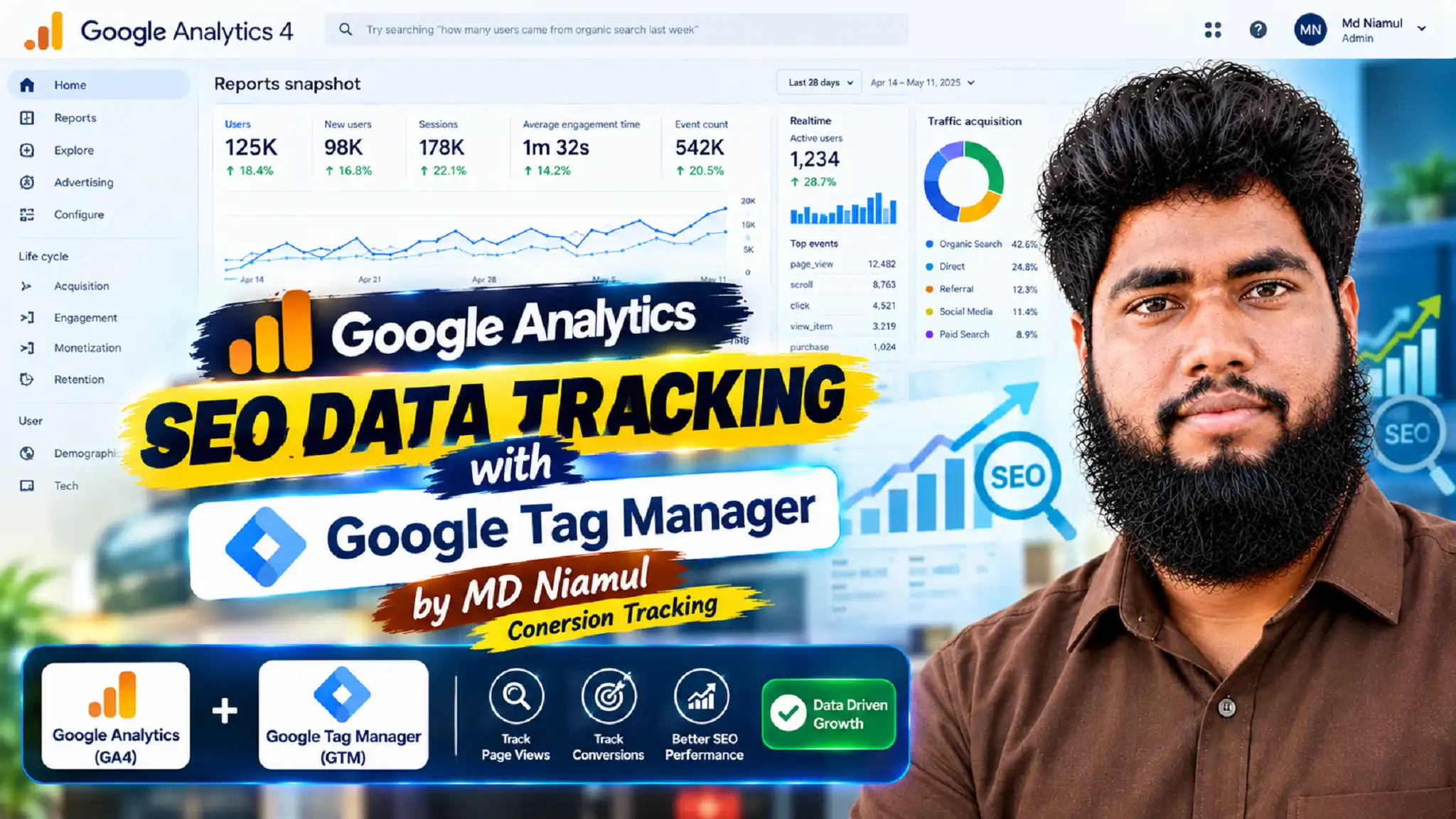
Video Tutorial: Advanced SEO Tracking with GTM
Follow along with this step-by-step video guide by MD Niamul to see the complete setup process in action, including live GTM preview debugging and GA4 event verification:
Step-by-Step Implementation Guide
Follow this comprehensive, phase-by-phase implementation plan to configure advanced SEO tracking using Google Tag Manager and Google Analytics 4.
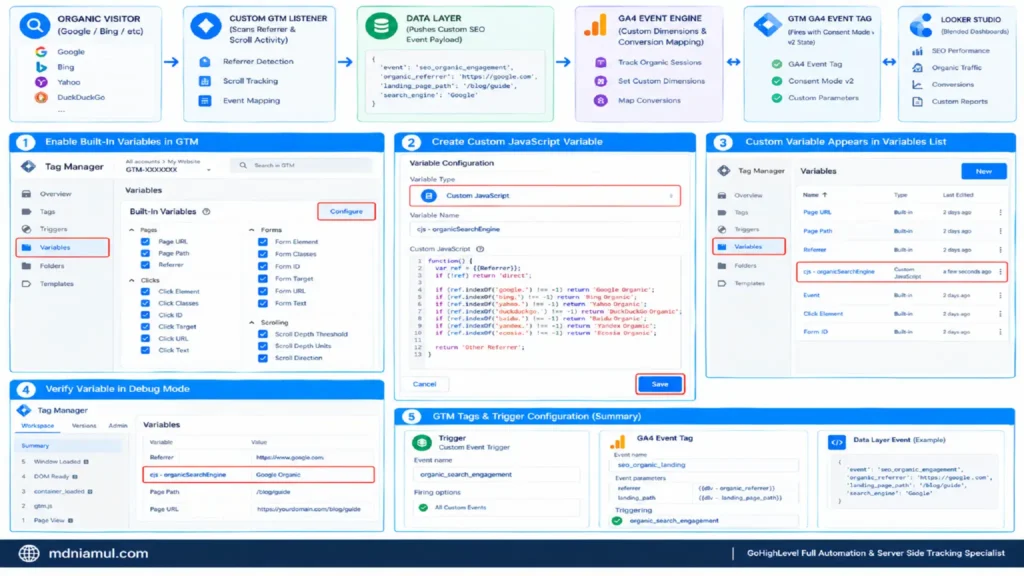
Phase 1: Enabling Built-In Variables & Custom Referrer Detection
Before capturing organic interactions, you must enable GTM’s built-in variables and configure custom variables to capture referrer details.
                          DATA FLOW ARCHITECTURE

+------------------------+      +------------------------+      +------------------------+
|   ORGANIC VISITOR      |      |  CUSTOM GTM LISTENER   |      |      DATA LAYER        |
|  (Google / Bing / etc) | ===> |   (Scans Referrer &    | ===> |   (Pushes Custom SEO   |
|                        |      |    Scroll Activity)    |      |      Event Payload)    |
+------------------------+      +------------------------+      +------------------------+
                                                                            ||
                                                                            \/
+------------------------+      +------------------------+      +------------------------+
|     LOOKER STUDIO      |      |   GA4 EVENT ENGINE     |      |  GTM GA4 EVENT TAG     |
|   (Blended Dashboards) | <=== | (Custom Dimensions &   | <=== |  (Fires with Consent   |
|                        |      |   Conversion Mapping)  |      |     Mode v2 State)     |
+------------------------+      +------------------------+      +------------------------+
1. Enable Built-In Variables in GTM
- Open your Google Tag Manager container.
- Click on Variables in the left sidebar menu.
- In the Built-In Variables card, click Configure.
- Check the boxes for the following variables:
- Pages: Page URL, Page Path, Referrer
- Clicks: Click Element, Click Classes, Click ID, Click Target, Click URL, Click Text
- Forms: Form Element, Form Classes, Form ID, Form Target, Form URL, Form Text
- Scrolling: Scroll Depth Threshold, Scroll Depth Units, Scroll Direction
2. Create a Custom JavaScript Variable for Organic Referrer Parsing
Standard referrers can be long or formatted strangely. We will create a clean Custom JavaScript Variable to parse the exact organic search engine name.
- In GTM, click Variables > Under User-Defined Variables, click New.
- Name the variable: cjs – organicSearchEngine.
- Choose variable type: Custom JavaScript.
- Paste the following JavaScript code:
					function() {
  var ref = {{Referrer}};
  if (!ref) return 'direct';

  if (ref.indexOf('google.') !== -1) return 'Google Organic';
  if (ref.indexOf('bing.') !== -1) return 'Bing Organic';
  if (ref.indexOf('yahoo.') !== -1) return 'Yahoo Organic';
  if (ref.indexOf('duckduckgo.') !== -1) return 'DuckDuckGo Organic';
  if (ref.indexOf('baidu.') !== -1) return 'Baidu Organic';
  if (ref.indexOf('yandex.') !== -1) return 'Yandex Organic';
  if (ref.indexOf('ecosia.') !== -1) return 'Ecosia Organic';

  return 'Other Referrer';
}
5.Click Save.
Phase 2: Cookiebot & Google Consent Mode v2 Setup
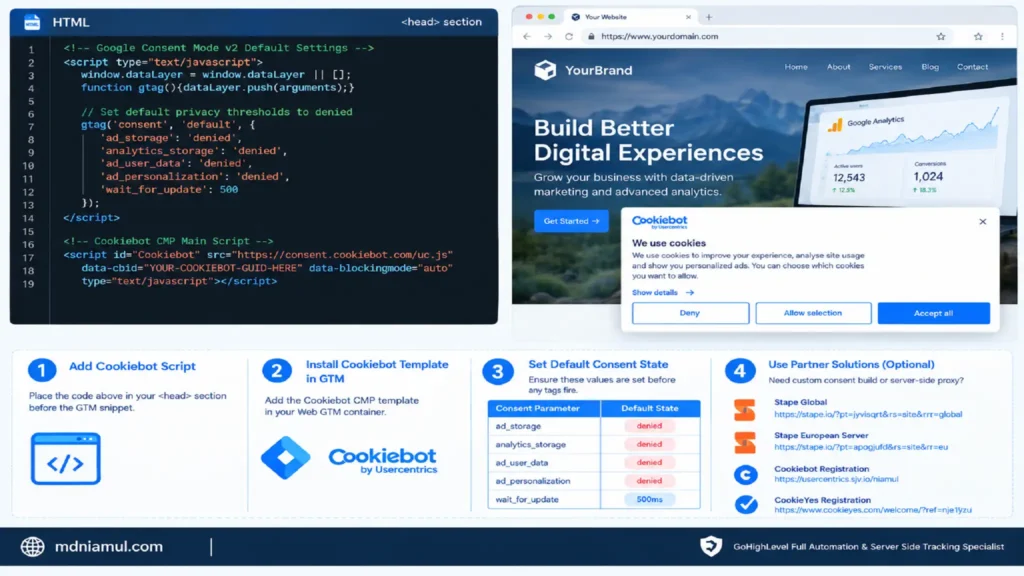
To ensure legally compliant analytics tracking across European (EEA) and global traffic, you must deploy Cookiebot with Google Consent Mode v2 before firing analytics scripts.
1. Add Cookiebot Banner Script with Default Consent Flags
Place this code snippet in your website’s <head> section above your primary Google Tag Manager snippet:
					<!-- Google Consent Mode v2 Default Settings -->
<script type="text/javascript">
  window.dataLayer = window.dataLayer || [];
  function gtag(){dataLayer.push(arguments);}

  // Set default privacy thresholds to denied
  gtag('consent', 'default', {
    'ad_storage': 'denied',
    'analytics_storage': 'denied',
    'ad_user_data': 'denied',
    'ad_personalization': 'denied',
    'wait_for_update': 500
  });
</script>

<!-- Cookiebot CMP Main Script -->
<script id="Cookiebot" src="https://consent.cookiebot.com/uc.js" data-cbid="YOUR-COOKIEBOT-GUID-HERE" data-blockingmode="auto" type="text/javascript"></script>
💡 Need a custom consent build or server-side proxy? Check out our partner platforms on Stape Global or Stape European Server, or sign up directly via Cookiebot Registration or CookieYes Registration.
Phase 3: Deploying Custom SEO Organic Listener Code
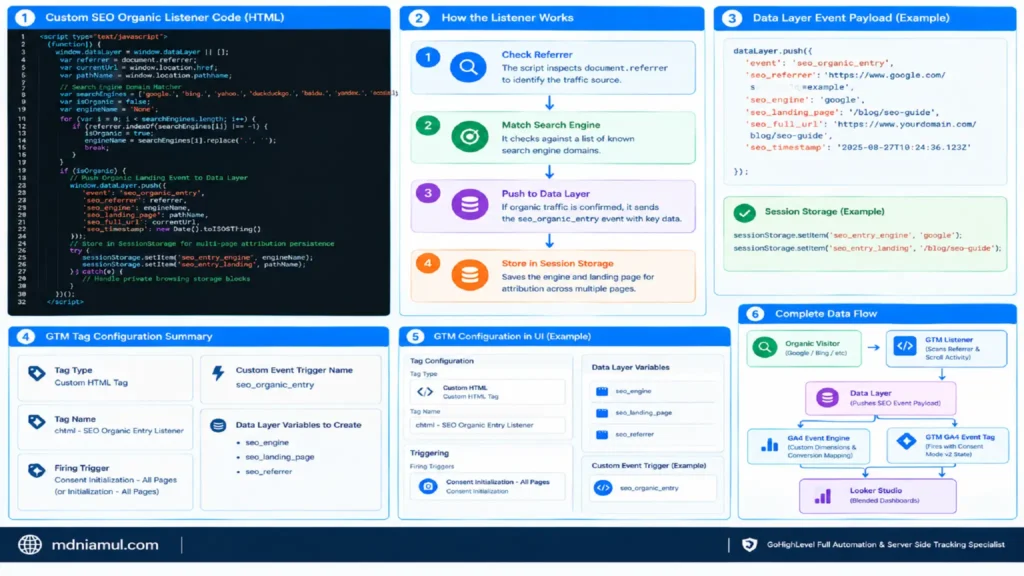
To capture dynamic interaction signals—such as reading time, organic landing path verification, and referrer persistence—we will deploy a custom JavaScript listener via Google Tag Manager.
1. The Custom SEO Listener Code
Create a new Custom HTML Tag inside GTM and paste the following script:
					<script type="text/javascript">
(function() {
  window.dataLayer = window.dataLayer || [];

  var referrer = document.referrer;
  var currentUrl = window.location.href;
  var pathName = window.location.pathname;

  // Search Engine Domain Matcher
  var searchEngines = ['google.', 'bing.', 'yahoo.', 'duckduckgo.', 'baidu.', 'yandex.', 'ecosia.'];
  var isOrganic = false;
  var engineName = 'None';

  for (var i = 0; i < searchEngines.length; i++) {
    if (referrer.indexOf(searchEngines[i]) !== -1) {
      isOrganic = true;
      engineName = searchEngines[i].replace('.', '');
      break;
    }
  }

  if (isOrganic) {
    // Push Organic Landing Event to Data Layer
    window.dataLayer.push({
      'event': 'seo_organic_entry',
      'seo_referrer': referrer,
      'seo_engine': engineName,
      'seo_landing_page': pathName,
      'seo_full_url': currentUrl,
      'seo_timestamp': new Date().toISOString()
    });

    // Store in SessionStorage for multi-page attribution persistence
    try {
      sessionStorage.setItem('seo_entry_engine', engineName);
      sessionStorage.setItem('seo_entry_landing', pathName);
    } catch(e) {
      // Handle private browsing storage blocks
    }
  }
})();
</script>
2. Listener Explanation & GTM Configuration Settings
- How the Listener Works:
- The script inspects the browser’s document.referrer property upon page load.
- It evaluates whether the traffic source matches a known search engine string array.
- If organic origin is confirmed, it generates a custom seo_organic_entry event and pushes key payload parameters (seo_referrer, seo_engine, seo_landing_page) into GTM’s dataLayer (an invisible filing cabinet for site events).
- It saves these variables inside browser sessionStorage so down-funnel conversions on other pages still attribute credit back to the original organic entry page.
- GTM Tag Configuration Summary:
- Tag Type: Custom HTML Tag
- Tag Name: chtml – SEO Organic Entry Listener
- Firing Trigger: Consent Initialization – All Pages or Initialization – All Pages
- Custom Event Trigger Name: seo_organic_entry
- Data Layer Variables to Create: seo_engine, seo_landing_page, seo_referrer
Phase 4: Setting Up Scroll Depth & Content Engagement Tracking
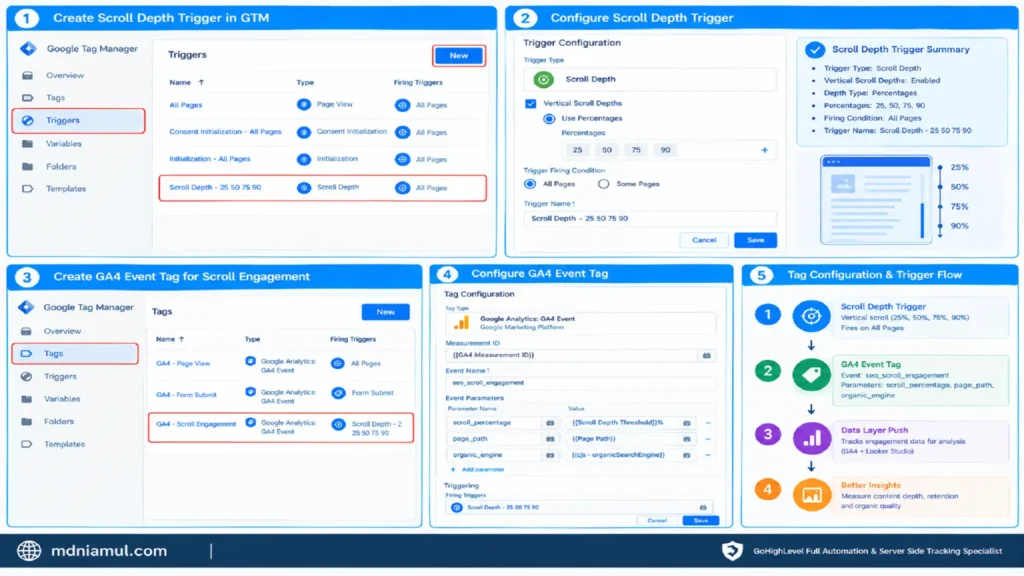
Measuring how far an organic visitor scrolls provides clear feedback on content quality and reader retention.
1. Configure the Scroll Depth Trigger
- In GTM, click Triggers > New.
- Trigger Type: Scroll Depth.
- Check Vertical Scroll Depths.
- Select Percentages and enter: 25, 50, 75, 90.
- Trigger Firing Condition: All Pages.
- Name the trigger: Scroll Depth – 25 50 75 90 and click Save.
2. Configure the GA4 Event Tag for Scroll Engagement
- In GTM, click Tags > New.
- Tag Type: Google Analytics: GA4 Event.
- Select your GA4 Measurement ID variable.
- Event Name: seo_scroll_engagement.
- Add Event Parameters:
- scroll_percentage: Value set to {{Scroll Depth Threshold}}% (Records the exact scroll milestone reached).
- page_path: Value set to {{Page Path}} (Identifies which content page was scrolled).
- organic_engine: Value set to {{cjs – organicSearchEngine}} (Confirms if user originated from organic search).
- Set Firing Trigger: Select Scroll Depth – 25 50 75 90.
- Name Tag: GA4 Event – seo_scroll_engagement and click Save.
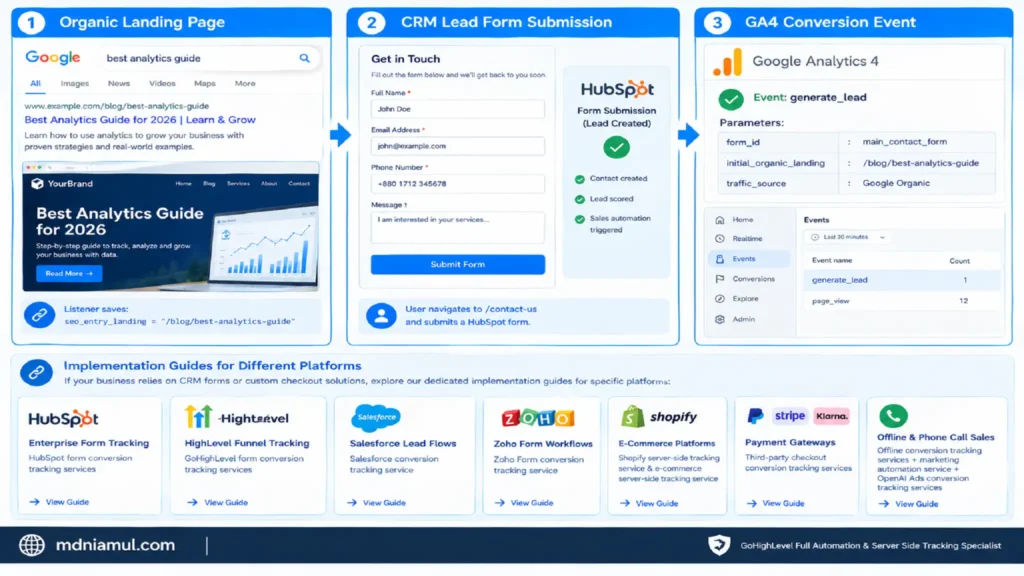
Phase 5: Mapping Organic Journeys to GA4 Lead Conversions
When an organic visitor converts by submitting a lead form, booking a call, or making a purchase, you need to capture that event and pass the organic landing page attribution alongside it.
                  ORGANIC LEAD CONVERSION MAPPING

+-------------------------------------------------------------------+
|                     ORGANIC LANDING PAGE                          |
|  User lands on /blog/best-analytics-guide via Google Search       |
|  Listener saves: seo_entry_landing = "/blog/best-analytics-guide" |
+-------------------------------------------------------------------+
                                 ||
                                 \/
+-------------------------------------------------------------------+
|                     CRM LEAD FORM SUBMISSION                      |
|  User navigates to /contact-us and submits a HubSpot form        |
+-------------------------------------------------------------------+
                                 ||
                                 \/
+-------------------------------------------------------------------+
|                       GA4 CONVERSION EVENT                        |
|  Event: generate_lead                                             |
|  Parameters:                                                      |
|    - form_id: "main_contact_form"                                 |
|    - initial_organic_landing: "/blog/best-analytics-guide"       |
|    - traffic_source: "Google Organic"                            |
+-------------------------------------------------------------------+
If your business relies on CRM forms or custom checkout solutions, explore our dedicated implementation guides for specific platforms:
- Enterprise Form Tracking: HubSpot form conversion tracking services
- HighLevel Funnel Tracking: GoHighLevel form conversion tracking services
- Salesforce Lead Flows: Salesforce conversion tracking service
- Zoho Form Workflows: Zoho Form conversion tracking service
- E-Commerce Platforms: Shopify server-side tracking service and overall e-commerce server-side tracking service
- Payment Gateways: Third-party checkout conversion tracking services
- Offline & Phone Call Sales: Offline conversion tracking services tied into our broader marketing automation service and OpenAI Ads conversion tracking services
Visualizing Complete SEO Conversion Paths in Looker Studio
Once GTM sends custom SEO event data into GA4, you can build executive dashboards in Looker Studio to track organic performance.
1. Key Blended SEO Metrics to Display
- Organic Landing Page Conversion Rate:
- Formula: SUM(Conversions) / SUM(Organic Sessions)
- Value: Shows which content pages drive leads rather than quick bounces.
- Engaged Organic Reading Ratio:
- Formula: SUM(Engaged Sessions with Scroll 75%+) / SUM(Total Organic Sessions)
- Value: Measures genuine content consumption across blog posts.
- Organic Content Pipeline Value:
- Formula: SUM(Lead Value) attributed to Initial Organic Landing Page
- Value: Demonstrates total pipeline revenue driven by organic search efforts.
Testing & Validation Process
Before publishing your GTM container live, systematically test your setup across three debugging environments.
1. GTM Preview Mode & Tag Assistant
- Inside Google Tag Manager, click the Preview button in the top right corner.
- Enter your site URL and click Connect.
- In a separate browser tab, navigate to your site using a test referrer link (e.g., append a search engine referrer or simulate an organic entry).
- In the Tag Assistant window, confirm that chtml – SEO Organic Entry Listener fires under Initialization.
- Check that the seo_organic_entry custom event appears in the left timeline and pushes variables into the Data Layer tab.
2. GA4 DebugView Inspection
- Log into your Google Analytics 4 property.
- Go to Admin > DebugView (under Data Display).
- Select your test device from the top-left dropdown menu.
- Perform actions on your site (scroll down 80%, click outbound links, submit a form).
- Verify that seo_organic_entry and seo_scroll_engagement events appear in the real-time stream with correct parameters.
3. Cookiebot Consent Mode Verification
- Open Google Chrome > Open Developer Tools (F12 or right-click > Inspect).
- Click on the Console tab.
- Type google_tag_data.ics.entries and press Enter.
- Confirm that prior to accepting the Cookiebot banner, analytics_storage and ad_storage display denied.
- Click Accept on the Cookiebot banner, re-run the command, and verify that the states update to granted.
Troubleshooting Common Setup Errors
- Problem 1: Organic Referrers Appear as (direct) / (none) in GA4
- Cause: Modern browsers strip document referrer headers during HTTPS-to-HTTP redirects, or users are browsing in strict privacy modes.
- Solution: Deploy the custom GTM listener script on Consent Initialization to capture referrer details before internal site navigation overwrites the document history.
- Problem 2: Scroll Depth Events Fire Multiple Times Per Page
- Cause: The Scroll Depth trigger is configured to fire on all scroll movements without restricting triggers per page load.
- Solution: Ensure the GTM Scroll Depth trigger is set to fire Once per page, and verify that default GA4 Enhanced Measurement scroll tracking is disabled to avoid duplicate events.
- Problem 3: Custom SEO Events Missing in GA4 Standard Reports
- Cause: Custom event parameters sent from GTM were not registered as Custom Dimensions inside GA4 Admin.
- Solution: Go to GA4 Admin > Custom Definitions > Custom Dimensions, and register scroll_percentage, seo_engine, and seo_landing_page using event scope.
- Problem 4: Cookiebot Consent Banner Blocks Listener Execution
- Cause: The custom listener HTML tag is set to require explicit analytics consent before running.
- Solution: Set the GTM Tag Advanced Settings for the listener tag to No additional consent required, allowing the script to evaluate referrer strings safely prior to analytics tag execution.
Conclusion
Setting up custom Google Analytics SEO data tracking with Google Tag Manager transforms raw traffic numbers into actionable business insights. By tracking pre-click organic referrers, post-click scroll depth milestones, content reading times, and form lead conversions, you gain complete visibility into which SEO strategies generate real revenue.
Take immediate action today: enable your built-in GTM variables, deploy the custom organic listener script, configure Cookiebot Consent Mode v2, and connect your landing page user journeys directly to GA4 conversion events.
Summary by MD Niamul
This comprehensive guide explains how to set up Google Analytics SEO data tracking with Google Tag Manager to measure true organic search ROI. It details the process of deploying custom JavaScript listener scripts, setting up granular scroll depth triggers (25% to 90%), configuring Cookiebot Google Consent Mode v2, persisting landing page attributions across CRM form leads, and visualizing complete SEO funnels in Looker Studio.
1.What is Google Analytics SEO data tracking with GTM?
Google Analytics SEO data tracking with Google Tag Manager is an advanced analytics setup that uses GTM tags, triggers, and JavaScript listeners to track organic search visitors. Instead of relying solely on default pageviews, this methodology captures organic referrers, landing page paths, scroll depth milestones, content reading times, and downstream form submissions. It allows businesses to connect organic keyword rankings directly to sales leads and business revenue inside GA4.
2.How does GTM improve default GA4 organic search tracking?
Default GA4 tracking only records basic landing page views and generic channel groupings (Organic Search). It fails to show how deeply visitors read your content, whether they interacted with calls-to-action, or which specific blog post led to a lead form submission on a secondary page. GTM fills these gaps by injecting custom listeners, parsing referrers, tracking scroll engagement, and persisting initial landing page attribution across multi-page user visits.
3.Can GTM track specific search engine keywords from Google?
Google automatically masks organic search query keywords for user privacy, replacing them with (not provided) or (not set) inside referrer headers. However, GTM can capture the precise search engine domain (e.g., Google, Bing, DuckDuckGo), custom query parameters from non-Google engines, and exact landing page paths. To analyze Google search keywords, you should link Google Search Console directly to GA4 alongside your GTM event tracking setup.
4.Is custom GTM SEO tracking compliant with GDPR laws?
Yes, when paired with a Consent Management Platform (CMP) like Cookiebot and configured with Google Consent Mode v2, custom GTM SEO tracking is fully GDPR compliant. The default consent state blocks analytics storage prior to user agreement, while unconsented pings allow GA4 to model aggregate traffic safely without accessing user cookies or personal identifiers.
5.Why do scroll depth events show up twice in GA4?
Scroll depth events usually duplicate when both GA4 Enhanced Measurement (which automatically tracks a 90% scroll event) and a custom GTM Scroll Depth trigger (tracking 25%, 50%, 75%, 90%) are active simultaneously. To fix this, open your GA4 Property Data Stream settings, click the gear icon under Enhanced Measurement, and toggle off the default Scroll Measurement setting.
6.How do I pass organic landing page details to form events?
To pass organic landing page attribution to lead forms, use a GTM Custom JavaScript listener to capture the user’s initial entry path (document.referrer and window.location.pathname) and store it inside browser sessionStorage. When the user submits a form on any page, configure your GTM form tag to pull that stored landing page value from sessionStorage and send it as a custom parameter alongside the GA4 event.
7.Does GTM tracking slow down website page load speeds?
No, GTM tags engineered with asynchronous loading and clean JavaScript listeners have a negligible impact on page loading speed. Custom HTML listener tags fired on Consent Initialization or Initialization execute in milliseconds without blocking the browser DOM parser, ensuring your core web vitals and user experience remain fast and smooth.
8.What GTM variables are required for advanced SEO tracking?
Essential GTM built-in variables include Page Path, Page URL, Referrer, Scroll Depth Threshold, Click Element, and Form ID. Additionally, setting up custom Data Layer Variables (such as seo_engine, seo_landing_page, and organic_referrer) and Custom JavaScript Variables allows you to clean and format parameter values before sending them into GA4.
9.How long does it take for GTM SEO events to appear in GA4?
Events sent from GTM appear almost instantly inside the GA4 DebugView interface for live testing. However, for standard GA4 acquisition reports, engagement dashboards, and Looker Studio integrations, custom event processing typically takes between 24 and 48 hours to fully update across processed reporting tables.
10.Can I track outbound links clicked by organic traffic in GTM?
Yes, GTM makes it easy to track outbound link clicks from organic search traffic. By creating a Just Links trigger set to fire when Click URL does not contain your primary domain name, you can send a custom outbound_click event to GA4. This helps measure how effectively your organic content drives affiliate revenue, partner referrals, or external traffic.
 Need Help Advanced GHL Automation & Tracking Setup?