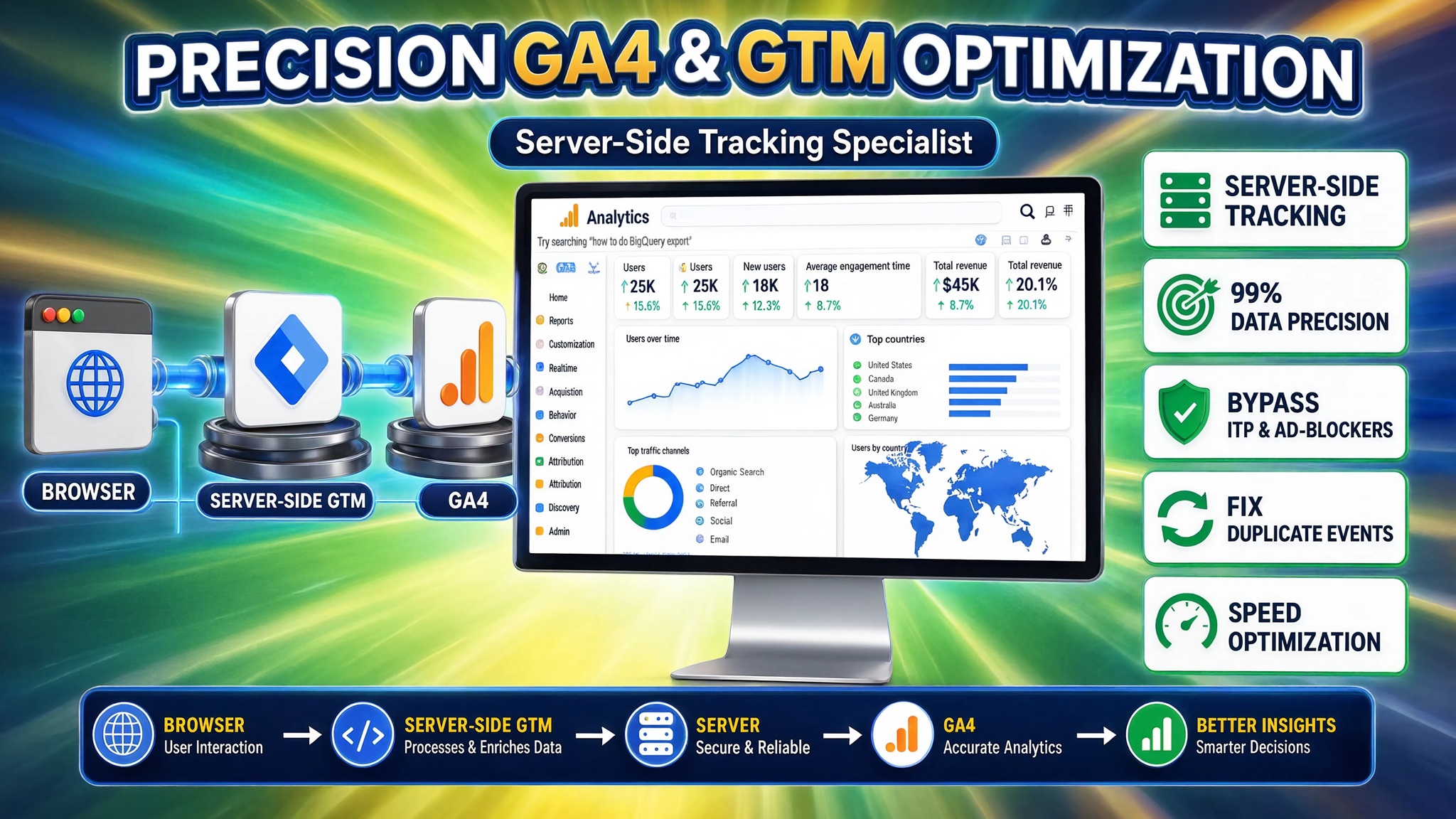

Quick Answer
Precision GA4 & GTM optimization is the systematic process of auditing bloated Google Tag Manager containers, removing redundant scripts, and moving web tracking to a server-side GTM environment (sGTM). This cleanup eliminates duplicate GA4 events, fixes broken attribution parameters, restores site page speed, and bypasses browser restrictions like Safari ITP and ad blockers. By routing event data through a custom server subdomain, businesses restore up to 99% conversion accuracy for Google Ads and Meta campaigns.
Lorem ipsum dolor sit amet, consectetur adipiscing elit. Ut elit tellus, luctus nec ullamcorper mattis, pulvinar dapibus leo.
Key Takeaways
- Container Weight vs. Page Speed: Bloated client-side GTM containers with unused tags and heavy third-party marketing scripts delay DOM execution, slowing page speed and hurting Search Console Core Web Vitals.
- The 3-Phase Analytics Framework: Achieving 99% data precision requires a structured method: a deep container audit, precision implementation (listener tags, Consent Mode v2, sGTM), and rigorous quality assurance.
- Server-Side Sovereignty: Setting up sGTM on a custom subdomain creates a first-party data stream that neutralizes Safari ITP deletion rules and ad-blocker suppression.
- Attribution Cleanup: Fixing duplicate page_view triggers, preserving UTM parameters across cross-domain flows, and normalizing event naming restores clean GA4 Default Channel Groupings.
- Consent Mode v2 Compliance: Implementing Google Consent Mode v2 via Cookiebot ensures regulatory privacy compliance without sacrificing modeled conversion signals in Google Ads.
Introduction: The $50,000 Analytics Mirage
An e-commerce founder contacted me after spending six months scaling his ad campaigns on Google Search and Meta. On his main ad dashboard, everything looked like a massive victory: Google Ads reported $120,000 in return on ad spend (ROAS), and Meta claimed another $90,000. However, when he checked his company’s bank account, the actual total revenue generated was only $110,000.
Where was the missing money? His web analytics infrastructure was firing blind.
His web container contained 87 unorganized tags, 14 duplicate Meta Pixel scripts, and 3 different GA4 setup configurations created by previous freelancers. Every time a customer completed a checkout, the browser fired three distinct purchase events into GA4 and Google Ads. To make matters worse, Safari’s Intelligent Tracking Prevention (ITP) was stripping click IDs (gclid and fbclid) after 24 hours, classifying returning paying customers as “Direct” traffic.
This is the analytics mirage. When your Google Tag Manager container is bloated and your GA4 property is misconfigured, ad platform algorithms optimize on artificial noise rather than real sales. In this masterclass, I will show you how to clean up your GTM container, repair broken GA4 event schemas, deploy server-side tracking, and establish a data environment you can trust implicitly.
Why Precision GA4 & GTM Optimization Matters
When you rely on an unoptimized client-side tracking setup, your marketing operations suffer from two major problems: site performance degradation and severe data degradation.
					+------------------------------------------------------------------------------------+
|                         CLIENT-SIDE VS SERVER-SIDE DATA FLOW                       |
+------------------------------------------------------------------------------------+
| UNOPTIMIZED CLIENT-SIDE:                                                           |
| Browser ---> Heavy GTM (80+ Tags) ---> Ad Blockers/ITP Filter ---> 60% Data Loss   |
|                                                                                    |
| PRECISION SERVER-SIDE:                                                             |
| Browser ---> Light GTM Listener ---> ss.yourdomain.com (sGTM) ---> 99% Precision   |
|                                  |---> GA4 Analytics Engine                        |
|                                  |---> Google Ads API (Enhanced)                   |
|                                  |---> Meta Conversions API                        |
+------------------------------------------------------------------------------------+
Think of a bloated GTM container as a heavy suitcase loaded onto your website’s engine. Every extra script forces the user’s web browser to execute thousands of lines of JavaScript before rendering the visual page. At the same time, privacy updates in iOS and web browsers act like a strict border security check, blocking third-party tracking scripts and dropping up to 40% of your real conversion signals.
5 Key Benefits of Precision GTM & GA4 Optimization
- Accelerated Page Speed: Moving third-party marketing tags out of the browser and into a server container significantly reduces JavaScript execution time and improves page load speed.
- First-Party Cookie Protection: Routing tracking requests through a custom domain (e.g., ss.yourdomain.com) sets first-party cookies, extending cookie lifetime past browser restriction limits.
- Clean Attribution & Reporting: Eliminating duplicate triggers and broken parameters restores real attribution, accurately reflecting your top-performing marketing channels.
- Enhanced Data Privacy & Control: Server-side GTM allows you to strip out sensitive Personally Identifiable Information (PII) or hash data before routing it to third-party ad networks.
- Algorithmic Efficiency: Sending high-quality, deduplicated conversion events with enriched customer parameters trains Google Ads Smart Bidding to find higher-value buyers.
Prerequisites & Architecture Checklist
Review the required access levels and tools before starting your analytics cleanup and server-side deployment:
Tool / Platform | Access Level Required | Role in Optimization Architecture |
Google Tag Manager (Web) | Publish / Admin | Container cleanup, variable consolidation, listener tag deployment. |
Google Tag Manager (Server) | Publish / Admin | Signal routing, parameter hashing, transformation, ad API delivery. |
Google Analytics 4 | Editor / Administrator | Measurement ID configuration, custom dimension definition, DebugView QA. |
Stape.io Account | Account Owner | Hosting sGTM container and provision of custom tracking domain. |
Cookiebot CMP | Account Admin | Google Consent Mode v2 banner deployment and user signal management. |
Google Ads | Admin Access | Enhanced Conversions setup and offline API event matching. |
Video Tutorial: Precision GA4 & GTM Optimization Masterclass
In this video walkthrough, I explain my 3-Phase Analytics Framework to clean up messy tracking, fix GA4 attribution bugs, and set up server-side tracking for 99% precision.
Step-by-Step Implementation Guide
Phase 1: GTM Audit & Container Speed Optimization
A bloated container slows down your site and creates race conditions where tags fire out of order.
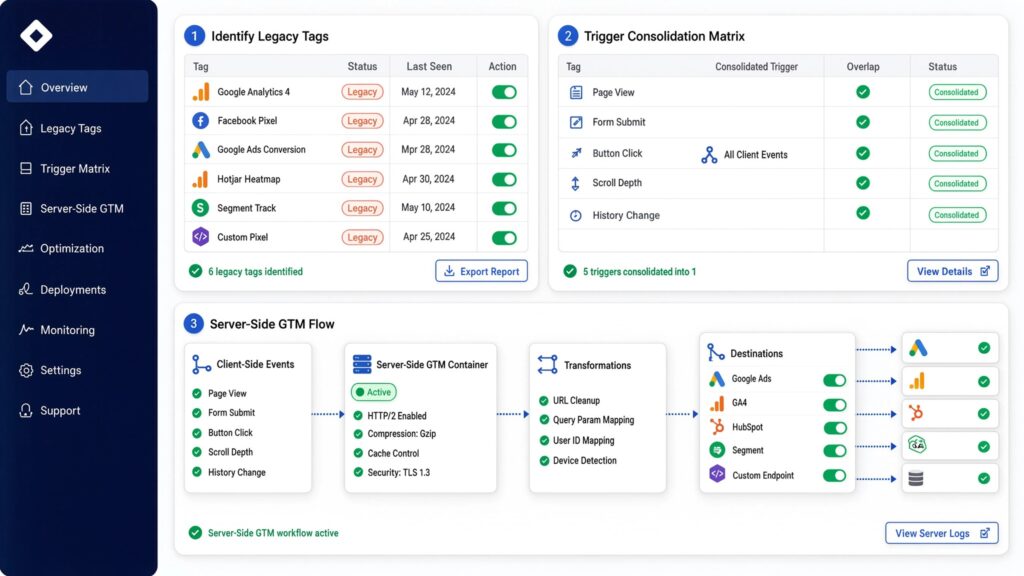
1. Identify and Remove Legacy Tags
Navigate to your Web GTM container and pause or delete:
- Universal Analytics tags (UA is deprecated).
- Duplicate Meta/Facebook pixel scripts loaded both directly on-site and inside GTM.
- Unused heatmaps, user session recorders, or abandoned A/B testing tags.
2. Consolidate Variables and Triggers
Instead of creating multiple triggers for similar user interactions, consolidate them using Regular Expression (RegEx) matching.
					+------------------------------------------------------------------------------------+
|                         GTM TRIGGER CONSOLIDATION MATRIX                           |
+------------------------------------------------------------------------------------+
| UNOPTIMIZED (3 Separate Triggers):                                                 |
| - Trigger 1: Click URL contains 'contact-us'                                       |
| - Trigger 2: Click URL contains 'book-demo'                                        |
| - Trigger 3: Click URL contains 'get-started'                                      |
|                                                                                    |
| OPTIMIZED (1 Single RegEx Trigger):                                                |
| - Trigger: Click URL matches RegEx (ignore case) 'contact-us|book-demo|get-started' |
+------------------------------------------------------------------------------------+
3. Shift Heavy Third-Party Tags to sGTM
Move heavy scripts (Google Ads Remarketing, Meta Pixel, LinkedIn Insight Tag) off the browser thread. Instead, send a single consolidated stream of event data to your Server GTM container, which then distributes the data to third-party endpoints in the background.
Phase 2: Deploy Google Consent Mode v2 via Cookiebot
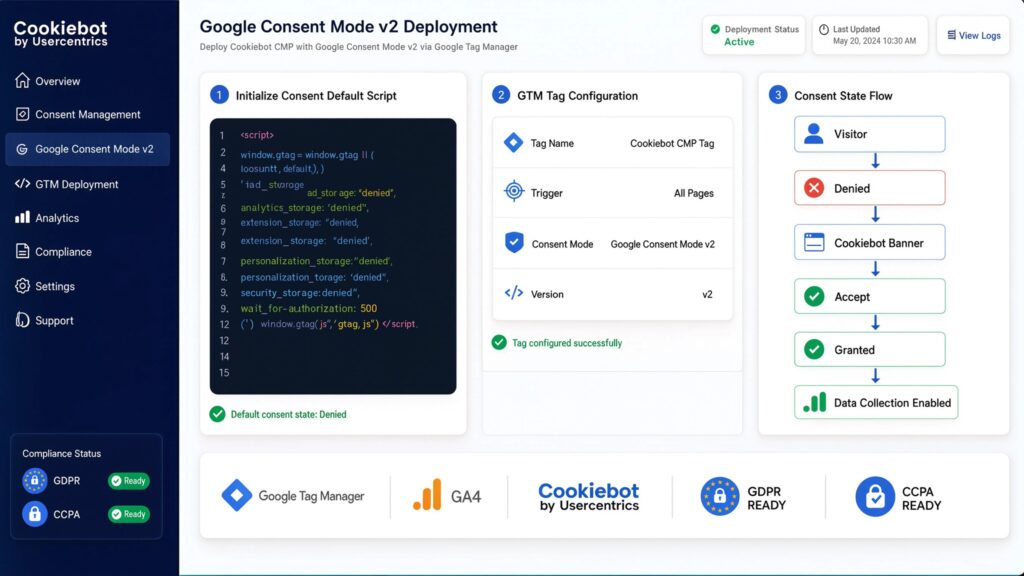
To comply with global privacy standards (GDPR, CCPA) without losing modeled conversion data, implement Google Consent Mode v2 using Cookiebot.
1. Initialize Consent Default Script
Add the default consent initialization block directly in the <head> of your website, placed before the Google Tag Manager container script:
					<script>
  window.dataLayer = window.dataLayer || [];
  function gtag(){dataLayer.push(arguments);}

  // Set default consent states to denied for privacy compliance
  gtag('consent', 'default', {
    'ad_storage': 'denied',
    'analytics_storage': 'denied',
    'ad_user_data': 'denied',
    'ad_personalization': 'denied',
    'wait_for_update': 500
  });
</script>
2. Deploy Cookiebot CMP Tag in Web GTM
- Create a new Tag in Web GTM using the Cookiebot CMP Community Template.
- Enter your Cookiebot Domain Group ID.
- Set the trigger to Consent Initialization – All Pages.
When visitors accept cookies on your banner, Cookiebot updates the consent state to ‘granted’, enabling full data collection in GTM.
Phase 3: Deploying Custom Form Listener JavaScript
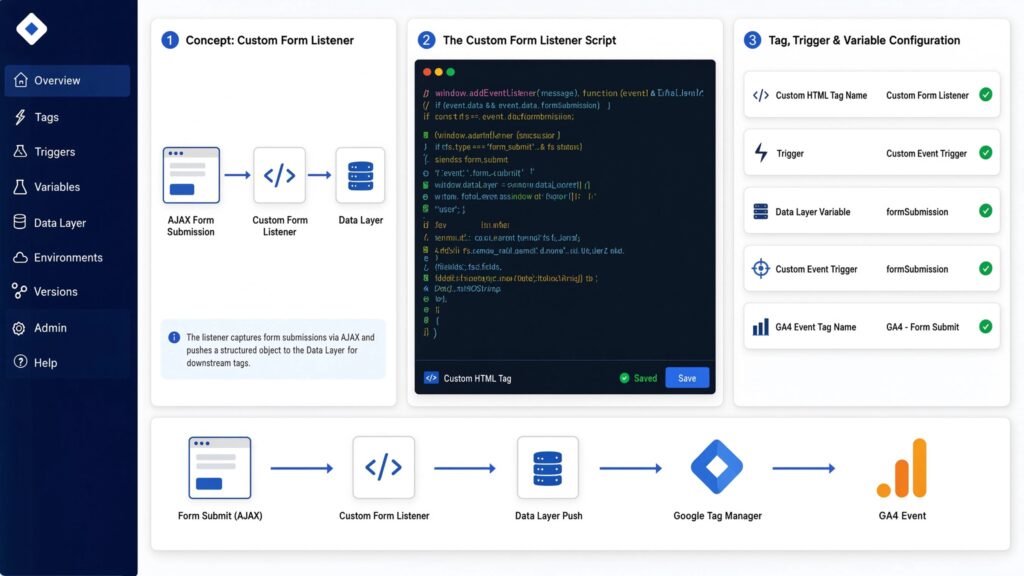
Standard GTM form submit triggers often fail on AJAX-based forms or embedded popups because they don’t generate a traditional page reload.
A listener code acts like a “catcher’s mitt.” It sits silently on your website, watching the window for form activity. When a submission succeeds, it catches the event data and pushes it cleanly into the Data Layer.
The Custom Form Listener Script
Deploy this script in Web GTM as a Custom HTML Tag triggered on DOM Ready:
					<script>

(function() {

  // Listen for generic window postMessage events sent by AJAX forms

  window.addEventListener("message", function(event) {


    // Validate submission message structures

    if (event.data && (event.data.type === "form_submission_success" || event.data.status === "completed")) {


      var formPayload = event.data.payload || {};


      // Push structured event data into the Data Layer

      window.dataLayer.push({

        'event': 'custom_form_success',

        'form_id': formPayload.form_id || 'main_lead_form',

        'form_location': window.location.href,

        'user_data': {

          'email': formPayload.email || '',

          'phone': formPayload.phone || ''

        }

      });

    }

  });

})();

</script>
Tag, Trigger, and Variable Configuration:
- Custom HTML Tag Name: cHTML – Generic Form Listener
- Trigger: DOM Ready
- Data Layer Variable: dlv – user_data.email
- Data Layer Variable Name: user_data.email
- Custom Event Trigger: ce – custom_form_success
- Event Name: custom_form_success
- GA4 Event Tag Name: GA4 – custom_form_success
- Event Name: generate_lead
- Trigger: ce – custom_form_success
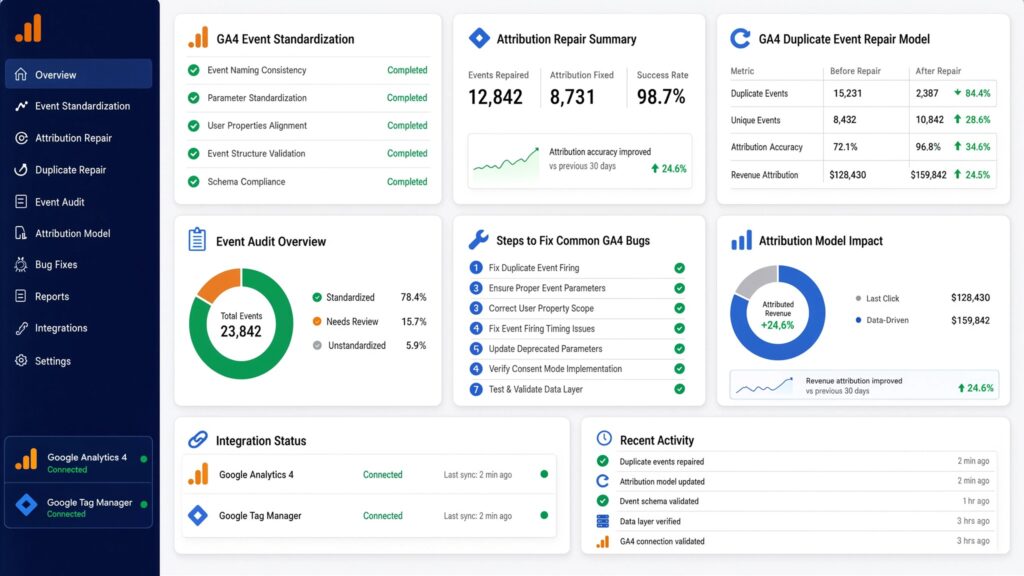
Phase 4: GA4 Event Standardization & Attribution Repair
A primary cause of inaccurate GA4 reporting is duplicate event triggers and broken session parameters.
					+------------------------------------------------------------------------------------+
|                         GA4 DUPLICATE EVENT REPAIR MODEL                           |
+------------------------------------------------------------------------------------+
| BROKEN CONFIGURATION:                                                              |
| 1. GA4 Enhanced Measurement Page View (Auto)  ---> Fires on Page Load               |
| 2. GTM Manual GA4 Page View Tag               ---> Fires on Page Load               |
| RESULT: 2x Page Views, 0% Bounce Rate, Distorted Session Counts                    |
|                                                                                    |
| PRECISION FIX:                                                                     |
| Disable GA4 Auto-Page Views in Admin ---> Fire 1 Standard GA4 Event via GTM        |
+------------------------------------------------------------------------------------+
Steps to Fix Common GA4 Bugs:
- Disable Duplicate Pageviews: Inside GA4 Admin, go to Data Streams > Web Stream > Enhanced Measurement. Click settings and disable automatic page views if you trigger page views manually via GTM.
- Preserve Campaign Parameters Across Domains: If your funnel uses third-party checkout or booking tools, add the destination domains to GA4 Configure Domain Settings to prevent self-referrals from overwriting your original traffic source.
- Register Custom Dimensions: Every parameter pushed to GA4 (e.g., form_id or user_type) must be registered under GA4 Admin > Custom Definitions > Custom Dimensions, or it will be ignored in standard reports.
For specialized e-commerce and third-party checkout fixes, read my detailed guide on Third-Party Checkout Conversion Tracking Services.
Phase 5: Server-Side GTM Setup (sGTM) on Stape
Setting up Server-Side GTM moves processing off the client’s device onto a dedicated server instance, shielding your data from ad blockers and browser restrictions.
					+------------------------------------------------------------------------------------+
|                         SERVER CONTAINER ROUTING STRUCTURE                         |
+------------------------------------------------------------------------------------+
| Web Browser (User)                                                                 |
|     |                                                                              |
|     v  (Sends encrypted HTTPS payload)                                             |
| Custom Tracking Domain: https://ss.yourdomain.com                                  |
|     |                                                                              |
|     +---> Stape.io Global sGTM Cloud Container                                     |
|              |                                                                     |
|              +---> Client Claims Request (GA4 Client Engine)                       |
|              |                                                                     |
|              +---> Transforms & Hashes PII (SHA-256)                               |
|              |                                                                     |
|              +---> Outgoing Vendor API Calls:                                      |
|                     |---> GA4 Backend Endpoint                                     |
|                     |---> Google Ads Conversion API (Enhanced)                     |
|                     |---> Meta Conversions API (CAPI)                              |
+------------------------------------------------------------------------------------+
1. Provision Your Server Container
- Create a Server Container inside Google Tag Manager.
- Set up an account on Stape using the appropriate link for your region:
- Paste your sGTM Container Config ID into Stape to launch your server instance.
2. Configure Custom Tracking Subdomain
To bypass browser restrictions, create a custom subdomain in your DNS manager (e.g., Cloudflare or GoDaddy):
- Record Type: CNAME
- Name / Host: ss (or metrics)
- Target / Value: Your unique Stape container domain endpoint.
Once verified, set your Web GTM GA4 Configuration Tag’s Server Container URL to https://ss.yourdomain.com.
3. Server-Side Google Ads Tags Setup
In your sGTM Container, create a Google Ads Conversion Tracking Tag:
- Set Conversion ID and Conversion Label.
- Map user variables (email, phone) passed from the GA4 transport event for Enhanced Conversions.
- Set the trigger to fire when the incoming GA4 Client claims the event (e.g., generate_lead or purchase).
To dive deeper into server-side e-commerce configurations, explore my full guide on Ecommerce Server-Side Tracking Services.
Testing & Validation Framework
Before pushing your optimized GTM container to production, test each component using the validation matrix below:
1. Container Speed
- Inspection Tool: Google PageSpeed Insights
- Required Test Action: Run performance test
- Target Success Outcome: Reduced JavaScript execution time and zero unparsed tag errors.
2. Consent State
- Inspection Tool: Developer Console
- Required Test Action: Inspect dataLayer on load
- Target Success Outcome: Privacy variables reflect denied prior to user interaction.
3. Listener Execution
- Inspection Tool: GTM Web Preview
- Required Test Action: Submit test form
- Target Success Outcome: custom_form_success event fires with clean user data payload.
4. sGTM Event Claims
- Inspection Tool: sGTM Preview Console
- Required Test Action: Fire test event from browser
- Target Success Outcome: Server container claims event and returns standard 200 HTTP code.
5. GA4 Parameter Verification
- Inspection Tool: GA4 DebugView
- Required Test Action: Perform test user journey
- Target Success Outcome: Parameters populate accurately without duplicate event triggers.
6. Google Ads Matching
- Inspection Tool: Google Ads Diagnostics
- Required Test Action: Review Conversion Actions
- Target Success Outcome: Enhanced Conversions report high diagnostic match quality scores.
Troubleshooting Common Analytics & GTM Errors
					+------------------------------------------------------------------------------------+
|                     COMMON ANALYTICS TROUBLESHOOTING MAP                           |
+------------------------------------------------------------------------------------+
|  [Issue] Unassigned GA4 Traffic  --> [Fix] Repair cross-domain settings & UTMs     |
|  [Issue] sGTM 404 Request Error  --> [Fix] Verify DNS CNAME pointing in Stape       |
|  [Issue] Missing Enhanced Matches--> [Fix] Apply SHA-256 hashing to user fields   |
+------------------------------------------------------------------------------------+
Problem 1: GA4 displays high “Unassigned” or “Direct” traffic in channel reports.
- Root Cause: Session breakages caused by missing UTM parameters on redirect URLs, or unconfigured cross-domain tracking across payment gateways.
- Solution: Ensure all marketing campaigns use standardized UTM parameters. In GA4 Stream Settings, add external domain destinations under Configure Your Domains to preserve session continuity.
Problem 2: Server GTM requests show 400 or 404 status codes in Preview Mode.
- Root Cause: The Server Container URL configured in Web GTM contains a typo, or DNS CNAME records have not fully propagated across global servers.
- Solution: Verify that your custom subdomain (e.g., [https://ss.yourdomain.com](https://ss.yourdomain.com)) resolves correctly. Check that the GA4 Client inside sGTM is active and configured to claim requests from your Web Measurement ID.
Problem 3: Google Ads flags Enhanced Conversions for missing or unhashed user data.
- Root Cause: User details (email or phone) are pushed into the Data Layer in plain text or format mismatches, causing the ad tag to drop the values.
- Solution: Normalize email addresses (trim spaces, convert to lowercase) before pushing to the Data Layer, or enable automatic hashing inside the sGTM Google Ads tag settings.
Conclusion
A misconfigured web analytics setup leads to wasted ad spend and faulty business reporting. Cleaning up your GTM container, fixing GA4 event schemas, and transitioning to server-side tracking turns messy data into a reliable strategic advantage.
By deploying custom form listeners, enforcing Consent Mode v2 with Cookiebot, and routing server requests through Stape, you bypass ad blockers, preserve customer privacy, and ensure 99% conversion precision across all your marketing channels.
Executive Summary by MD Niamul
Unoptimized GTM containers and misconfigured GA4 setups distort marketing performance and slow down websites. Implementing a 3-phase optimization framework—cleaning up Web GTM containers, deploying custom form listeners, setting up Consent Mode v2 via Cookiebot, and migrating to Server-Side GTM on Stape—restores accurate multi-touch attribution. This first-party server architecture bypasses ad blockers and browser restrictions, delivering 99% conversion precision to scale ad campaigns confidently.
1. What is precision GA4 optimization?
Precision GA4 optimization is the engineering process of auditing GTM containers, fixing duplicate event triggers, structuring custom parameters, and integrating server-side tracking to ensure 99% conversion measurement accuracy across marketing platforms.
2. How does a bloated GTM container slow down my website?
A bloated GTM container forces the user’s browser to execute unnecessary JavaScript lines, blocking page rendering, delaying DOM completion, and negatively impacting Google Search Console Core Web Vitals.
3. What is the role of Server-Side GTM?
Server-Side GTM (sGTM) acts as a secure intermediary between your website and third-party marketing vendors. It processes tracking data on a cloud server, bypassing ad blockers and extending cookie lifespans.
4. How does sGTM bypass browser ad blockers?
By routing tracking requests through a first-party subdomain (e.g., ss.yourdomain.com) hosted on Stape, requests appear as standard website traffic rather than third-party tracking scripts, allowing them to pass through ad blockers.
5. Why are my GA4 form submissions duplicating?
Duplicate form submissions occur when both an automatic GA4 Enhanced Measurement event and a manual GTM custom event fire on the same form submission action, doubling your metric counts.
6. What is Google Consent Mode v2?
Google Consent Mode v2 is a framework that adjusts how Google tags behave based on a user’s cookie consent status on a CMP like Cookiebot, ensuring regulatory compliance while preserving modeled conversion signals.
7. What is a GTM form listener script?
A GTM form listener is a custom JavaScript snippet that detects form submission events—especially on AJAX or iframe forms—and pushes normalized payload details cleanly into the Data Layer.
8. Why are my GA4 channels showing as Unassigned?
Traffic appears as “Unassigned” when GA4 cannot read traffic source parameters due to missing UTM tags, stripped session cookies, or broken cross-domain redirects across payment gateways.
9. What is Stape.io used for in server tracking?
Stape.io is a cloud infrastructure platform designed specifically to host sGTM containers simply, offering custom subdomain setup, automatic SSL certificates, and cost-effective server hosting.
10. How long does a full GA4 cleanup take?
A complete GA4 container audit, GTM cleanup, custom listener deployment, Consent Mode v2 integration, and sGTM setup typically takes 1 to 2 weeks to deploy and fully validate.
 Need Help Advanced GHL Automation & Tracking Setup?