
Quick Answer
When Meta puts a website in the Personal Hardship category, it limits the data the Pixel and website Conversions API can share. Lower-funnel events such as Lead, Schedule and Purchase can be suppressed, custom parameters are removed, and URLs are cut down. The compliant way to keep measuring lead quality is Conversions API for CRM: use Meta Instant Forms, store each lead’s Meta lead ID in GoHighLevel, and send every pipeline stage (booked, attended, qualified, paid consultation, instructed) back to Meta from the CRM. Meta can then optimise towards the leads that become clients, without any sensitive detail leaving your CRM.
Key Takeaways
- The restriction is about data, not ads: your ads can still run. What changes is which website events and details Meta will accept.
- Server-side is not a bypass: Meta applies the same rules to Pixel and website Conversions API events, so moving the same event to a server does not get it through.
- Instant Forms give you a clean key: every Instant Form lead has a Meta lead ID that ties later CRM stages back to the ad that produced it.
- Send outcomes, not stories: neutral stage names like
call_attendedand a lead ID tell Meta what happened without saying anything about the person’s situation. - Duplicates break learning: one contact, one opportunity and one event per stage keeps the signal clean.
- Prove it end to end: a test lead should move through every stage and appear in Events Manager before you change your campaign goal.
Introduction: Your Pixel Fires, but Meta Never Learns Who Became a Client
You run Meta ads for a UK family law firm. Leads arrive. The Pixel shows PageView events. Your GoHighLevel pipeline fills with names.
Then Meta tells you the website has been categorised as Personal Hardship. Lead and booking events stop arriving, and the Diagnostics tab says your data is restricted.
Meta can still find people who fill in forms. It just cannot tell which of them became paying clients.
That matters more than any reporting gap. A cheap lead who never answers the phone and a lead who books a paid consultation and instructs the firm look exactly the same to Meta. So Meta keeps finding more of the cheap kind.
In this guide I will show you the compliant setup I use for restricted categories: what Meta’s Personal Hardship restriction actually blocks, and how to send booked, attended, qualified and instructed outcomes from GoHighLevel back to Meta with Conversions API for CRM.
What Is Meta’s Personal Hardship Restriction?
Meta reviews the websites connected to each dataset (Pixel) and can place them in a sensitive data source category. The published categories include health and wellness, financial services, economic vulnerability, personal hardship, politics, race, religion, sexuality or gender identity, nationality and trade union membership. Meta says the list is not exhaustive.
A family law website often lands in Personal Hardship because its pages talk about divorce, separation, child arrangements or domestic abuse. Those are situations Meta does not want advertisers to learn about through tracking data.
Think of it like a receptionist who has been told not to repeat certain details. Meta will still hear that someone visited. It will not accept a note saying what they came about.
What It Blocks and What Still Works
| Area | Under the restriction |
|---|---|
| PageView and basic visit data | Usually still received |
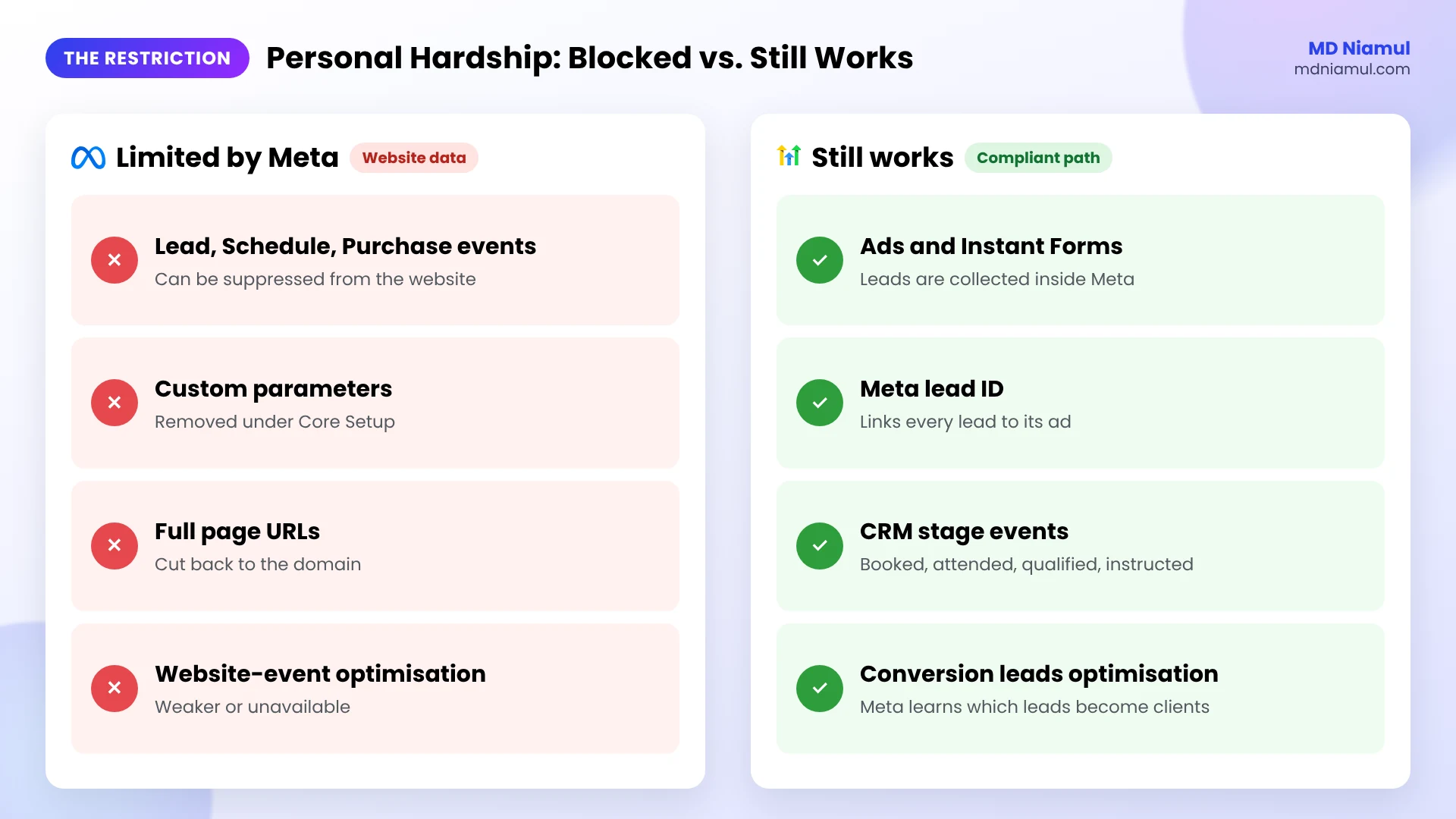
| Lead, Schedule, CompleteRegistration, Purchase from the website | Can be limited or suppressed |
| Custom parameters on events | Removed under Core Setup |
| Full page URLs and query strings | Cut back to the domain under Core Setup |
| Website-event audiences and conversion optimisation | Weaker or unavailable |
| Ads, reach and traffic objectives | Not affected by the data restriction itself |
| Instant Form leads | Collected inside Meta, so they do not depend on website events |
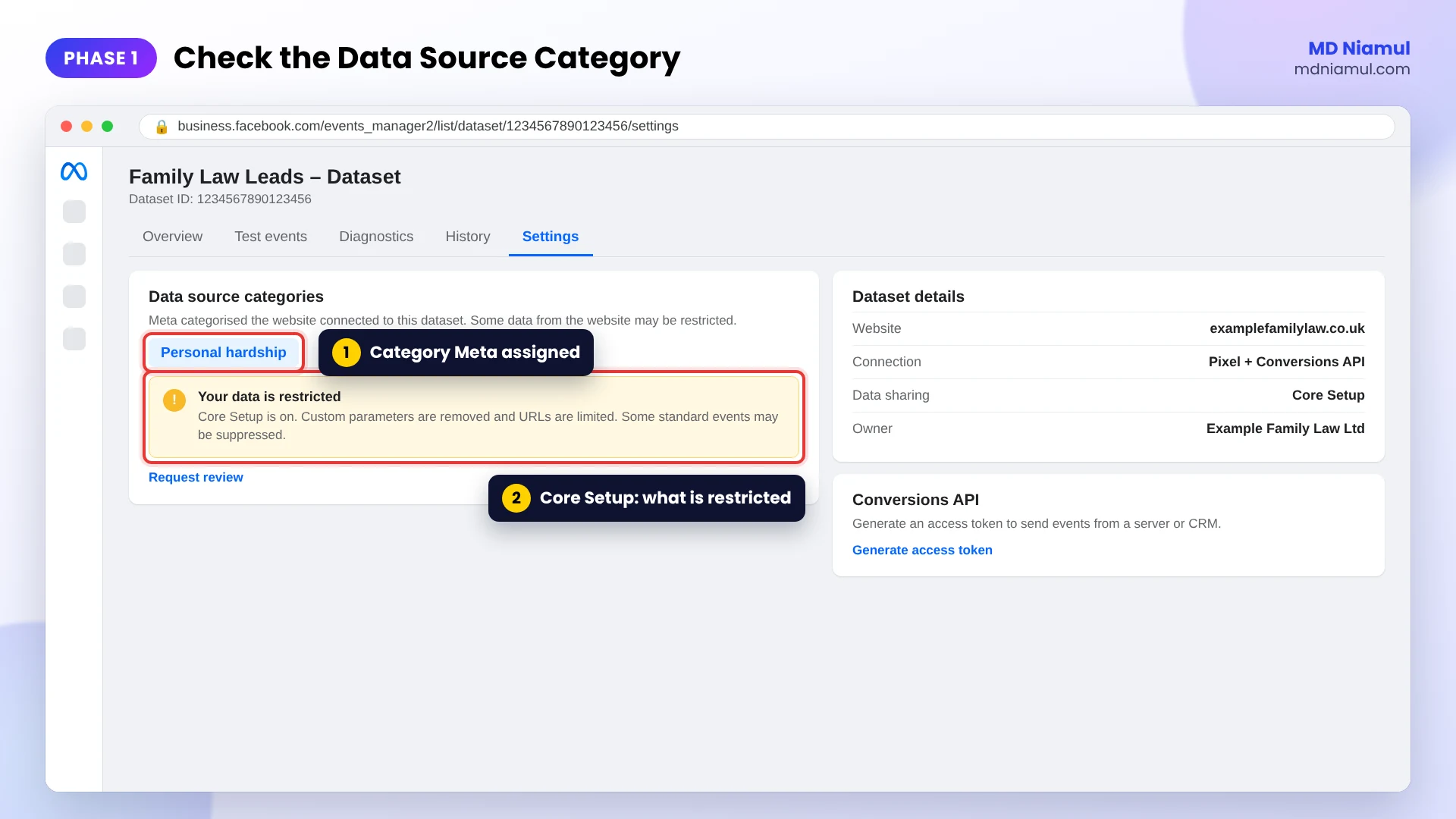
Core Setup is the mode Meta switches a restricted dataset into. You can see it in Events Manager when Diagnostics reports that your data is restricted.
What It Does Not Mean
It does not mean you need a new domain, a new Pixel or a trick to hide the website. Those approaches try to get around Meta’s rules, and they put the ad account at risk. It also does not mean server-side tracking solves the problem on its own. Meta checks the event and its contents, wherever the event comes from.
The aim is different: give Meta the business outcome it needs to optimise, and nothing sensitive.
The Compliant Solution: Conversions API for CRM
Conversions API for CRM (Meta also calls the setup Conversion Leads) is built for businesses whose real result happens after the form. Instead of website events, your CRM tells Meta how far each lead progressed.
It works because of one number. Every lead from a Meta Instant Form has a lead ID, a 15 to 17 digit number. GoHighLevel stores it on the contact. When the lead moves to a new stage, the CRM sends Meta the lead ID and the stage name. Meta already knows which ad produced that lead ID, so it can connect the outcome to the ad.
The event says “lead 1234567890123456 reached call_attended”. It does not say what the call was about, which page the person read or anything about their circumstances.
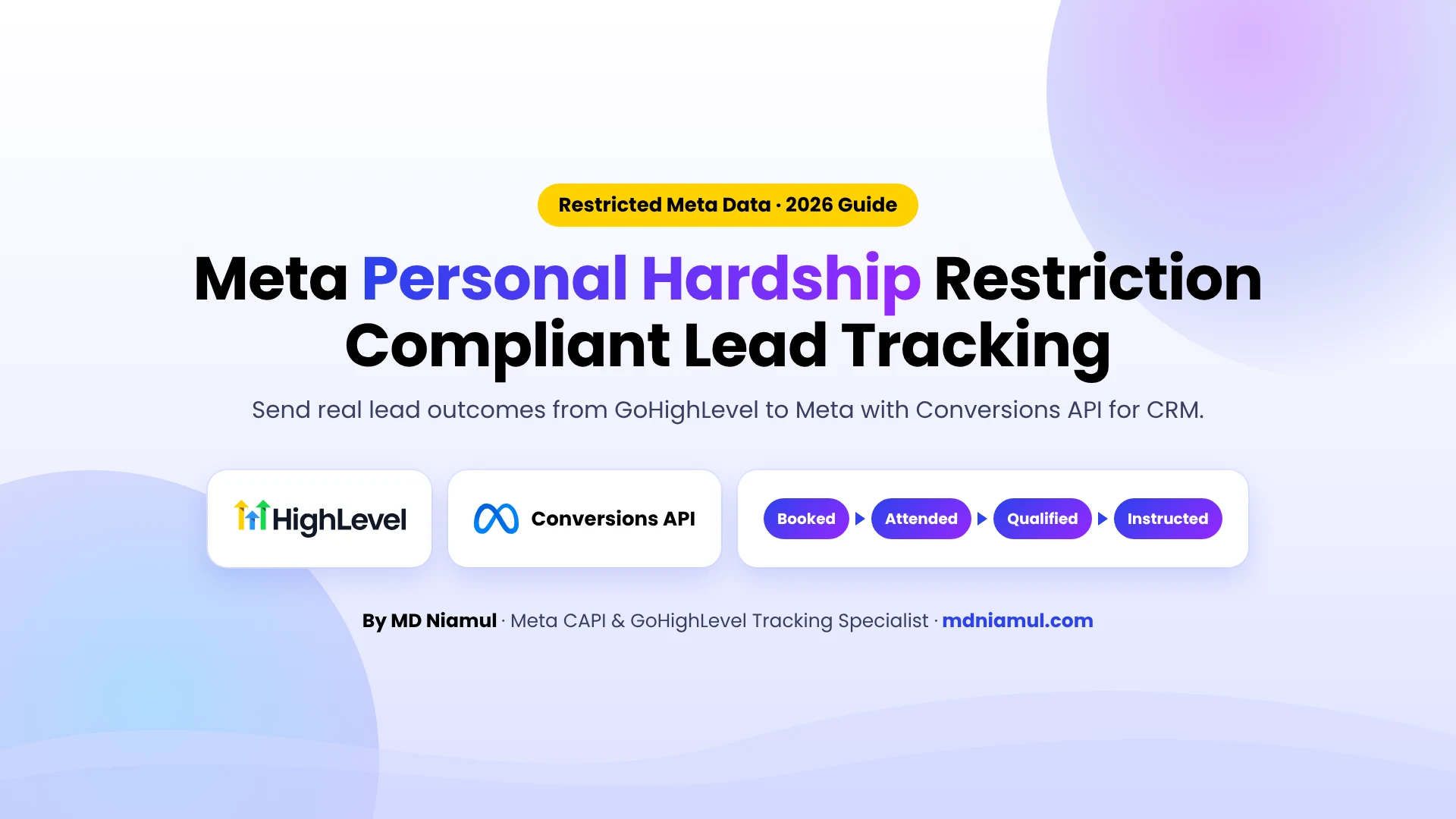
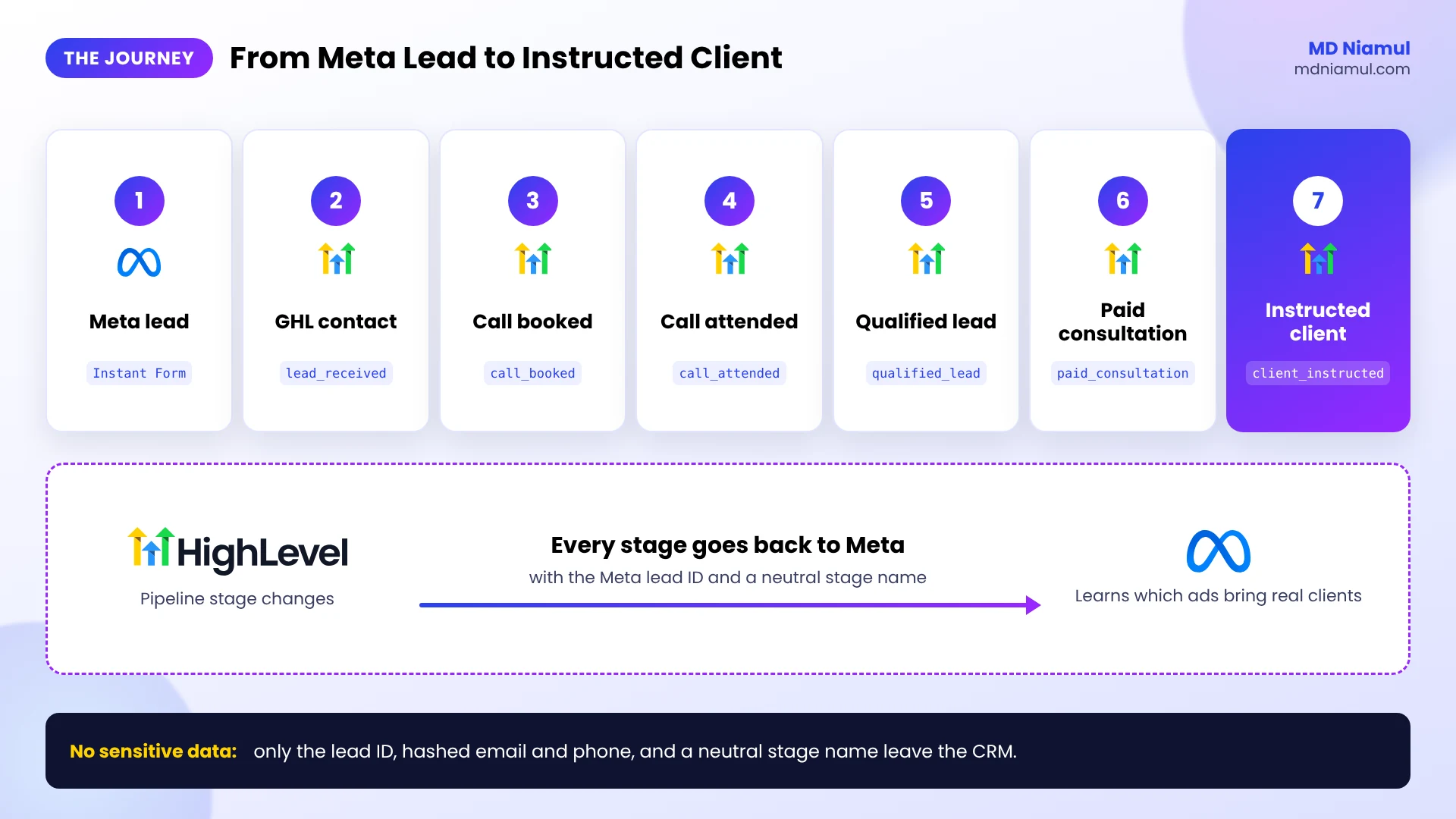
For this client the journey looks like this:
| # | Stage | Where it happens | Event sent to Meta |
|---|---|---|---|
| 1 | Meta lead | Instant Form | Recorded by Meta |
| 2 | GHL contact created | GoHighLevel | lead_received |
| 3 | Call booked | GHL calendar | call_booked |
| 4 | Call attended | GHL pipeline | call_attended |
| 5 | Qualified lead | GHL pipeline | qualified_lead |
| 6 | Paid consultation | GHL pipeline | paid_consultation |
| 7 | Instructed client | GHL pipeline | client_instructed |
Prerequisites & Setup Checklist
- Meta: admin access to the Business Portfolio, the dataset in Events Manager, the Facebook Page and the ad account.
- Lead source: campaigns using Meta Instant Forms, because Conversions API for CRM works with lead ad leads, not website form leads.
- GoHighLevel: admin access to the sub-account, the Facebook integration, Workflows, Pipelines and Business Profile settings.
- Volume: HighLevel’s setup guide lists Meta’s recommended minimum of about 250 leads a month for the optimisation to work well.
- A shared stage list: the firm’s team must agree what “attended”, “qualified” and “instructed” mean, and update the pipeline every day.
For a quick first look at what your landing page loads today, run it through my free Meta Pixel and CAPI checker.
Step-by-Step Implementation Guide
I work in a fixed order: audit, stage design, connection, pipeline, workflows, duplicate control, testing and handover. Each phase depends on the one before it.
Phase 1: Audit the Pixel, Dataset and GHL Integration
- In Events Manager, open the dataset and go to Settings. Find the Data source categories section and note the category Meta assigned.
- Open Diagnostics and write down every warning, such as restricted events or blocked parameters.
- Check which events still arrive on the Overview tab and which have stopped since the restriction.
- In GoHighLevel, go to Settings → Integrations and confirm the Facebook connection, the Page and the mapped Instant Forms.
- List every route that sends events to the same dataset: the Pixel on the landing page, any GHL tracking code, Zapier or Make scenarios, and other apps.
If you believe the website was miscategorised, you can request a review from Events Manager. Treat that as a separate track. A rejected review cannot be resubmitted for 30 days, so do not wait on it.
Phase 2: Design the Lead Stages and Clean Event Names
The stage names you choose become the event names Meta receives. Keep them neutral and about the process, never about the person.
| Use names like | Avoid names like |
|---|---|
call_booked |
divorce_call_booked |
qualified_lead |
domestic_abuse_case |
paid_consultation |
custody_consultation_paid |
client_instructed |
separation_client_signed |
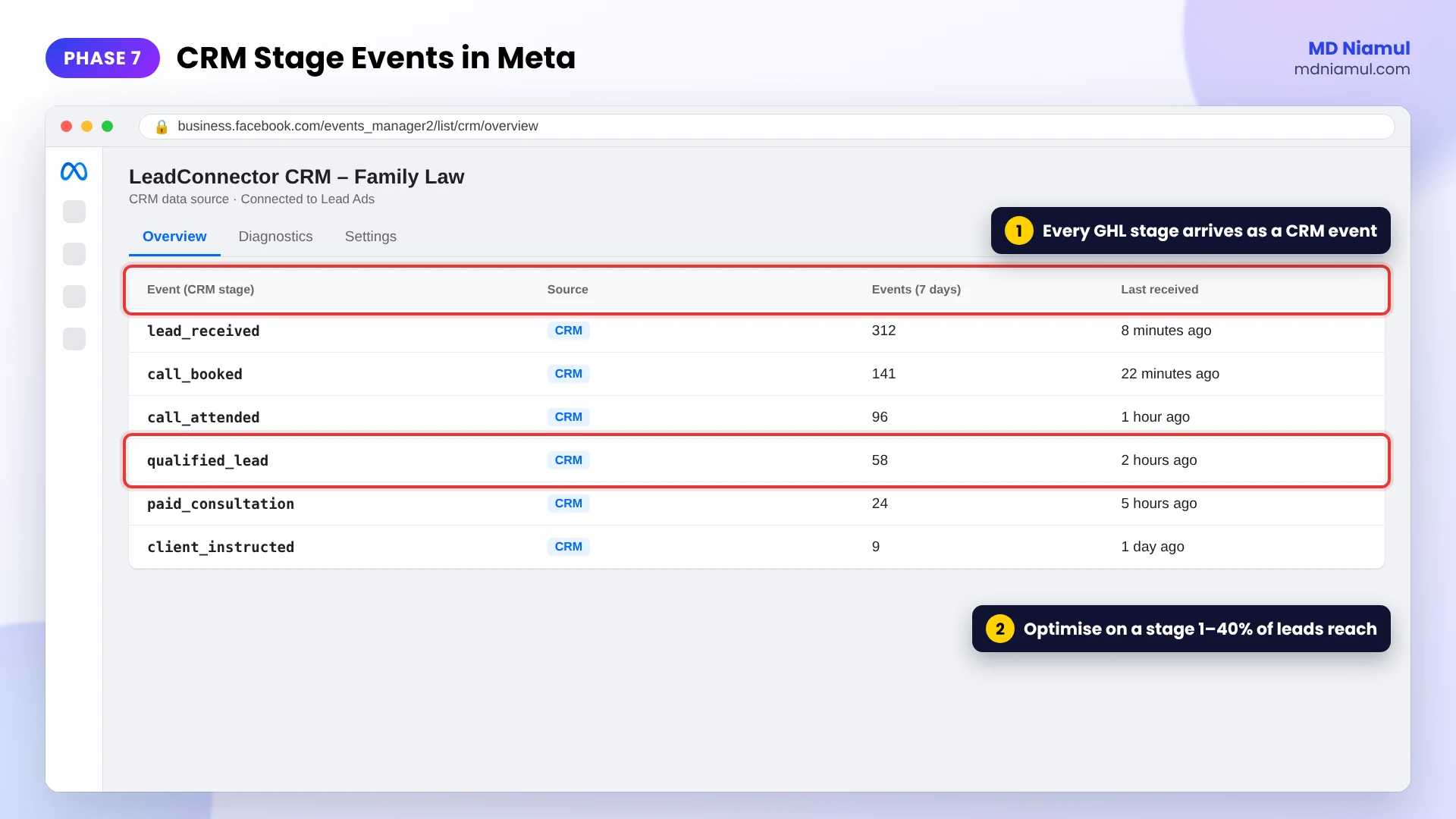
Then choose the stage Meta will optimise towards. Meta’s guidance is a stage that happens within 28 days of the lead and that between 1% and 40% of leads reach. For many firms that is qualified_lead or paid_consultation. client_instructed is usually too rare at first.
Phase 3: Connect GoHighLevel as Your CRM and Store the Lead ID
- In Events Manager, choose Connect data sources, select CRM, and pick LeadConnector as the CRM partner.
- In Events Manager, open the dataset’s Settings and click Generate access token. Copy the token and the dataset ID.
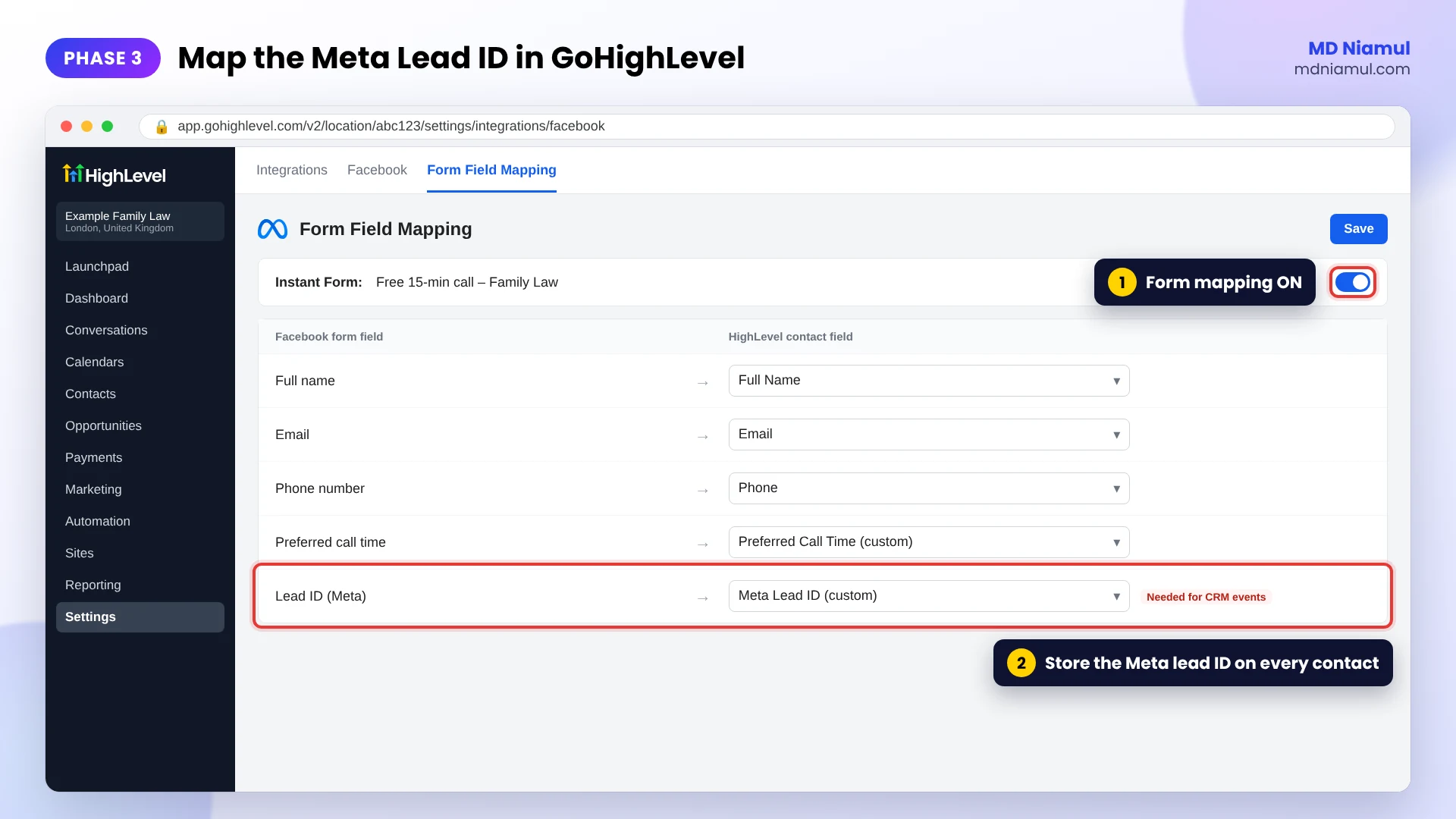
- In GoHighLevel, open the Facebook integration’s menu and choose Form Field Mapping.
- Turn the Instant Form on and map each question to a contact field. Make sure the Meta lead ID is stored on the contact.
Data minimisation: only map what the firm needs to call the person back. Keep sensitive answers inside the CRM. Meta never needs them.
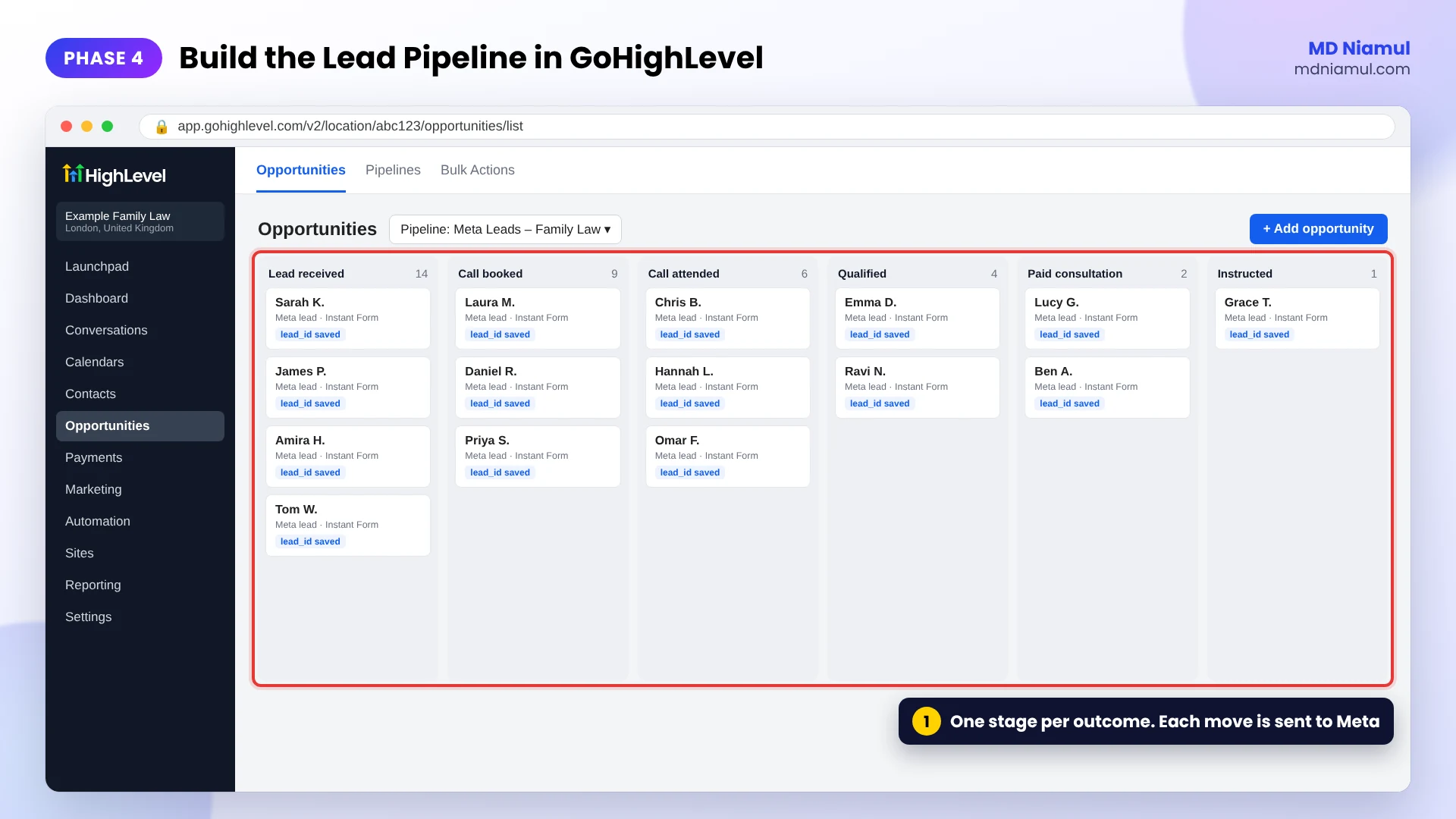
Phase 4: Build the Pipeline in GoHighLevel
- Go to Opportunities → Pipelines and create a pipeline for Meta leads.
- Add one stage for each step of the journey: Lead received, Call booked, Call attended, Qualified, Paid consultation, Instructed.
- Add a separate Not qualified or Lost stage so the team can close leads honestly without skipping stages.
- Agree who moves the card at each stage. Calendar bookings can move automatically. Attendance and qualification need a person.
Phase 5: Send Each Stage to Meta with GHL Workflows
Workflow 1: New lead
- Go to Automation → Workflows and create a workflow with the trigger Facebook Lead Form Submitted.
- Add the Create Opportunity action and place the lead in the Lead received stage.
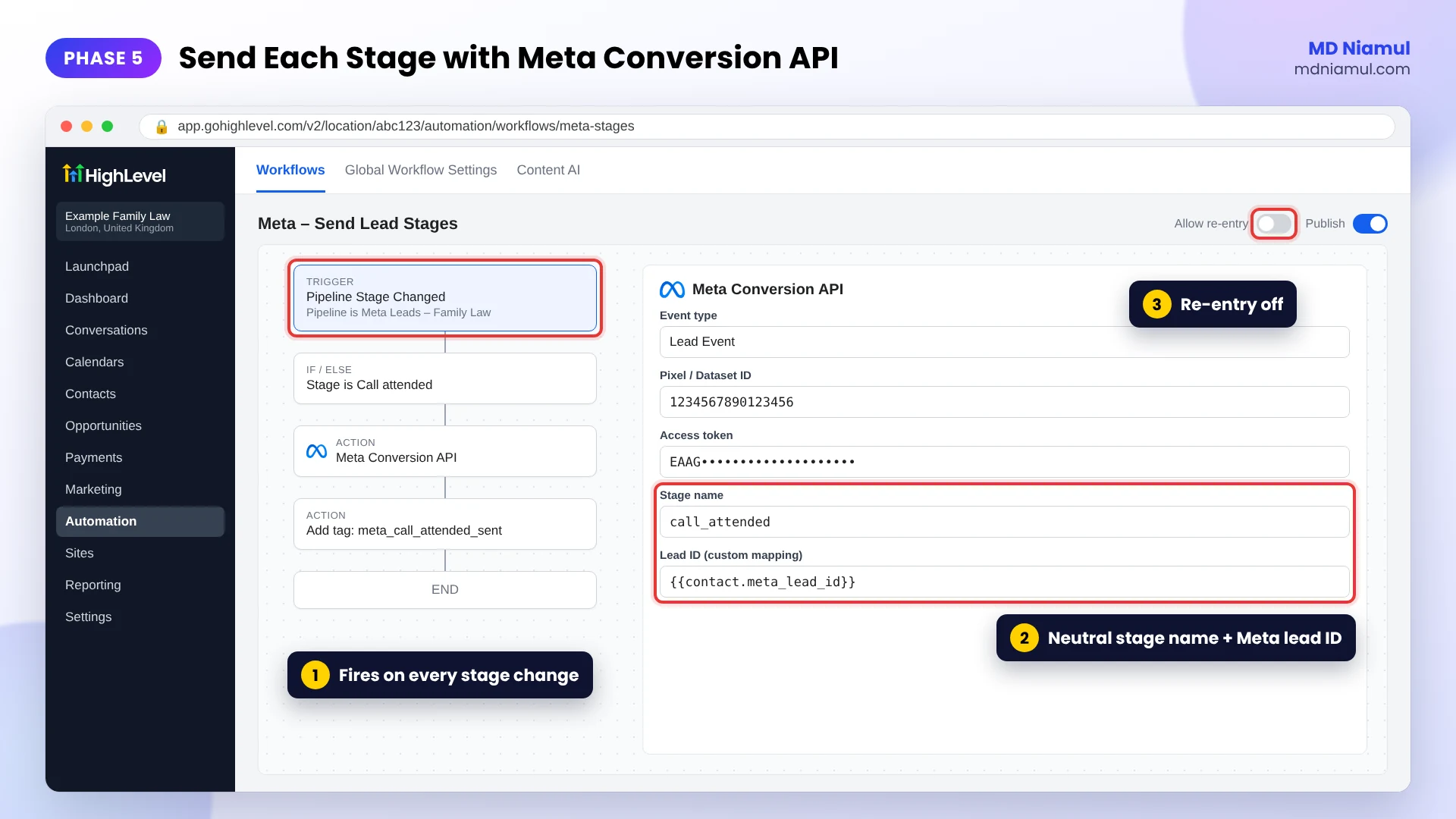
- Add the Meta Conversion API action, set the event type to Lead Event, and enter the access token, dataset ID and the stage name
lead_received.
Workflow 2: Stage changes
- Create a second workflow with the trigger Pipeline Stage Changed, filtered to the Meta leads pipeline.
- Add the Meta Conversion API action with event type Lead Event.
- Set the stage name from the pipeline stage, or add one branch per stage with the clean event names from Phase 2.
- For a booking made in the GHL calendar, move the opportunity to Call booked with an appointment trigger, so the booking reaches Meta as a CRM stage instead of a website Schedule event.
Under the hood, each stage becomes a small Conversions API event like the one below. It carries the lead ID, hashed contact details and the source labels Meta requires, and nothing else.
{
  "data": [
    {
      "event_name": "call_attended",
      "event_time": 1792050000,
      "action_source": "system_generated",
      "user_data": {
        "lead_id": 1234567890123456,
        "em": ["<SHA-256 hash of the lowercase email>"],
        "ph": ["<SHA-256 hash of the phone in 447700900123 format>"]
      },
      "custom_data": {
        "event_source": "crm",
        "lead_event_source": "GoHighLevel"
      }
    }
  ]
}
Note action_source is system_generated and event_source is crm. Those two values tell Meta this is a CRM stage update, not a website event. If you build the request yourself instead of using the GHL action, my free hashing code generator and free Meta CAPI payload builder help you check the format.
Phase 6: Prevent Duplicate Events, Contacts and Opportunities
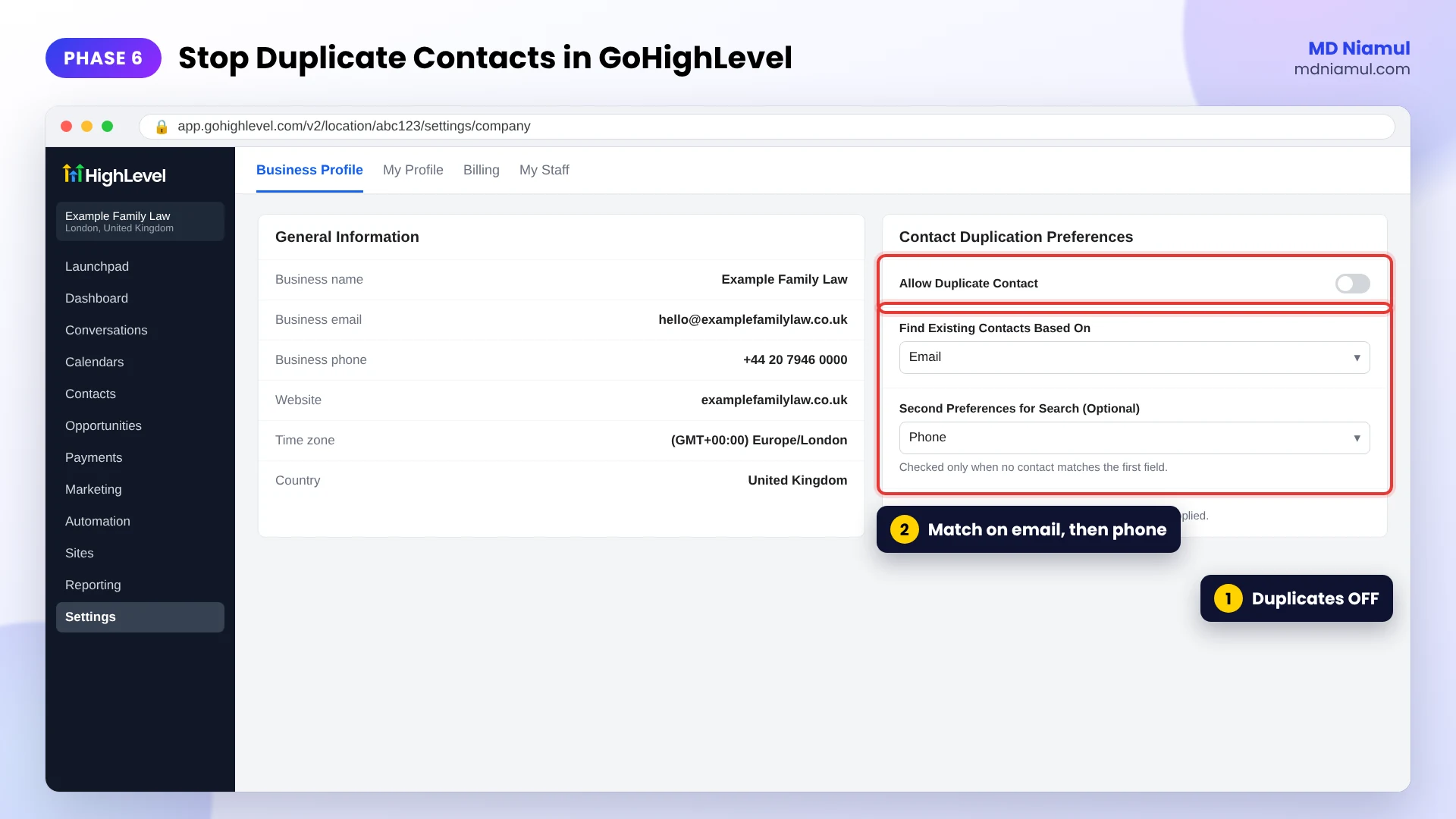
Duplicates do two kinds of damage. They inflate the numbers, and they teach Meta that a stage is easier to reach than it really is.
| Duplicate | How to prevent it |
|---|---|
| Contacts | Settings → Business Profile → Contact Duplication Preferences: turn Allow Duplicate Contact off, match on email first and phone second |
| Opportunities | Keep Allow Duplicate Opportunities off in the Create Opportunity action, so one contact has one card per pipeline |
| Stage events | Turn off re-entry on the stage workflow and send each stage once per lead |
| Lead events | Send the lead event from one place only, either Workflow 1 or another tool, never both |
| Website events | Remove extra Pixel codes so the landing page loads the Pixel once |
When a lead moves backwards, for example from Qualified back to Attended, do not send the earlier stage again. Meta reads stage events as progress.
Phase 7: Test the Full Journey and Prove It Works
- Open Meta’s Lead Ads Testing Tool, choose the Page and the Instant Form, and create a test lead.
- In GoHighLevel, confirm one contact and one opportunity were created, with the lead ID stored.
- Move the test opportunity through every stage and check that each workflow run shows as executed.
- In Events Manager, open the CRM data source and confirm each stage event arrived. Events can take some time to appear.
- Repeat with a second test lead using the same email to prove no duplicate contact is created.
Phase 8: Switch the Campaign Goal and Hand Over
- Send real CRM events every day. Meta’s CRM setup waits for about seven days of events before it is ready.
- In Ads Manager, create a Leads campaign with Instant Forms and choose the performance goal that optimises for conversion leads, with your chosen stage.
- Record a short video that walks through the pipeline, the two workflows, the Events Manager view and the test steps.
- Write a one-page note listing the stage names, the token owner and what to check each week.
The Full Data Flow at a Glance
| # | What happens | Where |
|---|---|---|
| 1 | Someone submits an Instant Form and Meta creates a lead ID | Meta lead ad |
| 2 | The lead arrives in GHL with the lead ID on the contact | GHL Facebook integration |
| 3 | Workflow 1 creates one opportunity and sends lead_received |
GHL Workflows |
| 4 | The team or calendar moves the card through the stages | GHL pipeline |
| 5 | Workflow 2 sends each stage with the lead ID | Meta Conversion API action |
| 6 | Meta links each stage to the ad that produced the lead | Events Manager |
| 7 | The campaign optimises towards leads that reach your chosen stage | Ads Manager |
Testing & Validation Workflow
- Test lead. Create one with the Lead Ads Testing Tool and confirm it reaches GHL with the lead ID.
- Stage walk. Move it through every stage and confirm one workflow run per stage.
- Events Manager. Confirm each stage event arrives on the CRM data source.
- Duplicate test. Submit the same email again and confirm the existing contact is updated.
- Payload check. Confirm no event name, field or URL contains sensitive words.
- Daily flow. For the first two weeks, check that real stage events arrive every day.
- Stage rates. After a month, compare how many leads reach each stage and confirm your optimisation stage sits between 1% and 40%.
Troubleshooting Common Mistakes
Mistake 1: Stage events are rejected
The Problem: the workflow runs, but Meta does not accept the event.
The Cause: the lead ID is missing or wrong, or the event time is earlier than the lead itself.
The Solution: check the lead ID field on the contact, and make sure events are sent when the stage changes, not backdated.
Mistake 2: Website leads never reach Meta as CRM events
The Problem: leads from the landing page form show in GHL but not in Meta’s CRM view.
The Cause: Conversions API for CRM works with Instant Form leads that carry a Meta lead ID. Website form leads have none.
The Solution: run the main campaigns on Instant Forms. For website leads, send a standard Conversions API event with hashed contact details and the click ID, and accept that the category rules still apply to it.
Mistake 3: Meta reports more leads than GHL
The Problem: lead counts do not match.
The Cause: two tools send the lead event, or the workflow allows re-entry.
The Solution: keep one sender for each event and turn off re-entry.
Mistake 4: Conversion leads optimisation never becomes available
The Problem: Ads Manager still waits for CRM data.
The Cause: events are not sent every day, test events were counted on, or only one stage is being sent.
The Solution: send real events daily, include at least two stages, and give it a full week of data.
Mistake 5: The team forgets to move the cards
The Problem: few leads ever reach Attended or Qualified.
The Cause: stage changes depend on people, and nobody owns them.
The Solution: automate what you can, such as bookings and no-shows, and make one person responsible for daily updates.
What to Set Up Next
- Track the rest of the funnel. See my guide to GoHighLevel conversion tracking for law firms.
- Server-side for the website. Read Meta Pixel and Conversions API with server-side GTM and Stape.
- Google Ads too. Follow Google Ads offline conversion tracking with GoHighLevel.
- Check your consent. Test the landing page with the free Consent Mode checker.
If you want this built for your firm, see my work as a Facebook Conversions API specialist and GoHighLevel conversion tracking specialist.
Conclusion
The Personal Hardship restriction does not stop your ads. It stops Meta learning from your website about people in difficult situations, and that is the point of the rule.
Your next three moves are clear. First, audit the dataset and find every route that sends events. Second, build a clean GoHighLevel pipeline that stores the Meta lead ID. Third, send each stage back to Meta with neutral names and prove it with a test lead.
Meta does not need to know why someone called a family lawyer. It only needs to know which ads bring the people who become clients.
Summary by MD Niamul
Meta’s Personal Hardship data source category limits what a website’s Pixel and Conversions API can share. Lower-funnel events such as Lead and Schedule can be suppressed, and under Core Setup custom parameters are removed and URLs are cut back. Server-side tracking does not bypass this, because Meta applies the rules to every delivery method. The compliant fix for a law firm using Meta Instant Forms and GoHighLevel is Conversions API for CRM: store the Meta lead ID on each contact, build a pipeline for booked, attended, qualified, paid consultation and instructed stages, and send each stage to Meta with the GHL Meta Conversion API workflow action, using neutral event names, action_source system_generated and event_source crm. Prevent duplicates with GHL contact deduplication, one opportunity per contact and no workflow re-entry, then test with the Lead Ads Testing Tool before optimising for conversion leads.
Frequently Asked Questions (FAQ)
1. What is Meta’s Personal Hardship restriction?
It is one of Meta’s sensitive data source categories. When Meta places a website in it, the dataset’s Pixel and website Conversions API data are limited. Lower-funnel events such as Lead and Schedule can be suppressed, and under Core Setup custom parameters are removed and URLs are cut back to the domain. The aim is to stop advertisers learning about people’s difficult circumstances. Ads themselves can still run.
2. Why would a family law website be flagged?
Family law pages often describe divorce, separation, child arrangements, financial disputes or domestic abuse. Meta’s automated review reads the website and the event data connected to the dataset, and these topics fit its Personal Hardship category. The flag is about the content of the site, not about the firm doing anything wrong. If you believe the category is wrong, you can request a review in Events Manager, but plan your tracking as if the restriction stays.
3. Does server-side tracking get around the restriction?
No. Meta applies the category rules to the event and its contents, whether it comes from the browser Pixel or from the website Conversions API. Moving the same event to a server does not change what it says. Server-side tracking still helps with reliability and data quality, but the compliant answer for lead quality is to send CRM stage outcomes that contain no sensitive detail.
4. What is Conversions API for CRM?
It is Meta’s way for a CRM to report what happened to a lead after the form. Each event carries the Meta lead ID, a stage name such as qualified_lead, action_source set to system_generated and event_source set to crm. Meta links the stage to the ad that produced the lead, so campaigns can optimise for leads that progress, not just leads that submit a form. It is designed for Instant Form leads.
5. How do I send booked, attended and qualified outcomes from GHL?
Store the Meta lead ID on the contact, create a pipeline with one stage per outcome, and build two workflows. The first runs on Facebook Lead Form Submitted, creates the opportunity and sends the lead stage. The second runs on Pipeline Stage Changed and sends the new stage through the Meta Conversion API action. Calendar bookings can move the card automatically, while attended and qualified are set by the team.
6. Which stage should Meta optimise for?
Pick a stage that happens within 28 days of the lead and that between 1% and 40% of leads reach. For many law firms that is the qualified lead or paid consultation stage. The instructed client stage is often too rare at first, and the booked stage can be too easy to reach. Review the stage rates after a month of real data and adjust if needed.
7. How do I prevent duplicate Meta events and GHL contacts?
Turn off Allow Duplicate Contact in GoHighLevel’s Contact Duplication Preferences and match on email first, then phone. Keep duplicate opportunities off so each contact has one card per pipeline. Turn off re-entry on the stage workflow so each stage is sent once per lead, and make sure only one tool sends the lead event. Remove extra Pixel codes from the landing page so it loads once.
8. What access does a specialist need for this setup?
Usually partner access to the Meta Business Portfolio with control of the dataset, the Facebook Page and the ad account, plus admin access to the GoHighLevel sub-account. Access to the landing page builder helps if the Pixel needs cleaning. Access should be granted through Business Settings and GHL user roles rather than by sharing passwords, and removed after the handover.
9. Can website form leads use Conversions API for CRM?
Not in the same way. Conversions API for CRM relies on the Meta lead ID that only Instant Form leads have. Leads from a landing page form can still be sent as standard Conversions API events with hashed email, phone and the Meta click ID, but those events remain subject to the category restrictions. That is why restricted advertisers usually run their main lead campaigns on Instant Forms.
10. How long until Meta can optimise on CRM stages?
Meta needs a steady flow of real events first. Send stage updates at least once a day, include more than one stage, and expect about a week before the CRM data source is ready. HighLevel’s guide also lists around 250 leads a month as Meta’s recommended volume. Results in the campaign itself usually take longer, because Meta needs enough conversions at your chosen stage to learn from.
 Need Help Advanced GHL Automation & Tracking Setup?