
Quick Answer
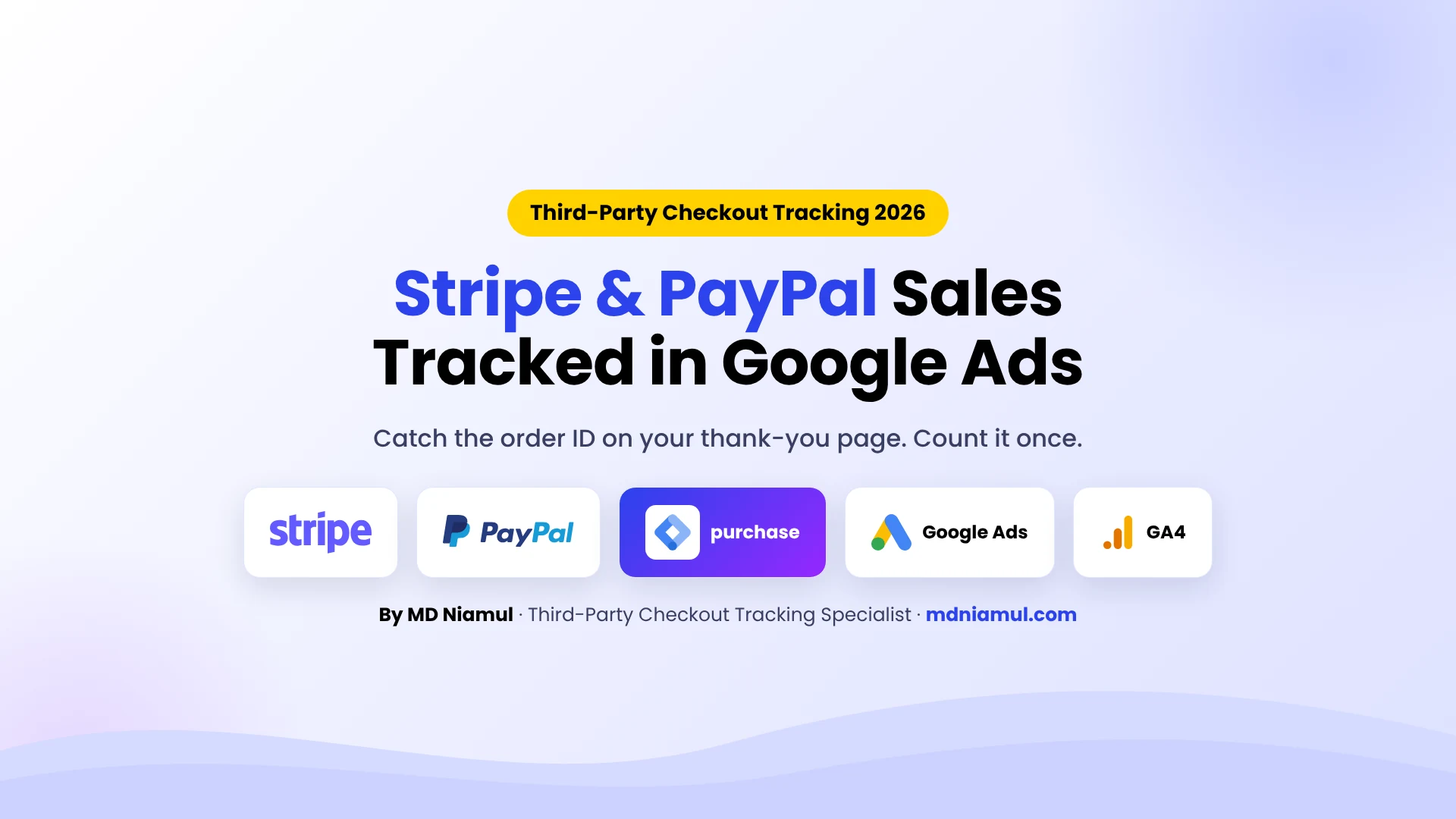
Stripe Google Ads conversion tracking works when the buyer comes back from Stripe or PayPal to a thank-you page on your own site with the order ID in the URL. In Stripe, set the Payment Link or Checkout redirect to ?session_id={CHECKOUT_SESSION_ID}. In PayPal, turn on Auto Return and Payment Data Transfer so PayPal adds tx. A Google Tag Manager (GTM) tag on that page reads the ID once, pushes a purchase event, and fires Google Ads, Google Analytics 4 (GA4) and Meta with the value and a transaction ID.
Key Takeaways
- The payment happens off your site: GTM can’t run on checkout.stripe.com or paypal.com, so the sale has to be caught when the buyer returns.
- Stripe gives you the ID: Stripe’s docs say you can put
{CHECKOUT_SESSION_ID}in the redirect URL, and UTMs on a Payment Link are carried to that URL. - PayPal needs two settings: Auto Return and Payment Data Transfer, which sends the transaction ID as
txto your Return URL. - Use a transaction ID in Google Ads: Google counts a second conversion with the same ID as a duplicate. The ID can be up to 64 characters.
- Reloads must not count twice: the tracker in this guide remembers each order ID in the browser and skips repeats.
- Some buyers never return: closed tabs and delayed bank payments need a server-side backup through Stripe’s API or webhooks.
Introduction The Sale Happened, but Google Ads Shows Nothing
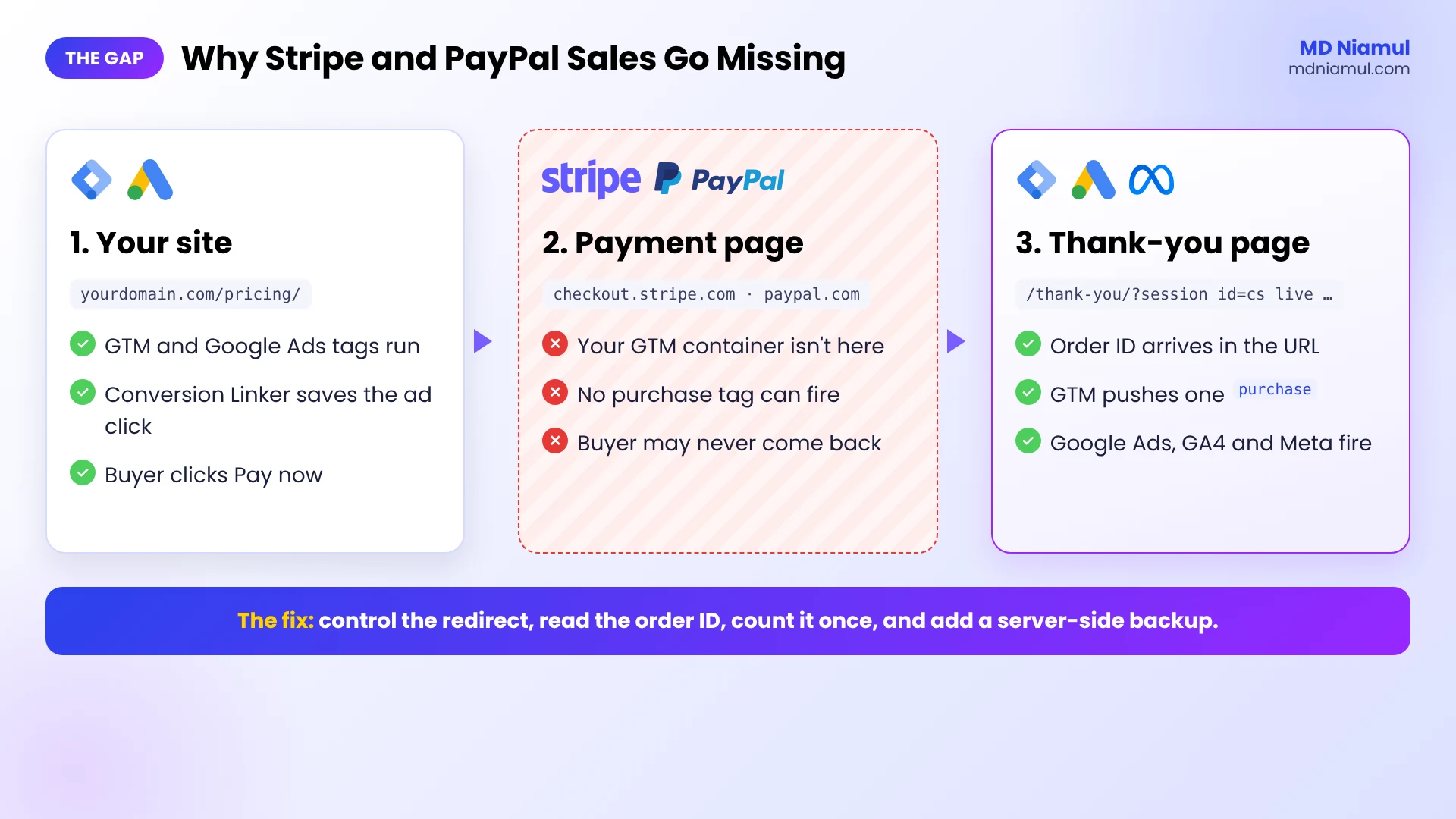
The message I get most often from clients who sell through Stripe goes like this: “Stripe shows sales every day, but Google Ads shows almost none, and GA4 says the revenue came from stripe.com.” The ads are usually fine. The tracking stops at the payment page.
This happens on almost every site that sells through Stripe Payment Links, Stripe Checkout or PayPal buttons. The buyer leaves your domain to pay. Your GTM container isn’t on the payment page, so nothing fires there. If the buyer comes back at all, it’s often to a generic page with no order details, or to Stripe’s own confirmation screen.
The fix isn’t complicated, but it has to be done in the right order: control where the buyer lands after paying, read the order ID there, count it once, and send it to every ad platform with the same ID. I already wrote a Stripe guide focused on GA4 and a general third-party checkout guide. This one is about getting Stripe and PayPal sales into Google Ads with real values, with tested code.
Where Each Checkout Sends the Buyer Back
| Checkout | Where you set the return page | What arrives in the URL | Value in the URL? |
|---|---|---|---|
| Stripe Payment Link | Payment link → After the payment → redirect to your website | session_id if you add {CHECKOUT_SESSION_ID}, plus the link’s UTMs |
Only if you add it yourself, like &value=49 |
| Stripe Checkout (API) | The success_url your developer sets |
session_id with the same template |
Only if your developer adds it |
| PayPal Payments Standard | Account settings: Auto Return, Return URL and Payment Data Transfer | tx, and on many accounts amt, cc and st |
Often, through amt |
| PayPal JavaScript SDK buttons | Your own onApprove code |
Whatever your code adds, for example paypal_order |
Only if your code adds it |
Prerequisites & Setup Checklist
- Google Tag Manager on every page of your site, including the thank-you page.
- A thank-you page on your domain, for example
/thank-you/, that isn’t linked from your menu. - Access to the Stripe Dashboard (Payment Links) or the developer who set up Stripe Checkout.
- PayPal business account access, if you sell with PayPal buttons.
- A Google Ads purchase conversion action set up with “Use different values for each conversion”.
- A GA4 property and, if you run Meta ads, a Meta Pixel.
- Stripe test mode and a PayPal sandbox account for testing.
Not sure what’s already firing on your site? Run it through my free tracking audit tool before you start.
Video Tutorial Walkthrough
In the video I explain why Stripe, PayPal and other external gateways break purchase tracking, and how GTM, custom code, server-side tracking, Conversions APIs, CRM data, automation, Looker Studio and Consent Mode fit together around the checkout.
Step-by-Step Implementation Guide
Eight phases. Phases 1 to 6 get every returning buyer into Google Ads, GA4 and Meta. Phases 7 and 8 catch the buyers who don’t come back.
Phase 1: Send Buyers Back to a Thank-You Page You Control
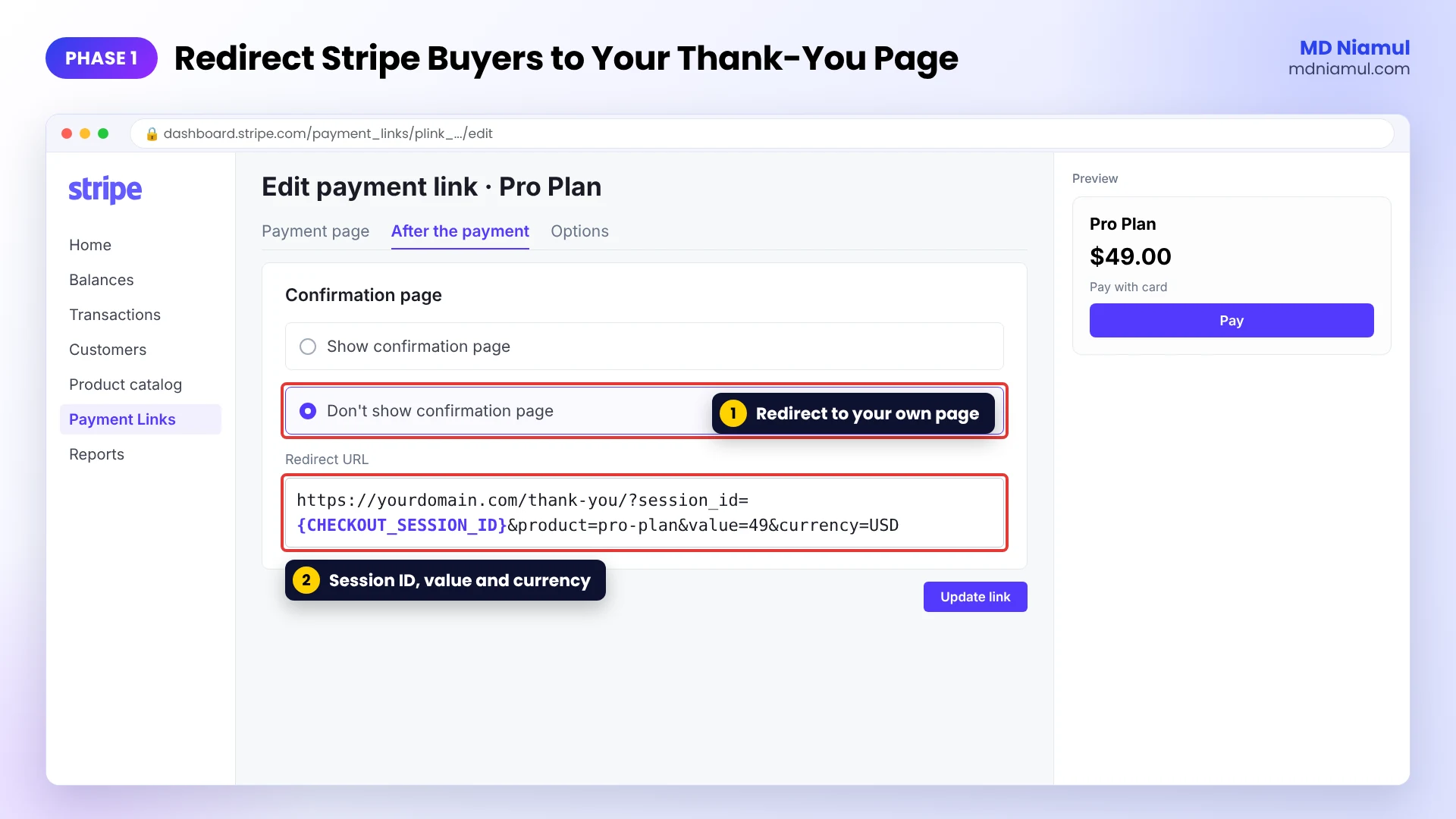
- Stripe Payment Link: open the link in the Stripe Dashboard, click After the payment, and choose to redirect customers to your website instead of showing Stripe’s confirmation page.
- Use a redirect URL like
https://yourdomain.com/thank-you/?session_id={CHECKOUT_SESSION_ID}&product=pro-plan&value=49¤cy=USD. Stripe swaps{CHECKOUT_SESSION_ID}for the real session ID. The product, value and currency are fixed text you add per link. - Stripe Checkout through the API: ask your developer to put the same template in
success_url, and to add the real amount asvalueif the price changes per order. - PayPal Payments Standard: in your PayPal account go to Website preferences, turn on Auto Return, set the Return URL to your thank-you page, and turn on Payment Data Transfer. PayPal then sends the transaction ID as
tx. - PayPal JavaScript SDK buttons: in your
onApprovecode, after the capture succeeds, redirect to/thank-you/?paypal_order=ORDER_ID&value=AMOUNT¤cy=USD.
Phase 2: Stop Stripe and PayPal from Taking the Credit in GA4
- In GA4, go to Admin → Data streams → your web stream → Configure tag settings → List unwanted referrals.
- Add
checkout.stripe.com,stripe.com,paypal.comand any other payment domain your buyers pass through. - Check that the Conversion Linker tag fires on all pages in GTM, so the Google Ads click cookie is on your domain before the buyer leaves.
Google Ads matches the purchase with its own first-party cookie on your domain, so it doesn’t care about the referral. GA4 does. Without this step, GA4 reports your Google Ads revenue as “stripe.com / referral”.
Phase 3: Add the Purchase Tracker in GTM
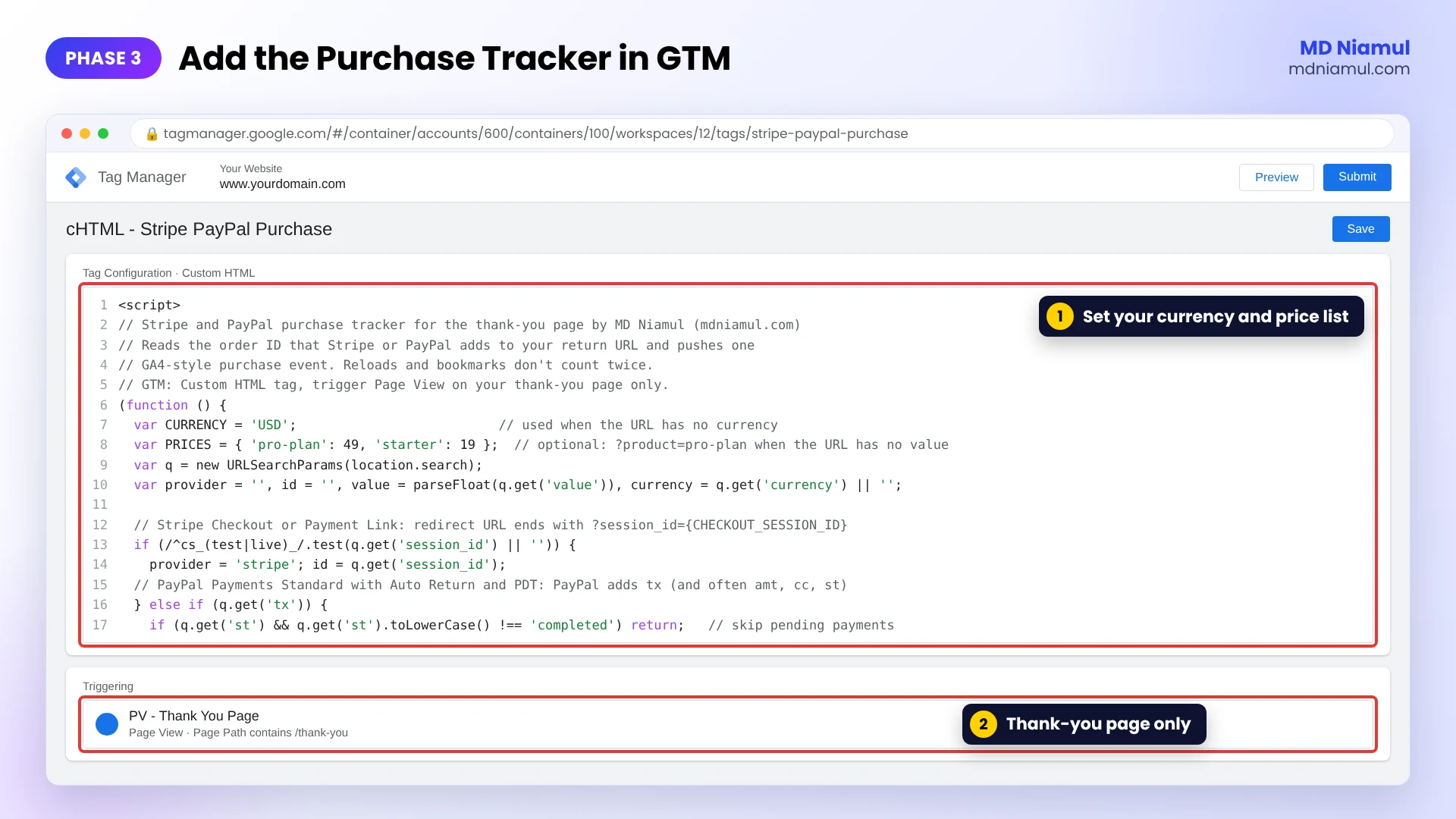
- In GTM, go to Tags → New → Custom HTML and paste the code below.
- Change
CURRENCYto your store currency, and fillPRICESonly if some redirect URLs have a product name but no value. - Create a trigger: Page View, fires on Page Path contains
/thank-you. Use it for this tag only. - Name the tag cHTML – Stripe PayPal Purchase and save.
<script>
// Stripe and PayPal purchase tracker for the thank-you page by MD Niamul (mdniamul.com)
// Reads the order ID that Stripe or PayPal adds to your return URL and pushes one
// GA4-style purchase event. Reloads and bookmarks don't count twice.
// GTM: Custom HTML tag, trigger Page View on your thank-you page only.
(function () {
  var CURRENCY = 'USD';                          // used when the URL has no currency
  var PRICES = { 'pro-plan': 49, 'starter': 19 };  // optional: ?product=pro-plan when the URL has no value
  var q = new URLSearchParams(location.search);
  var provider = '', id = '', value = parseFloat(q.get('value')), currency = q.get('currency') || '';

  // Stripe Checkout or Payment Link: redirect URL ends with ?session_id={CHECKOUT_SESSION_ID}
  if (/^cs_(test|live)_/.test(q.get('session_id') || '')) {
    provider = 'stripe'; id = q.get('session_id');
  // PayPal Payments Standard with Auto Return and PDT: PayPal adds tx (and often amt, cc, st)
  } else if (q.get('tx')) {
    if (q.get('st') && q.get('st').toLowerCase() !== 'completed') return;   // skip pending payments
    provider = 'paypal'; id = q.get('tx');
    if (isNaN(value)) value = parseFloat(q.get('amt'));
    currency = currency || q.get('cc') || '';
  // PayPal JS SDK buttons: your onApprove code redirects to ?paypal_order=<order ID>
  } else if (q.get('paypal_order')) {
    provider = 'paypal'; id = q.get('paypal_order');
  }
  if (!id) return;
  id = id.slice(0, 64);   // Google Ads accepts transaction IDs up to 64 characters

  var product = q.get('product') || '';
  if (isNaN(value)) value = PRICES[product] || 0;

  // Count each order once, even if the page is reloaded or bookmarked.
  var seen = [];
  try { seen = JSON.parse(localStorage.getItem('mdn_orders') || '[]'); } catch (e) {}
  if (seen.indexOf(id) > -1) return;
  seen.push(id);
  try { localStorage.setItem('mdn_orders', JSON.stringify(seen.slice(-50))); } catch (e) {}

  window.dataLayer = window.dataLayer || [];
  window.dataLayer.push({ ecommerce: null });   // clear the previous ecommerce object
  window.dataLayer.push({
    event: 'purchase',
    checkout_provider: provider,
    ecommerce: {
      transaction_id: id,
      value: value,
      currency: (currency || CURRENCY).toUpperCase(),
      items: [{ item_id: product || provider, item_name: product || provider + ' checkout', price: value, quantity: 1 }]
    }
  });
})();
</script>
In plain words: the tag looks for a Stripe Checkout session ID (it always starts with cs_test_ or cs_live_), a PayPal tx, or your own paypal_order. It skips PayPal payments marked as pending. It takes the value from the URL, or from your price list. It cuts the ID to 64 characters, because that’s the Google Ads limit. Then it checks whether this order was already counted in this browser, and only pushes purchase the first time.
I tested it in a headless browser: a Stripe test session with a value, a Stripe session using the price list, a reload of the same page (not counted again), a PayPal PDT return, a pending PayPal payment (skipped), a PayPal JS SDK return, a fake session_id (ignored), a 74-character ID (cut to 64), a plain visit with no ID, and a browser with storage blocked. All passed with no errors.
Phase 4: Create the Variables and the Purchase Trigger
- Create four Data Layer Variables:
ecommerce.transaction_id,ecommerce.value,ecommerce.currencyandcheckout_provider. - Create a trigger: Custom Event, event name
purchase. Call it CE – purchase. - If your site already pushes a
purchaseevent for other orders (WooCommerce, Shopify), add a condition so this trigger only fires whencheckout_provideris not empty.
Phase 5: Fire Google Ads, GA4 and Meta on the Purchase
- Google Ads: add a Google Ads Conversion Tracking tag with your purchase conversion ID and label. Set Conversion Value to the value variable, Transaction ID to the transaction ID variable, and Currency Code to the currency variable. Trigger: CE – purchase.
- GA4: add a Google Analytics: GA4 Event tag, event name
purchase, and tick Send Ecommerce data with data source Data Layer. - Meta: fire a
Purchaseevent withvalueandcurrency, and pass the transaction ID as the event ID. You’ll need that same ID for the Conversions API in Phase 7. - Keep the Conversion Linker on All Pages.
Google’s help page says that when two conversions arrive with the same transaction ID, the second one isn’t counted. That’s your safety net if the page ever fires twice in different browsers.
Phase 6: Test with Stripe Test Mode and the PayPal Sandbox
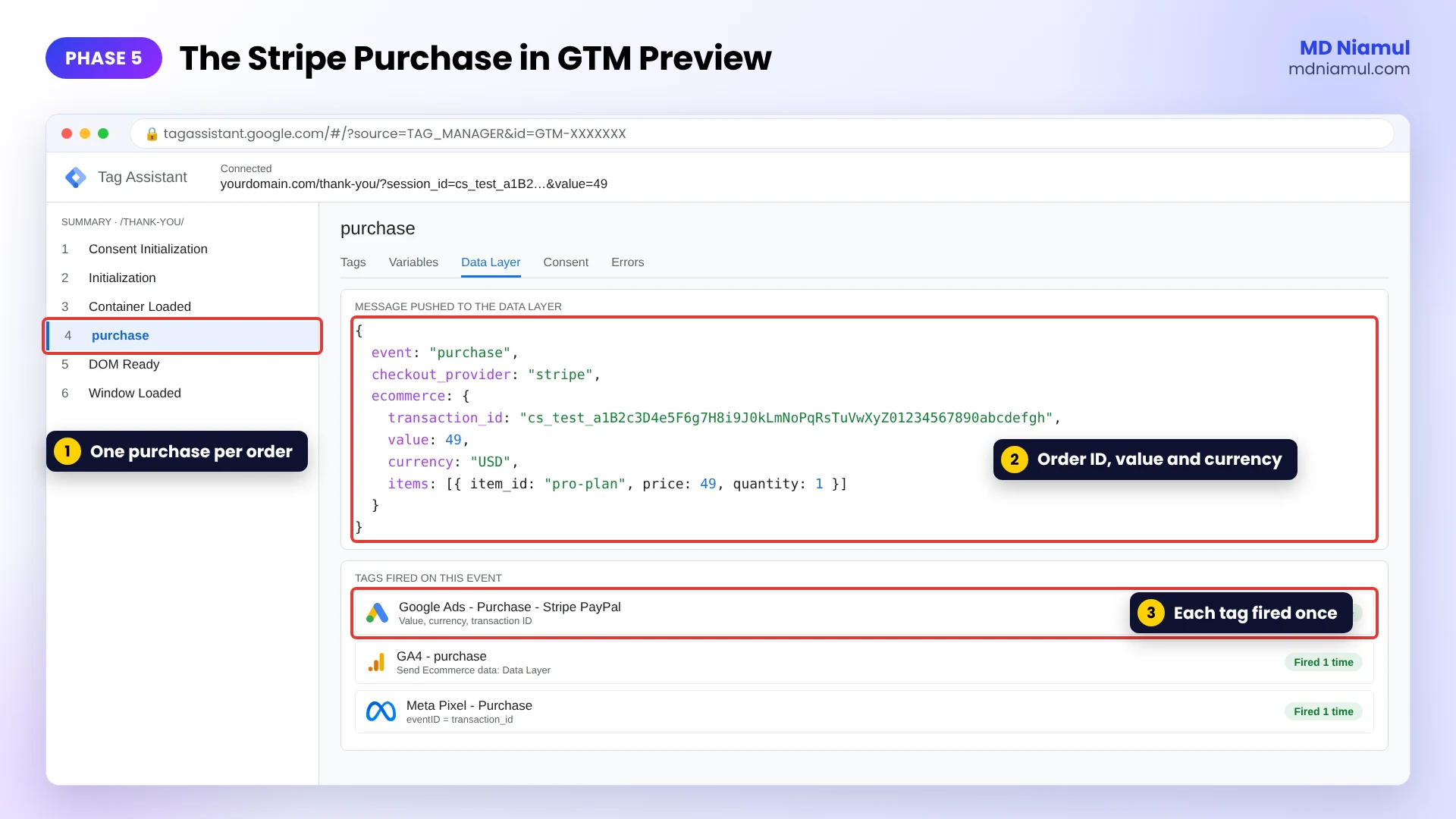
- Turn on GTM Preview, then pay a Stripe test Payment Link with the test card
4242 4242 4242 4242. - When you land on the thank-you page, select the
purchaseevent in Tag Assistant and check the Data Layer tab: transaction ID, value and currency. - Check that the Google Ads, GA4 and Meta tags fired once on that event.
- Reload the page. No second
purchaseevent should appear. - Repeat with a PayPal sandbox buyer account, and check that
txarrives in the URL.
Phase 7: Catch the Buyers Who Never Come Back
- Some buyers close the tab after paying. Stripe also notes that bank debits and vouchers can take 2 to 14 days to confirm. None of these will ever load your thank-you page.
- Stape’s own Stripe purchase tracking guide takes the
session_idfrom the thank-you page and lets server-side GTM fetch the full order from the Stripe API, so your secret key stays on the server. - For payments with no return visit, use Stripe’s
checkout.session.completedwebhook, or an n8n, Make or Zapier flow, to send the sale to Google Ads as an offline conversion. My offline conversion tracking guide covers the Google Sheet and Data Manager side. - Send the same purchase to the Meta Conversions API with the same event ID, so Meta counts it once.
- Host server-side GTM on Stape (or Stape EU). Not sure you need it? Read Google tag gateway vs server-side tracking.
Phase 8: Check Consent and Compare the Numbers Every Week
- Make sure your cookie banner feeds Google Consent Mode v2 on the thank-you page too. Test it with the free Consent Mode checker.
- Every week, compare Stripe and PayPal payments with GA4 purchases and Google Ads conversions for the same dates. A Looker Studio table with the three side by side makes gaps obvious.
- If Google Ads is far below Stripe, look first at buyers who didn’t return, then at consent, then at redirects that drop the URL parameters.
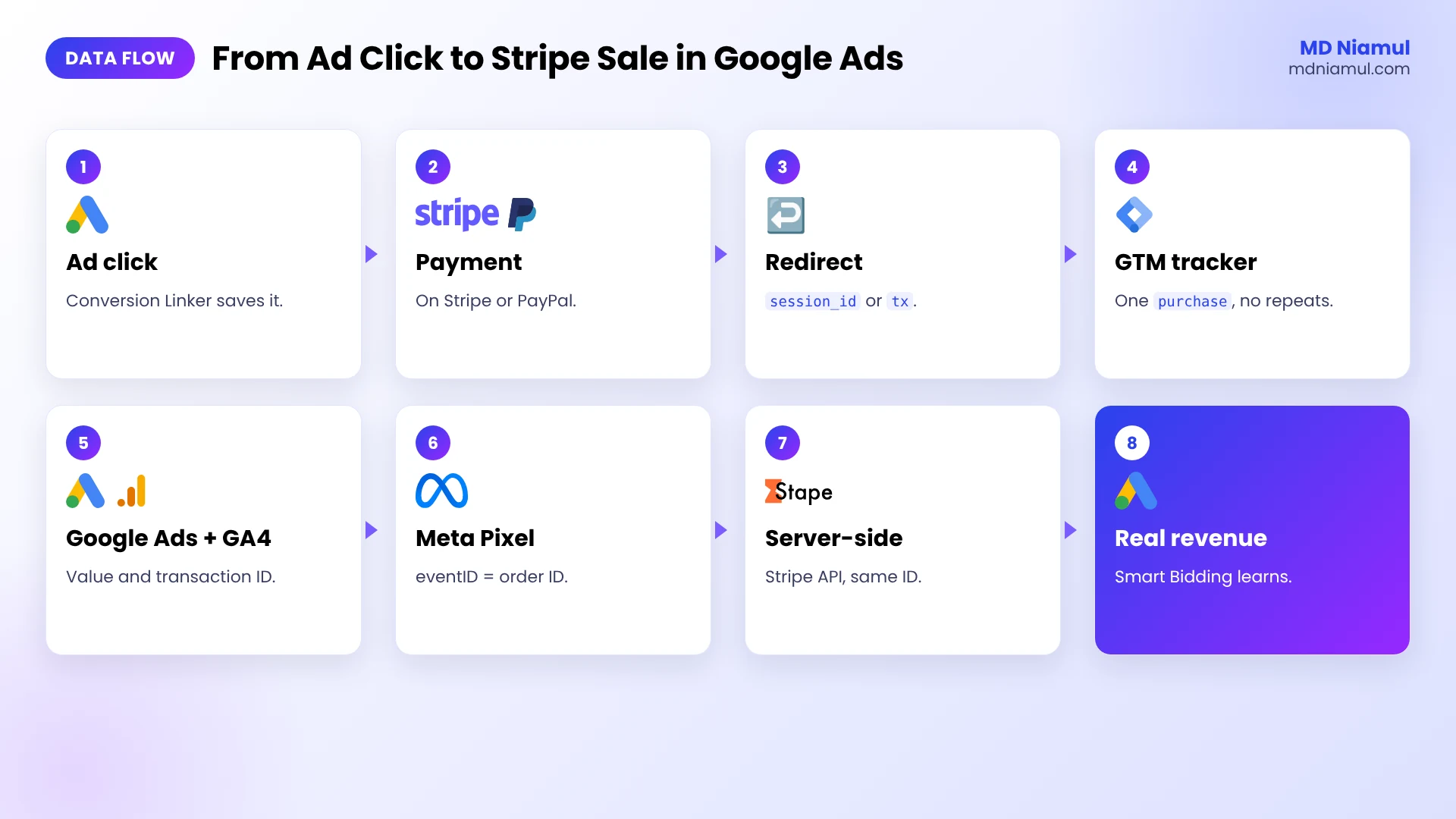
Stripe Google Ads Conversion Tracking: The Full Data Flow
| # | What happens | Where |
|---|---|---|
| 1 | The buyer clicks your ad and the Conversion Linker saves the click on your domain | Your site |
| 2 | The buyer pays on Stripe or PayPal | checkout.stripe.com or paypal.com |
| 3 | Stripe or PayPal sends the buyer to your thank-you page with the order ID | Redirect URL |
| 4 | The GTM tracker reads the ID, checks it wasn’t counted, and pushes purchase |
GTM Custom HTML |
| 5 | Google Ads, GA4 and Meta tags fire with value, currency and transaction ID | GTM |
| 6 | Server-side GTM and the Conversions API repeat the purchase with the same ID | Stape |
| 7 | Payments with no return visit go in as offline conversions | Stripe webhook or automation |
| 8 | Smart Bidding learns from real revenue | Google Ads |
Testing & Validation Workflow
- Redirect test. Pay a Stripe test link. The thank-you URL shows
session_id=cs_test_..., not the literal{CHECKOUT_SESSION_ID}. - Event test. GTM Preview shows one
purchaseevent with the right value and currency. - Reload test. Reloading the page doesn’t push a second purchase.
- Referral test. In GA4 DebugView or Realtime, the session source stays google / cpc, not stripe.com.
- Google Ads test. After a day, the conversion action shows the test purchase with its value (remove test orders before you scale spend).
- Weekly test. Stripe payments, GA4 purchases and Google Ads conversions are within a small, explainable gap.
Troubleshooting Common Mistakes
Mistake 1: The URL shows {CHECKOUT_SESSION_ID} as text
The Problem: the thank-you URL has the literal template instead of a real ID, so nothing fires.
The Cause: the braces were URL-encoded or typed with the wrong name in the redirect field.
The Solution: paste {CHECKOUT_SESSION_ID} exactly as written, with curly braces, in the Stripe redirect URL.
Mistake 2: Purchases show a value of 0
The Problem: Google Ads counts the conversion but the revenue is empty.
The Cause: the Stripe redirect has a session ID but no value, and the product isn’t in the price list.
The Solution: add &value= to each Payment Link redirect, fill PRICES, or let server-side GTM read the real amount from Stripe.
Mistake 3: GA4 credits stripe.com or paypal.com
The Problem: your revenue sits under a payment referral, not under Google Ads.
The Cause: the payment domains aren’t in the unwanted referrals list.
The Solution: add them in GA4 under Configure tag settings, then test a new purchase. Old sessions won’t change.
Mistake 4: The same order counts two or three times
The Problem: one Stripe payment shows as several conversions.
The Cause: the thank-you page fired on reloads, or the Google Ads tag has no transaction ID.
The Solution: use the tracker’s repeat check and map the Transaction ID field in the Google Ads tag.
Mistake 5: PayPal buyers never trigger anything
The Problem: Stripe purchases track, PayPal purchases don’t.
The Cause: Auto Return or Payment Data Transfer is off, so buyers stay on PayPal or return without tx.
The Solution: turn both on in Website preferences, set the Return URL, and catch the rest server-side.
What to Set Up Next
- Build clean campaign links for your Stripe Payment Links with the free UTM builder. Stripe passes those UTMs to your redirect URL.
- Selling on WooCommerce as well? See how I fix missing WooCommerce purchases in GA4.
- Running Google Ads at scale? My Google Ads tracking specialist page shows what I set up for clients.
Want it done for you? See my third-party checkout conversion tracking services and ecommerce server-side tracking service.
Conclusion
Stripe and PayPal aren’t hiding your sales. They just hand the buyer back to you, and most setups don’t catch them when they arrive.
Start with the redirect. Once every Payment Link and PayPal button lands on your thank-you page with an order ID, the GTM part is the easy bit. Then add the server-side backup, because some buyers will always close the tab, and compare your Stripe numbers with Google Ads every week until the gap stops surprising you.
Summary by MD Niamul
Stripe Google Ads conversion tracking works when Stripe or PayPal sends the buyer back to a thank-you page on your own domain with the order ID in the URL. I set the Stripe Payment Link or Checkout redirect to ?session_id={CHECKOUT_SESSION_ID} plus the value and currency, and turn on PayPal Auto Return with Payment Data Transfer so tx arrives. A Google Tag Manager Custom HTML tag on that page reads the ID, cuts it to 64 characters, skips orders it already counted, and pushes a GA4 purchase event. Google Ads, GA4 and Meta tags fire on it with the value and the transaction ID, and Stripe and PayPal go in the GA4 unwanted referrals list. Buyers who close the tab need a server-side backup through the Stripe API or webhooks. I wrote this from setting up checkout tracking for my own clients.
Frequently Asked Questions (FAQ)
1. How do I track Stripe payments as Google Ads conversions?
Redirect buyers from Stripe to a thank-you page on your site with ?session_id={CHECKOUT_SESSION_ID} in the URL. A Google Tag Manager tag reads that ID, pushes a purchase event, and a Google Ads conversion tag fires with the value, currency and the ID as the transaction ID. Add a server-side backup for buyers who never return.
2. Why does Google Ads not show my Stripe purchases?
Usually because the payment happens on checkout.stripe.com, where your tags don’t run, and the buyer either stays on Stripe’s confirmation page or returns to a page with no order details. Set the Payment Link to redirect to your own thank-you page, and fire the conversion there with the order ID.
3. What is {CHECKOUT_SESSION_ID} in Stripe?
It’s a template variable Stripe replaces with the real Checkout Session ID when it redirects the buyer. You can add it to a Payment Link’s redirect URL or a Checkout success_url. The session ID starts with cs_test_ or cs_live_, and you can use it as the order ID for tracking.
4. How do I track PayPal transactions on my website?
For PayPal Payments Standard, turn on Auto Return and Payment Data Transfer and set your thank-you page as the Return URL. PayPal then sends the transaction ID as tx. For PayPal JavaScript SDK buttons, redirect from your onApprove code to your thank-you page with the order ID and amount.
5. Why does GA4 show stripe.com or paypal.com as the source of my sales?
Because the buyer comes back from the payment domain, so GA4 starts a new referral session. Add checkout.stripe.com, stripe.com and paypal.com to List unwanted referrals in your GA4 web stream’s tag settings. It fixes new sessions only, not past data, so test with a fresh purchase after you save the change.
6. How do I stop duplicate purchase conversions from Stripe?
Use two layers. The tracker in this guide stores each order ID in the browser and skips repeats on reload. In Google Ads, map the Transaction ID field, because Google doesn’t count a second conversion with the same ID. Keep IDs at 64 characters or less.
7. Can I send the real order value to Google Ads from Stripe?
Yes, but the Stripe redirect doesn’t include the amount by itself. Add a fixed value to each Payment Link’s redirect URL, have your developer add it to the success_url, or use server-side GTM to read the amount from the Stripe API with the session ID.
8. Do I need server-side tracking for Stripe and PayPal?
For the returning buyers, browser tags work. You need a server-side backup for buyers who close the tab after paying and for bank payments that confirm days later. Stape’s Stripe method reads the order from the Stripe API, and Stripe webhooks can feed offline conversions.
9. Does this work for Stripe subscriptions?
It tracks the first payment, because that’s when the buyer returns from Checkout. Renewals happen without a visit, so the browser can’t see them. Send renewals from Stripe webhooks or an automation tool to Google Ads as offline conversions if you want to bid on lifetime value.
10. Can I track Meta purchases from Stripe the same way?
Yes. Fire the Meta Pixel Purchase event on the same purchase trigger with value and currency, and use the transaction ID as the event ID. Then send the same purchase through the Meta Conversions API with that event ID, so Meta counts it once even when both arrive.
 Need Help Advanced GHL Automation & Tracking Setup?