
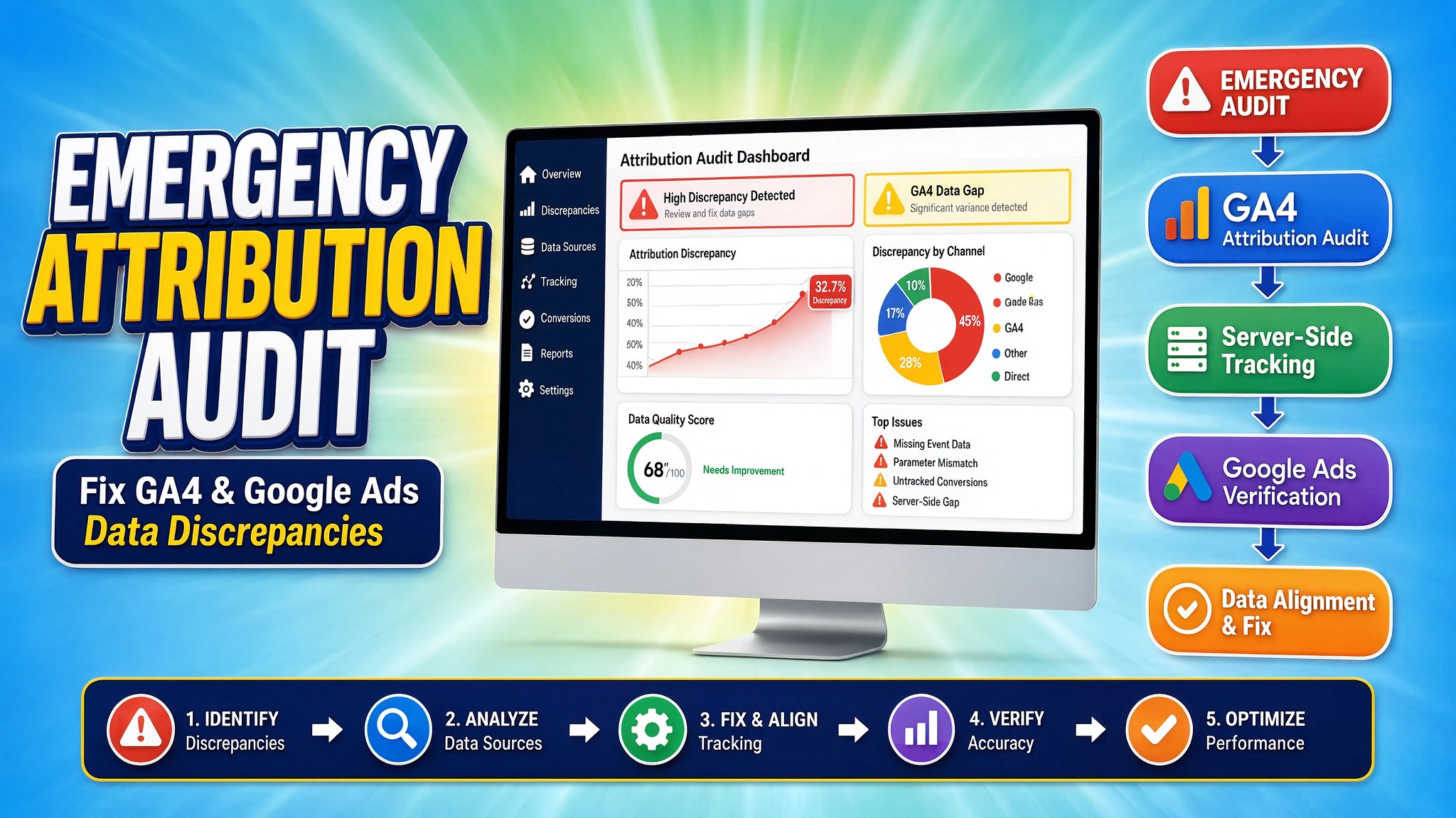

Quick Answer
An emergency GA4 attribution audit identifies why Google Ads conversions, revenue, and clicks fail to match Google Analytics 4 reports. Data discrepancies happen when redirect rules strip the gclid auto-tagging parameter, ad blockers block client-side scripts, or cross-domain tracking fails. You can fix these issues by deploying Google Consent Mode v2, capturing user signals with custom GTM listeners, and implementing Server-Side GTM tracking with Enhanced Conversions.
Key Takeaways
- Auto-Tagging Overrides: Stripped gclid parameters during site redirects dump paid traffic directly into the “(other)” or “Unassigned” default channel group.
- Server-Side Resilience: Client-side tracking scripts miss up to 30% of conversions due to iOS Safari ITP (Intelligent Tracking Prevention) and ad blockers. Server-Side GTM restores lost attribution.
- Consent Alignment: Google Consent Mode v2 must fire a default denied state before any analytics tags load, preventing lost signals while keeping your setup legally compliant.
- First-Party Data Accuracy: Enhanced Conversions hash sensitive user inputs (email, phone) with SHA-256 before sending them to Google Ads, keeping attribution match rates high.
- Deduplication: Running browser and server tags together requires identical transaction_id or event_id parameters to avoid double-counting conversions.
Introduction The $18,000 Data Discrepancy Nightmares
A e-commerce store owner recently contacted me after spending $18,000 on Google Ads in a single month. His Google Ads dashboard showed 240 purchase conversions with a healthy 3.8x Return on Ad Spend (ROAS).
However, his bank account tells a different story. In Google Analytics 4, 65% of those purchases appeared under Unassigned or Direct traffic. Google Ads Smart Bidding was bidding aggressively on low-converting keywords because it was optimizing against incomplete, unverified conversion signals.
[Google Ads Click] ---> (301 Redirect Strips ?gclid=) ---> [Landing Page]
                                                                 |
                                                                 v
                                                     GA4 Categorizes As:
                                                    "Direct / Unassigned"
When client-side tracking breaks, your ad campaigns bid blindly. Browser updates, cookie restrictions, broken cross-domain linkers, and unconfigured consent banners create major blind spots in your marketing funnel.
This guide walks you through an emergency audit to diagnose why your GA4 and Google Ads numbers do not match. You will learn how to fix unassigned traffic, write custom event listeners, configure Google Consent Mode v2 via Cookiebot, and set up a server-side tracking architecture using Google Tag Manager and Stape.
Why GA4 & Google Ads Data Discrepancies Happen
If you ignore data discrepancies, Google Ads Smart Bidding algorithms will optimize for the wrong user actions. When GA4 loses track of ad source attribution, ad networks receive weak conversion signals, causing cost-per-acquisition (CPA) to increase.
The Root Causes of Attribution Breakdown
- Stripped URL Parameters: Server redirects (such as http:// to https:// or domain.com to [domain.com/](https://domain.com/)) often strip gclid (Google Click Identifier) parameters from landing page URLs.
- Ad Blockers & Safari ITP: Client-side JavaScript tags are regularly blocked by extensions or restricted by Safari’s 7-day cookie caps.
- Broken Cross-Domain Linkers: If your user moves from your main site to an external checkout (like a third-party payment gateway), the session breaks and gets attributed to a referral or direct visit.
- Incorrect Consent Mode Setup: Firing tags before consent signals load causes GA4 to drop attribution parameters entirely.
- Missing First-Party Data: Without Enhanced Conversions, Google Ads cannot match user conversion actions back to logged-in Google accounts.
Ad Blockers
Client-Side Impact: Blocks
google-analytics.comrequests completely.Server-Side Solution: Routes events through a first-party custom domain (
metrics.yourdomain.com).
Safari ITP Cookie Caps
Client-Side Impact: Limits
_gacookie lifecycle to 24 hours or 7 days.Server-Side Solution: Issues HttpOnly cookies directly from your own server.
Stripped
gclidClient-Side Impact: Converts paid traffic into “Direct / Unassigned”.
Server-Side Solution: Captures click IDs at the server edge and preserves cookie context.
Third-Party Checkouts
Client-Side Impact: Breaks user sessions during redirect.
Server-Side Solution: Uses cross-domain URL decoration (
_glparameter) and server session stitching.
Google Tag Manager (Web)
- Required Access Level: Publish / Admin
- Purpose: Deploy custom HTML listeners, Data Layer pushes, and tags.
GTM Server Container
- Required Access Level: Admin
- Purpose: Process server-side event transformations and HTTP requests.
Google Analytics 4
- Required Access Level: Editor / Admin
- Purpose: Inspect DebugView, adjust attribution models, and set up custom dimensions.
Google Ads Account
- Required Access Level: Admin / Standard
- Purpose: Verify conversion action diagnostics and Enhanced Conversion setup.
Hosting / DNS Manager
- Required Access Level: CNAME Record Management
- Purpose: Set up your custom server-side subdomain (metrics.yourdomain.com).
Cookiebot CMP
- Required Access Level: Account Admin
- Purpose: Configure Google Consent Mode v2 integration.
Video Walkthrough
If you prefer a visual step-by-step walkthrough of this audit and repair process, watch the video tutorial below before following the manual steps:
Step-by-Step Implementation Guide
Phase 1: Diagnose Auto-Tagging, Redirection, & Cross-Domain Linkers
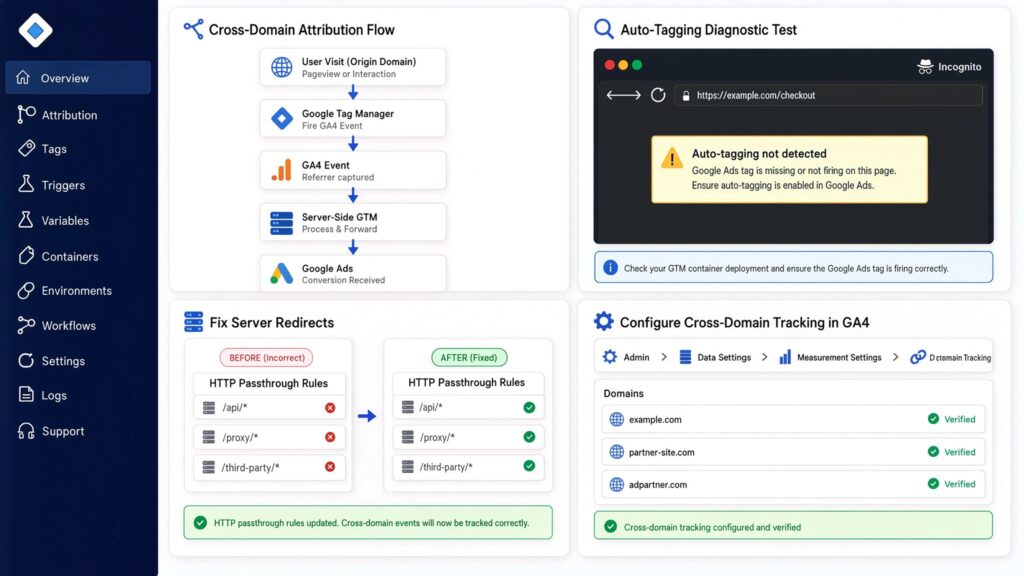
Auto-tagging attaches a unique parameter (?gclid=xyz) to your destination URLs whenever a user clicks your Google Ad. If your web server rewrites URLs or uses non-standard redirects, this parameter gets dropped before the GA4 tracking script can read it.
					+-------------------------------------------------------------------+
|                  CROSS-DOMAIN ATTRIBUTION FLOW                    |
+-------------------------------------------------------------------+

 [User Clicks Ad] ---> [Primary Domain: domainA.com]
                             |
                             | (GTM appends _gl= parameter to link)
                             v
                       [Checkout Domain: domainB.com?_gl=1abc...]
                             |
                             | (GA4 reads _gl and preserves _ga cookie)
                             v
                  [Conversion Attributed to Google Ads]
- Open an Incognito browser window, paste a destination URL with a test parameter appended: [https://yourdomain.com/?gclid=test_audit_123](https://yourdomain.com/?gclid=test_audit_123).
- Press Enter and inspect the final URL in the address bar. If the ?gclid=test_audit_123 parameter disappears after loading, your server has an active redirect rule that is stripping query parameters.
- Fix server redirects so they pass query strings using HTTP 301/302 parameter passthrough rules.
- Next, check your cross-domain tracking setup if your site redirects users to an external checkout platform. Navigate to GA4 > Admin > Data Streams > Web Stream > Configure Tag Settings > Configure Your Domains.
- Add all domains where user journeys take place (e.g., yourdomain.com and checkout-platform.com). This configures GA4 to append the _gl linker parameter to cross-domain links, preserving user sessions across domains. For custom integrations, see our guide on third-party checkout conversion tracking services.
Phase 2: Deploy Google Consent Mode V2 via Cookiebot
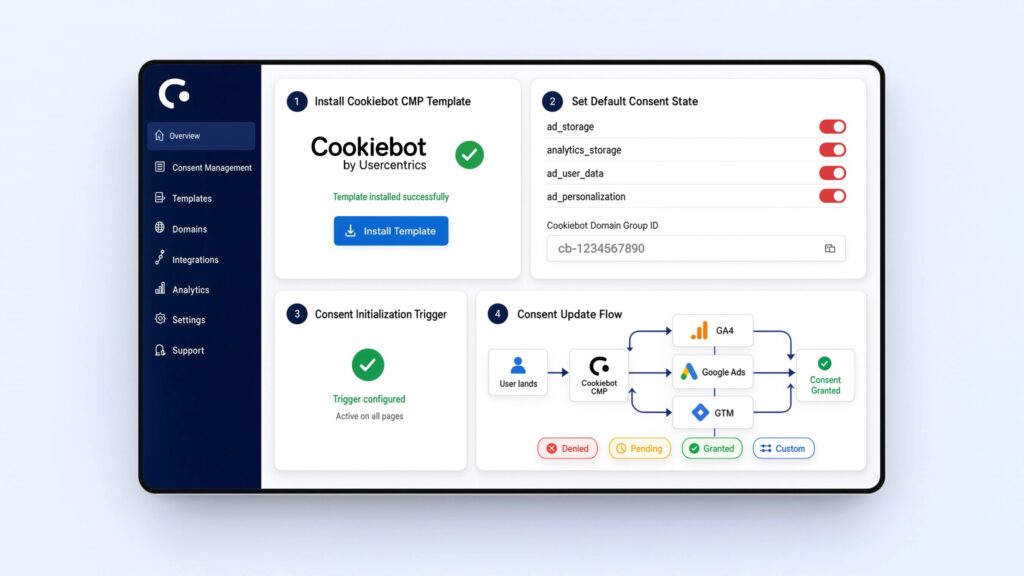
Google Consent Mode v2 is required for advertisers targeting users in the European Economic Area (EEA) and global privacy regions. Without it, Google Ads cannot run audience remarketing or model lost conversions.
Using a consent management platform like Cookiebot helps you adjust tag behavior based on user consent decisions.
- In GTM Web Container, install the official Cookiebot CMP Template from the Community Template Gallery.
- Set the Default Consent State in GTM before any other tags execute:
- ad_storage: denied
- analytics_storage: denied
- ad_user_data: denied
- ad_personalization: denied
- Add your Cookiebot Domain Group ID into the template setup.
- Create a trigger set to Consent Initialization – All Pages. Attach your Cookiebot Tag to this trigger so it executes before standard pageviews.
- When a user accepts cookies, Cookiebot sends an update command to Google Tag Manager (consent update), setting states to granted and allowing GA4 and Google Ads tags to read cookies.
Phase 3: Add Custom Event Listener & Data Layer Code
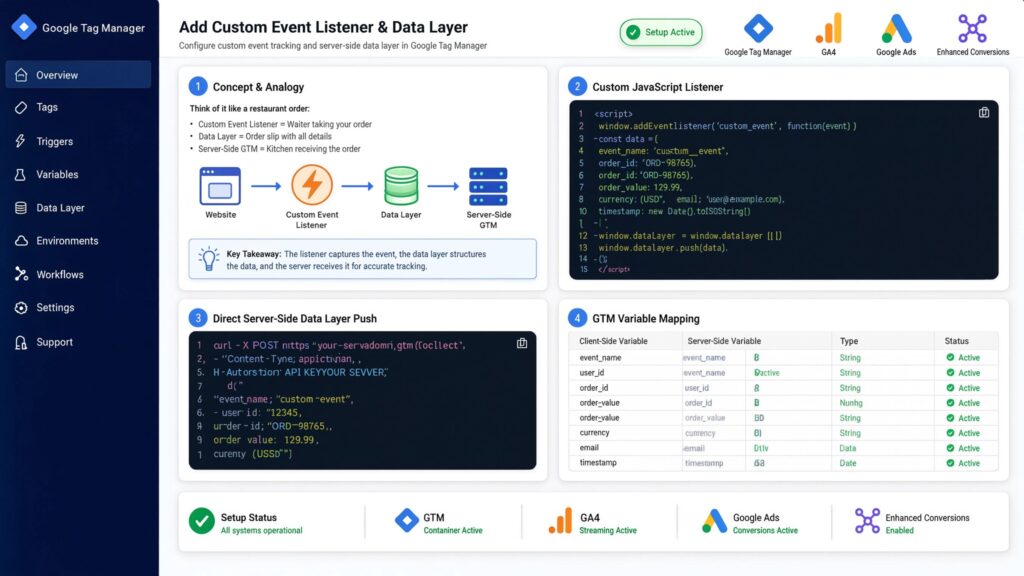
When tracking form submissions, checkout events, or lead actions inside embedded forms, standard pageview triggers often miss conversion details. An iframe is like a glass window into another tool: you can see what is happening inside, but your main site cannot interact with it unless you set up a message listener. Think of an event listener as a catcher’s mitt that catches hidden interaction signals and passes them to the Data Layer, which works like an invisible filing cabinet for your analytics tags.
Below is the JavaScript Event Listener code designed to capture form interactions and push them cleanly into the Data Layer.
1. Custom JavaScript Listener (GTM Custom HTML Tag)
Create a Custom HTML Tag in GTM named chtml – Global Event Listener, and set the trigger to Initialization – All Pages:
					<script>
(function() {
  // Listen for message events (e.g. from embedded forms or checkout portals)
  window.addEventListener('message', function(event) {
    // Validate event origin if necessary
    if (!event.data) return;

    try {
      var payload = (typeof event.data === 'string') ? JSON.parse(event.data) : event.data;

      // Example: Detect successful form submit payload
      if (payload.event === 'form_submission_success' || payload.type === 'hsFormCallback' && payload.eventName === 'onFormSubmitted') {
        window.dataLayer = window.dataLayer || [];
        window.dataLayer.push({
          'event': 'custom_form_success',
          'form_id': payload.formId || payload.id || 'primary_form',
          'user_email': payload.email || payload.user_data?.email || '',
          'user_phone': payload.phone || payload.user_data?.phone || '',
          'conversion_value': payload.value || 0
        });
      }
    } catch (e) {
      // Non-JSON payload ignore
    }
  });

  // Standard DOM Form Submission Fallback Listener
  document.addEventListener('submit', function(e) {
    var form = e.target;
    var emailInput = form.querySelector('input[type="email"], input[name="email"]');
    var phoneInput = form.querySelector('input[type="tel"], input[name="phone"]');

    window.dataLayer = window.dataLayer || [];
    window.dataLayer.push({
      'event': 'custom_form_success',
      'form_id': form.getAttribute('id') || form.getAttribute('name') || 'generic_dom_form',
      'user_email': emailInput ? emailInput.value : '',
      'user_phone': phoneInput ? phoneInput.value : '',
      'conversion_value': 0
    });
  });
})();
</script>
2. Direct Server-Side/CMS Data Layer Push Code
If you have backend code access (e.g., PHP, Node.js, or custom CMS templates), place this snippet directly on your purchase or lead confirmation page:
					<script>
window.dataLayer = window.dataLayer || [];
window.dataLayer.push({
  'event': 'purchase',
  'transaction_id': 'ORD_2026_88912',
  'value': 149.99,
  'tax': 12.00,
  'shipping': 5.00,
  'currency': 'USD',
  'user_data': {
    'email': 'customer@example.com', // Will be hashed via SHA-256 in GTM
    'phone_number': '+11234567890',
    'address': {
      'first_name': 'John',
      'last_name': 'Doe',
      'city': 'New York',
      'region': 'NY',
      'postal_code': '10001',
      'country': 'US'
    }
  },
  'items': [{
    'item_id': 'SKU_9941',
    'item_name': 'Conversion Tracking Optimization Package',
    'price': 149.99,
    'quantity': 1
  }]
});
</script>
Line-by-Line Code Breakdown & GTM Variable Mapping
- window.dataLayer = window.dataLayer || [];: Initializes the Data Layer array if it doesn’t exist yet, preventing script errors.
- ‘event’: ‘purchase’: Pushes a custom event name into the Data Layer. This serves as your trigger condition in Tag Manager.
- ‘transaction_id’: ‘ORD_2026_88912’: Provides a unique ID for each order. This is used by GA4 and Google Ads to deduplicate repeated conversion events.
- ‘user_data’: Encloses first-party user details. This data is mapped into Data Layer Variables in GTM and sent securely to Google Ads for Enhanced Conversions.
To capture this data inside GTM, create Data Layer Variables for transaction_id, value, currency, user_data.email, and user_data.phone_number. For platform-specific setups, refer to our tutorials on HubSpot form conversion tracking services and Salesforce conversion tracking service.
Phase 4: Configure Server-Side Tracking (sGTM) via Stape
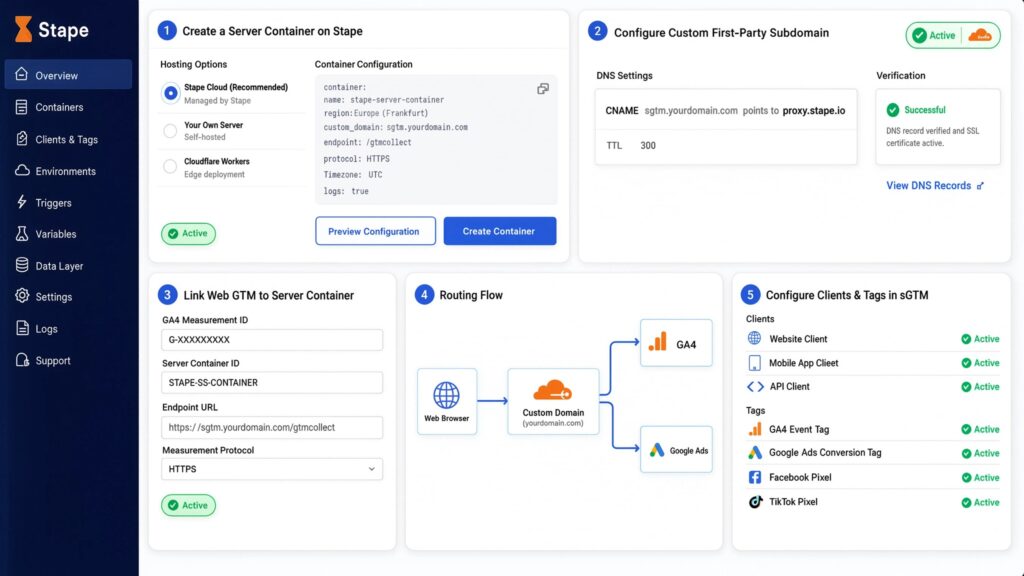
Server-Side GTM acts like a secure passport control checkpoint. Instead of sending analytics data directly from the user’s browser to ad networks, the browser sends data to your server container first. Your server container then cleanses, validates, and forwards that data to GA4 and Google Ads.
Step 1: Create a Server Container on Stape
- Set up a hosting environment for your sGTM container using Stape Global Hosting (or Stape European Hosting for strict GDPR compliance).
- Copy your Container Configuration Code from GTM (Server Container > Admin > Install Google Tag Manager) and paste it into your Stape dashboard.
Step 2: Configure a Custom First-Party Subdomain
- In your domain registrar (Cloudflare, GoDaddy, Namecheap), add a new CNAME record:
- Host / Name: metrics (or ss)
- Target / Value: Your custom Stape server location endpoint (e.g., xyz.stape.io).
- Point your custom domain in Stape to metrics.yourdomain.com.
- Verify that the SSL certificate status reads Active. This allows cookies to be issued in a first-party context, bypassing Safari ITP restrictions.
Step 3: Link Web GTM to Your Server Container
- Open your Web GTM Container.
- Edit your Google Tag (GA4 Configuration Tag).
- Under Configuration Settings, add a parameter:
- Name: server_container_url
- Value: [https://metrics.yourdomain.com](https://metrics.yourdomain.com)
					Web Browser  ---> (HTTPS POST /g/collect) --->  https://metrics.yourdomain.com
                                                          |
                                           +--------------+--------------+
                                           |                             |
                                           v                             v
                                   [GA4 Server Tag]           [Google Ads Server Tag]
                                           |                             |
                                           v                             v
                                  GA4 Analytics Engine       Google Ads Conversion API
Step 4: Configure Clients and Tags in sGTM
- Open your sGTM Container.
- Under Clients, confirm that the GA4 Client is active. The GA4 client receives incoming HTTPS POST requests from your web container and formats them into standard server events.
- Under Tags, create a Google Analytics: GA4 tag. Set its trigger to fire on all requests handled by the GA4 Client.
- Create a Google Ads Conversion Tracking server tag. Map the Conversion ID and Conversion Label.
- Set the trigger to fire when the Event Name equals purchase or custom_form_success.
For full server setups across different platforms, see our detailed guides on server-side tracking services and e-commerce server-side tracking services.
Phase 5: Enhanced Conversions & First-Party Data Hashing
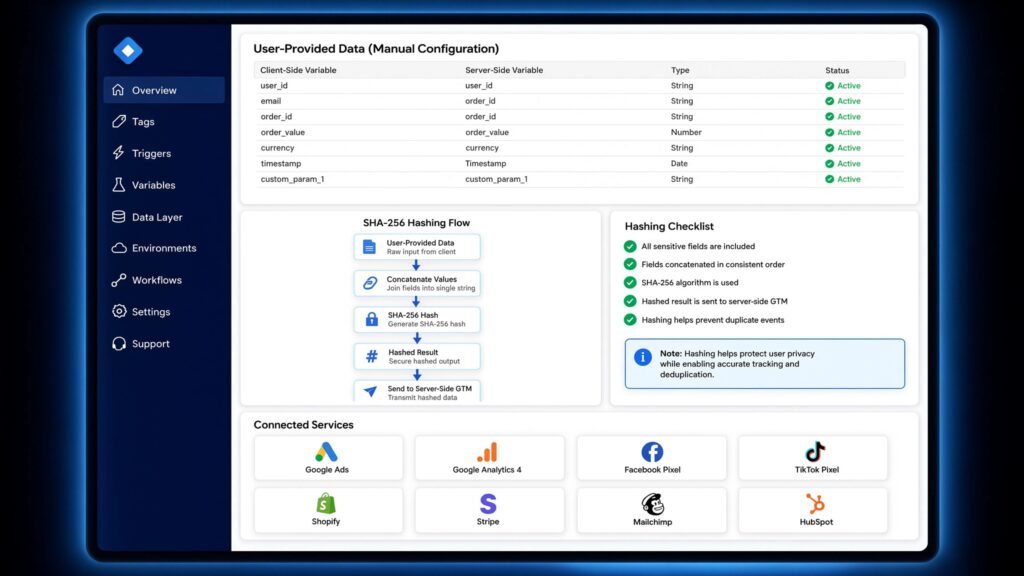
Enhanced Conversions sends hashed first-party customer data (like email addresses and phone numbers) alongside your conversion events. This helps Google Ads match conversions back to signed-in Google accounts when cookies are blocked or unavailable.
- In Web GTM, go to Variables > User-Provided Data.
- Choose Manual Configuration.
- Map each user field to its corresponding Data Layer Variable:
- Email: {{dlv – user_data.email}}
- Phone Number: {{dlv – user_data.phone_number}}
- First Name: {{dlv – user_data.address.first_name}}
- Last Name: {{dlv – user_data.address.last_name}}
					Raw Input: " customer@example.com "
            |
            v
1. Trim Spaces & Lowercase: "customer@example.com"
            |
            v
2. SHA-256 Hashing Algorithm
            |
            v
Output: "f660ab912ec121d1b1e928a0bb4bc61b15f5ad44d5efdc4e1c92a25e99b8e44a"
- Tag Manager automatically trims spaces, converts characters to lowercase, and hashes the data using the SHA-256 algorithm before sending it over HTTPS.
- In your Google Ads Conversion Tag, check the box labeled Include user-provided data from your website and select your User-Provided Data variable.
- If you collect leads through custom forms, check out our guides on Zoho Form conversion tracking and GoHighLevel form conversion tracking.
Lorem ipsum dol
Testing & Validation Framework
To verify that your fixes are working correctly, test each step using this structured validation workflow:
1. Container Speed Audit
Inspection Tool: Google PageSpeed Insights
Required Test Action: Run performance test on mobile & desktop
Target Success Outcome: Reduced JavaScript execution time and zero unparsed tag errors.
2. Consent State Inspection
Inspection Tool: Developer Console
Required Test Action: Inspect `dataLayer` on initial page load
Target Success Outcome: Privacy variables reflect `denied` prior to user interaction.
3. Listener Execution Verification
Inspection Tool: GTM Web Preview
Required Test Action: Submit test form or complete test order
Target Success Outcome: `custom_form_success` event fires with clean user data payload.
4. sGTM Event Claims & HTTP Verification
Inspection Tool: sGTM Preview Console
Required Test Action: Fire test event from browser
Target Success Outcome: Server container claims event and returns standard 200 HTTP code.
5. GA4 Parameter Verification
Inspection Tool: GA4 DebugView
Required Test Action: Perform test user journey
Target Success Outcome: Parameters populate accurately without duplicate event triggers.
6. Google Ads Matching
Inspection Tool: Google Ads Diagnostics
Required Test Action: Review Conversion Actions tab
Target Success Outcome: Enhanced Conversions report high diagnostic match quality scores.
or sit amet, consectetur adipiscing elit. Ut elit tellus, luctus nec ullamcorper mattis, pulvinar dapibus leo.
Detailed Verification Steps
- GTM Web Preview Mode: Click Preview in your GTM Web Container and connect to your site. Complete a test conversion. Confirm that your tags fire on the correct triggers and that user parameters populated without errors.
- sGTM Preview Console: Open your sGTM preview panel in a separate tab. Check that incoming POST requests hit your custom domain endpoint (metrics.yourdomain.com/g/collect) and return an HTTP 200 status code.
- GA4 DebugView: Open GA4 > Admin > DebugView. Confirm that your test events show up in real time with parameters like transaction_id, gclid, and page_location attached.
- Google Ads Conversion Diagnostics: Allow 24 to 48 hours for new conversion data to process. Go to Google Ads > Goals > Conversions > Summary, select your conversion action, and verify that the Enhanced Conversions status displays an “Active” badge.
Troubleshooting Common Tracking Errors
Problem 1: Unassigned Traffic Dominates GA4 Traffic Acquisition Reports
- Cause: Cross-domain links or server redirects are stripping parameters like gclid, utm_source, or utm_medium from the destination URL.
- Solution: Audit your web server configuration to make sure HTTP-to-HTTPS and www-redirects preserve URL query strings. Verify that your GA4 cross-domain tracking settings include all payment domains.
Problem 2: Google Ads Conversions Report Higher Counts Than GA4 Purchases
- Cause: Conversion tags are firing on every page refresh of the order confirmation page without transaction deduplication.
- Solution: Pass a unique transaction_id parameter inside your Data Layer purchase event. In Google Ads, set your conversion counting method to One conversion per transaction instead of “Every”.
Problem 3: Server-Side Requests Blocked or Returning HTTP 400/403 Errors
- Cause: Misconfigured custom domain DNS records, or requests blocked by Cloudflare firewall rules targeting sGTM endpoints.
- Solution: Check your sGTM container URL for proper SSL certificate issuing in Stape. Set up bypass rules in Cloudflare Web Application Firewall (WAF) to allow incoming requests targeting /g/collect paths.
Problem 4: Missing Enhanced Conversion Match Quality in Google Ads
- Cause: Unhashed or improperly formatted user data strings (such as unformatted phone numbers or missing country codes) passed to Google Ads.
- Solution: Make sure user input values are cleaned (lowercased, spaces removed, and formatted with country codes) before passing them to your User-Provided Data variables.
Conclusion
Fixing data discrepancies between GA4 and Google Ads requires moving away from fragile, browser-only tracking scripts. When redirects strip tracking parameters, ad blockers hide conversion signals, and cookie lifecycles are restricted, your ad campaigns lose critical optimization data.
Implementing an emergency attribution audit restores full visibility over your ad performance. By deploying Google Consent Mode v2 via Cookiebot, capturing customer signals with custom GTM listeners, and using Server-Side tracking with Stape, you build a durable analytics setup that powers accurate Smart Bidding strategies.
Summary by MD Niamul
This comprehensive guide breaks down how to audit and resolve data discrepancies between GA4 and Google Ads. By addressing server redirects, setting up Google Consent Mode v2, deploying custom Data Layer listeners, and running Server-Side GTM via Stape, you eliminate unassigned traffic and restore full conversion visibility. This durable tracking infrastructure keeps your attribution data accurate, powers your ad bidding strategies, and improves your return on ad spend.
1.Why do Google Ads and GA4 numbers rarely match?
Google Ads attributes conversions back to the date of the ad click using single-source attribution. In contrast, GA4 attributes conversions to the date the event actually occurred using multi-channel attribution models. Additionally, ad blockers, stripped gclid parameters during redirects, missing cross-domain settings, and cookie consent rejections create data gaps between the two platforms.
2.How do server redirects break ad conversion attribution?
When a user clicks a Google Ad, the URL includes a unique tracking parameter called gclid. If your server redirects the user (for example, from http:// to https:// or example.com to example.com/), poorly configured server rules strip these query parameters. As a result, GA4 loses the ad context and categorizes the visit as Direct or Unassigned traffic.
3.What is the function of Google Consent Mode v2?
Google Consent Mode v2 communicates user privacy choices from your consent banner (such as Cookiebot) directly to Google tags. It adjusts tag behavior based on user consent states for ad_storage, analytics_storage, ad_user_data, and ad_personalization. This allows Google Ads to use conversion modeling to fill data gaps while remaining compliant with privacy laws.
4.Why should I deploy Server-Side GTM on a custom domain?
Running sGTM on a first-party custom subdomain (such as metrics.yourdomain.com) routes tracking requests through your main domain infrastructure rather than third-party analytics endpoints. This setup helps prevent tracking requests from being blocked by ad blockers, preserves cookie lifecycles under Safari ITP restrictions, and gives you tighter control over data security.
5.How does Enhanced Conversions fix attribution data gaps?
Enhanced Conversions captures first-party customer inputs (such as email addresses, names, and phone numbers) provided during a conversion. It hashes this data using the SHA-256 algorithm before sending it securely to Google. Google then matches these hashed strings against logged-in Google accounts to recover lost attribution signals.
6.How do I fix Unassigned traffic in my GA4 reports?
Start by verifying that auto-tagging is enabled in your Google Ads account. Next, check that your server redirects preserve query parameters, and ensure cross-domain tracking is set up in GA4 for external checkout flows. Finally, remove manually tagged UTM parameters that conflict with Google Ads auto-tagging parameters.
7.What is transaction deduplication and why is it important?
Transaction deduplication prevents analytics tools from counting the same purchase multiple times when a customer refreshes their order confirmation page. By attaching a unique transaction_id to each purchase event in the Data Layer, GA4 and Google Ads recognize repeat events and count the conversion only once.
8.Does Server-Side tracking bypass user consent preferences?
No, Server-Side tracking does not bypass user consent rules. Your Web GTM setup must still honor user consent choices captured by your consent banner before sending data to your server container. Server-side tracking simply processes approved conversion data more reliably through a secure, first-party network infrastructure.
9.How do I confirm my event listener script is working correctly?
Open Tag Manager Web Preview mode and perform a test action on your site, such as submitting a form. Look at the left-hand event timeline for your custom event name (e.g., custom_form_success). Select the event and open the Data Layer tab to verify that payload variables like email, form ID, and conversion value populated correctly.
10.Why is offline conversion tracking helpful for web analytics?
Offline conversion tracking allows businesses to pass qualified leads, closed deals, or phone sales back to Google Ads from a CRM platform like HubSpot or Salesforce. This gives ad networks conversion feedback on actual revenue events that happen outside the website, helping Smart Bidding algorithms target higher-quality leads.
 Need Help Advanced GHL Automation & Tracking Setup?




2 Responses
Great post,Thanks for sharing
Thank you