
Quick Answer
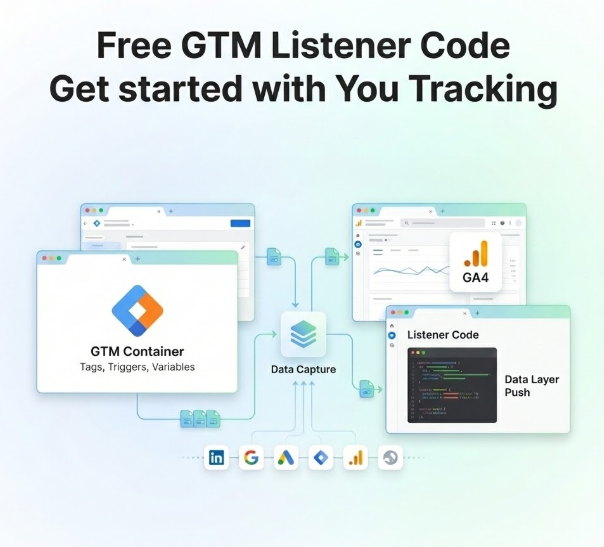
HubSpot form tracking in Google Tag Manager (GTM) needs a different listener for forms built in HubSpot’s updated forms editor. Those new forms don’t send the old hsFormCallback message, so legacy listeners stop firing without any error. New forms fire a browser event called hs-form-event:on-submission:success, and legacy forms still send onFormSubmitted. One GTM Custom HTML tag can listen for both, push a single hubspot_form_submit event, and feed GA4, Google Ads Enhanced Conversions and Meta.
Key Takeaways
- Two kinds of HubSpot forms: forms from the updated forms editor and legacy forms send different signals, and many sites now have both.
- The old code fails quietly: a listener that waits for
hsFormCallbacksees nothing from a new form, so leads keep coming but GA4 and Google Ads stop counting them. - New forms use global events: HubSpot’s docs list
hs-form-event:on-submission:success, withformIdandinstanceIdinevent.detail. - Field values need one extra call: the success event has no email in it.
HubSpotFormsV4.getFormFromEvent(event).getFormFieldValues()returns the fields as a promise. - Each submit has its own ID:
getConversionId()gives a unique ID after a new-form submit, which works well as the Google Ads transaction ID. - Check the version in 5 seconds: type
HubSpotFormsV4in the browser console on the form page. If it returns an object, that page runs new forms.
Introduction The Leads Keep Coming, the Conversions Stop
Here’s a tracking problem I keep running into in HubSpot accounts. Someone rebuilds a form in HubSpot’s updated forms editor, or HubSpot moves them to it, and from that day the “HubSpot form submit” conversion in Google Ads drops to zero. The CRM still fills up with contacts. Nobody notices for weeks.
The reason is simple. Most HubSpot tracking guides, including the GTM listeners many agencies copy, wait for a message event of type hsFormCallback. Forms built in the new editor don’t send it. HubSpot’s own community threads confirm it, and HubSpot’s developer docs now describe a separate set of global form events for the new forms.
In this guide I show how to check which version your forms use, then set up one listener that tracks both, tested in a browser, with the email captured for Enhanced Conversions. If you want the HubSpot basics first, my earlier guide covers HubSpot form submission tracking in GA4.
New Forms vs Legacy Forms: What Changes for Tracking
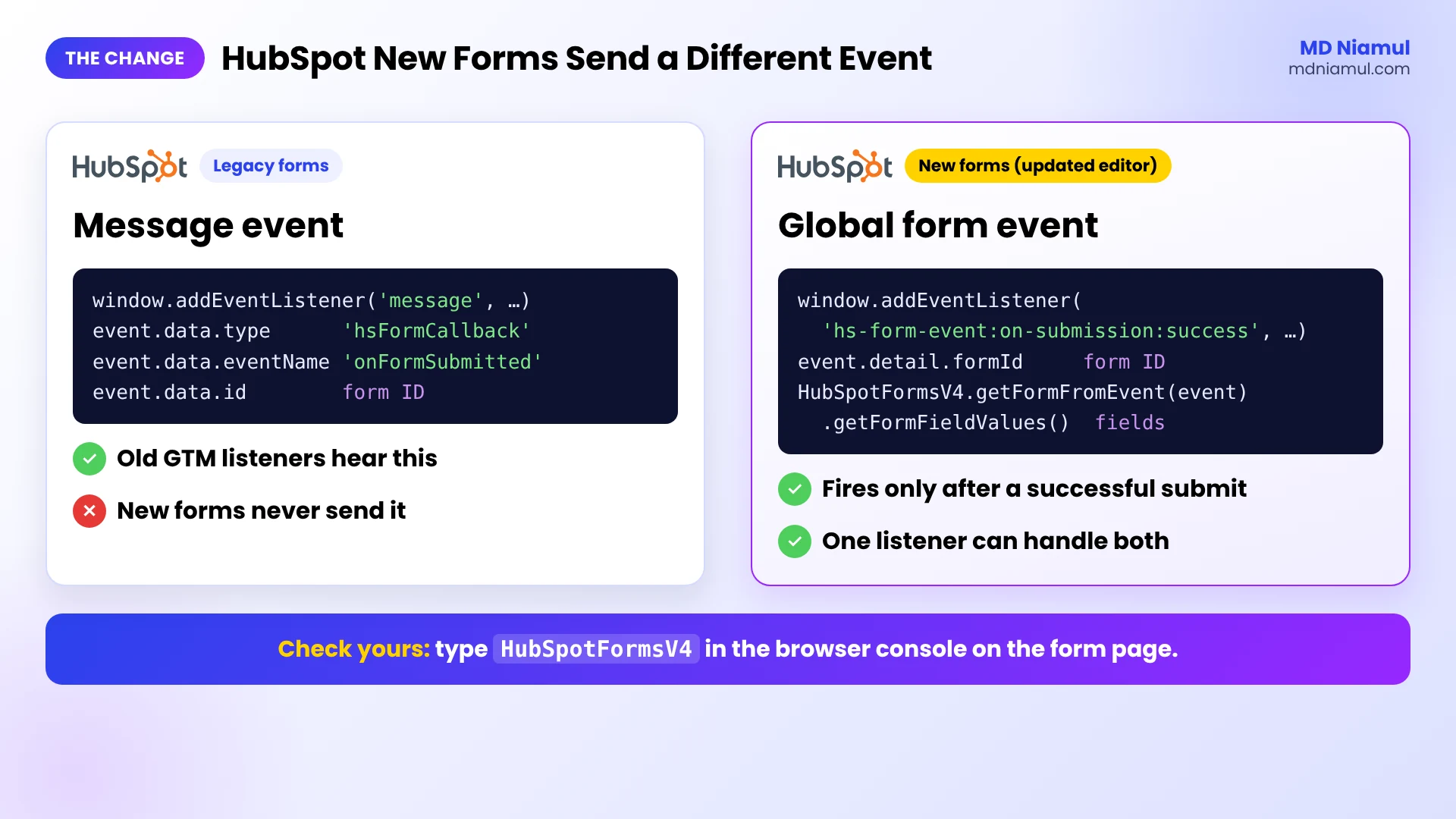
| Legacy HubSpot forms | New forms (updated forms editor) | |
|---|---|---|
| Success signal | message event, type: 'hsFormCallback', eventName: 'onFormSubmitted' |
hs-form-event:on-submission:success on window |
| Form ID | event.data.id |
event.detail.formId |
| Submitted values | Inside the message data | getFormFieldValues(), a promise |
| Unique submit ID | None | getConversionId() |
| Console check | HubSpotForms exists |
HubSpotFormsV4 exists |
| Field names | email, firstname |
Prefixed, for example 0-1/email |
Prerequisites & Setup Checklist
- Google Tag Manager installed on every page that shows a HubSpot form.
- The HubSpot form embedded on your site with HubSpot’s embed code (WordPress, Webflow, Shopify or any other CMS).
- Edit access to the form in HubSpot, so you can see whether it was built in the updated editor.
- A GA4 property, a Google Ads lead conversion action and, if you run Meta ads, a Meta Pixel.
- Your cookie banner connected to Google Consent Mode v2 if you serve EEA or UK visitors.
Not sure which tags already fire for your forms? Run your container through my free GTM container analyzer first, so you can remove the old listener later.
Video Tutorial Walkthrough
In the video I walk through why embedded HubSpot forms hide lead sources from GA4 and Google Ads, how custom GTM listeners fix it, and how CRM data, server-side tracking and Looker Studio dashboards close the loop.
Step-by-Step Implementation Guide
Eight phases. Phases 1 to 4 get a clean hubspot_form_submit event. Phases 5 to 8 send it to your ad platforms and test it.
Phase 1: Check Which HubSpot Form Version Your Site Uses
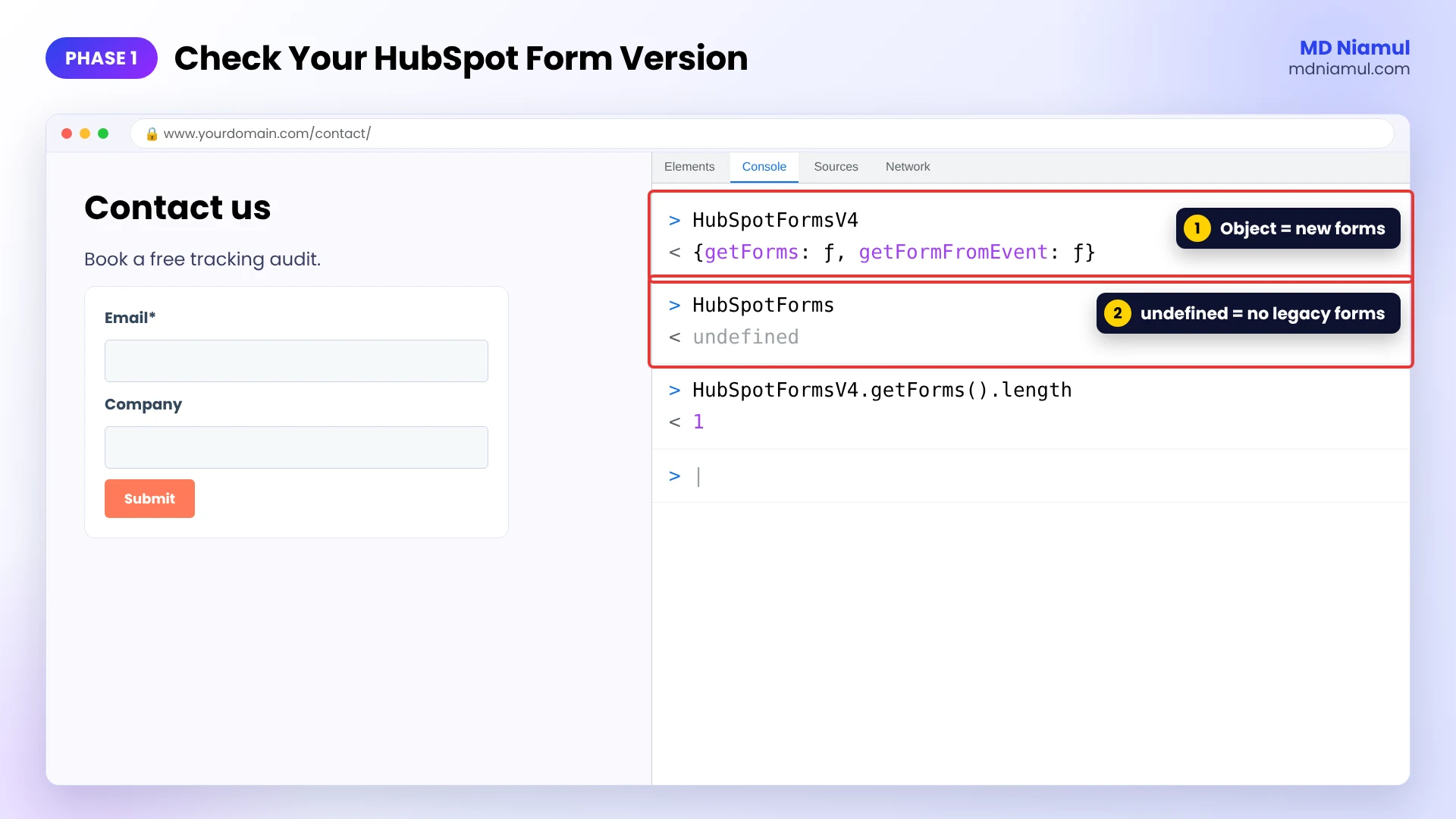
- Open the page with the form in Chrome, right-click and choose Inspect, then open the Console tab.
- Type
HubSpotFormsV4and press Enter. If you see an object, the page runs new forms. - Type
HubSpotForms. If that returns an object, the page also has legacy forms. - In HubSpot, open Marketing → Forms and check which forms were created or rebuilt in the updated editor.
Phase 2: Find and Pause the Old HubSpot Listener
- In GTM, search your tags for
hsFormCallbackoronFormSubmitted. That’s your old listener. - Note the event name it pushes and the tags that use it. You’ll point those tags at the new trigger.
- Don’t rely on GTM’s built-in Form Submission trigger for HubSpot embeds. It often never fires for these forms, and when it does it can count failed submits too.
- Keep the old tag until the new one is tested, then pause it so you don’t count leads twice.
Phase 3: Add the HubSpot Form Listener in GTM
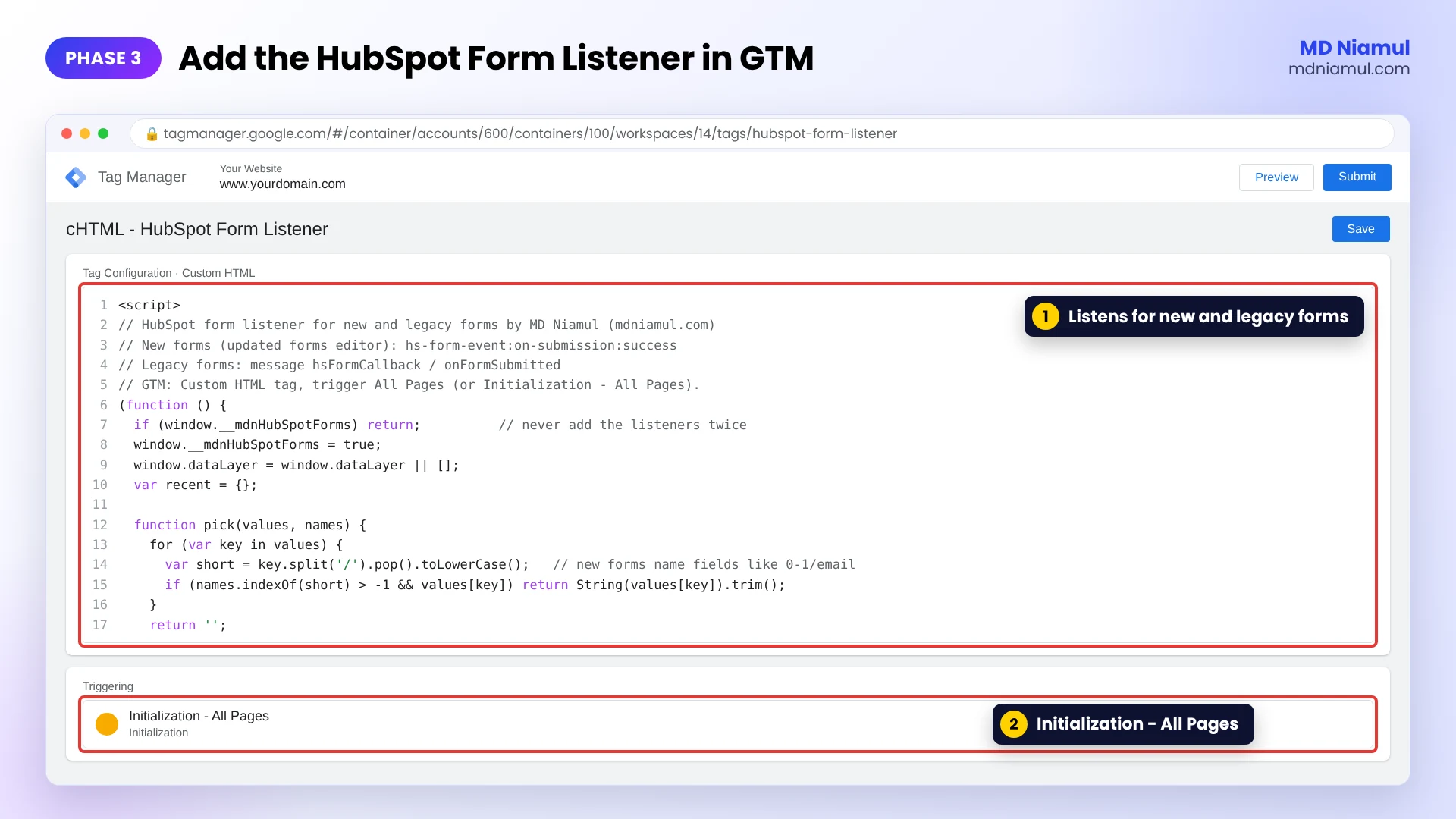
- Go to Tags → New → Custom HTML and paste the code below.
- Trigger: Initialization – All Pages (or All Pages). HubSpot’s docs say to add listeners before the embed code runs, and Initialization fires before most embeds have loaded.
- Name it cHTML – HubSpot Form Listener and save.
<script>
// HubSpot form listener for new and legacy forms by MD Niamul (mdniamul.com)
// New forms (updated forms editor): hs-form-event:on-submission:success
// Legacy forms: message hsFormCallback / onFormSubmitted
// GTM: Custom HTML tag, trigger All Pages (or Initialization - All Pages).
(function () {
  if (window.__mdnHubSpotForms) return;          // never add the listeners twice
  window.__mdnHubSpotForms = true;
  window.dataLayer = window.dataLayer || [];
  var recent = {};

  function pick(values, names) {
    for (var key in values) {
      var short = key.split('/').pop().toLowerCase();   // new forms name fields like 0-1/email
      if (names.indexOf(short) > -1 && values[key]) return String(values[key]).trim();
    }
    return '';
  }

  function push(version, formId, instanceId, conversionId, values) {
    var key = conversionId || (version + '|' + formId + '|' + (instanceId || ''));
    var now = Date.now();
    if (recent[key] && (conversionId || now - recent[key] < 3000)) return;   // count each submit once
    recent[key] = now;
    window.dataLayer.push({
      event: 'hubspot_form_submit',
      form_version: version,
      form_id: formId || '',
      form_instance_id: instanceId || '',
      conversion_id: conversionId || '',
      page_path: window.location.pathname,
      user_data: {                                // for Google Ads Enhanced Conversions only, not GA4
        email: pick(values, ['email']).toLowerCase(),
        phone_number: pick(values, ['phone', 'mobilephone'])
      }
    });
  }

  // 1. New forms built in the updated forms editor
  window.addEventListener('hs-form-event:on-submission:success', function (event) {
    var d = (event && event.detail) || {};
    var form = null, conversionId = '';
    try {
      form = window.HubSpotFormsV4 && window.HubSpotFormsV4.getFormFromEvent(event);
      conversionId = form && form.getConversionId ? form.getConversionId() || '' : '';
    } catch (e) {}
    if (!form || !form.getFormFieldValues) { push('new', d.formId, d.instanceId, conversionId, {}); return; }
    var done = false;
    function finish(list) {
      if (done) return; done = true;
      var values = {};
      (list || []).forEach(function (f) { if (f && f.name) values[f.name] = Array.isArray(f.value) ? f.value.join(';') : f.value; });
      push('new', d.formId, d.instanceId, conversionId, values);
    }
    setTimeout(finish, 1500);                      // never wait more than 1.5 s for the field values
    form.getFormFieldValues().then(finish, function () { finish([]); });
  });

  // 2. Legacy forms
  window.addEventListener('message', function (event) {
    var m = event.data;
    if (!m || typeof m !== 'object' || m.type !== 'hsFormCallback' || m.eventName !== 'onFormSubmitted') return;
    var host = '';
    try { host = new URL(event.origin).hostname; } catch (e) {}
    if (event.origin !== window.location.origin && !/(^|\.)(hsforms\.com|hsforms\.net|hubspot\.com)$/.test(host)) return;
    var data = m.data || {};
    var values = data.submissionValues || data;
    push('legacy', m.id, '', '', values);
  });
})();
</script>
What it does, in plain words. For new forms it listens for the success event, asks HubSpot for the submitted fields and the conversion ID, and waits at most 1.5 seconds so a slow page never blocks the push. For legacy forms it reads onFormSubmitted from your own page or from HubSpot’s form domains only. Both paths push the same hubspot_form_submit event, with the email lowercased and the phone in user_data. A repeat of the same submit is counted once.
I tested it in a headless browser with a simulated new-form submit (one push, email read from 0-1/email), the same conversion sent twice (counted once), a second real submit (counted), a legacy same-page form, a legacy form in an iframe from forms.hsforms.com, a fake message from another domain (ignored), ready and junk messages (ignored), and a new form with no HubSpotFormsV4 object (still pushed). No page errors.
Phase 4: Create the Trigger and Variables
- Create a Custom Event trigger with the event name
hubspot_form_submit. Call it CE – hubspot_form_submit. - Create Data Layer Variables for
form_id,form_version,conversion_id,user_data.emailanduser_data.phone_number. - To track only some forms, add a condition on the
form_idvariable. Your form IDs are in the form’s URL in HubSpot.
Phase 5: Send the Lead to GA4
- Add a Google Analytics: GA4 Event tag with the event name
generate_lead, on CE – hubspot_form_submit. - Add parameters
form_idandform_version, so you can compare forms and spot old embeds. - Never send the email or phone to GA4. Google’s policy doesn’t allow personal data there.
- Mark
generate_leadas a key event in GA4 Admin.
Phase 6: Google Ads Enhanced Conversions and Meta
- Add a Google Ads Conversion Tracking tag on the same trigger. Set Transaction ID to the
conversion_idvariable. - Tick Include user-provided data from your website, create a User-Provided Data variable with manual configuration, and map Email and Phone to the two
user_datavariables. - For Meta, fire a
Leadevent and useconversion_idas the event ID, so the Conversions API copy can be deduplicated later. - Keep the Conversion Linker on All Pages.
Phase 7: Test Both Form Versions
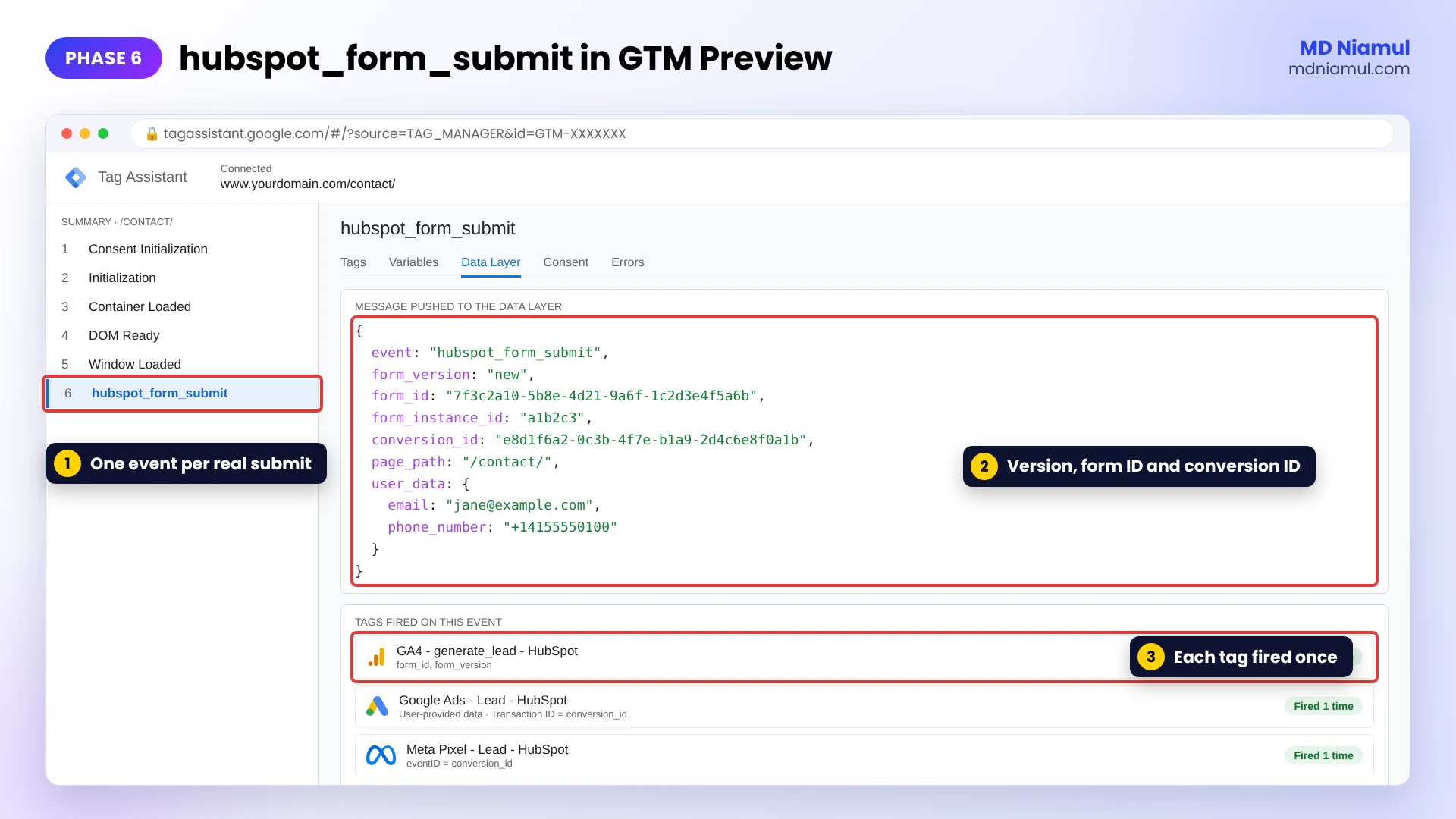
- Click Preview, open a page with a new form, and submit it with a test email.
- In Tag Assistant, select
hubspot_form_submitand check the Data Layer tab:form_version: "new", the form ID, a conversion ID and the email. - Do the same on a page with a legacy form. You should see
form_version: "legacy". - Submit with a missing required field. Nothing should fire, because only successful submits count.
- Publish, then pause the old listener from Phase 2.
Phase 8: Close the Loop with HubSpot CRM Data
- Form fills are only the first step. Send qualified leads and closed deals from HubSpot back to Google Ads as offline conversions. My HubSpot and Google Sheets offline conversion guide shows one way.
- For a B2B funnel with server-side GTM, see HubSpot B2B funnel tracking with server-side GTM, hosted on Stape (or Stape EU).
- Check that your consent banner and Consent Mode work with the free Consent Mode checker.
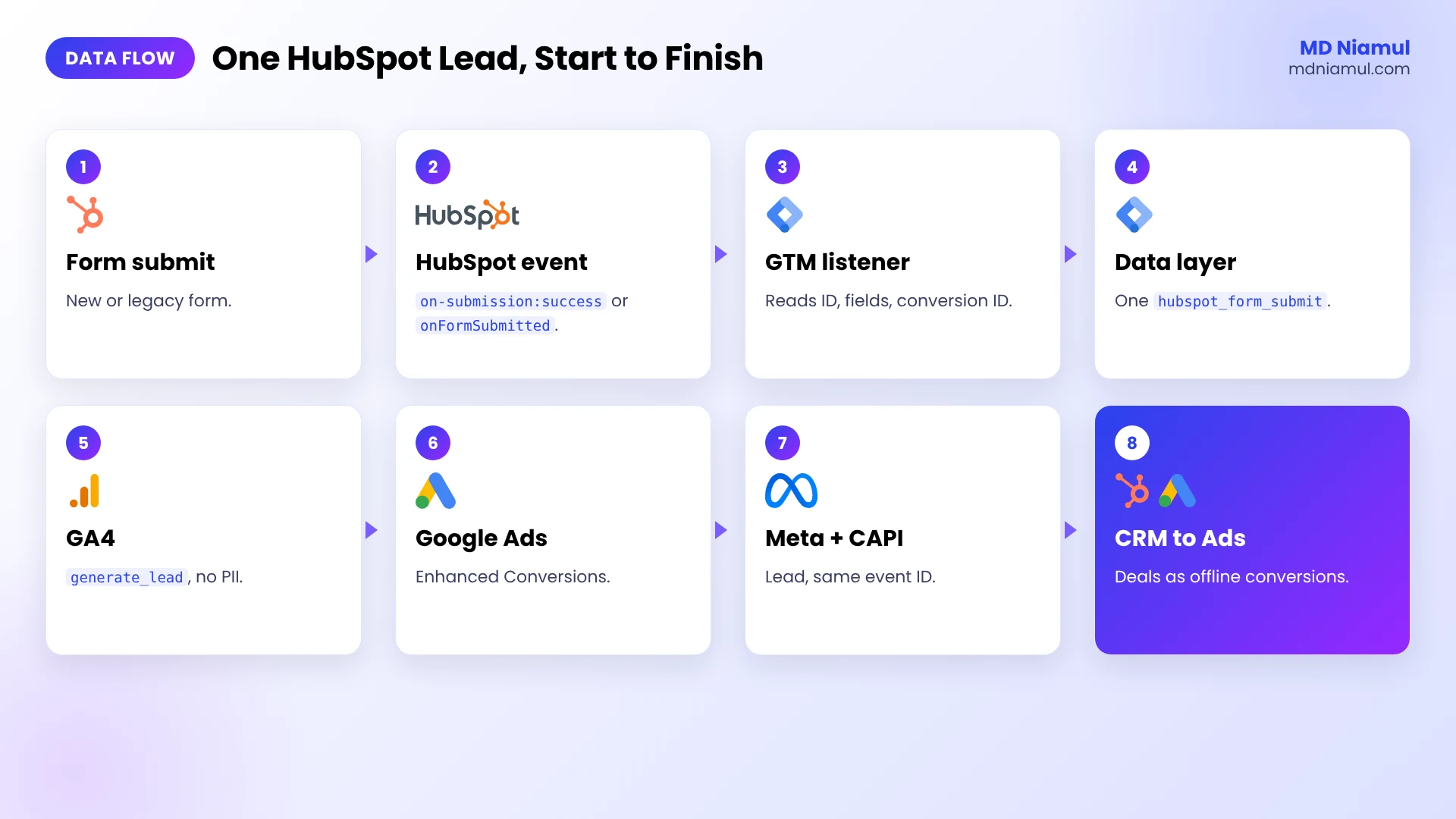
HubSpot Form Tracking: The Full Data Flow
| # | What happens | Where |
|---|---|---|
| 1 | A visitor submits a HubSpot form on your site | Your page |
| 2 | HubSpot fires hs-form-event:on-submission:success (new) or onFormSubmitted (legacy) |
Browser |
| 3 | The GTM listener reads the form ID, conversion ID and fields | GTM Custom HTML |
| 4 | One hubspot_form_submit event goes into the data layer |
Data layer |
| 5 | GA4 gets generate_lead without personal data |
GA4 |
| 6 | Google Ads gets the conversion with the email for Enhanced Conversions | Google Ads |
| 7 | Meta gets a Lead with the conversion ID as event ID | Meta Pixel and CAPI |
| 8 | Qualified leads and deals go back from the HubSpot CRM | Offline conversions |
Testing & Validation Workflow
- Version check.
HubSpotFormsV4in the console tells you which listener path should fire. - Preview check. One
hubspot_form_submitper real submit, with the rightform_version. - Error check. A failed submit (missing required field) pushes nothing.
- GA4 check.
generate_leadshows in DebugView withform_id, and no email anywhere. - Google Ads check. The conversion action’s diagnostics show user-provided data after a few days.
- CRM check. Compare HubSpot contacts created from the form with GA4 leads for the same week.
Troubleshooting Common Mistakes
Mistake 1: The old listener is still the only one
The Problem: Google Ads shows zero form conversions, but HubSpot shows new contacts.
The Cause: the form was rebuilt in the updated editor, and the GTM tag still waits for hsFormCallback.
The Solution: add the listener from Phase 3 and point your tags at CE – hubspot_form_submit.
Mistake 2: The email is empty in the data layer
The Problem: the event fires, but user_data.email is blank.
The Cause: the success event itself has no field values, or the email field has a custom name.
The Solution: keep the getFormFieldValues() part of the code, and add your custom field’s name to the pick() list if it isn’t email.
Mistake 3: Every lead counts twice
The Problem: GA4 and Google Ads show double the HubSpot contacts.
The Cause: the old and new listeners both run, or a thank-you page conversion fires as well.
The Solution: pause the old tag, pick one conversion method per form, and use conversion_id as the transaction ID.
Mistake 4: Multi-step forms fire too early
The Problem: a conversion appears when someone only clicks Next.
The Cause: a tag listens for the navigate events (on-interaction:navigate:next) instead of the success event.
The Solution: count only on-submission:success, which is what the code above does.
Mistake 5: The form redirects before tags fire
The Problem: conversions are lower than submits on forms that redirect to a thank-you page.
The Cause: the browser leaves the page before every tag has finished sending.
The Solution: fire the listener on Initialization, keep the tags light, and test the redirect form in Preview. If it still drops, track the thank-you page for that form only.
What to Set Up Next
- Prefer a ready listener page with the code and a setup video? Use my HubSpot form GTM listener.
- Tracking HubSpot landing pages instead of embeds? Read HubSpot landing page form tracking for Google Ads.
- Need a listener for another form tool? Try the free form tracking listener generator.
Want me to set it up and check your whole HubSpot funnel? See my HubSpot form conversion tracking services or the HubSpot conversion tracking specialist page.
Conclusion
HubSpot didn’t break your tracking on purpose. The new forms just speak a different language, and most GTM setups were written for the old one.
Check the version with one console command, add the listener that handles both, and test one new form and one legacy form before you publish. After that, the next real gain is in the CRM: send the leads that turned into deals back to Google Ads, so bidding learns from revenue and not just form fills.
Summary by MD Niamul
HubSpot form tracking in Google Tag Manager needs a listener that knows both form versions. Forms built in HubSpot’s updated forms editor don’t send the old hsFormCallback message, so legacy listeners stop firing without errors. I add one GTM Custom HTML tag on Initialization that listens for hs-form-event:on-submission:success for new forms and onFormSubmitted for legacy forms. For new forms it reads the fields with getFormFieldValues() and the unique getConversionId(), then both paths push one hubspot_form_submit event with the form ID and the email for Google Ads Enhanced Conversions. GA4 gets generate_lead without personal data. Pause the old listener after testing so leads aren’t counted twice. I wrote this from fixing HubSpot form tracking after forms moved to the new editor.
Frequently Asked Questions (FAQ)
1. Why did my HubSpot form tracking stop working in GTM?
Most likely the form was built or rebuilt in HubSpot’s updated forms editor. Those new forms don’t send the legacy hsFormCallback message that most GTM listeners wait for, so the listener never fires and shows no error. Add a listener for hs-form-event:on-submission:success and the conversions come back. Pause the old tag after testing.
2. How do I track HubSpot form submissions in GTM?
Add a Custom HTML tag that listens for hs-form-event:on-submission:success for new forms and the onFormSubmitted message for legacy forms, and pushes one hubspot_form_submit event. Then create a Custom Event trigger with that name and attach your GA4, Google Ads and Meta tags to it. Test one new and one legacy form in Preview before you publish.
3. How do I know if my site uses new or legacy HubSpot forms?
Open the page with the form, open the browser console and type HubSpotFormsV4. If it returns an object, the page runs new forms. Type HubSpotForms to check for legacy forms. In HubSpot, the forms list also shows which forms were made in the updated editor. Many sites have both kinds at once.
4. What is hs-form-event:on-submission:success?
It’s the browser event HubSpot fires on window when a new form is submitted successfully. HubSpot’s developer docs list it with other global form events such as on-ready, on-submission:failed and the multi-step navigate events. The form ID and instance ID are in event.detail. Field values and the conversion ID come from the HubSpotFormsV4 object instead.
5. How do I get the email from a new HubSpot form for Enhanced Conversions?
The success event has no field values. Call HubSpotFormsV4.getFormFromEvent(event).getFormFieldValues(), which returns a promise with name and value pairs. Field names are prefixed, like 0-1/email, so match on the part after the slash. Send the email only to Google Ads and Meta, never to GA4. The listener in this guide does this for you.
6. Can I use the GTM Form Submission trigger for HubSpot forms?
It isn’t reliable for HubSpot embeds. The built-in trigger often doesn’t fire for these forms, and it can’t tell a successful submit from a failed one. HubSpot’s own success events are the better signal, because they fire only after the submission went through. They also work when the form sits in an iframe.
7. Which GA4 event should I use for HubSpot form leads?
Use generate_lead, a GA4 recommended event, with form_id and form_version as parameters, and mark it as a key event. Don’t add the email, phone or name as parameters, because Google doesn’t allow personal data in GA4. Compare forms with the form_id parameter in reports. The form_version parameter shows which pages still run old embeds.
8. How do I stop HubSpot form leads from counting twice?
Pause the old hsFormCallback listener once the new one works, and don’t also count a thank-you page for the same form. For new forms, set the Google Ads transaction ID to the conversion ID from getConversionId(), so a repeated hit with the same ID isn’t counted twice. Check the counts against HubSpot contacts for a week.
9. Does this work for multi-step HubSpot forms?
Yes. The listener only counts hs-form-event:on-submission:success, which fires once at the end. Multi-step forms also fire navigate events when people click Next or Back. Track those separately if you want a step funnel, but never use them as conversions. A visitor who stops halfway through the form isn’t a lead yet, and counting them would mislead Smart Bidding.
10. How do I send HubSpot deals back to Google Ads?
Save the GCLID or the email with each contact, then send qualified leads and closed-won deals to Google Ads as offline conversions, through a Google Sheet with Data Manager, HubSpot’s ads integration or an automation tool. That lets Smart Bidding learn from real revenue, not just form fills. Send at least one stage within 90 days of the click.
 Need Help Advanced GHL Automation & Tracking Setup?