
Quick Answer
To create a GA4 custom event tag for Pipedrive form tracking in Google Tag Manager, start from a working data layer event such as pipedrive_form_submit. Copy that exact event name from GTM Preview, create a Custom Event trigger with it, then add a Google Analytics: GA4 Event tag. Use a Constant variable for your Measurement ID, set the event name to generate_lead, add parameters such as page_location, page_path and form_platform, attach the trigger, then test, publish and mark generate_lead as a key event in GA4.
Key Takeaways
- The listener comes first: this tag only works when a data layer event is already pushed after each Pipedrive submit.
- Copy, do not type: Custom Event names are case-sensitive, so copy the name straight from GTM Preview.
- One Measurement ID variable: a Constant variable keeps every GA4 tag pointed at the same property.
- Use generate_lead: it is GA4’s recommended event name for a new lead, and it is easy to import into Google Ads.
- Custom parameters need registering: parameters like
page_pathandform_platformonly show in reports after you add them as custom dimensions. - Nothing is live until you publish: Preview only tests your workspace. Visitors get the tag after you submit and publish a version.
Introduction: The Event Is in the Data Layer, Now What?
You did the hard part. Your Pipedrive form listener works, and every real submit now pushes an event to the data layer.
But GA4 still shows nothing. A data layer event is only a message inside the browser. Until a tag picks it up and sends it to Google Analytics, no report, audience or Google Ads campaign can use it.
The data layer event is the signal. The GA4 event tag is the delivery.
In this guide I show you how to build that delivery the clean way: the right trigger, a reusable Measurement ID, the recommended generate_lead event, useful parameters, and a publish and test routine you can trust.
If you have not set up the listener yet, start with my Pipedrive form conversion tracking guide. It explains why GTM cannot see inside the Pipedrive iframe and gives you the tested listener code.
How the Pieces Fit Together
| GTM part | What it does | Name used in this guide |
|---|---|---|
| Listener (Custom HTML tag) | Pushes an event after a real Pipedrive submit | pipedrive_form_submit |
| Custom Event trigger | Waits for that exact event name | CE – pipedrive_form_submit |
| Constant variable | Stores your GA4 Measurement ID once | CONST – GA4 Measurement ID |
| GA4 Event tag | Sends the lead to Google Analytics | GA4 – generate_lead – Pipedrive |
| GA4 key event | Counts the lead as a conversion in reports and Google Ads | generate_lead |
Prerequisites & Setup Checklist
- A working listener: a test submit shows your Pipedrive event in GTM Preview.
- Google Tag Manager: Edit and Publish permission on the container.
- GA4: Editor access to the property and the web stream’s Measurement ID, which starts with
G-. - A Google tag: one Google tag for the same Measurement ID on all pages, so page views and sessions are collected.
- Consent: if you have EEA or UK visitors, a cookie banner connected to Google Consent Mode.
Not sure what is already in your container? Check it with my free GTM container analyzer before you add anything new.
Video Tutorial Walkthrough
In this short video I build the GA4 custom event tag live: copying the event name from Preview, creating the trigger, reusing the Measurement ID constant, adding the page URL and page path parameters, and publishing.
Step-by-Step Implementation Guide
There are eight steps. Keep GTM Preview open in another tab, because you will use it at the start and at the end.
Step 1: Copy the Event Name from GTM Preview
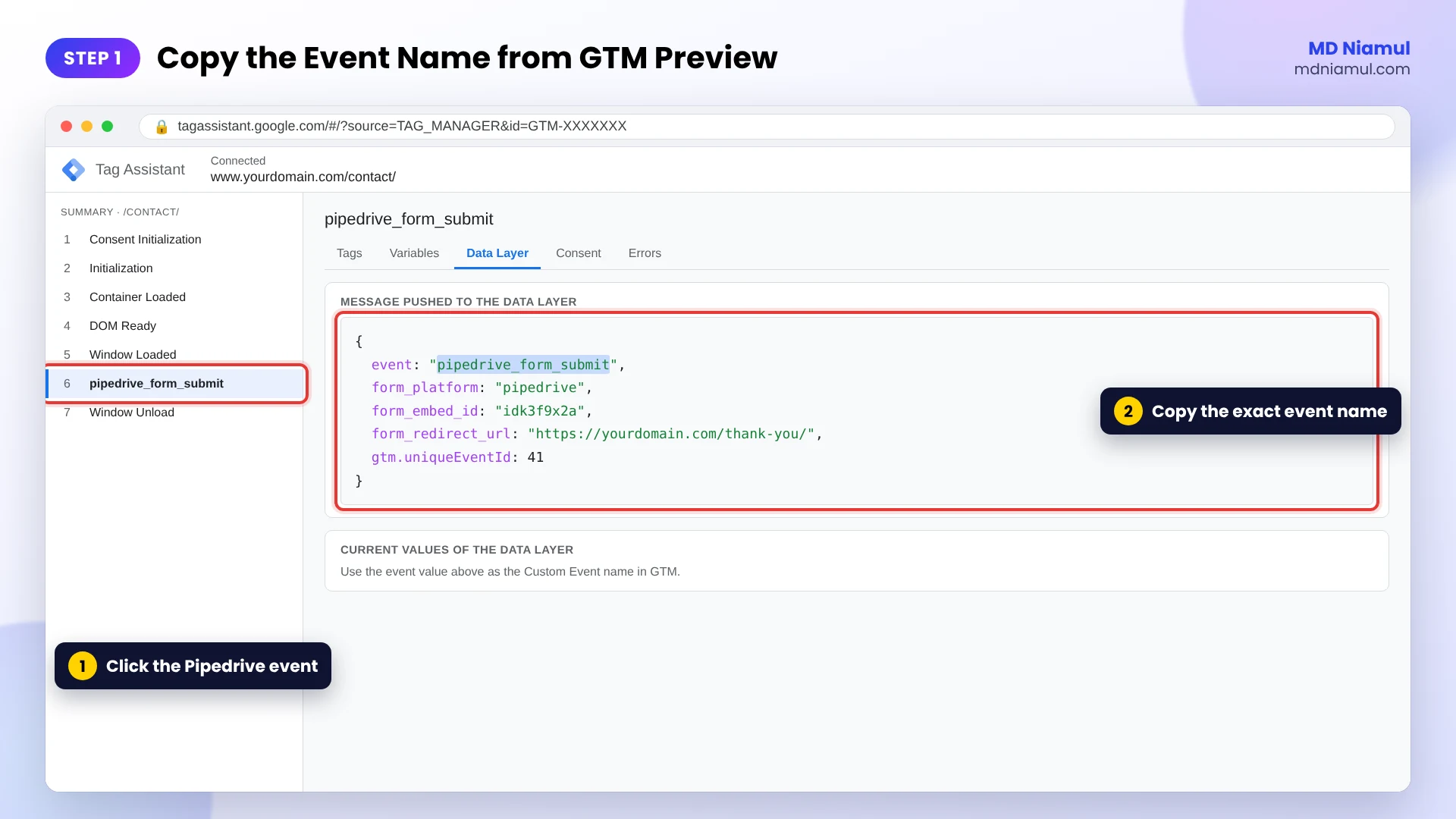
- In GTM, click Preview and connect to the page with your Pipedrive form.
- Submit a test lead. A new event appears in the left panel of Tag Assistant.
- Click it, open the Data Layer tab and copy the value of
event, for examplepipedrive_form_submit.
Why copy it? GTM matches Custom Event names exactly. Pipedrive_Form_Submit or an extra space will never fire.
Step 2: Create the Custom Event Trigger
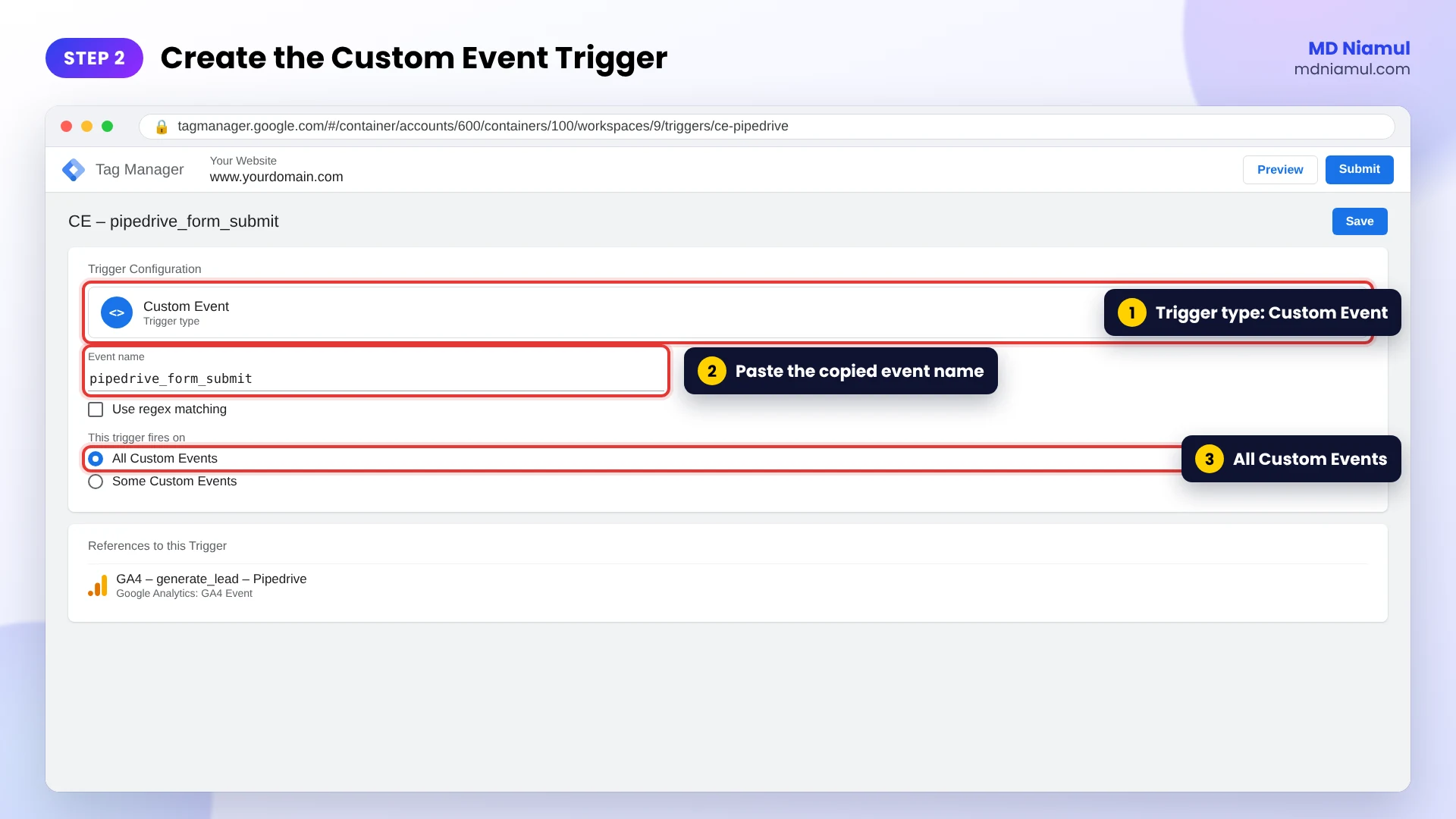
- Go to Triggers → New → Trigger Configuration → Custom Event.
- Paste the event name into Event name. Leave regex matching off.
- Keep This trigger fires on: All Custom Events.
- Name it CE – pipedrive_form_submit and save.
Running the same container on several websites? Choose Some Custom Events and add Page Hostname equals yourdomain.com.
Step 3: Choose the Google Analytics: GA4 Event Tag Type
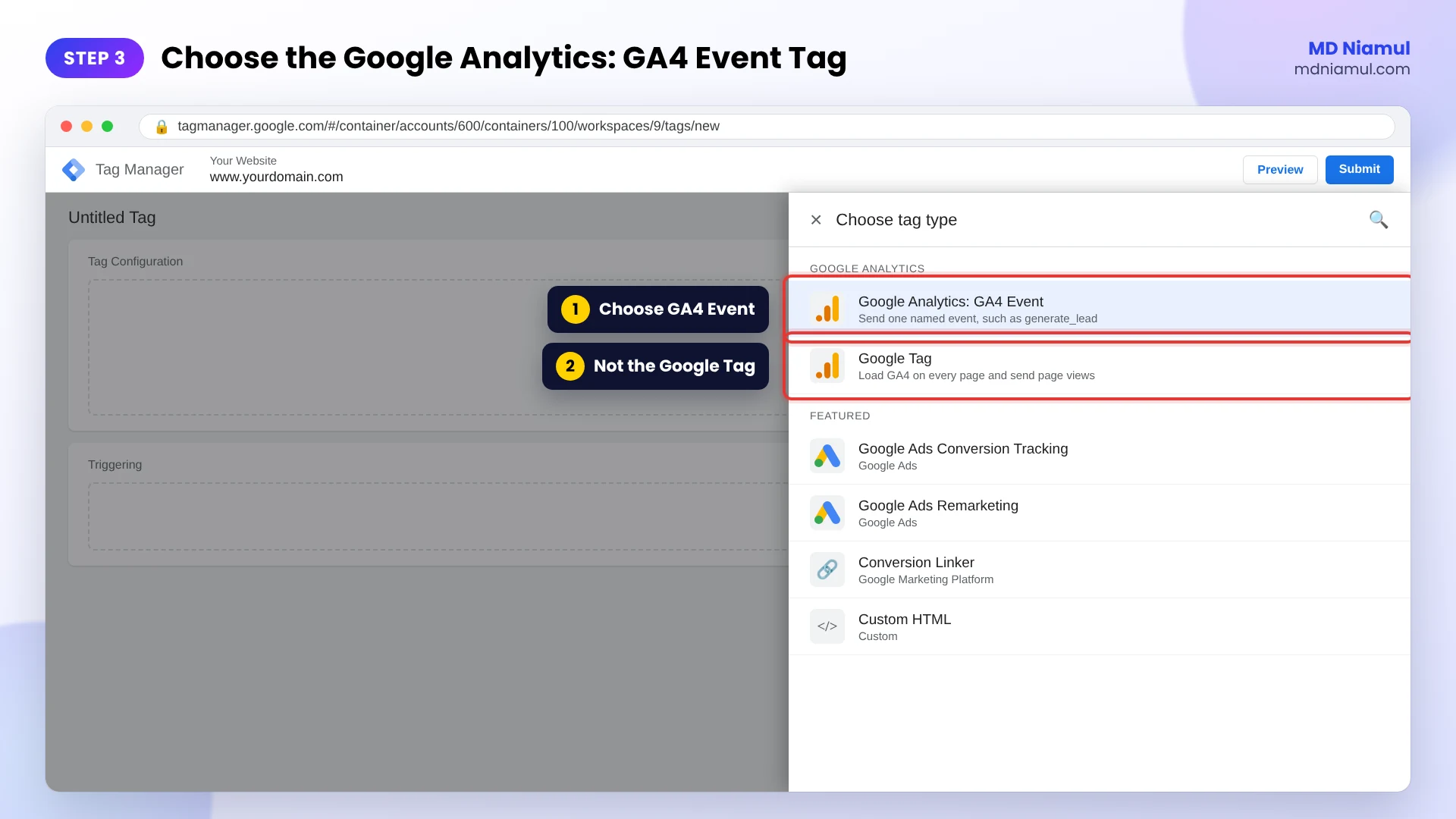
- Go to Tags → New and click Tag Configuration.
- Under Featured, choose Google Analytics, then Google Analytics: GA4 Event.
Do not pick Google Tag here. The Google tag loads GA4 and sends page views. The GA4 Event tag sends a single named event, which is what you need for a lead.
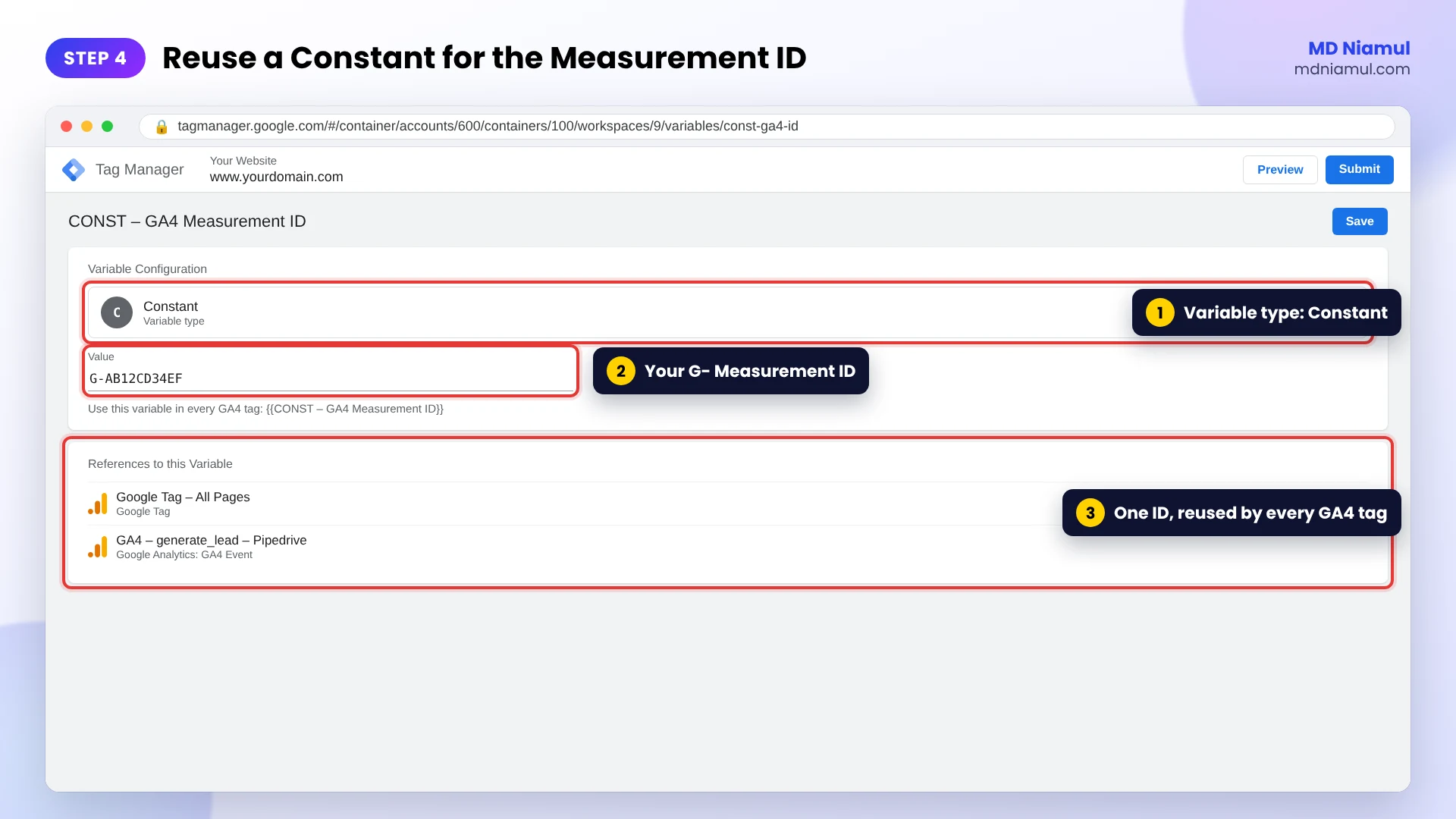
Step 4: Reuse a Constant Variable for the Measurement ID
- Click the variable icon next to Measurement ID.
- If you already have CONST – GA4 Measurement ID, select it.
- If not, click +, choose Constant, paste your
G-ID, name it CONST – GA4 Measurement ID and save.
One variable means one place to change. If the property ever changes, you update one value instead of hunting through ten tags.
Step 5: Set generate_lead and the Event Parameters
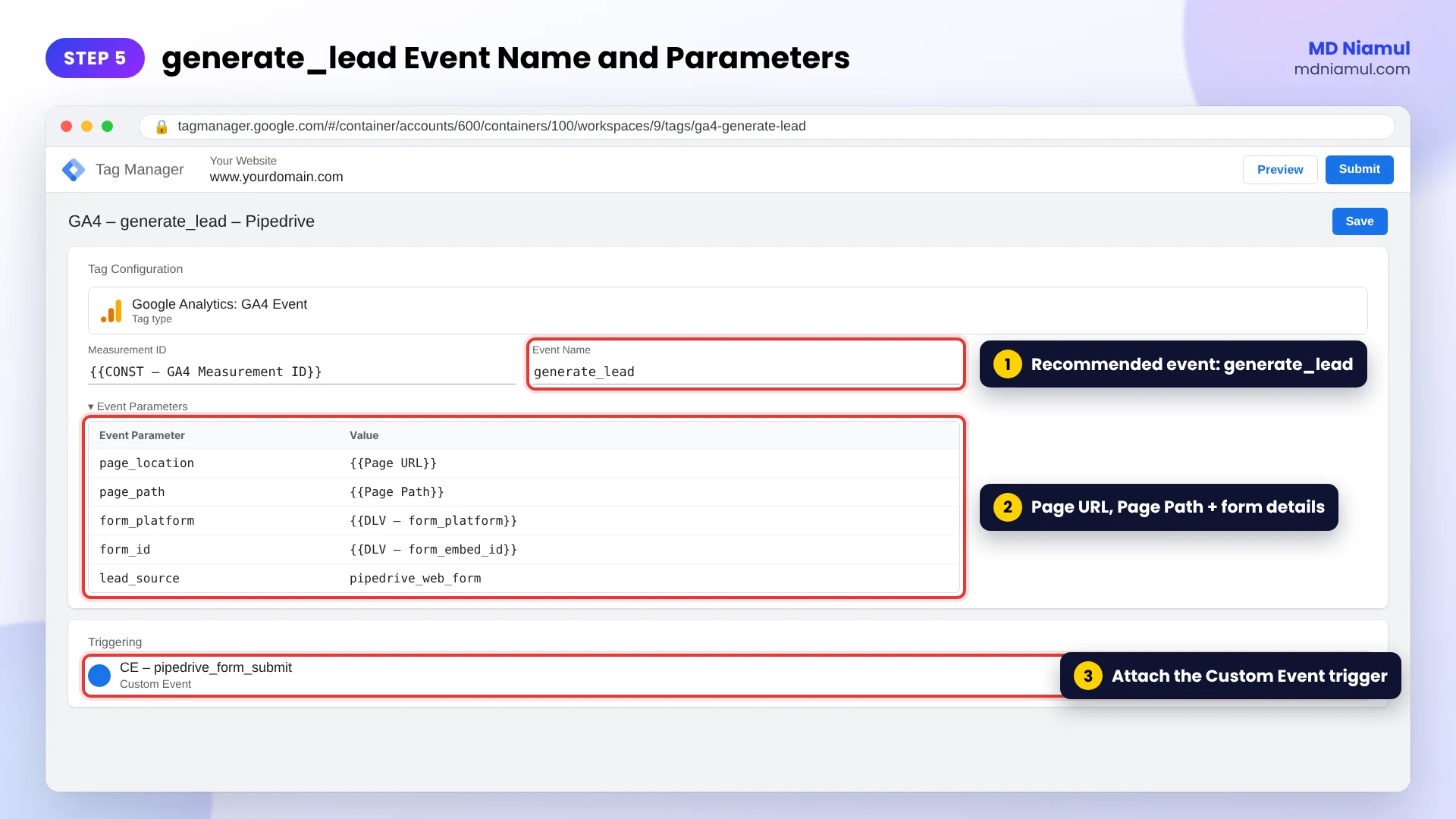
- In Event Name, type
generate_leadin lowercase. - Open Event Parameters and add the rows from the table below.
| Event parameter | Value | Why add it |
|---|---|---|
page_location |
{{Page URL}} | The full URL where the lead was submitted |
page_path |
{{Page Path}} | A short form page path, easy to group in reports |
form_platform |
{{DLV – form_platform}} | Separates Pipedrive leads from other forms |
form_id |
{{DLV – form_embed_id}} | Tells two Pipedrive forms apart |
lead_source |
pipedrive_web_form | An optional recommended parameter for generate_lead |
Two honest notes. GA4 already collects page_location with every event, so that row simply makes the value explicit. And page_path, form_platform, form_id and lead_source are custom parameters, so you will register them as custom dimensions in Step 8.
The two DLV variables are Data Layer Variables. Create them under Variables → New → Data Layer Variable, with the exact key names your listener pushes.
Do you know what a lead is worth? Google’s recommended generate_lead parameters also include value and currency. Add them only when you have agreed on a real number, for example from your average deal size and close rate.
Step 6: Attach the Trigger and Name the Tag
- Click Triggering and select CE – pipedrive_form_submit.
- Name the tag GA4 – generate_lead – Pipedrive and click Save.
A simple naming pattern (type – event – source) makes a busy container easy to read for you, your client and the next specialist.
Step 7: Test in Preview, Then Publish
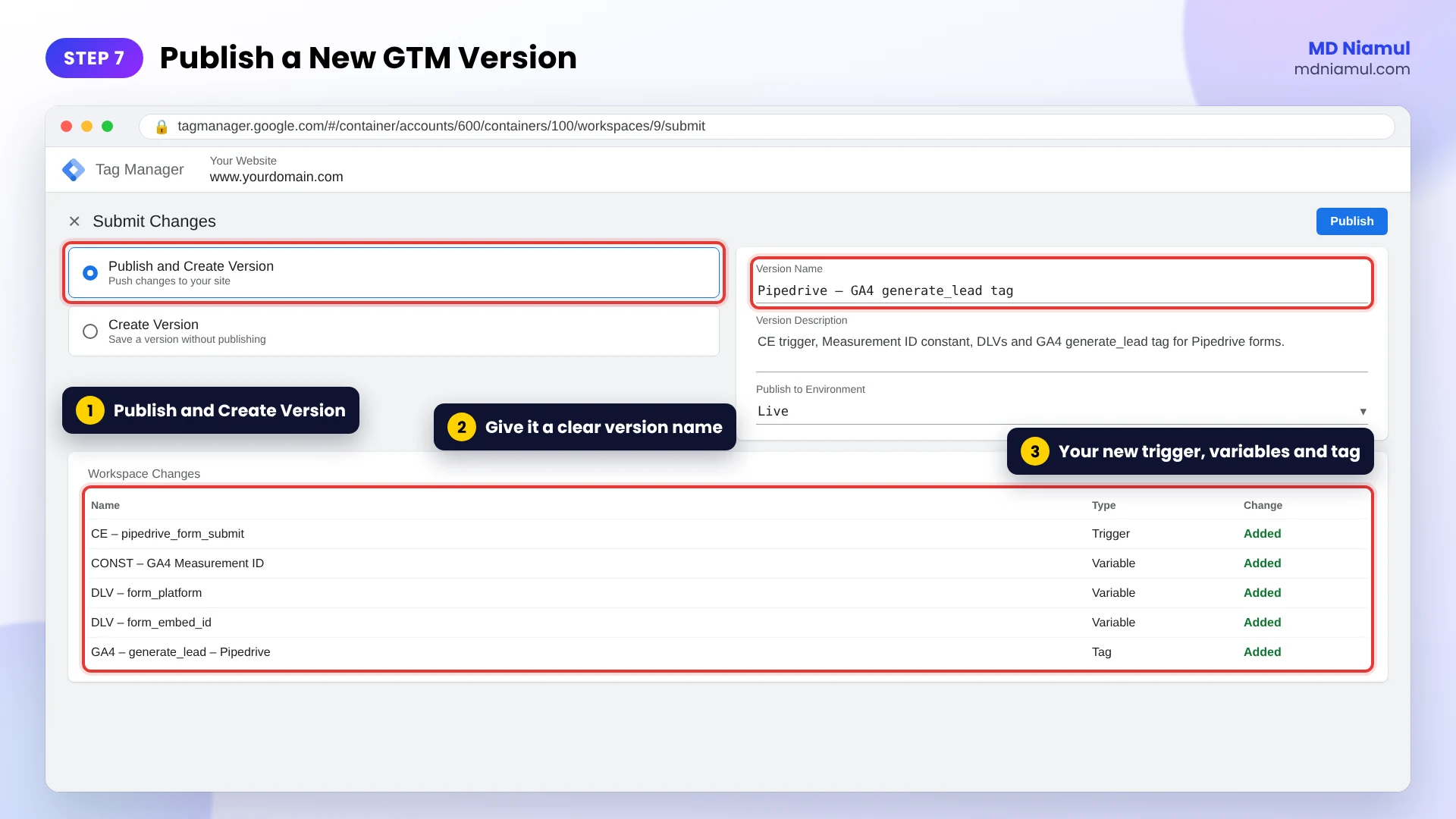
- Click Preview again and submit one real test lead.
- On the
pipedrive_form_submitevent, check that GA4 – generate_lead – Pipedrive shows under Tags Fired, once. - Click Submit, choose Publish and Create Version, and give the version a clear name, such as Pipedrive – GA4 generate_lead tag.
- Click Publish.
Need to test again without creating a new lead in Pipedrive? With GTM Preview connected, paste the snippet below into the browser console. It sends the same event the listener sends after a real submit.
// Pipedrive test push by MD Niamul (mdniamul.com)
// Paste in the browser console while GTM Preview is connected.
// It copies the event the Pipedrive listener sends after a real submit,
// so you can test the trigger and the GA4 tag without a new lead.
window.dataLayer = window.dataLayer || [];
window.dataLayer.push({
  event: 'pipedrive_form_submit',
  form_platform: 'pipedrive',
  form_embed_id: 'test_form',
  form_redirect_url: location.origin + '/thank-you/'
});
Use it only in Preview, and expect one test generate_lead in GA4. Preview traffic carries debug mode, so it shows in DebugView. To keep it out of reports, use GA4’s developer traffic data filter.
Step 8: Verify in GA4, Mark the Key Event and Register Dimensions
- In GA4, open Admin → Data display → DebugView and confirm
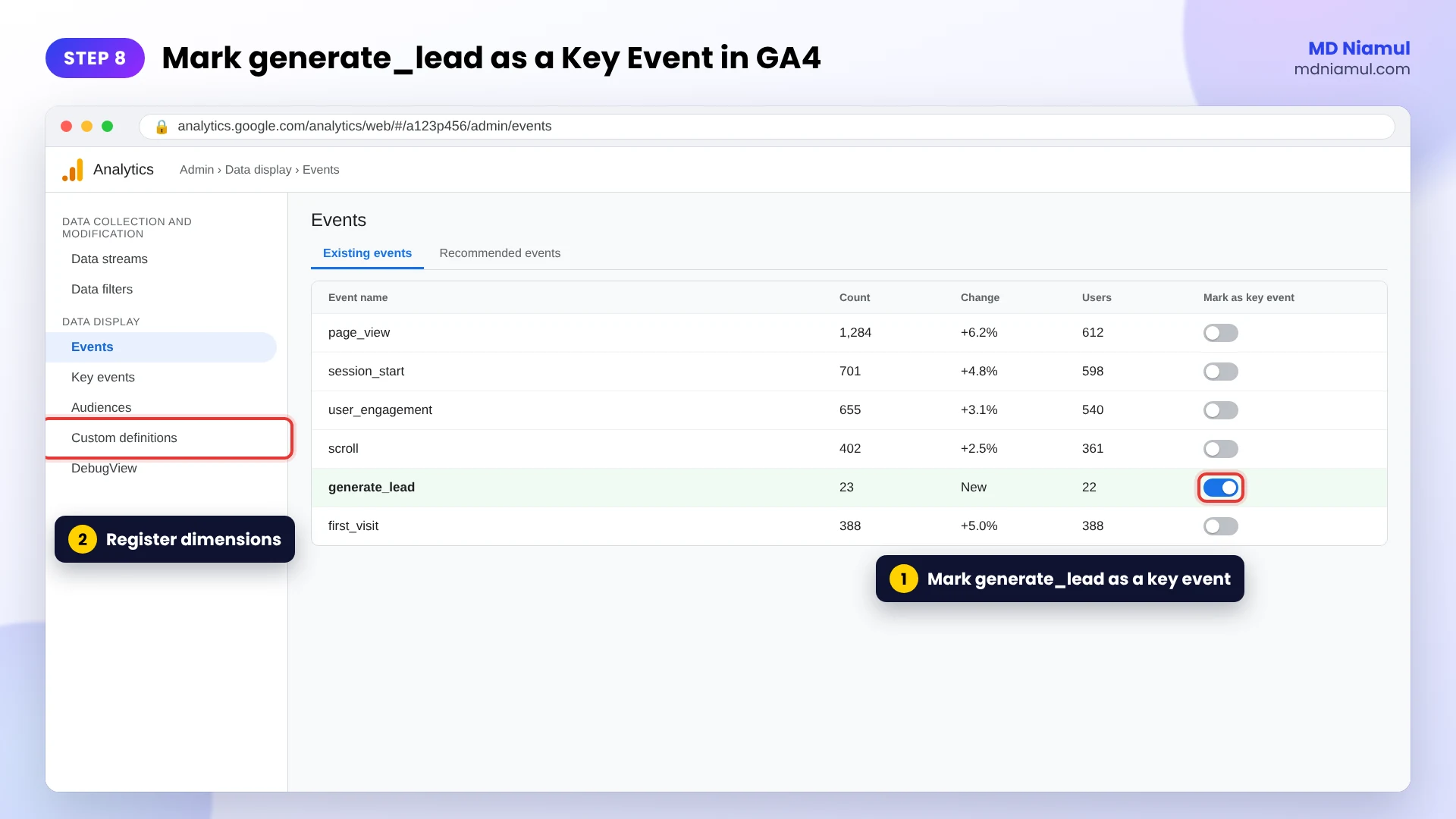
generate_leadwith its parameters. - Go to Admin → Data display → Events. When
generate_leadappears in the list, mark it as a key event. - Go to Admin → Data display → Custom definitions and create event-scoped custom dimensions for
page_path,form_platform,form_idandlead_source.
A new event can take up to a day to appear in the Events list and standard reports, even when DebugView shows it within seconds. Custom dimensions only collect data from the day you create them.
Want a second check? Run your site through my free GA4 event checker.
Naming Conventions That Keep GTM Clean
| Item | Pattern | Example |
|---|---|---|
| Trigger | CE – event name | CE – pipedrive_form_submit |
| Variable (constant) | CONST – what it holds | CONST – GA4 Measurement ID |
| Variable (data layer) | DLV – key name | DLV – form_platform |
| Tag | Platform – event – source | GA4 – generate_lead – Pipedrive |
| Version | What changed | Pipedrive – GA4 generate_lead tag |
Testing & Validation Workflow
- Trigger test. The tag fires on
pipedrive_form_submitand on nothing else. - Count test. One submit gives one
generate_lead, not two. - Value test. In Tag Assistant, the tag’s Variables tab shows real values, not undefined.
- DebugView test.
generate_leadarrives with every parameter you added. - Live test. After publishing, submit from a normal browser window and check GA4 Realtime.
- Weekly check. For the first few weeks, compare GA4 leads with new website leads in Pipedrive.
Troubleshooting Common Mistakes
Mistake 1: The tag never fires
The Problem: the Pipedrive event shows in Preview, but the GA4 tag stays under Tags Not Fired.
The Cause: the trigger’s event name is typed differently, often a capital letter or a trailing space.
The Solution: copy the event name from the Data Layer tab again and paste it into the trigger.
Mistake 2: Parameters show as undefined
The Problem: form_platform or form_id arrives empty.
The Cause: the Data Layer Variable key does not match the key your listener pushes.
The Solution: compare the key names in the Data Layer tab with the variable settings, letter by letter.
Mistake 3: It works in Preview but not for visitors
The Problem: DebugView shows leads, but Realtime is empty for real users.
The Cause: the container was never published, or consent was denied.
The Solution: publish a new version and check the consent state in Tag Assistant.
Mistake 4: Leads are counted twice
The Problem: GA4 shows about twice as many leads as Pipedrive.
The Cause: a thank-you page view and this tag both send generate_lead.
The Solution: keep one method. The listener method is better, because reloading the thank-you page does not add a lead.
Mistake 5: page_path is missing in reports
The Problem: you cannot find page_path or form_platform in Explorations.
The Cause: custom parameters are collected, but GA4 does not show them until they are registered.
The Solution: create the event-scoped custom dimensions from Step 8. They fill from that day on.
What to Set Up Next
- Send leads to Google Ads. Import the
generate_leadkey event as a conversion, or read my guide to fixing Google Ads conversion tracking for lead forms. - Track closed deals. Upload won deals from Pipedrive with the free offline conversion builder.
- Plan every event. Map your forms, events and parameters with the free measurement plan generator.
- Test your regex. If you match several event names at once, check the pattern with the free GTM regex tester.
Want it done and documented for you? See my Pipedrive form conversion tracking service.
Conclusion
A data layer event on its own changes nothing in your reports. The GA4 event tag is the step that turns a Pipedrive submit into a lead that GA4 and Google Ads can count.
Your next three moves are simple. First, copy the exact event name and build the Custom Event trigger. Second, create the GA4 Event tag with your Measurement ID constant, generate_lead and the parameters. Third, test, publish, mark the key event and register your custom dimensions.
Clean triggers, clear names and one tested tag: that is how every Pipedrive lead shows up in GA4.
Summary by MD Niamul
After a Pipedrive form listener pushes a data layer event such as pipedrive_form_submit, a GA4 custom event tag in Google Tag Manager sends that lead to Google Analytics 4. Copy the exact event name from GTM Preview, because Custom Event triggers are case-sensitive, and create a Custom Event trigger with it. Add a Google Analytics: GA4 Event tag, set the Measurement ID with a reusable Constant variable, and use the recommended event name generate_lead. Add parameters such as page_location from Page URL, page_path from Page Path, form_platform and form_id from Data Layer Variables, and optionally lead_source, value and currency. Attach the trigger, test in Preview, publish a named version, confirm the event in DebugView, mark generate_lead as a key event and register custom parameters as event-scoped custom dimensions.
Frequently Asked Questions (FAQ)
1. What is a GA4 custom event tag in Google Tag Manager?
It is a Google Analytics: GA4 Event tag that sends one named event, such as generate_lead, to your GA4 property when a trigger fires. Unlike the Google tag, which loads GA4 and sends page views, the event tag sends a single action. For Pipedrive forms, it turns a data layer event from your listener into a lead that GA4 can report on.
2. Why do I need a Custom Event trigger for Pipedrive forms?
Pipedrive forms load in an iframe, so GTM’s normal form trigger cannot see them. A listener pushes an event such as pipedrive_form_submit to the data layer instead. A Custom Event trigger waits for that exact event name and fires your GA4 tag at the right moment, once per real submission, and not on page load.
3. Is the Custom Event name case-sensitive?
Yes. GTM matches the event name exactly, so pipedrive_form_submit and Pipedrive_Form_Submit are two different events. A trailing space also breaks the match. That is why I copy the name from the Data Layer tab in GTM Preview and paste it into the trigger instead of typing it by hand.
4. Why use a Constant variable for the GA4 Measurement ID?
A Constant variable stores your G- Measurement ID in one place. Every GA4 tag in the container uses the variable, so they all send to the same property. If the property changes, or you copy the setup to a client, you update one value instead of editing every tag and risking a typo in one of them.
5. Should I use generate_lead or a custom event name?
Use generate_lead. It is one of Google’s recommended events for lead generation, so it fits GA4 reports and imports cleanly into Google Ads. Add a parameter such as form_platform to separate Pipedrive leads from other forms, instead of inventing a new event name for every form on the website.
6. Do I need to add page_location and page_path parameters?
GA4 already collects page_location with every event, so adding it with the Page URL variable only makes the value explicit. page_path is not a standard GA4 parameter. If you send it, register it as an event-scoped custom dimension, otherwise you will not see it in reports or Explorations.
7. Why don’t my custom parameters show in GA4 reports?
GA4 collects custom parameters but only shows them after you register them. Go to Admin, Data display, Custom definitions and create an event-scoped custom dimension for each parameter, using the exact parameter name. Data appears from the day you create the dimension, not for earlier events.
8. How do I test the tag without creating new Pipedrive leads?
With GTM Preview connected, paste a dataLayer.push with the same event name and keys into the browser console. It fires the trigger and tag like a real submit. It still sends a test generate_lead to GA4, so test in Preview only and use GA4’s developer traffic data filter to keep it out of reports.
9. How do I mark generate_lead as a key event?
After the event arrives in GA4, go to Admin, Data display, Events and mark generate_lead as a key event. A new event can take up to a day to appear in that list. Once it is a key event, it shows in conversion reports and can be imported into Google Ads as a conversion action.
10. Why does the tag work in Preview but not for real visitors?
Preview only tests your workspace in your own browser. Visitors get the tag after you click Submit and publish a container version. If it is published and still missing, check the consent state in Tag Assistant, because a denied analytics consent stops GA4 from storing the visit normally.
 Need Help Advanced GHL Automation & Tracking Setup?