
Quick Answer
To track Pipedrive form conversions in GA4, you cannot use Google Tag Manager’s normal form trigger, because embedded Pipedrive web forms run inside an iframe from a Pipedrive domain. Instead, set the form’s Submit options to redirect to a thank-you page, then add a small listener in a GTM Custom HTML tag. After a successful submit, the Pipedrive form sends a redirect message to your page. The listener catches it and pushes a pipedrive_form_submit event to the data layer. A Custom Event trigger then fires a GA4 generate_lead event, which you test in GTM Preview and GA4 DebugView and mark as a key event.
Key Takeaways
- Iframes block normal tracking: GTM on your page cannot see clicks or submits inside the Pipedrive iframe.
- Pipedrive talks through messages: the embedded form sends
postMessagemessages to your page for resizing and, after a submit, for the redirect. - Use the redirect option: the redirect message is the clear success signal. With the in-form thank-you message, no separate submit message is sent.
- One event, many uses: the same
pipedrive_form_submitevent can feed GA4, Google Ads and Meta. - No form field data: the messages do not include email or phone, so enhanced conversions need another source.
- Test twice: confirm the event in GTM Preview, then confirm
generate_leadin GA4 DebugView.
Introduction: Leads in Pipedrive, Nothing in GA4
Your sales team is happy. New leads arrive in Pipedrive from the website form every day.
Then you open GA4. No lead events. Google Ads optimises for page views because it has nothing better to learn from. Your reports say the website brings visitors but never leads.
The leads are real. GA4 just never heard about them.
That gap costs money. Without a lead event, you cannot see which channel, campaign or landing page brings customers, and your ad platforms cannot optimise for the result you actually want.
In this guide I will show you exactly how to track Pipedrive web form submissions in GA4 with Google Tag Manager, using a listener I tested against Pipedrive’s current embed code.
Why GTM Form Triggers Fail on Pipedrive Forms
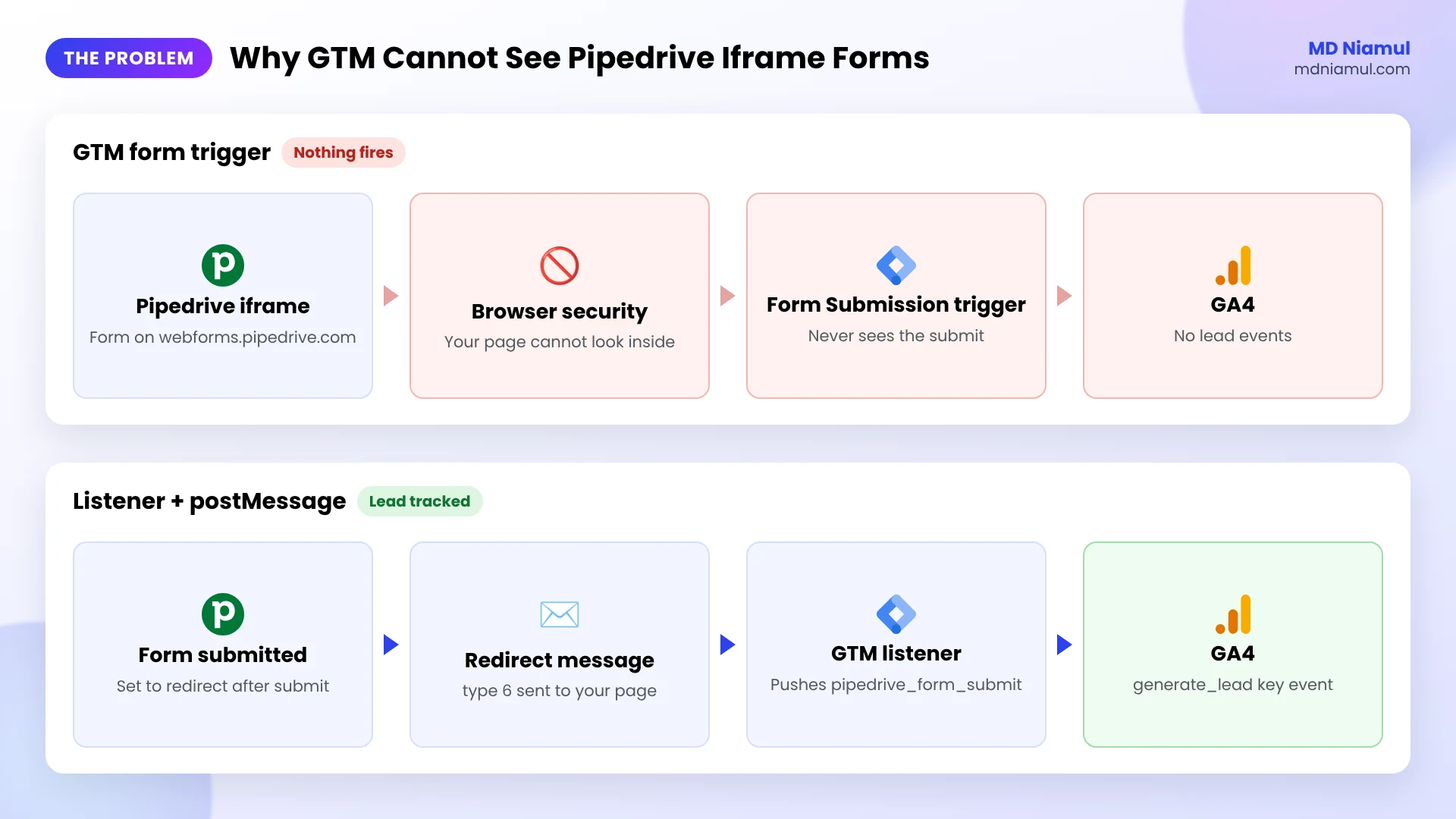
When you embed a Pipedrive web form, Pipedrive’s loader script adds an iframe to your page. An iframe is like a window into another website: the form lives on a Pipedrive domain, not on yours.
Browsers keep those two sites apart for security. Google Tag Manager runs on your page, so it cannot see clicks, field values or submits inside the Pipedrive window. That is why the built-in Form Submission trigger and click triggers stay silent.
What the iframe can do is send messages to your page with postMessage. That is the door we use.
| Message from the Pipedrive form | When it is sent | Useful for tracking? |
|---|---|---|
| Init (type 1) | When the form loads | No, it is not a submission |
| Resize (type 0) | When the form changes height, including errors | No, it fires for many reasons |
| Redirect (type 6) | After a successful submit, when the form is set to redirect | Yes, this is the success signal |
Prerequisites & Setup Checklist
- Pipedrive: permission to edit the web form in Leads Inbox → Web forms.
- Website: the form embedded with Pipedrive’s embed code, and a thank-you page on your site.
- Google Tag Manager: the container installed on every page, with publish rights.
- GA4: Editor access to the property and your Measurement ID, which starts with
G-. - Consent: a cookie banner connected to Google Consent Mode if you have visitors from the EEA or UK.
Not sure whether GTM is installed correctly? Run your page through my free GTM container analyzer.
Video Tutorial Walkthrough
Prefer to watch? In this video I walk through the whole setup on a live site: the iframe problem, the listener, the GTM trigger and tags, and the final check in GA4 DebugView.
Step-by-Step Implementation Guide
The setup has eight phases. Do them in order and test after each one.
Phase 1: Set the Pipedrive Form to Redirect After Submit
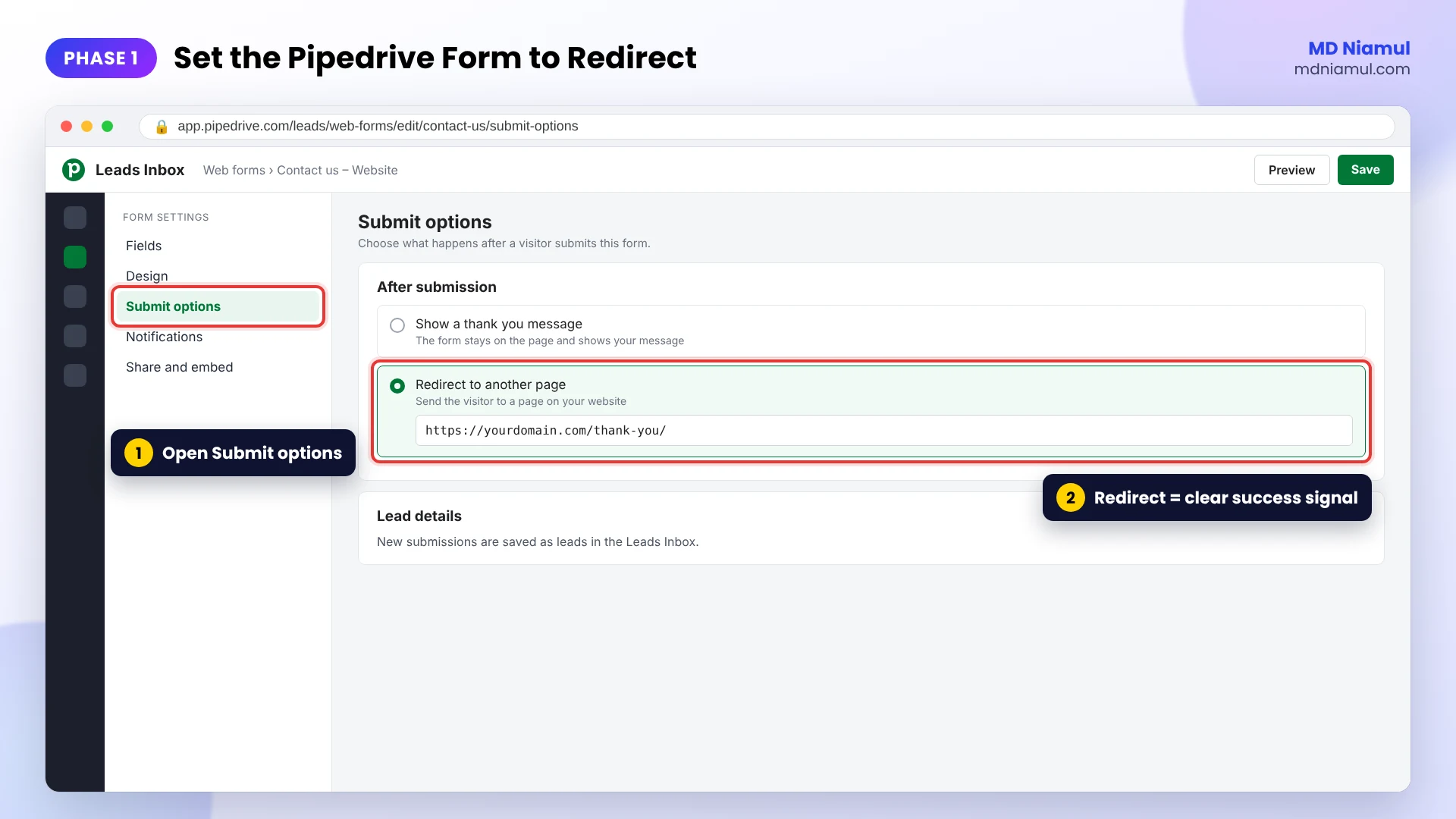
- In Pipedrive, open the Leads Inbox, go to Web forms and open your form.
- Go to the form’s Submit options.
- Choose to redirect to another page after submission, and enter your thank-you page, for example
https://yourdomain.com/thank-you/. - Save the form. The embed code on your site does not need to change.
Why this matters: when the form redirects, Pipedrive sends a redirect message to your page first. That message is our reliable “submitted” signal. With the default in-form thank-you message, the form only resizes, and a resize also happens for errors.
Phase 2: Check GTM and Preview Mode
- Open Google Tag Manager and click Preview.
- Enter the URL of the page with the Pipedrive form and connect.
- Submit a test lead and look at the left panel. You will see page events, but no form submission event. That confirms the iframe problem.
Phase 3: Add the Pipedrive Listener in a Custom HTML Tag
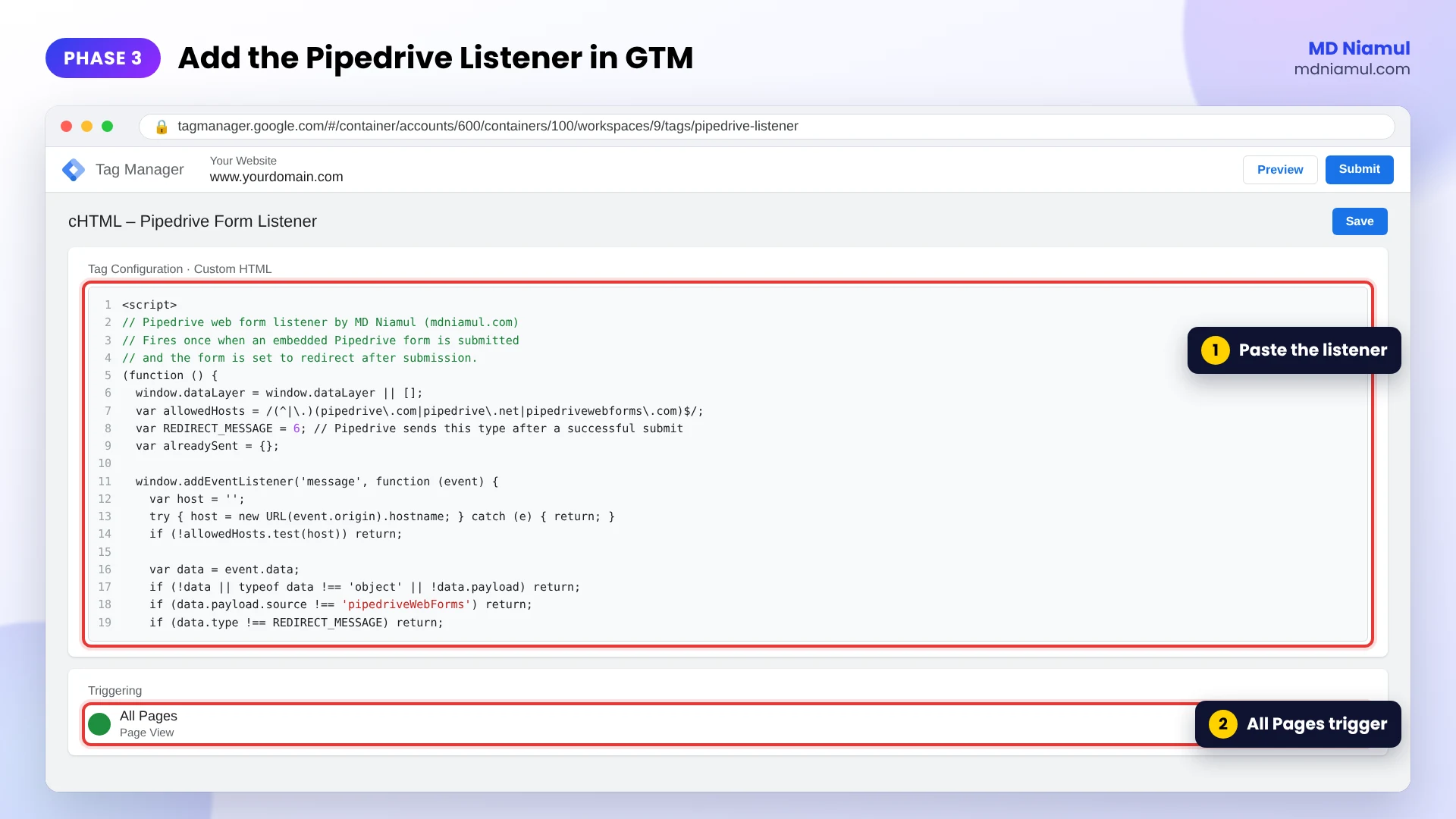
- In GTM, go to Tags → New → Custom HTML.
- Paste the code below.
- Set the trigger to All Pages, or to a Page View trigger for the pages that contain the form.
- Name it cHTML – Pipedrive Form Listener and save.
<script>
// Pipedrive web form listener by MD Niamul (mdniamul.com)
// Fires once when an embedded Pipedrive form is submitted
// and the form is set to redirect after submission.
(function () {
  window.dataLayer = window.dataLayer || [];
  var allowedHosts = /(^|\.)(pipedrive\.com|pipedrive\.net|pipedrivewebforms\.com)$/;
  var REDIRECT_MESSAGE = 6; // Pipedrive sends this type after a successful submit
  var alreadySent = {};

  window.addEventListener('message', function (event) {
    var host = '';
    try { host = new URL(event.origin).hostname; } catch (e) { return; }
    if (!allowedHosts.test(host)) return;

    var data = event.data;
    if (!data || typeof data !== 'object' || !data.payload) return;
    if (data.payload.source !== 'pipedriveWebForms') return;
    if (data.type !== REDIRECT_MESSAGE) return;

    var embedId = data.payload.uuid || 'pipedrive_form';
    if (alreadySent[embedId]) return;
    alreadySent[embedId] = true;

    window.dataLayer.push({
      event: 'pipedrive_form_submit',
      form_platform: 'pipedrive',
      form_embed_id: embedId,
      form_redirect_url: data.payload.url || ''
    });
  });
})();
</script>
How it works, in plain words:
- It listens to every message your page receives, but only trusts messages from Pipedrive domains.
- It ignores load and resize messages and acts only on the redirect message, type 6.
- It sends the event once per form, even if the message arrives twice.
- It pushes
pipedrive_form_submitto the data layer with the form’s embed ID and redirect URL.
Want a listener for a different form tool? My free form tracking listener generator builds one for you.
Phase 4: Test the Data Layer Event
- Click Preview again and reload the form page.
- Submit a test lead with a test email.
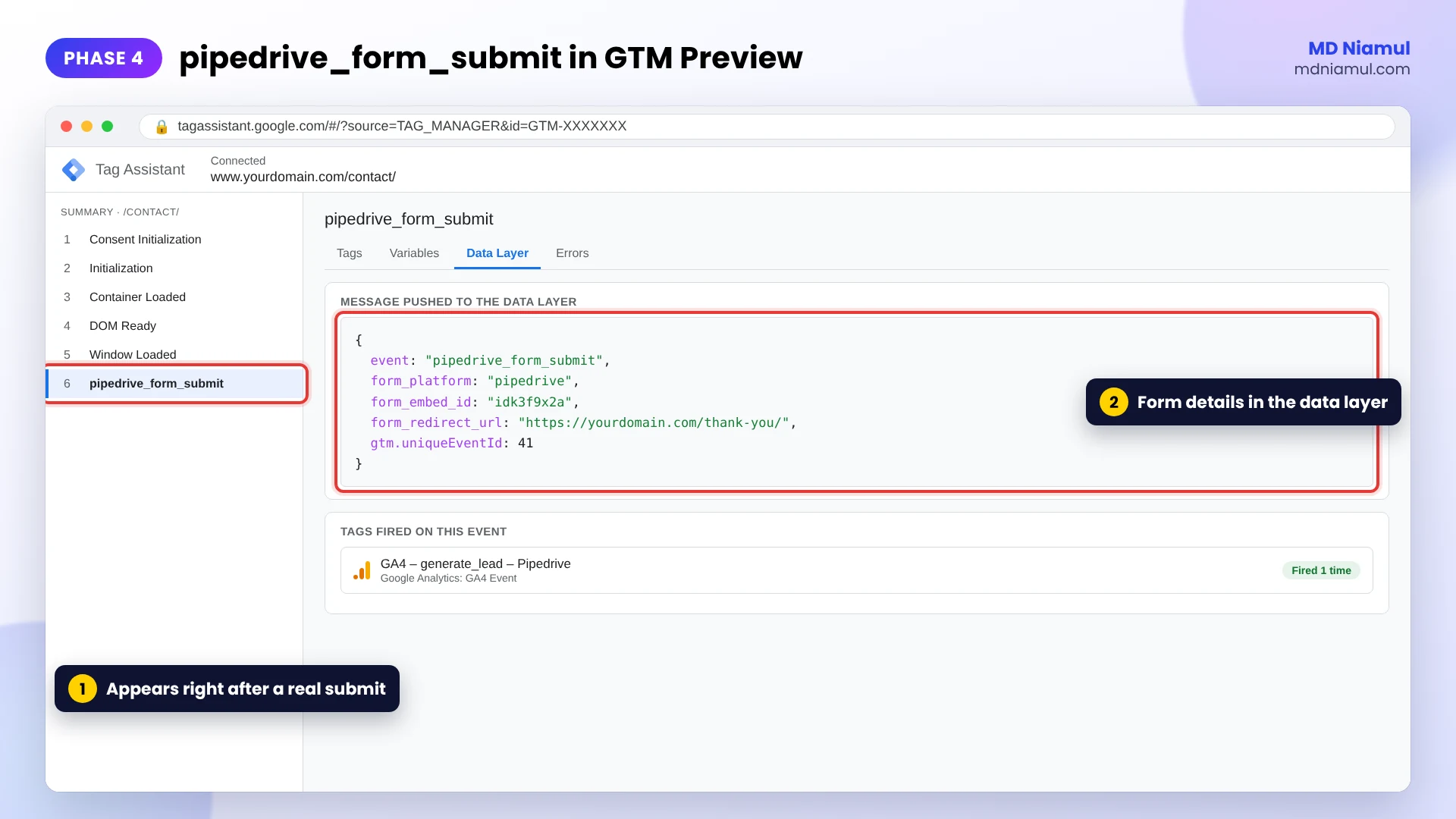
- In Tag Assistant, a new
pipedrive_form_submitevent should appear just before the thank-you page loads. - Click it and open the Data Layer tab. You should see
form_platform,form_embed_idandform_redirect_url.
Phase 5: Create the Custom Event Trigger and Variables
- Go to Triggers → New → Custom Event.
- Set the event name to
pipedrive_form_submit, exactly as in the code, and name it CE – pipedrive_form_submit. - Go to Variables → New → Data Layer Variable and create DLV – form_platform and DLV – form_embed_id with those exact key names.
Phase 6: Set Up the Google Tag with a Measurement ID Variable
- Create a Constant variable called CONST – GA4 Measurement ID with your
G-ID. One place to change it later. - If you do not have one yet, add a Google Tag with that variable as the Tag ID, firing on Initialization – All Pages.
- Check that only one GA4 configuration loads on the page, so page views are not doubled.
Phase 7: Create the GA4 generate_lead Event Tag
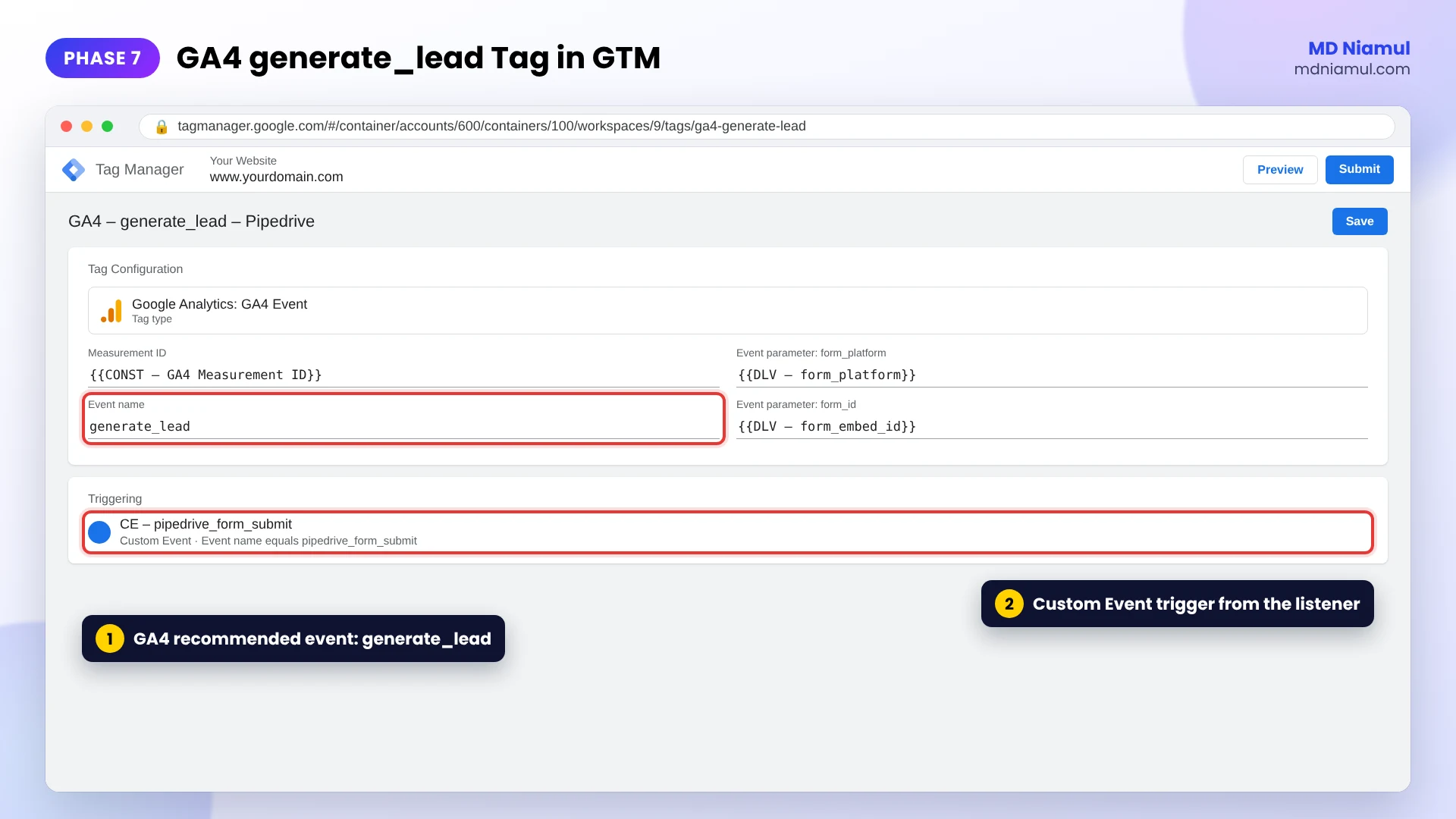
- Go to Tags → New → Google Analytics: GA4 Event.
- Set the Measurement ID to {{CONST – GA4 Measurement ID}} and the event name to
generate_lead, one of GA4’s recommended events. - Add event parameters:
form_platform= {{DLV – form_platform}} andform_id= {{DLV – form_embed_id}}. - Attach the CE – pipedrive_form_submit trigger and name the tag GA4 – generate_lead – Pipedrive.
Choose one method. If you already count a page view of the thank-you page as a lead, do not also fire this tag, or each lead is counted twice.
Phase 8: Publish, Verify in DebugView and Mark the Key Event
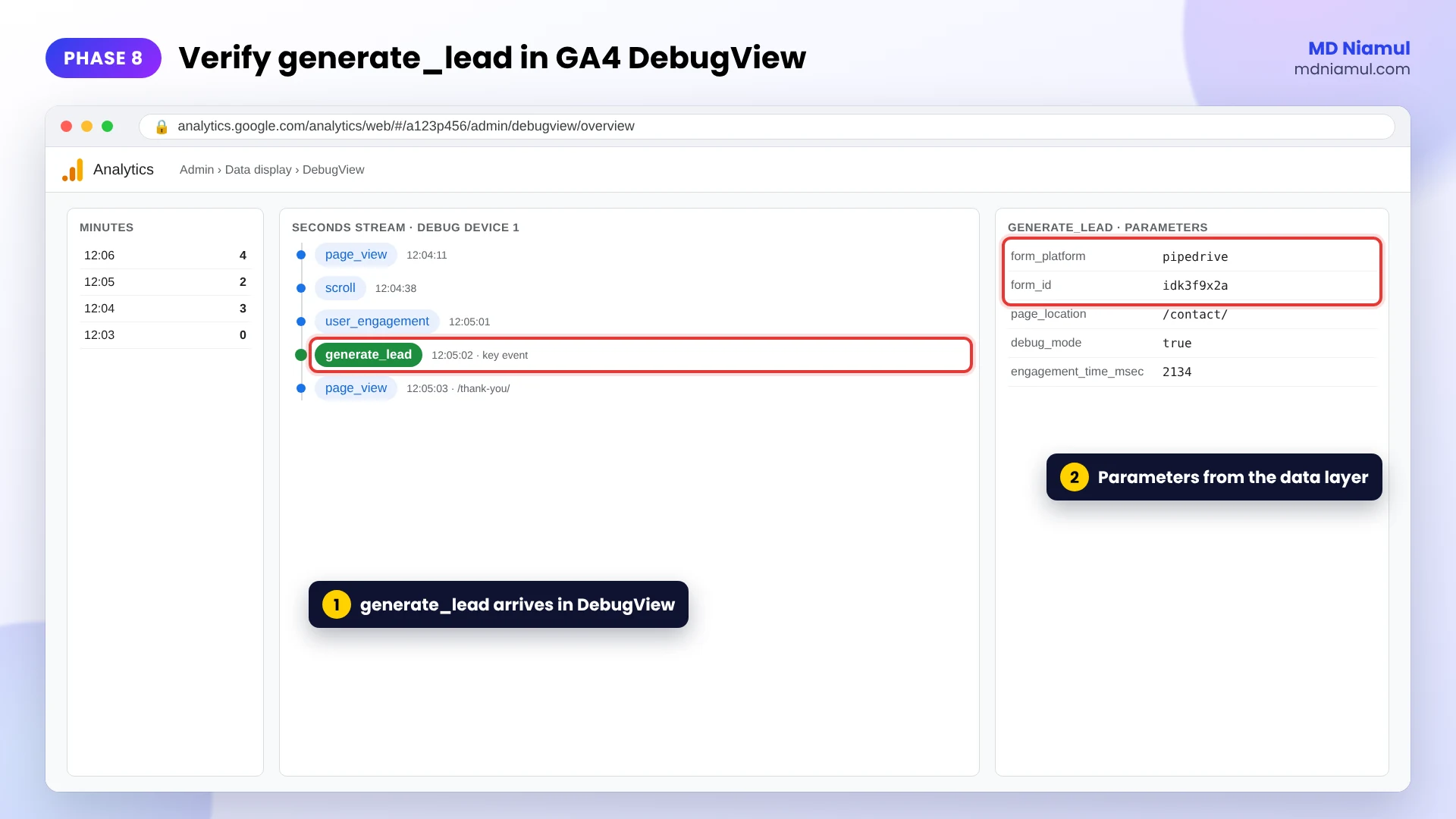
- In Preview, submit one more test lead and confirm GA4 – generate_lead – Pipedrive fired on
pipedrive_form_submit. - In GA4, open Admin → Data display → DebugView and find
generate_leadwith its parameters. - Click Submit in GTM and publish with a clear version name.
- Once the event appears in GA4, go to Admin → Events and click the star to mark
generate_leadas a key event. - Register
form_platformandform_idas custom dimensions if you want them in reports.
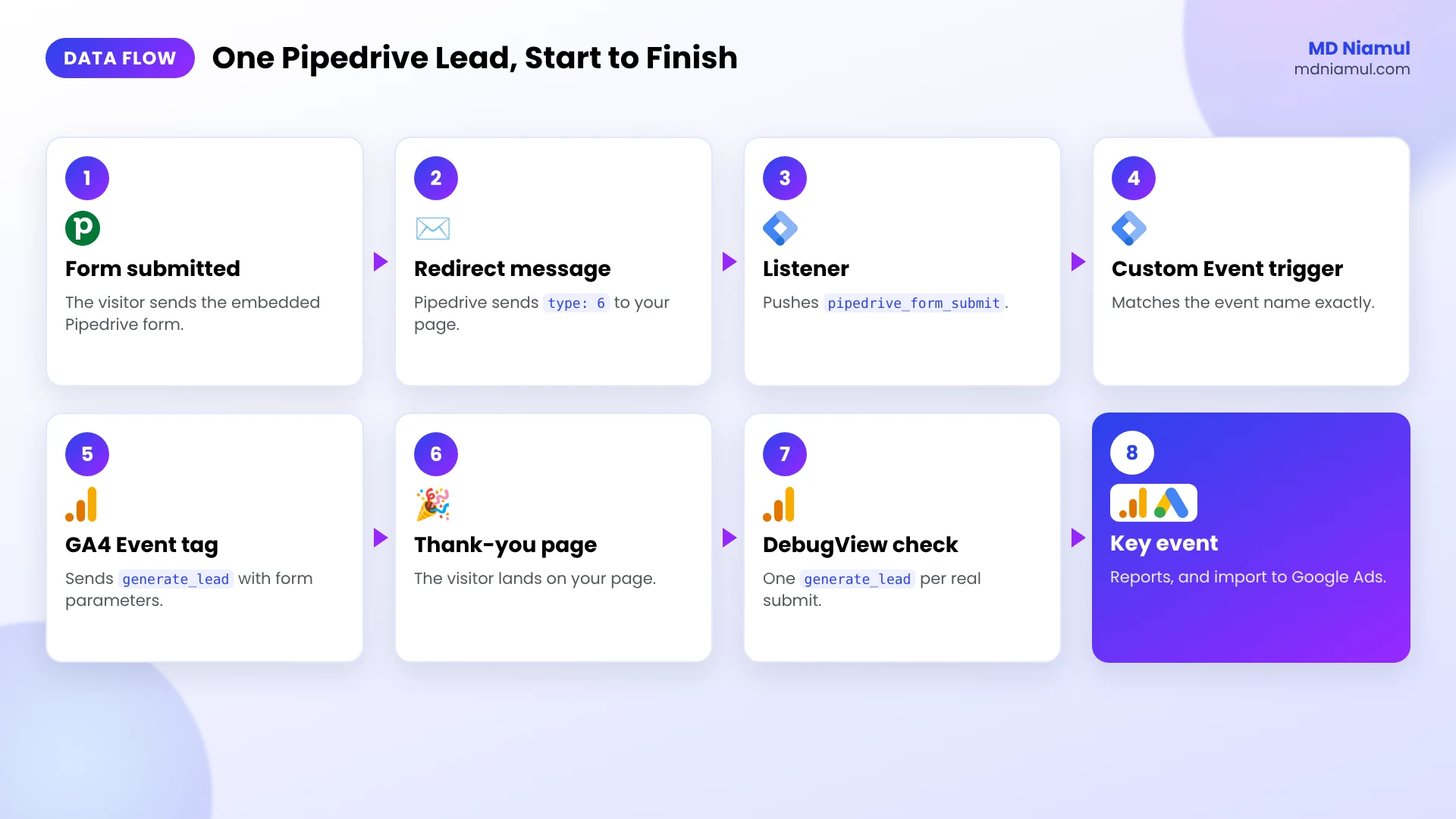
The Full Data Flow at a Glance
| # | What happens | Where |
|---|---|---|
| 1 | The visitor fills in and submits the embedded form | Pipedrive iframe |
| 2 | Pipedrive saves the lead and sends a redirect message (type 6) | Pipedrive → your page |
| 3 | The listener pushes pipedrive_form_submit |
GTM Custom HTML |
| 4 | The Custom Event trigger fires | GTM |
| 5 | The GA4 tag sends generate_lead |
GA4 |
| 6 | The visitor lands on your thank-you page | Your website |
| 7 | The key event appears in reports and can be imported to Google Ads | GA4 and Google Ads |
Testing & Validation Workflow
- Load test. Load the form page without submitting. No
pipedrive_form_submitshould appear. - Error test. Submit with a required field empty. No event should appear.
- Success test. Submit a valid test lead. One event appears, then the thank-you page loads.
- Tag test. The GA4 event tag fires once on that event.
- DebugView.
generate_leadarrives withform_platformset to pipedrive. - Pipedrive check. The test lead appears in the Leads Inbox.
- Weekly check. For the first weeks, compare GA4 lead counts with new leads in Pipedrive from the website.
Troubleshooting Common Mistakes
Mistake 1: No event appears after submit
The Problem: the lead arrives in Pipedrive, but Preview shows nothing.
The Cause: the form still uses the in-form thank-you message, so no redirect message is sent.
The Solution: switch the Submit options to redirect to a thank-you page, as in Phase 1.
Mistake 2: The event fires on page load
The Problem: leads are counted when nobody submitted.
The Cause: an older listener reacts to every Pipedrive message, including resize.
The Solution: use the listener above, which only reacts to the redirect message.
Mistake 3: Leads are counted twice
The Problem: GA4 shows twice as many leads as Pipedrive.
The Cause: both the listener event and a thank-you page view are counted as leads.
The Solution: keep one method and remove the other.
Mistake 4: The event shows in Preview but not in GA4
The Problem: GTM fires the tag, but DebugView is empty.
The Cause: the wrong Measurement ID, a denied consent state, or an unpublished container.
The Solution: check the Constant variable, the consent state in Preview, and publish the container.
Mistake 5: Google Ads enhanced conversions have no data
The Problem: you expected email or phone with each lead.
The Cause: Pipedrive’s messages do not include form field values.
The Solution: use offline conversion uploads from Pipedrive with the stored click ID instead.
What to Set Up Next
- Send leads to Google Ads. Import the
generate_leadkey event, or follow my guide to fixing Google Ads conversion tracking for lead forms. - Track closed deals. Upload won deals from Pipedrive with the free offline conversion builder.
- Check every event. Use the free GA4 event checker.
- Add consent. Test your banner with the free Consent Mode checker.
Want this done for you? See my Pipedrive form conversion tracking service.
Conclusion
Pipedrive forms are not hard to track once you stop fighting the iframe and listen to the message it already sends.
Your next three moves are clear. First, set the form to redirect after submission. Second, add the listener and a Custom Event trigger in GTM. Third, send generate_lead to GA4, test it in DebugView and mark it as a key event.
Every lead in Pipedrive should be a lead in GA4.
Summary by MD Niamul
Embedded Pipedrive web forms load inside an iframe from a Pipedrive domain, so Google Tag Manager’s form and click triggers cannot see submissions. The form does send postMessage messages to the parent page: init and resize messages on load and layout changes, and a redirect message with type 6 after a successful submit when the form’s Submit options are set to redirect. A GTM Custom HTML listener that trusts only Pipedrive origins and reacts only to that redirect message can push a pipedrive_form_submit event to the data layer. A Custom Event trigger then fires a GA4 generate_lead event tag with form parameters, using a Constant variable for the Measurement ID. Test in GTM Preview and GA4 DebugView, publish, and mark generate_lead as a key event.
Frequently Asked Questions (FAQ)
1. Why doesn’t the GTM form trigger work on Pipedrive forms?
Embedded Pipedrive web forms load inside an iframe from a Pipedrive domain, not from your website. Browsers keep the two sites separate for security, so Google Tag Manager on your page cannot see clicks, field values or submits inside the form. The Form Submission and click triggers therefore never fire. You need a listener that reads the messages the Pipedrive iframe sends to your page.
2. How does the Pipedrive form tell my page it was submitted?
The form communicates with your page through postMessage. When it loads it sends an init message, it sends resize messages when its height changes, and after a successful submit it sends a redirect message when the form is set to redirect to another page. That redirect message, with type 6, is the reliable success signal the listener uses.
3. Do I have to use the redirect option?
For this listener, yes. When the form shows its built-in thank-you message instead of redirecting, Pipedrive only resizes the form after a submit. A resize also happens for validation errors and other layout changes, so it cannot tell a real submission apart. Setting Submit options to redirect to your own thank-you page gives you a clear success signal and a page you control.
4. Can I just track the thank-you page instead?
Yes, that works too. Create a page view trigger for the thank-you page URL and fire the GA4 generate_lead tag on it. The downside is that anyone who reloads or bookmarks the page is counted again. The listener only fires right after a real submit. Choose one method, not both, or every lead is counted twice.
5. Can I get the email or phone from a Pipedrive form?
Not from the browser. Pipedrive’s messages to your page do not include form field values. That means you cannot pass email or phone to GA4, Google Ads enhanced conversions or Meta advanced matching from this listener. For lead quality and offline results, store the click ID with the lead in Pipedrive and upload conversions from the CRM instead.
6. Which GA4 event name should I use?
Use generate_lead. It is one of GA4’s recommended event names for lead generation, so it works well with GA4 reports and Google Ads imports. Add parameters such as form_platform and form_id so you can tell Pipedrive leads apart from other forms. After the first event arrives, mark generate_lead as a key event in Admin, Events.
7. Will this work if I have several Pipedrive forms on one page?
Yes. The listener stores the embed ID of each form and sends one event per form, so two different forms can each send their own lead. If you need to tell forms apart in reports, add a form name to the redirect URL, for example a query parameter, and pass the form_redirect_url value as an extra GA4 parameter.
8. How do I send Pipedrive leads to Google Ads?
The simplest way is to import the GA4 generate_lead key event into Google Ads as a conversion. For more control, add a Google Ads Conversion Tracking tag in GTM on the same pipedrive_form_submit trigger, with a Conversion Linker on all pages. For closed deals, upload offline conversions from Pipedrive using the stored GCLID.
9. What if Pipedrive changes its form code?
The listener relies on the message Pipedrive’s web form sends today, which I checked against Pipedrive’s current embed scripts in October 2026. If Pipedrive changes that message, the event could stop. Keep a weekly check comparing GA4 leads with new website leads in Pipedrive, and retest in GTM Preview after any big change to your forms or website.
10. Do I need consent for this tracking?
If you have visitors from the EEA or UK, GA4 tags should follow the visitor’s consent choice. Use a cookie banner connected to Google Consent Mode so GA4 only stores cookies when the visitor agrees. The listener itself only reads a message on your page, but the GA4 event it triggers is analytics tracking and should respect consent. This is general information, not legal advice.
 Need Help Advanced GHL Automation & Tracking Setup?