
Quick Answer
Full Pipedrive conversion tracking with Google Tag Manager closes three gaps. First, track the embedded web form, which runs in an iframe, with a listener for Pipedrive’s redirect message. Second, track the LeadBooster chatbot with Pipedrive’s browser API and its conversationEnded event. Third, send won deals back to Google Ads. For that, save the gclid and UTMs in first-party cookies and share them through window.pd_webform. A hidden field set to JavaScript variable then writes them into Pipedrive, so each won deal can be uploaded as an offline conversion with its real value.
Key Takeaways
- Three gaps, not one: form submits, chatbot leads and closed deals each need their own fix.
- Pipedrive forms can read your page: I checked Pipedrive’s embed code. Hidden fields can take values from a JavaScript variable, a cookie, a UTM parameter, the page URL or the referrer.
- The click ID is the bridge: a
gclidstored on the lead is what lets Google Ads connect a won deal back to the ad click. - Chatbots have their own events: LeadBooster’s
conversationEndedevent tells you whether the visitor was qualified. - Revenue beats lead counts: uploading won deals with values lets Google Ads bid for customers, not just form fills.
- Server-side and CAPI come next: they protect the same signals from ad blockers and browser limits.
Introduction Pipedrive Knows Who Bought. Google Ads Does Not.
Your sales team works the pipeline in Pipedrive every day. Leads come in from the website form and the chatbot, and some of them become paying customers.
But Google Ads and Meta only see a fraction of that. The form sits in an iframe, the chatbot is invisible to GTM, and nobody tells the ad platforms which leads closed. So they optimise for cheap form fills instead of customers.
Your CRM holds the truth. Your ad platforms are guessing.
In this guide I will show you the full Pipedrive tracking setup I build for B2B and service businesses: forms, chatbot, click IDs, and won deals sent back to Google Ads.
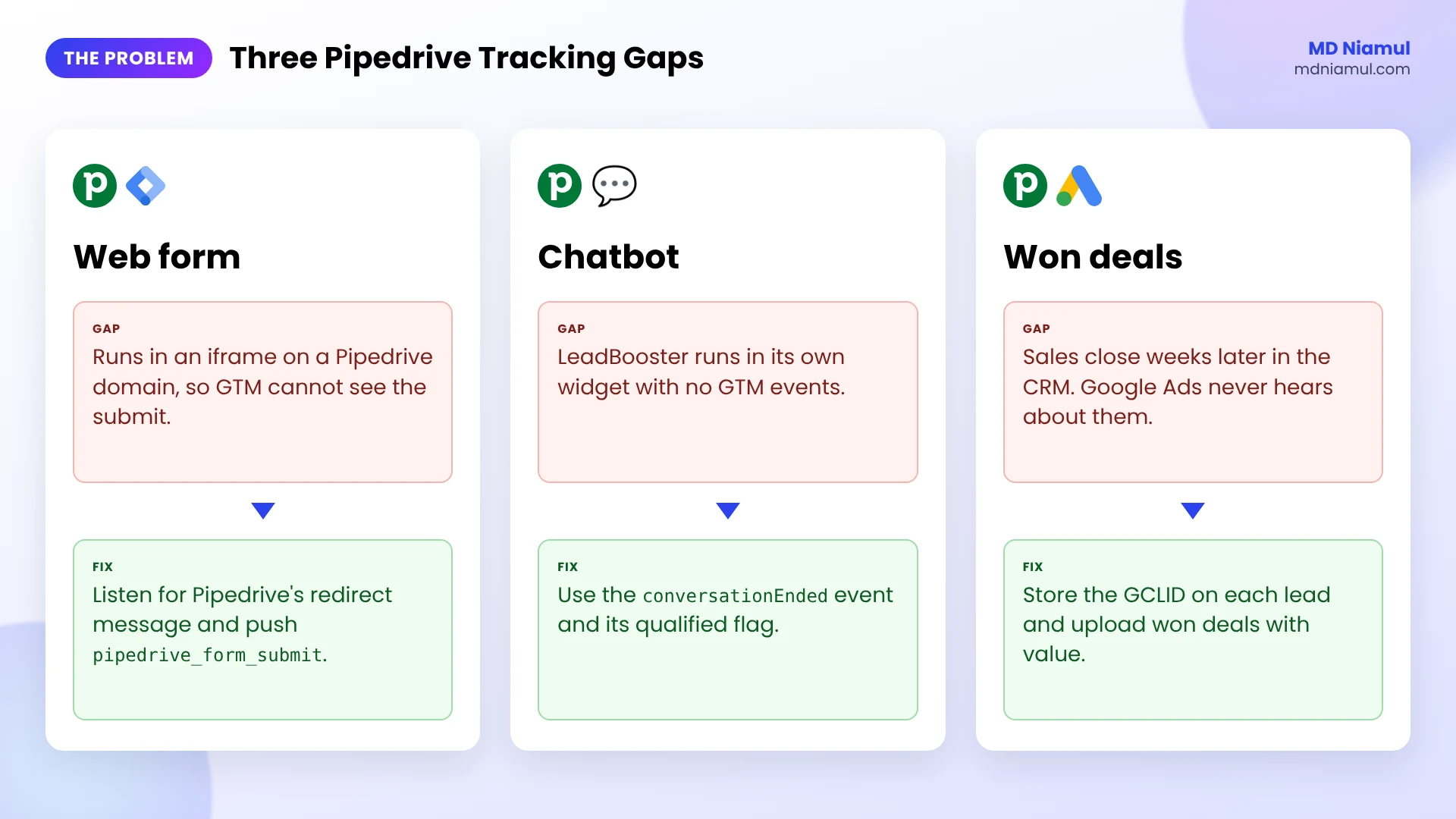
The Three Tracking Gaps in Pipedrive
| Gap | Why it happens | The fix |
|---|---|---|
| Web form submits | The form runs in an iframe on a Pipedrive domain | A listener for Pipedrive’s redirect message |
| Chatbot leads | The LeadBooster chat runs in its own widget | LeadBooster’s conversationEnded event |
| Won deals | Sales happen days or weeks later, in the CRM | Store the gclid, then upload won deals to Google Ads |
Prerequisites & Setup Checklist
- Pipedrive: admin rights to create data fields and edit web forms.
- Google Tag Manager: the container on every page, with publish rights.
- Google Ads: auto-tagging switched on, so every ad click carries a
gclid. - GA4 and Meta: your Measurement ID and Pixel ID if you track leads there too.
- Consent: a cookie banner connected to Google Consent Mode, because click IDs are marketing data.
Not sure what is already running? Check with my free tracking audit tool.
Video Tutorial Walkthrough
In this video I explain the Pipedrive iframe problem and how I capture forms and chatbots with custom GTM listeners. I also cover sending Pipedrive deals back to Google Ads and adding server-side tracking, Conversions APIs, automation and dashboards.
Step-by-Step Implementation Guide
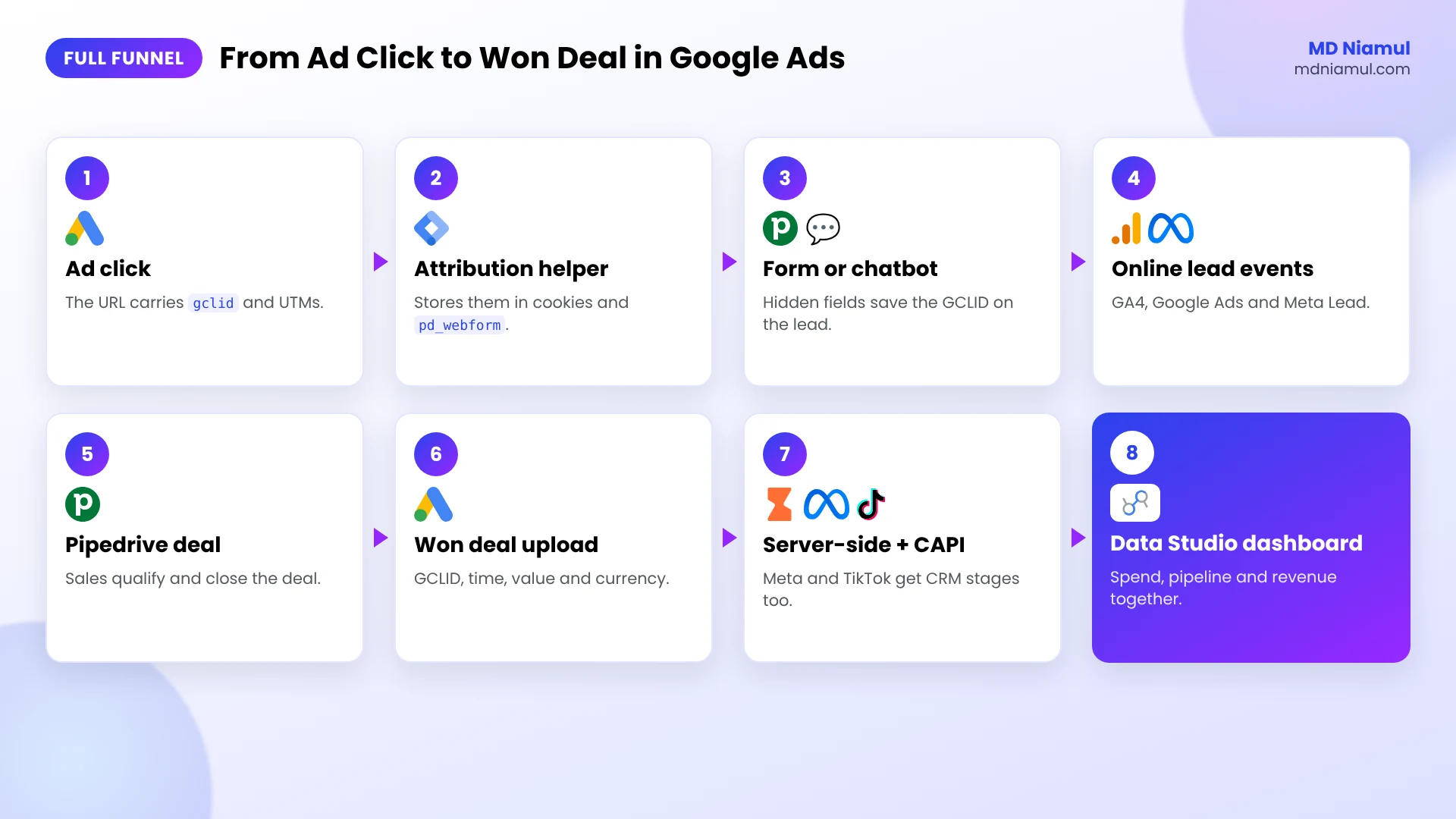
The setup has eight phases. Phases 1 to 5 run in the browser; phases 6 to 8 connect Pipedrive deals to Google Ads.
Phase 1: Create Attribution Fields in Pipedrive
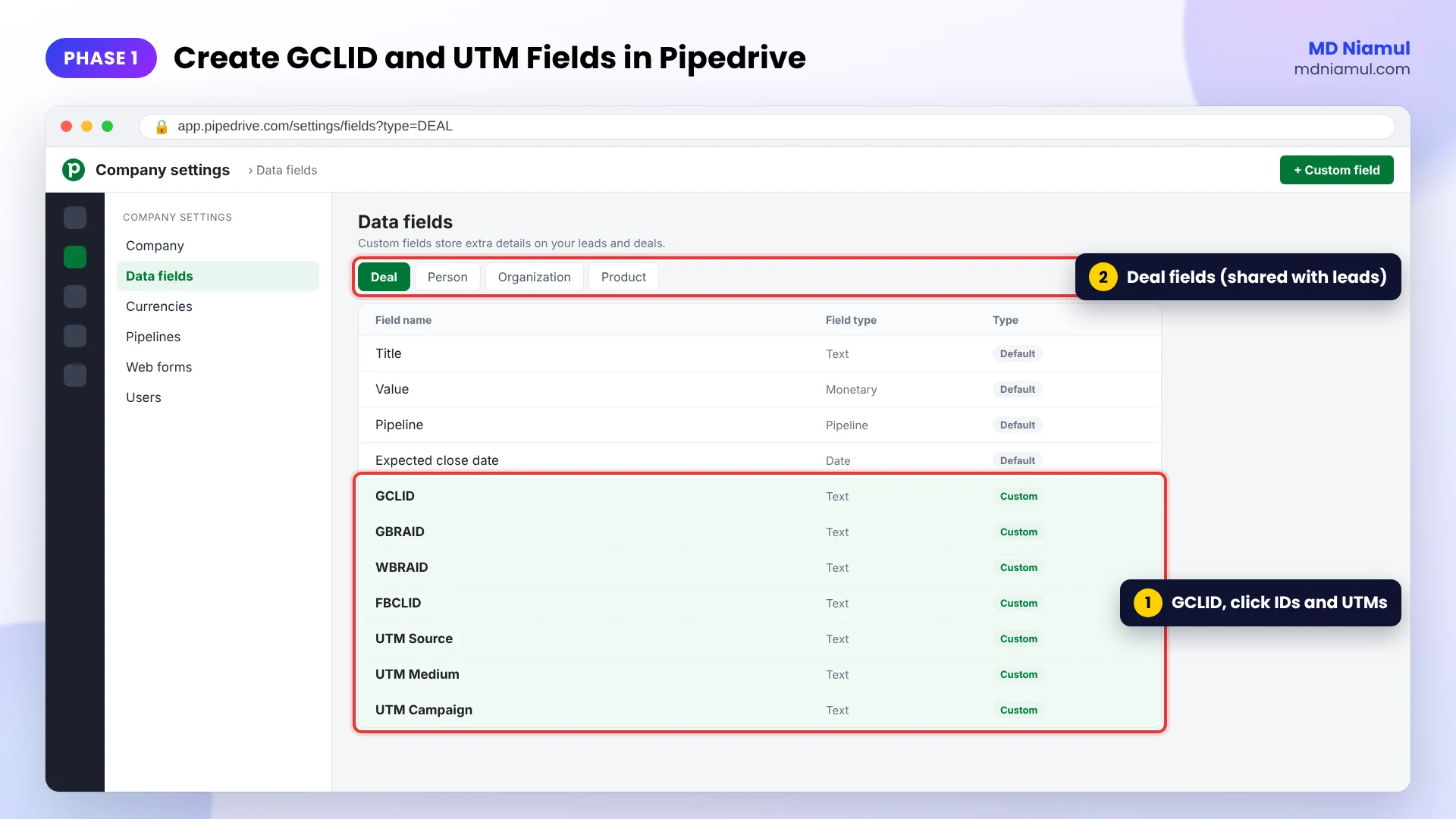
- In Pipedrive, go to Company settings → Data fields.
- Open the tab for the item you want to report on. For offline conversions, use the Deal tab, because Pipedrive leads use the same custom fields as deals.
- Add text fields: GCLID, GBRAID, WBRAID, FBCLID, UTM Source, UTM Medium and UTM Campaign.
Why the extra click IDs? Some iOS app and web traffic arrives with gbraid or wbraid instead of gclid, and fbclid helps with Meta’s Conversions API later.
Phase 2: Add the Attribution Helper in GTM
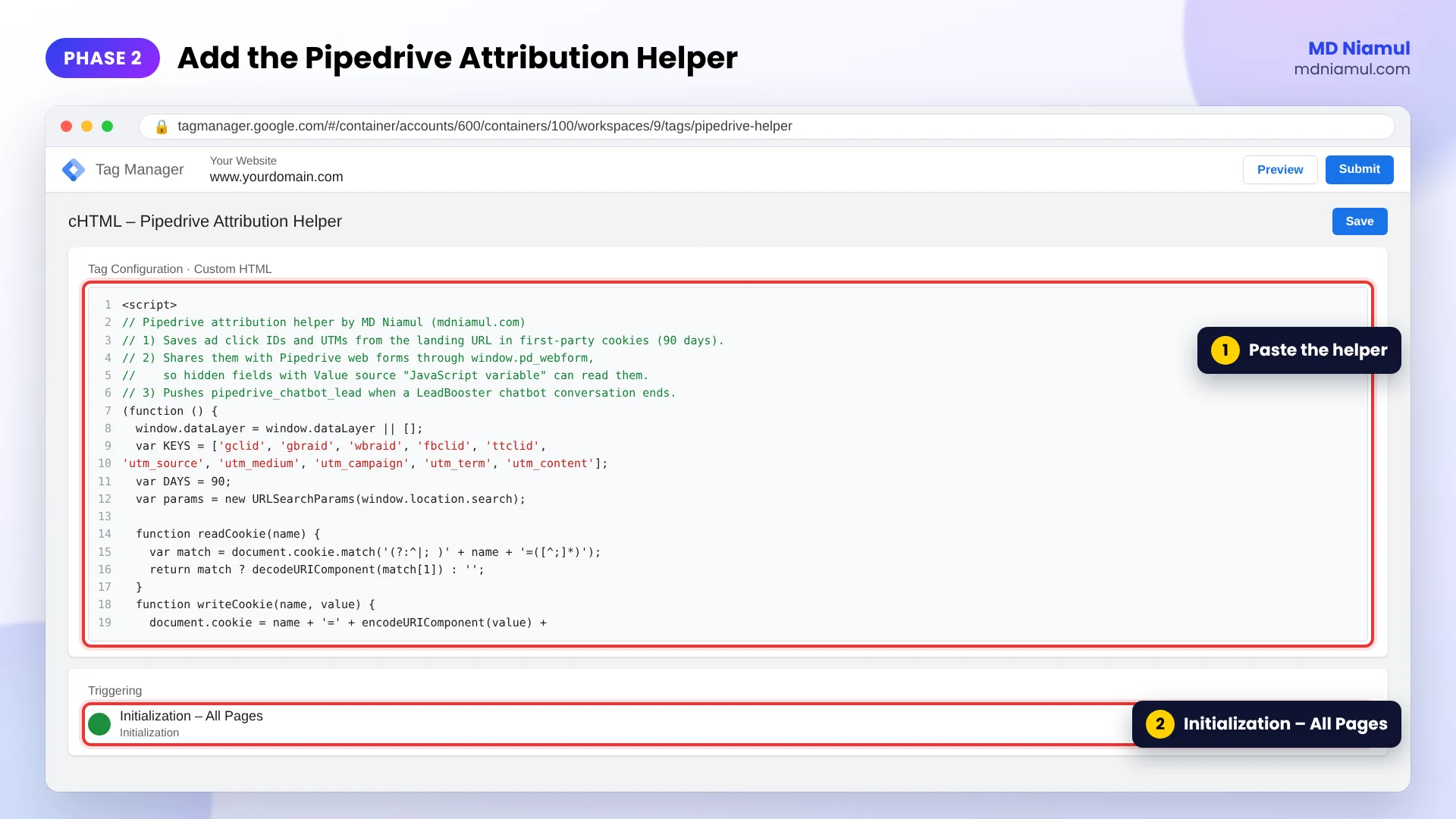
- In GTM, go to Tags → New → Custom HTML and paste the code below.
- Set the trigger to Initialization – All Pages, so the values are ready before the Pipedrive form asks for them.
- If you use a consent banner, add a consent check so the tag only runs after marketing consent.
- Name it cHTML – Pipedrive Attribution Helper and save.
<script>
// Pipedrive attribution helper by MD Niamul (mdniamul.com)
// 1) Saves ad click IDs and UTMs from the landing URL in first-party cookies (90 days).
// 2) Shares them with Pipedrive web forms through window.pd_webform,
//    so hidden fields with Value source "JavaScript variable" can read them.
// 3) Pushes pipedrive_chatbot_lead when a LeadBooster chatbot conversation ends.
(function () {
  window.dataLayer = window.dataLayer || [];
  var KEYS = ['gclid', 'gbraid', 'wbraid', 'fbclid', 'ttclid',
              'utm_source', 'utm_medium', 'utm_campaign', 'utm_term', 'utm_content'];
  var DAYS = 90;
  var params = new URLSearchParams(window.location.search);

  function readCookie(name) {
    var match = document.cookie.match('(?:^|; )' + name + '=([^;]*)');
    return match ? decodeURIComponent(match[1]) : '';
  }
  function writeCookie(name, value) {
    document.cookie = name + '=' + encodeURIComponent(value) +
      '; max-age=' + (value ? DAYS * 86400 : 0) + '; path=/; SameSite=Lax' +
      (window.location.protocol === 'https:' ? '; Secure' : '');
  }

  // A new tagged visit replaces the old values (last tagged click wins).
  var isTaggedVisit = KEYS.some(function (key) { return params.get(key); });
  if (isTaggedVisit) {
    KEYS.forEach(function (key) { writeCookie('mdn_' + key, params.get(key) || ''); });
  }

  // Pipedrive variable names: lowercase, no spaces (utm_source -> utmsource).
  window.pd_webform = window.pd_webform || {};
  KEYS.forEach(function (key) {
    var value = readCookie('mdn_' + key);
    if (value) window.pd_webform[key.replace('_', '')] = value;
  });

  // LeadBooster chatbot: wait for the chat script, then listen.
  var tries = 0;
  (function waitForChat() {
    if (window.LeadBooster && typeof window.LeadBooster.on === 'function') {
      window.LeadBooster.on('conversationEnded', function (data) {
        window.dataLayer.push({
          event: 'pipedrive_chatbot_lead',
          lead_source: 'pipedrive_chatbot',
          chatbot_qualified: !!(data && data.qualified)
        });
      });
      return;
    }
    if (++tries < 40) setTimeout(waitForChat, 500);
  })();
})();
</script>
What it does, in plain words:
- When a visitor lands from an ad or a tagged link, it saves the click IDs and UTMs in first-party cookies for 90 days.
- On every page, it puts those values into
window.pd_webform. That is the object Pipedrive’s embed script reads when a form asks for a JavaScript variable. - It waits for the LeadBooster chat and pushes
pipedrive_chatbot_leadwhen a bot conversation ends.
I tested it twice. First in a browser: values were saved on the landing page, kept on later pages and replaced on the next tagged visit, and the chatbot event fired for qualified and unqualified chats. Then with Pipedrive’s real embed script: the simulated form asked for gclid, utmsource and utmcampaign, and the loader sent back the stored values.
Phase 3: Add Hidden Fields to the Pipedrive Web Form
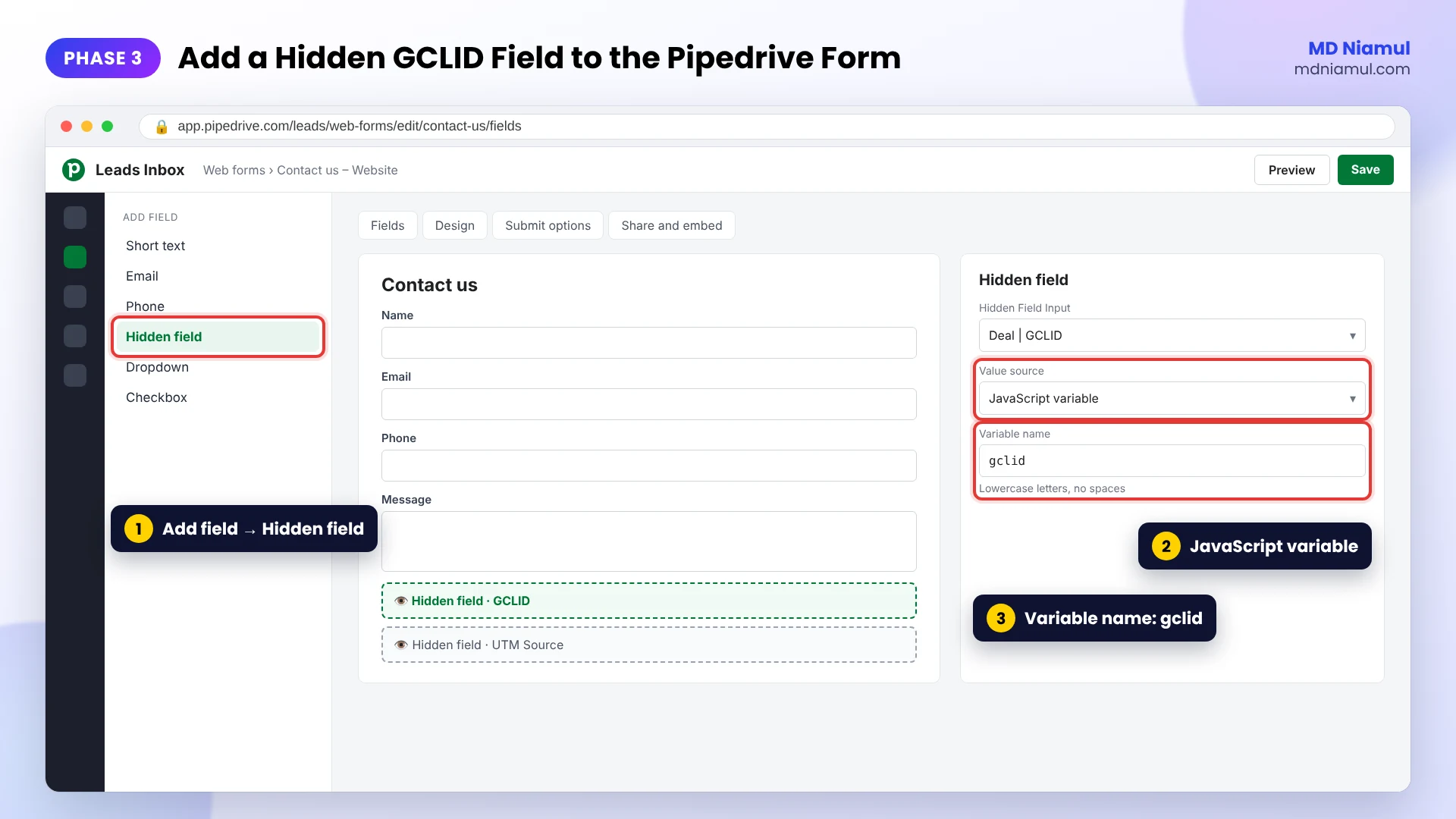
- Open your web form in Pipedrive, click Add field and choose Hidden field.
- Set Hidden Field Input to the matching field from Phase 1, for example GCLID.
- Set Value source to JavaScript variable.
- Enter the Variable name from the table below, in lowercase, and publish the form.
| Pipedrive field | Variable name | Comes from |
|---|---|---|
| GCLID | gclid |
Google Ads click |
| GBRAID / WBRAID | gbraid / wbraid |
Google Ads click on iOS |
| FBCLID | fbclid |
Meta ad click |
| UTM Source | utmsource |
utm_source |
| UTM Medium | utmmedium |
utm_medium |
| UTM Campaign | utmcampaign |
utm_campaign |
Pipedrive’s hidden fields also offer other value sources, such as a UTM parameter, a cookie, the page URL and the referrer. The UTM parameter option only works on the page where the visitor landed with the tag. The JavaScript variable keeps the values across every page of the visit.
Phase 4: Track the Web Form Submit
The form submit itself needs the listener for Pipedrive’s redirect message. I covered it step by step, with tested code, in my Pipedrive form conversion tracking guide. In short:
- Set the form’s Submit options to redirect to your thank-you page.
- Add the listener that pushes
pipedrive_form_submit. - Fire GA4
generate_lead, your Google Ads conversion and the Meta Lead event on a Custom Event trigger.
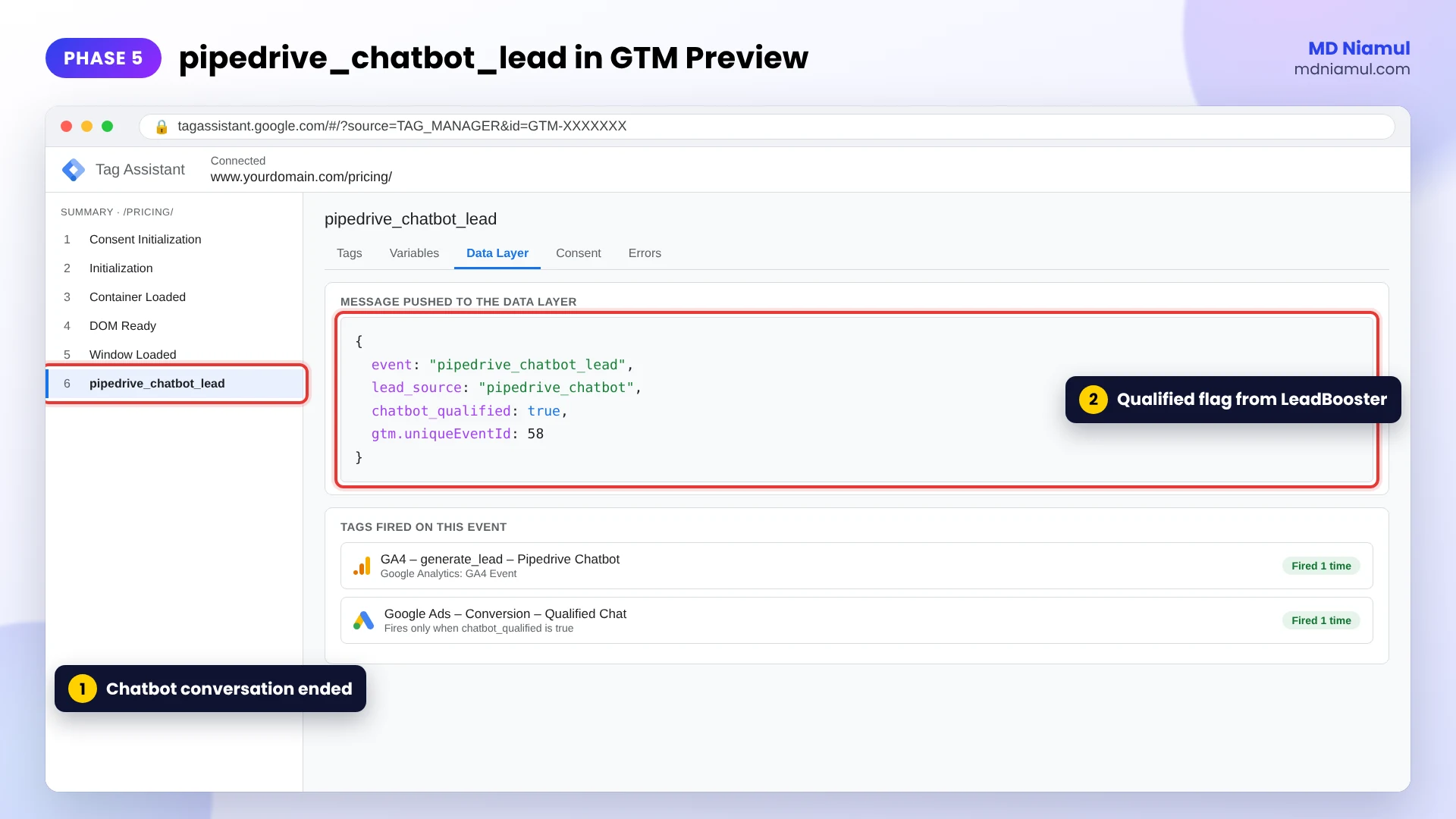
Phase 5: Track LeadBooster Chatbot Leads
- Make sure the LeadBooster chat is installed on your site. The helper waits up to 20 seconds for it.
- Create a Custom Event trigger for
pipedrive_chatbot_lead. - Create a Data Layer Variable DLV – chatbot_qualified.
- Fire a GA4
generate_leadtag withlead_source= pipedrive_chatbot on every chatbot lead. - For Google Ads, add the condition DLV – chatbot_qualified equals true, so only qualified chats count as conversions.
One honest limit: Pipedrive has confirmed on its developer forum that conversationEnded fires for the chatbot, but not when a live chat is closed from the Pipedrive side. Count live chat leads from the CRM instead.
Phase 6: Create an Offline Conversion Action in Google Ads
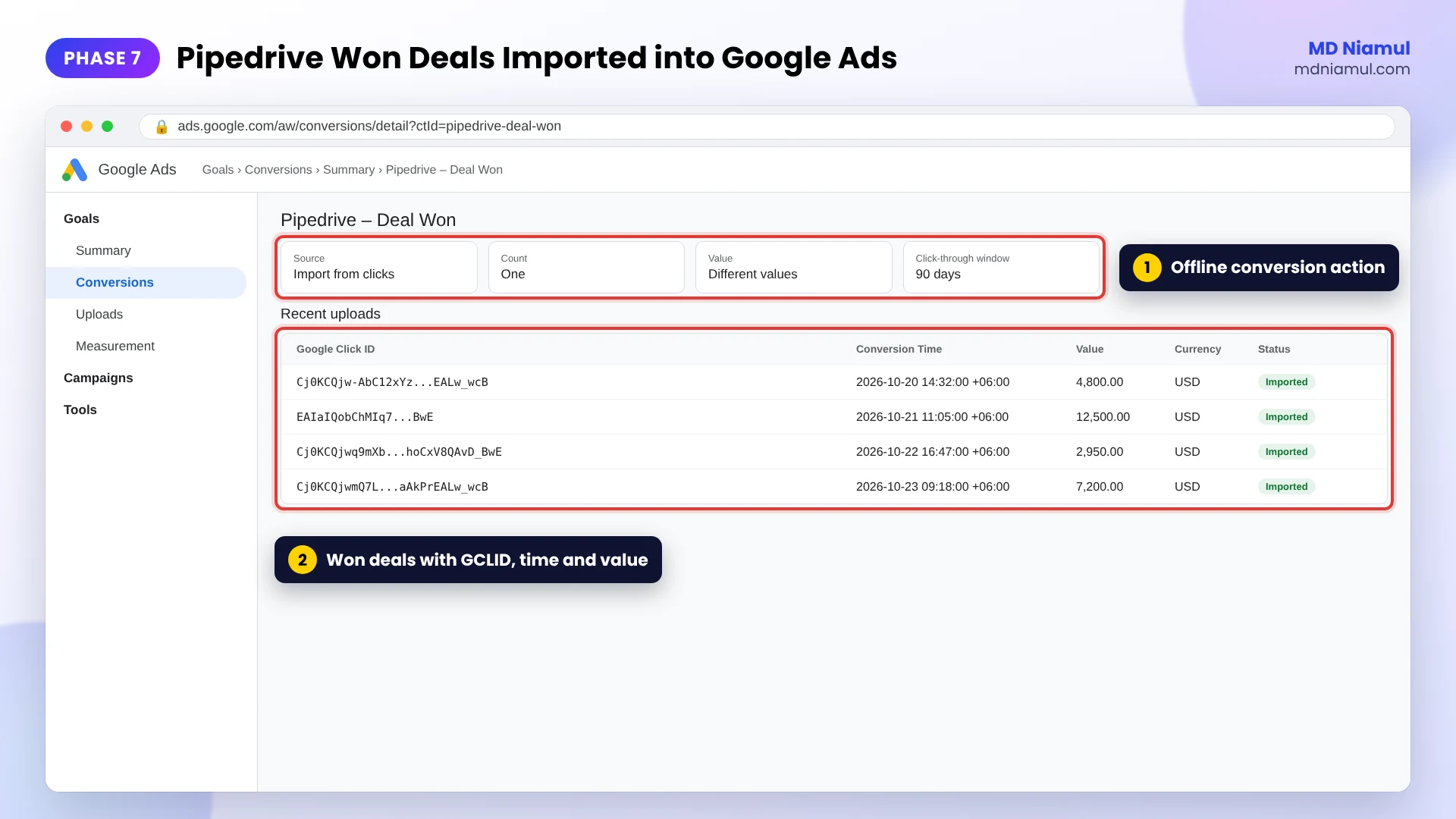
- In Google Ads, go to Goals → Conversions and create a new conversion action.
- Choose to import conversions from clicks (offline conversions), and name it, for example Pipedrive – Deal Won.
- Choose Use different values for each conversion, so each deal sends its real value.
- Check that auto-tagging is on in your account settings.
Google now recommends enhanced conversions for leads for new setups. That method matches hashed email addresses instead of click IDs. Both methods can work together, and the GCLID approach in this guide is easy to audit in Pipedrive.
Phase 7: Send Won Deals Back to Google Ads
- Pick a route: an automation in Zapier, Make or n8n that runs when a deal is marked won, or a scheduled upload from Google Sheets.
- Send the GCLID (or GBRAID/WBRAID), the conversion name, the won time with time zone, the deal value and the currency.
- Skip deals with no click ID. They did not come from a Google Ads click.
- Upload within Google’s import window, which is up to 90 days after the click depending on the data source.
Want to check your file before the first upload? Use my free offline conversion builder. For a full walkthrough with Google Sheets, see my Google Ads offline conversion tracking guide.
Phase 8: Test the Whole Chain
- Open your site with a test URL such as
?gclid=TEST123&utm_source=google, browse to the form page and submit a test lead. - Open the new lead in Pipedrive and check that GCLID and the UTM fields are filled.
- Start a chatbot conversation in GTM Preview and check for
pipedrive_chatbot_lead. - After the first real upload, open the conversion action’s upload history in Google Ads and check for errors.
What About Pipedrive Scheduler?
Pipedrive’s Scheduler lets visitors book meetings from a booking link. That booking page runs on Pipedrive’s side, not inside your page, so GTM cannot see the booking itself.
Two practical options: track clicks on the booking link in GTM as a micro-conversion, and count booked meetings from Pipedrive. Then send them to Google Ads with the same offline upload as won deals, as a separate conversion action such as Pipedrive – Meeting Booked.
Beyond the Browser: Server-Side, CAPI, Automation and Dashboards
- Server-side tracking: route your Pipedrive lead events through a server-side GTM container on your own subdomain. I host these on Stape, or Stape EU for EU data. See my server-side tracking service.
- Conversions APIs: send leads and pipeline stages to the Meta Conversions API and TikTok Events API with event IDs for deduplication. My free Meta CAPI payload builder helps you check the payload.
- Value-based bidding: once won deals with values flow into Google Ads, you can move campaigns towards value-based bidding.
- Automation: n8n, Make or Zapier connect Pipedrive deal stages to Google Ads, Meta and Google Sheets without manual exports.
- Dashboards: combine ad spend, Pipedrive deals and GA4 in Data Studio (the tool Google called Looker Studio until April 2026) and BigQuery, as in my GA4 reporting guide.
Testing & Validation Workflow
- Cookie test. After a tagged visit, the
mdn_gclidcookie exists for your domain. - Variable test. In the browser console,
window.pd_webformshows the stored values. - Form test. A test lead in Pipedrive carries the GCLID and UTMs.
- Submit test.
pipedrive_form_submitfires once per real submit. - Chatbot test.
pipedrive_chatbot_leadfires with the rightchatbot_qualifiedvalue. - Upload test. Google Ads accepts the first won deal without errors.
- Monthly check. Compare won deals in Pipedrive with imported conversions in Google Ads.
Troubleshooting Common Mistakes
Mistake 1: Hidden fields stay empty
The Problem: leads arrive in Pipedrive without a GCLID.
The Cause: the helper fires after the form has already asked for the variables, or the variable names do not match.
The Solution: fire the helper on Initialization – All Pages, and check that each Variable name matches the table exactly.
Mistake 2: Only the landing page captures the click ID
The Problem: GCLID is filled only when the form is on the landing page.
The Cause: the hidden fields use the UTM parameter source, which reads the current URL only.
The Solution: switch the Value source to JavaScript variable and use the helper.
Mistake 3: The chatbot event never fires
The Problem: no pipedrive_chatbot_lead in Preview.
The Cause: the chat loads after 20 seconds, or the conversation was a live chat closed by your team.
The Solution: load LeadBooster earlier on the page, and count live chats from the CRM.
Mistake 4: Google Ads rejects the upload
The Problem: uploads show errors such as an unknown or too old click.
The Cause: the GCLID was changed (it is case-sensitive), the click is outside the import window, or the conversion action name does not match.
The Solution: store the GCLID exactly as received, upload won deals regularly, and copy the conversion name exactly.
Mistake 5: Leads are counted twice in Google Ads
The Problem: both the online lead and the won deal are counted as primary conversions.
The Cause: two conversion actions are both set as Primary for bidding.
The Solution: decide what you bid on. Many B2B accounts keep the online lead as Secondary once enough won deals are imported.
What to Set Up Next
- The GA4 event tag: build the
generate_leadtag cleanly with my guide on GA4 custom event tags for Pipedrive forms. - Lead form fixes: read my guide to fixing Google Ads conversion tracking for lead forms.
- Other CRM forms: see how I solve the same iframe problem in my Zoho form conversion tracking guide.
- Consent: test your banner with the free Consent Mode checker.
Want the full setup done and documented? See my Pipedrive form conversion tracking service and offline conversion tracking services.
Conclusion
Pipedrive tracking is not just about counting form fills. It is about telling your ad platforms which clicks became customers.
Your next three moves are clear. First, capture click IDs and UTMs with the helper and Pipedrive’s hidden fields. Second, track the form and the chatbot in GTM. Third, send won deals back to Google Ads with their real value.
When Google Ads knows what a customer is worth, it can find more of them.
Summary by MD Niamul
Pipedrive conversion tracking with Google Tag Manager has three gaps: embedded web forms run in an iframe, LeadBooster chatbot leads happen in a separate widget, and won deals close later in the CRM. Track form submits with a listener for Pipedrive’s redirect message. Track chatbot leads with the LeadBooster browser API’s conversationEnded event, which includes a qualified flag. Capture gclid, gbraid, wbraid, fbclid and UTMs in first-party cookies and expose them in window.pd_webform. Pipedrive hidden fields with the JavaScript variable value source then store them on each lead. Create an offline conversion action in Google Ads and upload won deals with the click ID, time, value and currency through Zapier, Make, n8n or Google Sheets. Then add server-side tracking, Conversions APIs and Data Studio dashboards.
Frequently Asked Questions (FAQ)
1. What does full Pipedrive conversion tracking include?
It covers three things. Web form submits, which run in an iframe. LeadBooster chatbot leads, which run in their own widget. And won deals, which close later in the CRM. Forms and chatbots are tracked in GTM, and won deals are sent back to Google Ads as offline conversions using the stored click ID.
2. Can a Pipedrive web form store the GCLID?
Yes. Add a hidden field in the form builder, map it to a GCLID custom field, and set its value source to JavaScript variable. A GTM script stores the gclid from the landing URL and shares it through window.pd_webform. I checked Pipedrive’s embed code: the loader reads that object when the form asks for its variables.
3. Why not use the UTM parameter option for hidden fields?
The UTM parameter option reads the URL of the page that holds the form. If a visitor lands on your home page from an ad and fills in the form on the contact page, the click ID is no longer in the URL. The JavaScript variable option with stored cookies keeps the values across the whole visit.
4. How do I track the Pipedrive LeadBooster chatbot in GTM?
Pipedrive’s LeadBooster browser API has a conversationEnded event that includes a qualified true or false value. A small GTM script waits for the chat to load, listens for that event and pushes pipedrive_chatbot_lead to the data layer. You can then fire GA4 for every chat and Google Ads only for qualified ones.
5. Does the chatbot event work for live chat?
Not fully. Pipedrive confirmed on its developer forum that conversationEnded fires for the chatbot, but not when a live chat is closed from the Pipedrive side. For live chat leads, count them from the CRM and send them to Google Ads with the same offline upload you use for deals.
6. How do I send won Pipedrive deals to Google Ads?
Create an offline conversion action in Google Ads, for example Pipedrive Deal Won. When a deal is marked won, send the GCLID, conversion name, won time with time zone, deal value and currency. Zapier, Make, n8n or a scheduled Google Sheets upload can do this. Skip deals without a click ID.
7. How long do I have to upload a won deal?
Google Ads imports clicks up to 90 days old for most file-based sources, and some database sources only look back 14 days on each run. If your sales cycle is longer than about 90 days, also import an earlier stage, such as a qualified lead, so Google Ads still learns from your pipeline.
8. Should I use GCLID import or enhanced conversions for leads?
Google now recommends enhanced conversions for leads for new setups, because it matches hashed email addresses and needs no click ID. GCLID import is still supported and easy to audit, since the click ID sits on each Pipedrive deal. Many accounts use both, as long as you avoid counting the same conversion twice.
9. How do I track Pipedrive Scheduler bookings?
The Scheduler booking page runs on Pipedrive’s side, so GTM on your site cannot see the booking. Track clicks on the booking link as a micro-conversion, then count booked meetings from Pipedrive and upload them to Google Ads as a separate offline conversion action, such as Pipedrive Meeting Booked.
10. Do I need consent to store click IDs?
In the EEA and UK, click IDs and UTM cookies are marketing data, so the helper should only run after the visitor accepts marketing cookies. Connect your banner to Google Consent Mode and add a consent check to the GTM tag. This is general information, not legal advice, so check your own requirements.
 Need Help Advanced GHL Automation & Tracking Setup?