
Quick Answer
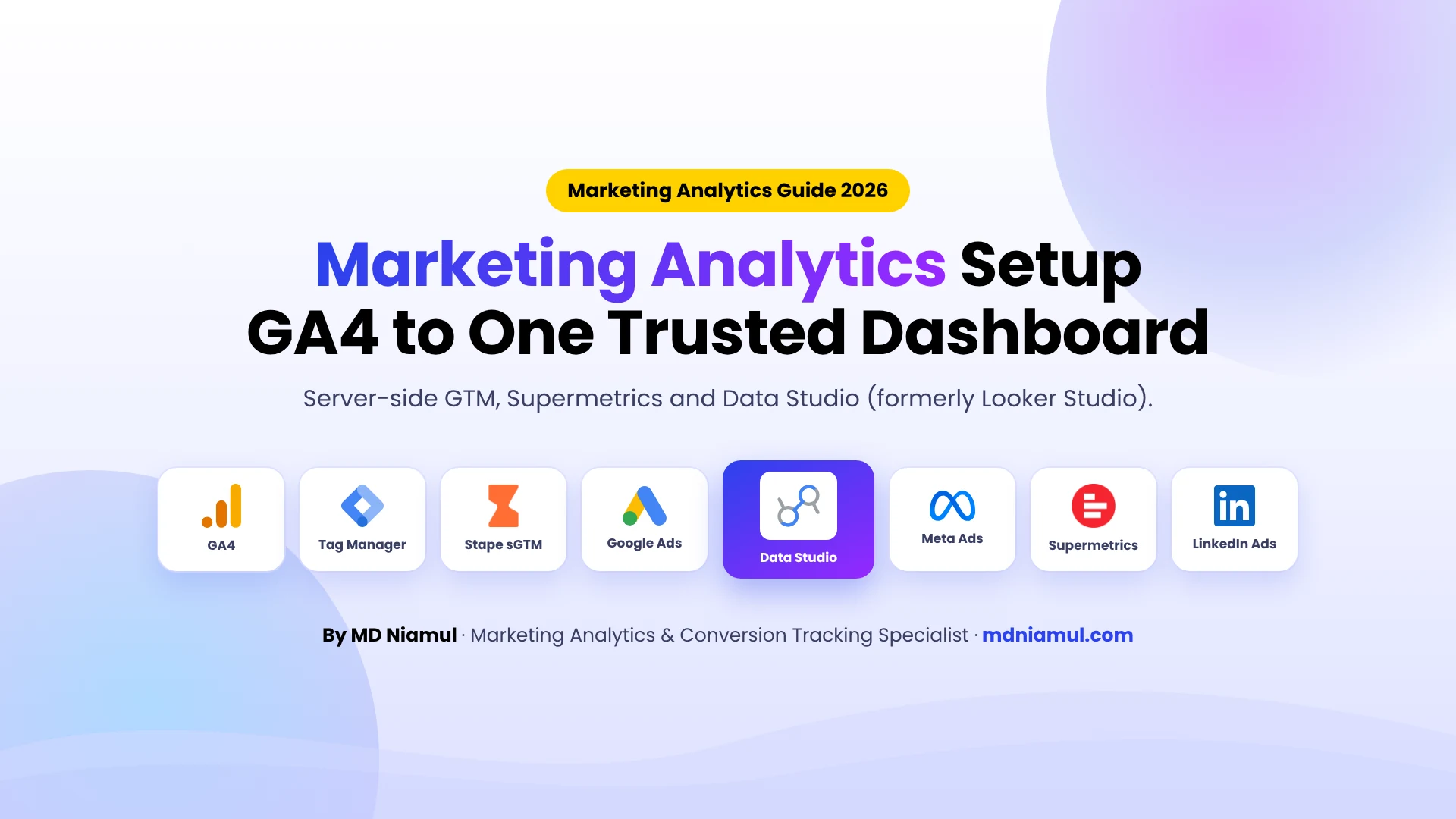
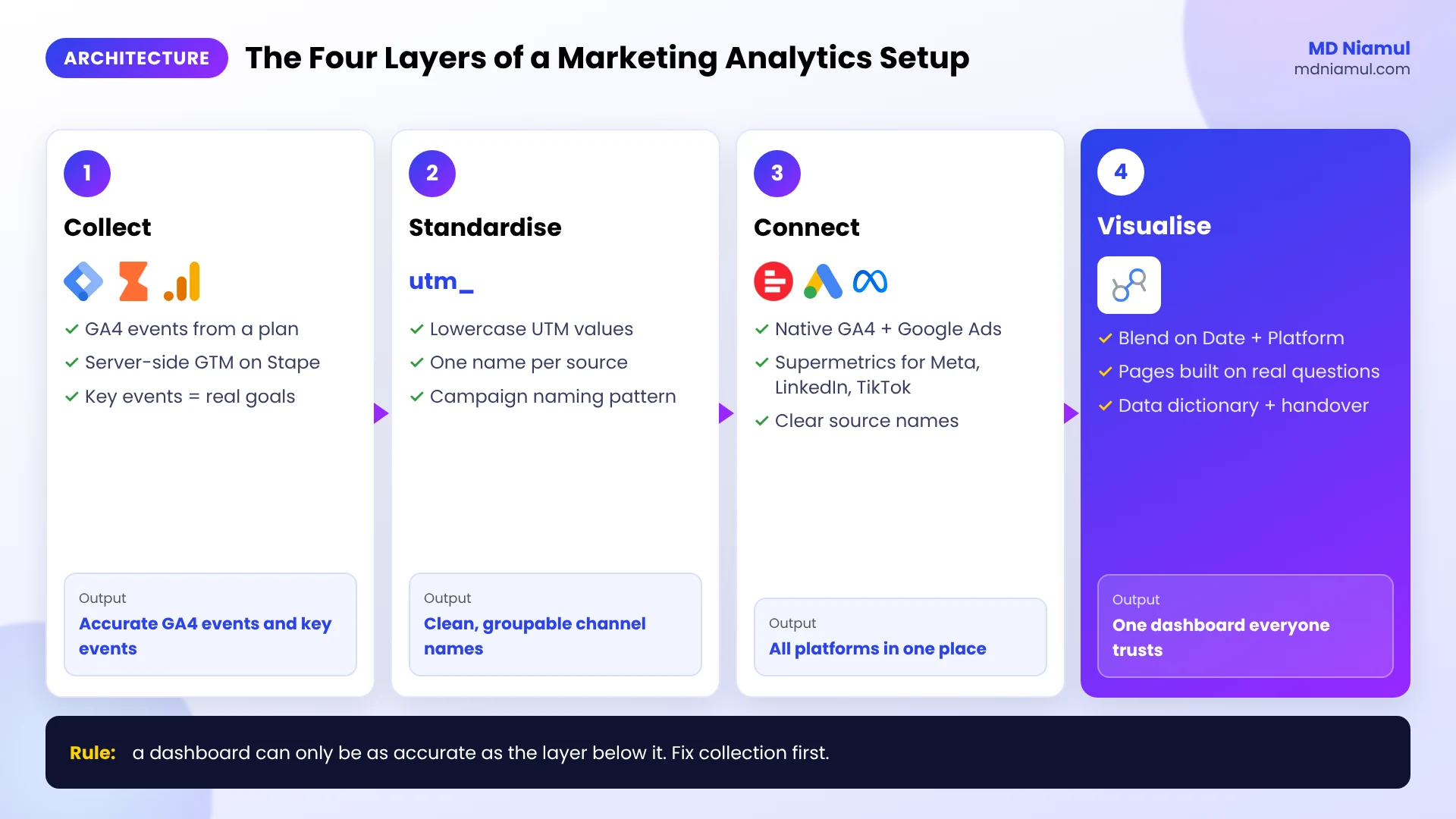
A reliable marketing analytics setup has four layers. First, clean collection: GA4 events and key events that match your business goals, sent through Google Tag Manager and, ideally, a server-side container on your own domain. Second, consistent naming: the same UTM and campaign rules on every platform. Third, connection: GA4 and Google Ads through native connectors, and Meta, LinkedIn, TikTok and other ad platforms through Supermetrics. Fourth, one dashboard in Data Studio (the tool Google called Looker Studio until April 2026) that blends spend and results by date and platform. Then test the numbers against each source and write down why they differ.
Key Takeaways
- Dashboards cannot fix bad collection: if GA4 events are wrong, a beautiful report shows the wrong story faster.
- Key events are your definition of success: mark only the actions that matter to the business, such as purchase, lead or booked call.
- Naming is the glue: blends in Data Studio join on exact values, so “Meta Ads” and “facebook” will never meet.
- Supermetrics fills the gaps: native connectors cover Google products, while Supermetrics brings Meta, LinkedIn, TikTok and more into the same report.
- Numbers will not match perfectly: GA4 and ad platforms count conversions differently. Document the difference instead of hiding it.
- Looker Studio is now Data Studio: Google renamed it in April 2026. Existing reports keep working with no action needed.
Introduction: Ten Reports, Ten Different Answers
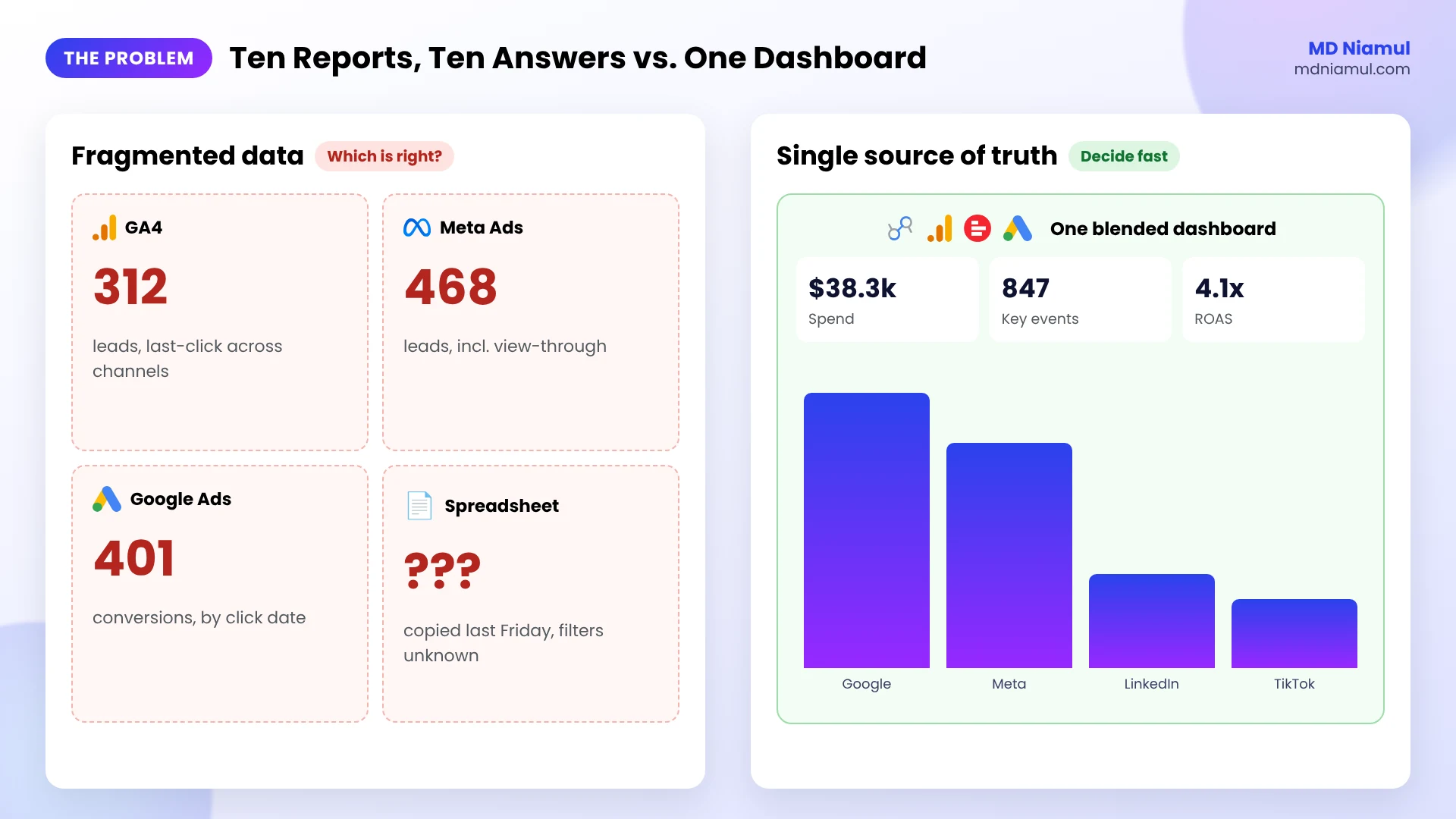
Monday morning. The founder asks a simple question: “Which channel made us the most money last month?”
Meta Ads Manager gives one answer. Google Ads gives another. GA4 gives a third. The spreadsheet the agency sent last Friday gives a fourth, and nobody remembers which filters it used.
The data is not missing. It is scattered, and every source tells its own version of the truth.
That is what fragmented marketing data costs you. Decisions get delayed, budgets move on gut feeling, and every meeting starts with an argument about whose number is right.
In this guide I will show you the end-to-end marketing analytics setup I build for growing brands: accurate GA4 collection, server-side tracking, multi-channel data through Supermetrics, and a Data Studio dashboard your team can actually act on.
Why Marketing Data Gets Fragmented
| Cause | What you see | Fixed in |
|---|---|---|
| GA4 tracks page views but not real goals | Traffic grows, but nobody knows if it converts | Phase 2 |
| Browser tags blocked or cut short | GA4 and ad platforms under-report conversions | Phase 3 |
| Every platform has its own dashboard | Hours of copying numbers into spreadsheets | Phase 4 |
| Inconsistent UTM and campaign names | Channels split into many small rows | Phase 1 |
| Nobody agreed which number is “the” number | Arguments instead of decisions | Phase 7 |
What Is a Marketing Analytics Setup?
A marketing analytics setup is the full path your data travels: from a visitor’s action on your website, to the tools that record it, to the report where someone makes a decision.
Think of it like plumbing in a house. GA4 and your tags are the taps that collect water. Supermetrics and the native connectors are the pipes. The Data Studio dashboard is the glass you drink from. If a tap leaks or a pipe is connected to the wrong tank, the glass is never quite right, however nice it looks.
| Layer | Tools | Job |
|---|---|---|
| Collect | GA4, Google Tag Manager, server-side GTM on Stape | Record each important action accurately |
| Standardise | UTM rules, campaign naming, key events | Make the same thing look the same everywhere |
| Connect | Native GA4 and Google Ads connectors, Supermetrics | Bring every platform into one place |
| Visualise | Data Studio (formerly Looker Studio) | Show the numbers that drive decisions |
Prerequisites & Setup Checklist
- GA4: Editor access to the property, plus Admin to change data retention and custom definitions.
- Google Tag Manager: publish rights on the Web container, and a Server container for server-side tracking.
- Server hosting: a tagging server on Stape Global or Stape Europe.
- Ad platforms: read access to Google Ads, Meta Ads and any other channel you report on.
- Supermetrics: an account with the connectors you need for Data Studio.
- A goal list: one page that says what counts as a lead, a sale and a qualified result for this business.
Before you build anything, run your site through my free GA4 event checker to see which events fire today.
Video Tutorial Walkthrough
Prefer to watch? In this short video I explain how I turn fragmented marketing data into one accurate reporting system with GA4, Data Studio dashboards and Supermetrics.
Step-by-Step Implementation Guide
I build in a fixed order: plan, collect, protect, connect, model, visualise, test and hand over. Skipping ahead to the dashboard is the most common mistake I see.
Phase 1: Write the Measurement Plan and Naming Rules
A measurement plan is a short list of business goals, the actions that prove each goal, and the event name for each action.
| Business goal | Action on the site | GA4 event | Key event? |
|---|---|---|---|
| More sales | Completed order | purchase |
Yes |
| More leads | Form submitted | generate_lead |
Yes |
| More calls | Call booked in the calendar | book_call |
Yes |
| Product interest | Product page viewed | view_item |
No |
Then set your naming rules. Use lowercase UTM values, one spelling per source (for example facebook, never a mix of fb, Facebook and meta), and a campaign name pattern that every platform follows. My free measurement plan generator and free UTM builder help with both.
Phase 2: Configure GA4 Events and Key Events
- Build each event from the plan in Google Tag Manager with a GA4 Event tag, using the exact names you agreed.
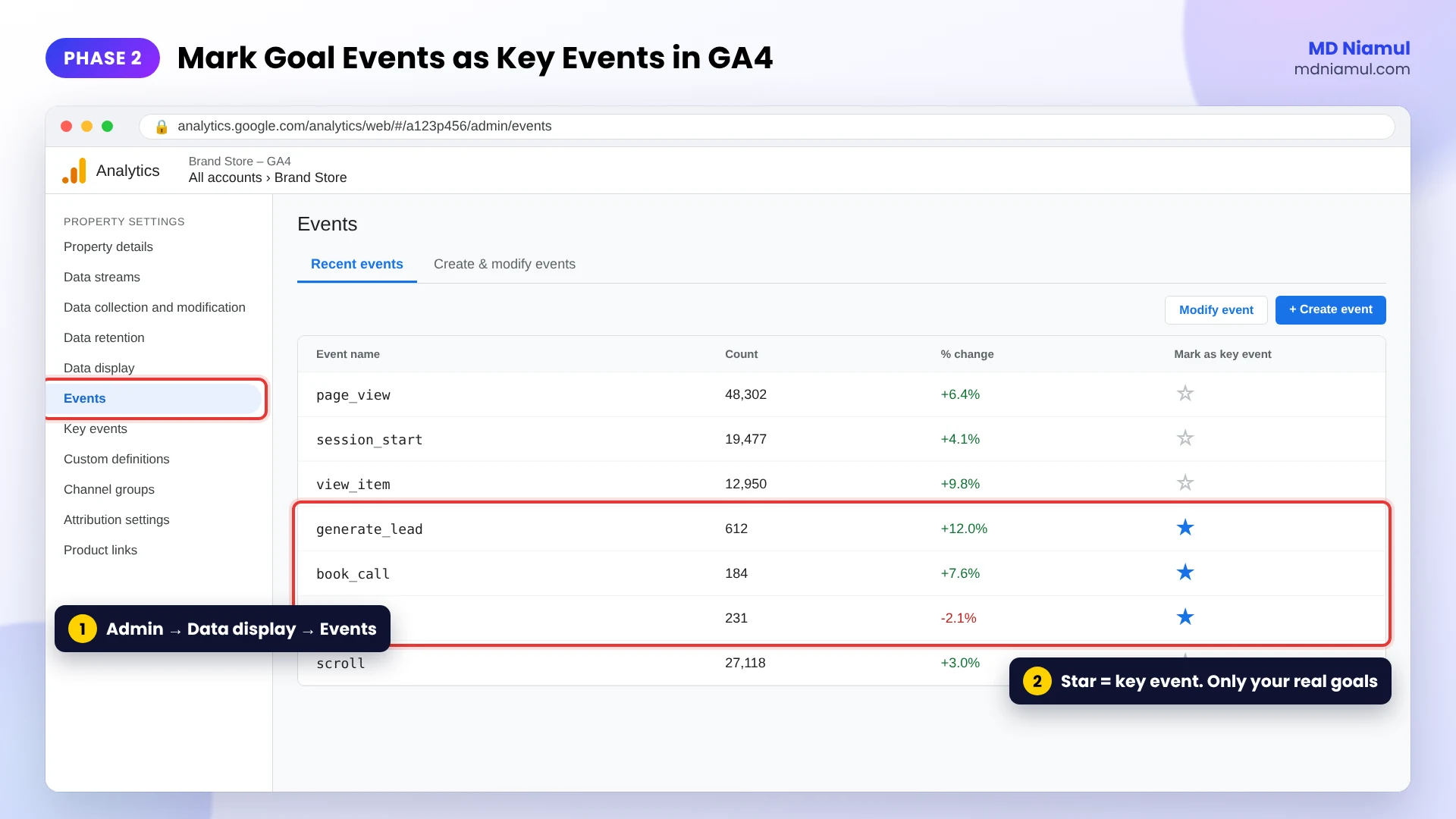
- In GA4, go to Admin → Data display → Events.
- Find each goal event and click the star to mark it as a key event. Key events are what GA4 used to call conversions.
- Keep the list short. A standard property allows up to 30 key events, but a good report usually needs three to five.
- In Admin → Data collection and modification → Data retention, set event data retention to 14 months so you can compare year on year in explorations.
- Register any event parameters you want to report on as custom dimensions under Admin → Data display → Custom definitions.
Phase 3: Protect the Data with Server-Side Tracking
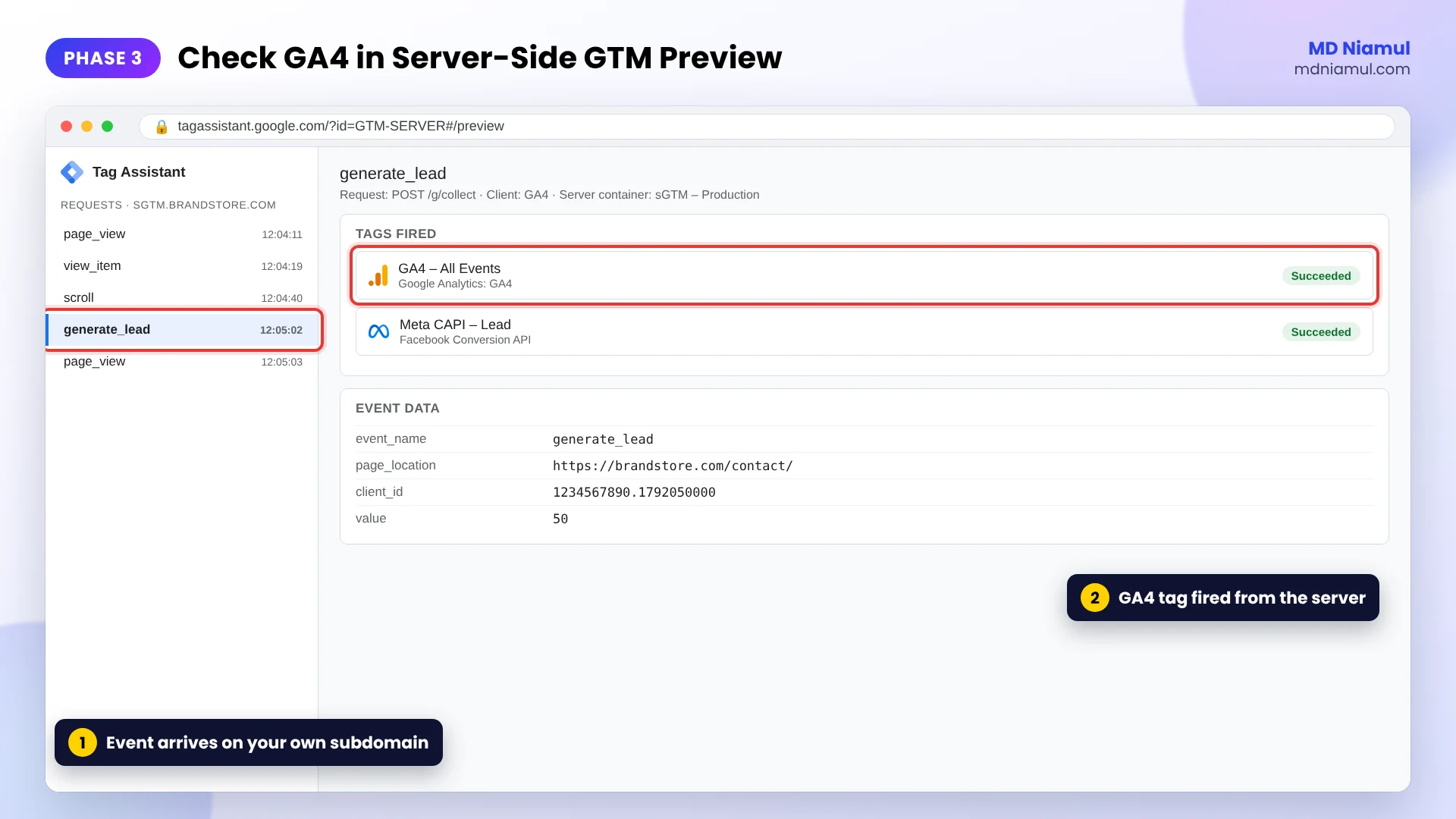
Browser tags lose data to ad blockers and to Safari’s limits on cookies. A server-side Google Tag Manager container on your own subdomain sends the same events from a server you control, so more of them arrive and cookies last longer.
- Create a Server container in Google Tag Manager and host it on Stape.
- Add a custom subdomain such as
sgtm.yourdomain.com. - Point your Google tag in the Web container to the server container URL.
- In the Server container, add the GA4 tag and the ad platform tags you need.
- Test with Preview mode in both containers before you publish.
Consent still applies. Server-side tracking makes allowed data arrive reliably. It is not a way to track visitors who declined.
See my server-side tracking service if you want this built for you, or test your current setup with the free server-side tracking checker.
Phase 4: Connect Every Channel to Data Studio
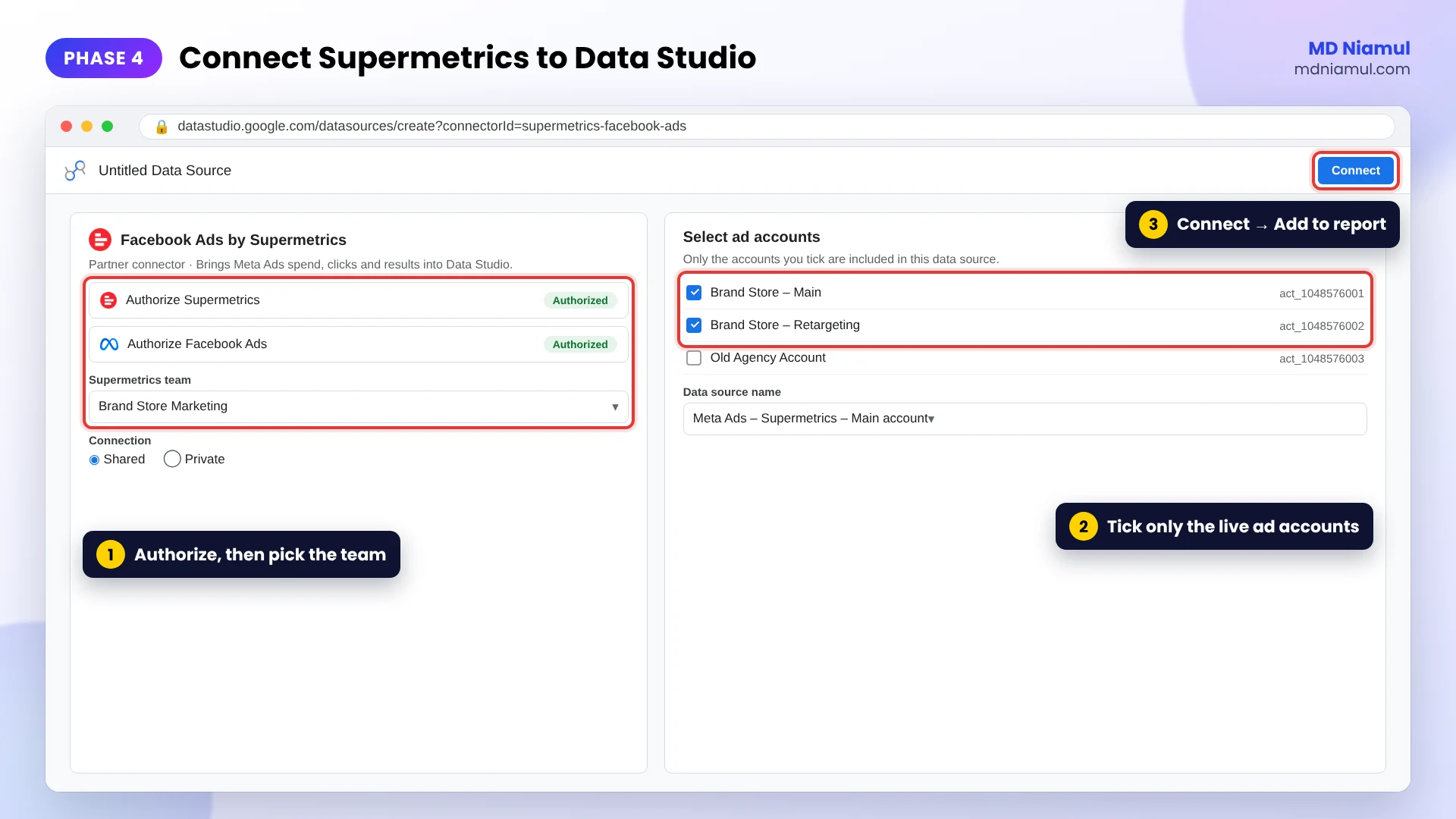
Data Studio has free native connectors for Google products. For other ad platforms, a partner connector such as Supermetrics brings the data in without exports.
- In Data Studio, click Create → Data source, and add the native Google Analytics and Google Ads connectors.
- For Meta, LinkedIn, TikTok and others, search the connector gallery for the Supermetrics connector you need.
- Click Authorize, sign in with the Google account linked to Supermetrics, and choose the Supermetrics team that has access to the ad account.
- Choose whether the connection is shared or private, then select the ad accounts to include.
- Click Connect, then Add to report.
Name every data source clearly, for example Meta Ads – Supermetrics – Main account, so the next person knows exactly where each number comes from.
Phase 5: Model the Data and Blend Channels
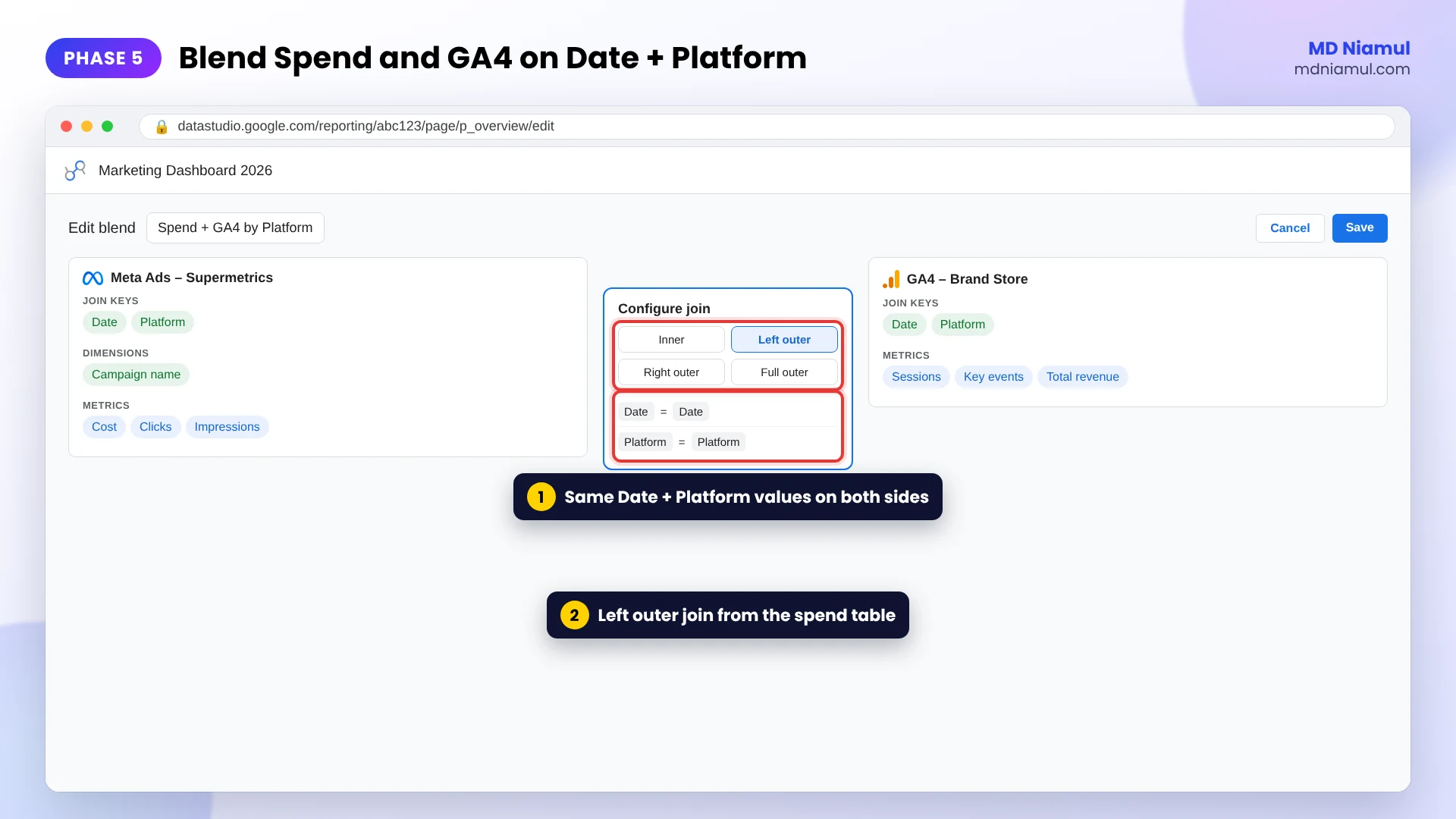
To compare spend and results across platforms, each source needs the same join keys. I use two: Date and Platform.
- In each ad platform data source, add a calculated field called Platform with a fixed value such as
"Meta Ads"or"Google Ads". - In the GA4 data source, add a Platform field that groups traffic into the same names, using the formula below.
- Create a blend: Resource → Manage blends → Add a blend.
- Add the ad data and GA4 data as tables, join them on Date and Platform, and choose a left outer join from the spend table.
- Add metrics such as cost, clicks, sessions and key events, then create calculated fields for cost per key event and return on ad spend.
CASE
  WHEN REGEXP_MATCH(Session source, "(?i).*(facebook|instagram|fb|ig|meta).*")
       AND REGEXP_MATCH(Session medium, "(?i).*(cpc|paid|ads|ppc).*") THEN "Meta Ads"
  WHEN Session source = "google" AND Session medium = "cpc" THEN "Google Ads"
  WHEN REGEXP_MATCH(Session source, "(?i).*tiktok.*")
       AND REGEXP_MATCH(Session medium, "(?i).*(cpc|paid|ads).*") THEN "TikTok Ads"
  WHEN REGEXP_MATCH(Session source, "(?i).*linkedin.*")
       AND REGEXP_MATCH(Session medium, "(?i).*(cpc|paid|ads).*") THEN "LinkedIn Ads"
  ELSE "Other"
END
Data Studio joins only on exact matches, and a blend can hold up to five tables. If the values on both sides are not spelled the same way, the rows simply will not join. If you need more sources or heavier logic, send the data to BigQuery first. My free GA4 BigQuery SQL generator helps with the queries.
Phase 6: Build a Dashboard People Use
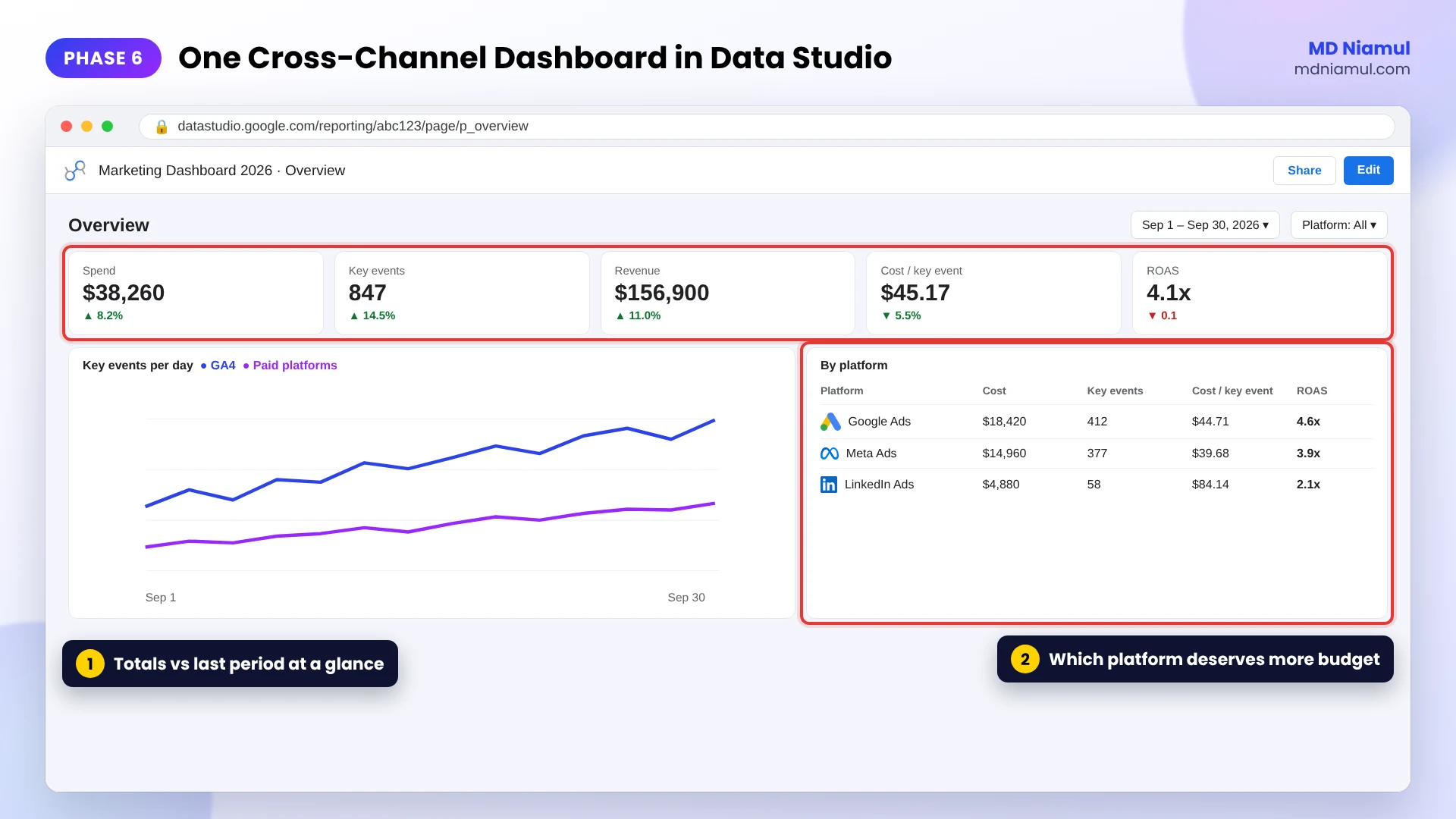
A good dashboard answers the questions people actually ask, in the order they ask them.
| Page | Question it answers | What it shows |
|---|---|---|
| Overview | Are we on track this month? | Spend, key events, revenue, cost per key event, ROAS against last period |
| Channels | Which channel deserves more budget? | The same numbers split by Platform |
| Campaigns | What should we pause or scale? | Campaign table with spend, results and cost per result |
| Website | Where do visitors drop off? | Landing pages, funnel steps and device split |
Keep each page to one screen. Put a date range control and a Platform filter at the top. Use scorecards for totals, a time series for trends and one table for detail.
Phase 7: Set Refresh, Test and Document the Numbers
- Set data freshness. Edit each data source and open Data freshness. Google Analytics can refresh every 1, 4 or 12 hours. Google Ads refreshes every 12 hours and cannot be changed.
- Check totals against each source. Spend and clicks should match the ad platforms closely for the same dates and time zone.
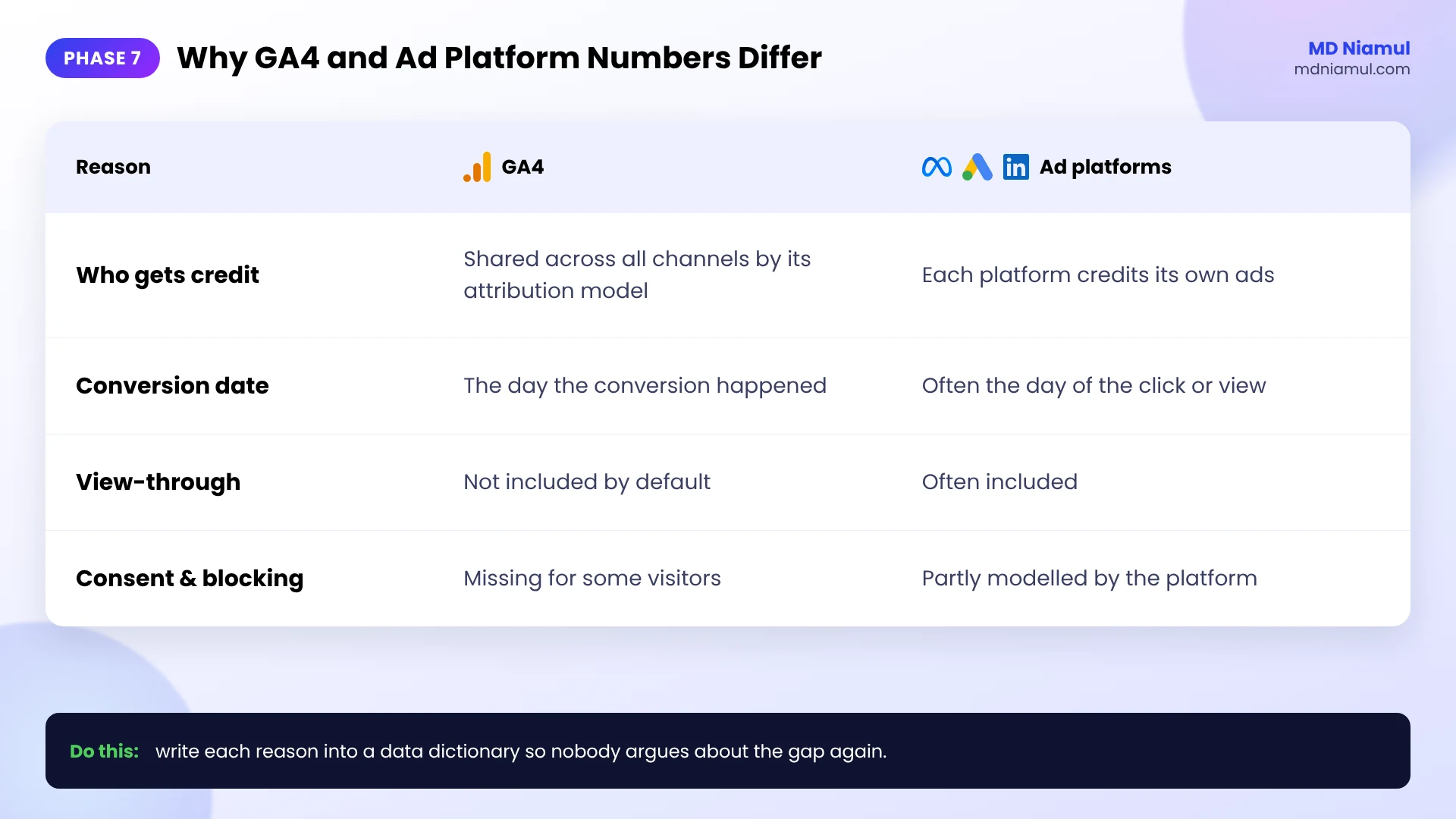
- Explain the gaps you expect. GA4 and ad platforms count conversions differently, as the table below shows.
- Write a data dictionary. One line per metric: where it comes from and how it is calculated.
- Hand over. Walk the team through reading the dashboard and what to do when a number looks wrong.
| Why the numbers differ | GA4 | Ad platforms |
|---|---|---|
| Who gets credit | GA4’s attribution model across all channels | Each platform credits its own ads |
| Date of the conversion | Day the conversion happened | Often the day of the ad click or view |
| View-through conversions | Not included by default | Often included |
| Consent and blocking | Missing for some visitors | Partly modelled by the platform |
The Full Data Flow at a Glance
| # | What happens | Where |
|---|---|---|
| 1 | A visitor arrives from a campaign with clean UTM values | Ad platform and website |
| 2 | Each important action fires a named event | Web GTM |
| 3 | The event travels to your own tagging server | Server GTM on Stape |
| 4 | GA4 records it and counts key events | GA4 |
| 5 | Spend and platform results are pulled in | Native connectors and Supermetrics |
| 6 | Sources are joined on Date and Platform | Data Studio blend |
| 7 | The team reads one dashboard and decides | Data Studio report |
Testing & Validation Workflow
- GA4 DebugView. Trigger each goal action and confirm the event name and parameters.
- Key events report. Confirm each key event appears the next day.
- Server container Preview. Confirm events arrive from the web container and the GA4 tag fires.
- Source totals. Compare spend and clicks in the dashboard with each ad platform for the same week.
- Blend check. Confirm no Platform value shows up as null or “Other” when it should not.
- Date check. Make sure every source uses the same time zone and date range.
- Monthly review. Re-check totals after any new campaign, connector or naming change.
Troubleshooting Common Mistakes
Mistake 1: The blend shows empty rows or zero spend
The Problem: GA4 results appear, but cost is blank for some platforms.
The Cause: the Platform values do not match exactly, for example “Meta ads” in one source and “Meta Ads” in another.
The Solution: use the exact same spelling and capitals in every Platform field, and check the date fields use the same format.
Mistake 2: GA4 conversions are far below the ad platforms
The Problem: Meta reports 120 leads, GA4 shows 60.
The Cause: different attribution models, view-through conversions, blocked browser tags, or a missing key event.
The Solution: confirm the event is a key event, add server-side tracking, and document the expected gap. My guide on fixing GA4 and Google Ads discrepancies goes deeper.
Mistake 3: The dashboard shows quota errors
The Problem: charts fail to load with a quota message.
The Cause: too many GA4 charts asking the API for data at once.
The Solution: use fewer charts per page, use extracted data or BigQuery for heavy pages, and keep freshness at a sensible interval.
Mistake 4: Channels split into dozens of rows
The Problem: “facebook”, “fb”, “Facebook” and “meta” each appear as separate sources.
The Cause: inconsistent UTM values.
The Solution: fix the naming rules from Phase 1 for new campaigns, and group old values with the Platform formula.
Mistake 5: Nobody uses the dashboard
The Problem: the report exists, but people still ask for spreadsheets.
The Cause: it shows everything instead of answering the questions people ask.
The Solution: rebuild the pages around the four questions in Phase 6 and walk the team through it.
What to Set Up Next
- Redesign an existing report. Read my Looker Studio dashboard redesign and multi-channel data integration guide.
- Go deeper on GA4 reporting. See the precision GA4 and Looker Studio reporting guide.
- Add BigQuery. Follow the GA4 analytics dashboard engineering guide.
If you want this set up for your business, see my work as a GA4 reporting and data visualization specialist and marketing attribution specialist.
Conclusion
Fragmented data is not a reporting problem. It is a decision problem. When every platform tells its own story, budgets follow the loudest dashboard instead of the truth.
Your next three moves are clear. First, write the measurement plan and naming rules. Second, fix collection in GA4 and protect it with server-side tracking. Third, connect every channel through native connectors and Supermetrics, and build one Data Studio dashboard around the questions your team asks.
One trusted number beats ten pretty reports.
Summary by MD Niamul
A reliable marketing analytics setup has four layers: collect, standardise, connect and visualise. Start with a measurement plan that lists business goals, the actions that prove them and their GA4 event names, plus strict UTM and campaign naming rules. Configure the events in Google Tag Manager, mark the important ones as key events in GA4 under Admin, Data display, Events, and set data retention to 14 months. Protect collection with a server-side GTM container on Stape. Connect GA4 and Google Ads with native connectors and other ad platforms with Supermetrics in Data Studio, which Google renamed from Looker Studio in April 2026. Blend sources on Date and Platform with matching values, build a dashboard around real questions, set data freshness, and document why GA4 and ad platform numbers differ.
Frequently Asked Questions (FAQ)
1. What is a marketing analytics setup?
It is the full path your marketing data travels, from a visitor’s action on your site to the report where someone makes a decision. A complete setup has four layers: collection with GA4 and Google Tag Manager, standard naming for UTMs and campaigns, connection of every ad platform into one place, and a dashboard that answers the team’s real questions. If any layer is weak, the final report is wrong, however good it looks.
2. Is Looker Studio now called Data Studio?
Yes. Google announced in April 2026 that Looker Studio is called Data Studio again, reversing the 2022 rename. Existing reports, data sources and users moved over with no action needed. The free tier continues, and a paid Data Studio Pro tier adds team, AI and Google Cloud management features. Most guides and connectors still mention Looker Studio, so you will see both names for a while.
3. Why do I need Supermetrics?
Data Studio has free native connectors for Google products such as GA4 and Google Ads. Platforms like Meta Ads, LinkedIn Ads and TikTok Ads have no native Google connector, so you need a partner connector to bring their data in without manual exports. Supermetrics is one of the best-known options. It connects to Data Studio, Google Sheets and BigQuery and keeps the data updated automatically.
4. What are GA4 key events?
Key events are the events you mark as important business results in GA4, such as purchase, generate_lead or a booked call. Google renamed conversions to key events in 2024. You mark them under Admin, Data display, Events by clicking the star next to the event. A standard property can have up to 30 key events, but most businesses report on three to five.
5. Why do GA4 and Meta Ads show different conversion numbers?
They count differently. GA4 shares credit across all channels with its own attribution model, while Meta credits its own ads, often including people who only viewed an ad. Meta may also date a conversion to the day of the click or view, while GA4 dates it to the day it happened. Blocked tags and declined consent remove some data from GA4. A gap is normal; document it instead of forcing the numbers to match.
6. How do I blend Meta Ads and GA4 data in Data Studio?
Give both sources the same join keys. I use Date and a Platform field. In the Meta data source, Platform is a fixed value such as Meta Ads. In GA4, a CASE formula groups source and medium into the same names. Then create a blend under Resource, Manage blends, join on Date and Platform with a left outer join from the spend table, and add cost, sessions and key events.
7. Does server-side tracking improve dashboard accuracy?
It improves the data that feeds the dashboard. A server-side GTM container on your own subdomain is affected less by ad blockers and short browser cookie lifetimes, so more allowed events reach GA4 and the ad platforms. It does not track visitors who declined consent, and it does not change how each platform attributes results. It narrows the gap caused by lost data, not the gap caused by different counting rules.
8. How often does Data Studio refresh data?
It depends on the connector. For Google Analytics data sources you can choose every 1, 4 or 12 hours in the data source’s Data freshness setting, with 12 hours as the default. Google Ads data refreshes every 12 hours and that cannot be changed. Partner connectors such as Supermetrics vary. You can also refresh a report manually while viewing it.
9. How do I fix quota errors in a GA4 dashboard?
Quota errors happen when a report asks the GA4 API for too much data at once, for example many charts on one page or many viewers at the same time. Reduce the number of GA4 charts per page, split heavy pages, use extracted data for summary pages, and move large or complex reporting to BigQuery. Keeping data freshness at a sensible interval also reduces repeat requests.
10. What should a marketing dashboard include?
Start with the questions people ask. An overview page shows spend, key events, revenue, cost per key event and ROAS against the last period. A channel page splits the same numbers by platform. A campaign page shows what to pause or scale. A website page shows landing pages and funnel drop-off. Add a date control and a platform filter, keep each page to one screen, and include a short data dictionary.
 Need Help Advanced GHL Automation & Tracking Setup?