
Quick Answer
Offline conversion tracking with a CRM or a Google Sheet means saving the Google Click ID (GCLID) with every lead, then sending the leads that turn into sales back to Google Ads. A Google Tag Manager (GTM) tag reads gclid, gbraid, wbraid and UTMs from the landing page URL, keeps them in a first-party cookie for 90 days, and fills hidden fields on your forms. Your CRM (HubSpot, Salesforce, Zoho, GoHighLevel, Pipedrive) or a Google Sheet stores the click ID with the contact. When a deal closes, the row goes into a sheet that Google Ads Data Manager imports on a schedule, with the sale value, so Smart Bidding learns from real revenue.
Key Takeaways
- No click ID, no offline conversion: Google Ads matches an imported sale to an ad click by the GCLID, so it has to be saved when the lead comes in.
- Capture it on every page: Google’s own guide says to store the GCLID in a cookie or local storage on all pages, not only the landing page, and pass it in a hidden form field.
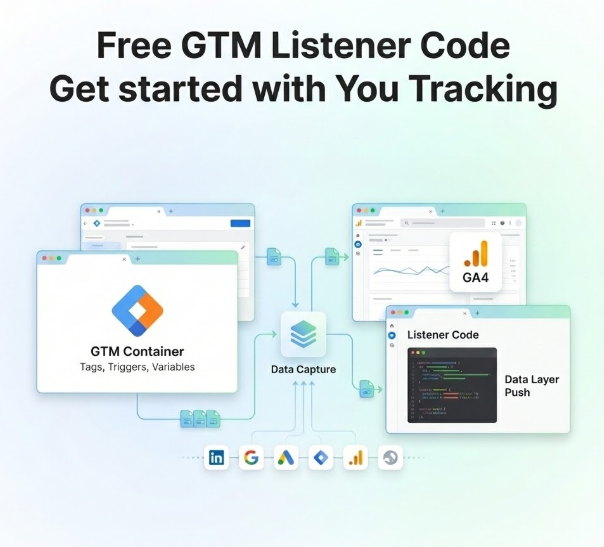
- One GTM tag does it: the script below saves the click IDs for 90 days, fills hidden fields, and also fills forms that load late.
- Any CRM, or just a sheet: the click ID lives in a custom field. When the deal is won, a workflow adds a row to a Google Sheet.
- File uploads are now “legacy”: Google recommends importing through Google Ads Data Manager, which can read a Google Sheet on a schedule.
- Timing rules matter: a GCLID can be imported for up to 90 days, wait 4 to 6 hours after creating a new conversion action, and upload at least daily for Smart Bidding.
Introduction Your Ads Get Leads, but Google Ads Never Sees the Sales
Here’s a picture I see in almost every lead gen account I audit. Google Ads reports 140 form fills. Sales closed 11 deals. Nobody can say which campaign, keyword or ad brought those 11 clients, so Smart Bidding keeps chasing cheap form fills, including spam and tire kickers.
The sale happens later, over the phone, on a call, or in the CRM a few weeks after the click. Browser tracking can’t see it. Offline conversion tracking fixes this by sending the sale back to Google Ads and tying it to the original click.
The part most setups get wrong is the first step: saving the click ID with the lead. If the GCLID never reaches your CRM or sheet, there’s nothing to match later. So in this guide I start there, with a tested GTM script, then show how to get closed deals back into Google Ads.
Browser Conversions vs Offline Conversion Import vs Enhanced Conversions for Leads
| Browser conversion tag | Offline conversion import (GCLID) | Enhanced conversions for leads | |
|---|---|---|---|
| What it counts | Form fill or call click on the site | Qualified lead or closed sale from the CRM | Qualified lead or closed sale from the CRM |
| How it matches the click | Cookie in the browser | GCLID saved with the lead | Hashed email or phone |
| Needs a hidden GCLID field | No | Yes | No, but the email must be captured |
| Sends revenue | Only the value you set on the site | Yes, the real deal value | Yes, the real deal value |
| Google’s current advice | Keep it, it’s step one | Supported, file uploads marked legacy | Recommended for new setups |
You don’t have to pick only one. I capture the GCLID and the email on every lead, so the import works either way.
Prerequisites & Setup Checklist
- Google Ads: admin access and auto-tagging turned on (Admin → Account settings → Auto-tagging).
- Google Tag Manager: a web container on every page of the site, with publish rights.
- Forms you control: native HTML, WordPress, Elementor, Gravity Forms, HubSpot non-iframe forms, Webflow and similar, where you can add hidden fields.
- A place for the data: custom fields in your CRM, or a Google Sheet if you don’t use a CRM yet.
- An automation tool (optional): n8n, Make or Zapier, if your CRM can’t write to Google Sheets by itself.
- Consent: a cookie banner connected to Google Consent Mode v2 for EEA and UK visitors.
Planning which stages to send back and what each one is worth? My free offline conversion builder helps you map it out.
Video Tutorial Walkthrough
In the video I explain the offline conversion gap, how CRMs like HubSpot, Zoho, Salesforce and GoHighLevel connect to ad clicks, and how server-side tracking, automation, Conversions APIs and Consent Mode fit around offline conversion tracking.
Step-by-Step Implementation Guide
Eight phases. The first four get the click ID into your CRM or sheet. The last four send the sales back to Google Ads.
Phase 1: Turn On Auto-Tagging and Check the Click IDs
- In Google Ads, go to Admin → Account settings and make sure Auto-tagging is on.
- Click one of your own ads (or use the ad preview tool) and look at the landing page URL. You should see
?gclid=. - Some iPhone and Safari traffic arrives with
gbraidorwbraidinstead. Save those too. - Check that no redirect strips the parameters. My free UTM redirect checker shows it in seconds.
Phase 2: Add Hidden Fields to Your Forms
- Add hidden fields named
gclid,gbraid,wbraid,utm_source,utm_medium,utm_campaign,utm_termandutm_content. - Optional but useful:
click_timeandlanding_page. - If your form builder won’t let you set the field name, give the field the attribute
data-mdn="gclid"(and so on) instead. - Map each hidden field to a matching custom field in your CRM, for example a HubSpot contact property called GCLID.
Iframe forms are different. A GTM tag on your page can’t write into a form that lives inside an iframe from GoHighLevel, Zoho or Pipedrive. For those, pass the values in the iframe URL or use the platform’s own hidden field options. I cover the iframe side in my GoHighLevel iframe tracking guide and Zoho form tracking guide.
Phase 3: Add the Click ID Capture Tag in GTM
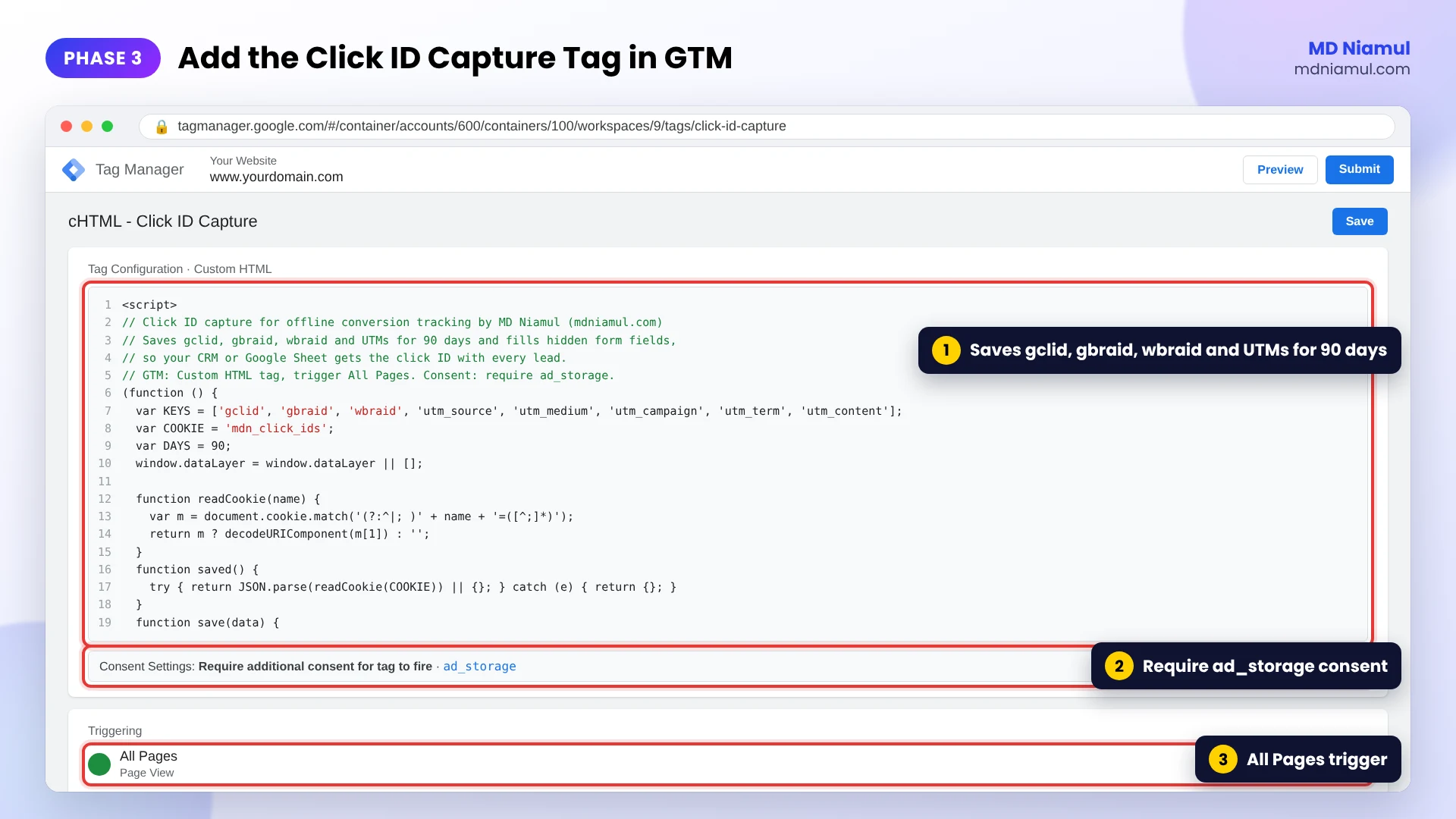
- In GTM, go to Tags → New → Custom HTML and paste the code below.
- Set the trigger to All Pages. The click ID has to be saved on whatever page the visitor lands on.
- Open Advanced Settings → Consent Settings and choose Require additional consent for tag to fire with
ad_storage, if you serve visitors who need a consent banner. - Name it cHTML – Click ID Capture and save.
<script>
// Click ID capture for offline conversion tracking by MD Niamul (mdniamul.com)
// Saves gclid, gbraid, wbraid and UTMs for 90 days and fills hidden form fields,
// so your CRM or Google Sheet gets the click ID with every lead.
// GTM: Custom HTML tag, trigger All Pages. Consent: require ad_storage.
(function () {
  var KEYS = ['gclid', 'gbraid', 'wbraid', 'utm_source', 'utm_medium', 'utm_campaign', 'utm_term', 'utm_content'];
  var COOKIE = 'mdn_click_ids';
  var DAYS = 90;
  window.dataLayer = window.dataLayer || [];

  function readCookie(name) {
    var m = document.cookie.match('(?:^|; )' + name + '=([^;]*)');
    return m ? decodeURIComponent(m[1]) : '';
  }
  function saved() {
    try { return JSON.parse(readCookie(COOKIE)) || {}; } catch (e) { return {}; }
  }
  function save(data) {
    var exp = new Date(Date.now() + DAYS * 864e5).toUTCString();
    document.cookie = COOKIE + '=' + encodeURIComponent(JSON.stringify(data)) +
      '; expires=' + exp + '; path=/; SameSite=Lax' + (location.protocol === 'https:' ? '; Secure' : '');
  }

  // 1. A new ad click in the URL replaces the old values (last click wins).
  var params = new URLSearchParams(location.search);
  var data = saved();
  if (params.get('gclid') || params.get('gbraid') || params.get('wbraid')) {
    data = { click_time: new Date().toISOString(), landing_page: location.origin + location.pathname };
    KEYS.forEach(function (k) { if (params.get(k)) data[k] = params.get(k); });
    save(data);
  }

  // 2. No click ID saved? Fall back to Google's own _gcl_aw cookie (GCL.<time>.<gclid>).
  if (!data.gclid && !data.gbraid && !data.wbraid) {
    var aw = readCookie('_gcl_aw').split('.');
    if (aw.length > 2) data.gclid = aw.slice(2).join('.');
  }

  // 3. Fill every matching hidden field: <input type="hidden" name="gclid">, name="utm_source", ...
  function fill(root) {
    KEYS.concat(['click_time', 'landing_page']).forEach(function (k) {
      if (!data[k]) return;
      var fields = (root || document).querySelectorAll('input[name="' + k + '"], input[data-mdn="' + k + '"]');
      for (var i = 0; i < fields.length; i++) { if (!fields[i].value) fields[i].value = data[k]; }
    });
  }
  fill();
  document.addEventListener('submit', function (e) { fill(e.target); }, true);   // last chance before submit
  if (window.MutationObserver) {
    new MutationObserver(function () { fill(); }).observe(document.documentElement, { childList: true, subtree: true });
  }

  // 4. Make the values available to other GTM tags (Data Layer Variables).
  window.dataLayer.push({ event: 'click_ids_ready', click_ids: data });
})();
</script>
What it does, in plain words. When a visitor lands from an ad, it saves the click ID and UTMs in a cookie for 90 days. A new ad click replaces the old values, so the last click wins. If there’s no click ID in the URL or the cookie, it falls back to Google’s own _gcl_aw cookie. Then it fills every matching hidden field, again just before the form is sent, and in forms that load later (pop-ups, multi-step forms). It never overwrites a field that already has a value.
I tested it in a browser: the landing page filled the fields, a second page without parameters used the cookie, a form added later got filled, a new gbraid click replaced the old gclid, the _gcl_aw fallback worked, and a visit with no ad click left the fields empty with no errors.
Phase 4: Test in GTM Preview and in the CRM
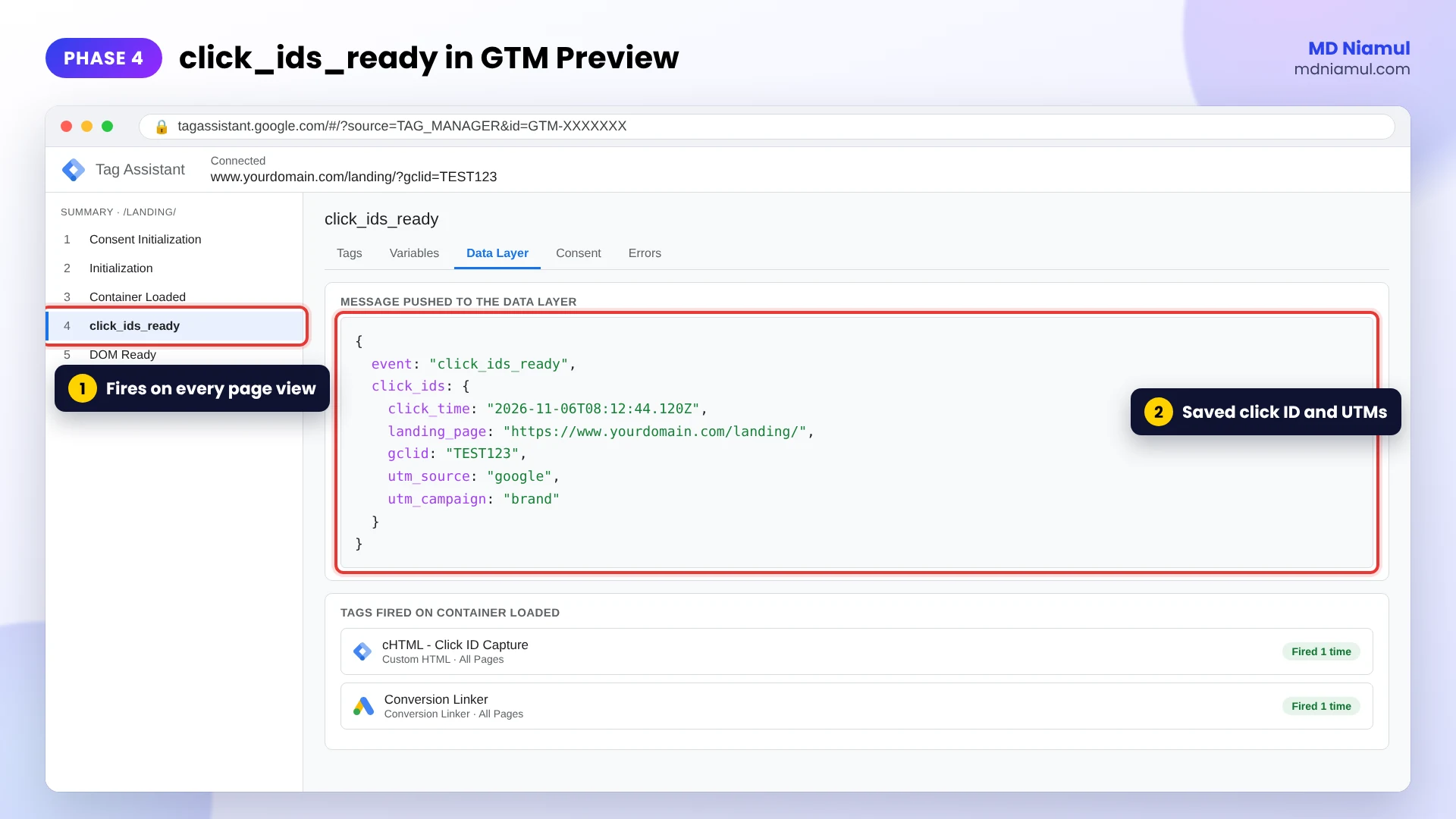
- Click Preview and open your site with a test URL like
?gclid=TEST123&utm_source=google. - In Tag Assistant, find the
click_ids_readyevent and check the values in the Data Layer tab. - Go to another page, submit the form with a test email, and open the new contact in your CRM. The GCLID field should say
TEST123. - Delete the test contact, so it never gets sent to Google Ads.
Phase 5: Store the Click ID in Your CRM
- HubSpot: create contact properties for GCLID and the UTMs, map the hidden fields, and copy the values to the deal. My HubSpot and Google Sheets offline conversion guide walks through it.
- Salesforce: add GCLID fields on the Lead and carry them to the Opportunity when the lead converts.
- GoHighLevel: use custom fields on the contact and opportunity. My GoHighLevel offline conversion tracking guide has tested n8n code.
- Pipedrive and Odoo: see my Pipedrive offline conversions guide and Odoo CRM guide.
- No CRM: send each lead straight into a Google Sheet. I show the GTM and Apps Script way in offline conversion tracking via GTM and Google Sheets.
Keep the GCLID on the deal or opportunity, not only on the contact. The sale value lives on the deal, and that’s what you’ll send back.
Phase 6: Build the Offline Conversions Google Sheet
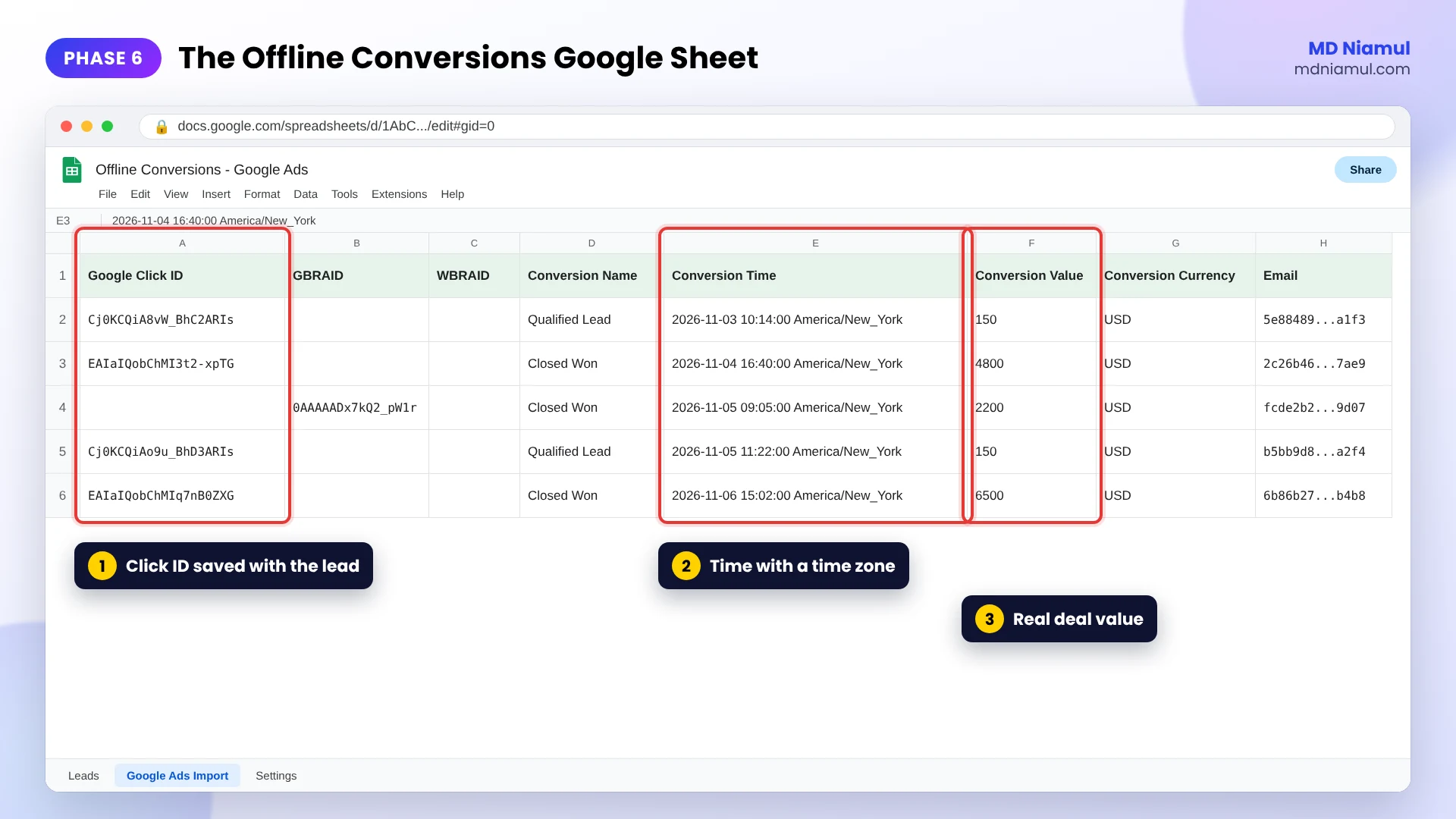
- Create a Google Sheet with one row per conversion and these columns: Google Click ID, GBRAID, WBRAID, Conversion Name, Conversion Time, Conversion Value, Conversion Currency and Email.
- Write the time with a time zone so Google reads it right, for example
2026-11-06 14:30:00 America/New_Yorkor2026-11-06 14:30:00+0000. - Use one conversion name per stage, such as Qualified Lead and Closed Won, and give each its own row.
- Add rows automatically when a deal changes stage: a CRM workflow, or n8n, Make or Zapier watching the CRM.
The exact column names above come from Google’s legacy upload template. With Data Manager you map your own columns, but keeping these names makes the sheet work with both.
Phase 7: Import the Sheet into Google Ads
- In Google Ads, go to Goals → Summary → + Create conversion action → Conversions offline, and create one action per stage.
- Wait 4 to 6 hours before the first import. Google says conversions sent sooner can take up to 2 days to show.
- Connect the Google Sheet through Google Ads Data Manager and map the columns to the conversion action. For Google Sheets, Data Manager looks back 90 days on every run.
- Set it to run daily. Google recommends uploading at least once a day for Smart Bidding.
- Still on the old file uploads (Goals → Conversions → Uploads)? They work, but Google now labels them legacy and points to Data Manager.
Phase 8: Bid on Revenue, Add Enhanced Conversions and Meta
- Once Closed Won has steady volume, set it as a primary goal and test value-based bidding (Maximize conversion value or target ROAS).
- Add the hashed email to the same rows to use enhanced conversions for leads, which Google recommends over GCLID-only imports.
- Send the same closed deals to Meta through the Conversions API with
action_sourceset tosystem_generatedorphysical_store. - Run your browser tags through server-side GTM on Stape (or Stape EU) to recover leads lost to ad blockers.
- Check that your banner and Consent Mode work with the free Consent Mode checker, and send the consent columns with each import if you serve EEA users.
More on the server side in my server-side and offline conversion tracking guide for lead gen.
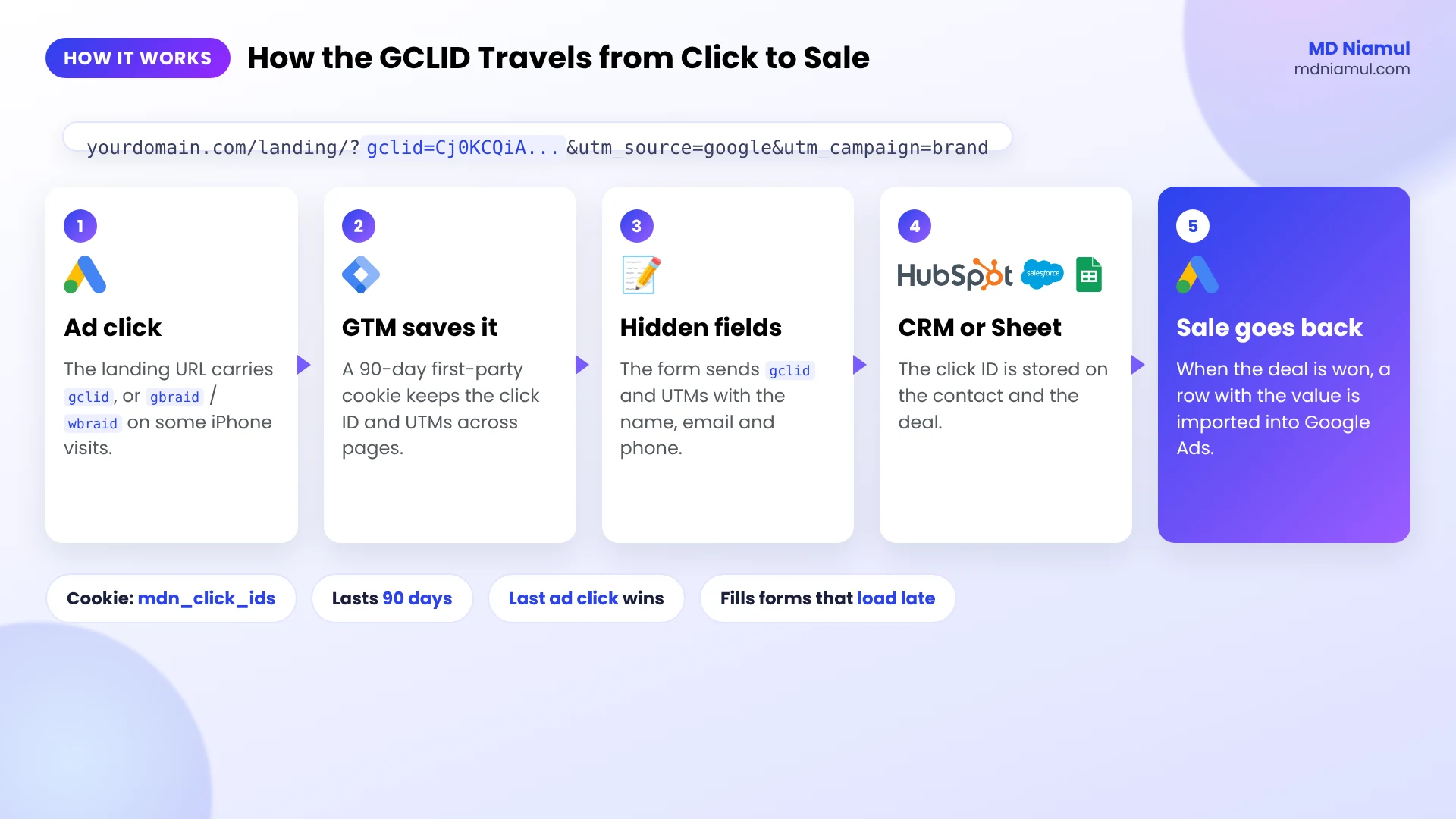
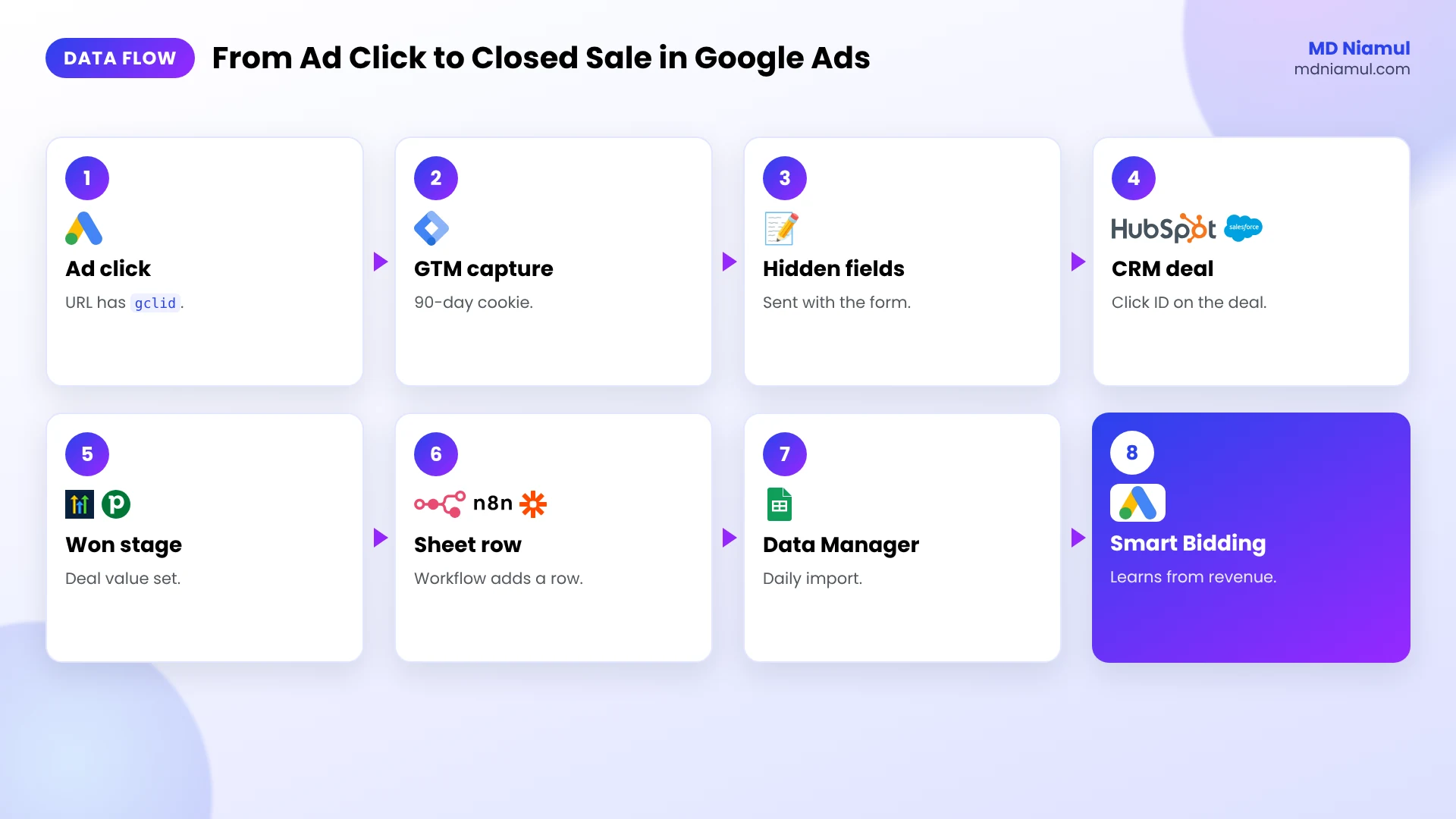
Offline Conversion Tracking: The Full Data Flow
| # | What happens | Where |
|---|---|---|
| 1 | A visitor clicks your ad and lands with gclid, gbraid or wbraid |
Browser |
| 2 | The GTM tag saves the click IDs and UTMs in a 90-day cookie | GTM Custom HTML |
| 3 | Hidden fields carry the values with the form submit | Your form |
| 4 | The lead and its click ID are stored on the contact and deal | CRM or Google Sheet |
| 5 | The deal is qualified or won, with a value | CRM |
| 6 | A workflow adds a row to the offline conversions sheet | CRM workflow, n8n, Make or Zapier |
| 7 | Data Manager imports the sheet on a schedule | Google Ads |
| 8 | Smart Bidding learns from real sales and revenue | Google Ads |
Testing & Validation Workflow
- URL test. Open the site with
?gclid=TEST123. Themdn_click_idscookie appears. - Page test. Go to another page without parameters. The hidden fields still fill.
- Form test. Submit a test lead. The CRM contact shows the GCLID and UTMs.
- Deal test. Move a test deal to Closed Won. A row lands in the sheet with the right time zone.
- Import test. After a real import, check the upload history in Google Ads for errors.
- Weekly check. Compare won deals from Google Ads leads in the CRM with offline conversions in Google Ads.
Troubleshooting Common Mistakes
Mistake 1: The GCLID field is empty in the CRM
The Problem: leads come in, but the GCLID property is blank.
The Cause: the hidden field name doesn’t match, the form is in an iframe, a redirect dropped the parameter, or consent was denied and the tag didn’t fire.
The Solution: match the field names to the code (or use data-mdn), handle iframe forms on the platform side, and test with a real ad click.
Mistake 2: Imports fail right after setup
The Problem: the first import shows errors or nothing shows up.
The Cause: the conversion action was brand new, or the clicks hadn’t been processed yet.
The Solution: wait 4 to 6 hours after creating the action, and let the scheduled import try again on the next run.
Mistake 3: Conversions land on the wrong day or get rejected
The Problem: conversion times look shifted, or some rows say the conversion happened before the click.
The Cause: the sheet has a time with no time zone, so Google reads it in the wrong one.
The Solution: add a time zone ID or a GMT offset to every Conversion Time.
Mistake 4: Two stages of the same deal count as one
The Problem: a lead moved from Qualified to Won, but only one conversion shows.
The Cause: Google dedupes rows with the same GCLID, conversion name and conversion time.
The Solution: use a separate conversion name per stage and the real time each stage changed.
Mistake 5: Old deals never show up
The Problem: deals with long sales cycles are missing.
The Cause: the click was more than 90 days before the import, and Google keeps the GCLID for 90 days.
The Solution: send an earlier stage like Qualified Lead within the window, and add enhanced conversions for leads as a second match.
What to Set Up Next
- Clean UTMs: build consistent campaign links with the free UTM builder.
- Server-side choice: read Google tag gateway vs server-side tracking.
- Your CRM: my Salesforce conversion tracking service and HubSpot conversion tracking specialist pages show what I set up.
Want the whole thing built and documented for you or your agency clients? See my offline conversion tracking services.
Conclusion
Offline conversion tracking isn’t complicated once the click ID travels with the lead. Most broken setups fail at that first step, not at the upload.
Put the capture tag on every page, add the hidden fields, and check one test lead in your CRM. Then build the sheet, connect it through Data Manager, and send at least one stage every day. Within a few weeks Google Ads starts learning from the leads that actually paid you.
Summary by MD Niamul
Offline conversion tracking with a CRM or Google Sheet works when every lead is saved with its Google Click ID. I use one Google Tag Manager Custom HTML tag on all pages that reads gclid, gbraid, wbraid and UTMs from the landing URL, keeps them in a 90-day first-party cookie, falls back to Google’s _gcl_aw cookie, and fills hidden form fields, including forms that load late. HubSpot, Salesforce, Zoho, GoHighLevel or Pipedrive stores the click ID on the contact and deal. When a deal is qualified or won, a workflow adds a row to a Google Sheet with the conversion name, a time with a time zone, and the value. Google Ads Data Manager imports that sheet daily. Import within 90 days of the click and wait 4 to 6 hours after creating a new conversion action.
Frequently Asked Questions (FAQ)
1. What is offline conversion tracking?
Offline conversion tracking sends sales or qualified leads that happen outside your website, like a phone call or a deal closed in your CRM, back to Google Ads. Each one is matched to the original ad click with the Google Click ID (GCLID) or a hashed email, so you can see which campaigns bring real revenue.
2. How does offline conversion tracking work in Google Ads?
Auto-tagging adds a GCLID to the landing page URL. Your site saves it and passes it with the form into your CRM. When the lead becomes a sale, you import a row with the GCLID, conversion name, time and value. Google Ads matches it to the click and reports it as a conversion.
3. How do I capture the GCLID in Google Tag Manager?
Use a Custom HTML tag on all pages that reads gclid from the URL, saves it in a first-party cookie, and fills a hidden form field named gclid. The code in this guide also saves gbraid, wbraid and UTMs for 90 days and fills forms that load late, like pop-ups.
4. Can I do offline conversion tracking without a CRM?
Yes. Send each lead and its GCLID into a Google Sheet, mark which ones became sales, and keep a second tab with the rows to import. Google’s own FAQ says a Google spreadsheet works for this. Connect that tab to Google Ads through Data Manager on a daily schedule.
5. What columns does the Google Sheet need?
Google’s upload template uses Google Click ID, Conversion Name, Conversion Time, Conversion Value and Conversion Currency, with optional consent columns. I also keep GBRAID, WBRAID and Email. With Data Manager you can map your own column names, but these work in both the old and new import.
6. How long is a GCLID valid for import?
Google says you can upload any conversion with a GCLID as long as the click is no more than 90 days old. For long sales cycles, send an earlier stage like Qualified Lead inside that window, and add enhanced conversions for leads as a second way to match.
7. Are Google Ads offline file uploads being replaced?
Google now labels conversion imports from files as legacy and recommends Google Ads Data Manager instead. Data Manager can read a Google Sheet on a schedule and, for Sheets, looks back 90 days on every run. Existing scheduled uploads still work for now.
8. What are GBRAID and WBRAID?
They’re click IDs Google Ads uses for some iOS traffic where a GCLID can’t be used. GBRAID comes from app-related clicks and WBRAID from web clicks. Save them in hidden fields the same way as the GCLID, because some iPhone and Safari visits arrive with them instead.
9. Should I use offline conversion import or enhanced conversions for leads?
Google recommends enhanced conversions for leads for new setups because it matches with hashed email or phone and doesn’t depend on storing a click ID. I do both: capture the GCLID and the email on every lead, so you can import with whichever method works best for the account.
10. Why are my offline conversions not showing in Google Ads?
Common causes are an empty GCLID field in the CRM, importing within 4 to 6 hours of creating the conversion action, a conversion time without a time zone, or clicks older than 90 days. Check the upload history for errors, and remember data can take up to 48 hours to show.
 Need Help Advanced GHL Automation & Tracking Setup?