
Quick Answer
Bing Ads conversion tracking (now Microsoft Advertising) works through the UET tag, Microsoft’s Universal Event Tracking script. Create a UET tag and conversion goals in Microsoft Advertising, then install the tag through Google Tag Manager: one base tag on every page and one custom event tag for each conversion, such as a lead or purchase, with its value. Send consent signals for visitors from the EEA, UK and Switzerland. For better accuracy, add server-side tracking with a server GTM container and the Microsoft UET Conversions API, using the same event ID on both sides. Finally, test everything with the UET Tag Helper and GTM Preview.
Key Takeaways
- One base tag, many goals: the UET base tag loads on every page, and each conversion goal reads from it.
- Custom events beat thank-you URLs: event goals fire on the real action, even when there is no separate thank-you page.
- Consent is required: since May 5, 2025 Microsoft expects UET consent signals for visitors from the EEA, UK and Switzerland.
- Server-side is now possible: Microsoft published its UET Conversions API documentation in 2026, but access is per account, so check before you plan around it.
- Deduplicate with an event ID: when the browser and server both send a conversion, the same event ID stops Microsoft counting it twice.
- Test before you trust: the UET Tag Helper and GTM Preview show whether the right event fires with the right value.
Introduction: Your Bing Ads Budget Is Working Blind
Microsoft Advertising often brings cheaper clicks than Google Ads, from an audience that is older, more desktop-heavy and often ready to buy. Many accounts still treat it as an afterthought.
Then the numbers come in. Microsoft Ads shows ten conversions. The CRM shows thirty leads from Bing. Or the opposite: Microsoft reports conversions that never reached the sales team.
If Microsoft Ads cannot see your real conversions, it cannot bid for more of them.
Smart bidding strategies like Maximize conversions and Target CPA learn from the conversion data you send. When that data is missing, duplicated or attached to the wrong action, you pay for clicks the algorithm cannot judge.
In this guide I will show you the three-milestone process I use for Microsoft Ads tracking: audit and tracking map, implementation through Google Tag Manager and server-side tracking, and QA with a clean handover.
Why Bing Ads Tracking Breaks
| Cause | What you see | Fixed in |
|---|---|---|
| UET tag missing on some pages or installed twice | Tag status warnings, doubled page views | Phase 1 and 3 |
| Goal based on a thank-you URL that no longer exists | Zero conversions after a site change | Phase 2 and 4 |
| Conversion fires on button click, not on success | Conversions higher than real leads | Phase 4 |
| No consent signals for European visitors | Lost or limited data from the EEA, UK and Switzerland | Phase 5 |
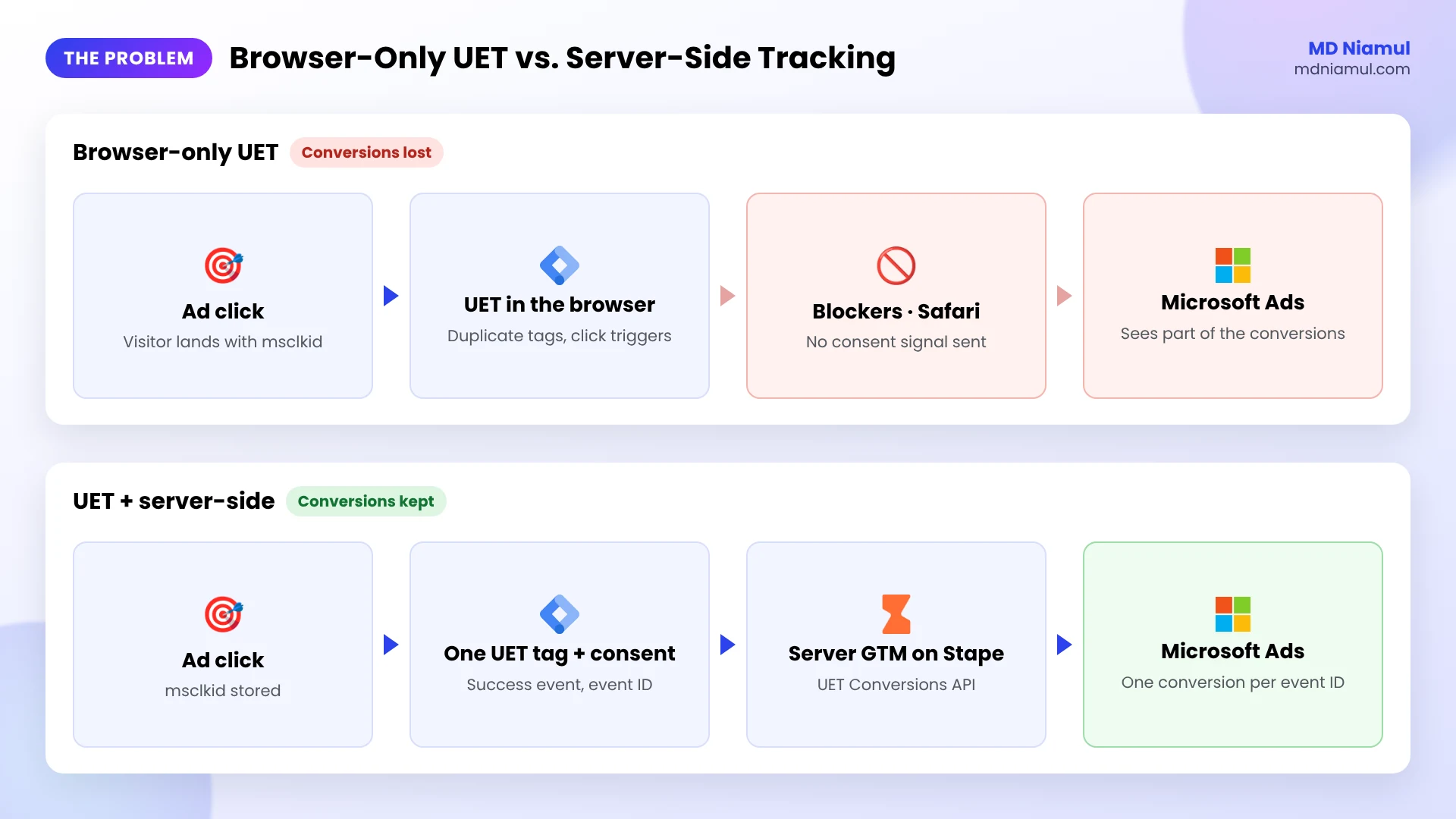
| Ad blockers and short browser cookie lifetimes | Conversions under-reported | Phase 6 |
What Is the Microsoft UET Tag?
The UET tag (Universal Event Tracking) is a small script from Microsoft Advertising that records what visitors do on your website after they click your ads. It powers conversion tracking, remarketing audiences and automated bidding.
Think of it like a receptionist at your front door. The base tag notes every visitor who walks in. Custom events are the receptionist writing down “this visitor booked a call” or “this visitor bought something worth $120”. Microsoft Ads reads that notebook to decide who to show your ads to next.
A conversion goal is the rule in Microsoft Ads that decides which of those notes count as a conversion. The tag collects; the goal counts.
Prerequisites & Setup Checklist
- Microsoft Advertising: Standard or Super Admin access to the ad account, so you can create UET tags and conversion goals.
- Google Tag Manager: publish rights on the Web container, plus a Server container for the server-side part.
- Server hosting: a tagging server on Stape Global or Stape Europe.
- Consent banner: a cookie banner that can send consent choices to Google Tag Manager.
- Browser tools: Chrome with the Microsoft UET Tag Helper extension.
- A conversion list: which actions count as leads or sales, and what each one is worth.
For a quick first look at what your site loads today, run it through my free tracking audit tool.
Video Tutorial Walkthrough
Prefer to watch? In this short video I explain the three milestones I follow to fix Bing Ads conversion tracking: audit, implementation with GTM and server-side tracking, and QA.
Step-by-Step Implementation Guide
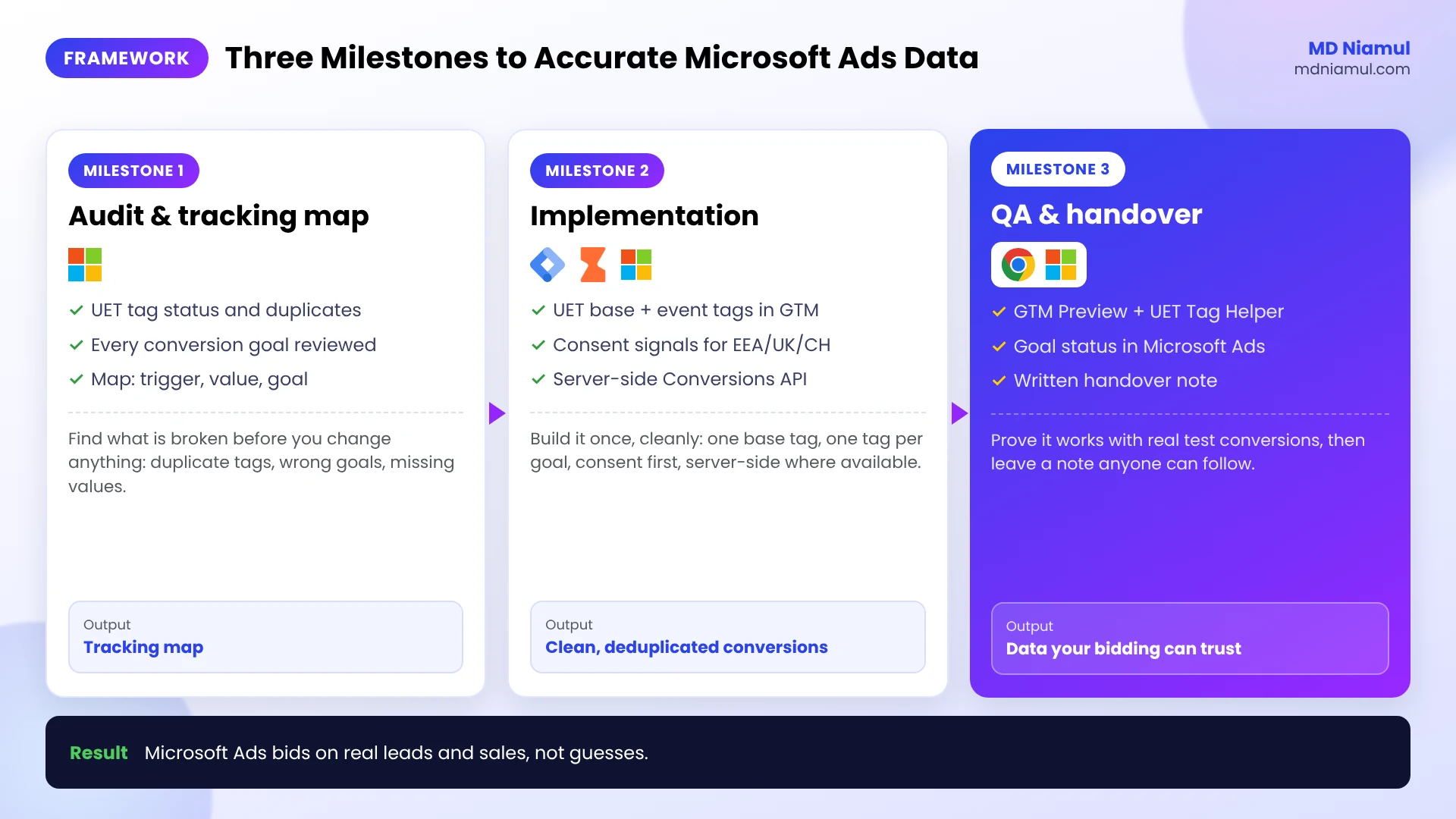
The work follows three milestones. Milestone 1 is the audit and tracking map (Phase 1). Milestone 2 is implementation (Phases 2 to 6). Milestone 3 is QA and handover (Phase 7).
Phase 1: Audit the Account and Build a Tracking Map
- In Microsoft Advertising, open Conversions → UET tag and check each tag’s status. Note which tag ID the account uses.
- Open Conversions → Conversion goals and list every goal, its type, its status and whether it is included in the Conversions column.
- On the website, open the UET Tag Helper on key pages: home, a landing page, the form page and the thank-you or checkout page.
- Look for duplicate UET tags, for example one hard-coded in the theme and another in GTM.
- Write the tracking map: each conversion, how it is triggered, its value, and which goal should count it.
| Conversion | Trigger | Value | Goal type |
|---|---|---|---|
| Lead form submitted | Successful form submit event | Fixed, e.g. 50 | Event |
| Call booked | Calendar booking confirmed | Fixed, e.g. 80 | Event |
| Purchase | Order confirmation | Order value (varies) | Event |
My free measurement plan generator helps you write this map in a few minutes.
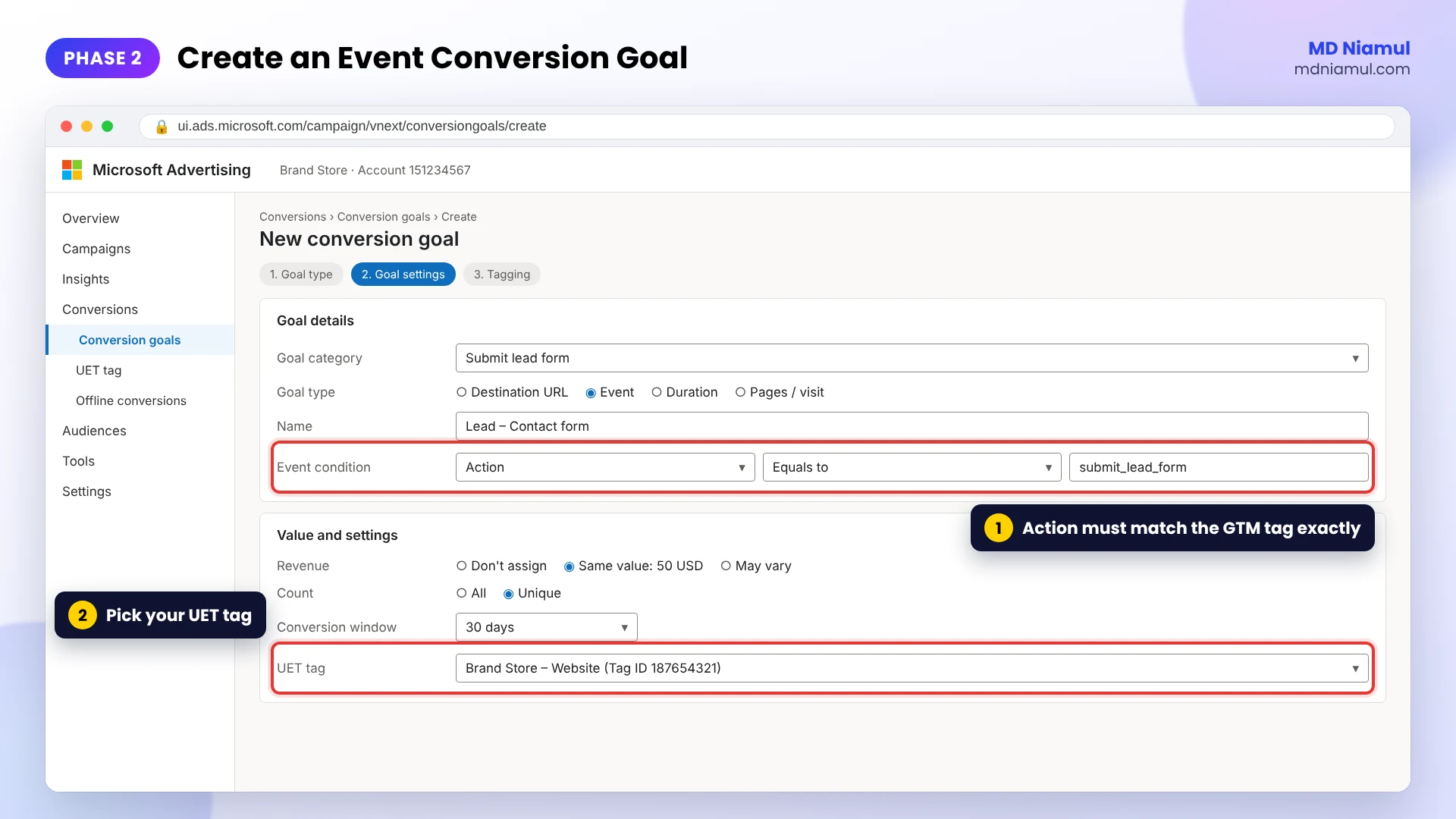
Phase 2: Create the UET Tag and Conversion Goals
- If the account has no tag, go to Conversions → UET tag → Create, name it after the website, and copy the Tag ID.
- Go to Conversions → Conversion goals → Create and choose Website.
- Pick the goal category, such as Purchase or Submit lead form, and choose Event as the goal type.
- Set the event condition. I match on Action equals a clear name, for example
submit_lead_formorpurchase. - Set the revenue: a fixed value for leads, or “may vary” for purchases so the tag can pass the real order value.
- Choose the Count (unique for leads, all for purchases), the conversion window (up to 90 days), and select your UET tag.
Phase 3: Install the UET Base Tag in Google Tag Manager
- Remove any hard-coded UET script you found in Phase 1, so the tag loads only once.
- In your Web container, go to Tags → New and choose the Microsoft Advertising Universal Event Tracking tag type.
- Paste your UET Tag ID.
- Set the trigger to All Pages and name it UET – Base – All Pages.
- Save, then test in Preview mode before you publish.
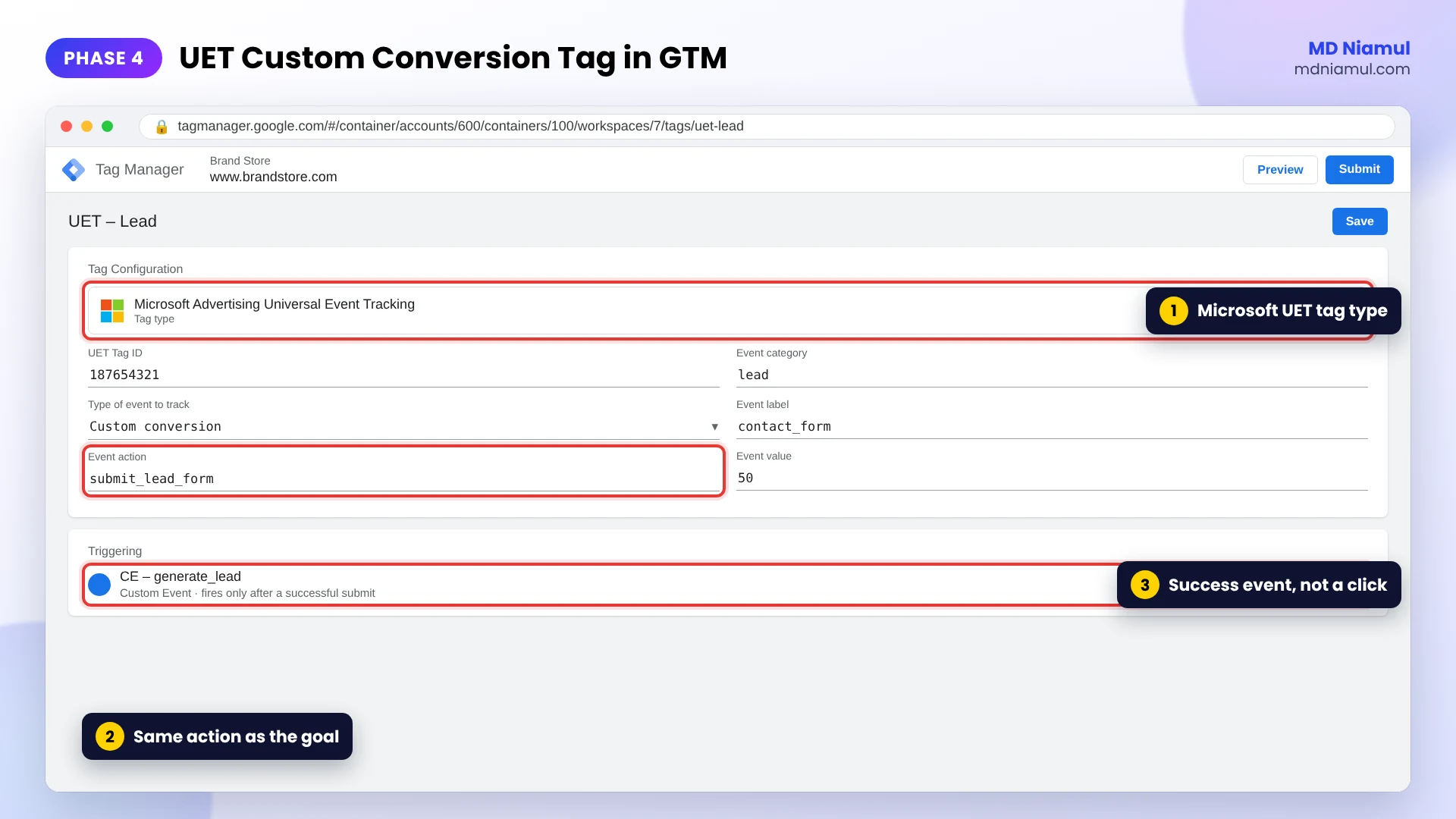
Phase 4: Track Leads and Purchases with Custom Events
- Create a trigger that fires only on a successful conversion, for example a
generate_leadorpurchasedata layer event. Avoid plain button clicks, which fire even when the form fails. - Create a new tag with the same Microsoft Advertising Universal Event Tracking type and choose a custom conversion event.
- Set the Event Action to exactly the name in your goal, for example
submit_lead_form. - For purchases, map the revenue and currency from Data Layer Variables such as
ecommerce.valueandecommerce.currency. - Attach the trigger, name the tag UET – Lead or UET – Purchase, and test.
If your forms are hard to track, my free form tracking listener generator and free data layer generator create the listener code for you.
Phase 5: Send Consent Signals to UET
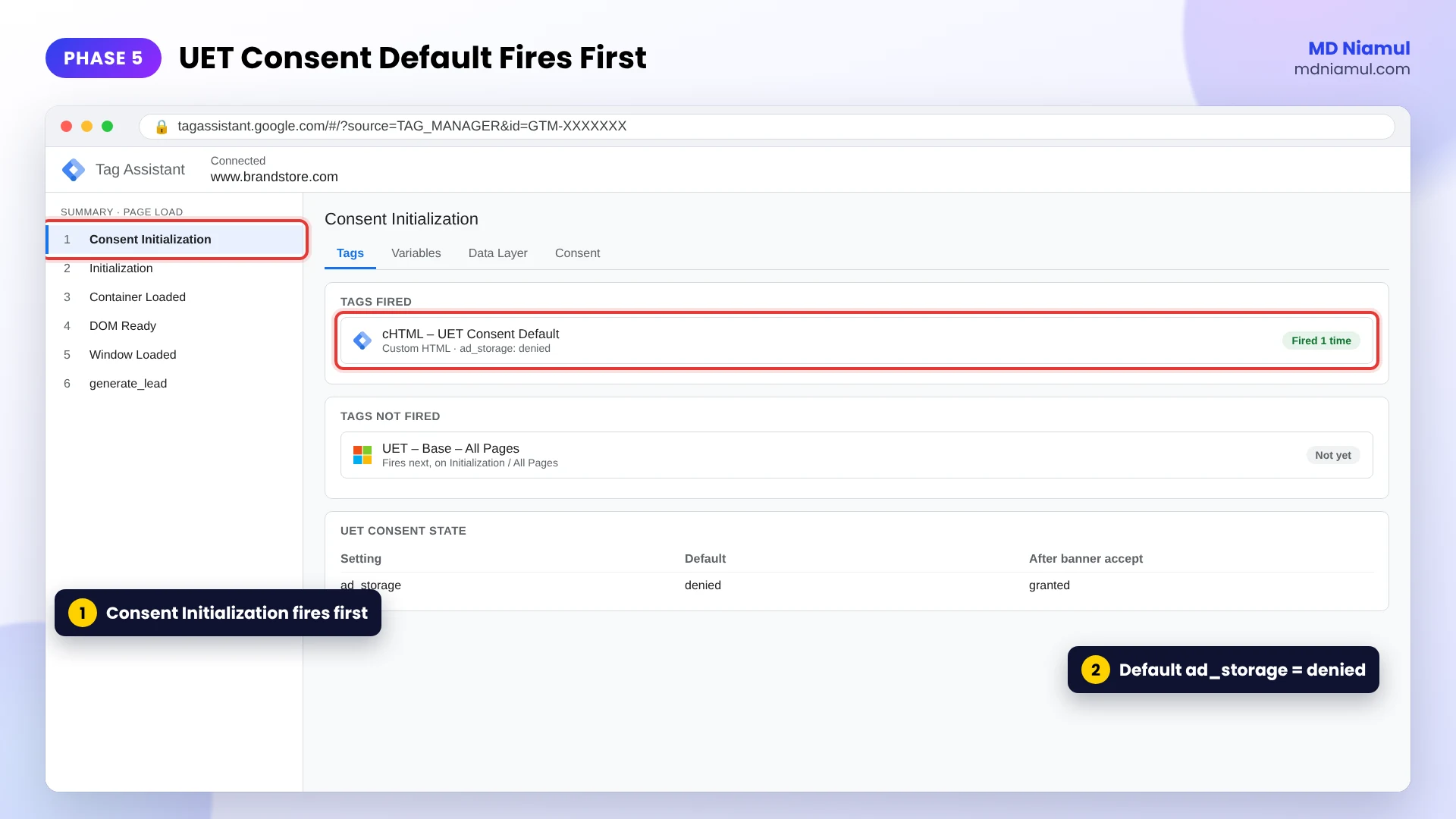
Microsoft Advertising asked advertisers to send consent signals with UET by May 5, 2025 for visitors from the EEA, the UK and Switzerland. UET reads one setting, ad_storage, which is either granted or denied.
- In GTM, create a Custom HTML tag with the first part of the code below, wrapped in
<script>tags, on the Consent Initialization – All Pages trigger. - Call the update function when the visitor accepts or rejects marketing cookies. Many consent platforms can do this for you through a built-in Microsoft UET integration.
- Check in Preview mode that the default fires before the UET base tag.
// 1. Consent default: fire this before the UET base tag
//    (in GTM, use a Custom HTML tag on the Consent Initialization – All Pages trigger)
window.uetq = window.uetq || [];
window.uetq.push('consent', 'default', {
  'ad_storage': 'denied'
});

// 2. Consent update: call this when the visitor accepts or rejects marketing cookies
function updateUetConsent(granted) {
  window.uetq = window.uetq || [];
  window.uetq.push('consent', 'update', {
    'ad_storage': granted ? 'granted' : 'denied'
  });
}
Use only one consent method. If your consent platform already sends UET consent, do not add this code as well. Test your banner with my free Consent Mode checker.
Phase 6: Add Server-Side Tracking for Microsoft Ads
Browser tags lose data to ad blockers and to Safari’s limits on cookies. A server GTM container on your own subdomain sends events from a server you control. For Microsoft Ads, the server sends conversions through the UET Conversions API.
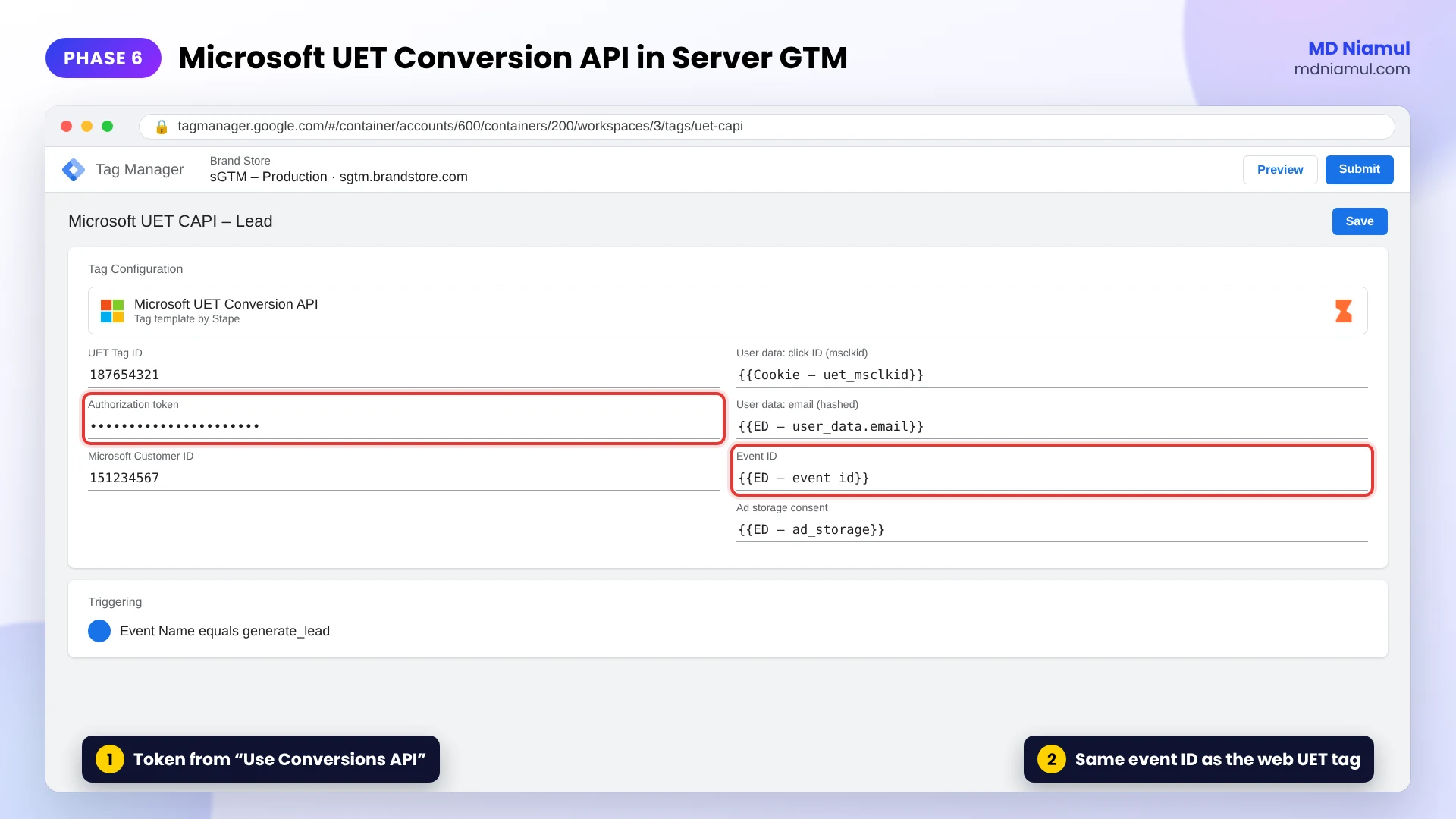
Check access first. Microsoft published the Conversions API documentation in 2026, but access is enabled per account. You get the authorization token in the UET tag settings under the Use Conversions API option. If you do not see it, ask your Microsoft account manager or support.
- Create a Server container in GTM and host it on Stape with a custom subdomain such as
sgtm.yourdomain.com. - Send web events to the server container through your GA4 tag or a data tag.
- In the Server container, add the Microsoft UET Conversion API tag from the template gallery.
- Enter the UET Tag ID, the authorization token and your Microsoft customer ID.
- Pass at least one identifier, such as the Microsoft click ID (
msclkid), hashed email or hashed phone, and pass the visitor’s consent state. - Add the same event ID to the web UET tag and the server tag, so Microsoft keeps one conversion when both arrive.
Server-side tracking does not track visitors who declined consent. It makes the data you are allowed to collect arrive more reliably. See my server-side tracking service if you want this built for you.
Phase 7: Test with UET Tag Helper and Hand Over
- Open GTM Preview, complete a test conversion, and confirm the base tag and the custom event tag both fired.
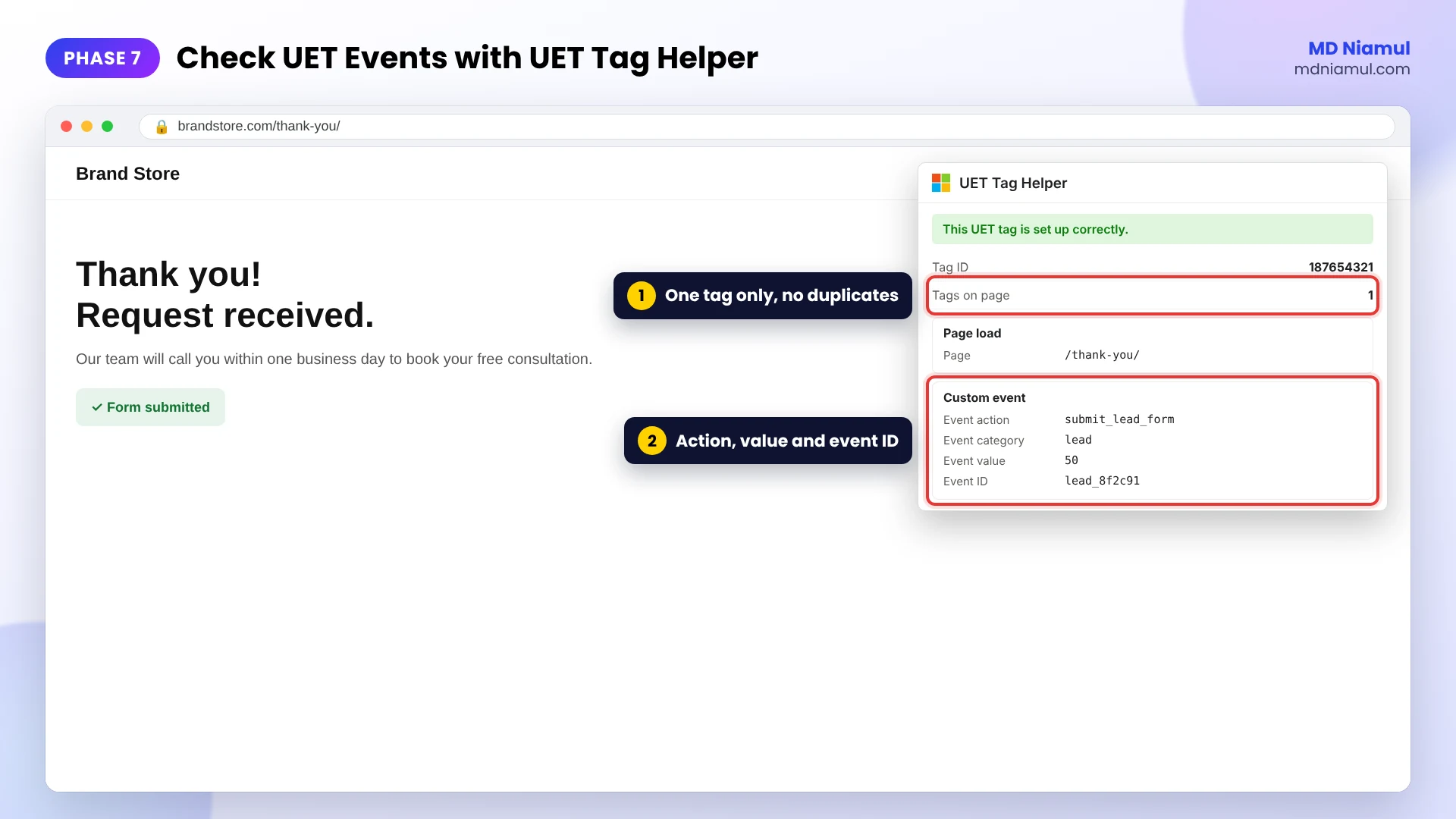
- Open the UET Tag Helper on the same page. It should show your Tag ID once and the custom event with the right action and value.
- In Microsoft Advertising, check the UET tag status and the conversion goal status. Verification can take up to 24 hours.
- For server events, check the server container Preview and confirm the Conversions API tag returned success.
- Write a short handover note: the tracking map, every tag and trigger, the goal settings and how to test again.
The Full Data Flow at a Glance
| # | What happens | Where |
|---|---|---|
| 1 | A visitor clicks a Microsoft ad and lands with an msclkid |
Microsoft Advertising |
| 2 | Consent default is set, then the UET base tag loads | Web GTM |
| 3 | The visitor converts and a custom event fires with value and event ID | Web GTM |
| 4 | The same event reaches your tagging server | Server GTM on Stape |
| 5 | The server sends it through the UET Conversions API | Microsoft UET Conversion API tag |
| 6 | Microsoft keeps one conversion per event ID | Microsoft Advertising |
| 7 | Smart bidding learns from the real conversions | Your campaigns |
Testing & Validation Workflow
- UET Tag Helper. One tag ID per page, no errors.
- GTM Preview. The base tag on every page, the event tag only on real conversions.
- Consent. With the banner rejected, confirm
ad_storageis denied. - Values. Confirm the revenue and currency on a real test purchase.
- Server Preview. The Conversions API tag returns success with an event ID.
- Microsoft Ads. Goal status shows as recording conversions after a day or two.
- CRM check. After a week, compare Microsoft conversions with real leads or orders from Bing traffic.
Troubleshooting Common Mistakes
Mistake 1: The goal says “No recent conversions”
The Problem: the tag is active, but the goal records nothing.
The Cause: the Event Action in GTM does not match the goal condition exactly, for example submit_lead versus submit_lead_form.
The Solution: copy the action name from the goal and paste it into the tag. Matching is exact.
Mistake 2: Conversions are doubled
The Problem: Microsoft reports about twice as many leads as the CRM.
The Cause: two UET tags on the page, or browser and server events without a shared event ID.
The Solution: keep one base tag and add the same event ID to the web and server conversions.
Mistake 3: Conversions fire on failed form submits
The Problem: conversions appear, but many have no matching lead.
The Cause: the trigger is a button click, not a successful submission.
The Solution: trigger on a success event from the form or a thank-you state.
Mistake 4: Purchase revenue is always the same
The Problem: every order shows the default value.
The Cause: the goal uses a fixed value, or the revenue field in the tag is empty.
The Solution: set the goal revenue to “may vary” and map the order value from the data layer.
Mistake 5: Very little data from European visitors
The Problem: conversions from the UK and EU drop sharply.
The Cause: no consent signal, or a default that never updates after the visitor accepts.
The Solution: set the default before the base tag and call the update when the visitor chooses.
What to Set Up Next
- Track offline sales. Store the
msclkidwith each lead and upload closed deals. See my offline conversion tracking services. - Fix Google Ads too. Read how to fix Google Ads conversion tracking for lead forms and calls.
- Go server-side everywhere. Follow the server-side tracking masterclass.
- Estimate what you are losing. Try the free tracking loss calculator.
If you want this done for your account, see my work as an attribution and server-side tracking specialist.
Conclusion
Microsoft Advertising can be one of your most profitable channels, but only if it can see what its clicks produce. Broken or duplicated tracking turns smart bidding into guesswork.
Your next three moves are clear. First, audit the UET tag and goals and write a tracking map. Second, install the base tag and custom event tags through GTM, with consent signals and, where your account has access, the server-side Conversions API. Third, test with the UET Tag Helper and GTM Preview and document the setup.
Clean conversions in, better bids out.
Summary by MD Niamul
Bing Ads conversion tracking in Microsoft Advertising runs on the UET tag. Start by auditing the account’s UET tag and conversion goals and writing a tracking map of each conversion, its trigger and its value. Create event-based conversion goals under Conversions, Conversion goals, then install one UET base tag on all pages through Google Tag Manager and one custom conversion tag per goal with an Event Action that matches the goal exactly. Send ad_storage consent signals, required since May 2025 for visitors from the EEA, UK and Switzerland. Where the account has access, add server-side tracking with a server GTM container on Stape and the Microsoft UET Conversion API tag, sharing one event ID to prevent double counting. Test with GTM Preview and the UET Tag Helper, then document the setup.
Frequently Asked Questions (FAQ)
1. What is the Microsoft UET tag?
UET stands for Universal Event Tracking. It is the tracking script from Microsoft Advertising, formerly Bing Ads, that records what visitors do on your website after clicking an ad. One base tag loads on every page, and custom events report actions such as a form submission or purchase. Microsoft Ads uses this data for conversion tracking, remarketing audiences and automated bidding strategies.
2. Should I use destination URL or event goals?
Event goals are usually more reliable. A destination URL goal counts a conversion when someone reaches a page such as /thank-you, so it breaks when the URL changes, when forms show a message instead of a new page, or when people reload the page. An event goal counts a specific action sent by the tag, such as submit_lead_form, and can carry the real value of a purchase.
3. How do I install the UET tag with Google Tag Manager?
Create a tag with the Microsoft Advertising Universal Event Tracking tag type, paste your UET Tag ID, and fire it on All Pages. Then create a second tag of the same type for each conversion, choose a custom conversion event, set the Event Action to match your goal exactly, add revenue for purchases, and attach a trigger that fires only on a successful conversion.
4. Is consent mode required for Microsoft Ads?
Microsoft Advertising asked advertisers to send UET consent signals by May 5, 2025 for site visits from the European Economic Area, the United Kingdom and Switzerland. UET reads ad_storage as granted or denied. Set a denied default before the UET tag loads and update it when the visitor makes a choice, or use a consent platform with a Microsoft UET integration. Use only one method.
5. Does Microsoft Ads have a Conversions API?
Yes. Microsoft published documentation for its UET Conversions API in 2026, which lets a server send conversion events directly to Microsoft. Access is enabled per account, so you may need to ask your account manager or support. Once enabled, the authorization token appears in the UET tag settings. Microsoft recommends running it alongside the UET browser tag, with a shared event ID to prevent double counting.
6. How do I stop Microsoft Ads counting conversions twice?
Load only one UET base tag per page, so remove any hard-coded tag if you use Google Tag Manager. Trigger conversion tags on successful actions, not on button clicks. If you send the same conversion from the browser and the server, give both the same event ID. For lead goals, set the count to unique so repeated submissions by the same person count once.
7. What is the UET Tag Helper?
UET Tag Helper is a free Chrome extension from Microsoft Advertising that shows which UET tags load on a page and what events they send. Use it to confirm your tag ID appears once, that custom events carry the right action, category, label and value, and that there are no errors. It is the quickest way to check a setup before you wait for data in Microsoft Ads.
8. Why are Bing Ads conversions lower than my CRM leads?
Common reasons are a missing or broken event tag, a goal condition that does not match the event action, missing consent signals for European visitors, ad blockers, and differences in attribution windows. Microsoft also only credits leads it can tie to an ad click within the conversion window. Check the tag with UET Tag Helper first, then add server-side tracking and offline conversion uploads for a fuller picture.
9. What is msclkid and why does it matter?
msclkid is the Microsoft Click ID that Microsoft Ads adds to your landing page URL when auto-tagging is on. It ties a visit or lead to the exact ad click. Store it with each lead in your CRM so you can upload offline conversions later, and pass it in server-side events so Microsoft can match conversions sent through the Conversions API to the right click.
10. How long until Microsoft Ads shows conversions?
The UET Tag Helper and GTM Preview show events immediately. Microsoft Advertising can take up to 24 hours to verify a new UET tag and update goal status, and conversions can take a few hours to appear in reports. Smart bidding needs enough conversions over a few weeks before its decisions improve, so keep the setup stable once it is tested.
 Need Help Advanced GHL Automation & Tracking Setup?