
Quick Answer
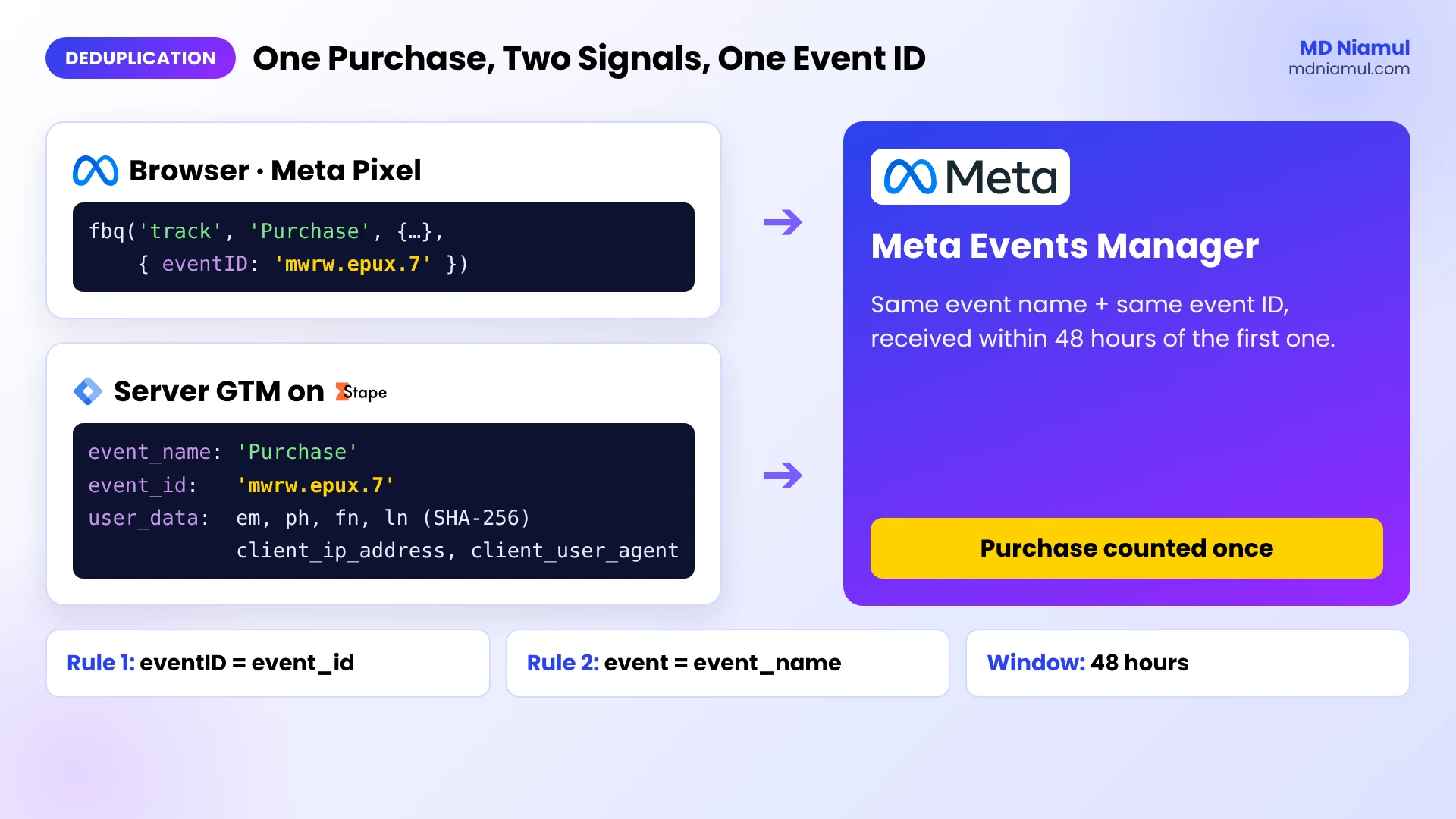
Meta Conversions API deduplication works when the Meta Pixel and the Conversions API send the same event with the same name and the same event ID. One Custom JavaScript variable in Google Tag Manager (GTM) creates it. The Pixel sends it as eventID, and the GA4 tag passes it as event_id to a server GTM container on Stape. The Stape Facebook Conversions API tag sends it with hashed customer data. Meta keeps one copy if both arrive within 48 hours, and the customer data improves Event Match Quality.
Key Takeaways
- Two rules for deduplication: Meta’s docs say the Pixel’s
eventIDmust match the Conversions APIevent_id, and the Pixel’s event name must matchevent_name. - 48-hour window: Meta deduplicates events received within 48 hours of the first event with that ID.
- One ID per event, not per page: a page view and a purchase on the same page need different IDs, or Meta may drop one.
- Customer data drives matching: email, phone, name and address go hashed with SHA-256; IP address, user agent,
fbcandfbpgo unhashed. - User agent is required: Meta lists
client_user_agentas required for website events sent through the Conversions API. - Test before you trust it: in Events Manager Test Events, each purchase should show once, received from both browser and server.
Introduction Two Signals, One Purchase
When I audit Meta setups, the Conversions API is usually “on”. The question is whether it’s doing its job. I often see the server sending events with no event ID, so Meta can’t tell that the browser purchase and the server purchase are the same sale. Either purchases get counted twice, or Meta leans on weaker matching and the numbers drift.
The other common gap is customer data. The server event goes out with almost nothing in user_data, so Meta can’t link it to a person, and Event Match Quality stays low. The event arrives, but it doesn’t help the ads much.
In my Meta Pixel and Conversions API sGTM setup guide I covered the full install. This guide goes deeper on the two parts that decide whether it works: one shared event ID and good customer data, with a tested GTM variable.
Pixel Only vs Pixel + CAPI Without an ID vs Pixel + CAPI With One ID
| Pixel only | Pixel + CAPI, no event ID | Pixel + CAPI, shared event ID | |
|---|---|---|---|
| Blocked browsers and Safari limits | Events lost | Server fills the gap | Server fills the gap |
| Same purchase from both | Not possible | Risk of counting twice, or weaker matching | Counted once |
| Meta’s deduplication method | None needed | fbp or external_id, only when the browser event arrives first |
event_id + event_name, Meta’s recommended method |
| Customer data | Advanced matching only | Whatever the server sends | Hashed email, phone, name, address, plus IP and user agent |
Prerequisites & Setup Checklist
- A web GTM container with the Meta Pixel running through it.
- A server GTM container on Stape (or Stape EU) with a custom domain, receiving GA4 events.
- The Facebook Conversions API tag from Stape added to the server container from the template gallery.
- A Conversions API access token generated in Meta Events Manager, and your Pixel ID.
- Customer data available in the data layer on the conversion: email, phone, name and address where you collect them.
- A consent banner connected to Google Consent Mode, if you serve EEA or UK visitors.
Want to check what your Pixel sends today? Run your site through the free Meta Pixel checker.
Video Tutorial Walkthrough
In the video I explain why the Pixel misses blocked and iPhone users, and walk through the three steps: send events from the server, share one event ID, and add customer data, with a before and after.
Step-by-Step Implementation Guide
Eight phases. Phases 1 to 4 set up the shared event ID. Phases 5 and 6 add customer data. Phases 7 and 8 test and keep it healthy.
Phase 1: Create the Unique Event ID Variable
- In your web GTM container, go to Variables and turn on the built-in Container ID variable if it’s off.
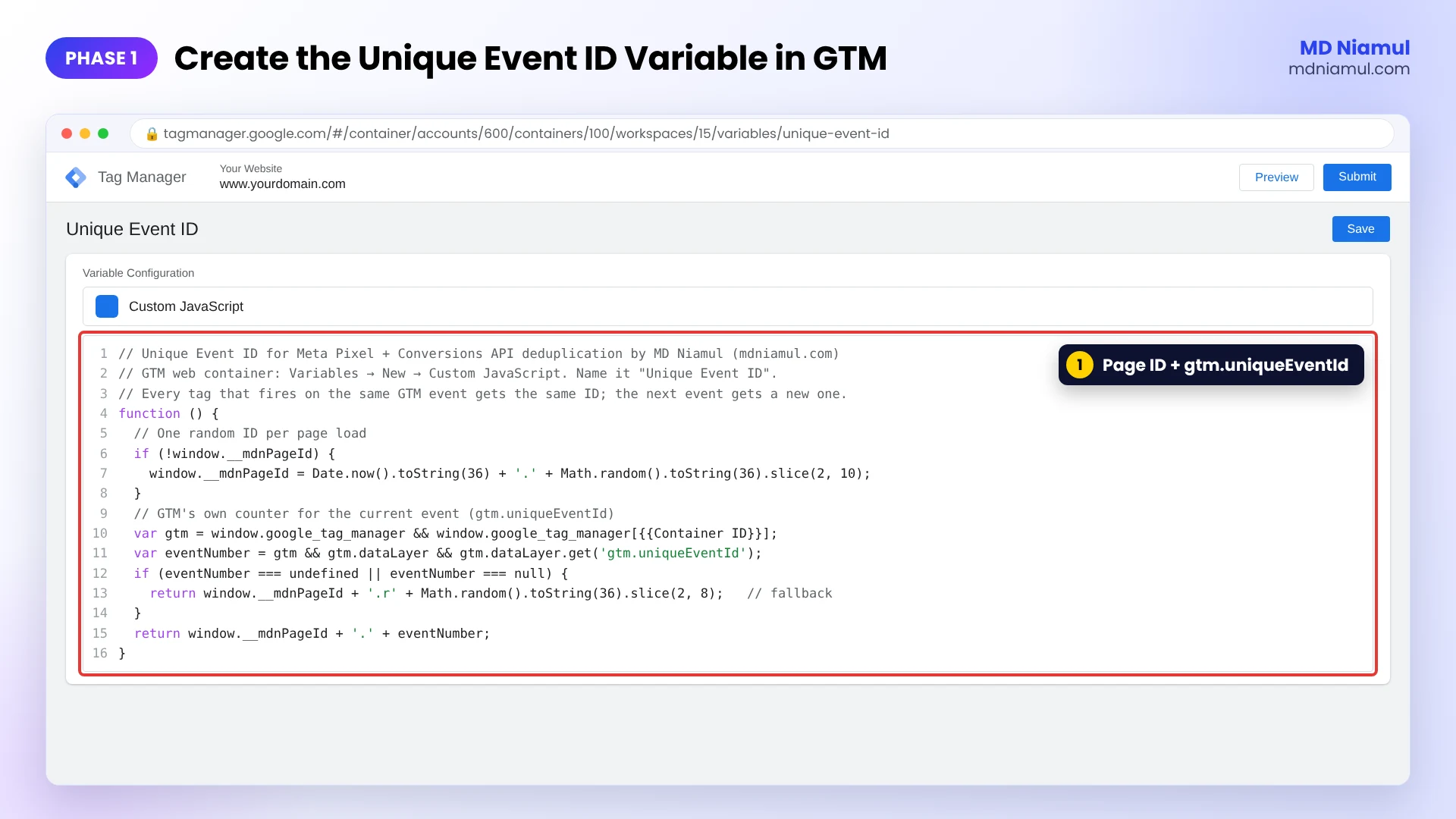
- Click New → Custom JavaScript, paste the code below and name it Unique Event ID.
- Save. You’ll use this one variable in the Pixel tags and the GA4 tags.
// Unique Event ID for Meta Pixel + Conversions API deduplication by MD Niamul (mdniamul.com)
// GTM web container: Variables → New → Custom JavaScript. Name it "Unique Event ID".
// Every tag that fires on the same GTM event gets the same ID; the next event gets a new one.
function () {
  // One random ID per page load
  if (!window.__mdnPageId) {
    window.__mdnPageId = Date.now().toString(36) + '.' + Math.random().toString(36).slice(2, 10);
  }
  // GTM's own counter for the current event (gtm.uniqueEventId)
  var gtm = window.google_tag_manager && window.google_tag_manager[{{Container ID}}];
  var eventNumber = gtm && gtm.dataLayer && gtm.dataLayer.get('gtm.uniqueEventId');
  if (eventNumber === undefined || eventNumber === null) {
    return window.__mdnPageId + '.r' + Math.random().toString(36).slice(2, 8);   // fallback
  }
  return window.__mdnPageId + '.' + eventNumber;
}
How it works: it makes one random ID per page load and adds GTM’s own counter for the current event, gtm.uniqueEventId. Every tag that fires on the same GTM event gets the same ID, so the Pixel and the GA4 tag for one purchase share it. The next event on the page gets a new one, so a page view and a purchase never collide.
I tested it in a headless browser: two tags on the same event got the same ID, the next event got a new ID, the same event number on another page got a different ID, 1,000 events gave 1,000 unique IDs, and the fallback worked when the GTM object was missing. No page errors.
Phase 2: Send the Event ID with the Meta Pixel
- Open each Meta Pixel tag that tracks a conversion (Purchase, Lead, CompleteRegistration and so on).
- Pass the ID as the fourth argument:
fbq('track', 'Purchase', {value: 49, currency: 'USD'}, {eventID: {{Unique Event ID}}}); - If you use a Pixel tag template instead of Custom HTML, fill its Event ID field with
{{Unique Event ID}}. - Keep the event names the same as the server sends. Meta matches
PurchasetoPurchase, not topurchase.
Phase 3: Send the Same ID to the Server Container
- Open the GA4 event tag that fires on the same trigger as the Pixel tag.
- Add an event parameter
event_idwith the value{{Unique Event ID}}. - Make sure the GA4 tag sends to your Stape server container (the server container URL in your Google tag settings).
- Fire the Pixel tag and the GA4 tag on the same trigger, so they read the ID on the same GTM event.
Phase 4: Set Up the Facebook Conversions API Tag in Server GTM
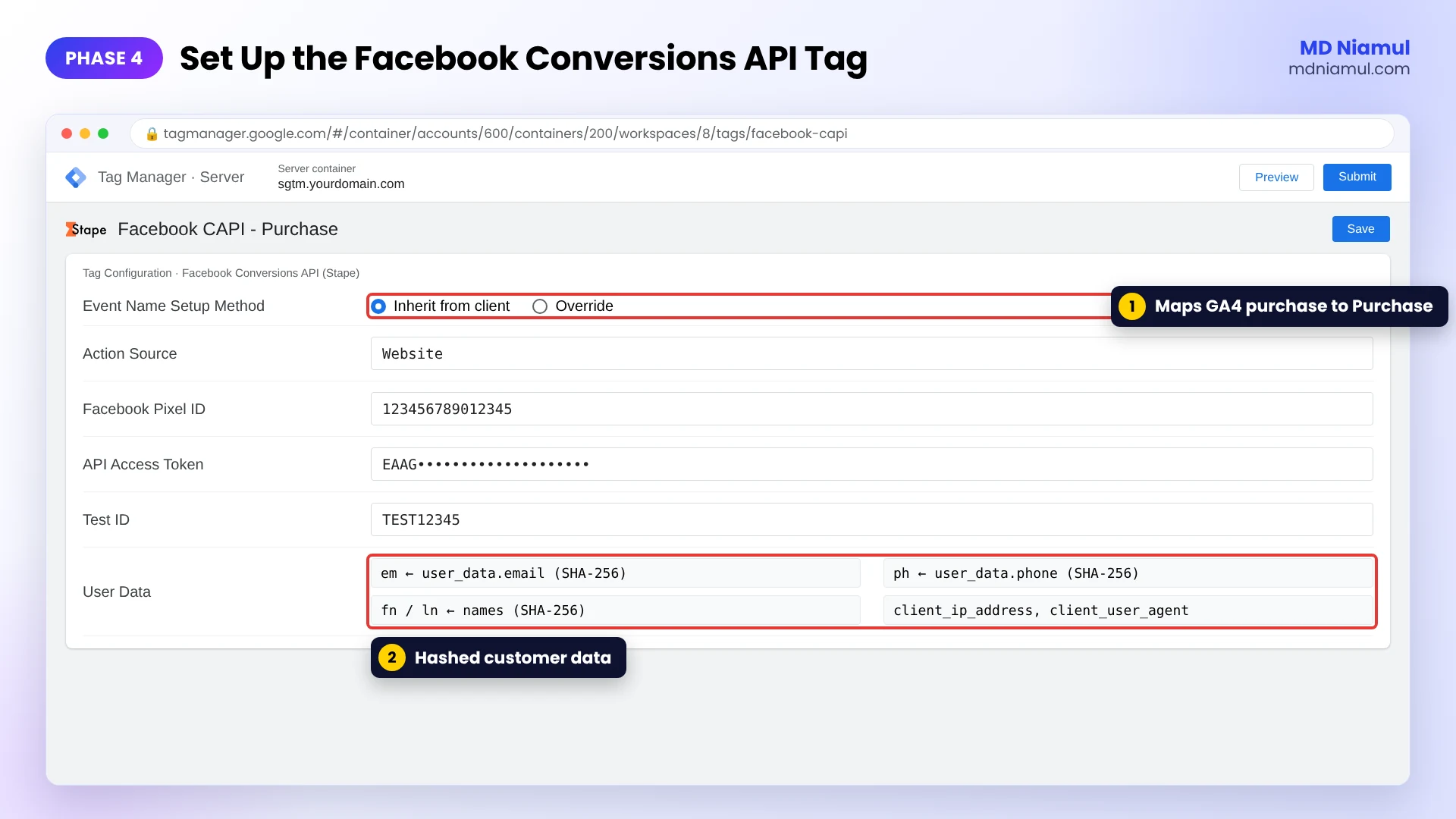
- In the server container, go to Tags → New → Facebook Conversions API (the Stape template).
- Set Event Name Setup Method to Inherit from client to map GA4 events to Meta standard events, or Override if you want full control.
- Set Action Source to Website, and fill in the Facebook Pixel ID and API Access Token.
- Stape’s docs say the tag takes the event ID from the event data automatically, so the
event_idfrom Phase 3 is used without extra setup. You can override it under Server Event Data Override. - Add your Test ID from Events Manager while testing, and remove it afterwards.
Phase 5: Add Customer Data
- On the conversion, push the customer details to the data layer: email, phone, first and last name, city, state, zip and country.
- Send them from the GA4 tag as user data (the user_data or user-provided data settings), so the server container receives them.
- In the Conversions API tag, open User Data under the advanced options and check that email, phone, names and address map correctly. Hash them with SHA-256 if they aren’t hashed already.
- Normalize before hashing, as Meta asks: email trimmed and lowercased, phone as digits with the country code, city lowercase with no spaces, country as a two-letter code.
- Don’t hash
client_ip_address,client_user_agent,fbcorfbp. Meta wants those as they are.
Not sure what a correct payload looks like? Build one with the free Meta CAPI payload builder and compare.
Phase 6: Keep fbc and fbp Alive
- Make sure the
_fbpand_fbccookies reach the server. The Stape tag has options to generate_fbpif it doesn’t exist. - Keep
fbclidin your landing URLs. Redirects that strip it also remove the click ID that ends up infbc. - Add a stable
external_id(for example a hashed customer ID) on both browser and server events if you have one.
Phase 7: Test in Events Manager
- Open GTM Preview in both containers, then trigger a test purchase.
- In the web container, check that the Pixel tag and the GA4 tag show the same
{{Unique Event ID}}value on the purchase event. - In the server container, check the outgoing request to Meta:
event_id,event_nameanduser_datawith hashed values. - In Meta Events Manager → Test Events, the purchase should appear from both browser and server and be counted once.
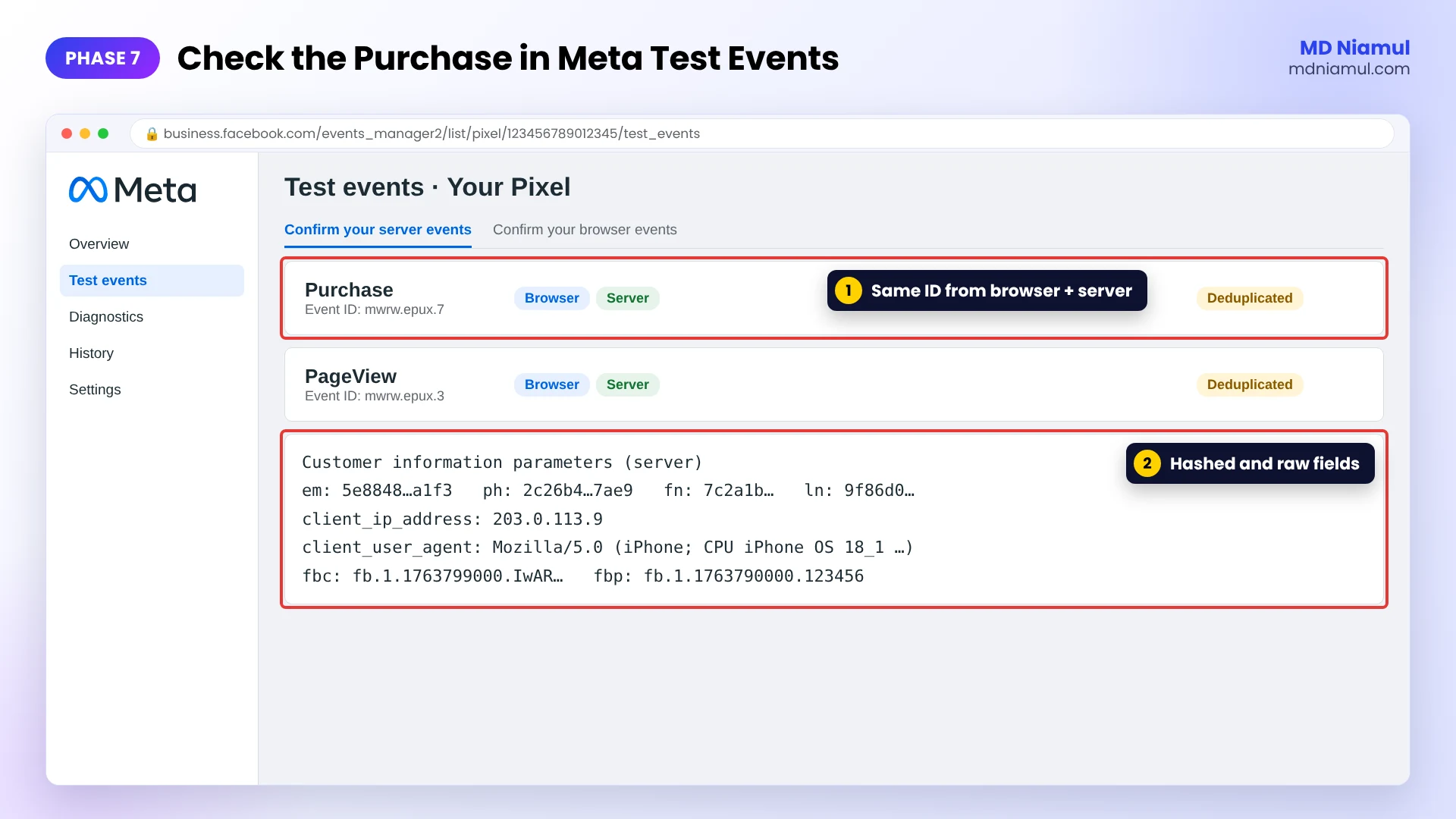
Phase 8: Watch Event Match Quality and Consent
- A few days after going live, check Event Match Quality for your main events in Events Manager. Low scores usually mean missing email, phone or
fbc. - Check the deduplication info on the event in Events Manager. If browser and server events aren’t being matched, compare the IDs in Phase 7 again.
- Respect consent. Fire the Pixel and the Conversions API tag only when your banner allows it, and test with the free Consent Mode checker.
- For purchases on Stripe, PayPal or other off-site checkouts, catch the order on your thank-you page first, as in my Stripe and PayPal tracking guide.
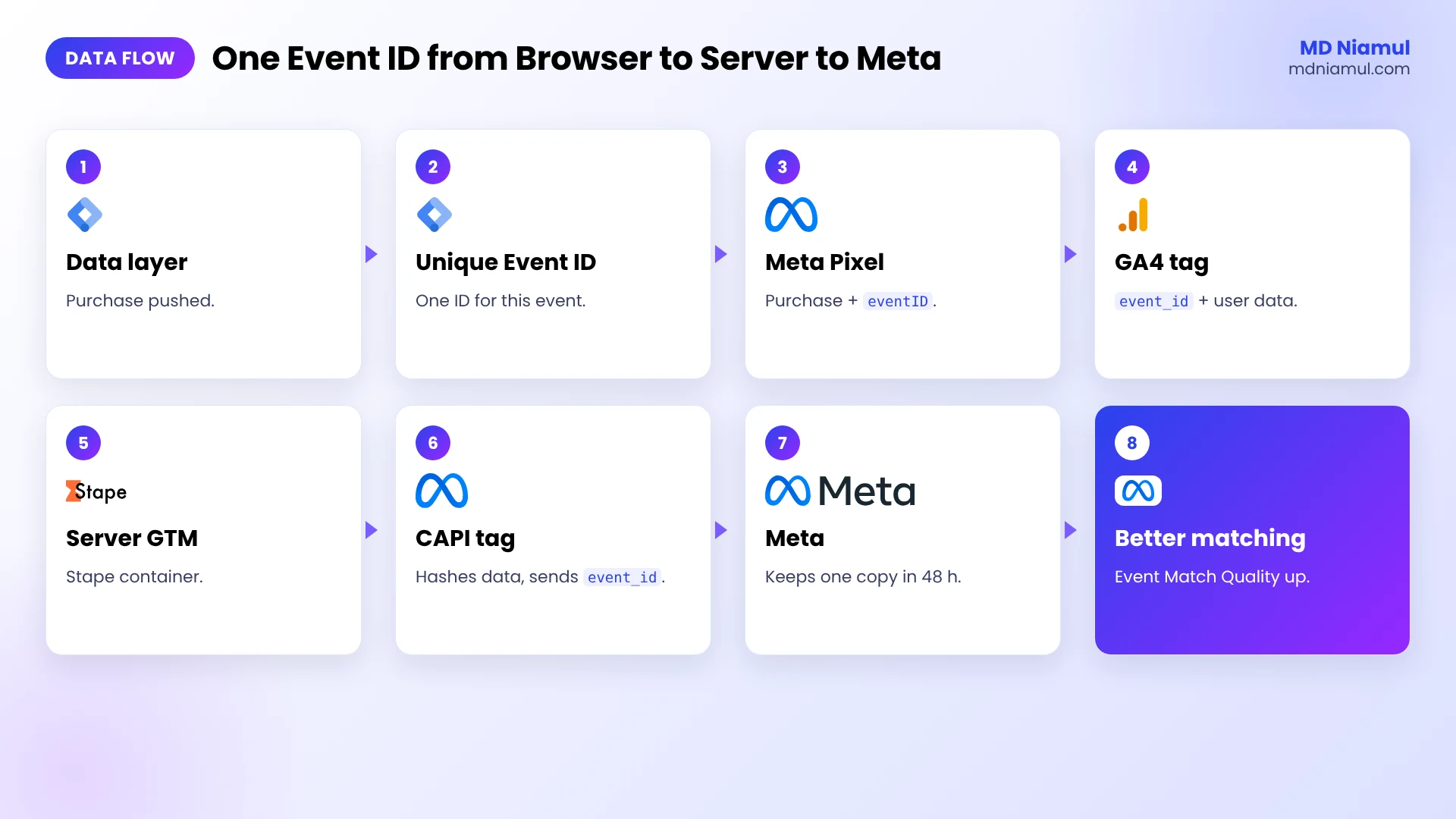
Meta Conversions API Deduplication: The Full Data Flow
| # | What happens | Where |
|---|---|---|
| 1 | A conversion event reaches the data layer | Your site |
| 2 | The Unique Event ID variable returns one ID for that event | Web GTM |
| 3 | The Pixel sends the event with eventID |
Browser to Meta |
| 4 | The GA4 tag sends the event with event_id and user data |
Browser to server GTM |
| 5 | The Facebook Conversions API tag builds the server event, hashing customer data | Server GTM on Stape |
| 6 | Meta receives both copies with the same name and ID | Meta |
| 7 | Meta keeps one copy within 48 hours | Meta |
| 8 | Better matching feeds ad optimization and reporting | Meta Ads |
Testing & Validation Workflow
- ID check. Pixel tag and GA4 tag show the same event ID on the same event in GTM Preview.
- New ID check. The next event on the page shows a different ID.
- Server check. The request from server GTM to Meta has
event_id, the sameevent_nameand hasheduser_data. - Meta check. Test Events shows the purchase from browser and server, counted once.
- Quality check. Event Match Quality and deduplication look healthy after a few days of real traffic.
- Totals check. Meta purchases are close to your shop’s orders for the same days, not double.
Troubleshooting Common Mistakes
Mistake 1: Different IDs on browser and server
The Problem: purchases count twice in Meta.
The Cause: the Pixel and the GA4 tag fire on different triggers, or each makes its own random ID.
The Solution: use one Unique Event ID variable and fire both tags on the same trigger.
Mistake 2: One ID for the whole page
The Problem: page views show, but purchases on the same page go missing.
The Cause: the event ID is set once per page load, so every event on that page shares it.
The Solution: use an ID per GTM event, like the variable above.
Mistake 3: Event names don’t match
The Problem: IDs match, but Meta still doesn’t deduplicate.
The Cause: the browser sends Purchase and the server sends purchase or a custom name.
The Solution: map GA4 purchase to Meta Purchase in the server tag, or use Override.
Mistake 4: Hashing the wrong fields
The Problem: Event Match Quality stays low even though customer data is sent.
The Cause: IP, user agent, fbc or fbp were hashed, or email and phone were hashed without normalizing first.
The Solution: hash only the fields Meta lists as hashed, and normalize them before hashing.
Mistake 5: Server events without a user agent
The Problem: server events show errors or match poorly.
The Cause: client_user_agent and client_ip_address aren’t passed from the request.
The Solution: make sure the server tag sends both. Meta lists the user agent as required for website events.
What to Set Up Next
- Running several domains? See Meta CAPI multi-domain tracking with sGTM.
- On Shopify? Use my Shopify Meta Pixel and Conversions API audit.
- On WooCommerce with PixelYourSite? Read how to fix Facebook Pixel and CAPI on WooCommerce.
- Comparing server options? See Google tag gateway vs server-side tracking.
Want it set up and checked for you? See my Facebook CAPI specialist page and server-side tracking service.
Conclusion
Turning on the Conversions API is the easy part. Making Meta trust it comes down to two details: the same event ID on both copies of each event, and enough customer data for Meta to know who it was.
Add the variable, put it in the Pixel and GA4 tags, map user data in the server tag, and check one test purchase in Events Manager. Then come back after a week and look at Event Match Quality, because that’s where the next improvement usually is.
Summary by MD Niamul
Meta Conversions API deduplication works when the Meta Pixel and the Conversions API send each event with the same event name and the same event ID. I create one ID per GTM event with a Custom JavaScript variable that combines a page ID with GTM’s gtm.uniqueEventId. The Pixel sends it as eventID, and the GA4 tag sends it as event_id to a server GTM container on Stape, where the Facebook Conversions API tag forwards it with hashed email, phone, name and address, plus the unhashed IP address, user agent, fbc and fbp. Meta deduplicates events received within 48 hours of the first one with that ID. If the names or IDs differ, purchases can count twice. I wrote this from setting up and auditing Meta Conversions API for my clients.
Frequently Asked Questions (FAQ)
1. How does Meta Conversions API deduplication work?
Meta compares the Pixel event and the server event. If both have the same event name and the same event ID, and they arrive within 48 hours of the first one, Meta keeps one and drops the other. The Pixel sends the ID as eventID and the Conversions API as event_id.
2. What is a good event ID for the Meta Pixel and CAPI?
Any value that is unique per event and identical on both copies. It must change between events, so a page view and a purchase on the same page get different IDs. In GTM, a Custom JavaScript variable based on gtm.uniqueEventId does this, and the Pixel and GA4 tags on the same trigger share it.
3. What happens if the event IDs don’t match?
Meta can’t use its recommended method, so the browser and server copies may both be counted. Meta also describes a fallback that matches on fbp or external_id, but it only works when the browser event arrives first. In practice, purchases often show higher in Meta than in your shop. A shared event ID fixes it.
4. Do event names have to match exactly?
Yes. Meta’s docs say the Pixel’s event must match the Conversions API event_name. Purchase and purchase are different names. If your server container gets GA4 events, map purchase to Purchase in the Conversions API tag, or use the Override setting to set the Meta name yourself. Check the names in Test Events after any change.
5. What is Event Match Quality?
It’s a score in Meta Events Manager that shows how well the customer data on your server events lets Meta match them to Meta accounts. More and better data, like email, phone, fbc and the user’s IP address and user agent, usually raises it. Low scores point to missing or badly formatted fields.
6. Which customer data should be hashed for the Conversions API?
Hash email, phone, first and last name, date of birth, gender, city, state, zip and country with SHA-256 after normalizing them. Meta recommends hashing external_id too. Don’t hash the client IP address, client user agent, fbc or fbp, which Meta expects in their original format. Normalize before hashing: email lowercased and trimmed, phone as digits with the country code.
7. Is the user agent required for server events?
Yes, for website events. Meta lists client_user_agent as required for website events sent through the Conversions API, and recommends sending client_ip_address with it. Browser events add both automatically, but server events need them set. Server GTM can take both from the incoming request. Check that a proxy or CDN in front of the server container passes the real visitor IP.
8. How do I test Meta CAPI deduplication?
Add a Test ID to the Conversions API tag, open Test Events in Events Manager and make a test purchase. The event should arrive from both browser and server and count once. Check in GTM Preview that the Pixel and GA4 tags used the same event ID on the same event.
9. Do I still need the Meta Pixel if I use the Conversions API?
Meta and Stape both recommend running them together and deduplicating, not removing the Pixel. The browser event and the server event fill each other’s gaps: the server catches blocked browsers, and the Pixel adds browser signals. Deduplication makes sure the overlap is counted once. Removing the Pixel loses browser signals Meta still uses.
10. Can I send the Conversions API without server-side GTM?
Yes. Meta offers the Conversions API Gateway and Signals Gateway, and many platforms have their own integrations. Server GTM on Stape gives you more control over event names, IDs and customer data, and lets you send the same events to Google Ads, GA4 and other platforms. That makes it easier to keep one event ID across every platform.
 Need Help Advanced GHL Automation & Tracking Setup?