
Quick Answer
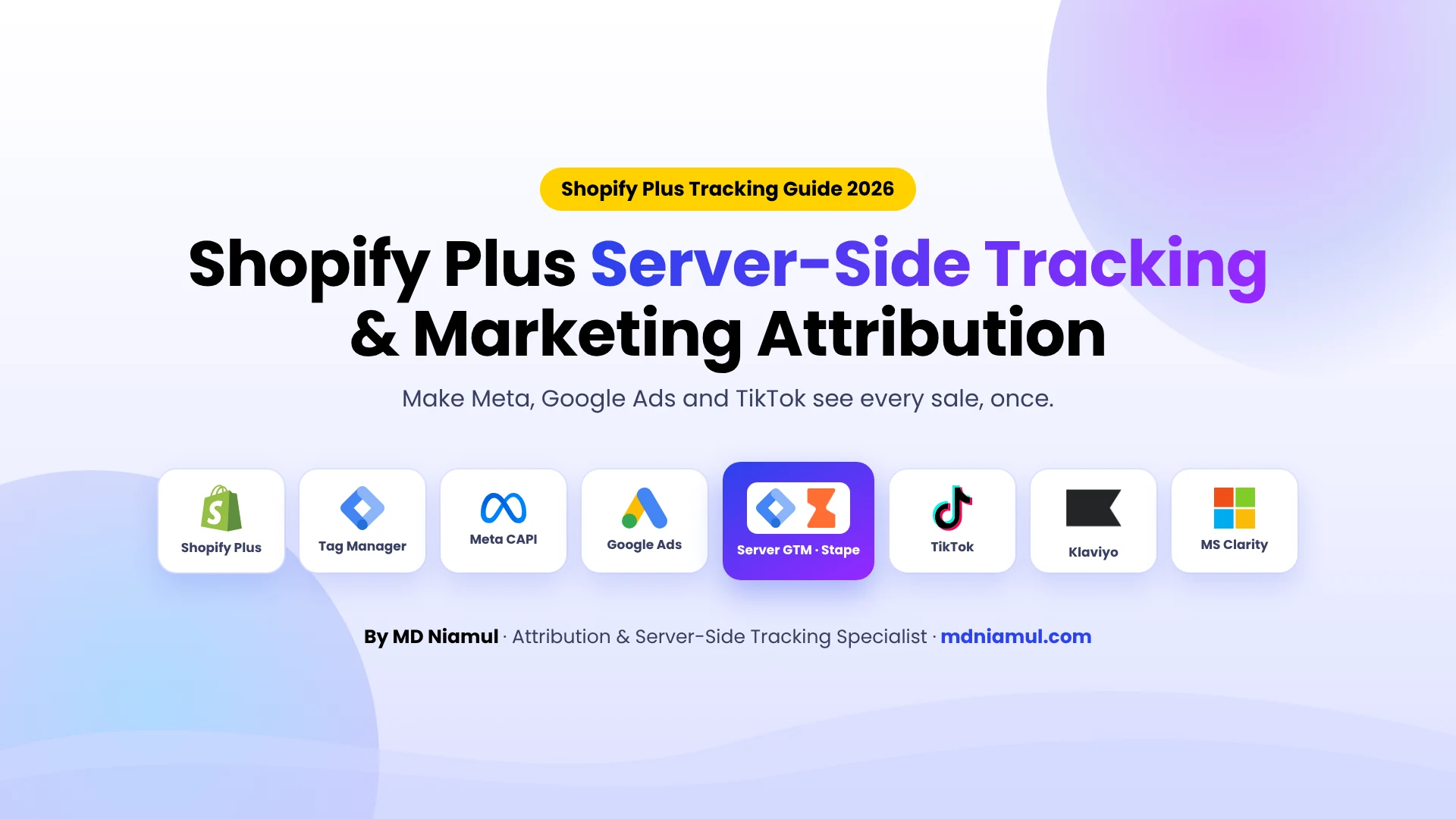
Shopify Plus marketing attribution means giving every ad platform an accurate record of which visits, add-to-carts and orders its ads produced. Browser pixels alone lose part of that record to ad blockers, Safari’s cookie limits and consent choices. The fix is a server-side setup: Shopify events go to a Server-Side Google Tag Manager container on your own domain, hosted on Stape, which sends them to Meta Conversions API, Google Ads with Enhanced Conversions, TikTok Events API, GA4 and Klaviyo. Each browser event and its server copy share one ID so they count once. Behavior tools such as Microsoft Clarity stay in the browser, connected to your consent banner.
Key Takeaways
- The gap is real but uneven: blockers, short cookie lifetimes in Safari and declined consent each remove a different slice of your conversion data.
- Checkout changed: on Shopify Plus, additional scripts on the Thank you and Order status pages stopped running on August 28, 2025. Old purchase pixels there no longer fire.
- One server, many channels: a single server container can feed Meta, Google Ads, TikTok, GA4 and Klaviyo from the same clean events.
- Deduplication is the key rule: the browser event and the server event need the same event name and the same ID, or the order is counted twice.
- Not everything goes server-side: session recording tools like Clarity and Hotjar must run in the browser, so they need correct consent handling instead.
- Process beats tools: audit, tracking map, implementation, QA and a written handover keep the setup accurate after launch.
Introduction: Your Ads Are Working Harder Than Your Reports Show
You run a Shopify Plus store. You spend real money every day on Meta, Google and TikTok. Then you compare the reports.
Shopify shows one number of orders. Meta shows fewer. Google Ads shows a different number again. TikTok seems to miss most of them.
The sales happened. The ad platforms just did not see all of them.
That gap is not only a reporting problem. Every ad platform uses your conversion data to decide who to show your ads to next. When a platform sees only part of your sales, its bidding learns from part of the truth. You pay for that in higher costs and weaker scaling.
In this guide I will show you the attribution stack I build for Shopify Plus stores: server-side tracking with Google Tag Manager and Stape, connected to Meta, Google Ads, TikTok, Klaviyo and behavior analytics, and the process that keeps it accurate after launch.
Where the Attribution Gap Comes From
Before you fix anything, it helps to know what causes the loss, because each cause has a different fix.
| Cause | What happens | What helps |
|---|---|---|
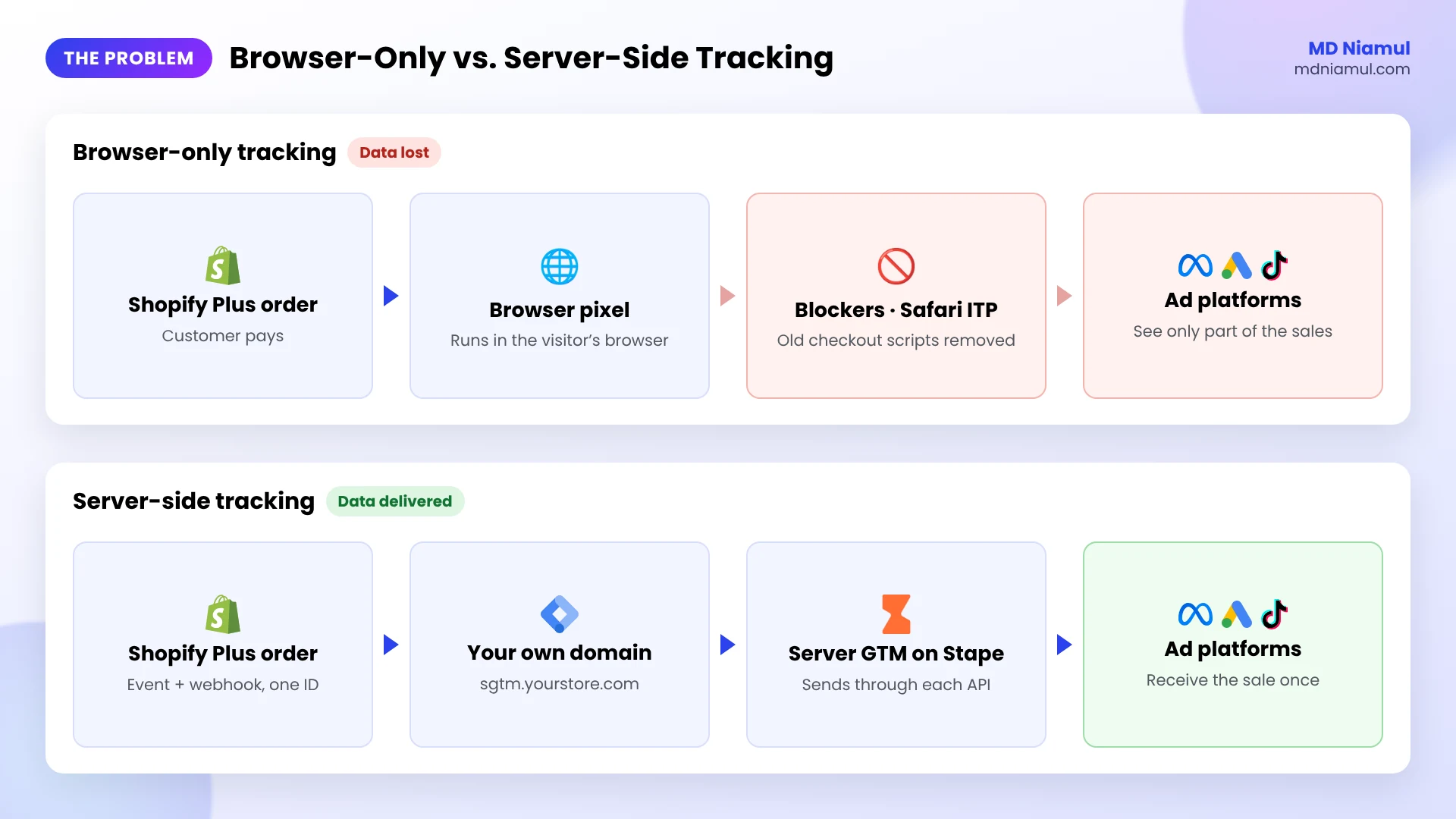
| Ad blockers and privacy extensions | The browser pixel never loads, so the event is never sent | Server-side events on your own domain |
| Safari cookie limits (ITP) | Cookies written by scripts last 7 days at most, and can be cut to 24 hours after an ad click with tracking parameters. A returning buyer looks like a new visitor | Cookies set by your own server, ideally on the same origin as the store |
| Declined consent | In consent regions, pixels wait until the visitor agrees | Nothing to bypass. Respect the choice and send consent signals correctly |
| Old checkout scripts | Purchase pixels placed in additional scripts stopped firing when Shopify retired them | Shopify customer events and server-side purchase events |
| Duplicate setups | An app and GTM both send Purchase, so numbers look high on one platform and low on another | One tracking map and one source per event |
Notice the third row. Server-side tracking is not a way around consent. It makes the data you are allowed to collect arrive reliably. That is the honest goal.
What Is Shopify Plus Marketing Attribution?
Marketing attribution is how you decide which ad or channel gets credit for a sale. On Shopify Plus, the store knows every order. The problem is that each ad platform keeps its own record, and it can only credit what it receives.
Think of each ad platform as a salesperson who is paid on commission. If you only tell them about half of their sales, they will think half of their work failed and change what they do. Accurate attribution means every salesperson hears about every sale they really made, once.
Server-side tracking is how you deliver that news reliably. Instead of relying only on scripts in the visitor’s browser, your store also sends each event to a server you control. That server forwards the event to each platform through its official API.
The Server-Side Attribution Stack for Shopify Plus
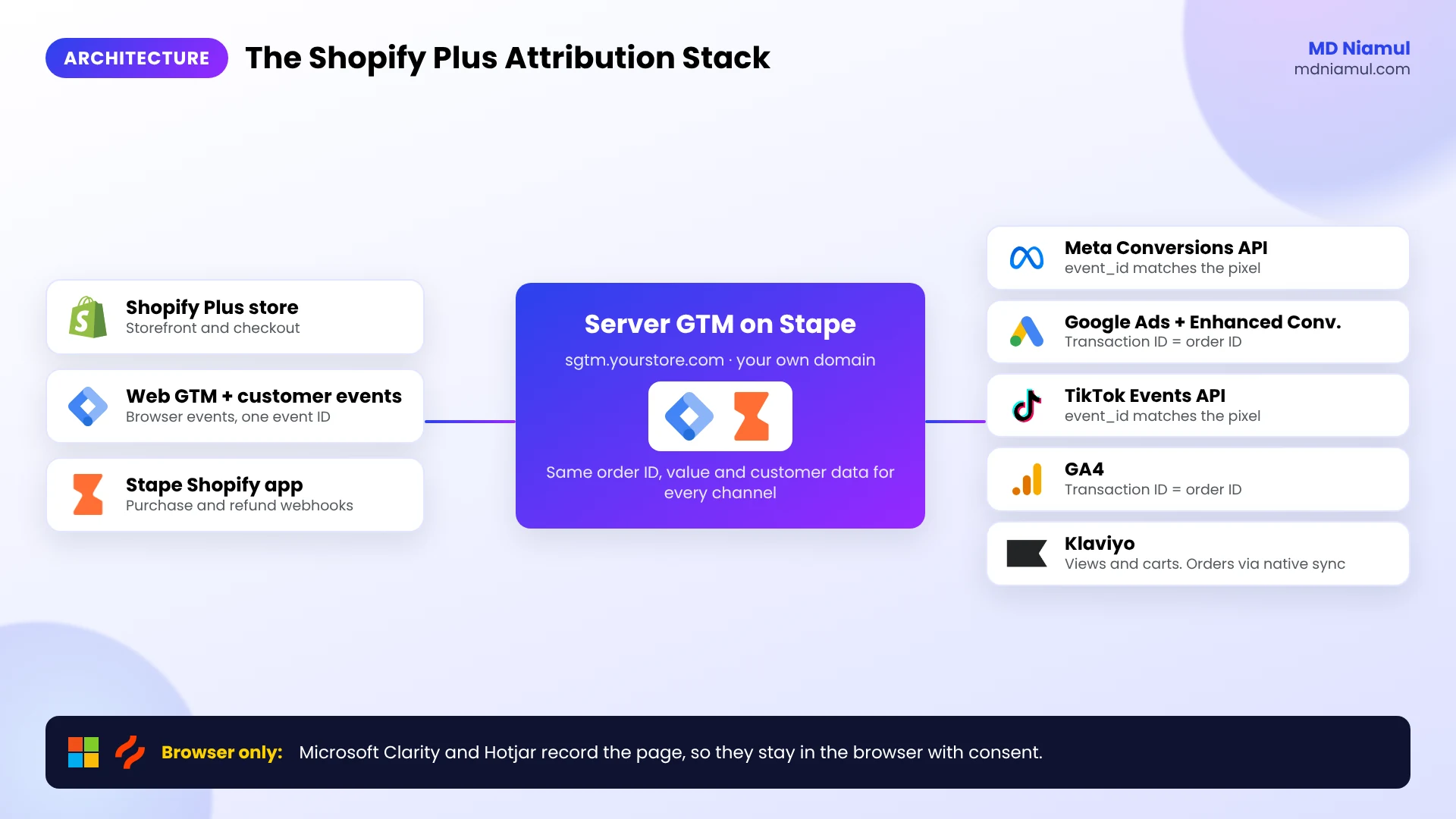
Here is every part of the stack, what runs in the browser, what runs on the server, and how each platform avoids counting the same action twice.
| Platform | Browser part | Server part | How it avoids double counting |
|---|---|---|---|
| Meta | Meta Pixel | Conversions API | Same event name and event ID, within 48 hours |
| Google Ads | Google tag | Google Ads conversion tag in Server GTM, with Enhanced Conversions | Same transaction ID (your order ID) on purchases |
| TikTok | TikTok Pixel | Events API | Same event and event_id, within 48 hours |
| GA4 | Google tag | GA4 tag in Server GTM | Same transaction ID on purchases |
| Klaviyo | Klaviyo onsite script | Klaviyo native Shopify sync, plus a Klaviyo tag in Server GTM for extra events | Do not send an order event that the native sync already sends |
| Microsoft Clarity and Hotjar | Tracking script | None. They record the page in the browser | Not needed. Handle consent instead |
The tool that manages all of this is Google Tag Manager. You use two containers: a Web container in the store and a Server container on your tagging server. Tags, triggers and variables live in one place, so every channel reads the same order ID, value and customer data.
Prerequisites & Setup Checklist
- Shopify Plus: owner or staff access to Settings, Customer events, Apps and the theme code.
- Google Tag Manager: publish rights on a Web container and a Server container.
- Server hosting: a tagging server on Stape Global or Stape Europe, plus access to your DNS settings.
- Ad platforms: admin access to Meta Events Manager, the Google Ads account, TikTok Events Manager and GA4.
- Email and analytics: a Klaviyo private API key, and a Microsoft Clarity or Hotjar project.
- Consent: a cookie banner that uses Shopify’s customer privacy settings.
For a quick first check, run your store through my free Shopify store checker and the free server-side tracking checker. They show which tags, pixels and tracking apps your pages load today.
Video Tutorial Walkthrough
Prefer to watch? In this short video I explain why Shopify Plus stores lose conversion data and how I connect every channel through server-side tracking.
Step-by-Step Implementation Guide
I work in a fixed order: audit and tracking map, server foundation, each ad channel, email and behavior tools, then QA and handover. Below that becomes eight phases you can follow one by one.
Phase 1: Audit the Store and Build a Tracking Map
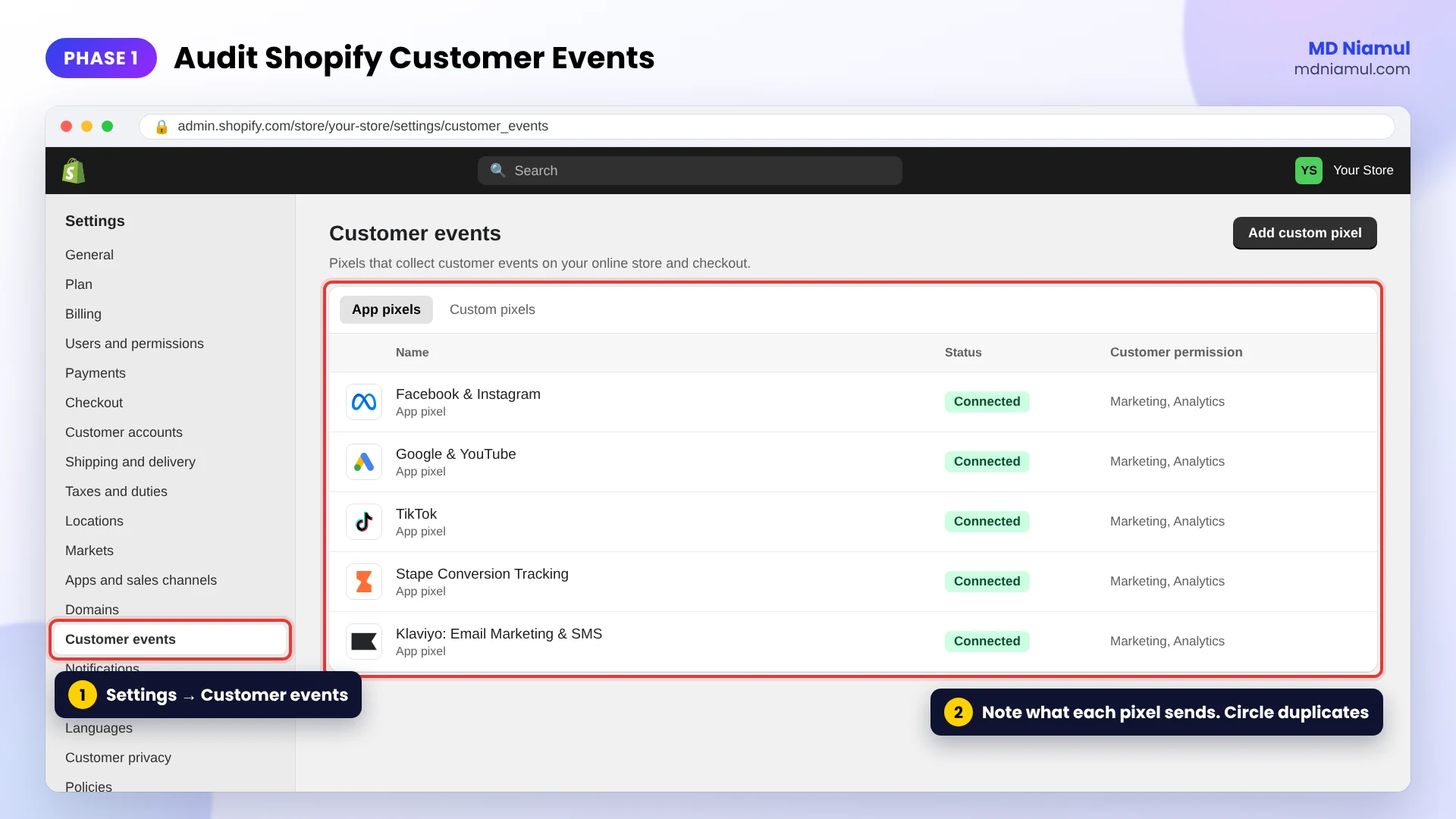
A tracking map is a list of every event, where it starts, and which platforms receive it. On Shopify Plus, tracking can sit in several places at once, and each one is easy to forget.
Step 1: Find every place that sends events
- In Shopify admin, go to Settings → Customer events. Open each app pixel and custom pixel and note what it sends.
- Go to Settings → Apps and list every app that adds tracking, such as the Facebook & Instagram, Google & YouTube and TikTok sales channels.
- Open Online Store → Themes → Edit code and search
theme.liquidforgtag,fbq,ttqandGTM-. - Check whether any purchase tracking still depends on the old additional scripts. It no longer runs, so those purchases are not being sent.
Step 2: Write the map
| Event | Where it starts | Sent to | Browser, server or both |
|---|---|---|---|
| page_view | Every storefront page | GA4, Meta, TikTok, Google Ads remarketing | Both |
| view_item | Product page | GA4, Meta, TikTok, Klaviyo | Both |
| add_to_cart | Product page or cart drawer | GA4, Meta, TikTok | Both |
| begin_checkout | Checkout | GA4, Meta, TikTok | Both |
| purchase | Checkout completed | GA4, Meta, Google Ads, TikTok | Both |
Circle every event that two sources send to the same platform. Those are your double-counting risks.
Phase 2: Build the Server Foundation on Stape
This is the base every channel will use. Do it once, and do it carefully.
Step 1: Create the Server container
- In Google Tag Manager, create a new container and choose Server as the target platform.
- Choose to set up the tagging server manually and copy the container config.
- In Stape, create a container, paste the config, and pick the server location closest to your customers.
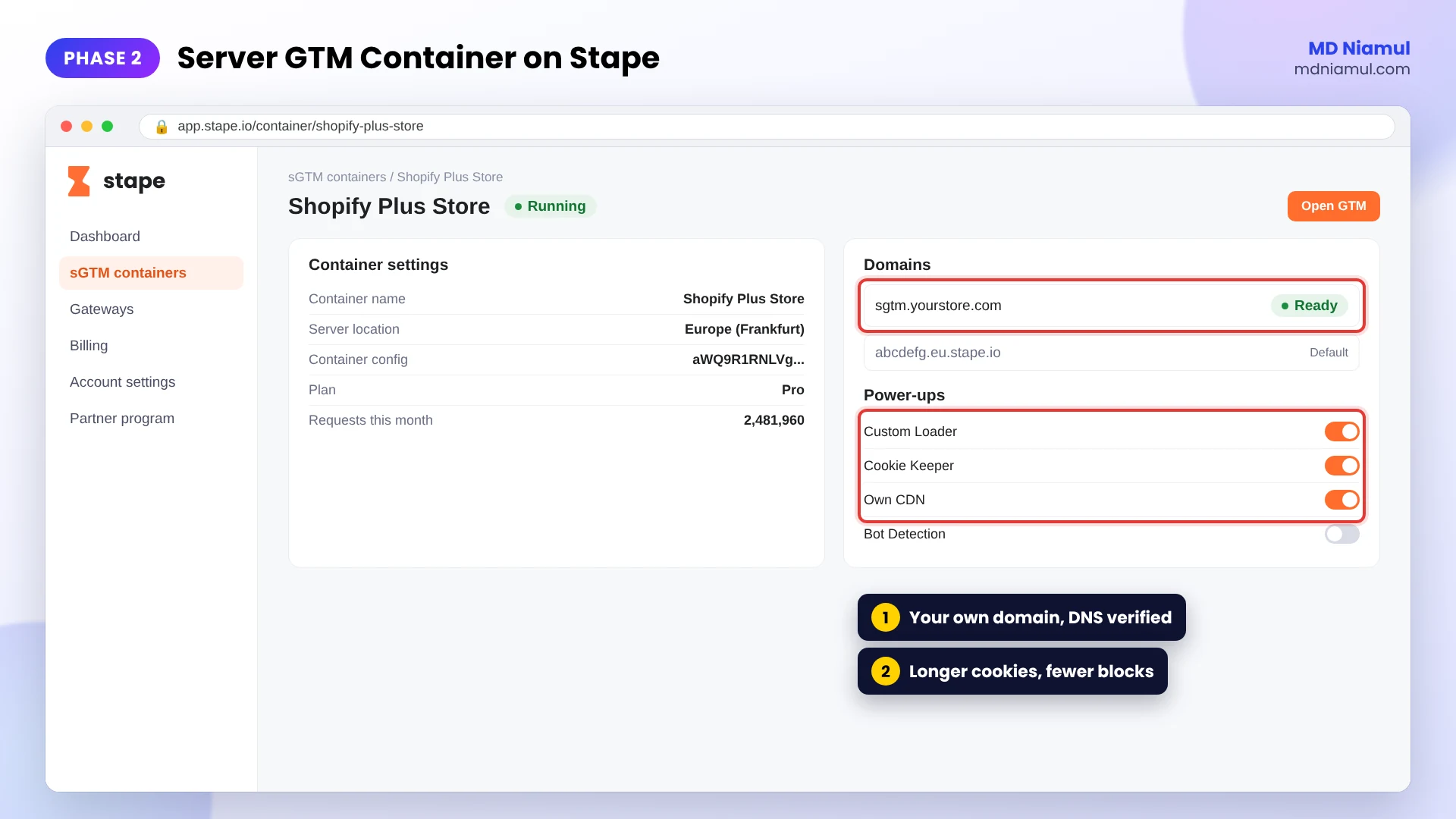
Step 2: Use your own domain
- Add a custom domain such as
sgtm.yourstore.comand add the DNS records Stape shows you. - For the strongest cookie lifetime in Safari, use a same-origin setup, where the server answers on a path of your store domain, or Stape’s Own CDN option. A subdomain on a different IP range still gets a 7-day cookie limit in Safari.
Step 3: Connect Shopify
- Install the Stape Conversion Tracking app from the Shopify App Store.
- Add your Web GTM container ID and your tagging server URL in the app.
- Turn on the data layer events and the purchase and refund webhooks. The webhooks send orders from Shopify’s server, so a purchase still arrives when the browser event is blocked.
If you want the detailed version of this build with code, read my Shopify Plus server-side tracking solution.
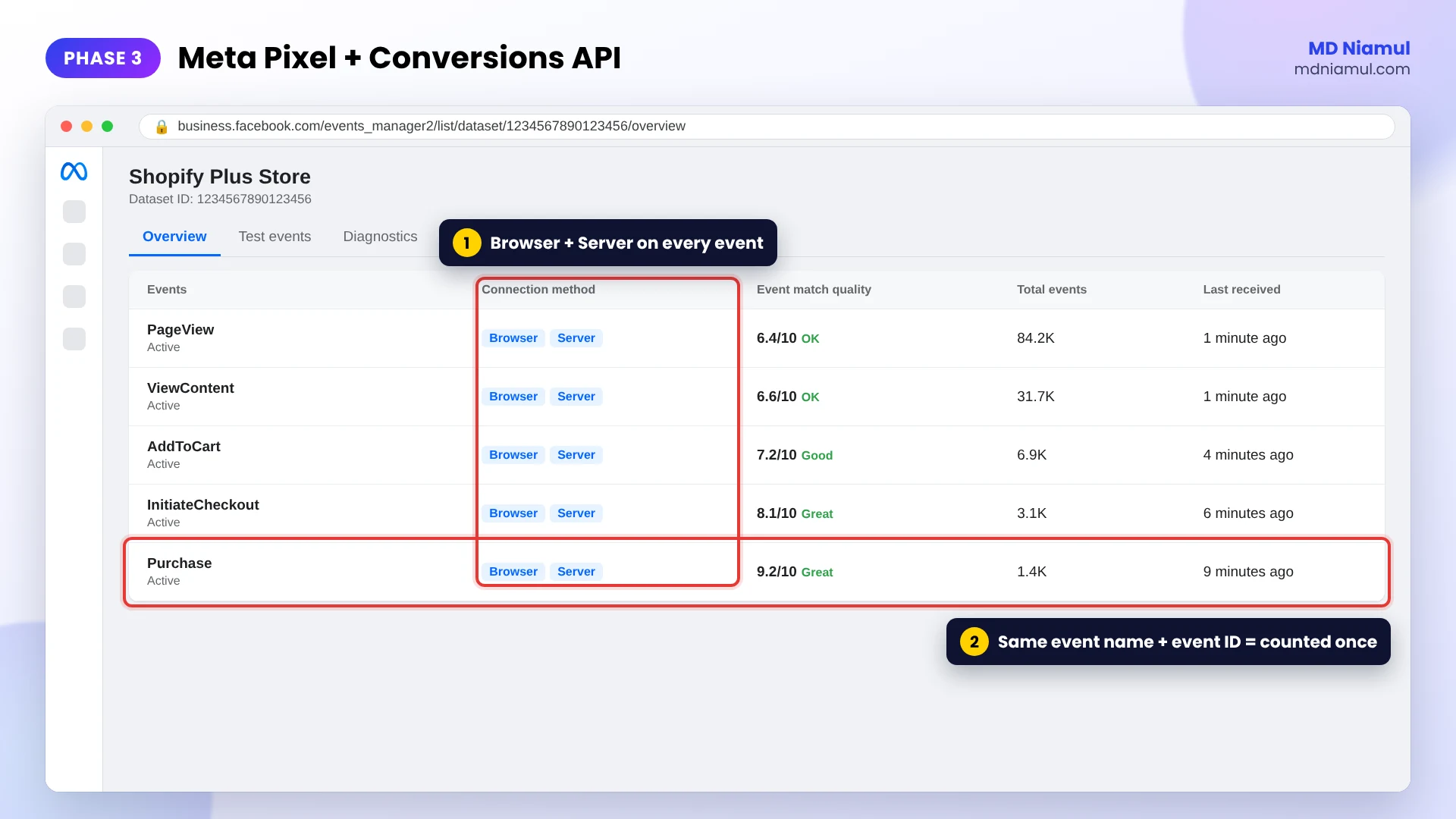
Phase 3: Connect Meta Pixel and Conversions API
Meta should receive each event twice, once from the browser and once from your server, and keep only one.
- In Meta Events Manager, open your dataset, go to Settings, and generate a Conversions API access token.
- In the Server container, add the Meta Conversions API tag from the template gallery. Enter the pixel ID and the token.
- Map the event ID from the incoming web event. In the Web container, send the same value as the pixel’s
eventID. - Send hashed email and phone, plus
fbp,fbc, IP address and user agent, to raise Event Match Quality. - Open the Test events tab, walk the funnel, and confirm each event shows as received from the browser and the server.
The rule: Meta keeps one event when both copies have the same event name and the same event ID, go to the same dataset, and arrive within 48 hours. If you already use the Shopify Facebook & Instagram app to send events, choose that or Server GTM as the source, not both.
For the full audit method, see my Shopify Meta Pixel and Conversions API audit guide.
Phase 4: Connect Google Ads with Enhanced Conversions
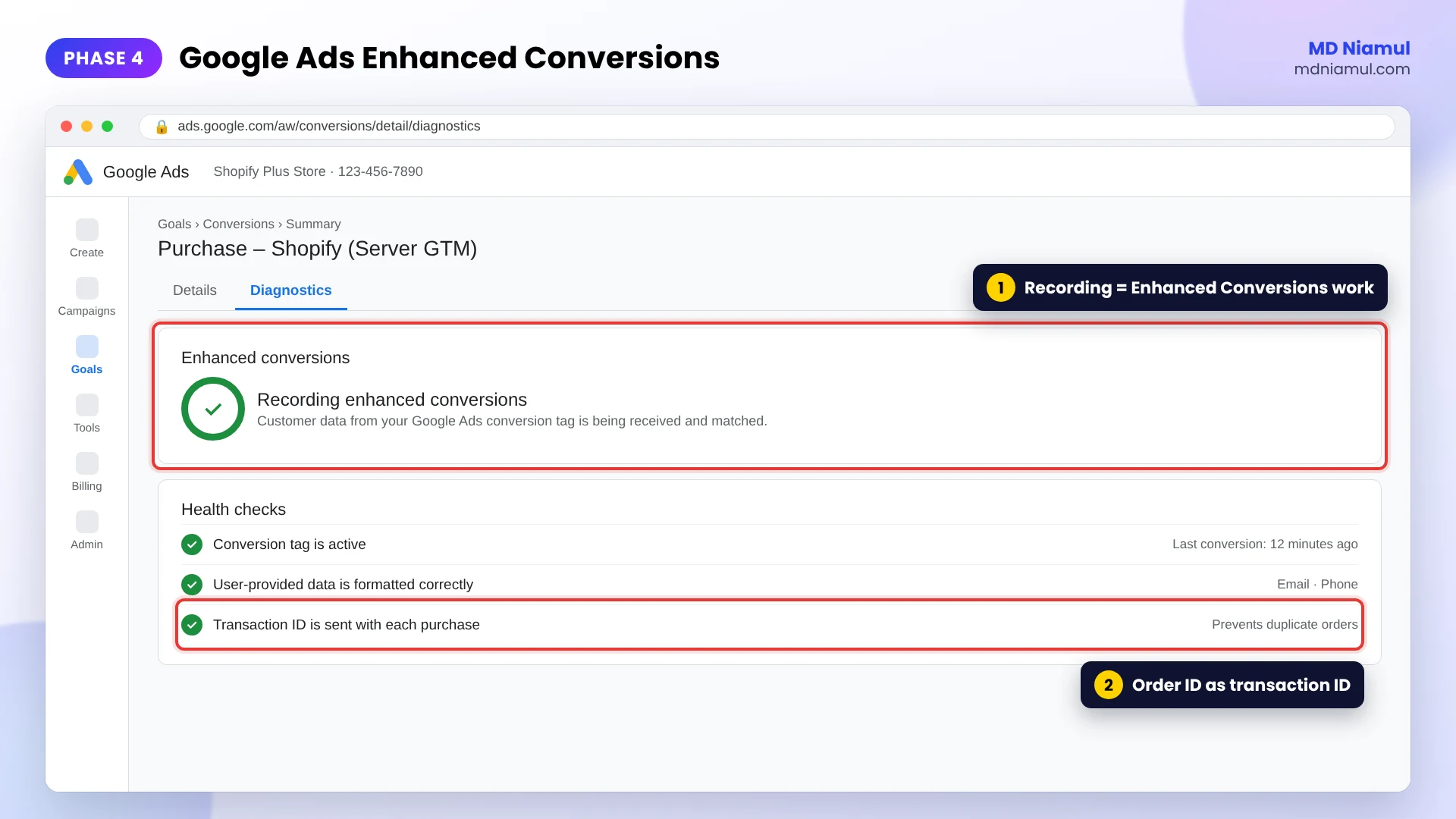
- In Google Ads, open Goals → Conversions and create or open your Purchase conversion action. Note the conversion ID and conversion label.
- In the Server container, add a Conversion Linker tag that fires on all events, so the click ID from the ad is stored.
- Add a Google Ads Conversion Tracking tag that fires on the purchase event. Map value, currency and the transaction ID from the Shopify order.
- Turn on Enhanced Conversions in the conversion settings, and pass the customer’s email and phone with the purchase event so Google can hash and match them.
- After a few days of orders, open the conversion action’s Diagnostics to confirm Enhanced Conversions is recording.
The transaction ID is what stops Google Ads from counting one order twice. If the Google & YouTube app also reports purchases to the same conversion action, decide which one stays.
Phase 5: Connect TikTok Pixel and Events API
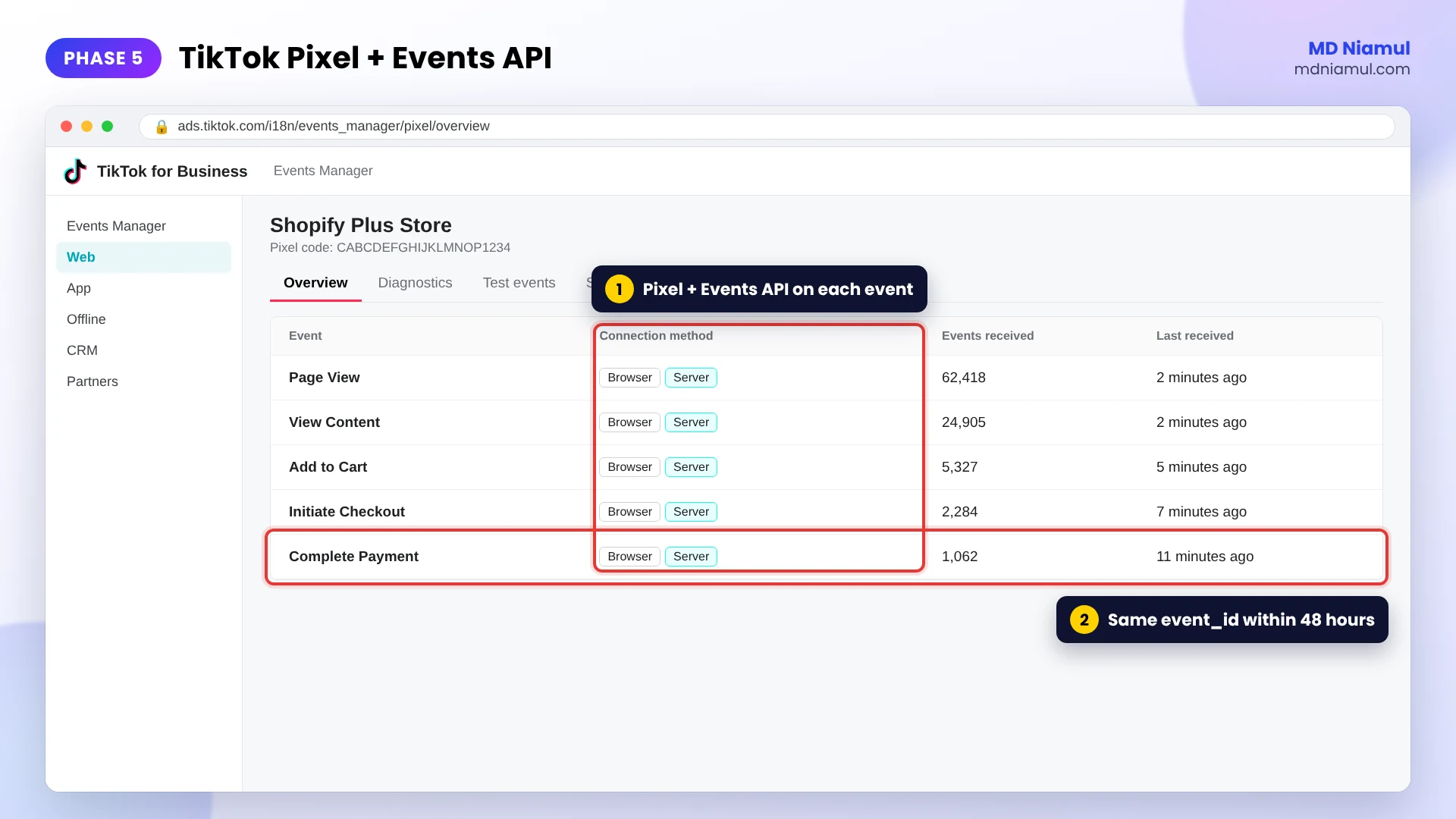
- In TikTok Events Manager, open your pixel and generate an access token for the Events API.
- In the Server container, add the TikTok Events API tag from the template gallery with the pixel code and token.
- Send the same
event_idfrom the browser pixel and the server tag for each event. - Pass hashed email and phone, and the
ttclidclick ID when the visitor came from a TikTok ad. - Check the pixel’s overview in Events Manager. Each event should show both browser and server as connection methods.
TikTok merges the two copies when they share the same event and event_id and arrive within a 48-hour window.
For a deeper build, see my TikTok Pixel and Events API specialist page.
Phase 6: Send Klaviyo Events from the Server
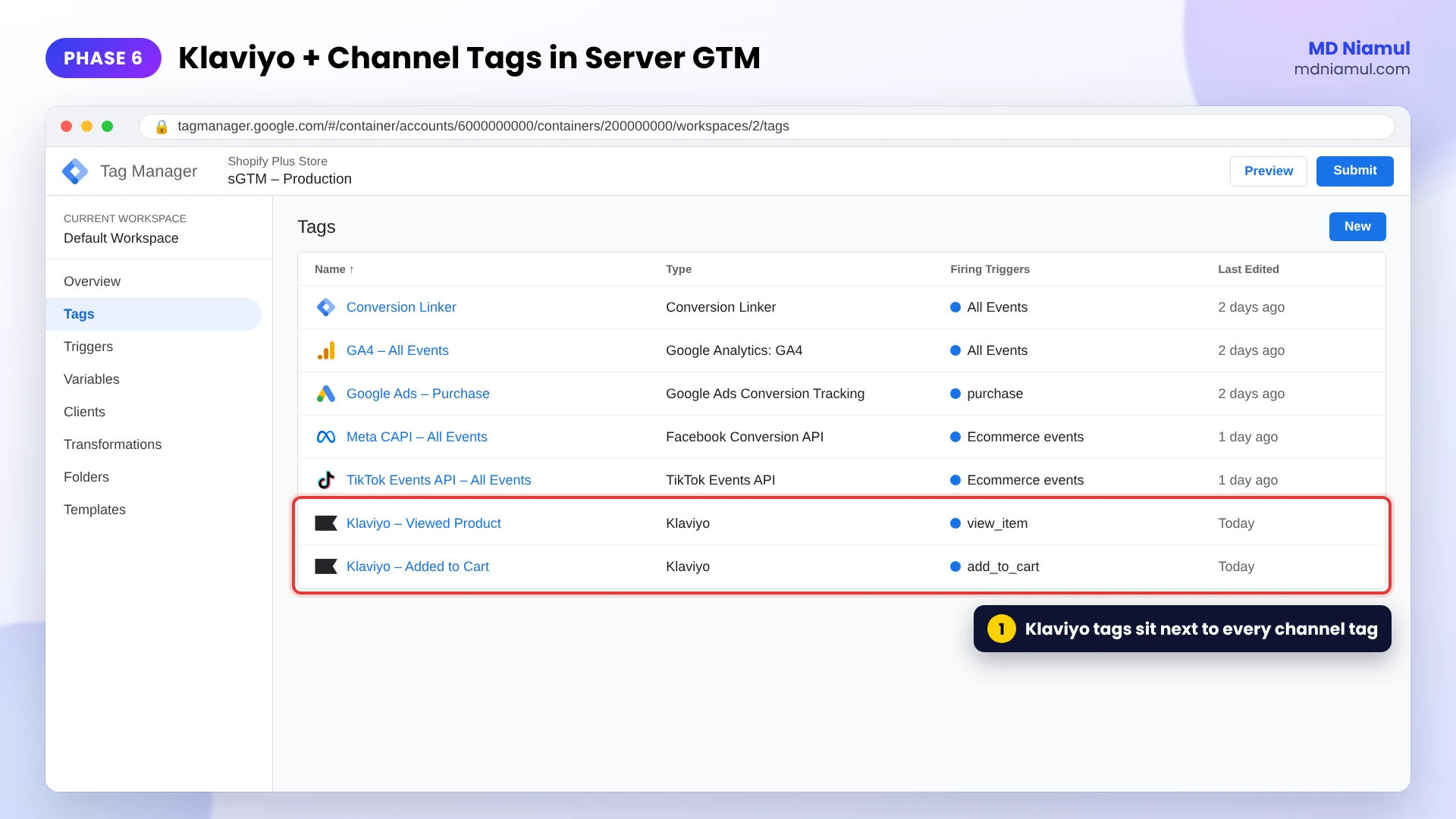
Klaviyo’s own Shopify integration already syncs customers and orders. Keep it. Server GTM adds what the browser can lose, such as product views and identified visitors, so your flows trigger for more people.
- In Klaviyo, create a private API key with access to events and profiles.
- In the Server container, add the Klaviyo tag from the template gallery.
- Fire it on events such as
view_itemandadd_to_cart, and pass the visitor’s email when it is known. - Do not send a second order event under a new name if the native integration already sends Placed Order. Two order metrics split your flow and revenue reports.
Phase 7: Add Microsoft Clarity and Hotjar the Right Way
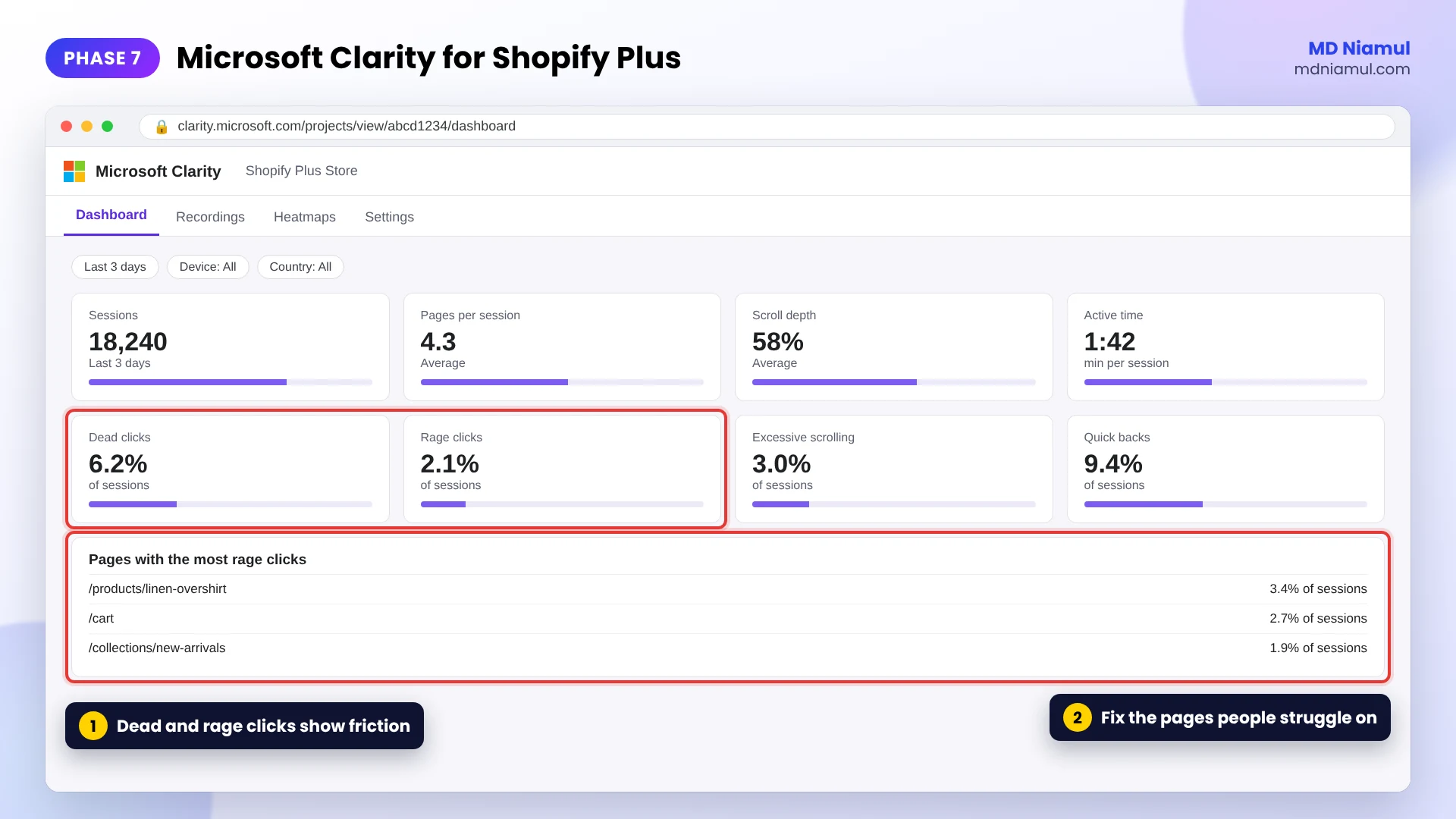
Behavior tools show you what the numbers cannot: where visitors click, scroll, hesitate and leave. Microsoft Clarity shows dead clicks, rage clicks and session recordings. Hotjar gives heatmaps, recordings and surveys.
These tools record the page itself, so they always run in the browser. Server-side tracking does not apply to them. What matters is consent. Since October 31, 2025, Clarity needs a consent signal for visitors from the EEA, the UK and Switzerland. Without it, Clarity runs in a limited mode without cookies.
- Add Clarity with its Shopify app or through your Web GTM container.
- Add the code below after the Clarity code. It reads the visitor’s choice from Shopify’s cookie banner and passes it to Clarity.
- Check the Clarity dashboard the next day for recordings and the dead click and rage click counts.
// Microsoft Clarity consent for Shopify (add it after the Clarity tracking code)
// It passes the visitor's choice from Shopify's cookie banner to Clarity.
function sendClarityConsent(analytics, ads) {
  if (typeof window.clarity !== 'function') return;
  window.clarity('consentv2', {
    ad_Storage: ads ? 'granted' : 'denied',
    analytics_Storage: analytics ? 'granted' : 'denied'
  });
}

// 1. On page load: read the choice the visitor already made
window.Shopify.loadFeatures(
  [{ name: 'consent-tracking-api', version: '0.1' }],
  function (error) {
    if (error) return;
    var privacy = window.Shopify.customerPrivacy;
    sendClarityConsent(privacy.analyticsProcessingAllowed(), privacy.marketingAllowed());
  }
);

// 2. When the visitor makes or changes a choice in the banner
document.addEventListener('visitorConsentCollected', function (event) {
  sendClarityConsent(event.detail.analyticsAllowed, event.detail.marketingAllowed);
});
This code covers your storefront pages, where the theme runs. Checkout pages on Shopify Plus use Checkout Extensibility, so theme scripts do not run there.
Phase 8: QA, Documentation and Handover
A setup that nobody checks drifts within months. New apps add pixels, a theme update removes a tag, or a token expires. This phase stops that.
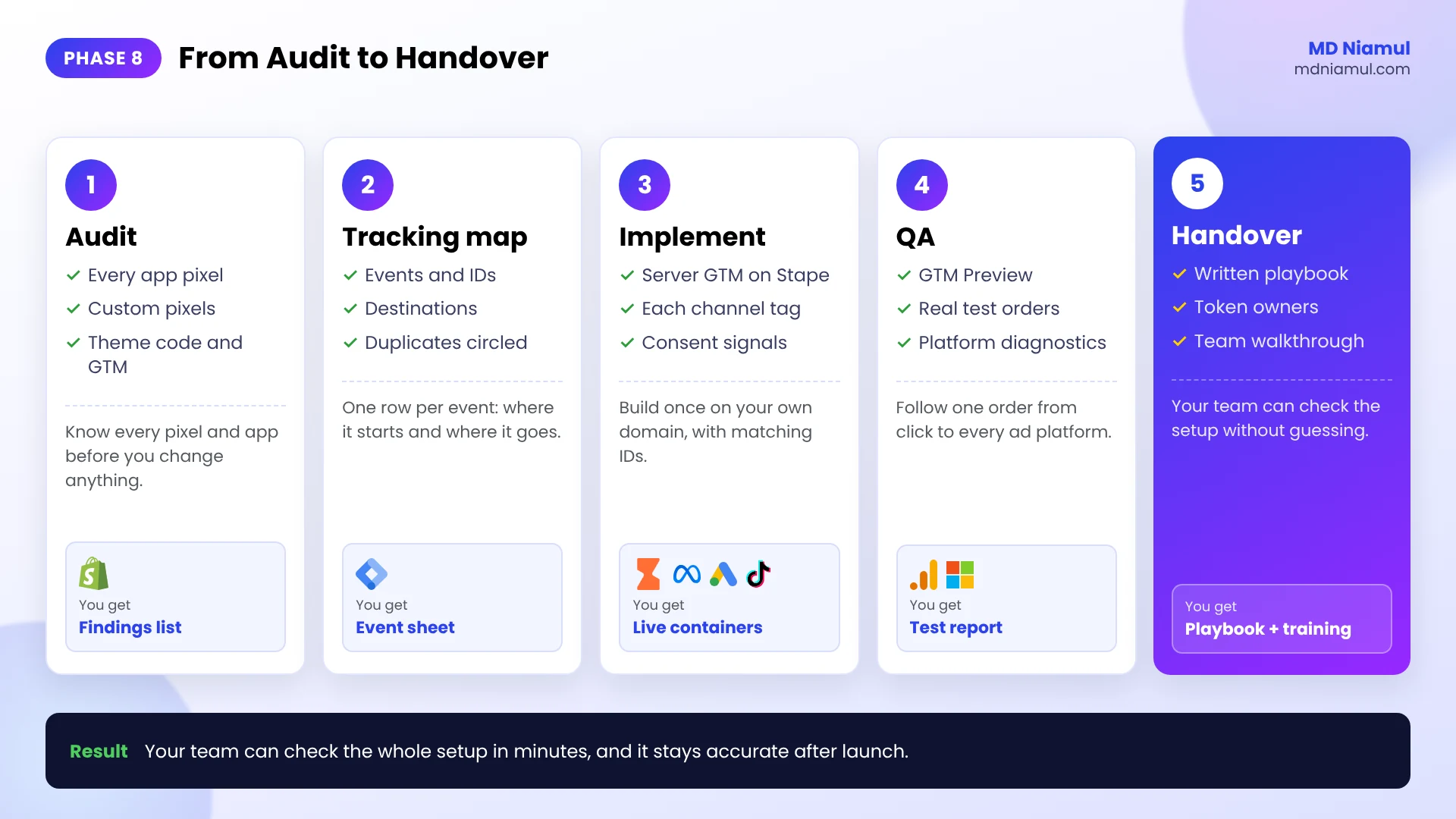
- Preview both containers. Use GTM Preview on the Web and Server containers and follow one visitor from page view to purchase.
- Place real test orders. Compare the order ID, value and currency in Shopify, GA4, Meta, Google Ads and TikTok.
- Check each platform’s diagnostics. Meta Events Manager, Google Ads Diagnostics and TikTok Events Manager all show warnings.
- Write the tracking playbook. Record the final map, every tag and trigger, the tokens and who owns them, and the test steps.
- Hand over and train. Show the team where to look when numbers change, so they can check the setup in minutes.
The Full Data Flow at a Glance
| # | What happens | Where |
|---|---|---|
| 1 | A visitor arrives from an ad and browses the store | Shopify Plus storefront |
| 2 | Each action creates an event with one ID, sent to the browser pixels | Web GTM and Shopify customer events |
| 3 | The same event goes to your tagging server on your own domain | Server GTM on Stape |
| 4 | Orders also arrive from Shopify’s server through webhooks | Stape Conversion Tracking app |
| 5 | The server sends each event to every platform through its API | Meta, Google Ads, TikTok, GA4, Klaviyo |
| 6 | Each platform matches the browser and server copies and keeps one | Each ad platform |
| 7 | Bidding and audiences learn from fuller, cleaner data | Your ad accounts |
Testing & Validation Workflow
- GTM Preview. Every event in the Web container should reach the Server container with the same event ID.
- Meta Test events. Each action should show browser and server, deduplicated.
- Google Ads. Check the conversion action’s status and Enhanced Conversions diagnostics after a few days.
- TikTok Events Manager. Confirm browser and server connection methods for each event.
- GA4 DebugView. Confirm purchase with the right transaction ID, value and items.
- Klaviyo activity feed. Open a test profile and confirm the server events appear once.
- Clarity. Accept and reject the banner in two sessions and confirm Clarity follows the choice.
- Weekly check. For the first month, compare Shopify orders with each platform’s reported purchases every week.
Troubleshooting Common Mistakes
Mistake 1: Purchases are counted twice on one platform
The Problem: Meta, TikTok or Google Ads reports more purchases than Shopify.
The Cause: two setups send Purchase, or the browser and server copies use different IDs.
The Solution: keep one source per platform from your tracking map, and read the event ID and transaction ID from one variable.
Mistake 2: No purchases arrive after the checkout upgrade
The Problem: page views and add-to-carts arrive, but purchases dropped to almost zero.
The Cause: the purchase pixel lived in additional scripts, which no longer run.
The Solution: send purchases from Shopify customer events and the server webhook instead.
Mistake 3: Server events arrive, but the cookie IDs are missing
The Problem: match quality stays low and returning buyers look new.
The Cause: the server does not receive _fbp, _fbc or the Google click ID, often because the tagging server is on a different domain.
The Solution: use your own domain or same-origin setup, and fire the Conversion Linker on all events.
Mistake 4: Klaviyo shows two order metrics
The Problem: flows trigger twice, or revenue is split across two metrics.
The Cause: the server tag sends an order event that the native integration already sends.
The Solution: remove the order event from the server tag and keep the native Placed Order.
Mistake 5: Clarity shows very few recordings from Europe
The Problem: recordings from EEA and UK visitors look short or broken into single pages.
The Cause: Clarity receives no consent signal, so it runs without cookies.
The Solution: add the consent code from Phase 7 and test it with the banner accepted and rejected.
What to Set Up Next
- Check your consent first. Follow installing Google Consent Mode v2 on Shopify via GTM, then test it with the free Consent Mode checker.
- Fix GA4 and Google Ads attribution. Read how to fix marketing attribution from Shopify in GA4 and Google Ads.
- Estimate what you are losing. Try the free tracking loss calculator.
- Plan your events. Use the free measurement plan generator to write your tracking map.
If you would like this built for your store, see my Shopify server-side tracking service or my work as an attribution and server-side tracking specialist.
Conclusion
A Shopify Plus store does not lose sales to tracking problems. It loses the record of those sales, and every ad platform then learns from an incomplete picture.
Your next three moves are clear. First, map every event and remove duplicate sources. Second, build one server container on your own domain and connect each channel with matching IDs. Third, test every platform and write the playbook.
Accurate data is not a report you look at once. It is the fuel your bidding uses every day.
Summary by MD Niamul
Shopify Plus marketing attribution suffers when ad platforms rely only on browser pixels, which lose events to ad blockers, Safari’s cookie limits and declined consent. Additional scripts on the Thank you and Order status pages also stopped running on August 28, 2025, so older purchase pixels no longer fire. The fix is a server-side stack: a tracking map of every event, a Server-Side Google Tag Manager container hosted on Stape on the store’s own domain, and the Stape Conversion Tracking app with purchase and refund webhooks. The server sends events to Meta Conversions API, Google Ads with Enhanced Conversions, TikTok Events API, GA4 and Klaviyo, with matching event IDs or transaction IDs to prevent double counting. Microsoft Clarity and Hotjar stay in the browser with correct consent signals, and QA plus a written playbook keep the setup accurate.
Frequently Asked Questions (FAQ)
1. What is Shopify Plus marketing attribution?
It is how you give each ad platform an accurate record of the visits, carts and orders its ads produced, so credit goes to the right channel. Shopify knows every order, but Meta, Google Ads and TikTok each keep their own record and can only credit what they receive. Good attribution makes sure each platform hears about each sale once. That record also trains the platform’s bidding, so its accuracy affects your costs, not only your reports.
2. Why do my ad platforms show fewer sales than Shopify?
Most often the browser pixel did not send the event. Ad blockers stop pixels from loading, Safari limits how long tracking cookies last, and visitors in consent regions may decline tracking. On Shopify Plus, purchase pixels placed in additional scripts on the Thank you and Order status pages also stopped running on August 28, 2025. A difference can also come from attribution windows, since each platform only credits sales within its own window.
3. What does server-side tracking change on Shopify Plus?
Your store sends each event to a tagging server on your own domain, which forwards it to each platform through its official API. Ad blockers do not stop that server request, and cookies set by your own server can last longer in Safari. Orders can also be sent from Shopify’s server through webhooks. You still keep the browser pixels, and each platform merges the two copies into one event using a shared ID.
4. Does server-side tracking get around cookie consent?
No, and it should not. Where the law requires consent, you only send personal data and use advertising cookies after the visitor agrees. Shopify holds back pixels in consent regions until permission is granted, and your server tags should follow the same consent state. Server-side tracking makes the data you are allowed to collect arrive reliably. It is not a way to track people who said no. Confirm your own obligations with a privacy professional.
5. How do I stop purchases being counted twice?
Give the browser event and the server event the same identifier. Meta needs the same event name and event ID within 48 hours. TikTok needs the same event and event_id within 48 hours. Google Ads and GA4 use the transaction ID, which should be your Shopify order ID. Also make sure only one setup sends each event, for example the Shopify app or Server GTM, not both.
6. Do I need the Stape Conversion Tracking app?
It is the easiest way to connect a Shopify store to a Stape-hosted server container. The app adds your Web GTM container to the store, creates data layer events for store and checkout activity, and sends purchase and refund webhooks to the server container. The webhooks matter because they come from Shopify’s server, so an order is still reported when the browser event is blocked. A custom build is possible but takes more work to maintain.
7. Can Klaviyo be tracked server-side on Shopify?
Yes, partly. Klaviyo’s native Shopify integration already syncs customers and orders from Shopify’s side, so keep it running. A Klaviyo tag in Server GTM can add events the browser may lose, such as product views and add-to-carts, and create or update profiles when an email is known. Avoid sending a second order event under a new name, because two order metrics split your flow triggers and revenue reports.
8. Can Microsoft Clarity or Hotjar run server-side?
No. Clarity and Hotjar record what happens on the page, such as clicks, scrolls and mouse movement, so they must run in the visitor’s browser. What you need instead is correct consent handling. Since October 31, 2025, Clarity requires a consent signal for visitors from the EEA, the UK and Switzerland. Without it, Clarity runs without cookies and cannot connect page views into full sessions.
9. How long does the setup take to show results?
The events start arriving as soon as you publish, and you can check them the same day in each platform’s test tools. Diagnostics such as Google Ads Enhanced Conversions usually need a few days of real orders. Bidding improvements take longer, often a few weeks, because the platforms need enough new conversions to learn from. Audiences grow forward from the fix and do not refill past months.
10. What should a Shopify Plus tracking handover include?
A good handover includes the tracking map of every event and destination, a list of all tags, triggers and variables in both containers, where each access token lives and who owns it, and the test steps for each platform. It should also explain how to read the reports and what to check when numbers change. With that document, your team can confirm the setup is healthy in a few minutes instead of guessing.
 Need Help Advanced GHL Automation & Tracking Setup?